Free • No signup Add Object · Free

Add Object to Picture

← Browse all add & replace tools

Last updated

Add any object to a picture with AI — upload your main scene picture and a reference photo of the object, then describe where it should go.
01Photo 1
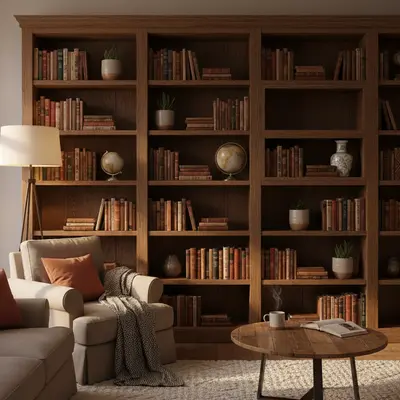
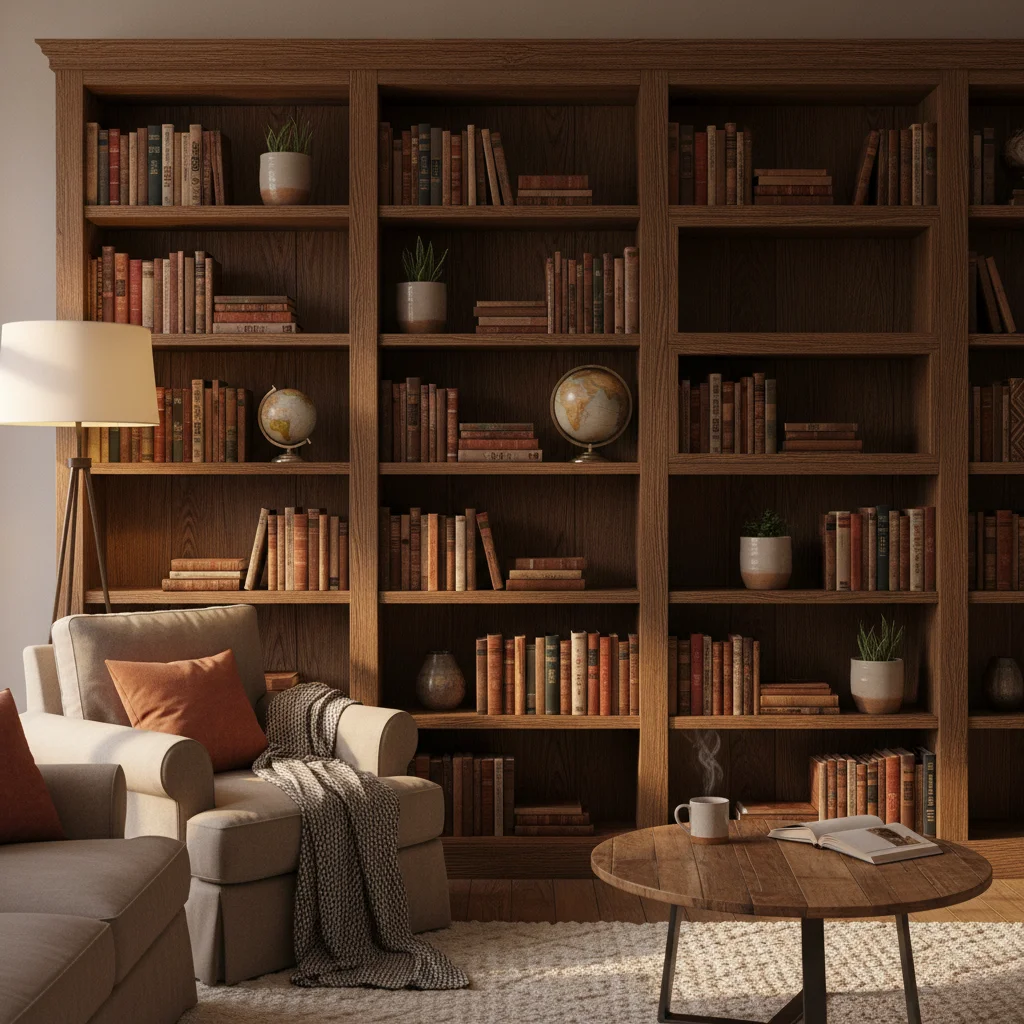
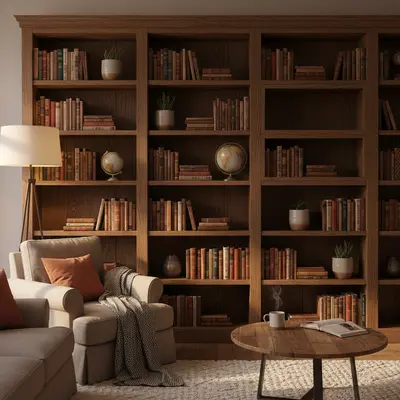
Living room shelf with a clear empty section on the right
02Photo 2
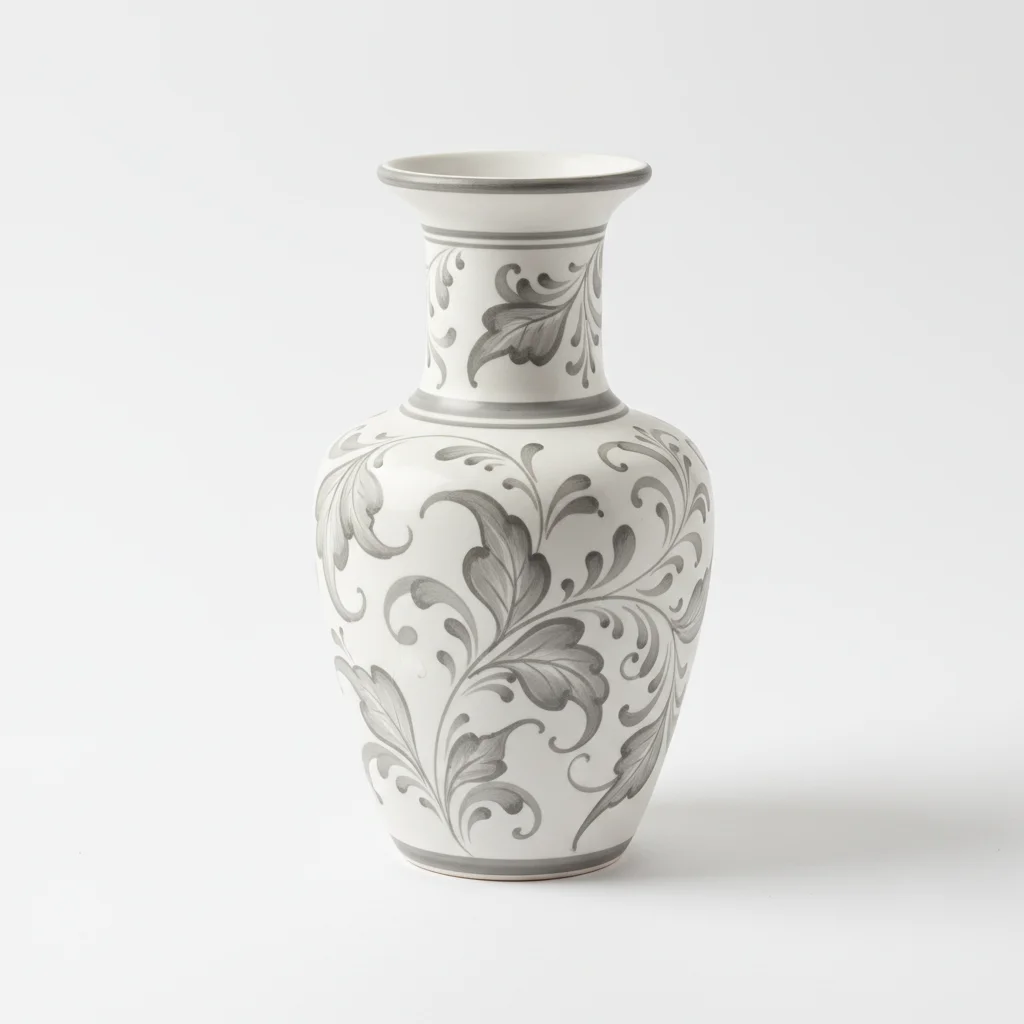
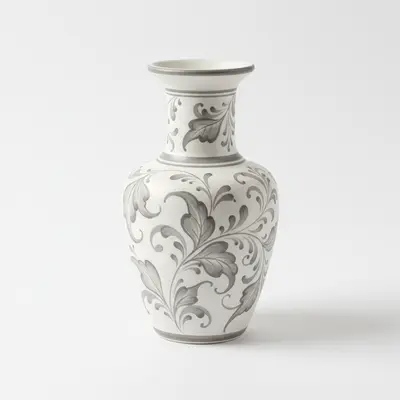
Reference image for Add Object to Picture
03Result
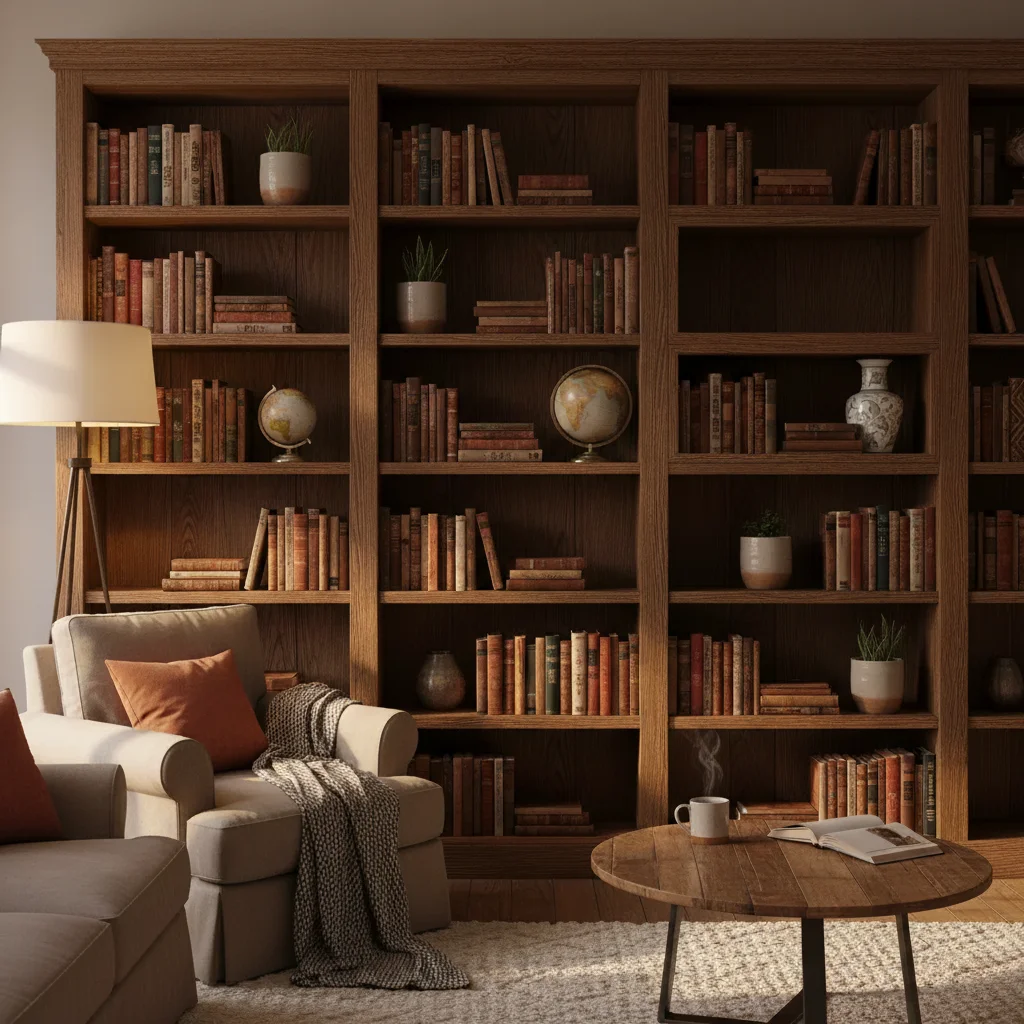
Same shelf with a ceramic vase naturally added to the empty section

Upload photo to add object

"add this product into the foreground of the picture, naturally placed as if it belongs in the scene, with lighting matching the soft natural light from the window"

Release to upload

1 free edit·then from $4.99

Popular use cases:
  • add object to picture online
  • add item to picture free
  • AI picture editing
  • add prop to picture
  • add product to picture
  • add decoration to picture
  • add accessory to picture
  • picture compositing tool

1Your photo
+
2Reference
=
Result
Styled living room with an empty shelf area Your picture
Decorative ceramic vase on a neutral background Reference object
Room picture with the vase naturally placed on the shelf Result

"Add this vase to the shelf on the right, matching the warm ambient light"

Cost
Free No signup required
Time
Instant results in 15-30 seconds
Works on
Any device - browser, phone, tablet, desktop
Powered by
AI-powered photo editing

How it works

  1. Upload your two photos

    Drop your main picture into EditThisPic — this is the scene you want to add the object to. Then click '+ Add reference photo' to upload a photo of the specific object. Both photos are now loaded and the AI can use the reference to extract the exact object you want added. JPG, PNG, or WebP up to 7MB each.

    Expect: Scene + reference are ready within seconds. The AI reads the reference for the object's exact shape and color.
  2. Tell the AI where to add the object

    Describe the target spot and any surface or lighting details: 'add this vase to the left side of the wooden shelf, matching the warm yellow light.' The more specific you are about where it goes and what surrounds it, the better the first result.

    Tip: Naming the surface type — 'on the wooden shelf,' 'on the marble countertop,' 'on the grass' — helps the AI generate the right contact shadow automatically.

    Copy one of these to get started:

    Add decorative object to shelf or surface add this object to the [left/right] side of the shelf, at a natural scale for the space, with a soft shadow matching the warm ambient lighting
    Add product to lifestyle picture for social media add this product into the foreground of the picture, naturally placed as if it belongs in the scene, with lighting matching the soft natural light from the window
    Add gift or seasonal item to holiday picture add this gift box to the foreground near the tree, wrapped in matching colors, with soft warm holiday lighting casting a gentle shadow to the right
    Add food or drink item to table picture add this food item to the empty space on the right of the plate arrangement, with overhead food-photography lighting and a soft surface shadow
    2 more prompts
    Add pet toy or accessory to pet picture add this toy to the ground in front of the pet, slightly to the right, with daylight shadows matching the ambient outdoor light in the picture
    Add book or prop to reading-nook picture add this book to the left side of the side table, face up, with a soft warm lamp-light shadow matching the cozy indoor lighting in the picture
  3. Review scale and lighting match

    Does the object look the right size for the picture's perspective? Is the light falling in the same direction as other objects? Does it have a ground shadow? These three things determine whether the composite looks natural or pasted-in.

  4. Refine until it looks right

    Add more detail to your prompt if the first result isn't right: 'the object should be slightly smaller, with the shadow falling to the right.' Or tap a marker on the exact target spot and regenerate for more precise placement.

    Tip: If lighting is the main issue, add: 'the light in this picture comes from [direction] — match that on the added object.'

See it in action

Living room shelf with a clear empty section on the right
Main Photo
Reference image for Add Object to Picture
Reference
Same shelf with a ceramic vase naturally added to the empty section
Result

Decorative vase added to living room shelf

Living room picture with empty shelf space — AI added a ceramic vase from a reference photo, matching the warm ambient light and generating a soft shadow where the vase meets the shelf surface.

Prompt: Add this ceramic vase from the reference photo to the empty section on the right side of the wooden shelf. Make it look natural, matching the room's warm lighting.
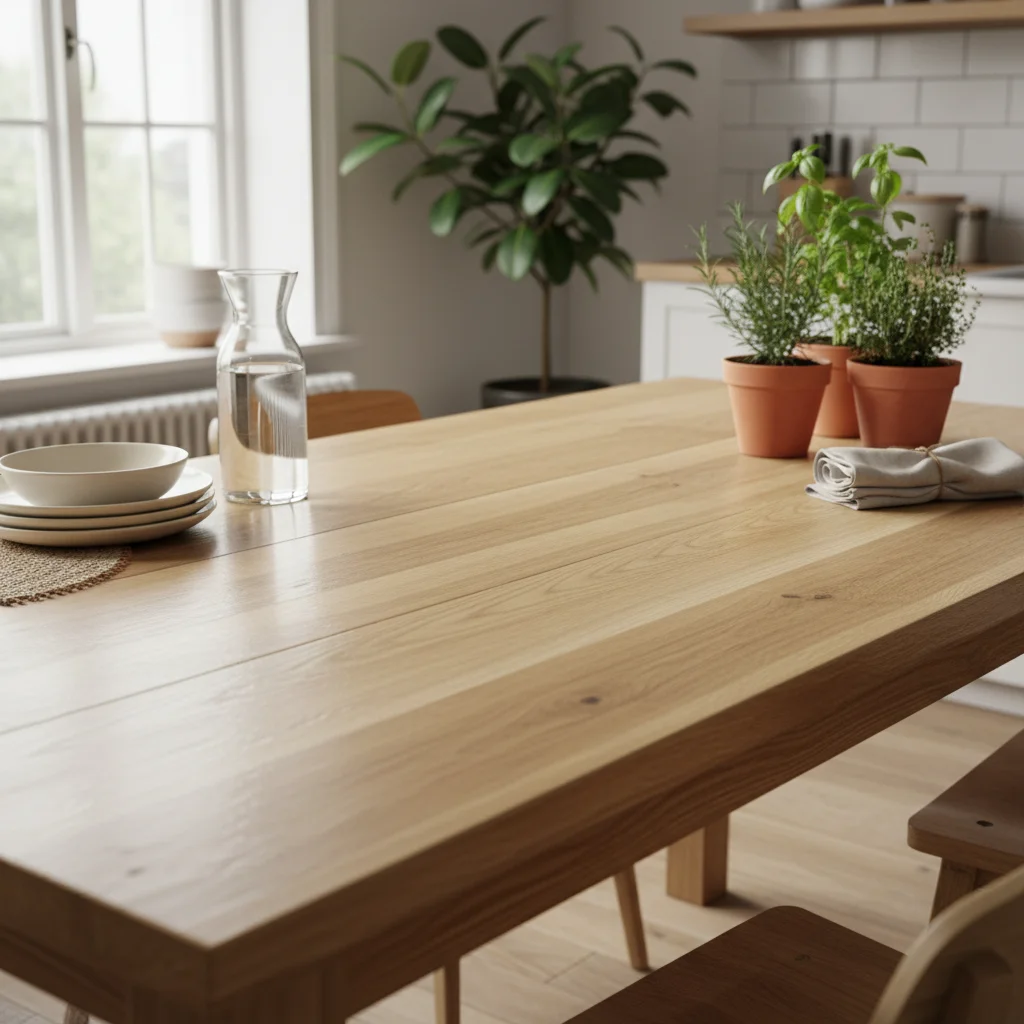
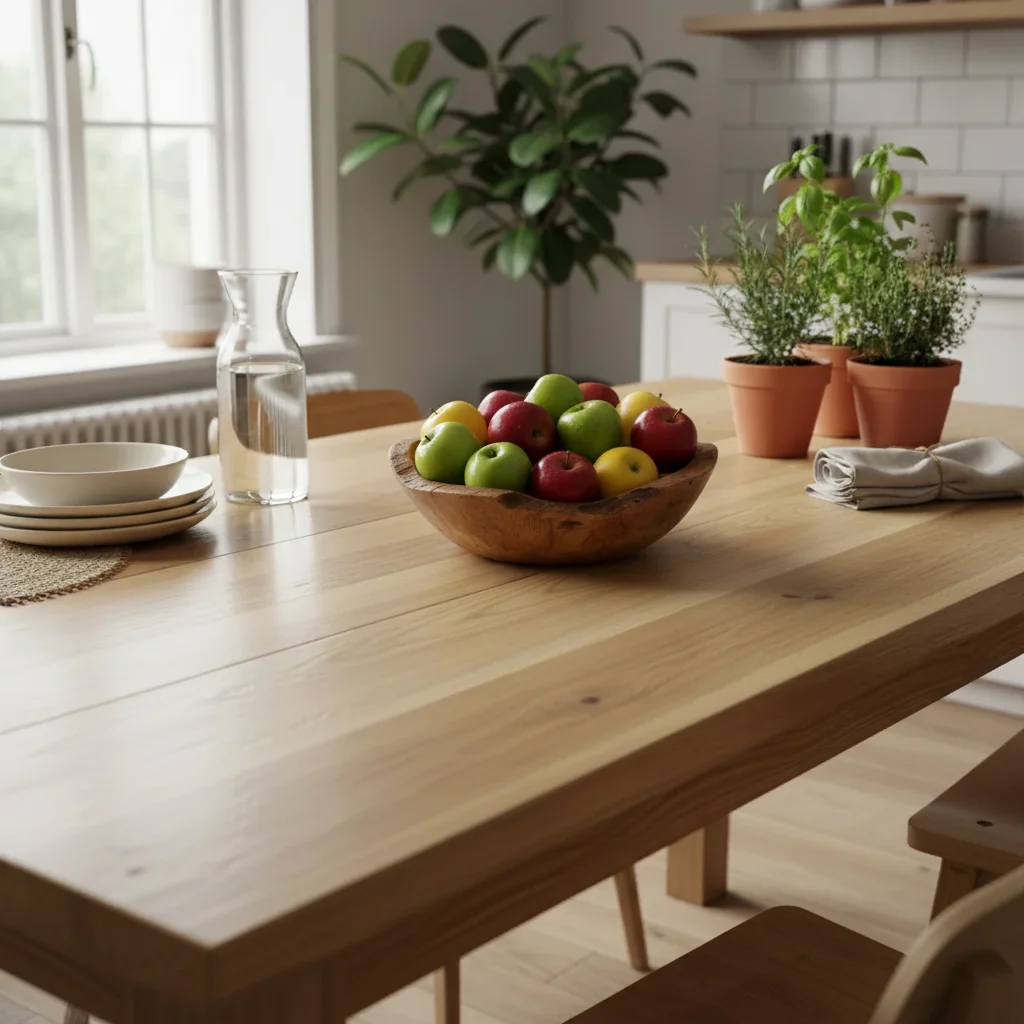
Kitchen table with empty center and natural window lighting
Main Photo
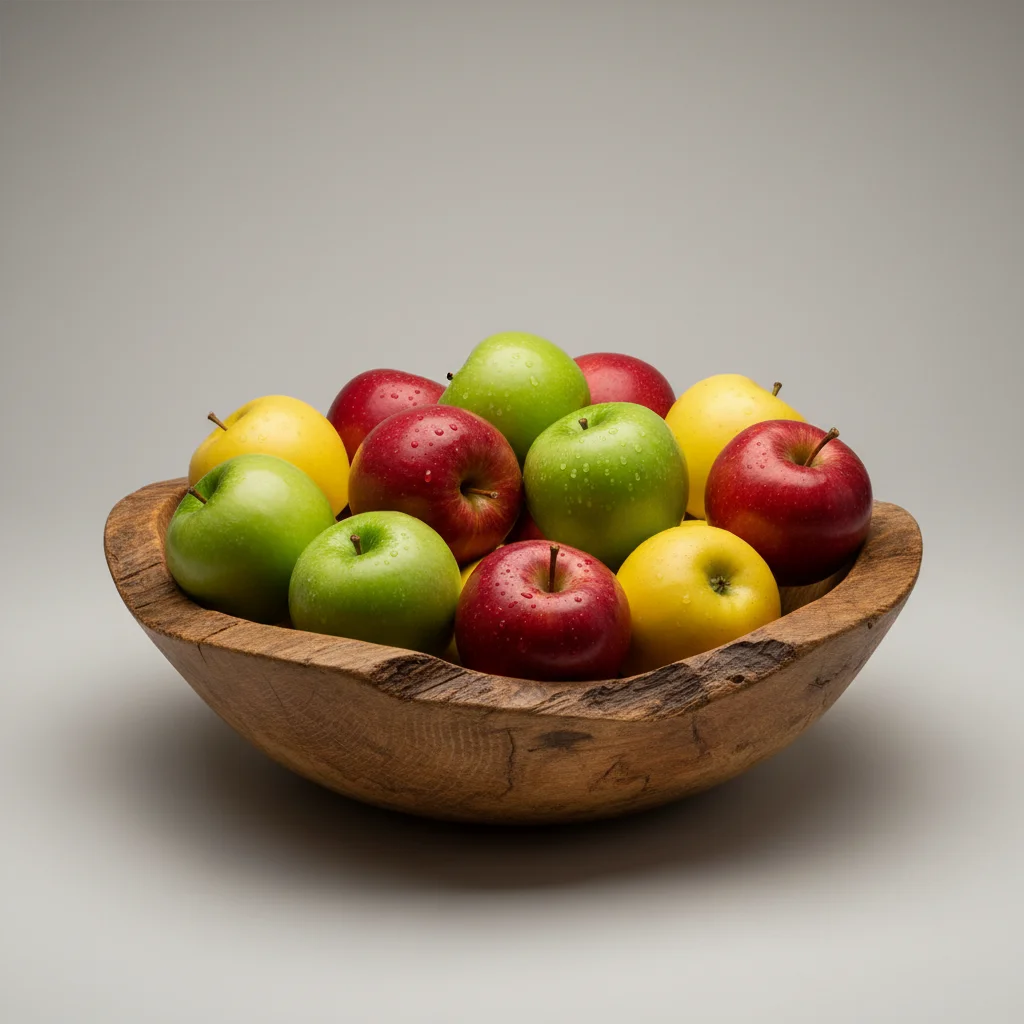
Reference image for Add Object to Picture
Reference
Same table with a bowl of apples naturally added to the center
Result

Fruit added to kitchen table picture

Styled kitchen table picture — AI added a bowl of apples from a reference photo to the center of the table, with overhead natural light matching the existing items in the picture.

Prompt: Place this bowl of apples from the reference photo in the empty center of the kitchen table, making sure the lighting and shadows look natural.
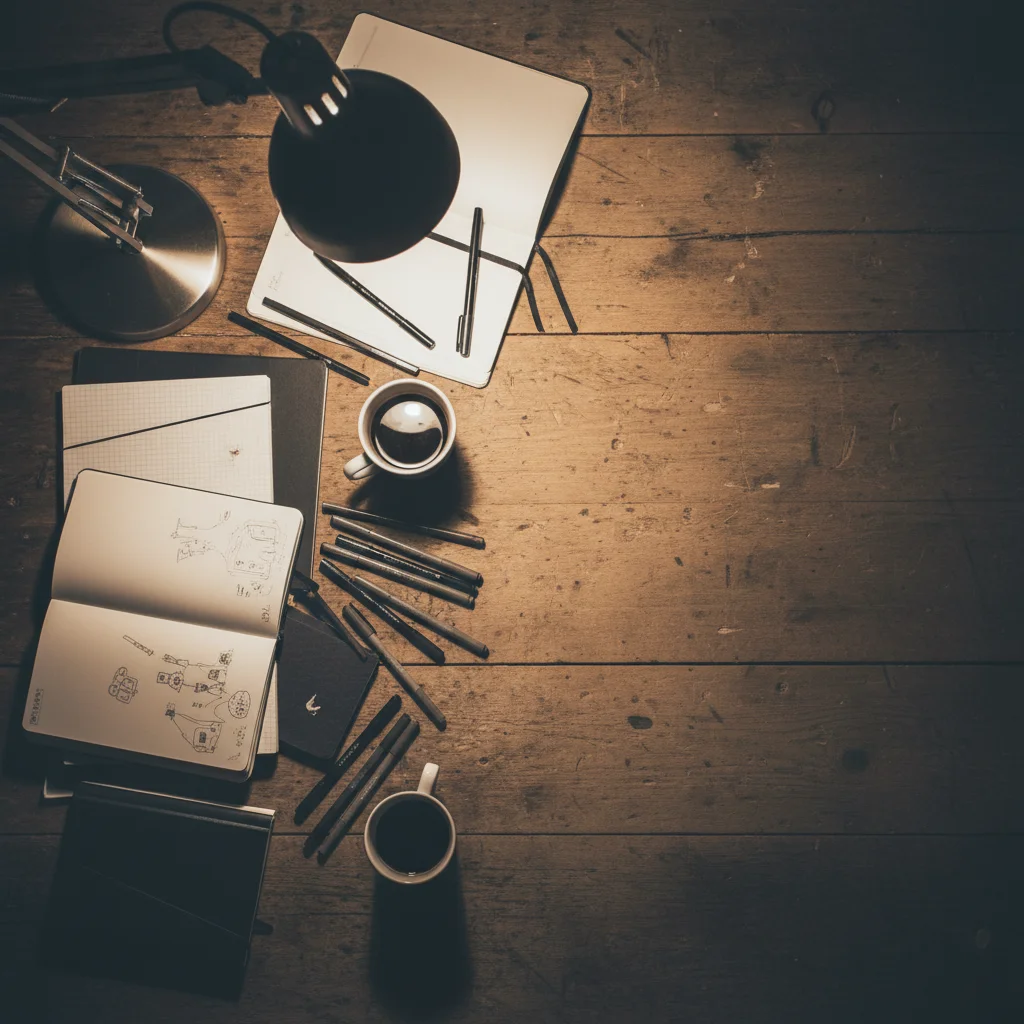
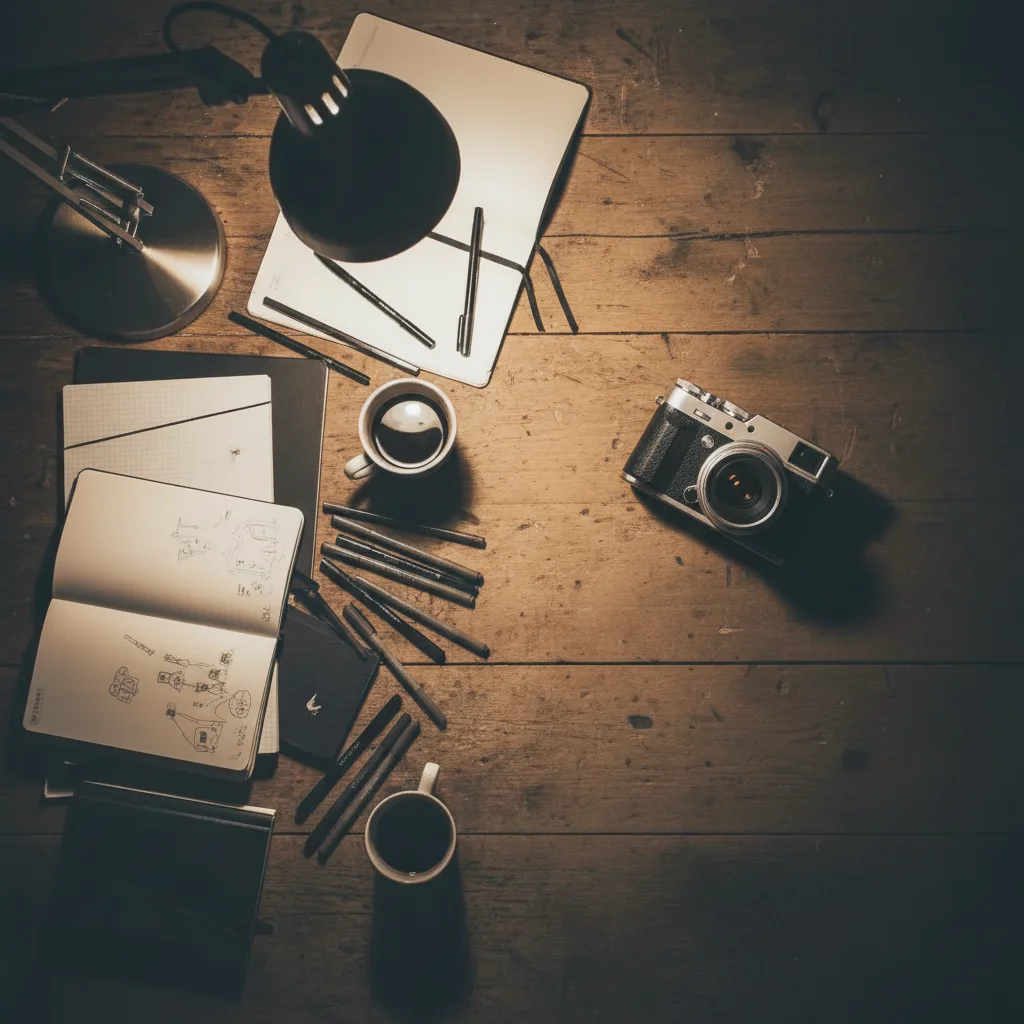
Creative workspace desk with empty right side and directional lamp light
Main Photo
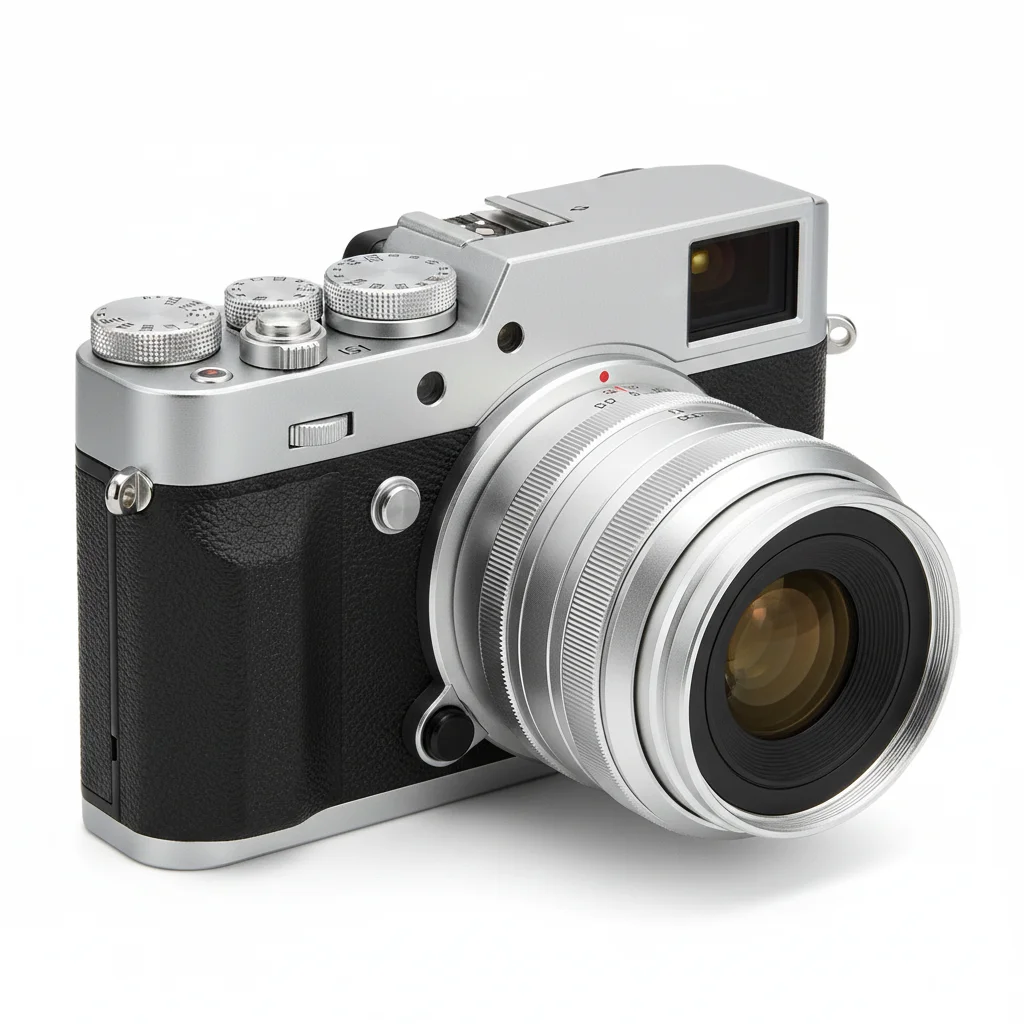
Reference image for Add Object to Picture
Reference
Same desk with a vintage camera naturally placed on the right
Result

Camera added to photographer's desk picture

Creative desk setup picture — AI composited a vintage camera from a reference photo into the workspace, matching the directional desk-lamp lighting and adding a cast shadow on the wooden surface.

Prompt: Add the camera from the reference photo to the right side of the desk, angled naturally as if just set down, with a directional shadow from the desk lamp on the left.

If something looks off

Object ends up in the wrong part of the picture

Why: Spatial descriptions can be ambiguous in complex scenes.

Try: Tap a marker on the exact target location and regenerate — markers give the AI a precise position anchor

Tip: Use markers as your first option for positioning, not a fallback

Object looks too large or small for the picture

Why: The AI misjudged the picture's perspective depth and generated the object at the wrong scale.

Try: add this object at a scale so it appears [roughly as tall/wide as] the [nearby item] in the picture

Tip: Referencing a known element in the picture gives the AI a concrete size anchor

Lighting doesn't match between object and picture

Why: The reference photo had different lighting conditions from the main picture.

Try: re-add this object with lighting direction from the [left/right/above] matching the main picture, with consistent shadow direction

Tip: Look at where existing shadows fall in the picture and state that direction explicitly

Object has no shadow and looks pasted on

Why: Shadow generation requires surface context in the prompt.

Try: add this object with a contact shadow on the [surface below it], grounding it realistically

Tip: Naming the surface type (wooden floor, marble counter, grass) ensures the AI generates the right shadow texture

AI changed wrong area

Why: Without a marker, the AI acted on the description but targeted the wrong part of the picture.

Try: Tap a marker on the exact spot, then regenerate with the same prompt

Tip: Markers beat description for placement accuracy every time

Quick answers

Do I need TWO photos to add an object to a picture?

Yes, for the best results. Upload your main scene picture first, then click '+ Add reference photo' to upload a photo of the specific object you want to add. This two-photo flow lets the AI composite the exact object you have in mind — not a generic version. If you don't have a reference photo, you can describe the object in the prompt and the AI will generate one, but the results are less precise.

How do I add an object to a picture online for free?

Upload your scene picture to EditThisPic, click '+ Add reference photo' for the object you want to add, then type where it should appear: 'add this vase to the right side of the shelf with a soft shadow.' The AI composites the object in about 30 seconds. No account or signup needed, and no watermark on the final picture.

Can I add any type of object to any picture?

Most solid objects work well: furniture, plants, food items, accessories, electronics, bottles, books, toys. Very small objects (jewelry, buttons) or highly transparent objects (glass filled with liquid) are harder but still work. The picture itself should have plausible space where the object can go — the AI can't squeeze an object into an already-packed scene without shifting other elements.

How many pictures can I edit for free?

EditThisPic gives you one free edit per week — no signup required. If you need more edits, you can buy a credit pack (starting at $4.99 for 10 edits) or subscribe for monthly credits. Each object-addition counts as one edit.

Can I add an object to a picture on my phone?

Yes. EditThisPic works in any mobile browser — no app download needed. Tap the upload area to select from your camera roll, tap '+ Add reference photo' for the object reference, then type your prompt. The editing interface adapts to mobile screens and works the same as on desktop.

Will adding an object change the rest of my picture?

No. The AI adds the new object while preserving the rest of the picture. Your existing subjects, backgrounds, and colors remain unchanged. If the AI accidentally modifies something you didn't want changed, tap a marker on the exact spot the object should go and regenerate — markers give the AI a specific target that prevents unwanted changes elsewhere.

How much does EditThisPic cost?

You get 1 free edit per week — no account needed. After that, credit packs start at $1.99 for 3 edits. Monthly plans start at $4.99/mo for 15 edits with unused credits rolling over. All edits are full resolution with no watermark.

Ready to add an object to your picture?

Upload your scene + reference photo. Free, no account needed.

1 free edit included·Credit packs from $4.99