Free • No signup Edit Webinar thumbnail · Free

AI Thumbnail Editor for Webinars

← Browse all creative effects

Last updated

Fix speaker headshots, swap distracting backgrounds, polish promotional images — describe what needs changing and AI handles it.


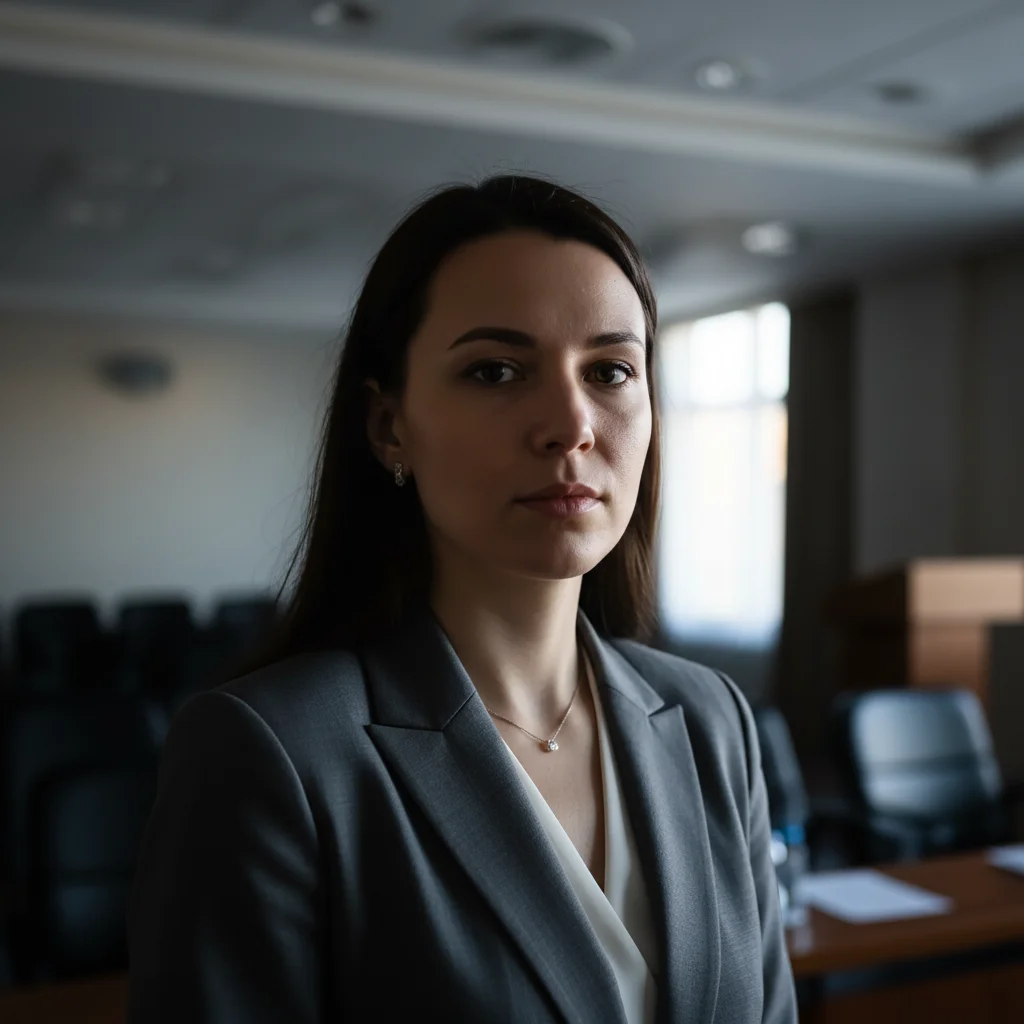
Speaker headshot with plain white background Speaker headshot with dark professional brand background

Upload photo to edit webinar thumbnail

"replace the background with a soft dark gradient matching our brand colours: from deep blue-grey to dark navy"

Release to upload

1 free edit·then from $4.99

Popular use cases:
  • webinar thumbnail editing AI
  • webinar speaker photo cleanup
  • Zoom webinar image editor
  • webinar promotional image AI
  • event speaker headshot edit free

Cost
Free No signup required
Time
Instant results in 15-30 seconds
Works on
Any device - browser, phone, tablet, desktop
Powered by
AI-powered photo editing
Scenario Prompt Time
Background replacement replace the home background with a dark professional webinar background 20s
Multi-speaker consistency replace with [exact same description] for each speaker 20s
Lighting fix brighten the speaker, lift shadows on face, improve contrast 15s
Object removal remove the [item] near the speaker and fill with the background 20s

How it works

  1. Upload the speaker or webinar photo

    Drop the speaker headshot or promotional image into EditThisPic. Works with photos speakers send from LinkedIn, screenshots from video calls, or event photos. Best results when the speaker is clearly visible against a background that can be described.

    Expect: Webinar photo edits process in 15-30 seconds. Background replacements may take up to 35 seconds.
  2. Describe what needs changing

    Type the edit: 'replace the home background with a professional dark background matching our brand colours', 'remove the Zoom virtual background and replace with a consistent blue gradient', 'brighten the photo and fix the harsh office lighting'. No selection tools needed.

    Tip: For multi-speaker webinars, describe the same background for every speaker photo. Consistency across all speakers looks significantly more professional in promotional materials.

    Copy one of these to get started:

    Speaker sent a home photo with messy background replace the home background with a clean gradient from dark navy to near-black that looks professional for webinar promotion
    Speakers have inconsistent background styles replace the background with a soft dark gradient matching our brand colours: from deep blue-grey to dark navy
    Speaker photo is too dark brighten the speaker photo, lift the shadows on the face, and improve the contrast so it reads clearly at small sizes
    Zoom screenshot from practice call remove the Zoom virtual background and replace with a clean dark professional background for use in webinar promotion
    2 more prompts
    Remove distracting element near speaker remove the large plant visible over the speaker's shoulder and fill with the background wall behind it
    Improve overall photo quality enhance this photo — sharpen the details, improve the colours, and make it look crisp and professional
  3. Review the result

    Check the speaker photo will look professional at the size used on your webinar registration page, event listing, or social media promotion. Speaker faces should be clear and background shouldn't compete for attention.

  4. Refine if edges need work

    If the speaker's outline looks rough against the new background, tap a marker near the problematic edge and add 'blend edges naturally' to the description.

    Tip: Speaker hair and shoulders often need edge refinement when the original and replacement backgrounds are very different in colour.

See it in action

Speaker headshot with plain white background
Before
->
Speaker headshot with dark professional brand background
After

Speaker headshot standardised to match event branding

Speaker sent their own headshot with a different background to other speakers. One edit brings it in line with the event's visual style.

Prompt: replace the background with a clean dark navy gradient that matches a professional corporate webinar style
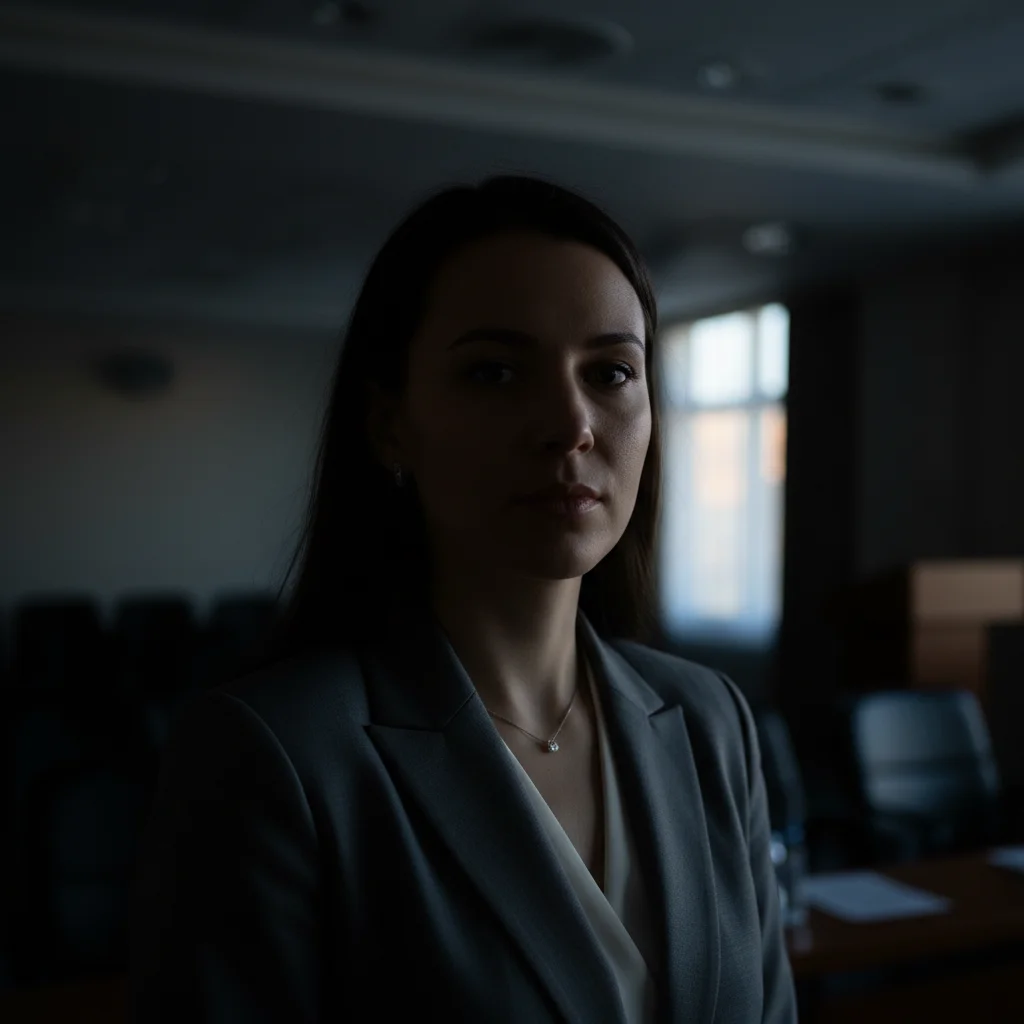
Dark underexposed speaker headshot
Before
->
Brightened speaker headshot ready for webinar promotion
After

Dark speaker photo brightened for promo use

Speaker's headshot was taken in poor lighting. A quick enhancement makes it usable in webinar promotional materials.

Prompt: brighten the speaker photo substantially, lift the face out of shadow, and improve contrast for clear visibility at small sizes

If something looks off

AI changed the wrong area — affected the speaker instead of the background

Why: The edit was too broadly interpreted.

Try: Tap a marker on the background, then re-run: 'replace THIS background only, do not change the speaker'

Tip: Markers are especially useful when the speaker's clothing is dark and the background is also dark.

Different speaker headshots still don't look consistent even with the same prompt

Why: Starting photos with very different lighting will produce different-looking results even with identical prompts.

Try: First fix the lighting on inconsistent photos: 'match the lighting to a professional headshot with even illumination'. Then apply the background replacement.

Tip: Normalising lighting across all speaker photos before background replacement produces the most consistent results.

Speaker's hair edges look cut-out against the new background

Why: Large colour difference between original and new background causes harsh edges.

Try: Re-run: 'replace the background, blend the hair and outline edges naturally, no sharp cutout effect'

Tip: Explicitly asking for natural edge blending in the initial prompt avoids the problem before it happens.

Quick answers

How specific should my prompt be to get a good AI Thumbnail Editor for Webinars result on the first try?

One sentence is usually enough: 'edit the webinar thumbnail.' If the first result is off, refine with details — color, position, lighting, or what to keep. Each pass takes 20-45 seconds and runs separately, so you can compare. Free first edit per week, no signup.

Is there a free AI webinar thumbnail editor with no login?

EditThisPic is free to try with no account required. You get 1 free edit per week with no watermark. Plans start at $4.99/month for 15 edits — useful when preparing speaker headshots for a multi-speaker event.

Does it work for Zoom, GoToWebinar, and other webinar platforms?

Yes — EditThisPic edits the photo file itself. You download the result and upload it anywhere: Zoom events, GoToWebinar, Eventbrite, your website, or social media promotions.

How do I standardise all speaker headshots for a multi-speaker event?

Edit each speaker's photo using the same background description. Copy the exact same prompt for each speaker — 'replace the background with [your style description]'. Using identical wording generates very similar-looking backgrounds across all speakers.

How much does EditThisPic cost?

You get 1 free edit per week — no account needed. After that, credit packs start at $1.99 for 3 edits. Monthly plans start at $4.99/mo for 15 edits with unused credits rolling over. All edits are full resolution with no watermark.

Polish Your Webinar Speaker Photos

Consistent professional thumbnails for every speaker. Free to try, no signup.

1 free edit included·Credit packs from $4.99