Free • No signup Preview Window tint levels · Free

Preview Window Tint Darkness Levels

Upload your vehicle photo and describe the change. AI previews modifications before you commit.

Original photo before window tint levels editing — pre-listing living room staging
Before
Result after AI window tint levels editing — pre-listing living room staging
After

Preview Window Tint Darkness Levels Free Online | EditThi...

Drop your photo here

or click to browse

Release to upload

Free • No signup

Popular use cases:
  • preview window tint levels
  • AI window tint levels editor
  • photo window tint levels tool
  • free window tint levels editing

Cost
Free No signup required
Time
Instant results in 15-30 seconds
Works on
Any device - browser, phone, tablet, desktop
Powered by
AI-powered photo editing

How it works

  1. Upload your photo

    Upload a well-lit interior or exterior photo. Straight-on angles with minimal lens distortion help the AI produce natural window tint levels results. JPG, PNG, WebP up to 7MB.

    Expect: Most edits complete in 20-45 seconds. Complex changes may need 1-2 refinements.
  2. Describe your edit

    Type what you want: 'preview window tint levels.' Be specific about details for best results. The AI understands natural language — no technical skills needed.

    Tip: Specify the exact color or finish you want — 'metallic midnight blue' works better than just 'blue.'

    Copy one of these to get started:

    Consultation preparation — showing the provider what you want preview window tint levels with a clean, realistic result I can bring to my consultation. Keep everything else in the photo unchanged
    Comparing upgrade options preview window tint levels — show me the premium version. Make it look high-end and modern while keeping the photo realistic
    Convincing a partner or family member preview window tint levels with a natural, believable result that shows the improvement clearly. Side by side with original should be compelling
    Budget-friendly option preview window tint levels — show me a simple, affordable version. Keep it clean and understated rather than extravagant
    2 more prompts
    Insurance or appraisal documentation preview window tint levels with photorealistic accuracy — it needs to look like an actual photograph, not a rendering. Match existing lighting and shadows exactly
    Exploring a bold design choice preview window tint levels in a bold, contemporary style. I want to see what a dramatic version would look like before committing
  3. Review the result

    Check perspective lines, wall edges, and furniture placement for realism. Verify that lighting looks consistent across the room and no ghosting artifacts remain. Use the before/after slider.

  4. Refine if needed

    If furniture placement looks off, wall colors need tweaking, or staging elements seem unrealistic, tap markers on problem areas. Describe specific fixes like 'make the couch cushions look more natural' or 'fix the shadow under the table.'

    Tip: Markers are optional. Try without them first — the AI usually gets it right.
Try it free

Preview Window Tint Darkness Levels Free Online | EditThi...

Drop your photo here

or click to browse

Release to upload

Free • No signup

"Tested different window tint levels options on my SUV photo. Saved me from an expensive mistake — the second option looked way better." @MomOfThree_Kate

See it in action

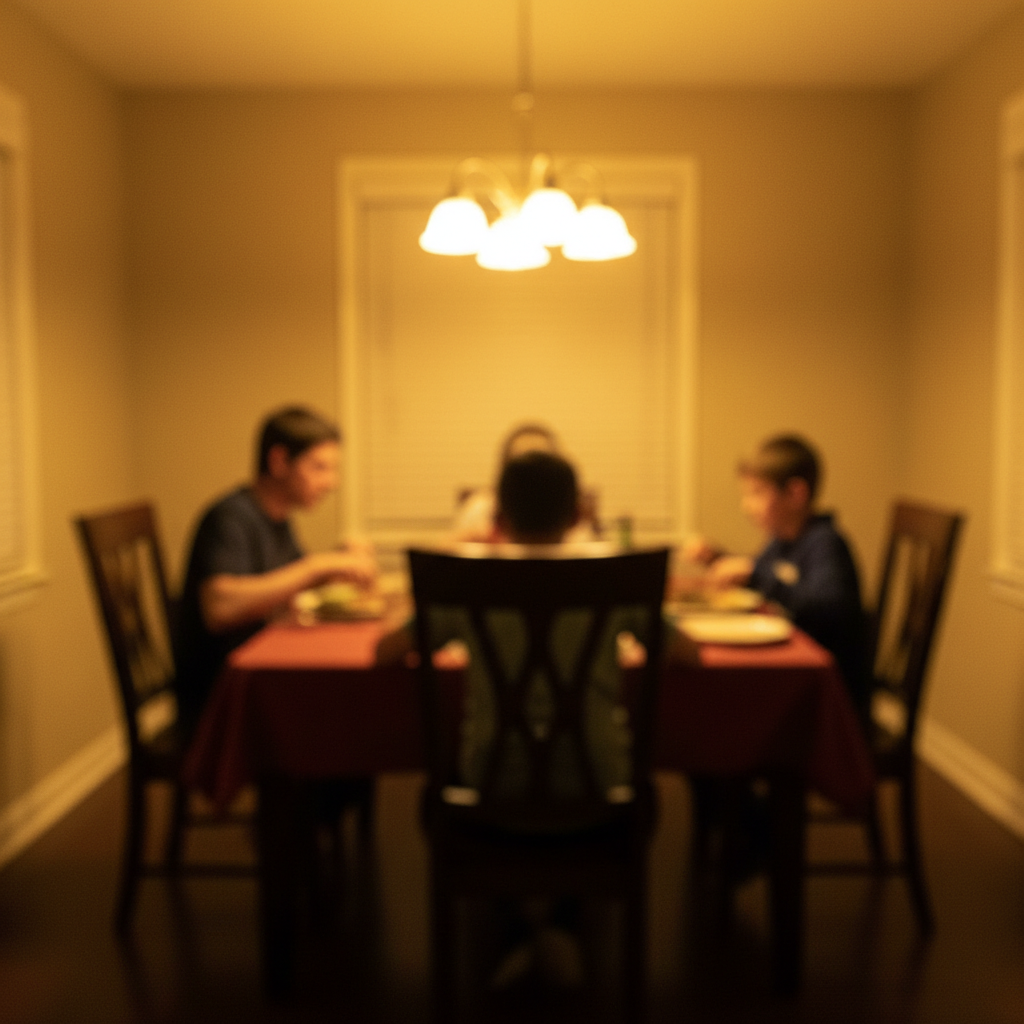
Original photo before window tint levels editing — pre-listing living room staging
Before
->
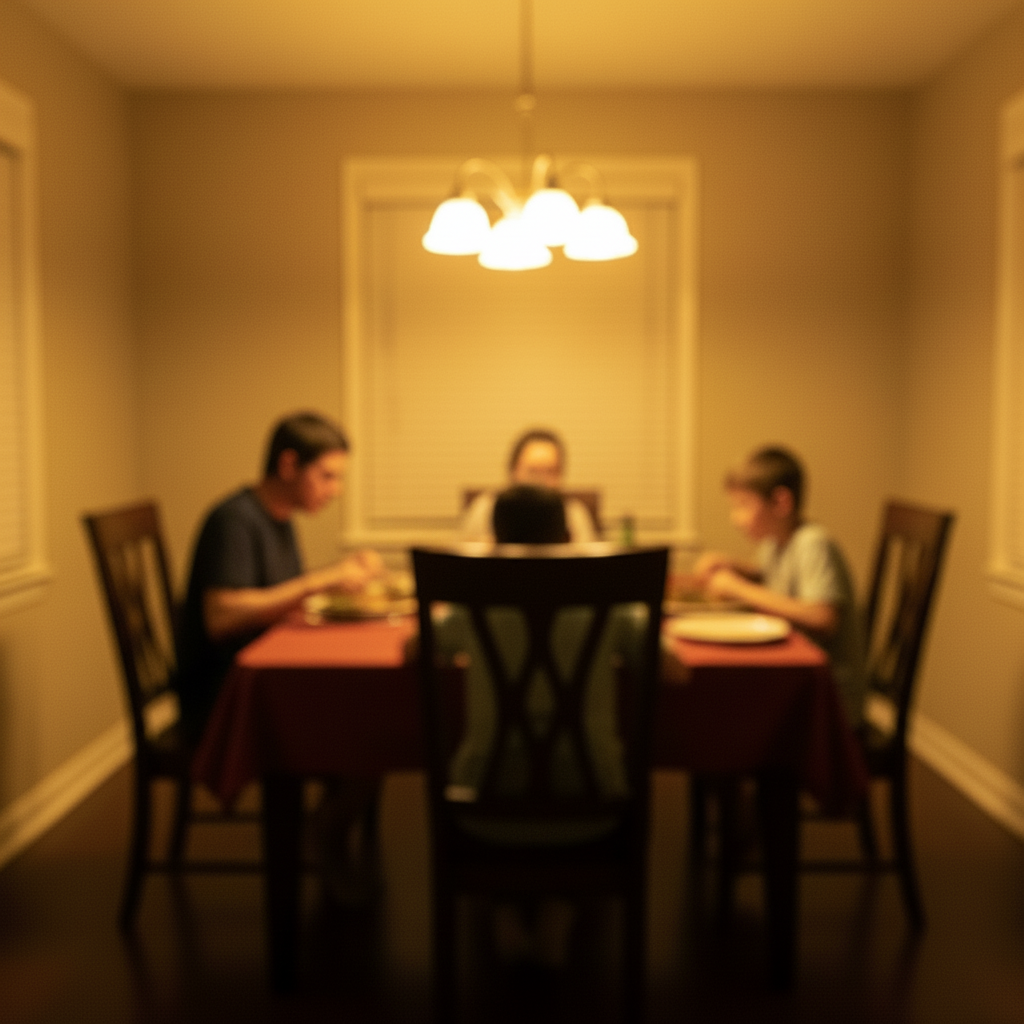
Result after AI window tint levels editing — pre-listing living room staging
After

Pre-Listing Living Room Staging

Agent needed the listing ready for MLS by Friday. The AI handled window tint levels across the open-concept layout, making the space look magazine-ready without professional staging.

Prompt: preview window tint levels — make it look natural and professional
Original photo before window tint levels editing — open house ready entryway
Before
->
Result after AI window tint levels editing — open house ready entryway
After

Open House Ready Entryway

Needed to improve a spontaneous moment shot for sharing online. The AI made the edits look effortless and completely natural.

Prompt: preview window tint levels with attention to detail, matching lighting and perspective

Detailed Guides by Scenario

📷

Sales & Listings

Sell vehicles faster with professional window tint levels editing — clean, well-lit photos get more inquiries and higher offers.

Common Scenarios

  • Preparing window tint levels shots for online classified ads and dealer websites
  • Cleaning up a parking lot background in window tint levels images for a cleaner listing
  • Enhancing window tint levels details like paint finish and interior to attract buyers

Best Practices

  • Photograph the vehicle in open shade or on an overcast day to avoid harsh reflections
  • Capture all four corners, the dashboard, and any unique features — buyers want completeness
  • Remove personal items and license plates before posting listing photos
📷

Automotive Content & Enthusiasts

Create stunning automotive content with window tint levels editing — perfect for car blogs, forums, and enthusiast social media.

Common Scenarios

  • Enhancing window tint levels shots from a car meet or auto show for social media sharing
  • Creating dramatic window tint levels edits for an automotive blog or YouTube thumbnail
  • Cleaning up a window tint levels for a car club forum post or online portfolio

Best Practices

  • Shoot from a low angle to make the vehicle look more dramatic and imposing
  • Golden hour lighting on car paint is stunning — capture it, then enhance with AI
  • For car meets, remove background clutter to isolate the vehicle as the hero subject
📷

Business & Commercial

Professional window tint levels editing for dealerships, rental companies, fleet management, and automotive businesses.

Common Scenarios

  • Batch-editing window tint levels inventory for a dealership website with consistent style
  • Creating marketing materials using window tint levels for a car rental company
  • Documenting fleet vehicles with professional window tint levels for insurance or records

Best Practices

  • Develop a standard photo template: same angles, same background treatment, same enhancement
  • Process new inventory photos as they come in — consistency builds customer trust
  • For dealership sites, ensure window tint levels background and lighting match across all listings

If something looks off

Paint color doesn't look realistic

Why: Car paint has complex reflections that need matching.

Try: Specify the finish: 'metallic pearl white with realistic clear coat reflections'

Tip: Adding 'metallic' or 'matte' finish type makes car paint look dramatically more real.

Modification only applied to part of the car

Why: Reflections, shadows, or complex angles confused the AI.

Try: Tap markers on the missed areas and regenerate: 'apply the same change to this area too'

Tip: Cars photographed from a 3/4 angle give the AI the best coverage of body panels.

Reflections in paint don't match

Why: The AI didn't update environmental reflections in the new paint.

Try: Add: 'update the reflections and environment map on the new paint to match the surroundings'

Tip: Overcast lighting produces the most believable paint previews — harsh sun creates complex reflections.

Interior change looks flat

Why: Car interiors have complex textures and ambient occlusion.

Try: Add: 'maintain leather grain texture, stitching detail, and natural shadows'

Tip: Interior photos work best with even, diffused lighting rather than direct sunlight.

Quick answers

Can I undo the edit if I don't like the result?

Yes, you always keep your original photo. If the result isn't right, you can adjust your prompt and regenerate, or simply download your untouched original.

Does the AI preview window tint levels work on mobile?

Yes, EditThisPic works fully in your mobile browser — no app download needed. It also has an iOS app available on the App Store.

How do I get better results when I preview window tint levels?

Be specific in your prompt. Instead of vague descriptions, mention exact colors, materials, styles, or positions. Use markers to point the AI at the exact area you want changed.

Is my photo kept private when I preview window tint levels?

Yes. Your photo is processed in real-time by the AI and is not stored on our servers after editing. No account is required to use the tool, and we don't collect or share your images. Your original file stays on your device.

How does EditThisPic compare to Photoshop for previewing window tint levels?

EditThisPic uses AI that understands natural language, so you describe the edit you want instead of using complex tools. It works instantly in your browser with no software to install or learn. For previewing window tint levels, you simply type what you want and the AI handles the rest in 20-45 seconds.

Will the previewed result look realistic and natural?

Yes. The AI analyzes your photo's lighting, colors, and context to produce natural-looking results. Most edits look realistic on the first try, and you can always refine with a follow-up prompt if needed.

Can I preview window tint levels on my phone?

Yes. EditThisPic works in any mobile browser — iPhone, Android, or tablet. The full editor loads on mobile with touch-optimized controls. No app download needed, though an iOS app is also available. Upload from your camera roll and edit on the go.

What's the most common use case for previewing window tint levels?

Most users preview window tint levels for social media content, professional work, or personal projects. The AI handles both simple and creative edits, so whether you need a quick fix or an artistic transformation, you can describe exactly what you want in plain English.

Can I preview window tint levels for multiple photos at once?

Currently, EditThisPic processes one photo at a time for the best AI results. Upload each photo individually and use the same prompt — the process takes about 20-45 seconds per image. For large batches, a paid plan gives you unlimited edits without waiting.

What makes a good photo for previewing window tint levels?

Well-lit photos with clear subjects produce the best results. Avoid heavily compressed or very small images. Front-facing angles typically work better than extreme side angles. The AI can work with most photos, but higher quality input means higher quality output.

What types of photos work best with this tool?

JPG, PNG, and WebP photos up to 7MB work best. The AI handles photos from any camera or phone. High-resolution images with good lighting produce the best results. Extremely dark, heavily compressed, or very small images may produce less precise edits.

Can I also adjust the lighting and colors in the same edit?

Yes! You can combine multiple edits in one prompt. For example, ask to preview window tint levels and adjust the lighting and colors at the same time. The AI understands complex multi-step instructions. For very different changes, separate prompts may give better control over each edit.

Ready to preview your photos?

Free to try. No signup required.

Try it free