Pricing Open Editor

Clean Up a Photo — Remove Anything That Doesn't Belong

Most photos only need one thing taken out — a stranger at the edge, a bin in the driveway, a caption someone burned into the file. Work through it one pass at a time, biggest distraction first, and you get a clean photo without ever opening an editor.

Free to useNo signup requiredNo watermark

Drop your photo here

"remove the person on the far right edge and fill with the beach background so it looks like they were never there"

Free to try · no sign-up · photos are never shared

Release to upload

Free • No signup

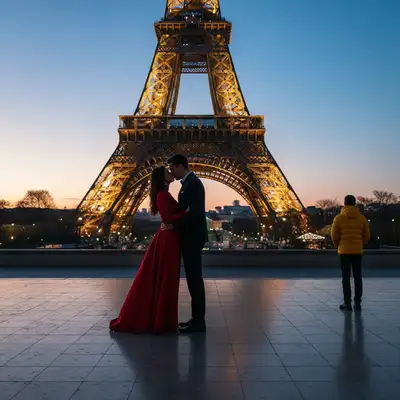
Before photo
Before
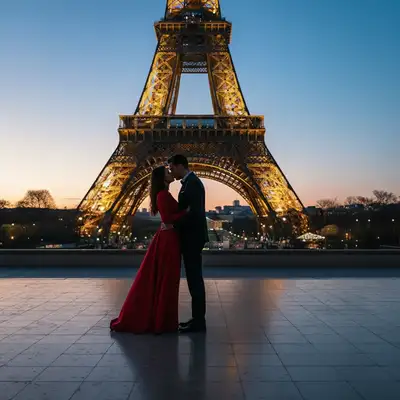
After AI edit
After
Quick Answer

To clean up a photo with AI, remove one thing at a time and start with the largest distraction. Take out any unwanted people first, then loose objects and clutter, then text overlays, then shadows, and finish with the thin stuff — wires and fences — that is easiest to miss. Each pass shows you the result before you decide anything, and the first edit each week is free with no signup.

The Order to Clean a Photo In

Cleaning up a photo goes wrong in a predictable way: someone asks for everything at once, gets back an image where half the requests landed and the background looks invented, and gives up. The fix is not a better prompt — it is doing the passes in order, biggest object first. 1. People. Start with removing a person from the photo. People are the largest shapes in most frames, and every other distraction is easier to reconstruct once the biggest hole has been filled with real background. 2. Objects. Then the physical clutter — bins, cars, signs, bags, litter. The AI object remover handles these as a group if they sit in the same area, and one at a time if they are scattered. 3. Text. Removing text from an image comes after the objects, because text usually sits on top of everything else. Taking it off last means the AI rebuilds a surface that is already clean. 4. Shadows. With the frame clear, the lighting problems become visible. The shadow remover evens out a hard shadow across a face or a driveway — and if you removed someone who was casting a shadow, this is the pass that takes the shadow with them. 5. Thin lines. Finally the things your eye skips: power lines and cables across the sky, and then a fence, railing, or mesh screen in front of the subject. These cross the whole frame, so they are the last thing you want to redo after another edit. Re-upload the result each time. Each pass is a fresh photo, and you see it before you commit to the next one.

Describe the Fill, Not Just the Target

Every removal is really two instructions: what to take out, and what should be there instead. Most weak results come from only giving the first one. Name the surface. "Remove the sign on the right and fill the area with the surrounding wall texture" reconstructs the wall. "Remove the sign" leaves the AI to invent something. The pattern holds everywhere — beach, sky, hedge, driveway, packaging, floor. Locate the target. Position ("bottom right corner", "far right edge", "across the top") and colour ("the bright yellow outfit", "the white text") are the two most reliable ways to point at one thing in a busy image. Both beat describing what it is. Protect what you are keeping. When the thing you are removing touches or overlaps your subject, add the guard clause directly: "do not alter the main subjects in the foreground", "leave buildings untouched", or "preserve the animal perfectly, even where it touches the bars." Expect repeating patterns to be harder. Chain link, bars, and mesh cover the subject in hundreds of small places at once, so the AI is rebuilding the view through a grid rather than filling one hole. Ask it to show the clean view behind rather than to erase the fence, and give it a second attempt if the first is imperfect. You see every result before you decide anything, so a pass that does not land costs you nothing but the retry.

Use case guides

A Photo of a Place, Crowded with Everything Else

Landmarks, streets, and views almost never come back clean. There are strangers in the frame, a bin or a parked car in the foreground, and power lines cutting across the sky. Each of those is a different pass, and the order matters more than the prompts do.

Common scenarios

  • A landmark shot where a dozen tourists walked through the frame while you were lining it up
  • A street or architecture photo with a parked car, a bin, and a signboard sitting in the foreground
  • A mountain or coastline view with power lines and utility cables strung across the sky

Best practices

  • Remove people first. They are the largest shapes, and the AI has more background left to work with before the smaller objects come out.
  • Name what should be behind the thing you remove — "fill with the beach background" or "restore clean blue sky" gives the AI a target instead of a guess.
  • Wires last. They cross everything else in the frame, so removing them before the big objects means doing that work twice.
  • Re-upload the result of each pass rather than asking for four removals at once — you can see what each pass did, and stop when it looks right.

Sample prompts

Remove all people from this photo and fill each area with the background — street, sky, building — visible around themRemove the parked car on the left and fill with the street and sidewalk that would be behind itRemove all the power lines and utility wires from the sky in this photo, restore clean blue sky

A Good Photo of Someone, Spoiled by One Thing

The frustrating case: the expression is right, the moment is right, and there is one stranger over their shoulder or one hard shadow across their face. These are single-pass fixes, and the whole job is describing the target precisely enough that the AI leaves the subject alone.

Common scenarios

  • A portrait where someone walked into the background behind your subject
  • An outdoor photo where the sun put a hard diagonal shadow across half of someone's face
  • A group photo where you want to keep the group but lose one person at the end of the row

Best practices

  • Identify people by position and clothing colour, not by face — "the person in the bright yellow outfit at the far right" is a precise target in a crowded frame.
  • Add "do not alter the main subjects in the foreground" when the thing you are removing overlaps your subject.
  • For shadows on skin, ask the AI to fill with natural skin tone and match the surrounding lighting, so it reconstructs skin rather than painting in a flat patch.
  • If a removed person cast a visible shadow, say so — the shadow is a separate object and will otherwise stay in the frame.

Sample prompts

Remove the person standing in the background on the left and fill with the landmark visible around them, do not alter the main subjectsRemove the harsh diagonal shadow on the face while preserving natural skin texture and toneRemove the person in the bright yellow outfit at the far right end of the group and fill with the hedge background behind them

An Image You Saved, with Text Baked Into It

Screenshots, saved posts, and exported graphics arrive with their captions welded to the pixels. Text removal is the one clean-up job where the fill usually matters more than the target — the AI has to rebuild whatever the letters were sitting on.

Common scenarios

  • A saved image with a caption bar across the bottom that you want gone before reusing the photo
  • A graphic with a headline across the top that needs to come off a flat colour background
  • A product photo with a text label printed over the packaging

Best practices

  • Say where the text is. "The caption at the bottom" stops the AI from targeting text elsewhere in the same image.
  • Over a photograph, ask it to reconstruct the scene behind the text; over a flat background, ask it to fill with the background colour. Those are different jobs.
  • To keep some text and lose the rest, describe the one you want gone by position and colour: "only the white text in the top-right corner."
  • Only remove text from images you have the right to change — this is for your own photos, captions, and graphics.

Sample prompts

Remove the text caption at the bottom of the image, restore the backgroundRemove the overlaid text from the photo and reconstruct the scene behind itRemove only the white text in the top-right corner, leave everything else unchanged

Example prompts to get started

remove the person on the far right edge and fill with the beach background so it looks like they were never there
remove the trash can, garden hose, and clutter from the front yard, fill with clean grass and driveway
remove the text caption at the bottom of the image, restore the background
remove the harsh diagonal shadow on the face while preserving natural skin texture and tone
remove the overhead cables and wires, fill with clean sky matching the existing blue tone
remove the chain link fence and show the animal clearly without any barriers

Frequently Asked Questions

How do I remove something from a photo without Photoshop?

Upload the photo, describe what to take out and what should be behind it, and let the AI do the reconstruction. A prompt like "remove the parked car on the left and fill with the street and sidewalk that would be behind it" is the whole workflow — there is no selecting, masking, or cloning. You see the result before you decide anything, and the first edit each week is free with no signup.

Should I remove things from a photo one at a time or all at once?

One at a time, largest first. Asking for four removals in a single prompt usually returns an image where some of them landed and the background looks invented. Work in passes — people, then objects, then text, then shadows, then wires and fences — and re-upload the result each time. Items that sit close together in the same area are the exception: those come out cleanly as a group, for example "remove the trash can, garden hose, and clutter from the front yard."

Does removing a person from a photo also remove their shadow?

Not automatically. The shadow is a separate shape in the image, and removing the person can leave it behind — which looks stranger than the original. Say so in the prompt: add "and their shadow" to the removal, or run a second pass with the shadow remover once the person is gone. The same applies to a reflection in a window or on water.

Why do fences and railings come out worse than other objects?

Because a fence covers the subject in hundreds of small places at once. Removing a bin means filling one hole; removing chain link means rebuilding the entire view through a grid, using only the slivers that were visible between the bars. Ask the AI to show the clean view behind the fence rather than to erase the fence, name the subject you want preserved where it touches the bars, and expect to run it more than once.

Can I clean up a photo for free?

Yes. The first edit each week is free, with no signup and no account. Upload the photo, describe what to remove, and you see the cleaned-up result before you decide whether to go further. Each pass in the sequence — people, objects, text, shadows, wires, fences — is its own edit, so a heavily cluttered photo takes several.

What can AI remove from a photo?

People, animals, vehicles, bins, signs, litter and other loose objects, text and captions baked into the image, hard shadows, power lines and cables, and fences, bars, railings, or mesh in front of the subject. The limit is how much of the background was visible around the thing you are removing — a stranger standing against an open sky fills cleanly, while one standing in front of an intricate pattern gives the AI less to rebuild from.

Ready to start editing?

Open Editor