Free • No signup Apply HDR effect · Free

AI HDR Filter

Just describe what you want and AI applies perfect HDR tone-mapping.
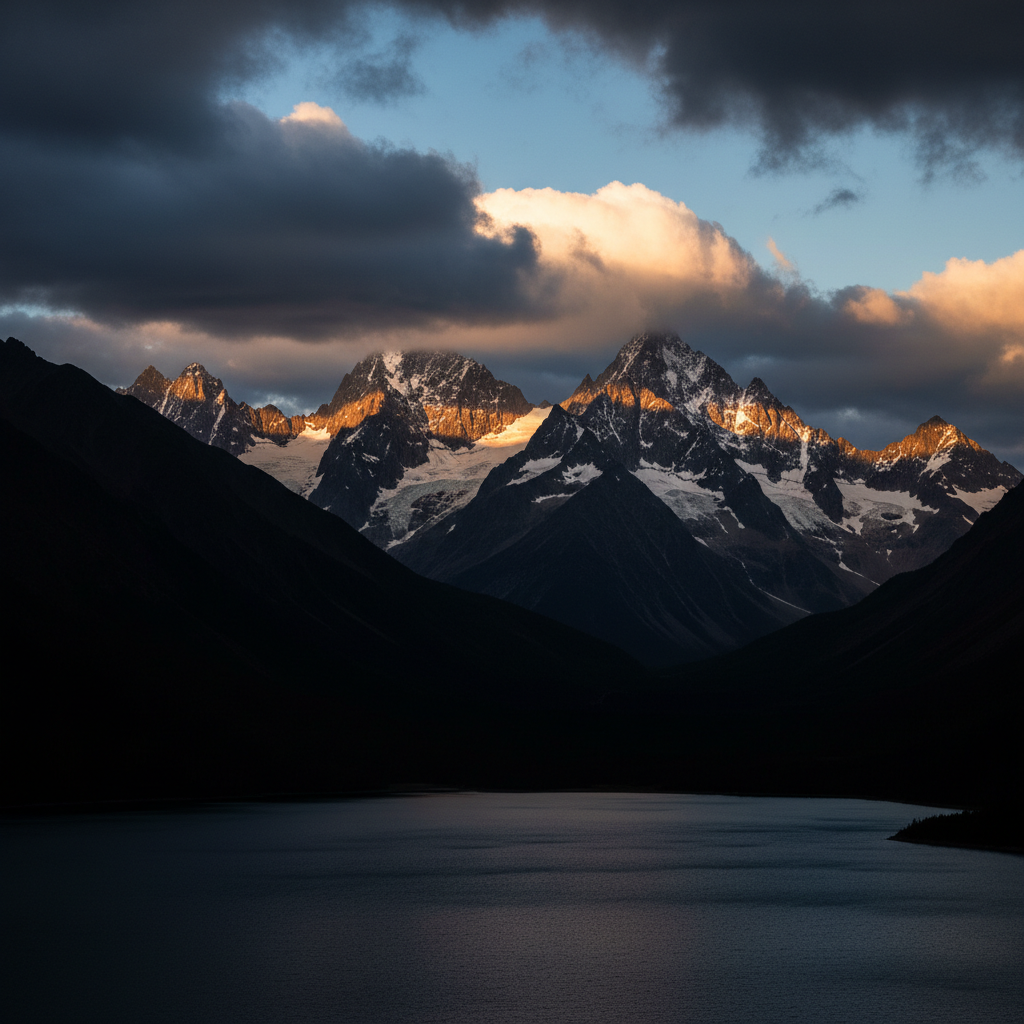
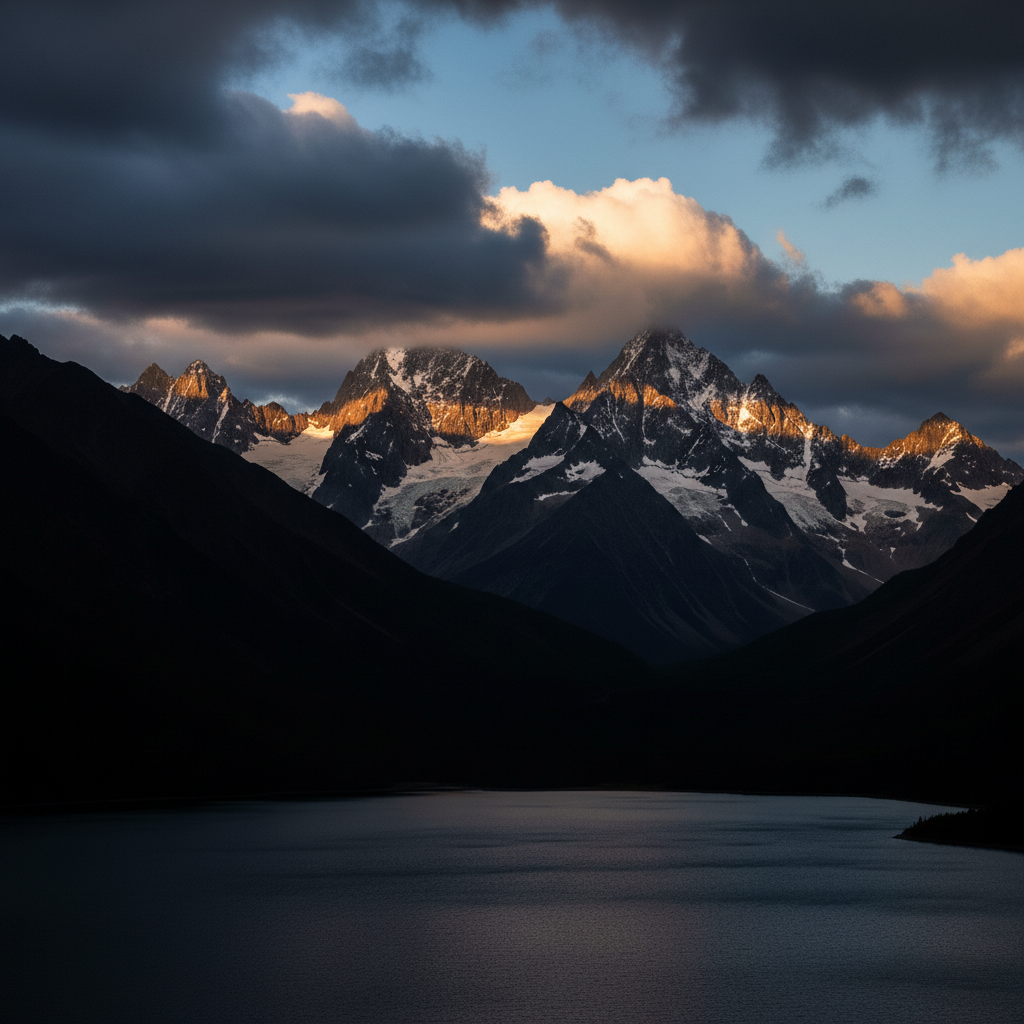
Landscape with bright sky and dark shadows
Before
HDR landscape with detail visible in sky and shadows
After

Apply HDR Effect to Photos

Drop your photo here

or click to browse

Release to upload

Free • No signup

Advertisement
Popular use cases:
  • Landscape photography
  • Architecture photos
  • Real estate listings
  • Travel photography
  • Outdoor scenes
  • Interior shots
  • Sunset photos
  • Dramatic skies

Cost
Free No signup required
Time
Instant results in 15-30 seconds
Works on
Any device - browser, phone, tablet, desktop
Powered by
AI-powered photo editing
Scenario Prompt Time
Standard HDR apply HDR effect with dramatic detail in shadows and highlights 15s
Natural HDR apply natural HDR tone-mapping to enhance dynamic range subtly 15s
Dramatic landscape make it look HDR with dramatic sky, vivid colors, and visible shadow detail 20s
Architecture HDR apply HDR effect to show texture and detail in the building and sky 20s

How it works

  1. Upload your photo

    Drop your image into EditThisPic. JPG, PNG, WebP up to 7MB. Works best on landscapes, architecture, and scenes with high dynamic range.

    Expect: HDR effect application: 15-20 seconds. No refinements typically needed.
  2. Describe the HDR look you want

    Type your instruction: 'apply HDR effect' or 'make it look HDR with dramatic sky and shadow detail.' Be specific about intensity if you want subtle or extreme HDR. No marking needed—the AI applies tone-mapping globally.

    Tip: Say 'natural HDR' for subtle tone-mapping or 'dramatic HDR with vivid colors' for the intense look. The AI adjusts based on your description.

    Copy one of these to get started:

    Standard HDR effect apply HDR effect with dramatic detail in shadows and highlights
    Natural HDR tone-mapping apply natural HDR tone-mapping to enhance dynamic range subtly
    Dramatic HDR landscape make it look HDR with dramatic sky, vivid colors, and visible shadow detail
    HDR architecture apply HDR effect to show texture and detail in the building and sky
    2 more prompts
    Subtle HDR enhancement apply subtle HDR to lift shadows and tame highlights without overdoing it
    Extreme HDR effect apply extreme HDR with maximum detail, vivid colors, and intense tone-mapping
  3. Generate and review

    AI applies HDR tone-mapping, enhancing dynamic range and bringing out detail in shadows and highlights. Check skies, dark areas, and bright spots to verify the effect looks how you want.

Try it free

Apply HDR Effect to Photos

Drop your photo here

or click to browse

Release to upload

Free • No signup

"Made my travel photos look incredible with just 'apply HDR.' The sky and shadows both have amazing detail now." @wanderlust_photos

See it in action

Landscape with bright sky and dark shadows
Before
->
HDR landscape with detail visible in sky and shadows
After

Landscape HDR transformation

Applied HDR tone-mapping to a landscape photo, bringing out sky detail and lifting shadows to show foreground texture dramatically.
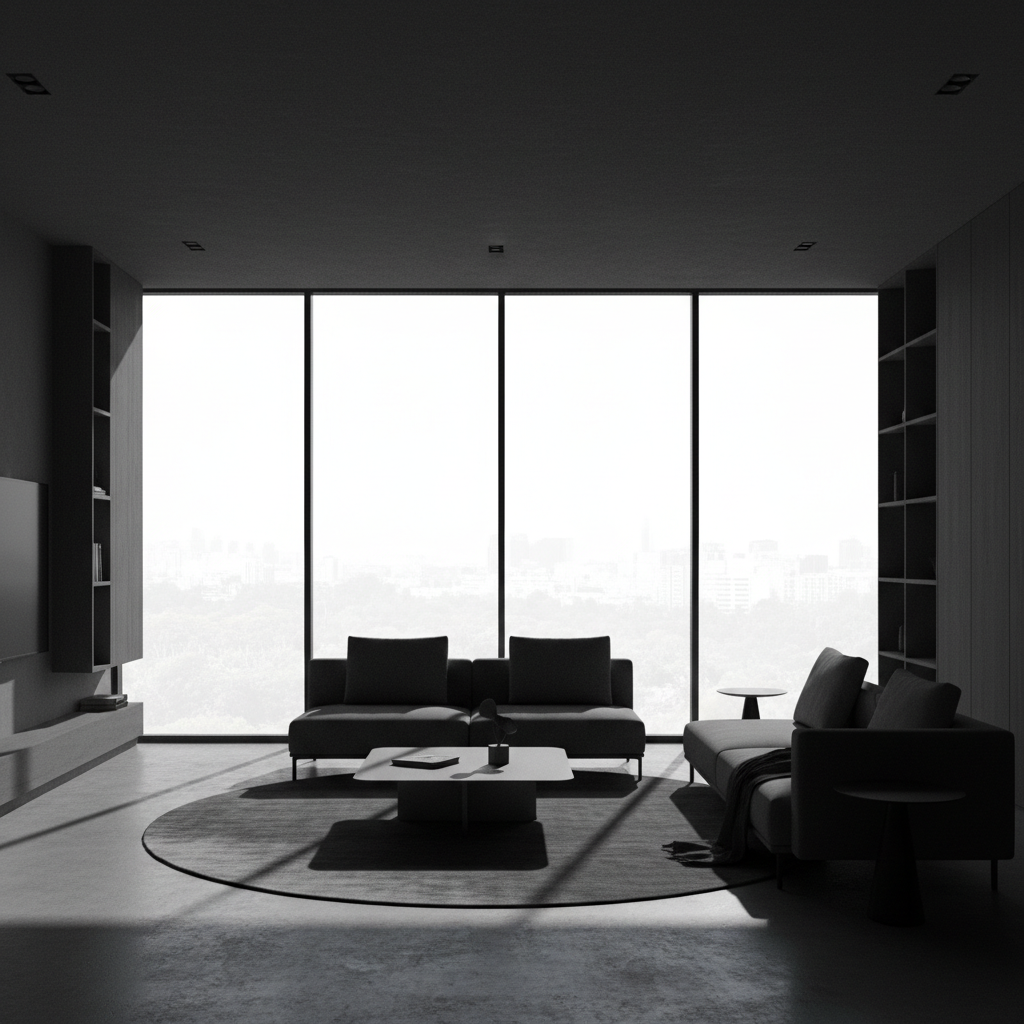
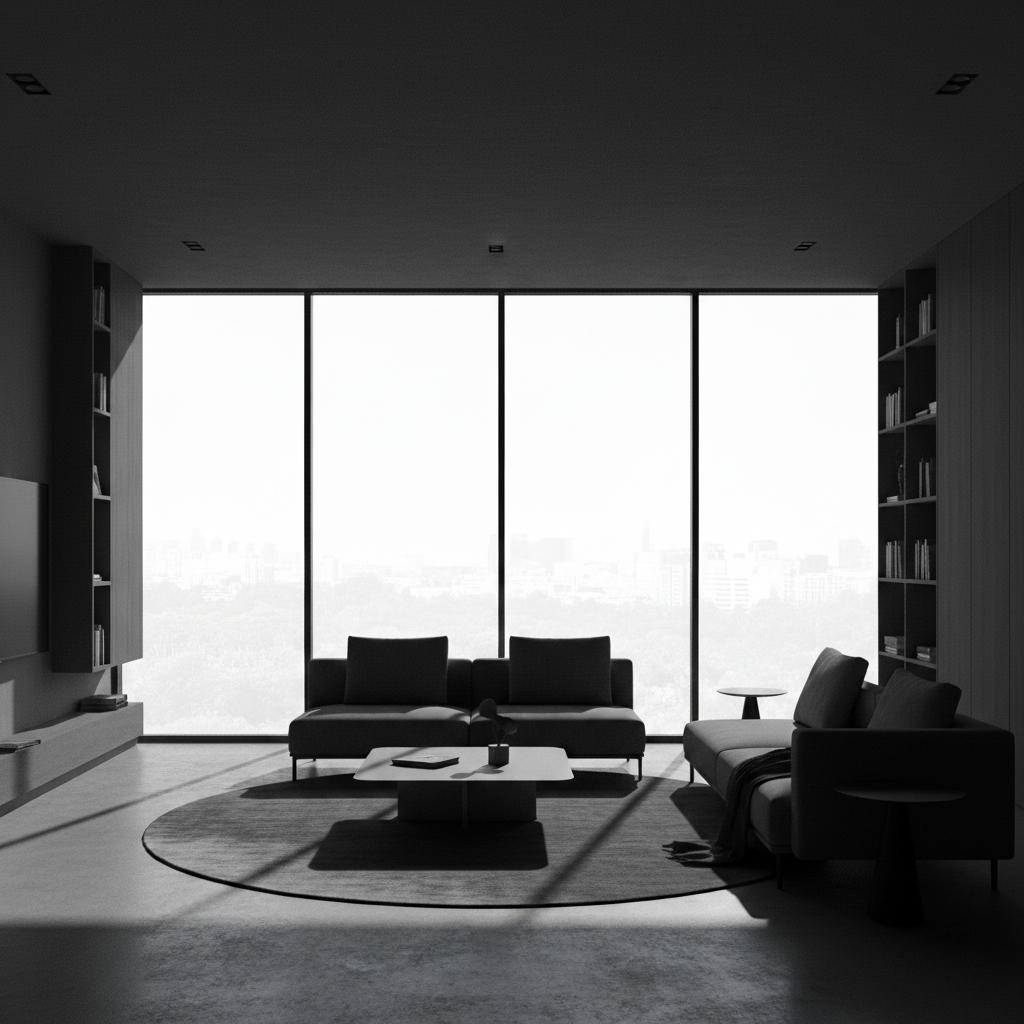
Prompt: apply HDR effect with dramatic detail in shadows and highlights
Building with blown-out sky and flat detail
Before
->
HDR architecture with rich sky and enhanced texture
After

Architecture with HDR detail

HDR effect revealed texture in building facade and kept sky rich with clouds visible, creating a dramatic architectural shot.

Prompt: apply HDR effect to show texture and detail in the building and sky
Advertisement

If something looks off

AI changed the wrong area or applied effect I didn't want

Why: HDR effects apply globally by default. The AI couldn't determine from description alone that you wanted selective tone-mapping.

Try: Tap markers on specific areas that need HDR enhancement (like a dark foreground or bright sky), then regenerate with 'apply HDR only to marked areas'

Tip: Use markers when you want selective HDR—like enhancing a dark subject while leaving a properly exposed background unchanged.

Photo looks over-processed or unnatural

Why: The HDR effect was too strong. Extreme tone-mapping can create the typical 'overdone HDR' look with halos and unnatural tones.

Try: Try: 'apply natural HDR tone-mapping to enhance dynamic range subtly' or 'HDR effect but keep it realistic'

Tip: Start with subtle HDR. You can always regenerate with a stronger effect if the first pass is too mild.

Colors look oversaturated or fake

Why: HDR effects often boost saturation along with detail. The AI may have increased color intensity too much.

Try: Use: 'apply HDR with dramatic detail but keep colors natural' or 'tone-map dynamic range without oversaturating colors'

Tip: Separate the two aspects in your prompt: ask for detail enhancement without color boost if saturation is the issue.

Halos appear around edges (especially sky)

Why: Aggressive HDR tone-mapping can create bright or dark halos where high-contrast edges meet (like a building against sky). This is a common HDR artifact.

Try: Try: 'apply subtle HDR without halos' or 'natural tone-mapping that avoids edge artifacts'

Tip: Halos are a sign of over-processing. Use gentler HDR prompts or apply the effect selectively to avoid extreme contrast transitions.

Quick answers

Do I need to mark areas before applying HDR?

No! For most HDR effects, just describe what you want: 'apply HDR effect' or 'make it look HDR with dramatic detail.' The AI applies tone-mapping globally. Only use markers when you need selective HDR—like enhancing a dark subject while leaving a bright background untouched.

How do I make a photo look HDR for free?

Upload your photo to EditThisPic and type 'apply HDR effect' or 'make it look HDR with dramatic sky and shadow detail.' The AI will enhance dynamic range and bring out detail in 15-20 seconds. Completely free to try, no signup required, no watermarks.

What is HDR tone-mapping?

HDR (High Dynamic Range) tone-mapping enhances the range of light and dark in a photo, bringing out detail in both shadows and highlights. It creates images where you can see texture in dark areas and detail in bright skies—something a normal photo often can't capture in a single shot.

Will my photo look over-processed with HDR?

It depends on the intensity you request. Use 'natural HDR' or 'subtle HDR' for realistic enhancement. Use 'dramatic HDR' or 'extreme HDR' for the stylized, intense look. The AI adjusts based on your description, so you control the intensity.

Ready to apply HDR to your photos?

Free to try. No signup required.

Try it free