Free • No signup Optimize Bumble profile photo · Free

Optimize Photo for Bumble

Optimize your photo for any platform in one click.

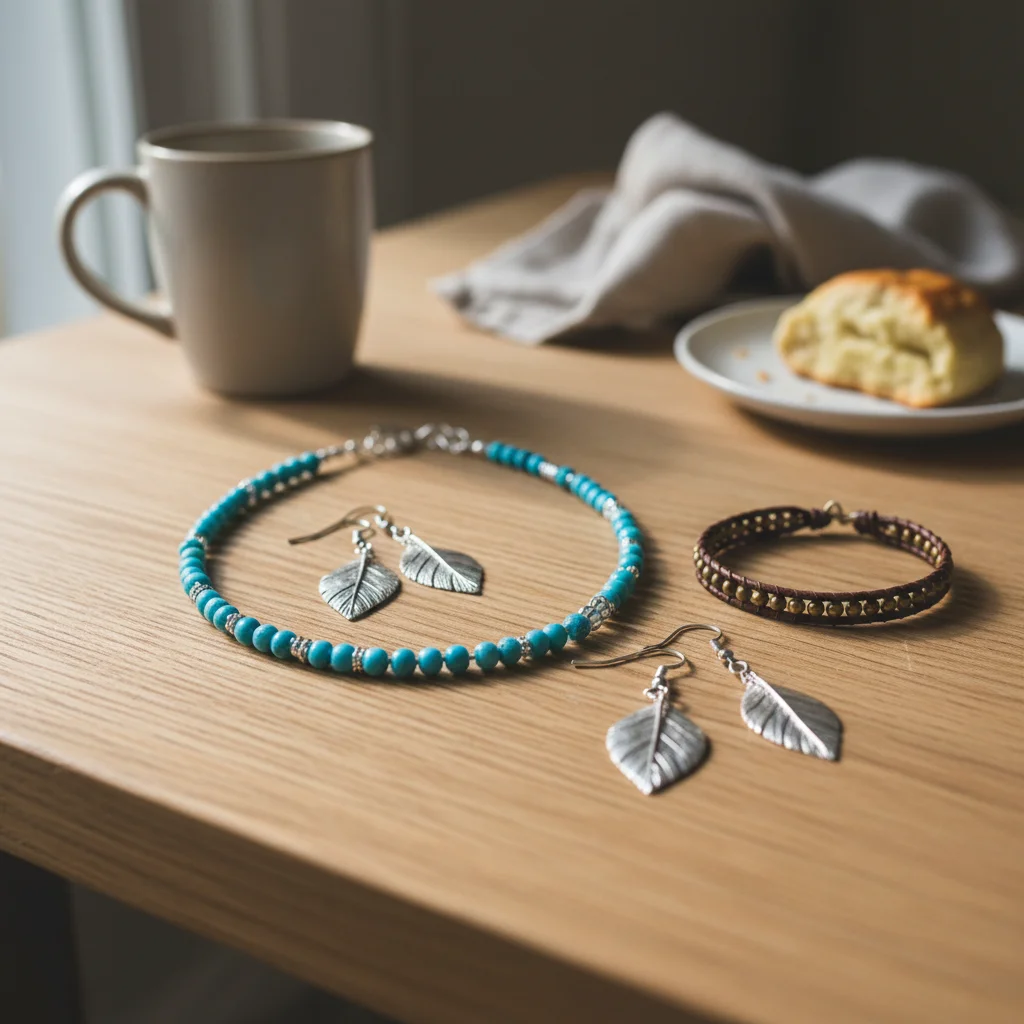
Photo with flat lighting
Before
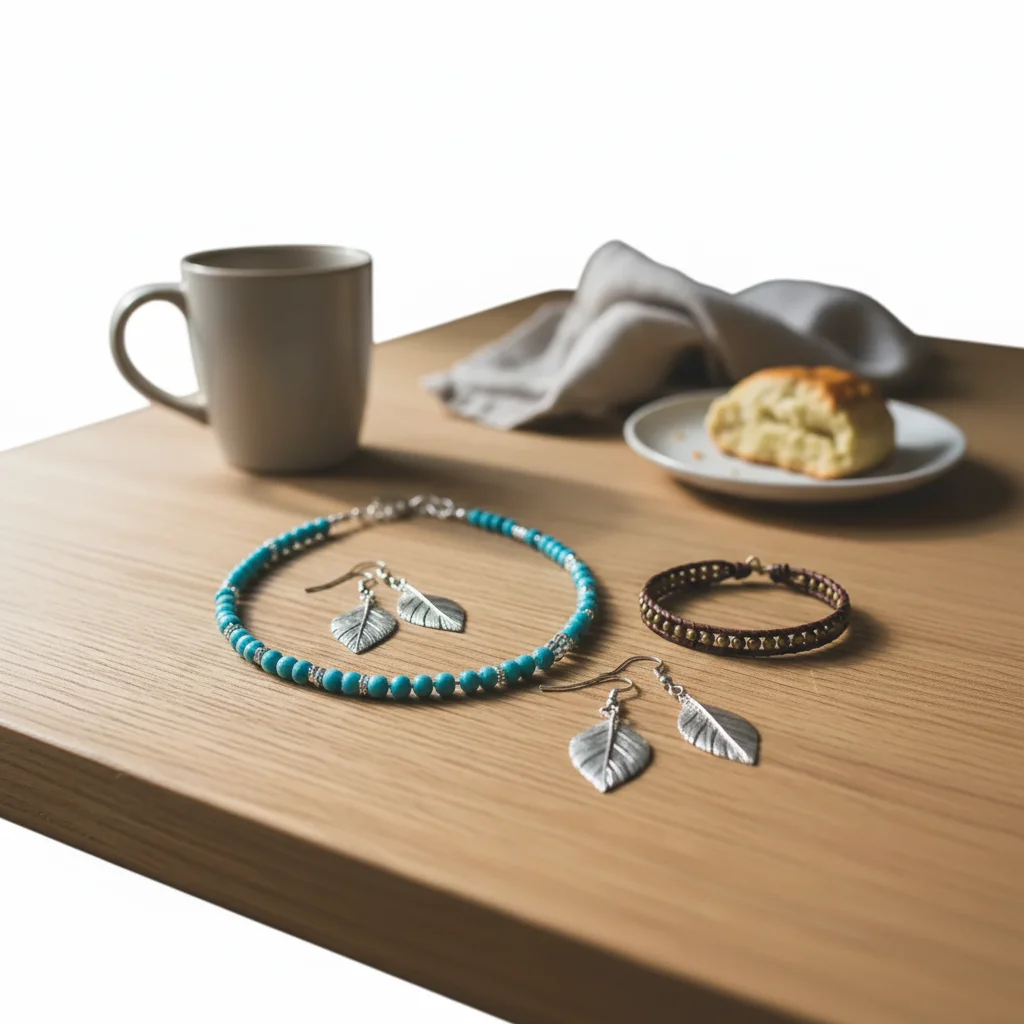
Photo with warm flattering lighting
After

Optimize Photo for Bumble Profile

Drop your photo here

or click to browse

Release to upload

Free • No signup

Popular use cases:
  • optimize Bumble profile photo
  • AI Bumble profile photo editor
  • photo Bumble profile photo tool
  • free Bumble profile photo editing

Cost
Free No signup required
Time
Instant results in 15-30 seconds
Works on
Any device - browser, phone, tablet, desktop
Powered by
AI-powered photo editing

How it works

  1. Upload your photo

    Upload a clear photo showing the area you want to edit. Good lighting and sharp focus help the AI deliver better bumble profile photo results. JPG, PNG, WebP up to 7MB.

    Expect: Most edits complete in 20-45 seconds. Complex changes may need 1-2 refinements.
  2. Describe your edit

    Type what you want: 'Optimize this photo for a Bumble profile with warm, flattering lighting.' Be specific about details for best results. The AI understands natural language — no technical skills needed.

    Tip: Check the platform's current size requirements — they change frequently.

    Copy one of these to get started:

    Warm Lighting Add warm, flattering lighting to this photo for a Bumble profile
    Portrait Polish Subtly polish this portrait for Bumble — better skin, brighter eyes, clean background
    Activity Enhancement Enhance this activity photo for Bumble — brighter colors and more engaging look
    Group to Solo Crop and enhance this group photo to focus on just me for Bumble
    4 more prompts
    Travel Photo Enhance this travel photo for Bumble with more vivid scenery and better subject lighting
    Professional quality result optimize Bumble profile photo with professional quality, clean composition, and balanced lighting
    E-commerce or marketplace listing optimize Bumble profile photo for an online listing — bright, clean, professional look. Straighten the composition, fix the white balance, and make the subject pop against the background
    Eye-catching creative version optimize Bumble profile photo with vibrant colors and striking visual impact for social media
  3. Review the result

    Use the before/after slider to compare results. Check that the bumble profile photo edit blends naturally with surrounding areas — look for consistent lighting, color matching, and clean edges throughout.

  4. Refine if needed

    If any areas need fine-tuning, tap markers on those specific spots and describe what to fix. The AI can adjust individual regions without redoing the entire edit — useful for perfecting bumble profile photo details in tricky areas.

    Tip: Markers are optional. Try without them first — the AI usually gets it right.
Try it free

Optimize Photo for Bumble Profile

Drop your photo here

or click to browse

Release to upload

Free • No signup

"Updated my Bumble profile photos and started getting way more matches. Quality matters!" @BumbleSuccess

See it in action

Photo with flat lighting
Before
->
Photo with warm flattering lighting
After

Flat to Warm

Flat lighting improved with warm, flattering tones.

Prompt: Add warm flattering lighting for Bumble
Dull travel photo
Before
->
Vibrant travel photo for Bumble
After

Travel Photo Enhanced

Travel photo colors enhanced for Bumble.

Prompt: Enhance travel photo for Bumble

Detailed Guides by Scenario

📷

Profile Optimization

Your Bumble profile photo is the first thing matches see — make it count with a polished, authentic image.

Common Scenarios

  • Enhancing a selfie to look natural but flattering for Bumble
  • Improving lighting and background in a photo taken at a restaurant or outdoor event
  • Removing distracting background elements so the focus stays on you

Best Practices

  • Use a photo where you're genuinely smiling — authenticity matters more than perfection on dating apps
  • Avoid heavily filtered looks; subtle enhancements outperform obvious edits
  • Crop to a head-and-shoulders frame for the Bumble thumbnail that shows on swipe screens
📷

First Impression Impact

Studies show Bumble users decide in under 2 seconds — your photo needs to communicate warmth and confidence instantly.

Common Scenarios

  • Improving a good photo that doesn't quite pop on a small phone screen
  • Creating a set of varied photos — headshot, full body, activity — with consistent quality
  • Fixing a great candid shot that has harsh shadows or uneven lighting

Best Practices

  • Lead with a clear, well-lit face photo — save group and activity shots for later in the profile
  • Ensure your face takes up at least 40% of the frame for the primary photo
  • Natural golden-hour or window light outperforms flash every time
📷

Photo Variety & Storytelling

A strong Bumble profile tells a story through multiple photos — each one should be high quality and show a different side of you.

Common Scenarios

  • Enhancing a hobby or activity photo to look clear and vibrant
  • Improving a travel photo to use as a conversation-starter in the profile
  • Cleaning up a pet photo to show personality

Best Practices

  • Aim for 4-6 diverse photos: headshot, full-body, activity, social, travel, and with pet
  • Each photo should be sharp enough to look good when zoomed — avoid blurry originals
  • Keep the editing style consistent across all profile photos

If something looks off

AI changed the wrong area

Why: The AI couldn't determine exactly which area you meant from the description alone.

Try: Tap a marker on the specific area you want to edit, then regenerate with the same prompt

Tip: Markers tell the AI exactly where to focus. Use them when description alone is ambiguous.

Result looks unnatural or blurry

Why: The AI may need more specific guidance about the look you want.

Try: Optimize this photo for a Bumble profile with warm, flattering lighting, ensure natural lighting and sharp details that match the rest of the photo

Tip: Adding 'natural' and 'realistic' to your prompt helps the AI prioritize believability.

Image dimensions wrong for the platform

Why: The AI generated a standard aspect ratio instead of the platform-specific requirements.

Try: Specify the exact dimensions: '1080x1080 square for Instagram' or '1200x628 for Facebook'

Tip: Check the platform's current size requirements — they change frequently.

Compression artifacts visible after optimization

Why: The image was compressed too aggressively to meet file size requirements.

Try: Try 'optimize for the platform while maintaining high visual quality and sharp details'

Tip: Export at the exact platform dimensions to avoid quality loss from double-resizing.

Text or logo got distorted during resize

Why: Non-uniform scaling stretched or squished text and graphic elements.

Try: Add 'preserve text and logo proportions when resizing — no stretching or distortion'

Tip: If your image has text, mention it specifically so the AI preserves its proportions.

Quick answers

What makes good Bumble photos?

Clear, well-lit photos showing your face and personality. Bumble recommends at least one clear headshot and activity/lifestyle photos.

Is it free?

Yes. Free Bumble photo optimization with no signup.

Should photos look natural?

Yes. Bumble users prefer authentic, natural-looking photos over heavily edited ones.

What should my main photo be?

A clear headshot with good lighting where your face is the main focus.

How many photos should I optimize?

Bumble allows up to 6 photos. Optimize at least your main photo and 2-3 others.

Works for Bumble BFF and Bizz?

Yes. Photo optimization works for all Bumble modes.

Can I optimize bumble profile photo on my phone?

Yes. EditThisPic works in any mobile browser -- iPhone, Android, tablet. No app download needed.

What photo formats does the optimize photo for bumble tool support?

JPG, PNG, WebP, and HEIC. Upload any common photo format and EditThisPic handles the rest.

Ready to optimize your photos?

Free to try. No signup required.

Try it free