Free • No signup Remove Stranger · Free

Fix Photos Ruined by Strangers

That once-in-a-lifetime shot, ruined by someone walking through. Fix it in seconds.
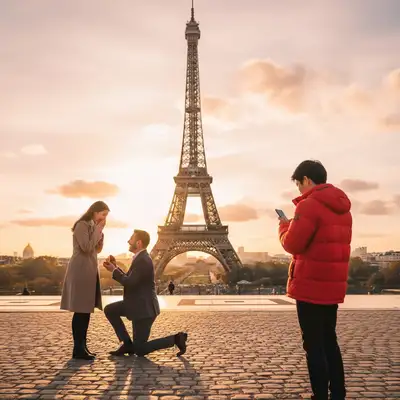
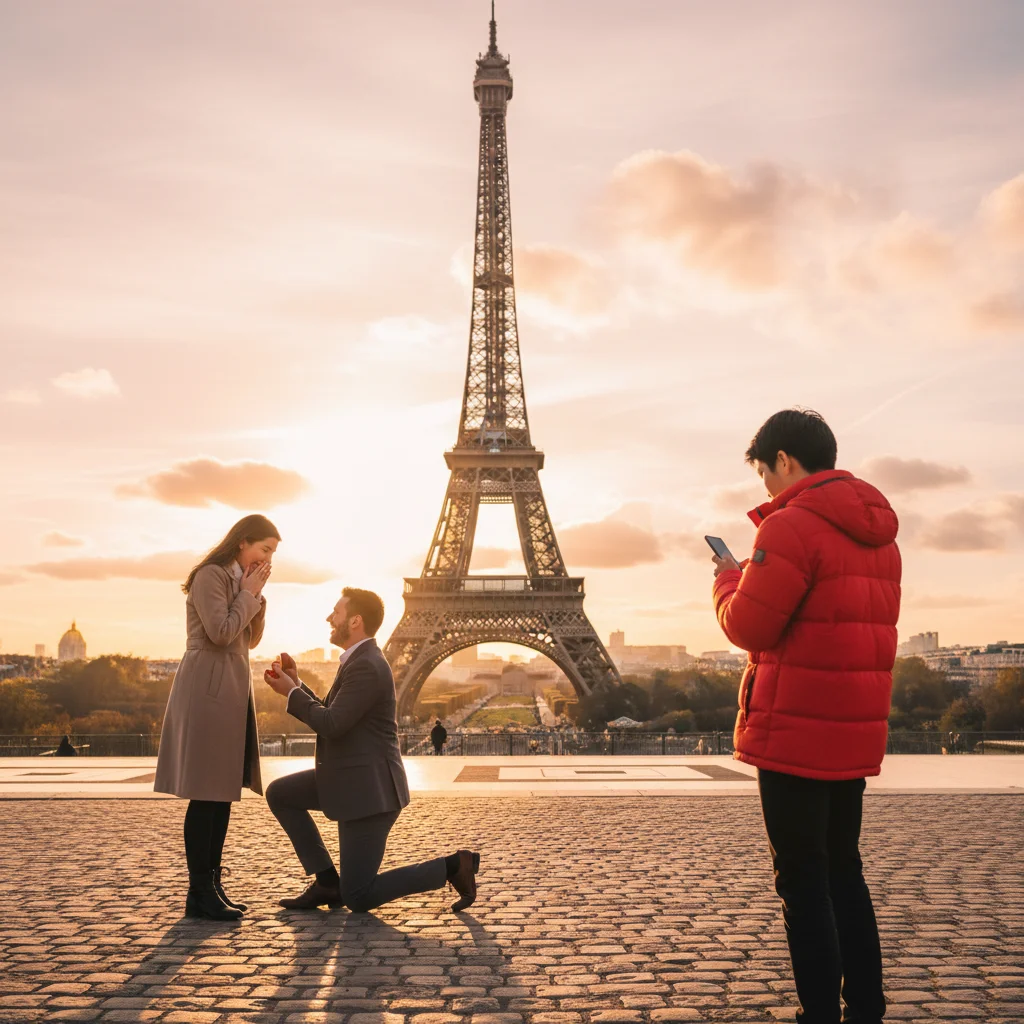
Eiffel Tower proposal photo with tourist in red jacket on right
Before
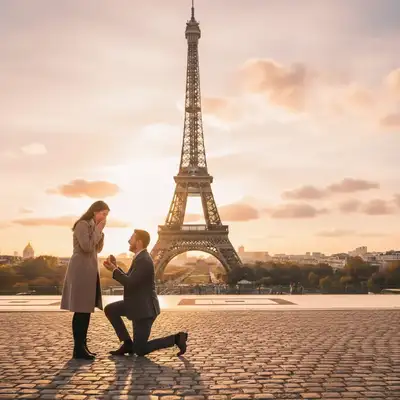
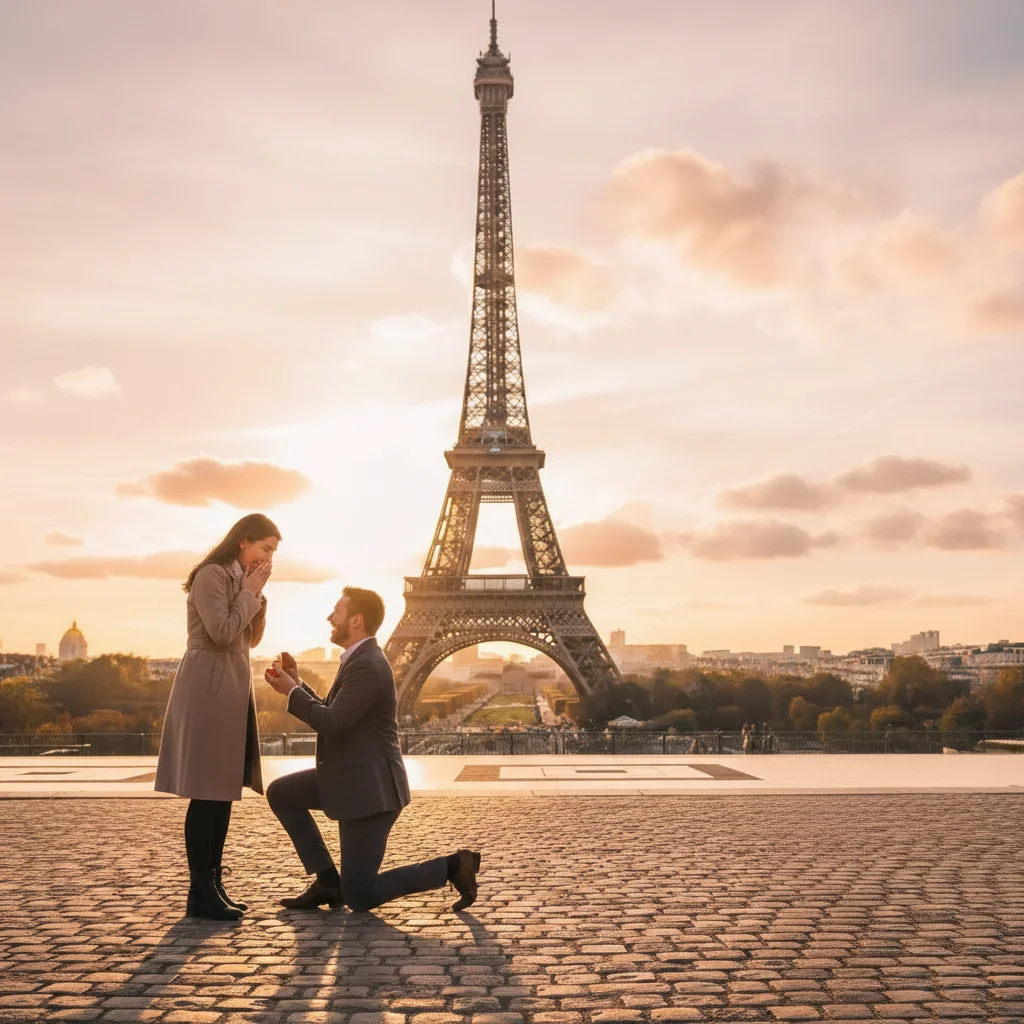
Clean proposal photo at Eiffel Tower with stranger removed
After

Photo Ruined by Stranger

Drop your photo here

or click to browse

Release to upload

Free • No signup

Advertisement
Popular use cases:
  • vacation photos
  • proposal photos
  • wedding photography
  • family photos
  • landmark photos
  • travel photography
  • tourist photos
  • concert photos
  • event photography
  • engagement photos
  • beach photos
  • park photos

Cost
Free No signup required
Time
Instant results in 15-30 seconds
Works on
Any device - browser, phone, tablet, desktop
Powered by
AI-powered photo editing
Scenario Prompt Time
Single stranger at edge remove the stranger on the right side and fill with background 15s
Person walking through remove the person in [color] shirt walking through 20s
Multiple tourists remove all the tourists except my family 30s
Photobomber in background remove the person on their phone in the background 15s

How it works

  1. Upload your ruined photo

    Drop the image into EditThisPic. Works with JPG, PNG, WebP up to 7MB. Whether it's a vacation photo, proposal shot, or family moment ruined by a random person walking through.

    Expect: Simple removals (person at edge, plain background): 15-30 seconds. Complex scenes (crowds, overlapping people): may need 2-3 refinements.
  2. Describe who ruined the shot

    Type your instruction: 'remove the stranger on the right side of the photo' or 'remove the person in the red shirt walking through the background.' Be specific about location and appearance. For crowded scenes with multiple strangers, tap a marker on the specific person first, then describe—it's faster and more accurate than describing 'the third person from the left.'

    Tip: Mention distinctive clothing colors or position: 'remove the person in bright yellow jacket at far right edge'

    Copy one of these to get started:

    Tourist photobombing landmark photo remove the stranger on the right side of the photo and fill with the landmark background
    Person walking through your shot remove the person in the red shirt walking through the background
    Multiple tourists in background remove all the tourists except my family and show the clear background
    Guy on phone in background remove the man on his phone in the background and extend the street scene
    4 more prompts
    Wedding photo with uninvited person remove the stranger at the edge of the frame and fill with natural background
    Proposal photo ruined by stranger remove the person watching in the background and show the empty beach
    Random person at family gathering remove the stranger standing near the wall and extend the wall pattern
    Concert/event with unwanted people remove the people on the far left and show the stage clearly
  3. Generate and review

    The AI removes the stranger and intelligently fills the background. Check at full zoom that edges are clean, shadows are gone, and the background looks natural where they were standing.

  4. Refine with markers if needed

    If the AI changed the wrong person or left parts behind, tap markers on the exact problem areas and regenerate. This is optional—most removals work without markers if your description is specific.

    Tip: Markers are for precision refinement when multiple similar people are in frame. Try description first.
Try it free

Photo Ruined by Stranger

Drop your photo here

or click to browse

Release to upload

Free • No signup

"Fixed 12 vacation photos from Paris. Every single one had random tourists walking through. Each took maybe 20 seconds to clean up." @james_travels

See it in action

Eiffel Tower proposal photo with tourist in red jacket on right
Before
->
Clean proposal photo at Eiffel Tower with stranger removed
After

Eiffel Tower proposal ruined by tourist

Perfect proposal moment with a random tourist walking through the shot in bright jacket. One prompt removed them completely.

Prompt: remove the stranger on the right side of the photo and fill with the landmark background
Beach sunset with jogger in red shirt running through frame
Before
->
Clean beach sunset photo with jogger removed
After

Beach sunset with person walking through

That perfect golden hour shot, except someone jogged right through it. AI cleaned it up perfectly.

Prompt: remove the person in the red shirt walking through the background
Family photo with stranger on phone in background
Before
->
Clean family photo with background stranger removed
After

Family photo with random guy on phone

Great family shot at the park, except for the guy standing there scrolling his phone in the background. Gone in 20 seconds.

Prompt: remove the man on his phone in the background and extend the park scene
Wedding ceremony photo with stranger at left edge
Before
->
Clean wedding ceremony with photobomber removed
After

Wedding ceremony with photobomber

Outdoor wedding ceremony perfectly captured, except for the random guest who wandered into frame at the edge.

Prompt: remove the stranger at the edge of the frame and fill with natural background
Advertisement

If something looks off

AI removed the wrong person or changed someone I wanted to keep

Why: The AI couldn't determine exactly which person you meant from description alone. This happens when multiple people look similar or the description is ambiguous.

Try: Tap a marker on the specific stranger you want removed, then regenerate with: 'remove the marked person and fill with background'

Tip: Markers tell the AI 'I mean THIS one specifically.' Use them when description alone is ambiguous.

Background looks blurry or unnatural where stranger was

Why: The AI didn't have enough surrounding context to reconstruct that specific area accurately.

Try: make the background where the stranger was look natural and match the surrounding area

Tip: Describe the specific background texture: 'match the cobblestone pattern' or 'extend the brick wall'

Stranger's shadow or reflection still visible

Why: Shadows and reflections are separate visual elements the AI may not catch with basic removal.

Try: remove the remaining shadow on the ground and fill with natural surface texture

Tip: Include shadows upfront: 'remove the stranger and their shadow on the ground'

Part of the stranger still visible (arm, bag, edge)

Why: Complex poses, bags, or partially obscured people make full boundary detection challenging.

Try: remove the remaining arm/bag/edge and fill with background

Tip: Tap a new marker on the leftover part and say 'remove this and fill naturally'

Removed multiple strangers but one remains

Why: The prompt wasn't specific about 'all people' or the person blended with the scene.

Try: remove the remaining person on the [left/right] and extend the background

Tip: When removing multiple people, sometimes doing them one at a time gives cleaner results

Background fill doesn't match lighting or color

Why: The inpainting algorithm averaged surrounding pixels but missed subtle lighting gradients.

Try: fix the lighting and color where the stranger was removed to match the surrounding scene

Tip: Mention specific lighting: 'match the warm sunset lighting' or 'continue the shadow gradient'

Quick answers

Do I need to mark the stranger before describing?

No! For most cases, just describe their location and appearance: 'remove the stranger on the right side' or 'remove the person in the red shirt.' The AI understands these descriptions. Only use markers when multiple people look similar and you need to specify 'THIS exact one'—like in a crowd where describing alone would be ambiguous.

How do I remove strangers from photos for free without signing up?

Upload your photo to EditThisPic, describe which stranger to remove ('remove the person walking through on the left'), and the AI handles it. Free to try, no account or login required. No watermarks on your edited photo. Works right in your browser in 15-30 seconds.

Can I remove multiple strangers from one photo?

Yes. Either describe them all: 'remove all the tourists in the background' or place markers on each person and say 'remove all marked people.' For complex scenes with many people, removing them one at a time sometimes gives cleaner background fills.

What's the best free AI tool to remove strangers from photos?

EditThisPic is specifically designed for this—just describe who to remove, no complex selection tools. Free tier gives you edits to try it. Works on vacation photos, proposals, family shots, weddings, any photo ruined by random people. No login required, no watermarks.

Will removing a stranger affect the people I want to keep?

No. The AI only modifies the area where the removed stranger was standing. Your main subject and other people remain completely untouched. If the stranger was partially blocking someone, that area fills with background, revealing more of the person behind.

What happens to the background where the stranger was?

The AI analyzes surrounding pixels and intelligently reconstructs what should be there. Beach extends naturally. Cobblestones continue their pattern. Grass fills in. It's not blur or clone stamp—the AI generates contextually appropriate content based on the scene.

Ready to fix that ruined photo?

Free to try. No signup required.

Try it free