Free • No signup Change Dress color · Free

AI Dress Color Changer - Change Dress Colors in Photos

Change dress colors instantly—just describe the new color, no marking needed

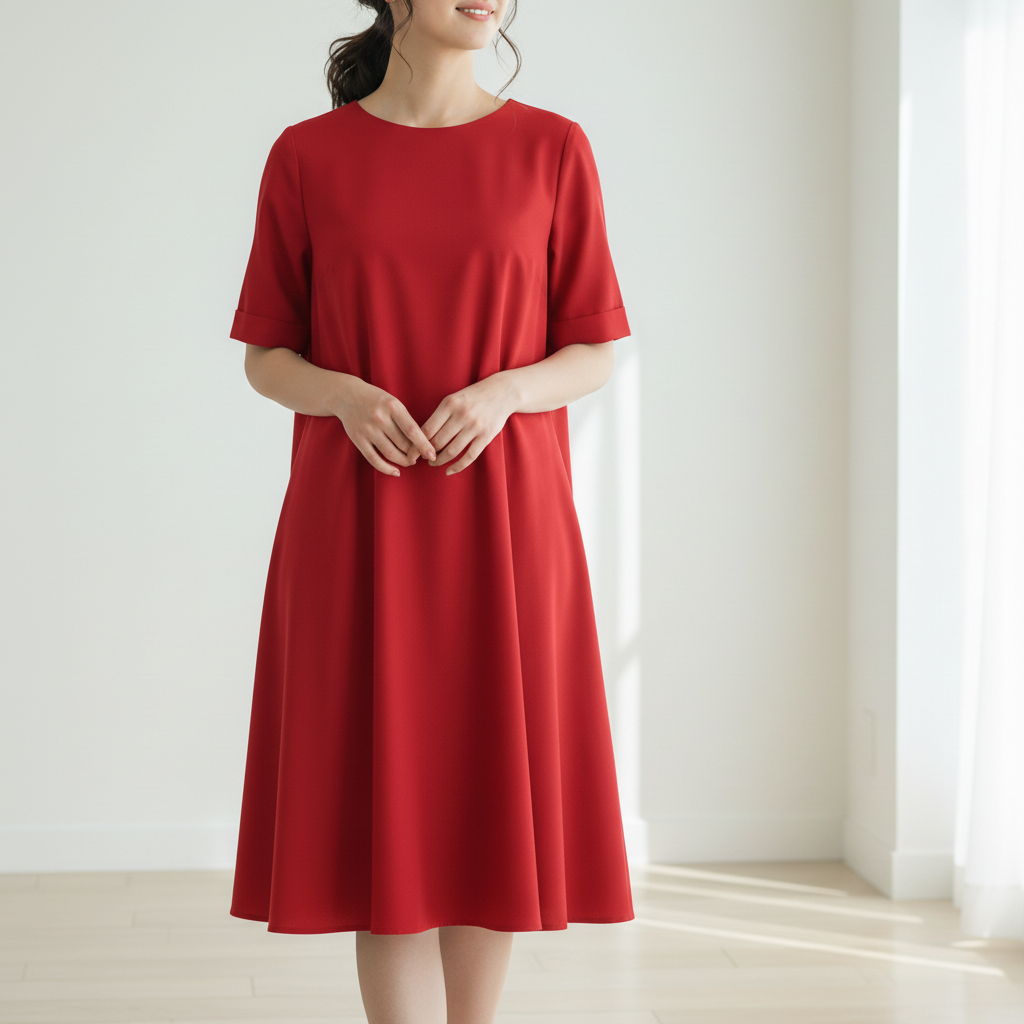
Woman in bright red formal dress at event
Before
Same photo with dress changed to navy blue maintaining texture
After

AI Dress Color Changer

Drop your photo here

or click to browse

Release to upload

Free • No signup

Advertisement
Popular use cases:
  • dress shopping visualization
  • event planning photos
  • wedding color coordination
  • fashion preview
  • outfit color matching

Cost
Free No signup required
Time
Instant results in 15-30 seconds
Works on
Any device - browser, phone, tablet, desktop
Powered by
AI-powered photo editing
Scenario Prompt Time
Navy blue Change the dress to navy blue, keep the fabric texture and shadows intact 7s
Burgundy red Make the dress burgundy red with a slight satin sheen, maintain the lighting 7s
Emerald green Turn the dress emerald green, preserve all the lace details and fabric folds 8s

How it works

  1. Upload your photo

    Choose any photo where you want to change the dress color. Works with wedding dresses, cocktail dresses, casual dresses, or formal gowns. The AI handles different fabric types, patterns, and lighting conditions automatically.

    Expect: Simple uploads: 2-3 seconds. Large files or slow connections: 5-8 seconds.
  2. Describe what you want

    Type the new color in plain English—'change the dress to burgundy red,' 'make the dress navy blue,' or 'turn the dress emerald green.' Be specific about the exact shade you want. The AI automatically recolors only the dress while keeping fabric texture, shadows, highlights, and the rest of the photo unchanged.

    Tip: Use specific color names like 'burgundy,' 'navy,' or 'emerald' instead of generic 'red' or 'blue' for precise shades.

    Copy one of these to get started:

    Classic color change Change the dress to navy blue, keep the fabric texture and shadows intact
    Bold evening dress color Make the dress burgundy red with a slight satin sheen, maintain the lighting
    Elegant formal dress Turn the dress emerald green, preserve all the lace details and fabric folds
    Soft pastel dress Change the dress to blush pink with a matte finish, keep it looking soft and elegant
    3 more prompts
    Rich jewel tone Make the dress deep sapphire blue, maintain the fabric texture and all shadows
    Metallic dress color Change the dress to champagne gold with a subtle metallic sheen, preserve highlights
    Two-tone preservation Change only the bodice of the dress to ivory white, keep the black skirt unchanged
  3. Review the result

    Check that the new color looks natural—preserved fabric texture, correct shadows and highlights, and realistic color saturation. Make sure accessories, skin, and background stayed unchanged. If the color isn't quite right or too saturated, adjust your prompt and regenerate.

  4. Refine with markers if needed

    If the AI changed the wrong garment or you want to change only part of the dress (like just the bodice or skirt), tap a marker on the specific area. This tells the AI exactly which part to recolor when you regenerate.

    Tip: Markers are helpful for multi-colored dresses when you want to change only one section.
Try it free

AI Dress Color Changer

Drop your photo here

or click to browse

Release to upload

Free • No signup

"Changed my wedding guest dress from pink to emerald green to see which color worked better. The texture and shadows stayed perfect." @EventReady_Maria

See it in action

Woman in bright red formal dress at event
Before
->
Same photo with dress changed to navy blue maintaining texture
After

Navy Blue Formal Dress

Evening dress color changed from red to sophisticated navy blue with preserved texture.
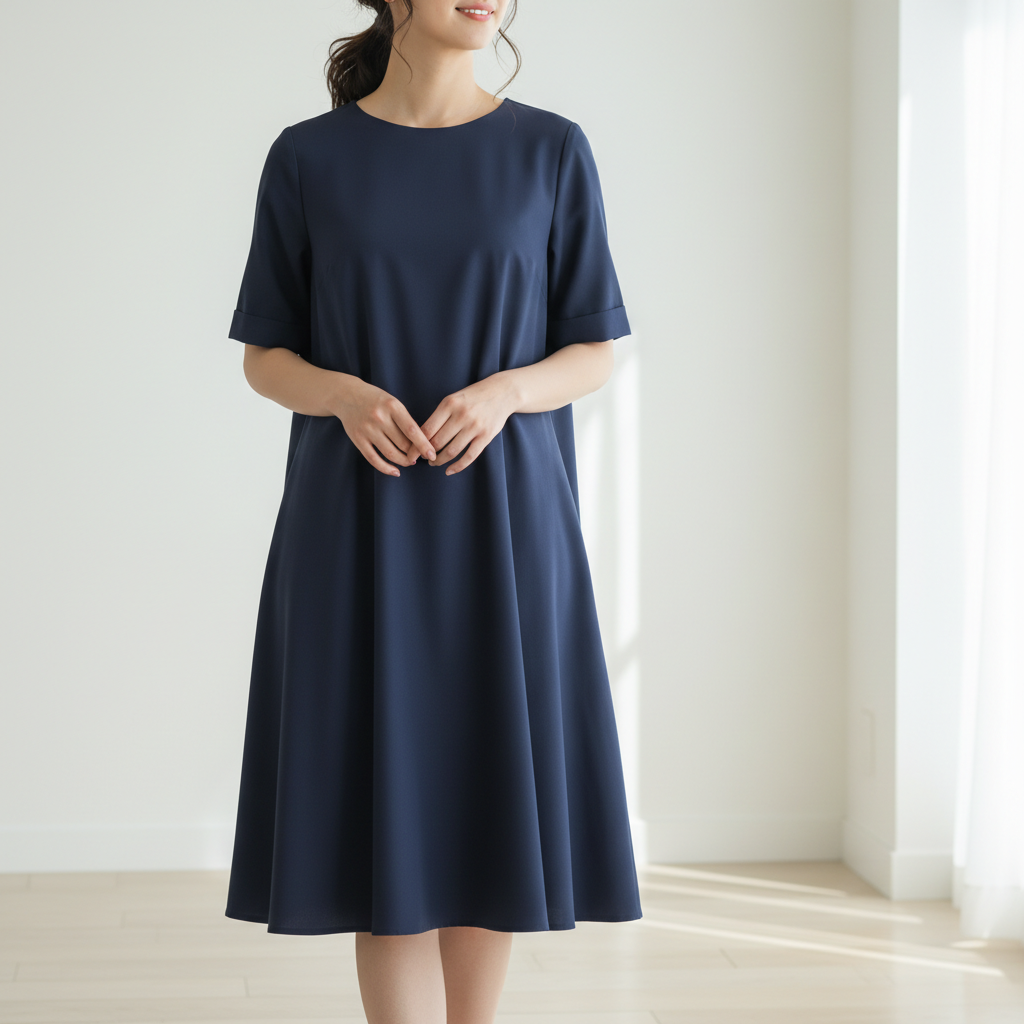
Prompt: Change the dress to navy blue, keep the fabric texture and shadows intact
Woman in bright teal satin cocktail dress
Before
->
Same photo with dress changed to burgundy maintaining satin sheen
After

Burgundy Satin Dress

Cocktail dress transformed to rich burgundy with maintained satin sheen and lighting.

Prompt: Make the dress burgundy red with a slight satin sheen, maintain the lighting
Woman in coral pink lace dress with detailed pattern
Before
->
Same photo with dress changed to emerald green preserving lace details
After

Emerald Lace Dress

Detailed lace dress recolored to emerald green with all intricate patterns preserved.

Prompt: Turn the dress emerald green, preserve all the lace details and fabric folds
Advertisement

If something looks off

AI changed the wrong area or something I didn't want changed

Why: The AI may have recolored similar colored items or couldn't distinguish the dress from other garments.

Try: Tap a marker on the dress, then regenerate with 'change only the dress to [color]'

Tip: Adding 'only the dress' to your prompt helps the AI avoid changing other clothing items.

The new color looks flat or lost the fabric texture

Why: The AI may have applied a solid color overlay instead of preserving material details.

Try: Add 'preserve the fabric texture and folds' or 'keep all the material details' to your prompt

Tip: Always mention texture preservation for fabrics like lace, satin, or velvet.

The color is too bright or too dull

Why: The AI interpreted the color saturation differently than you intended.

Try: Add modifiers like 'muted,' 'vibrant,' 'deep,' or 'soft' to control saturation level

Tip: Use 'deep navy' instead of 'navy' for richer tones, or 'soft pink' for pastels.

Shadows and highlights disappeared after color change

Why: The AI may have applied uniform color without considering lighting variations.

Try: Add 'maintain all shadows and highlights' or 'preserve the lighting' to your prompt

Tip: For satin or silk fabrics, explicitly request 'keep the sheen and reflections.'

Accessories or embellishments changed color too

Why: The AI may have recolored attached elements like belts, buttons, or trim.

Try: Specify 'change only the main dress fabric, keep accessories unchanged'

Tip: For dresses with contrasting details, mention 'preserve the [color] trim/belt/buttons.'

Quick answers

Do I need to mark the dress?

No! Just describe the color change you want—'change the dress to navy blue'—and the AI automatically identifies the dress and recolors it. Markers are only needed if there are multiple garments and you want to specify which one to change.

How do I change dress colors in photos for free?

Upload your photo to EditThisPic, type a description like 'change the dress to burgundy red,' and click generate. The AI processes it in 5-10 seconds. No signup, no watermark, completely free.

Will the fabric texture and details be preserved?

Yes. The AI maintains fabric texture, lace patterns, pleats, folds, shadows, and highlights when changing colors. For best results, include 'preserve fabric texture' in your prompt, especially for detailed fabrics like lace or satin.

Can I change dress colors from dark to light or vice versa?

Yes. The AI can change from any color to any other color—light to dark, dark to light, or between similar shades. It automatically adjusts shadows and highlights to make the new color look realistic.

What if my dress has multiple colors or patterns?

For multi-colored dresses, specify which part to change—'change only the bodice to red' or 'make the skirt navy blue.' Use a marker on the specific section you want to recolor for precision.

Ready to Change Dress Colors in Your Photos?

Free to try. No signup required. No watermark.

Try it free