AI Photo Editor for Mercari Product Photos
Turn cluttered phone photos into listings that actually sell.


Drop your photo here
or click to browse
Release to upload
Free • No signup
"I was listing old clothes on Mercari, taking pics on my bed with laundry in the background. Made the backgrounds white and my stuff actually started selling. Wish I knew about this sooner." @MercariMomOf3
Built for Mercari Sellers
Mercari buyers make split-second decisions while scrolling. Clean, well-lit photos get more views and faster sales. You don't need a photo studio or editing skills. Just snap a quick photo and let AI clean it up for your listing.
Tools for Mercari Listings
Replace Background
Swap bedroom clutter for clean white backgrounds
Remove Background
Create transparent or solid color backgrounds
Enhance Lighting
Fix dim indoor lighting so items look their best
Remove Shadows
Eliminate harsh shadows from flash or overhead lights
Enhance Photo
Overall quality boost for dull phone photos
How to AI Photo Editor for Mercari Product Photos
-
Snap your product photo
Take a clear photo of your item with your phone. Natural light near a window works best, but any well-lit spot will do. Don't worry about the background or styling. Just make sure the item itself is in focus and fully visible.
Clean background swap: 25-30 seconds. Lighting fix + background: 35-45 seconds.Take the photo slightly further back than you think. You can always crop, but you can't add back edges that got cut off. -
Upload and describe what you want
Drop your photo into EditThisPic and describe the improvement: 'replace the messy background with clean white' or 'brighten the lighting and remove shadows.' Be specific about what bothers you about the current photo.
Combine fixes in one prompt: 'white background, brighter lighting, remove the shadow' handles multiple issues at once. -
Check the result
Review the edited photo at full size. Make sure the item edges look clean, colors are accurate to real life, and nothing important got accidentally removed. Mercari buyers zoom in, so check the details.
-
Download and list
Download your polished photo and upload it to your Mercari listing. Consider creating multiple angles with consistent backgrounds for a professional-looking listing.
Use the same background style (white, light gray) across all photos in a listing for a cohesive look that builds buyer trust.
Copy-Paste Prompts for Mercari Photos
replace the background with clean white, keep the product exactly as is, sharp edges around the item
White backgrounds are Mercari's most professional look and match the app's design
brighten the item, reduce shadows, make colors accurate and vibrant, even lighting across the product
Items sell better when buyers can clearly see the condition and true colors
remove the harsh shadow behind and under the item, keep natural soft shadows for depth
Keeping subtle shadows prevents items from looking like they're floating
replace background with clean white, keep all items sharp, maintain spacing between items
Great for bundled listings showing everything included
Show 4 more prompts
replace the bedding/fabric background with solid light gray, keep the clothing item exactly as photographed
Light gray gives a neutral backdrop that works for any color clothing
remove the glare and reflection from the screen, keep the rest of the device sharp and detailed
Buyers want to see the screen condition clearly without flash reflections
replace the cluttered shelf background with clean gradient from white to light gray, focus on the collectible
Gradient backgrounds add depth while keeping focus on the item
mercari product photos — keep it looking natural and realistic. I want to share this on social media right away
Upload the highest resolution version of your photo for the best editing results
| Edit Type | Prompt | Time | |
|---|---|---|---|
| White background | replace background with clean white |
25s | Try This → |
| Fix lighting | brighten item, reduce shadows |
20s | Try This → |
| Remove flash shadow | remove harsh shadow, keep natural |
20s | Try This → |
| Full cleanup | white background, enhance lighting, sharpen |
35s | Try This → |
Real Examples
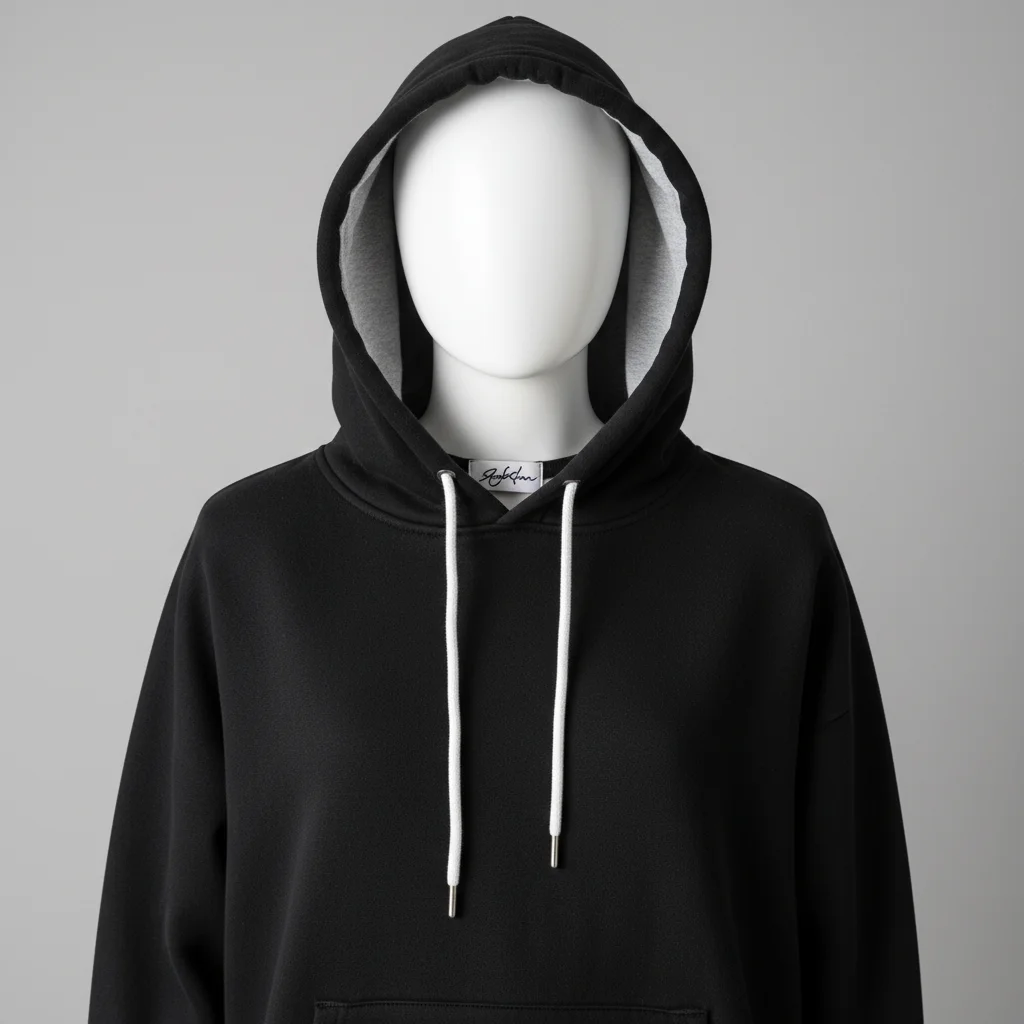
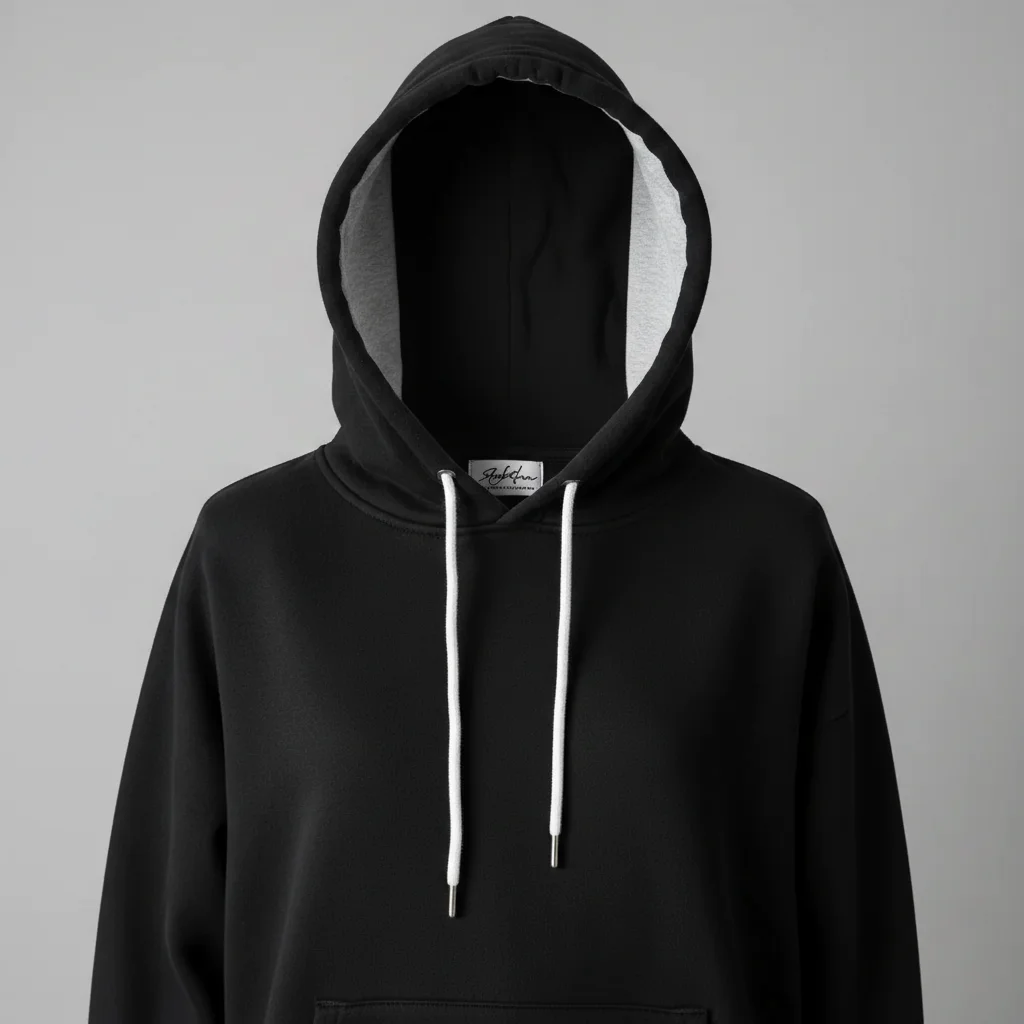
Vintage jacket on messy bed
Photographed a leather jacket to sell but the unmade bed and pillow in the background screamed 'amateur seller.' Quick background swap made it look like a boutique listing.
replace the messy bed background with clean white, keep the jacket sharp and detailed, professional product photo
Kids toys on kitchen counter
Had a bunch of kids toys to list but every photo showed the kitchen mess behind them. Made them all look like they came from a real toy store.
replace the kitchen counter and background with clean white, keep all the toys sharp and colorful, professional toy store look
Sneakers with harsh flash shadow
Took a flash photo of sneakers at night because I needed to list them fast. The shadow made them look beat up even though they were barely worn.
remove the harsh black shadow behind the sneakers, replace background with clean white, brighten the shoes evenly
When Things Go Wrong
Item edges look choppy or have white halos
Why: Complex edges like fabric fringe, fur, or loose threads are hard for AI to separate cleanly from backgrounds.
Tap markers on the choppy edges, then: smooth out the edges naturally, blend with background
Items with simple shapes (electronics, books, boxes) work best. Fuzzy items may need a couple tries.
Colors look different from real life
Why: Indoor lighting often adds yellow or blue color casts that the AI may enhance instead of correct.
Take original photos near a window for the most accurate starting colors.
AI removed part of the item
Why: If part of your item blends with the background, AI might think it's part of the background.
Tap markers on the missing part of the item, then: keep this as part of the product, only remove the background around it
For items that match the background color, try a different colored surface for the original photo.
Shadow removal made item look flat
Why: Removing all shadows removes the depth cues that make items look three-dimensional.
add a subtle soft shadow under the item for natural depth, don't make it look like it's floating
Some shadow is good - it grounds the item and makes it look real.
AI changed the wrong area
Why: The description was ambiguous and AI interpreted it differently than you intended.
Tap a marker on the specific area you want to change, then regenerate with the same prompt
Markers tell the AI 'I mean THIS specifically.' Use them when description alone isn't working.
Frequently Asked Questions
Do I need to mark the background before describing?
No! Just describe what you want: 'replace background with white' or 'remove the shadow.' The AI understands what 'background' and 'shadow' mean. Only use markers if you need precision - like when the AI changes the wrong area or you want to refine specific edges.
What's the best background color for Mercari listings?
Clean white is the gold standard - it matches Mercari's app design and makes items pop. Light gray works well for white items. Avoid busy patterns or dark backgrounds that distract from your product.
How do I edit product photos for Mercari for free?
Upload your photo to EditThisPic and describe what you want: 'clean white background' or 'brighten the lighting.' It's free to try, no account needed. Most edits take 30 seconds or less.
Is there a free Mercari photo editor without login?
Yes. EditThisPic lets you edit Mercari product photos instantly without creating an account. Just upload your photo, describe the edit you want, and download the result. No watermarks on your photos.
Can I edit multiple product photos at once?
Currently you edit one photo at a time, but each edit only takes 30 seconds. For consistent listings, use the same prompt for each photo: 'clean white background, enhance lighting' keeps all your items looking cohesive.
Will edited photos look fake to buyers?
No, if you keep edits subtle. Clean backgrounds and good lighting are expected on marketplace apps. Avoid over-enhancing colors or hiding flaws - buyers will notice when the item arrives. Edit for clarity, not deception.
Is EditThisPic's AI photo editor for mercari product photos really free?
Yes — you get 1 free edit per week, no account needed. For unlimited edits, plans start at $3.99/month.
Can I mercari product on my phone?
Yes. EditThisPic works in any mobile browser — iPhone, Android, tablet. No app download needed.
Ready to make your Mercari listings sell?
Free to try. No signup required. No watermarks.
Edit Your Product Photo