Free • No signup Apply Cinematic look · Free

AI Cinematic Filter

Just describe the cinematic look you want - no complex adjustments needed.

Natural portrait before cinematic filter
Before
Portrait with Hollywood teal and orange cinematic grading
After

Apply Cinematic Filter to Photos Free

Drop your photo here

or click to browse

Release to upload

Free • No signup

Advertisement
Popular use cases:
  • YouTube thumbnails
  • Instagram posts
  • film photography
  • portrait enhancement
  • product photography
  • travel vlogs

Cost
Free No signup required
Time
Instant results in 15-30 seconds
Works on
Any device - browser, phone, tablet, desktop
Powered by
AI-powered photo editing
Scenario Prompt Time
Teal and orange Hollywood apply a cinematic color grade with teal shadows and warm orange highlights 15s
Moody thriller look apply a dark cinematic grade with desaturated colors and cool blue tones 15s
Warm golden hour apply cinematic grade with warm golden tones and rich amber shadows 15s

How it works

  1. Upload your photo

    Drop your image into EditThisPic. JPG, PNG, WebP up to 7MB. Works best on photos with good exposure and clear subjects.

    Expect: Simple filters: 15-30 seconds. Complex style requests: may need one refinement.
  2. Describe the cinematic look

    Type your instruction: 'apply cinematic color grading with teal shadows and orange highlights' or 'make this look like a Hollywood movie with warm tones.' Be specific about color combinations, contrast, and mood. No marking needed—the AI applies the filter to the entire image.

    Tip: Reference specific film looks: 'Blade Runner 2049 orange and teal' or 'The Revenant cold blue grade'

    Copy one of these to get started:

    Classic Hollywood teal and orange apply a cinematic color grade with teal shadows and warm orange highlights, like a Hollywood blockbuster
    Moody thriller look apply a dark cinematic grade with desaturated colors, crushed blacks, and cool blue tones
    Warm golden hour film look apply a cinematic color grade with warm golden tones, soft highlights, and rich amber shadows
    Sci-fi cyberpunk grade apply a futuristic cinematic look with saturated neon colors, deep contrast, and vibrant purple and blue tones
    2 more prompts
    Period drama warm look apply a vintage cinematic grade with sepia-toned warm colors, soft contrast, and cream highlights
    Action movie high contrast apply an intense cinematic grade with crushed blacks, bright highlights, and punchy saturated colors
  3. Generate and review

    Click Generate and watch your photo transform. Check the color balance, shadow tones, and highlight tones at full zoom. The filter should enhance the image without losing detail.

  4. Refine with markers if needed

    If certain areas need more or less of the effect, tap markers on those spots and regenerate with adjustments like 'stronger effect on the sky' or 'preserve natural skin tones on faces.' This is optional—most filters work without markers.

    Tip: Markers are for selective adjustments, not required. Try without them first.
Try it free

Apply Cinematic Filter to Photos Free

Drop your photo here

or click to browse

Release to upload

Free • No signup

"I just typed 'make this look cinematic' and it gave me perfect Hollywood-style color grading. No Lightroom needed." @filmmaker_sarah

See it in action

Natural portrait before cinematic filter
Before
->
Portrait with Hollywood teal and orange cinematic grading
After

Portrait with Teal and Orange Grade

Applied classic Hollywood cinematic color grading to a casual portrait photo.

Prompt: apply a cinematic color grade with teal shadows and warm orange highlights, like a Hollywood blockbuster
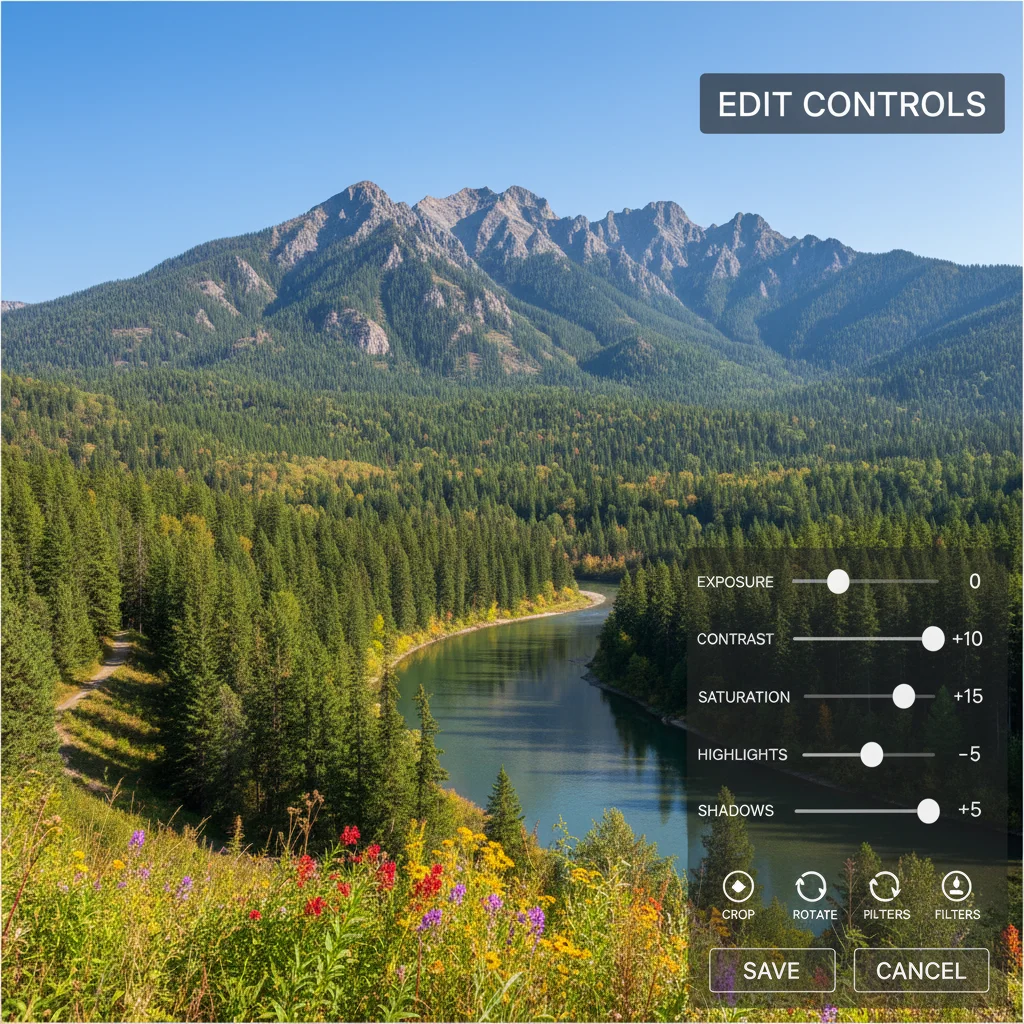
Bright landscape before cinematic filter
Before
->
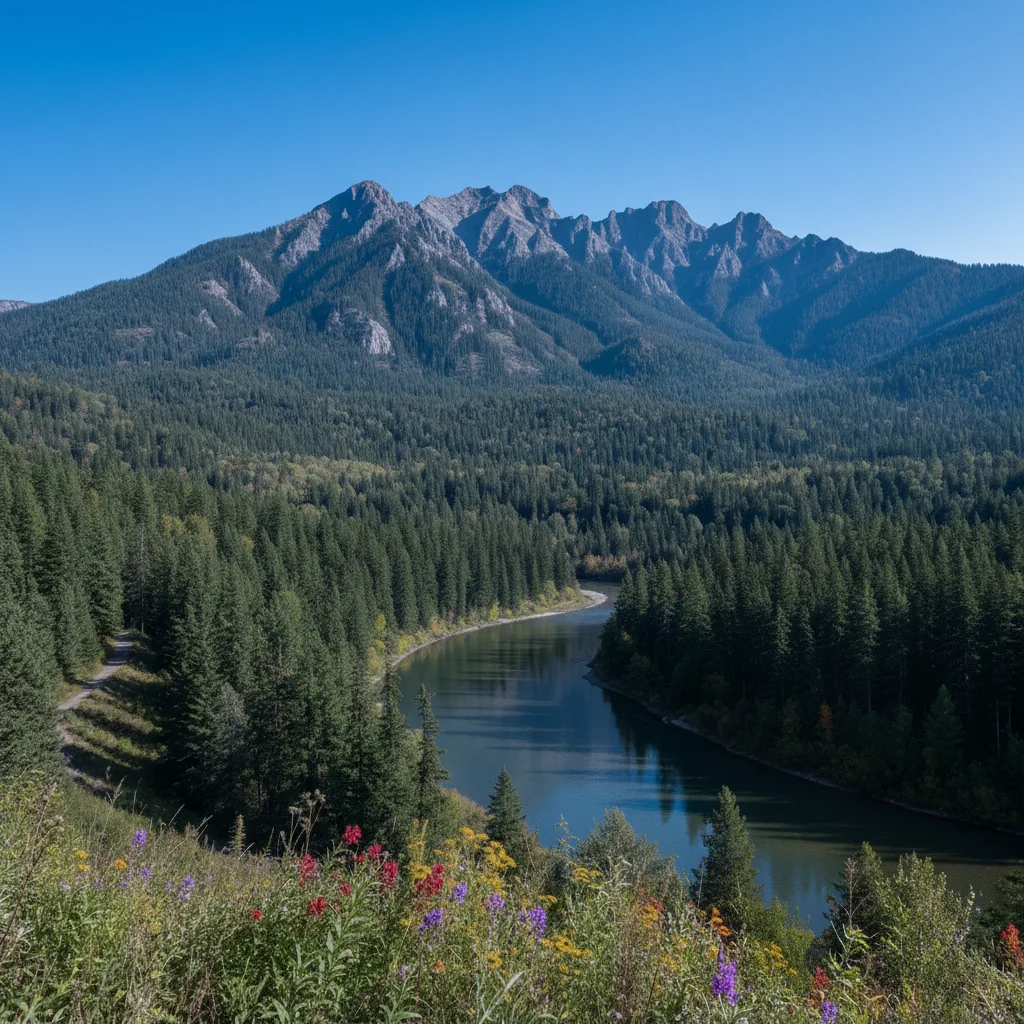
Landscape with moody blue cinematic grading
After

Landscape with Moody Blue Grade

Transformed a daytime landscape into a dramatic moody scene with cool tones.

Prompt: apply a dark cinematic grade with desaturated colors, crushed blacks, and cool blue tones
Advertisement

If something looks off

Colors look oversaturated or unnatural

Why: The AI may have applied the filter too aggressively based on your prompt wording.

Try: Regenerate with 'apply a subtle cinematic grade with...' or 'light teal and orange tones, preserve natural colors'

Tip: Add 'subtle' or 'natural-looking' to your prompt for more restrained results

Shadows are too dark and lost detail

Why: Cinematic grades often crush blacks for drama, which can hide shadow detail.

Try: Regenerate with 'apply cinematic color grading but preserve shadow detail' or 'lift the blacks slightly'

Tip: For portraits, always request 'preserve shadow detail' to avoid losing facial features

Skin tones look wrong or too orange

Why: Orange/teal grading can shift skin tones unnaturally if applied uniformly.

Try: Regenerate with 'apply cinematic color grade but keep natural skin tones on faces'

Tip: For photos with people, always specify 'preserve natural skin tones'

AI changed the wrong area or something I didn't want changed

Why: The AI couldn't determine exactly which area you meant from description alone. This happens with ambiguous requests.

Try: Tap a marker on the specific area you want to adjust differently, then regenerate with the same prompt

Tip: Markers tell the AI 'apply the filter differently HERE.' Use them for selective adjustments.

Quick answers

Do I need to mark anything to apply a cinematic filter?

No! Just describe the look you want: 'apply cinematic teal and orange grading' or 'make this look like a Hollywood movie.' The AI applies the filter to the entire image. Only use markers if you want to adjust specific areas differently, like preserving natural skin tones on faces while grading the background.

How do I get the classic Hollywood teal and orange look?

Use the prompt: 'apply a cinematic color grade with teal shadows and warm orange highlights.' This creates the iconic blockbuster look with cool blue-green shadows and warm orange skin tones and highlights. Works best on portraits and outdoor scenes with good lighting.

Can I reference specific movies for the color grading style?

Yes! Mention the film in your prompt: 'apply color grading like Blade Runner 2049' or 'make this look like The Grand Budapest Hotel.' The AI understands common film references and their associated color palettes.

What's the difference between cinematic filter and regular filters?

Cinematic filters mimic professional color grading from movies—they adjust multiple color channels, contrast curves, and tonal ranges simultaneously to create a cohesive filmic look. Regular filters just apply preset adjustments. EditThisPic's AI creates custom cinematic grades based on your specific instructions.

Ready to apply cinematic grading to your photos?

Free to try. No signup required.

Try it free