Free • No signup Simulate Contact lens · Free

AI Contact Lens Simulator

See how colored contact lenses look on your eyes before buying.
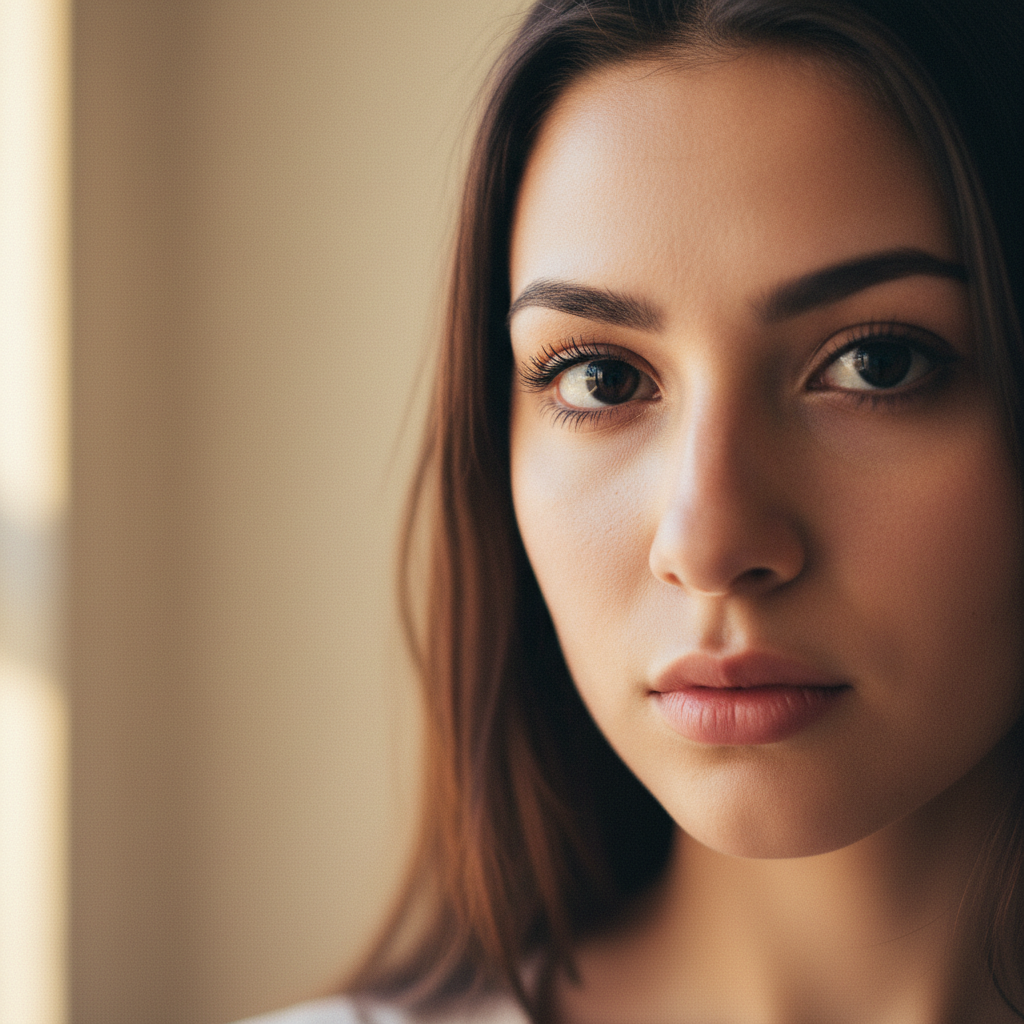
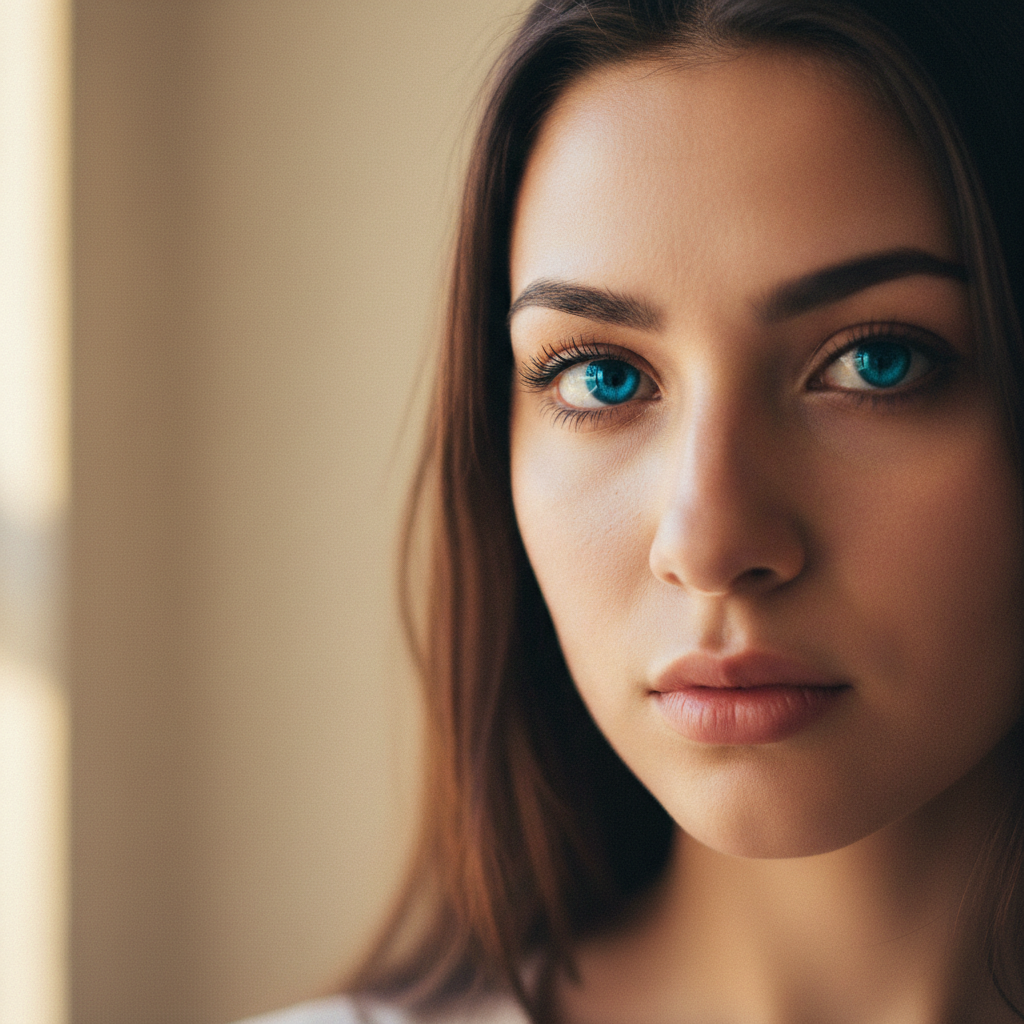
Portrait with natural brown eyes before contact lens simulation
Before
Same portrait with realistic blue colored contacts applied
After

AI Contact Lens Simulator

Drop your photo here

or click to browse

Release to upload

Free • No signup

Advertisement
Popular use cases:
  • buying colored contacts
  • contact lens shopping
  • eye color preview
  • before buying contacts
  • colored lens comparison
  • cosplay eye effects
  • Halloween costume eyes
  • portrait enhancement

Cost
Free No signup required
Time
Instant results in 15-30 seconds
Works on
Any device - browser, phone, tablet, desktop
Powered by
AI-powered photo editing
Scenario Prompt Time
Natural blue contacts change my eye color to natural sapphire blue with realistic contact lenses, preserving eye reflections and pupil detail 20s
Green contacts add natural green colored contact lenses to my eyes, emerald green shade with subtle depth 20s
Hazel contacts change my eyes to warm hazel color with contact lenses showing natural brown and green tones blended 25s
Gray contacts add cool gray colored contact lenses to my eyes with silver undertones and natural eye texture preserved 25s

How it works

  1. Upload your photo

    Drop a clear photo of your face into EditThisPic. For best results, use well-lit photos where your eyes are open and facing the camera. Works with JPG, PNG, WebP up to 7MB.

    Expect: Simple front-facing photos with clear eyes: 15-25 seconds. Photos with shadows or side angles: may need 1-2 refinements for natural results.
  2. Describe what you want

    Type your instruction: 'change my eye color to sapphire blue with natural contact lenses' or 'add hazel colored contacts to my eyes preserving natural eye reflections.' Be specific about the color and whether you want natural or dramatic effects. No marking needed—the AI detects and changes your irises automatically.

    Tip: Include 'natural-looking' or 'realistic' in your prompt to preserve eye detail and light reflections. For bold fashion looks, try 'dramatic' or 'vibrant' colored contacts.

    Copy one of these to get started:

    Natural blue contacts change my eye color to natural sapphire blue with realistic contact lenses, preserving eye reflections and pupil detail

    Green colored contacts add natural green colored contact lenses to my eyes, emerald green shade with subtle depth
    Hazel contacts change my eyes to warm hazel color with contact lenses showing natural brown and green tones blended
    Gray/silver contacts add cool gray colored contact lenses to my eyes with silver undertones and natural eye texture preserved
    3 more prompts
    Violet/purple contacts change my eye color to violet purple with colored contact lenses, dramatic but realistic effect
    Honey brown contacts add warm honey brown colored contacts to my eyes with natural light amber tones and depth
    Enhancing light eyes intensify my natural blue eyes with enhancement contact lenses that deepen the blue shade while keeping my natural pattern
  3. Generate and review

    Click Generate and the AI applies colored contact lens effects to your eyes. Zoom in to verify the color looks natural and the pupil detail is preserved.

  4. Refine with markers if needed

    If the AI changed the wrong eye area or you want to adjust the effect, tap markers on your irises and regenerate. Most simulations work perfectly without markers.

    Tip: Markers help if you have very dark eyes or unusual lighting. They tell the AI exactly where to apply the contact lens effect.
Try it free

AI Contact Lens Simulator

Drop your photo here

or click to browse

Release to upload

Free • No signup

"Helped me decide between blue and green lenses before ordering. Saved me from buying the wrong color!" @eyestyle_lover

See it in action

Portrait with natural brown eyes before contact lens simulation
Before
->
Same portrait with realistic blue colored contacts applied
After

Brown Eyes to Natural Blue Contacts

Simulated sapphire blue colored contacts on brown eyes showing realistic transformation with preserved eye detail.

Prompt: change my eye color to natural sapphire blue with realistic contact lenses, preserving eye reflections and pupil detail

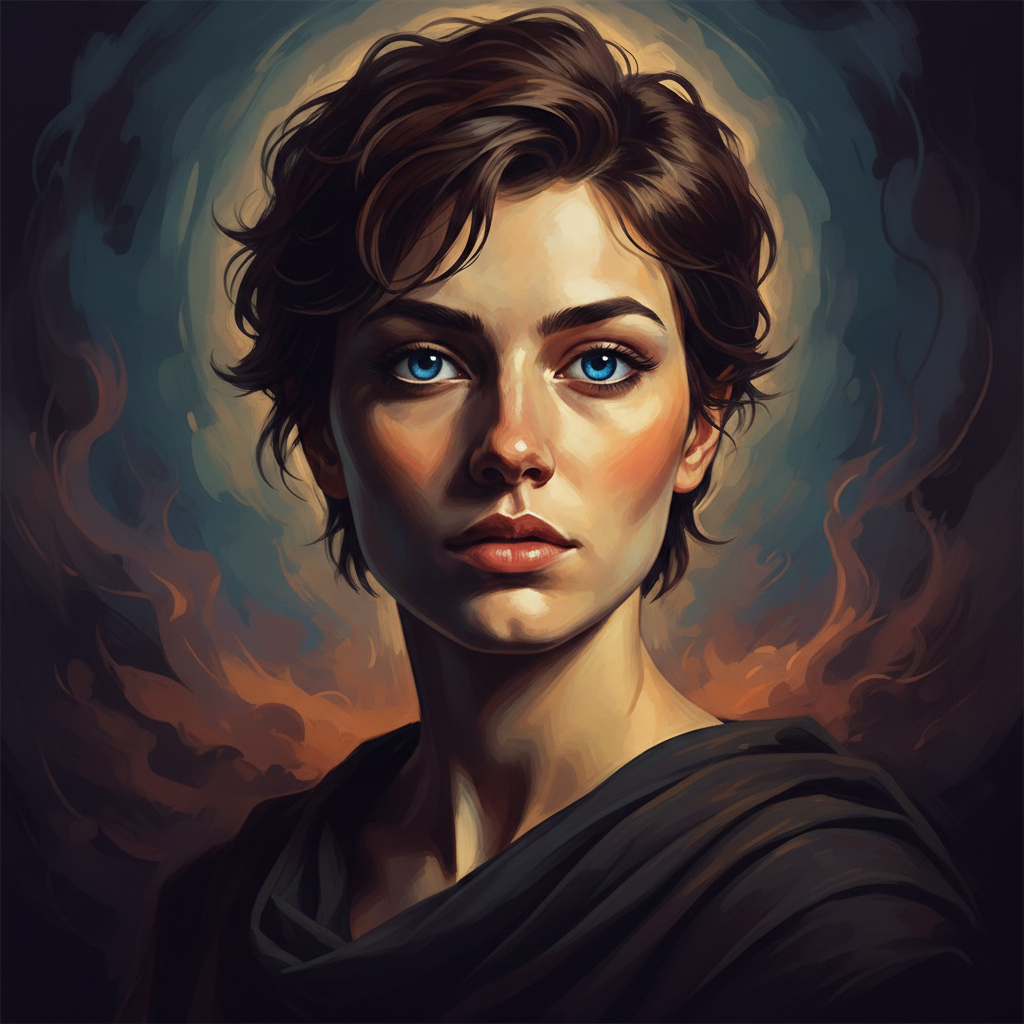
Portrait with light blue eyes before green contact simulation
Before
->
Portrait with emerald green colored contacts effect
After

Blue Eyes Enhanced with Green Contacts

Changed light blue eyes to emerald green with natural-looking colored contact lens simulation.

Prompt: add natural green colored contact lenses to my eyes, emerald green shade with subtle depth
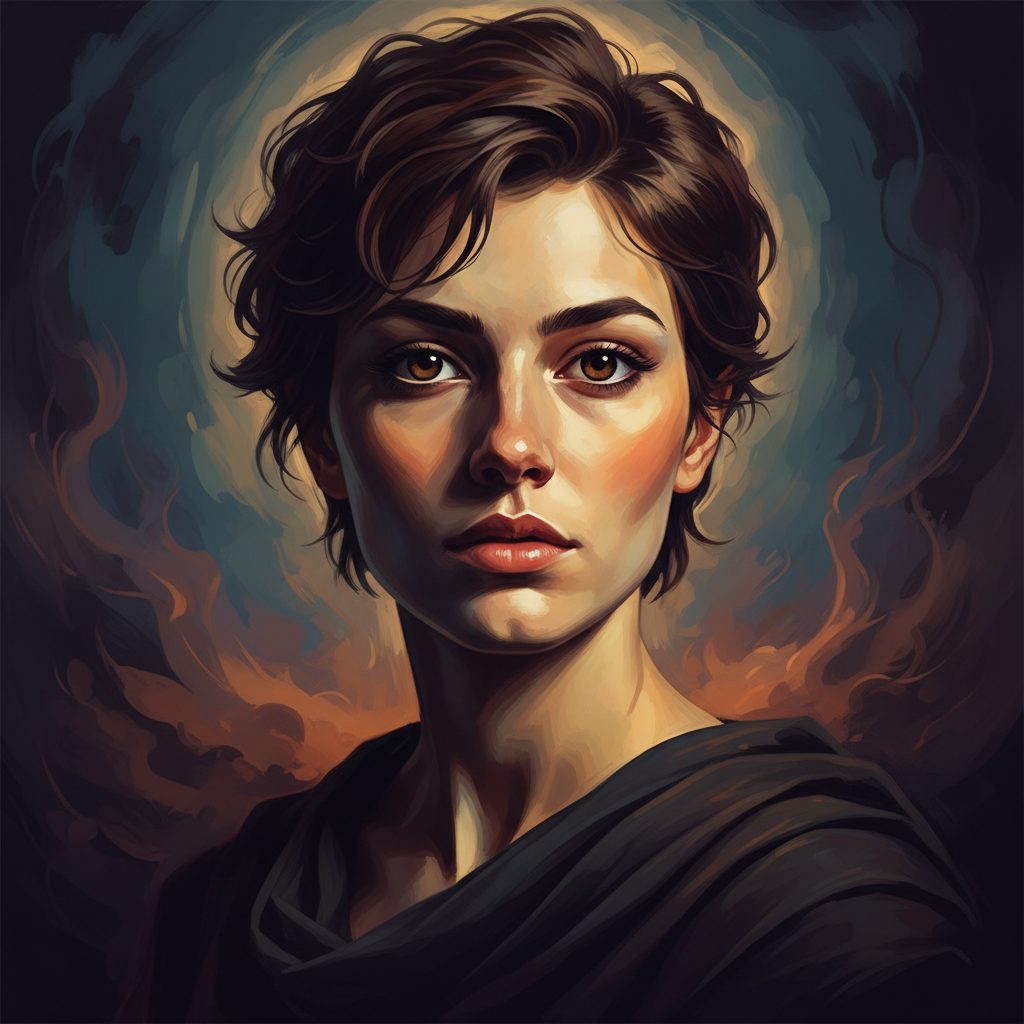
Portrait with dark eyes before hazel contact simulation
Before
->
Portrait with natural hazel colored contacts effect
After

Dark Eyes to Hazel Multi-Tone Contacts

Applied realistic hazel colored contacts showing natural blend of brown and green tones on dark eyes.

Prompt: change my eyes to warm hazel color with contact lenses showing natural brown and green tones blended
Advertisement

If something looks off

AI changed the wrong area or affected more than just the iris

Why: The AI couldn't precisely identify the iris boundaries, especially with very dark eyes or harsh shadows.

Try: Tap a marker directly on each iris, then regenerate with 'change only the colored part of my eyes to blue contacts, leaving pupil and white areas unchanged'

Tip: Markers tell the AI exactly where the iris is located, producing cleaner results on challenging photos.

Contact lens color looks fake or too saturated

Why: The AI applied an overly dramatic effect without preserving natural eye texture and reflections.

Try: Add 'natural' and 'subtle' to your prompt: 'add natural subtle blue contacts preserving my eye's natural texture, reflections, and iris pattern'

Tip: Real contacts are semi-transparent and show the underlying eye structure

Eyes lost their natural sparkle or reflections

Why: The AI applied the color uniformly without preserving catchlights and natural eye reflections.

Try: Regenerate with 'change eye color to blue contacts while keeping all natural light reflections, catchlights, and eye shine'

Tip: Mentioning 'reflections' ensures the AI preserves that realistic eye sparkle

Color doesn't show up on dark eyes

Why: The AI applied a subtle effect that doesn't show on very dark brown or black irises.

Try: Try 'add vibrant blue colored contacts that show clearly on dark brown eyes with opaque coverage'

Tip: Opaque contacts (not just tinted) are needed to change very dark eyes to light colors

Pupils are colored or whites of eyes changed

Why: The AI misidentified the iris boundaries.

Try: Use markers on the colored part of each eye only, then try 'change iris color only to green contacts, do not affect pupil or whites'

Tip: Being explicit about iris-only changes prevents pupil coloring

Different effect on each eye or asymmetric results

Why: One eye may be in shadow or at a different angle, making consistent color application difficult.

Try: Use a photo with more even lighting, or mark both irises and specify 'apply the same green contact lens color to both eyes equally'

Tip: Front-facing photos with even lighting produce the most symmetric results

Quick answers

Do I need to mark my eyes before describing the contact lens color?

No! Just describe what you want: 'change my eye color to blue with contact lenses' or 'add green colored contacts.' The AI automatically detects your irises and applies the color. Only use markers if the AI affects the wrong area or you have very dark eyes that need precise targeting.

How do I preview colored contact lenses on my eyes for free?

Upload a clear photo of your face to EditThisPic and type 'change my eye color to [desired color] with contact lenses.' The AI simulates the colored contacts in 15-25 seconds. Free to use, no account needed. Perfect for deciding which contact lens color to buy.

Will the results look realistic or obviously edited?

When you include 'natural' or 'realistic' in your prompt, the AI preserves eye reflections, catchlights, and iris texture just like real colored contacts. The effect is semi-transparent, showing depth and natural eye detail. For more dramatic costume looks, skip 'natural' and try 'vibrant' or 'bold' instead.

Can I simulate colored contacts on dark eyes?

Yes! For dark brown or black eyes, use prompts like 'add opaque blue contacts that show clearly on dark eyes.' Specify 'opaque' to ensure the light color shows through. The AI can simulate both enhancement lenses (subtle) and opaque color-change lenses (dramatic).

What contact lens colors can I try?

You can simulate any colored contact lens shade: natural blues, greens, hazels, grays, honey browns, or bold colors like violet, aqua, and amber. Describe the shade specifically (sapphire blue, emerald green, warm hazel) for accurate results. You can also try enhancement effects that intensify your natural color.

Ready to preview colored contacts on your eyes?

Free to try. No signup required.

Try it free