Free • No signup Add Hat · Free

AI Hat Adder - Add Hats to Photos

Add any hat to photos instantly—just describe the style, no marking needed
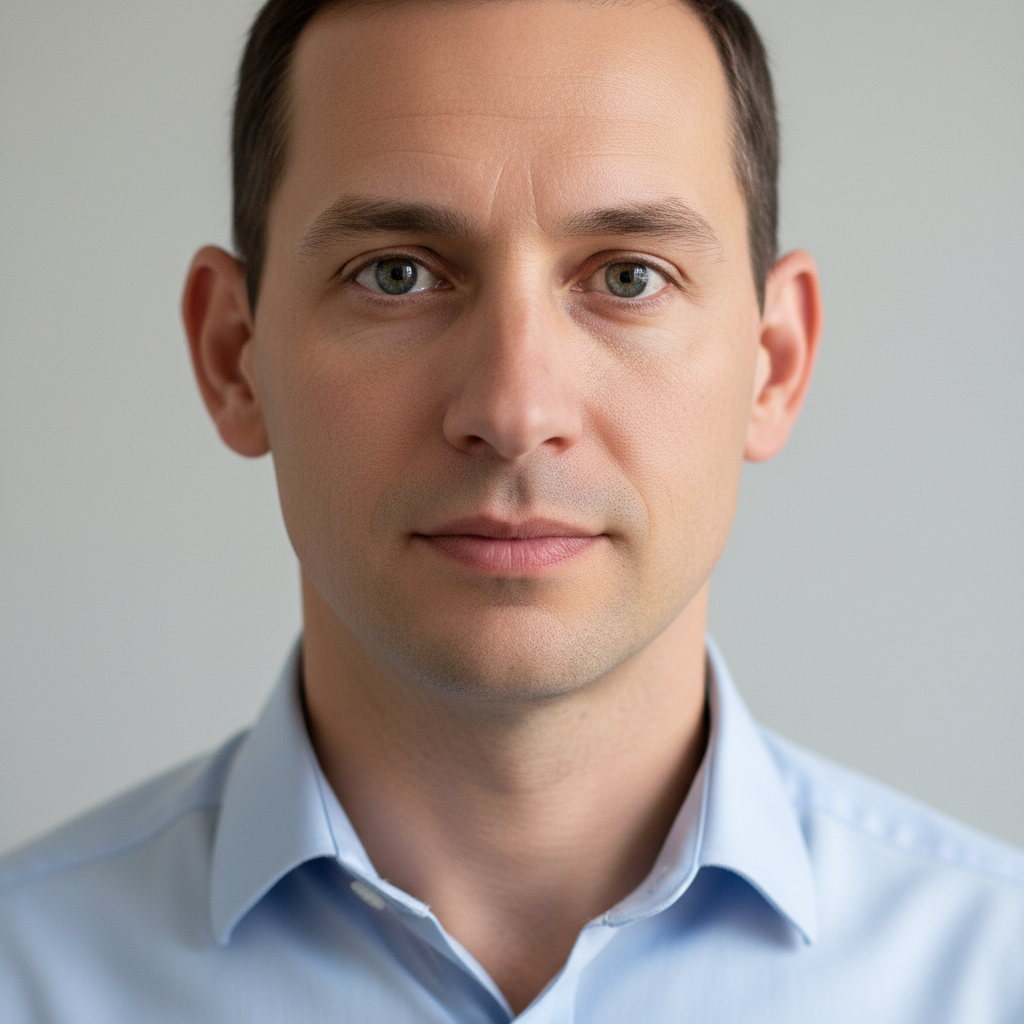
Outdoor portrait of man without hat in blue t-shirt
Before
Same portrait with naturally added black baseball cap
After

AI Hat Adder

Drop your photo here

or click to browse

Release to upload

Free • No signup

Advertisement
Popular use cases:
  • virtual hat try-on
  • profile picture enhancement
  • costume photo editing
  • fashion visualization
  • headwear addition

Cost
Free No signup required
Time
Instant results in 15-30 seconds
Works on
Any device - browser, phone, tablet, desktop
Powered by
AI-powered photo editing
Scenario Prompt Time
Baseball cap Add a black baseball cap to the person, positioned naturally forward-facing 6s
Winter beanie Put a red knit beanie on the person's head, covering the top of the ears 6s
Fedora hat Add a brown fedora hat with a black band, tilted slightly to the right 8s

How it works

  1. Upload your photo

    Choose any photo where you want to add a hat. Works best with portraits, selfies, or photos where the person's head is clearly visible. The AI handles different hair styles, head angles, and lighting conditions automatically.

    Expect: Simple uploads: 2-3 seconds. Large files or slow connections: 5-8 seconds.
  2. Describe what you want

    Type the hat style you want in plain English—'add a black baseball cap,' 'put a red winter beanie on the person,' or 'add a brown fedora hat.' Be specific about color, style, and any details like logos or patterns. The AI automatically positions the hat correctly and matches the lighting.

    Tip: Include the color and specific hat type (baseball cap, beanie, fedora, cowboy hat) for best results.

    Copy one of these to get started:

    Casual baseball cap Add a black baseball cap to the person, positioned naturally forward-facing
    Winter beanie Put a red knit beanie on the person's head, covering the top of the ears
    Classic fedora Add a brown fedora hat with a black band, tilted slightly to the right side
    Sun hat for outdoor photos Add a wide-brim white sun hat, casting a natural shadow on the face
    3 more prompts
    Cowboy hat Add a tan cowboy hat with a leather band, positioned like a traditional western hat
    Branded sports cap Add a navy blue baseball cap with a Yankees logo on the front, worn forward
    Vintage style hat Add a 1920s style cloche hat in burgundy velvet, fitted snugly to the head
  3. Review the result

    Check that the hat looks natural—proper size, correct angle, matching shadows, and appropriate placement on the head. Make sure it fits the head shape and doesn't cover too much or too little. If the style or position isn't right, adjust your prompt and regenerate.

  4. Refine with markers if needed

    If the AI placed the hat on the wrong person in a group photo or you want to adjust the exact positioning, tap a marker on the specific person's head. This tells the AI exactly where to place the hat when you regenerate.

    Tip: Markers are helpful for group photos or when you want a specific hat angle like 'tilted to the side.'
Try it free

AI Hat Adder

Drop your photo here

or click to browse

Release to upload

Free • No signup

"Added a cowboy hat to my profile pic and it looks like I actually wore it. The shadows and everything match perfectly." @CountryVibes_Jake

See it in action

Outdoor portrait of man without hat in blue t-shirt
Before
->
Same portrait with naturally added black baseball cap
After

Casual Baseball Cap Addition

Outdoor portrait with a naturally added baseball cap matching the lighting.
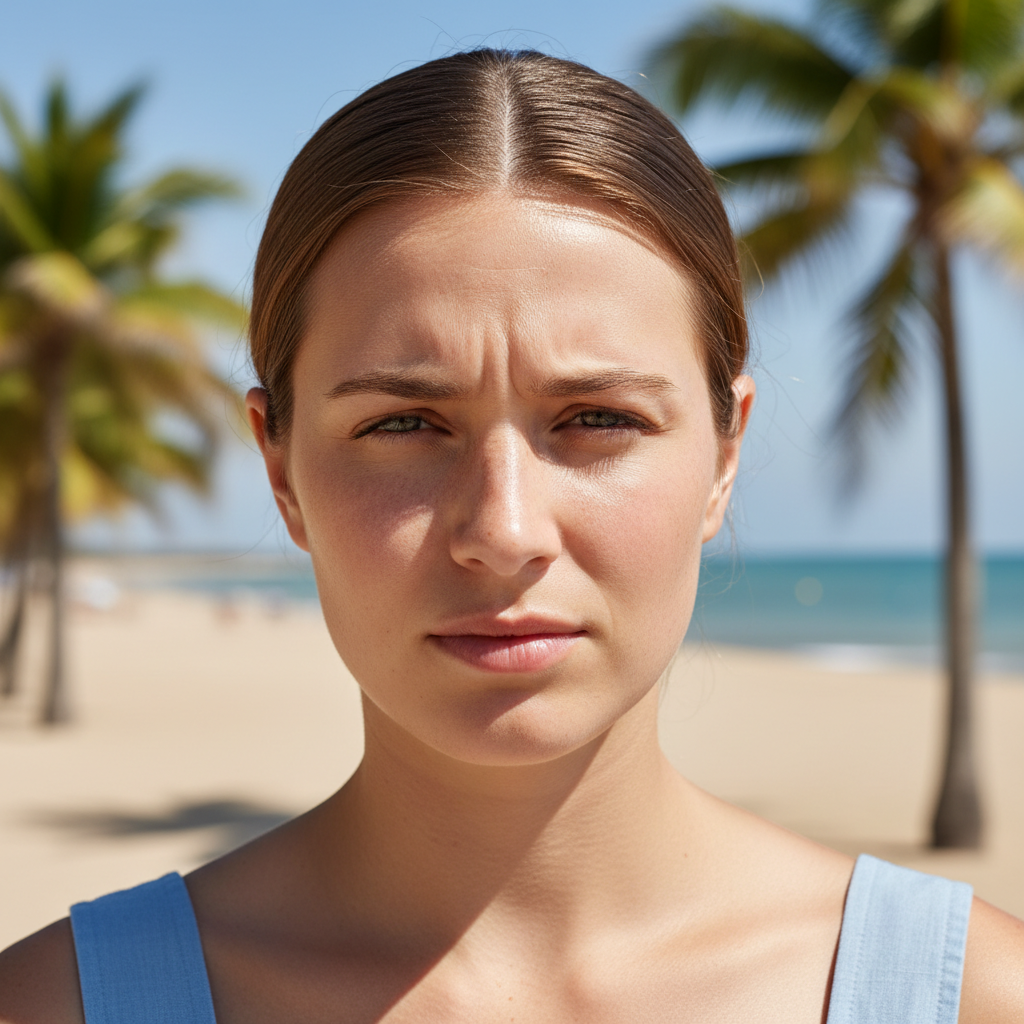
Prompt: Add a black baseball cap to the person, positioned naturally forward-facing
Winter photo of woman in red jacket without hat
Before
->
Same winter photo with naturally added red knit beanie
After

Winter Beanie for Cold Weather Photo

Snow scene enhanced with a cozy winter beanie that matches the cold weather vibe.
Prompt: Put a red knit beanie on the person's head, covering the top of the ears
Formal portrait of man in gray suit without hat
Before
->
Same formal portrait with stylishly added brown fedora
After

Stylish Fedora for Formal Portrait

Professional photo enhanced with a classic fedora for added sophistication.

Prompt: Add a brown fedora hat with a black band, tilted slightly to the right side
Advertisement

If something looks off

AI changed the wrong area or something I didn't want changed

Why: The AI couldn't determine exactly which person you meant in a group photo.

Try: Tap a marker on the specific person's head where you want the hat, then regenerate

Tip: Markers tell the AI 'add the hat to THIS person specifically' in group photos.

The hat looks too big or too small for the head

Why: The AI estimated the wrong scale based on the photo perspective.

Try: Add 'properly sized' or 'fitted to the head' to your prompt and regenerate

Tip: For extreme head angles, the AI may need more specific sizing guidance.

The hat color or style doesn't match what I requested

Why: The prompt may have been too vague or the AI interpreted the style differently.

Try: Be more specific—instead of 'hat,' say 'navy blue baseball cap' or 'wide-brim sun hat'

Tip: Include both color and specific hat type (fedora, beanie, cowboy hat) for accuracy.

The hat looks floating or not touching the head properly

Why: The AI had difficulty matching the head angle or perspective in the photo.

Try: Add 'fitted snugly to the head' or 'positioned naturally on the head' to your prompt

Tip: Photos with straight-on head positions work better than extreme angles.

The lighting on the hat doesn't match the photo

Why: Complex lighting conditions may require explicit guidance for shadow placement.

Try: Add 'matching the existing lighting' or 'with natural shadows' to your prompt

Tip: Mention light direction if it's obvious (like 'with sunlight from the right').

Quick answers

Do I need to mark where the hat should go?

No! Just describe the hat you want—'add a black baseball cap'—and the AI automatically detects the person's head and positions the hat correctly. Markers are only needed for group photos when you want to specify which person gets the hat.

How do I add hats to photos for free?

Upload your photo to EditThisPic, type a description like 'add a red beanie to the person's head,' and click generate. The AI processes it in 5-10 seconds. No signup, no watermark, completely free.

What types of hats can the AI add?

The AI can add any hat style—baseball caps, beanies, fedoras, cowboy hats, sun hats, bucket hats, berets, and more. Just describe the specific type, color, and any details you want.

Will the hat match the lighting and shadows in my photo?

Yes. The AI automatically analyzes your photo's lighting and adds appropriate shadows and highlights to the hat. For best results, mention 'matching the lighting' in complex lighting situations.

Can I add branded hats or hats with logos?

You can request specific brands or logos in your prompt (like 'Yankees cap' or 'Nike hat'). The AI will attempt to add them, though exact logo accuracy may vary. Simple, well-known logos work best.

Ready to Add Hats to Your Photos?

Free to try. No signup required. No watermark.

Try it free