Free • No signup Change Object color · Free

AI Object Color Changer

Just describe which object and what color. AI handles the rest.
Person wearing bright blue t-shirt
Before
Same person with t-shirt changed to forest green
After

Change Object Color in Photos

Drop your photo here

or click to browse

Release to upload

Free • No signup

Advertisement
Popular use cases:
  • virtual staging
  • product photography
  • interior design visualization
  • clothing color preview
  • furniture shopping
  • vehicle customization
  • home paint preview
  • e-commerce variants

Cost
Free No signup required
Time
Instant results in 15-30 seconds
Works on
Any device - browser, phone, tablet, desktop
Powered by
AI-powered photo editing
Scenario Prompt Time
Clothing color change the blue t-shirt to forest green while keeping all wrinkles and fabric texture 15s
Vehicle color change the red car to matte black, preserving all reflections 20s
Wall color make the white walls sage green, maintaining all shadows and fixtures 20s
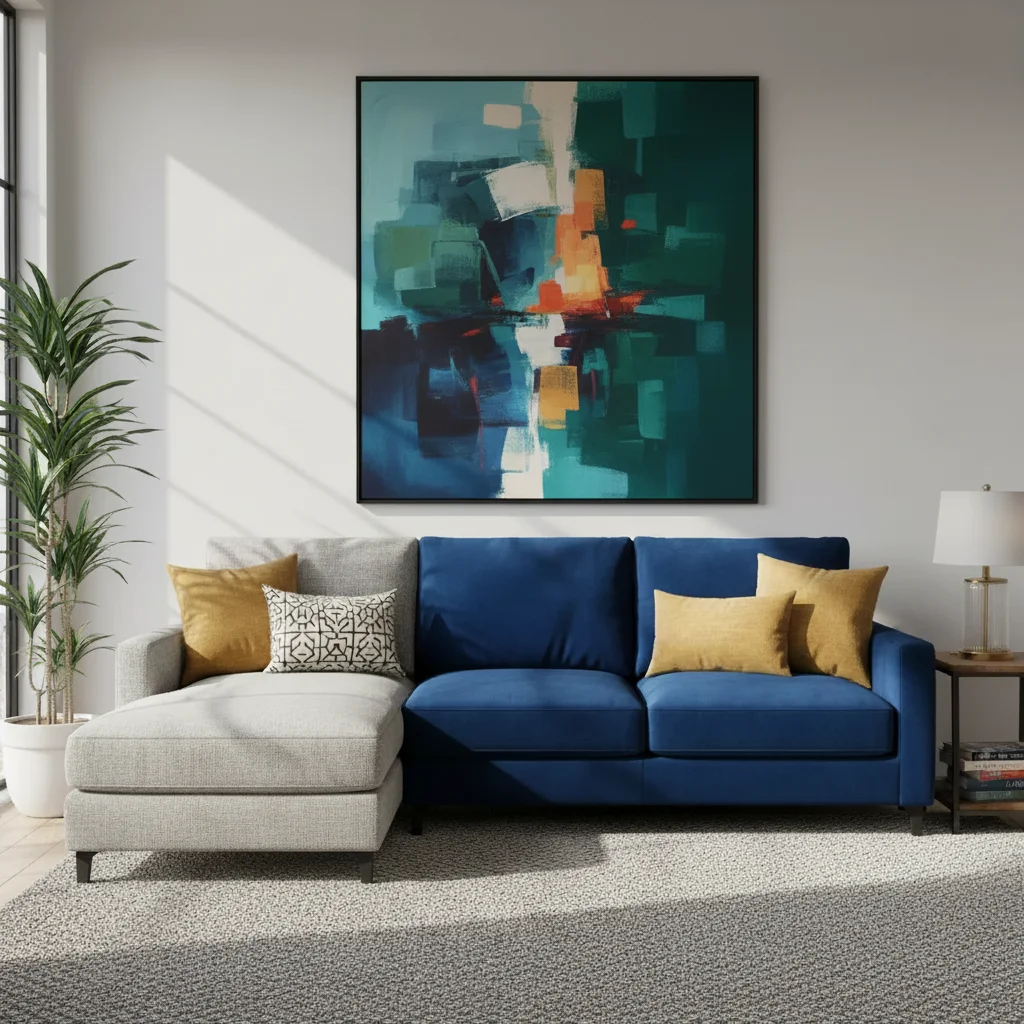
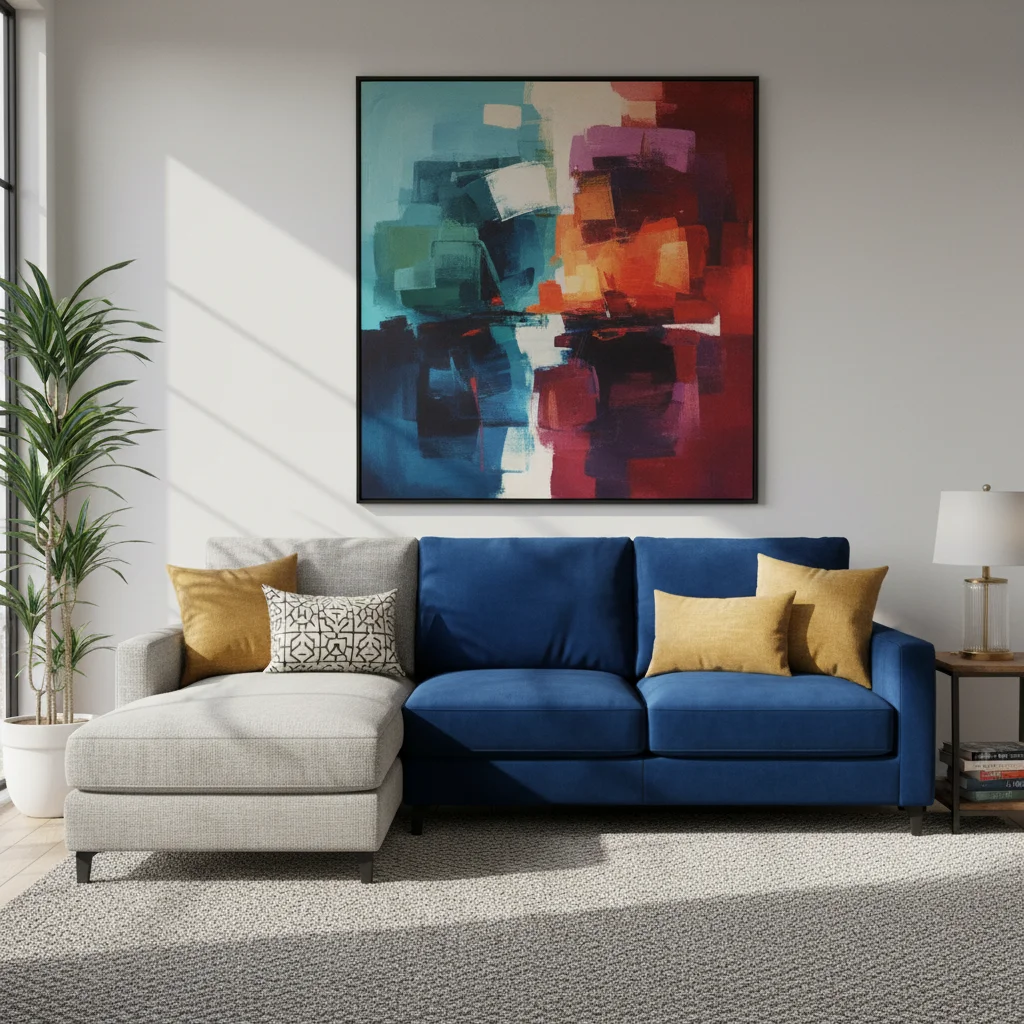
Furniture color change the beige sofa to navy blue fabric, keeping cushion wrinkles intact 25s

How it works

  1. Upload your photo

    Drop your image into EditThisPic. JPG, PNG, WebP up to 7MB. Works best on photos with clear objects where the item you want to recolor is distinct from the background. Good lighting helps AI identify object boundaries accurately.

    Expect: Simple single-object recolors: 15-30 seconds. Complex multi-object or pattern changes: may need 2-3 refinements for consistent color.
  2. Describe the color change

    Type your instruction: 'change the blue shirt to red' or 'make the white walls sage green.' Be specific about which object and what color. Include the current color if there are multiple similar objects: 'change the red car to matte black' helps AI identify the right item. No marking needed—the AI understands object descriptions.

    Tip: For precise color matching, use specific color names: 'navy blue', 'forest green', 'burgundy red' instead of just 'blue', 'green', 'red'. Mention finish: 'matte', 'glossy', 'metallic' to control surface appearance.

    Copy one of these to get started:

    Change clothing color change the blue t-shirt to forest green while keeping all wrinkles and fabric texture natural
    Recolor vehicle change the red car to matte black, preserving all reflections and keeping the original lighting and shine
    Change wall color make the white walls sage green, maintaining all shadows, light fixtures, and texture exactly as they are
    Recolor furniture change the beige sofa to navy blue fabric, keeping the cushion wrinkles and natural wear patterns intact
    3 more prompts
    Change product color change the silver phone case to rose gold metallic finish, preserving all highlights and reflections for a realistic metallic look
    Recolor kitchen cabinets change the oak wood cabinets to painted white, keeping the wood grain visible underneath for a whitewashed effect
    Change multiple matching objects change all the red dining chairs to emerald green velvet, maintaining the upholstery texture and button tufting on each chair
  3. Generate and review

    Click Generate and AI recolors your object while preserving textures, wrinkles, shadows, and highlights. Check that color is consistent across the entire object and lighting looks natural. Zoom in to verify edges are clean and the new color matches your vision.

  4. Refine with markers if needed

    If AI recolored the wrong object or missed some areas, tap markers on the specific parts that need adjustment and regenerate. This is optional—most color changes work perfectly without markers when objects are clearly described.

    Tip: Markers are for precision refinement, not required. Use them when you have multiple similar objects and want to specify 'this exact one' or when edges need cleanup.
Try it free

Change Object Color in Photos

Drop your photo here

or click to browse

Release to upload

Free • No signup

"Changed my couch from beige to navy blue to see if it would match my room. Looked so realistic I ordered the actual color. Saved me from a return." @homedesigner

See it in action

Person wearing bright blue t-shirt
Before
->
Same person with t-shirt changed to forest green
After

T-Shirt Color Change

Changed a plain blue t-shirt to forest green while preserving all fabric wrinkles and texture for a natural look.

Prompt: change the blue t-shirt to forest green while keeping all wrinkles and fabric texture
Bright red sports car with glossy paint
Before
->
Same car transformed to matte black finish
After

Car Color Transformation

Converted a glossy red sports car to matte black finish, maintaining all reflections and body contours.

Prompt: change the red car to matte black, preserving all reflections and keeping the original lighting
Living room with white walls
Before
->
Same room with walls changed to sage green
After

Living Room Wall Recolor

Changed white walls to sage green for interior design visualization, keeping all shadows and fixtures intact.

Prompt: make the white walls sage green, maintaining all shadows, light fixtures, and texture exactly as they are
Advertisement

If something looks off

AI changed the wrong object or changed too much

Why: Your description was ambiguous or there are multiple similar objects in the photo.

Try: Be more specific: instead of 'change the shirt to red', use 'change the blue shirt on the person on the left to red'. Or tap a marker on the exact object you want recolored, then regenerate.

Tip: Include the current color in your description: 'change the RED car to blue' helps AI identify the specific item when there are multiple vehicles.

New color looks flat or loses texture

Why: The AI over-smoothed the surface while applying the new color.

Try: Add texture preservation to your prompt: 'while keeping all fabric wrinkles', 'maintaining the leather grain', or 'preserving the original texture'. This signals AI to retain surface details.

Tip: For fabric, mention 'keeping wrinkles and folds natural'. For wood, say 'maintaining wood grain'. For metal, include 'preserving reflections and highlights'.

Color is inconsistent or patchy across the object

Why: Complex lighting, shadows, or reflections make uniform color application challenging.

Try: Regenerate with 'apply consistent [color] throughout the entire [object], adjusting for lighting and shadows naturally'. Or try 'uniform [color] coverage on all parts of the [object]'.

Tip: Photos with even lighting produce more consistent results. For outdoor objects, overcast days work better than harsh direct sun.

New color doesn't look realistic with the lighting

Why: The color was changed but lighting and shadows weren't adjusted to match.

Try: Add lighting instructions: 'change to [color] and adjust shadows to match the new color naturally' or 'recolor to [color] while adapting all highlights and shadows realistically'.

Tip: For dramatic color changes (light to dark or vice versa), mention 'adjust lighting to look natural with the new color'.

Edges between object and background look harsh

Why: The AI created a sharp boundary instead of natural edge transition.

Try: Request natural edges: 'change [object] to [color] with soft natural edges blending into the background' or 'smooth edges where [object] meets the background'.

Tip: For complex edges like hair against shoulders or fur against background, use 'preserving all fine edge details'.

Metallic or glossy objects lost their shine

Why: The AI didn't understand the surface should remain reflective.

Try: Specify finish type: 'change to [color] metallic finish with glossy shine', 'matte [color] finish', or 'high-gloss [color] maintaining all reflections'.

Tip: For cars, phones, jewelry, always include finish: 'glossy', 'matte', 'metallic', 'chrome' to control surface appearance.

Quick answers

Do I need to mark the object before describing the color change?

No! Just describe which object and what color: 'change the blue shirt to red' or 'make the white walls gray'. The AI understands object descriptions. Only use markers if there are multiple similar objects and you need to specify 'this exact one', or if the first result changed the wrong item.

How do I change color without losing texture and details?

Add texture preservation to your prompt: 'change the sofa to navy blue while keeping all cushion wrinkles' or 'change shirt to green preserving fabric texture'. Keywords like 'keeping', 'preserving', 'maintaining' signal the AI to retain surface details while changing color.

Can I change multiple objects to the same color at once?

Yes. Use 'all the' in your prompt: 'change all the red chairs to blue' or 'make all the white cabinets gray'. The AI will apply the color change consistently to every matching object in the photo.

What color names work best for accurate results?

Specific color names work better than generic ones. Use 'navy blue' instead of 'blue', 'forest green' instead of 'green', 'burgundy' instead of 'red'. For exact matching, reference familiar items: 'sky blue', 'grass green', 'charcoal gray'. Add finish: 'matte black', 'glossy red', 'metallic silver'.

Is there a free color changer tool that works without signup?

Yes, EditThisPic's AI Object Color Changer is completely free to try with no account required. Upload your photo, describe the color change, and download the result with no watermark. No hidden fees or registration needed.

Ready to change object colors?

Free to try. No signup required.

Try it free