Free • No signup Broaden Shoulders · Free

AI Shoulder Broadener
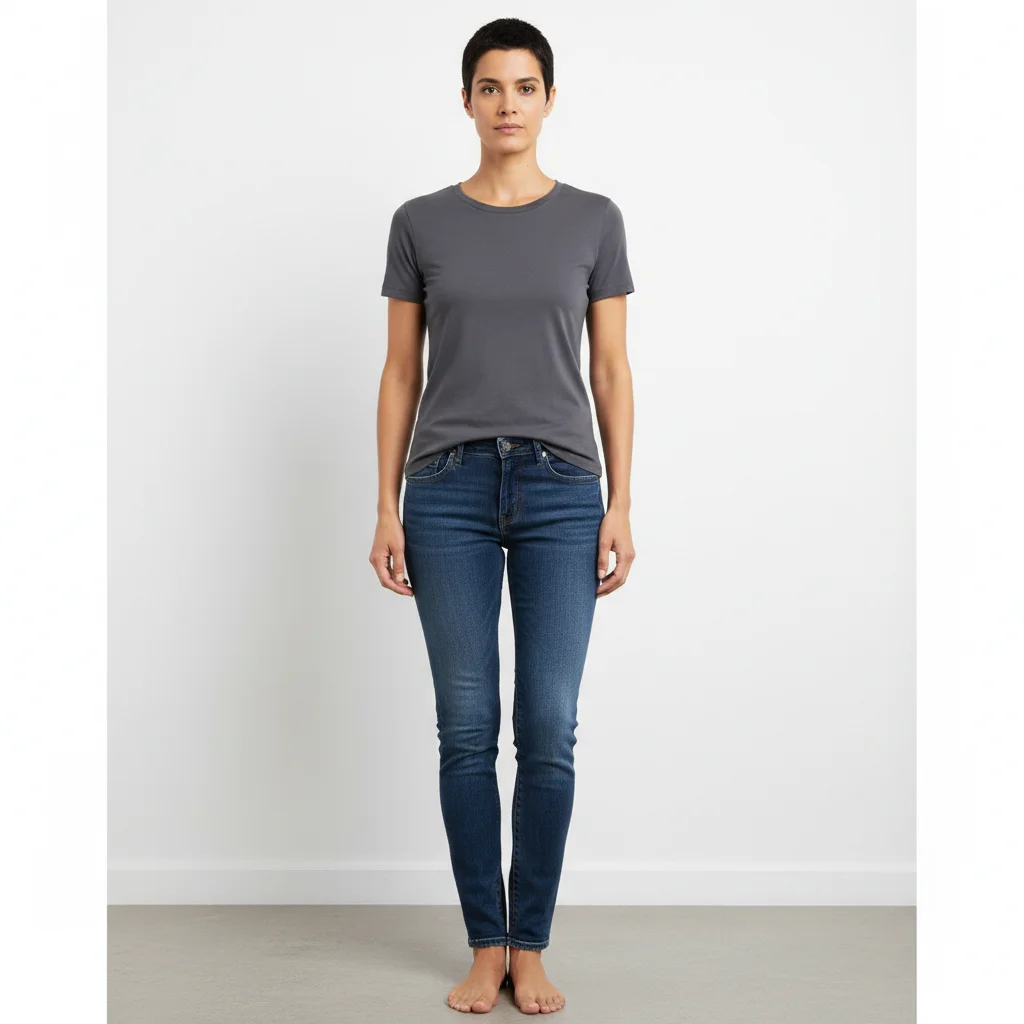
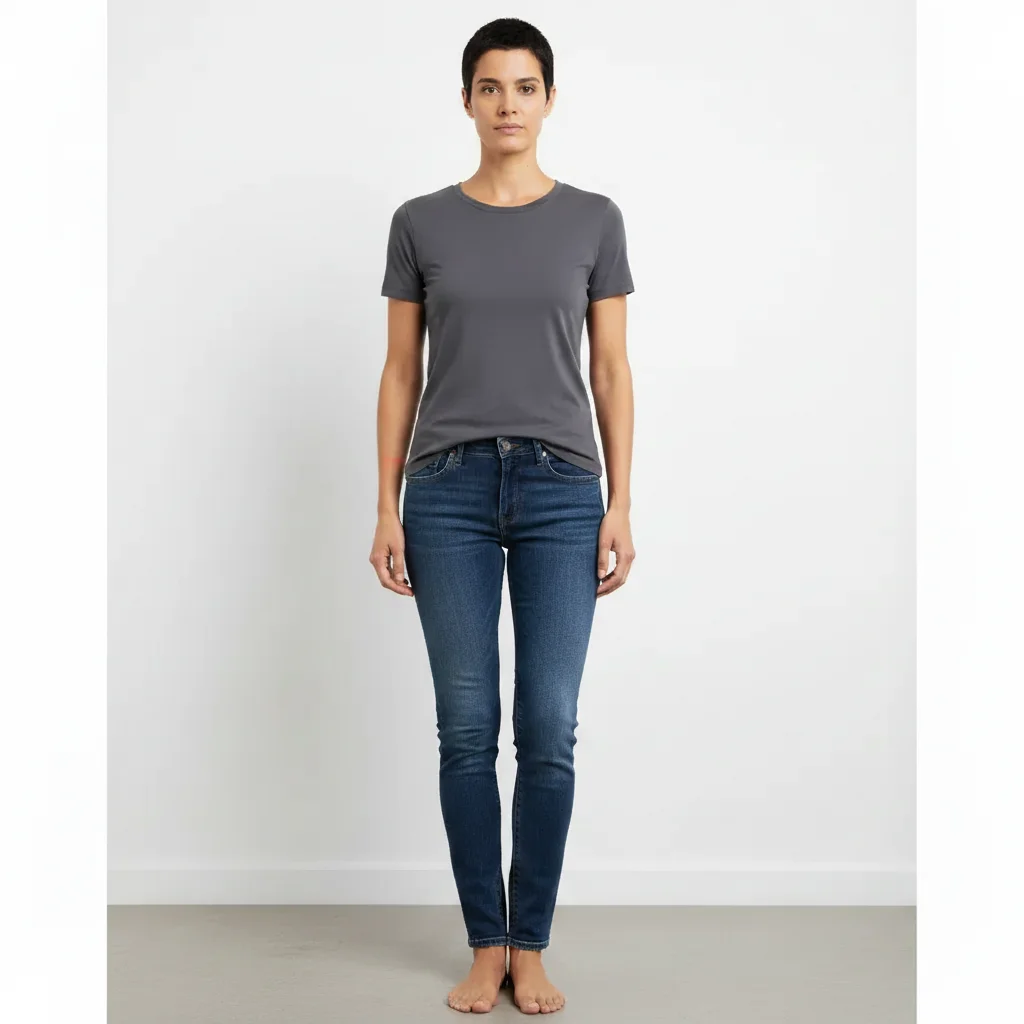
Before
Before
After
After

Free AI Shoulder Broadener

Drop your photo here

or click to browse

Release to upload

Free • No signup

Advertisement
Popular use cases:
  • fitness photos
  • professional headshots
  • athletic appearance
  • body proportions
  • progress photos
  • social media photos
  • dating profile pictures
  • modeling portfolio

Cost
Free No signup required
Time
Instant results in 15-30 seconds
Works on
Any device - browser, phone, tablet, desktop
Powered by
AI-powered photo editing
Scenario Prompt Time
Natural professional look 15-30s
Athletic/fitness photo 15-30s
Fix asymmetry 15-30s
Dramatic enhancement 15-30s

How it works

  1. Upload your photo

    Choose any photo where you want to broaden the shoulders. Works best with clear front-facing or side photos where the shoulder line is visible. The AI can enhance shoulders in portraits, fitness photos, professional headshots, or casual pictures.

    Expect: Medium complexity change: 20-30 seconds. May need refinements if you want very specific shoulder width or shape.
  2. Describe what you want

    Simply type what you want in plain English: 'make shoulders broader,' 'widen shoulders,' or 'broaden shoulder width.' Be specific about how much change you want—subtle for natural looks, or more dramatic for athletic appearance. The AI understands natural language and will identify and modify the shoulders automatically without any marking needed.

    Tip: Add context like 'make shoulders slightly broader for athletic look' or 'broaden shoulders to match torso width' for more precise results. Specify left or right shoulder if you only want to adjust one side.

    Copy one of these to get started:

    broaden Make shoulders broader
    broaden Widen shoulders for more athletic look
    broaden Broaden shoulder width to match torso proportions
    broaden Make shoulders slightly broader, keep it natural
    4 more prompts
    broaden Widen shoulders by 15% for professional headshot
    broaden Broaden left shoulder to match right shoulder width
    broaden Make shoulders broader and more defined
    broaden Widen shoulders to create V-taper silhouette
  3. Review the result

    Check that the shoulder broadening looks natural and proportional to the rest of the body. Ensure clothing and background adjusted smoothly around the broadened shoulders. If it's too subtle or too dramatic, refine your prompt and regenerate.

  4. Download Your Enhanced Photo

    Save your enhanced image in high resolution. The result has no watermarks and is ready to use for social media, fitness progress tracking, professional profiles, or personal use.

Try it free

Free AI Shoulder Broadener

Drop your photo here

or click to browse

Release to upload

Free • No signup

See it in action

Before
Before
->
After
After

Natural Athletic Enhancement

Make shoulders slightly broader for more athletic professional look

Prompt:
Before
Before
->
After
After

Fitness Photo Enhancement

Broaden shoulders to match developed chest and arms

Prompt:
Before
Before
->
After
After

Symmetry Correction

Widen left shoulder to match right shoulder width for symmetrical appearance

Prompt:
Advertisement

If something looks off

AI changed the wrong area or something I didn't want changed

Why: The AI couldn't determine exactly which area you meant from description alone.

Try: Tap a marker on the specific shoulder area you want to broaden, then regenerate with the same prompt

Tip: Markers tell the AI 'I mean THIS one specifically.' Use them when you only want to broaden one shoulder or when the photo has multiple people.

Shoulders look unnaturally wide or distorted

Why: The broadening effect was too dramatic for the photo angle or body proportions.

Try: Try 'make shoulders slightly broader' or 'subtle shoulder widening' for more natural results

Tip: Start with subtle changes. You can always broaden more, but it's harder to fix over-broadened shoulders.

Clothing looks stretched or warped around shoulders

Why: Complex patterns or tight-fitting clothes can distort when shoulders are broadened significantly.

Try: Add 'keep clothing texture natural' or reduce the broadening amount in your prompt

Tip: Photos with loose-fitting clothing or solid colors produce the most natural shoulder broadening results.

One shoulder broadened more than the other

Why: Photo angle or lighting created asymmetry in how the AI interpreted shoulder boundaries.

Try: Specify 'broaden both shoulders equally' or mark both shoulders before regenerating

Tip: Front-facing photos with even lighting give the most symmetrical results for shoulder broadening.

Background looks warped near shoulders

Why: Complex backgrounds can distort when shoulders are expanded into surrounding areas.

Try: Try a more subtle adjustment or use 'keep background natural' in your prompt

Tip: Photos with simple, uniform backgrounds work best for dramatic shoulder broadening without background distortion.

Result looks too muscular or bulky

Why: The AI interpreted 'broader' as adding muscle mass, not just width.

Try: Use 'widen shoulder frame without adding bulk' or 'broaden shoulders but keep slim build'

Tip: Be specific about whether you want wider bone structure or more muscular-looking shoulders.

Quick answers

Do I need to mark the shoulders before describing what I want?

No! Just describe what you want in plain English. The AI automatically identifies and broadens the shoulders. Only add markers if you want to adjust just one shoulder specifically, or if the photo has multiple people and you need to clarify which person's shoulders to broaden.

Will broadening shoulders look natural in my photo?

Yes, when done with appropriate prompts. Start with subtle broadening like 'make shoulders slightly broader' for natural results. The AI adjusts clothing, shadows, and proportions automatically. Very dramatic broadening may look less natural, especially with complex clothing patterns or tight angles.

Can I broaden just one shoulder to fix asymmetry?

Absolutely. Just specify which shoulder in your prompt: 'broaden left shoulder' or 'widen right shoulder to match left.' You can also tap a marker on the specific shoulder you want adjusted for more precision.

What types of photos work best for shoulder broadening?

Front-facing or 3/4 angle photos with clear shoulder visibility work best. Simple backgrounds and solid-colored or loosely-fitting clothing produce the most natural results. Avoid photos where shoulders are heavily shadowed or obscured by objects.

How much can I broaden shoulders before it looks fake?

This depends on your starting photo and body proportions. Generally, 10-20% broadening looks natural, while 30%+ starts to look noticeably enhanced. Start with subtle prompts and increase gradually if needed.

Does this work for fitness progress photos?

Yes, it's perfect for visualizing fitness goals or making progress photos more impressive. Many users broaden shoulders in gym selfies or before/after comparison photos to highlight their training results.

Ready to broaden your shoulders?

Free to try. No signup required.

Try it free