Create YouTube Thumbnail from Photo
Turn any photo into a click-worthy YouTube thumbnail that stands out in search results.


Drop your photo here
or click to browse
Release to upload
Free • No signup
"Used to spend 30 minutes per thumbnail in Canva. Now I upload a photo, tell it to make space for my title, and I'm done. My CTR actually improved because I make more thumbnails and test them." @ThumbnailMaster
Built for YouTubers and Video Creators
Your YouTube thumbnail is the single most important factor in getting clicks. YouTube's algorithm favors videos with high click-through rates, and thumbnails drive that metric. EditThisPic lets you turn any photo into a properly formatted, eye-catching thumbnail in seconds. Extend backgrounds to make room for text, enhance colors to pop in search results, and create variations fast.
Tools for YouTube Thumbnails
Extend Background
Make room for text and graphics
Add Text
Add bold titles directly on thumbnails
Enhance Photo
Make colors pop for better CTR
Blur Background
Focus attention on your subject
Step-by-Step Guide
-
Upload your photo
Drop any photo into EditThisPic. Face close-ups, action shots, product images - any photo can become a thumbnail. Portrait, square, or landscape starting format all work.
Simple resize: 20 seconds. Background extension with text space: 30-40 seconds. -
Describe your thumbnail needs
Type 'resize to 1280x720 YouTube thumbnail' or 'create 16:9 thumbnail with space for text on the right.' Be specific about where you need extra space for text overlays - left side, right side, or top/bottom.
YouTube thumbnails work best with text on one side and face/subject on the other. Specify which side for text space. -
Review thumbnail impact
Check how your thumbnail will look at small sizes - YouTube shows thumbnails as small as 120px wide. Ensure your subject is clear, colors pop, and any text areas are usable.
-
Refine and download
If composition needs adjustment, use markers on specific areas and regenerate. Download your 1280x720 thumbnail. Consider creating 2-3 variations to A/B test.
YouTube lets you change thumbnails anytime. Make multiple versions and test which gets better CTR.
Copy-Paste Prompts for YouTube Thumbnails
resize to 1280x720 YouTube thumbnail, extend background to the right with space for text overlay, keep face prominent on left
Face on left, text on right follows natural reading patterns and performs well
convert to YouTube thumbnail 16:9 format, boost colors and contrast significantly for maximum click appeal
YouTube thumbnails compete with many others - boosted colors help you stand out
extend background left and right to convert square photo to 1280x720 YouTube thumbnail dimensions, match existing colors
Square Instagram posts can become YouTube thumbnails with side extension
resize to YouTube thumbnail format, create clean space on right third for tutorial title text, enhance subject clarity
Tutorial thumbnails need clear text areas - the title sells the click
Show 4 more prompts
convert face photo to 1280x720 thumbnail, position face on left side with exaggerated expression visible, extend dramatic background right
Reaction thumbnails perform best with expressive faces taking up significant space
resize product photo to YouTube thumbnail 16:9, extend clean background for rating or comparison graphics, keep product large and centered
Product thumbnails need space for ratings, prices, or comparison elements
convert to 1280x720 YouTube thumbnail, blur background slightly to make subject pop, enhance skin tones naturally, add space for vlog title
Vlog thumbnails should feel personal - slightly blurred backgrounds focus attention on you
resize gaming screenshot to YouTube thumbnail format 1280x720, boost colors dramatically, create space in corner for face cam overlay
Gaming thumbnails often include facecam - leave corner space for that element
| Edit Type | Prompt | Time | |
|---|---|---|---|
| Portrait to thumbnail | extend sides for 1280x720 thumbnail |
30s | Try This → |
| With text space | thumbnail with room for title on right |
30s | Try This → |
| Color boost | thumbnail with enhanced pop colors |
25s | Try This → |
| Square to 16:9 | extend left and right for thumbnail |
25s | Try This → |
Real Examples
Vertical portrait to thumbnail
A phone portrait photo needed to become a horizontal thumbnail with room for the video title.
extend background to the right to convert this portrait photo to 1280x720 YouTube thumbnail, create clean space for title text on right side, keep face prominent on left
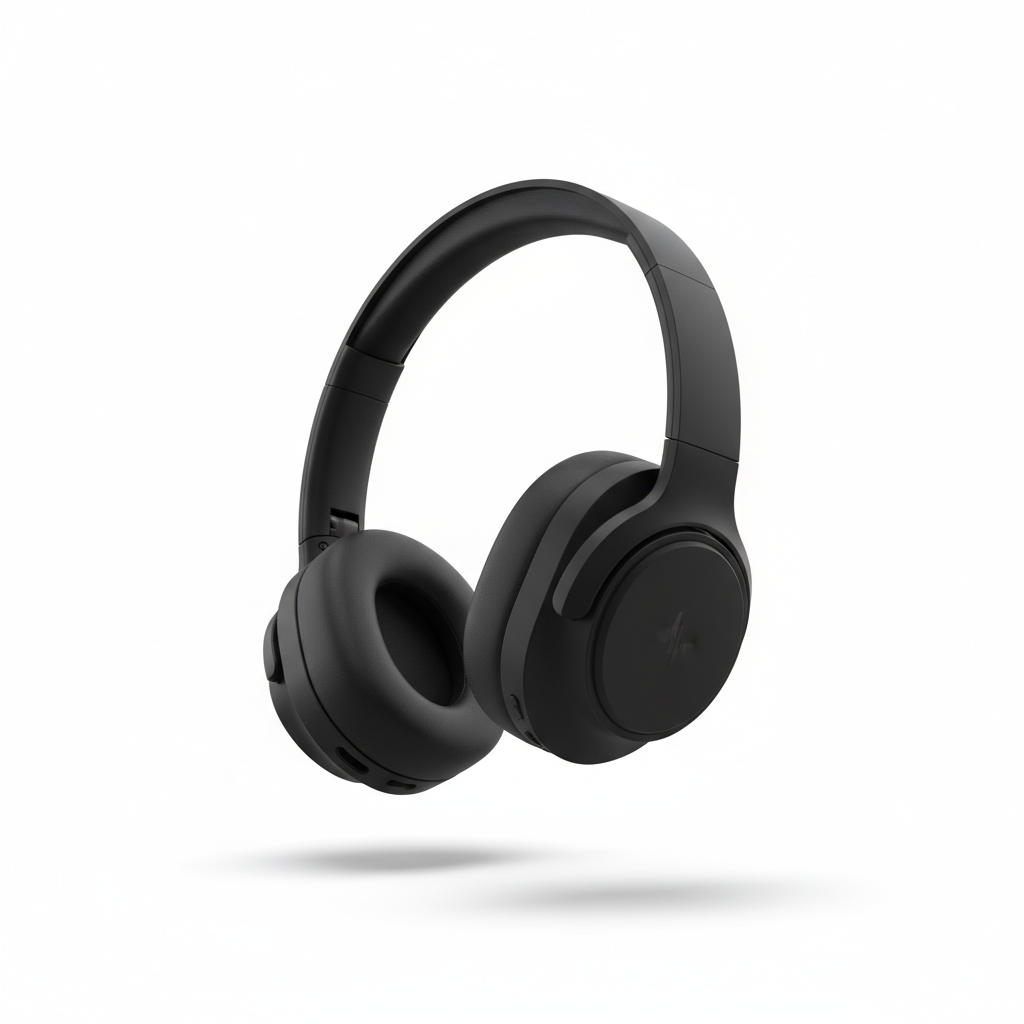
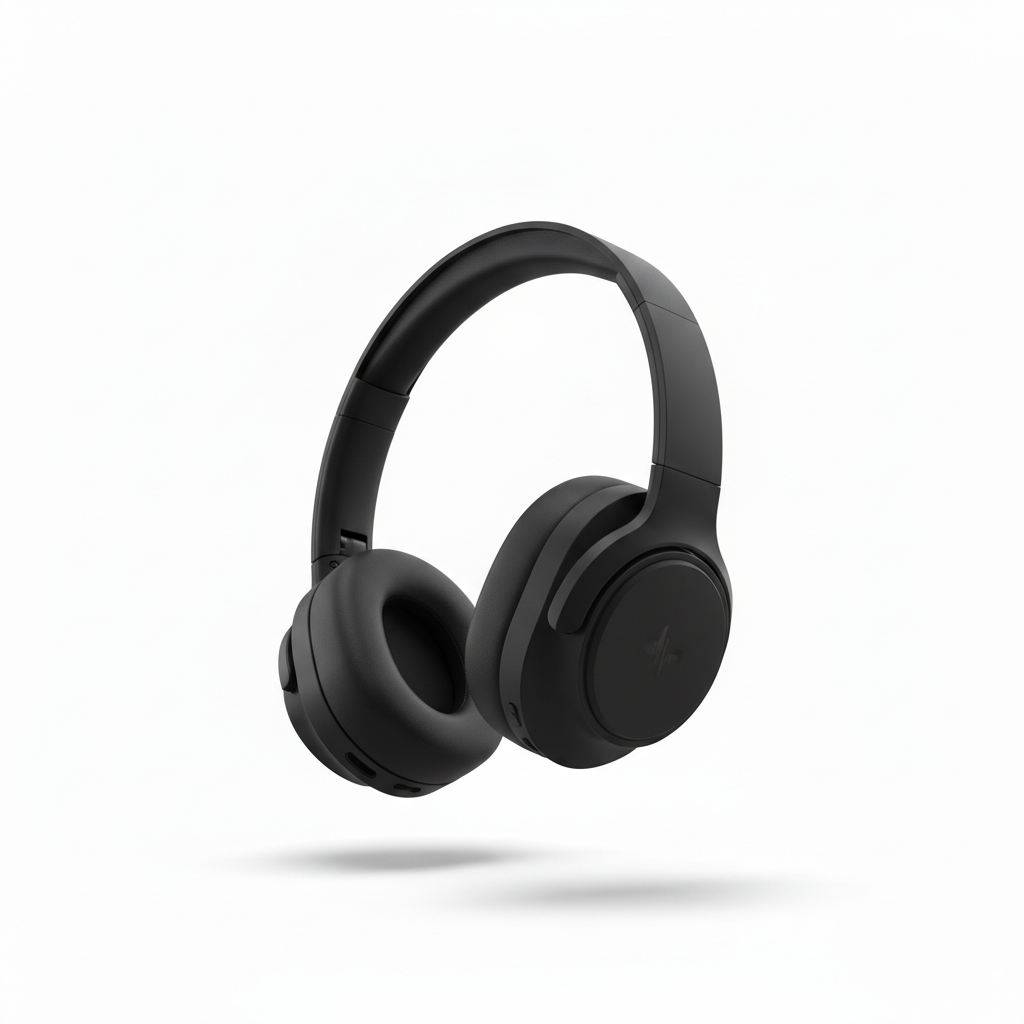
Product photo to review thumbnail
A square product shot needed 16:9 formatting with space for rating graphics.
convert this square product photo to 1280x720 YouTube thumbnail, extend white background evenly on sides, keep product large and centered with room for overlay graphics
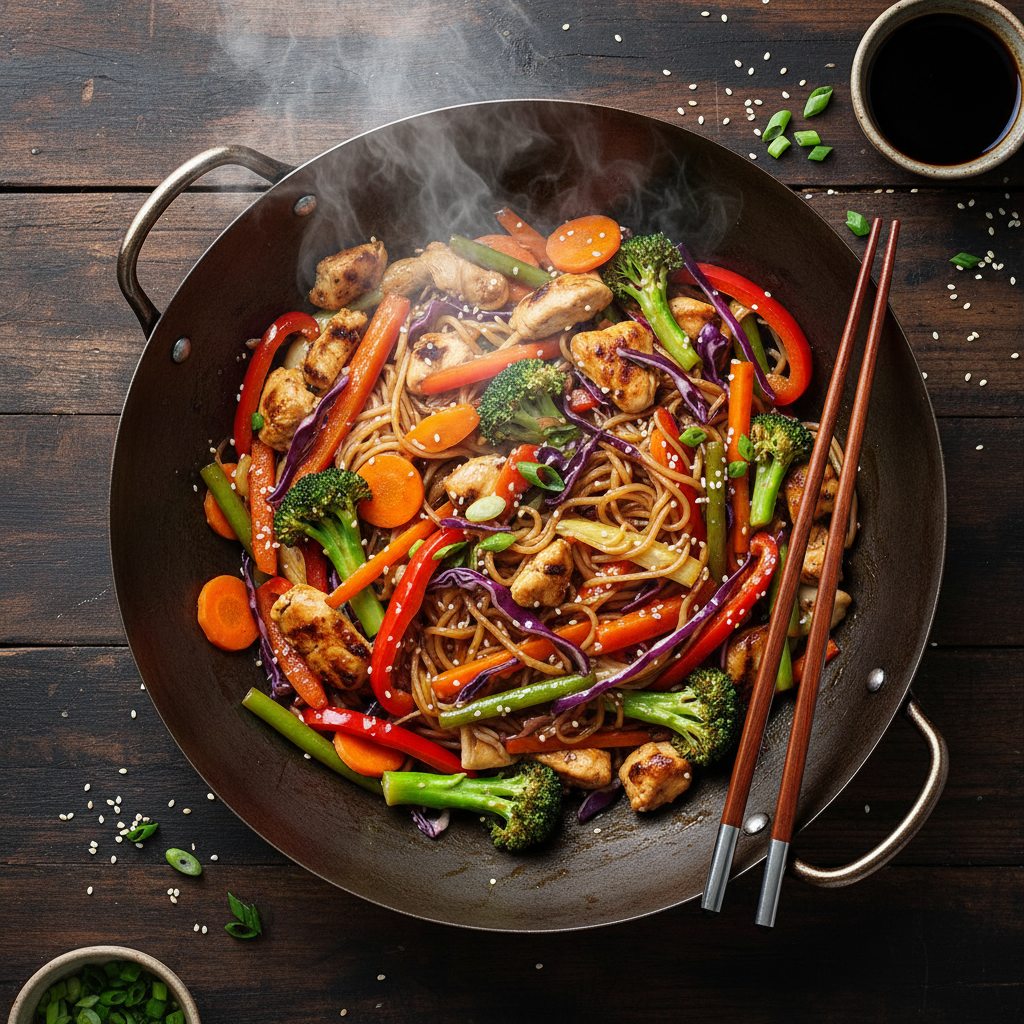
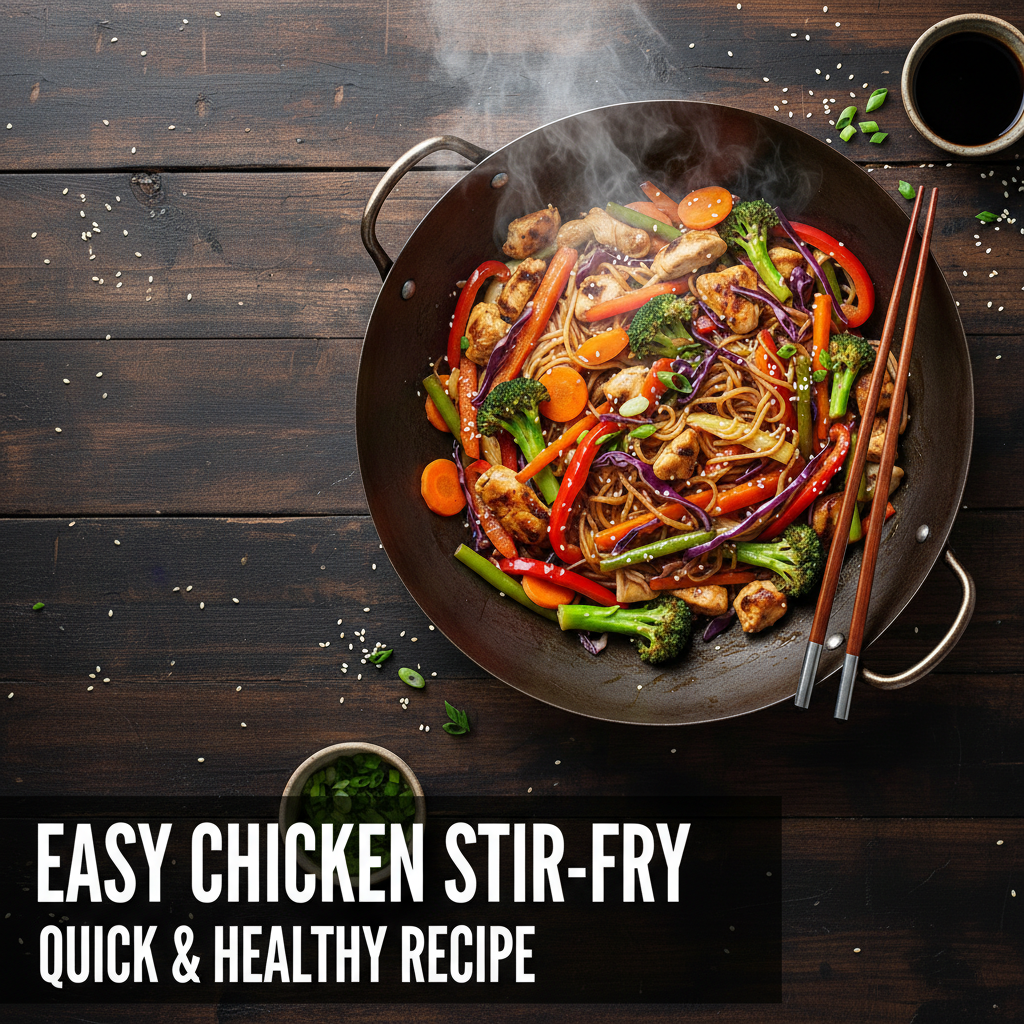
Cooking video thumbnail
An overhead food shot needed to become an engaging thumbnail with text space for the recipe name.
resize this food photo to YouTube thumbnail 1280x720, boost colors for appetite appeal, extend table surface to the left for recipe title space
When Things Go Wrong
Thumbnail looks blurry or low quality
Why: Original photo may be too small, or excessive processing degraded quality.
resize to 1280x720 YouTube thumbnail while maintaining sharpness and detail, do not over-process
Start with the highest resolution photo you have. YouTube recommends at least 1280x720 source images.
Face got cropped or positioned badly
Why: The AI prioritized the ratio over your subject placement preferences.
extend background ONLY to reach 16:9 dimensions, keep face exactly where it is without any cropping or repositioning
'ONLY extend background' prevents any changes to your existing content.
Colors look washed out after resize
Why: Resizing may have affected color saturation, or the original was already muted.
resize to YouTube thumbnail format and boost color saturation and vibrancy significantly, make colors pop for small preview sizes
Thumbnails compete at tiny sizes - bolder colors perform better.
AI changed the wrong area or something I didn't want changed
Why: The AI couldn't determine exactly which area you meant from description alone.
Tap a marker on the specific area you want to change, then regenerate with the same prompt
Markers tell the AI 'I mean THIS one specifically.' Use them when description alone is ambiguous.
Extended background has visible seams or patterns
Why: Complex backgrounds are harder to extend seamlessly.
Tap markers on the artificial-looking seams, then: blend extended areas more naturally, match the texture and color variation of the original
Simple or gradient backgrounds extend most cleanly.
Frequently Asked Questions
What size should a YouTube thumbnail be?
YouTube thumbnails should be 1280x720 pixels (16:9 aspect ratio) with a minimum width of 640 pixels. Files must be under 2MB in JPG, GIF, or PNG format. EditThisPic outputs at the optimal 1280x720 size.
Do I need to manually crop my photo first?
No. Upload any photo in any aspect ratio - portrait, square, landscape. Just describe the thumbnail you want and the AI handles resizing by intelligently extending backgrounds rather than awkward cropping.
How do I make a YouTube thumbnail from a vertical photo?
Upload your vertical photo and type 'extend background left and right to convert to 1280x720 YouTube thumbnail.' The AI will add matching background content to reach the wide 16:9 format.
Is there a free YouTube thumbnail maker without login?
Yes. EditThisPic converts any photo to YouTube thumbnail dimensions free without requiring an account. Upload your photo, describe the thumbnail you need, and download. No watermarks.
How do I create space for text on my thumbnail?
Specify where you want text space: 'extend background to the right for title text' or 'create clean space in top third for overlay text.' The AI will expand in that direction while keeping your subject visible.
What makes a good YouTube thumbnail?
Effective thumbnails have: a clear, large subject (often a face with expression), bold colors that pop at small sizes, minimal text (3-4 words max), high contrast, and consistent branding. EditThisPic helps with sizing and color enhancement.
Ready to create your YouTube thumbnail?
Free to try. No signup required. No watermarks.
Create Thumbnail