Free • No signup Remove Noise · Free

AI Noise Remover

Just describe what you want cleaned and AI handles the noise reduction.
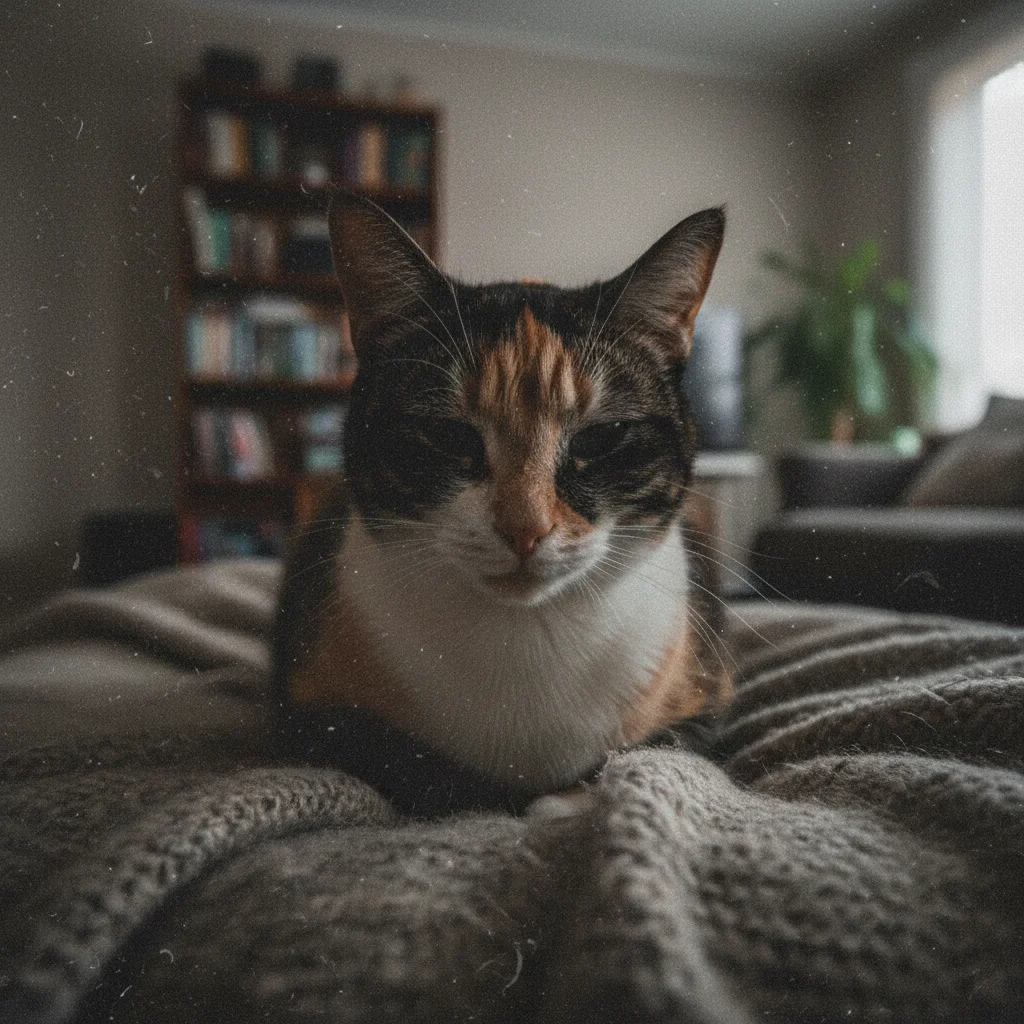
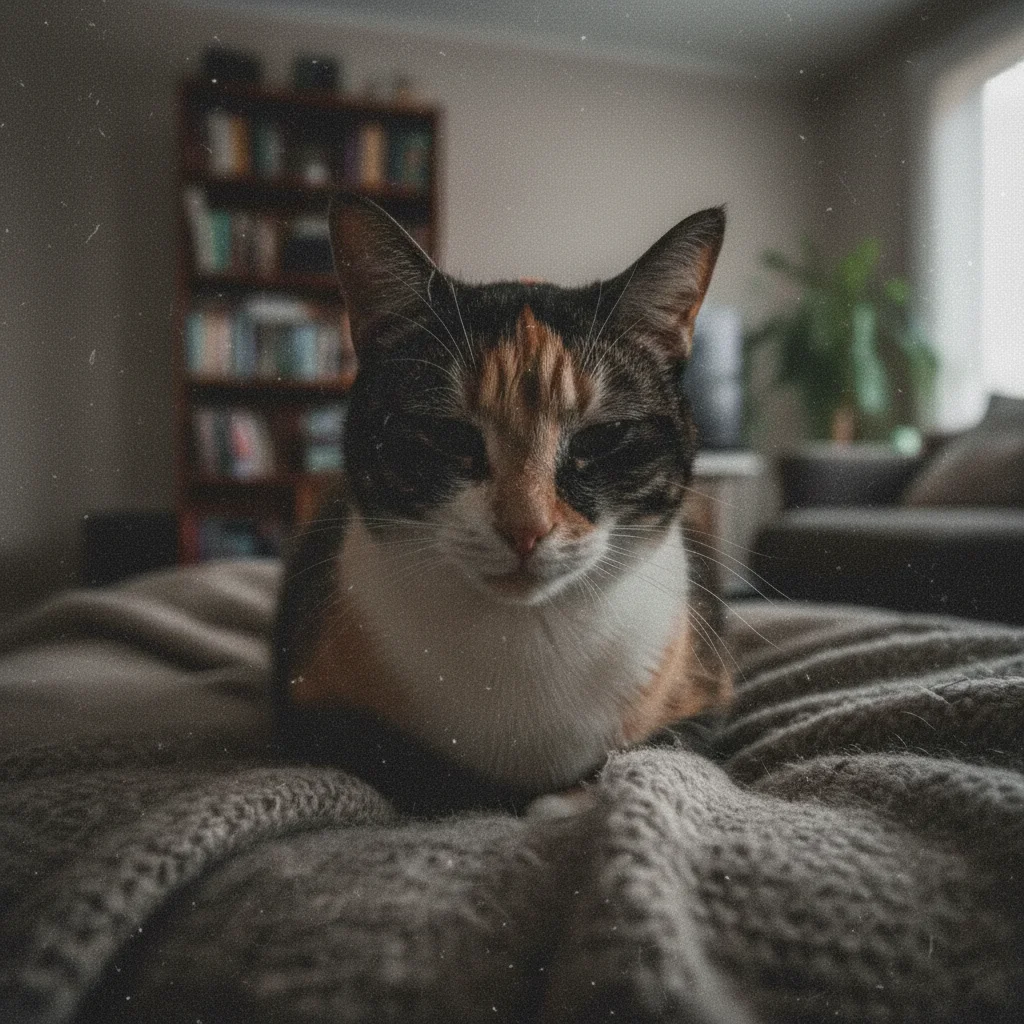
Concert photo with heavy digital noise and grain from high ISO
Before
Clean concert photo after noise removal with preserved performer details
After

Remove Noise from Photo

Drop your photo here

or click to browse

Release to upload

Free • No signup

Advertisement
Popular use cases:
  • low-light photography
  • high-ISO shots
  • indoor photography
  • concert photography
  • night photography
  • event photography
  • smartphone photos

Cost
Free No signup required
Time
Instant results in 15-30 seconds
Works on
Any device - browser, phone, tablet, desktop
Powered by
AI-powered photo editing
Scenario Prompt Time
General noise remove noise and grain while preserving detail and sharpness 20s
Low-light photos clean up digital noise from low-light shot while keeping natural texture 20s
Portrait noise remove grain from face while preserving skin detail and facial features 25s
High-ISO shots reduce high-ISO noise without losing edge detail or creating plastic look 25s

How it works

  1. Upload your photo

    Drop your grainy or noisy image into EditThisPic. JPG, PNG, WebP up to 7MB. Works best on low-light shots, high-ISO photos, and indoor images with visible grain or digital noise.

    Expect: Moderate noise: 15-30 seconds. Heavy grain from extreme low-light: may need one refinement for optimal balance between noise removal and detail retention.
  2. Describe what you want

    Type your instruction: 'remove noise and grain while preserving detail' or 'clean up digital noise from low-light shot.' Be specific about detail preservation—the AI balances smoothing against sharpness. No marking needed—the AI identifies noise patterns automatically.

    Tip: Include 'preserve sharp edges' or 'keep facial detail' to prevent over-smoothing important subjects

    Copy one of these to get started:

    General noise reduction remove noise and grain while preserving detail and sharpness
    Low-light photos clean up digital noise from low-light shot while keeping natural texture
    Portrait with noise remove grain from face while preserving skin detail and facial features
    High-ISO shots reduce high-ISO noise without losing edge detail or creating plastic look
    2 more prompts
    Color noise (chroma) remove color noise and grain while maintaining accurate colors and tones
    Night photography clean noise from night photo while preserving stars and light sources
  3. Generate and review

    Click Generate and watch the AI remove noise while maintaining natural texture and detail. Check at full zoom, especially on faces and fine details, to verify the balance between smoothing and sharpness.

  4. Refine with markers if needed

    If certain areas need more aggressive noise removal or retained more detail, tap markers on those specific regions and regenerate. This is optional—most noise removal works without markers.

    Tip: Markers are for precision refinement, not required. Try without them first.
Try it free

Remove Noise from Photo

Drop your photo here

or click to browse

Release to upload

Free • No signup

"Turned my grainy concert photo into something actually usable. The detail preservation is insane." @night_shooter

See it in action

Concert photo with heavy digital noise and grain from high ISO
Before
->
Clean concert photo after noise removal with preserved performer details
After

Concert photo cleaned

Heavy noise from high-ISO indoor concert shot. One prompt removed grain while keeping performer details sharp.
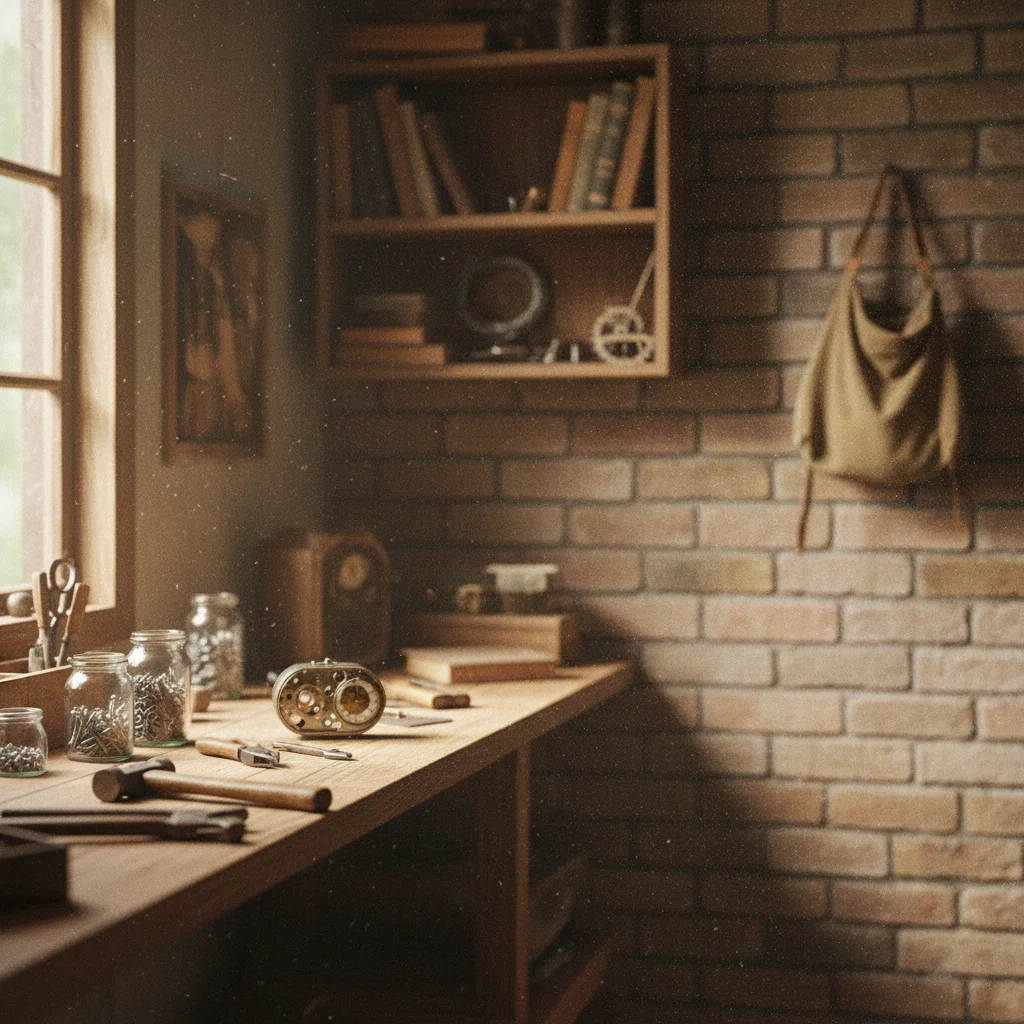
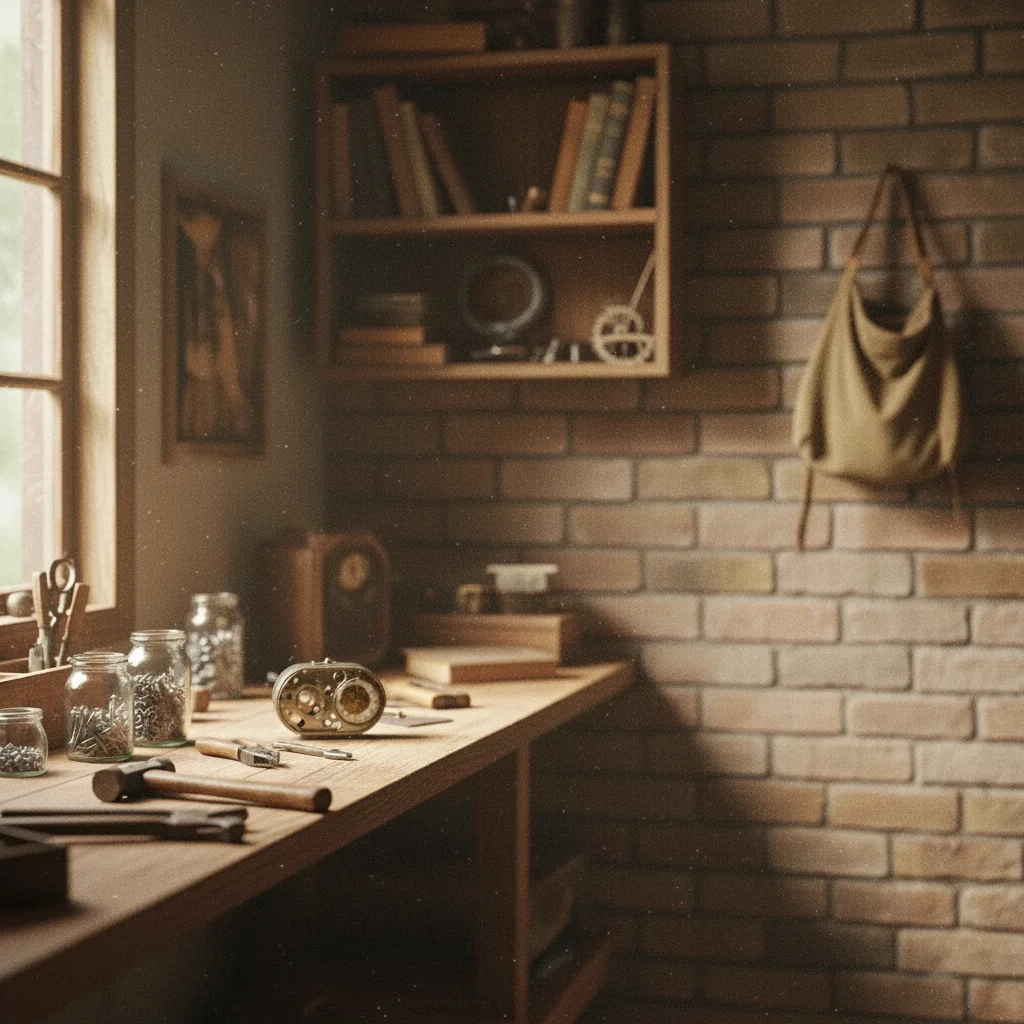
Prompt: remove noise and grain while preserving detail and sharpness
Portrait with visible noise on skin from low-light conditions
Before
->
Clean portrait after noise removal with natural skin texture preserved
After

Low-light portrait enhanced

Noisy indoor portrait. AI removed grain from skin while preserving facial features and natural texture.


Prompt: remove grain from face while preserving skin detail and facial features
Night cityscape with heavy noise in sky and shadows
Before
->
Clean night cityscape after noise removal with sharp building lights
After

Night cityscape cleaned

Night city photo with heavy noise. One prompt cleaned grain while preserving building lights and architectural details.

Prompt: clean noise from night photo while preserving stars and light sources
Advertisement

If something looks off

AI changed the wrong area or something I didn't want changed

Why: The AI couldn't determine exactly which area you meant from description alone. This happens with ambiguous requests.

Try: Tap a marker on the specific noisy area you want to clean, then regenerate with the same prompt

Tip: Markers tell the AI 'I mean THIS area specifically.' Use them when description alone is ambiguous.

Image looks too smooth or plastic-like

Why: Aggressive noise reduction removed natural texture along with the grain, creating an over-processed appearance.

Try: Add 'preserve natural texture and skin detail' or 'avoid over-smoothing' to your prompt

Tip: Some grain is natural - aim to reduce noise to acceptable levels, not eliminate it completely

Details are lost or edges are soft

Why: The noise reduction was too strong, blurring fine details and edge definition along with the grain.

Try: Use 'reduce noise while preserving sharp edges and fine detail' to protect important elements

Tip: Zoom to 100% and check eyes, hair, and texture details to verify sharpness is maintained

Color noise remains (red/green/blue speckles)

Why: Chroma noise requires specific treatment different from luminance (brightness) noise.

Try: Be specific: 'remove color noise and grain' to target the colored speckles directly

Tip: Color noise is most visible in dark areas like skies - check shadows specifically

Some areas still noisy after processing

Why: Very heavy noise may require multiple passes or selective treatment of problem areas.

Try: Generate once globally, then use markers on remaining noisy areas and regenerate with 'clean this specific area'

Tip: Dark areas and shadows often have the worst noise - they may need targeted refinement

Quick answers

Do I need to mark the noisy areas before describing?

No! Just describe what you want: 'remove noise and grain' or 'clean up digital noise.' The AI automatically identifies noise patterns across the image. Only use markers when you need precision—like cleaning noise from one specific area while leaving texture elsewhere.

How do I remove noise from a photo for free?

Upload your image to EditThisPic, type 'remove noise and grain while preserving detail,' and click Generate. The AI automatically reduces digital noise while maintaining natural sharpness and texture. Free to try with no account needed.

Will noise removal make my photo look unnatural?

EditThisPic's AI balances noise reduction with detail preservation to maintain natural appearance. The key is your prompt—include 'preserve detail' and 'avoid over-smoothing' to prevent the plastic, overly-smooth look. Some subtle grain is natural and helps photos look real.

What's the difference between noise and grain?

Digital noise appears as random color speckles and brightness variations in photos, usually from high ISO or low light. Grain is similar but can also refer to intentional film-like texture. EditThisPic's AI removes unwanted digital noise while preserving intentional texture and detail.

Can I remove noise from just part of a photo?

Yes. Describe the specific area: 'clean noise from the background only' or use markers to tap on the noisy region you want cleaned. This preserves texture in the main subject while smoothing problem areas like dark skies or shadows.

Ready to remove noise from your photos?

Free to try. No signup required.

Try it free