Resize Photo for Instagram Story
Turn any photo into the perfect 9:16 Instagram Story without awkward cropping or black bars.
Drop your photo here
or click to browse
Release to upload
Free • No signup
"Had this gorgeous landscape photo that looked terrible cropped to Stories. EditThisPic extended the sky and ground seamlessly - now it fills the whole screen without losing the best parts." @StoryMagic
Built for Instagram Creators
Instagram Stories demand 9:16 vertical format (1080x1920 pixels) for full-screen impact. Photos shot in other ratios get cropped badly or show distracting bars. EditThisPic uses AI to intelligently resize your photos - extending backgrounds where needed or smartly cropping to keep your subject centered. Your Stories look professional without hours in design software.
Tools for Story Sizing
Extend Background
Seamlessly expand backgrounds to fit Story dimensions
Resize Photo
Change dimensions while preserving composition
Uncrop Photo
Reveal more of the scene beyond original edges
Step-by-Step Guide
-
Upload your photo
Drop any photo into EditThisPic - landscape, square, or portrait. The AI works with any starting dimension. JPG, PNG, or WebP up to 7MB.
Simple extension: 20-30 seconds. Complex scene reconstruction: 30-45 seconds. -
Describe the Story sizing you need
Type 'resize to 9:16 vertical for Instagram Story' or 'extend background to 1080x1920 Story dimensions.' Be specific about what direction to extend - sky above, ground below, or both. The AI understands aspect ratios and dimensions.
Specify what should fill extended areas: 'extend with matching sky gradient' or 'extend ground with similar grass texture.' -
Review the composition
Check that your subject remains properly positioned and the extended areas blend seamlessly. Verify no important elements got cut off and the new background looks natural.
-
Refine edges if needed
If any extended areas look unnatural or you want to adjust the crop, use markers on those spots and regenerate. Download your 9:16 Story-ready image.
Instagram compresses images - downloading at 1080x1920 ensures best quality after upload.
Copy-Paste Prompts for Instagram Stories
resize to 9:16 vertical format for Instagram Story, extend sky above and ground below to fill dimensions naturally
Specifying 'naturally' helps the AI blend extended areas seamlessly
extend background upward and downward to convert square photo to 1080x1920 Story dimensions, match existing colors and textures
Square photos need significant extension - mentioning texture matching improves results
extend sky and background above subject to fit 9:16 Story format while keeping person in lower third
Positioning subject in lower third leaves room for text overlays in Stories
resize product photo to 9:16 Instagram Story dimensions, extend clean background evenly on all sides
Clean backgrounds extend more reliably than complex scenes
Show 4 more prompts
extend ocean and sky to convert horizontal beach photo to vertical Story format, maintain horizon line
'Maintain horizon line' prevents awkward tilting during extension
extend sky above and street below to resize cityscape to 9:16 Story dimensions, keep buildings intact
Specifying 'keep buildings intact' ensures architecture isn't altered
resize food photo to vertical Story format, extend table surface and background to fill 1080x1920
Food photos often need table/surface extension which AI handles well
extend background above and below group to fit 9:16 Story format, keep all people fully visible and centered
Always specify 'keep all people fully visible' to prevent accidental cropping
| Edit Type | Prompt | Time | |
|---|---|---|---|
| Landscape to Story | extend sky and ground for 9:16 Story |
30s | Try This → |
| Square to Story | extend background to 1080x1920 |
25s | Try This → |
| Portrait with headroom | extend sky for Story text space |
20s | Try This → |
| Product for Story | extend clean background to Story size |
20s | Try This → |
Real Examples
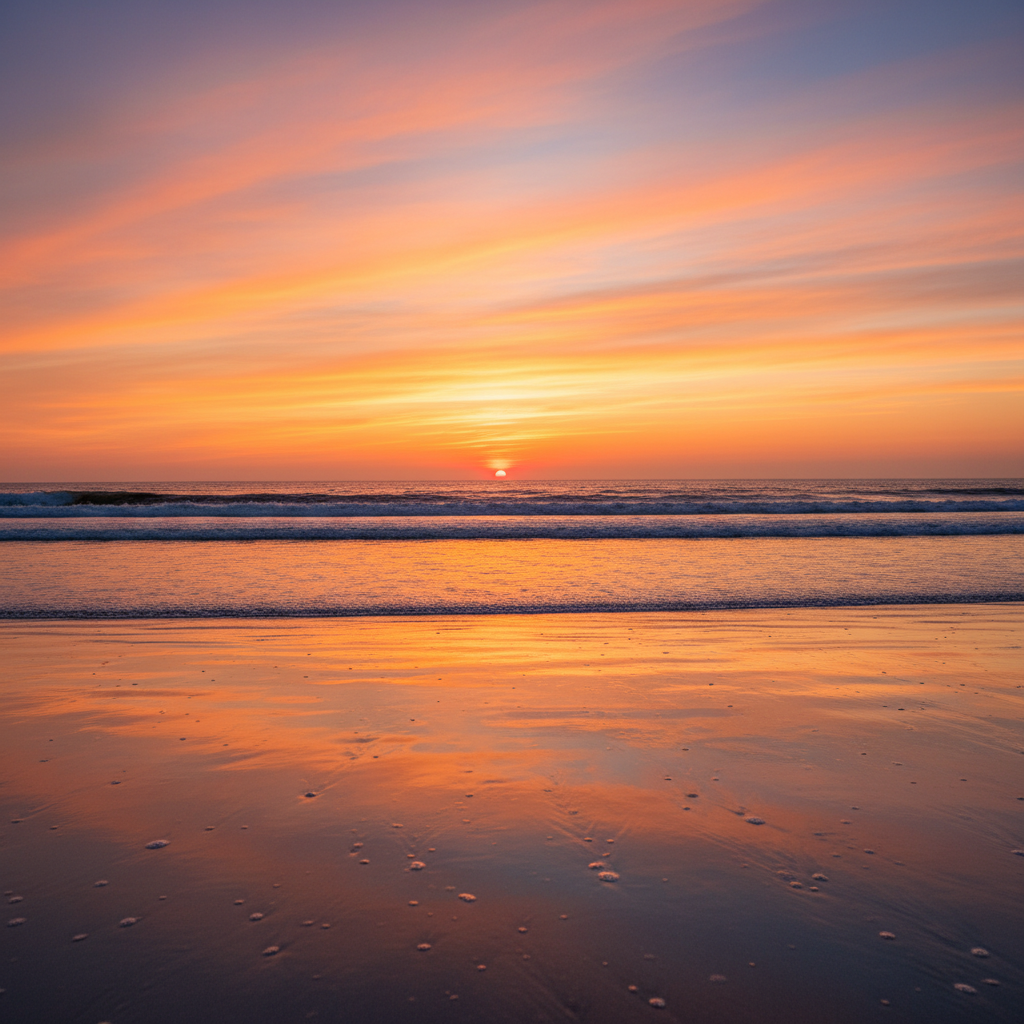
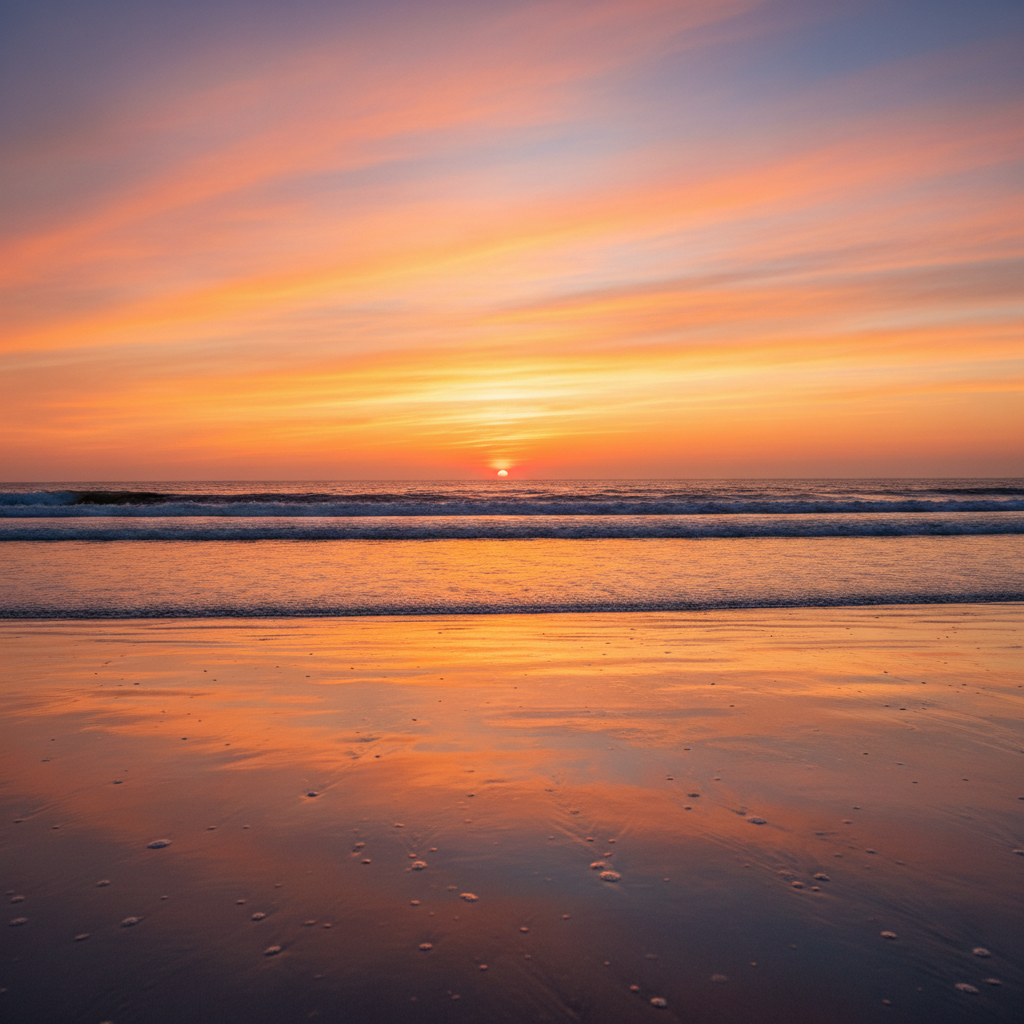
Landscape beach photo to full Story
A beautiful 16:9 beach sunset needed to become a vertical Story without losing the horizon or dramatic sky.
extend sky above and sand below to resize this landscape beach photo to 9:16 vertical Story format, maintain the sunset colors throughout extended areas
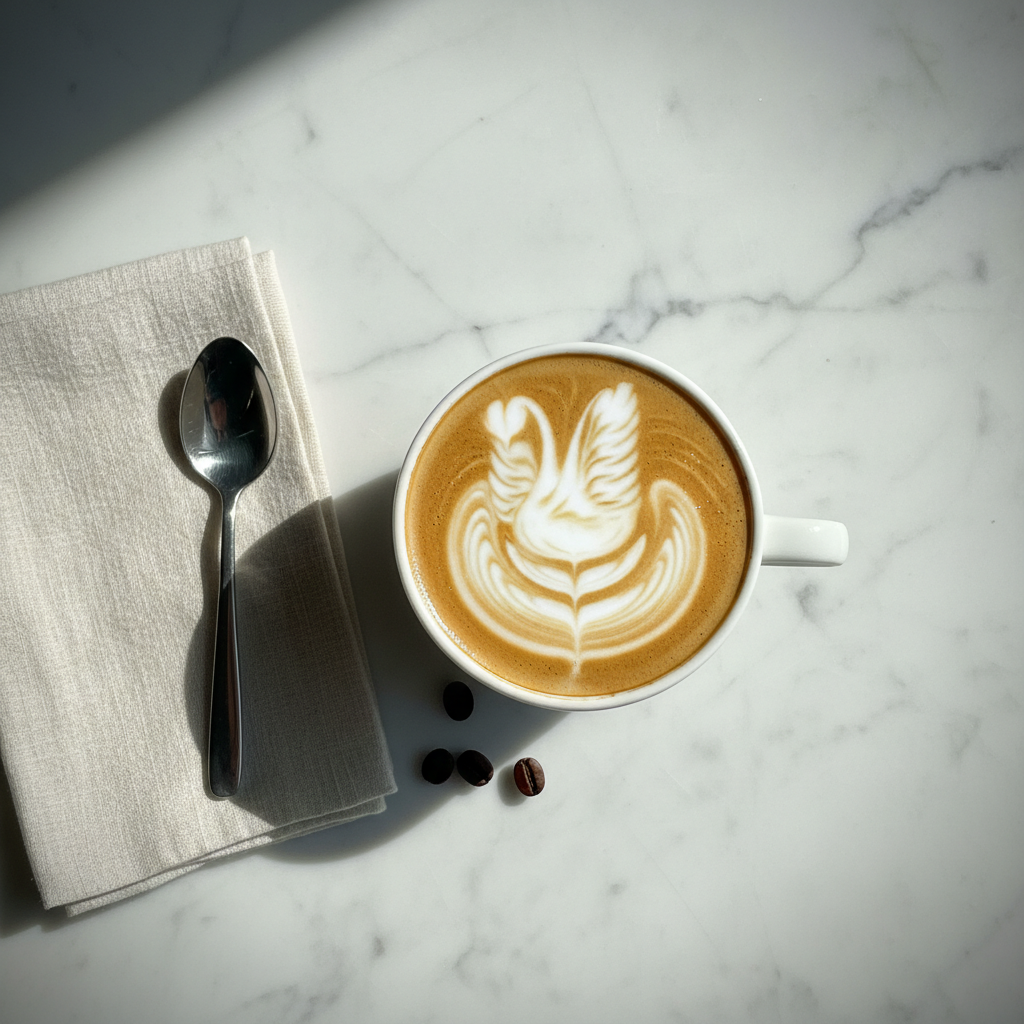
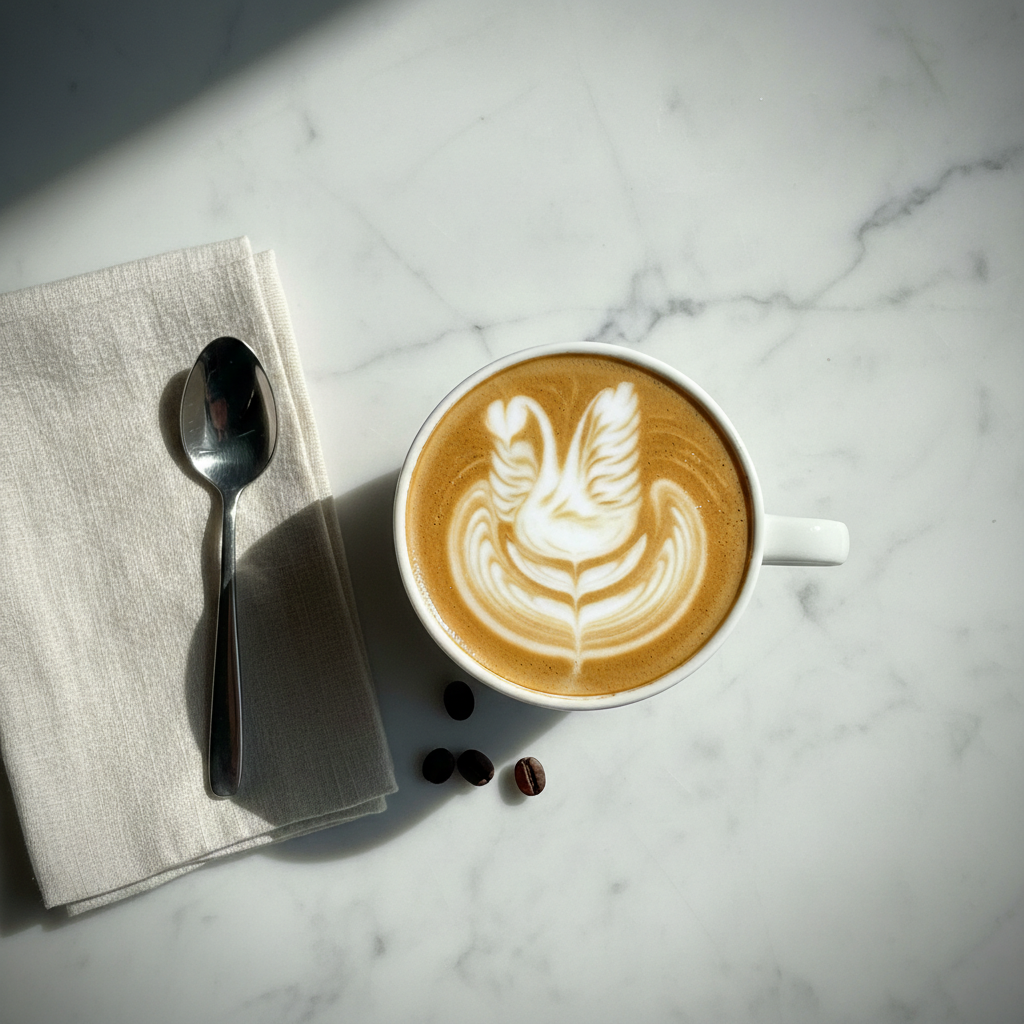
Square product shot to Story
An Instagram feed post of a coffee cup needed to be repurposed as a Story with room for text.
extend the marble table surface above and below to convert this square photo to 1080x1920 Story dimensions, keep coffee cup in center third
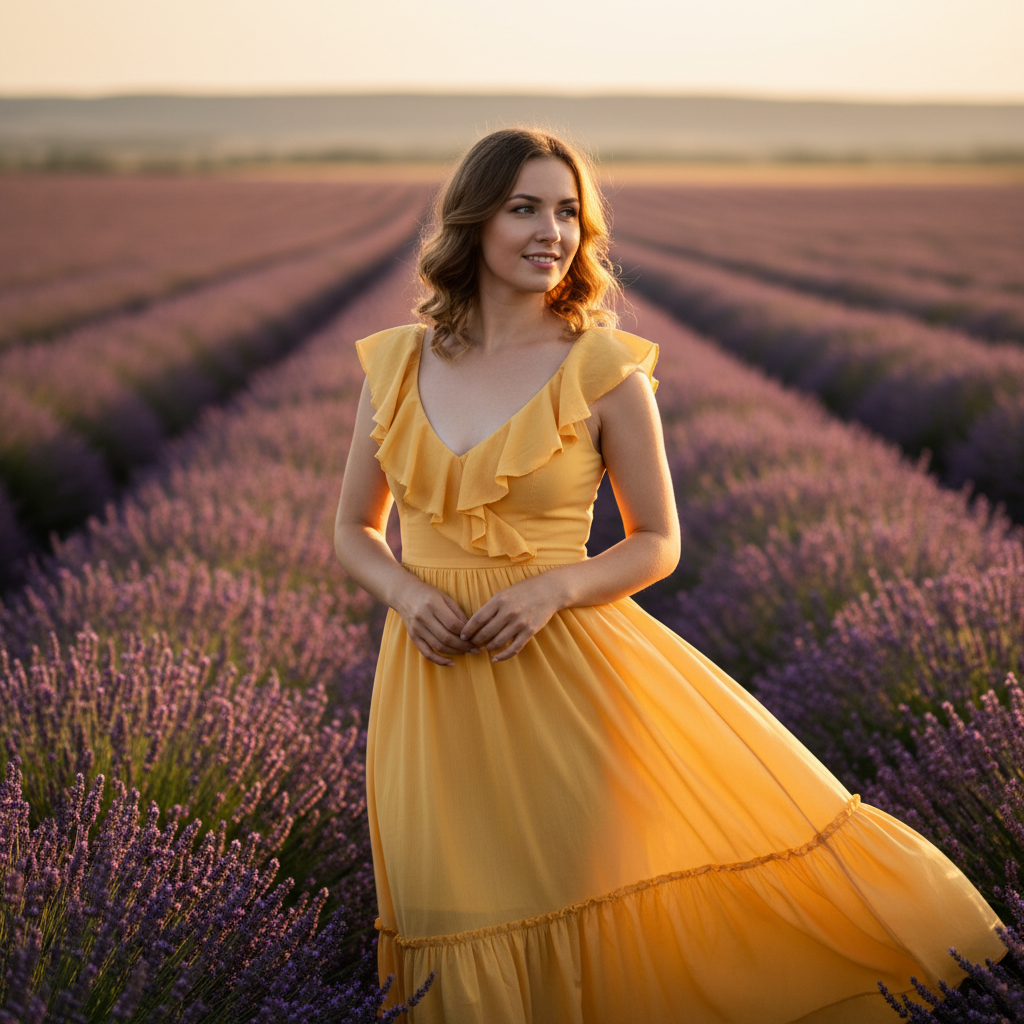
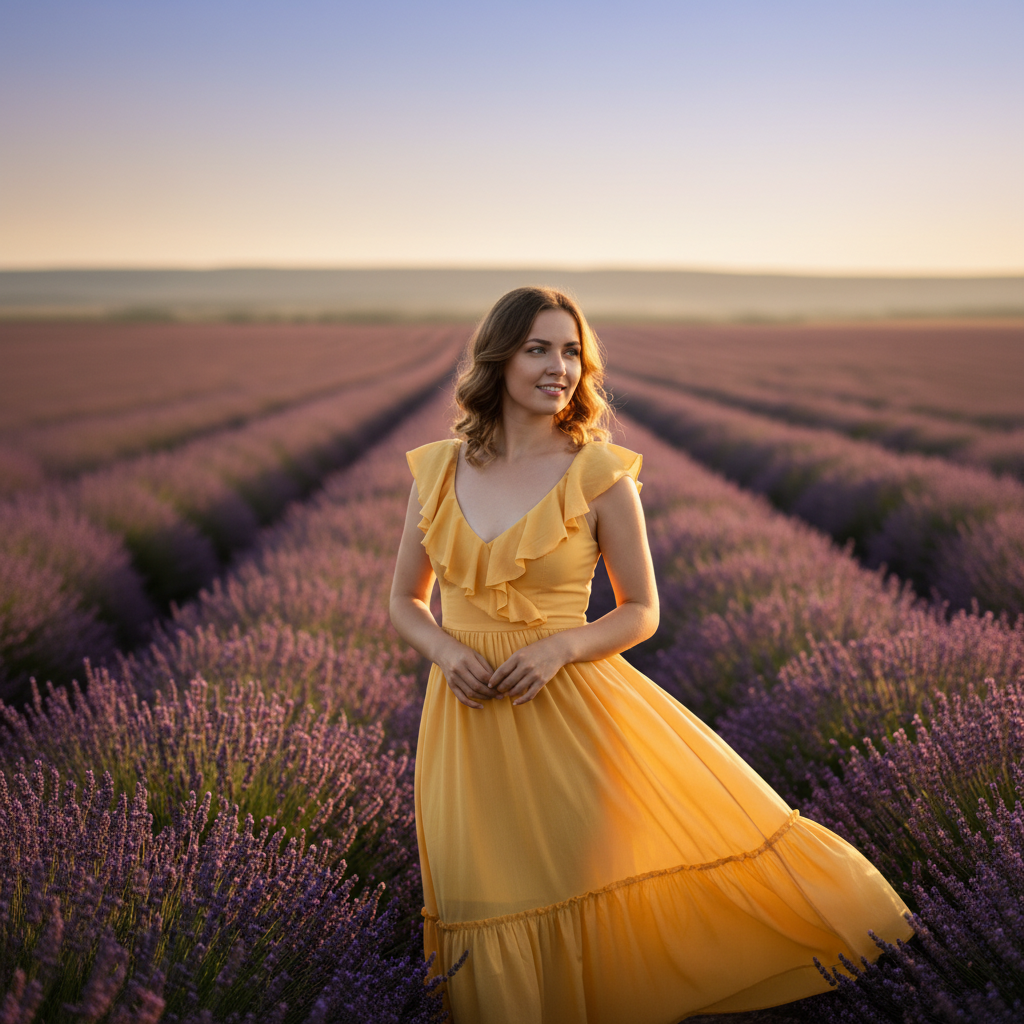
Portrait photo with more headroom
A portrait photo needed extra sky above for Story text overlays while keeping the person properly positioned.
extend sky and background above to fit 9:16 Story format, position subject in lower portion of frame, match the existing sky gradient
When Things Go Wrong
Extended areas look obviously fake or don't match
Why: Complex textures or patterns are harder to extend convincingly. The AI may not have enough context.
Tap markers on the artificial-looking areas, then: regenerate extended background to match the texture and lighting of original image more closely
Simpler backgrounds (sky, grass, solid colors) extend more naturally than complex patterns.
Subject got cropped or positioned badly
Why: The AI made assumptions about composition that didn't match your intent.
keep subject exactly as is, only extend background areas to reach 9:16 dimensions without cropping or moving the main subject
Always specify 'keep subject exactly as is' when you don't want any changes to positioning.
Horizon line is tilted or uneven after extension
Why: The AI didn't maintain the original horizontal reference during extension.
extend background while maintaining perfectly level horizon line, match original image alignment
'Perfectly level horizon' is key for landscape and beach scenes.
AI changed the wrong area or something I didn't want changed
Why: The AI couldn't determine exactly which area you meant from description alone.
Tap a marker on the specific area you want to change, then regenerate with the same prompt
Markers tell the AI 'I mean THIS one specifically.' Use them when description alone is ambiguous.
Colors don't match between original and extended areas
Why: Lighting and color grading weren't explicitly preserved during extension.
extend background while exactly matching the color temperature, saturation, and lighting of the original photo
Mentioning specific color qualities helps the AI maintain consistency.
Frequently Asked Questions
Do I need to manually crop or resize before uploading?
No. Upload any photo in any aspect ratio. Just describe the Story dimensions you need and the AI handles all the resizing and extending. You don't need to pre-process anything.
What are the exact dimensions for Instagram Stories?
Instagram Stories use 1080x1920 pixels (9:16 aspect ratio). This fills the entire phone screen. EditThisPic outputs at these exact dimensions when you specify Story format.
How do I resize a photo for Instagram Story without losing quality?
Upload your original high-resolution photo to EditThisPic and type 'resize to 9:16 for Instagram Story.' The AI extends backgrounds intelligently rather than stretching pixels, so you maintain quality. Download the result at 1080x1920.
Is there a free tool to resize photos for Instagram Stories without login?
Yes. EditThisPic resizes photos to Story dimensions free without requiring an account. Upload your photo, describe the resize you need, and download the result. No watermarks on the output.
Can I resize a landscape photo to Story format without black bars?
Yes. Instead of adding black bars, EditThisPic extends your photo's background to fill the vertical Story format. The AI seamlessly generates matching sky, ground, or other elements to complete the 9:16 frame.
What's the best way to convert a square photo to Instagram Story size?
Type 'extend background above and below to convert to 9:16 Story dimensions.' The AI will intelligently add matching background content to reach the vertical format while keeping your subject centered.
Ready to resize your photo for Instagram Stories?
Free to try. No signup required. No watermarks.
Start Resizing