Free • No signup Change Lip color · Free

AI Lip Color Changer

Just describe the lip color you want - AI applies it naturally with no marking required.
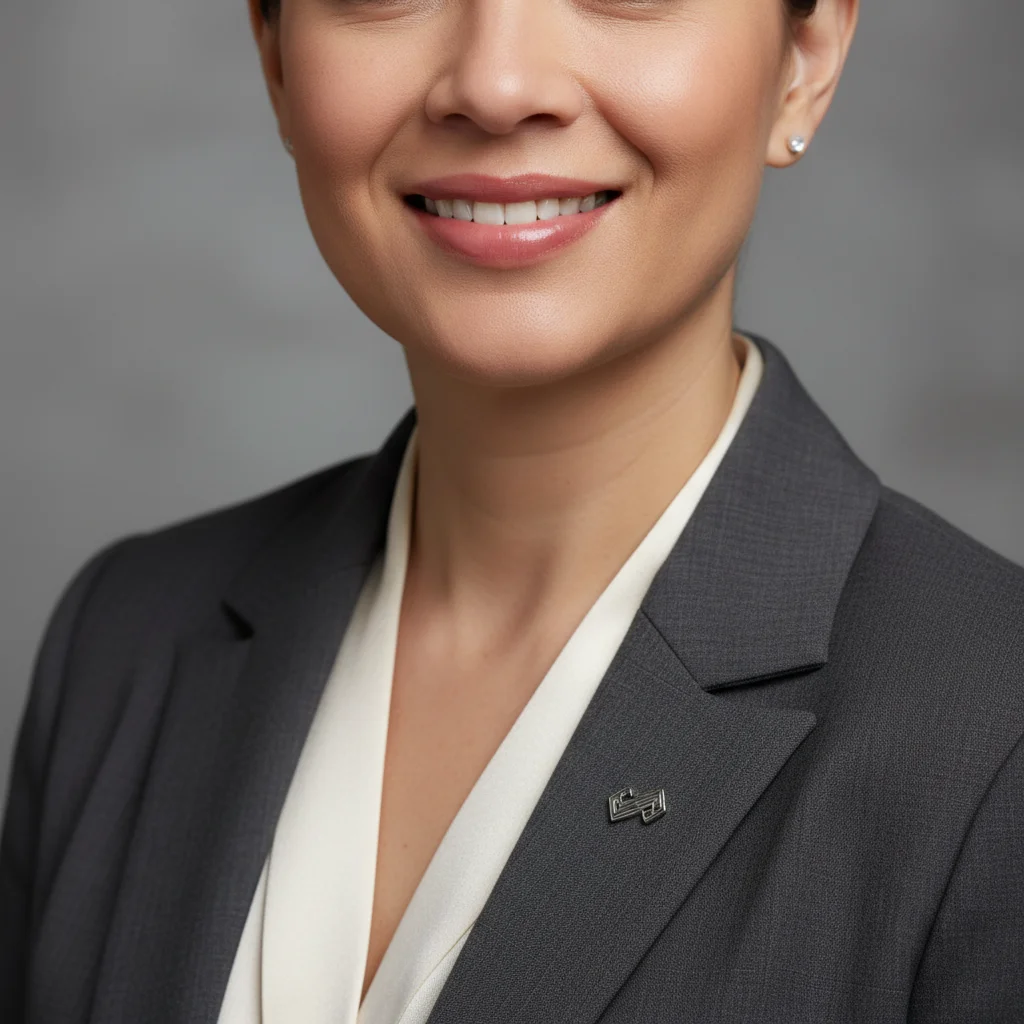
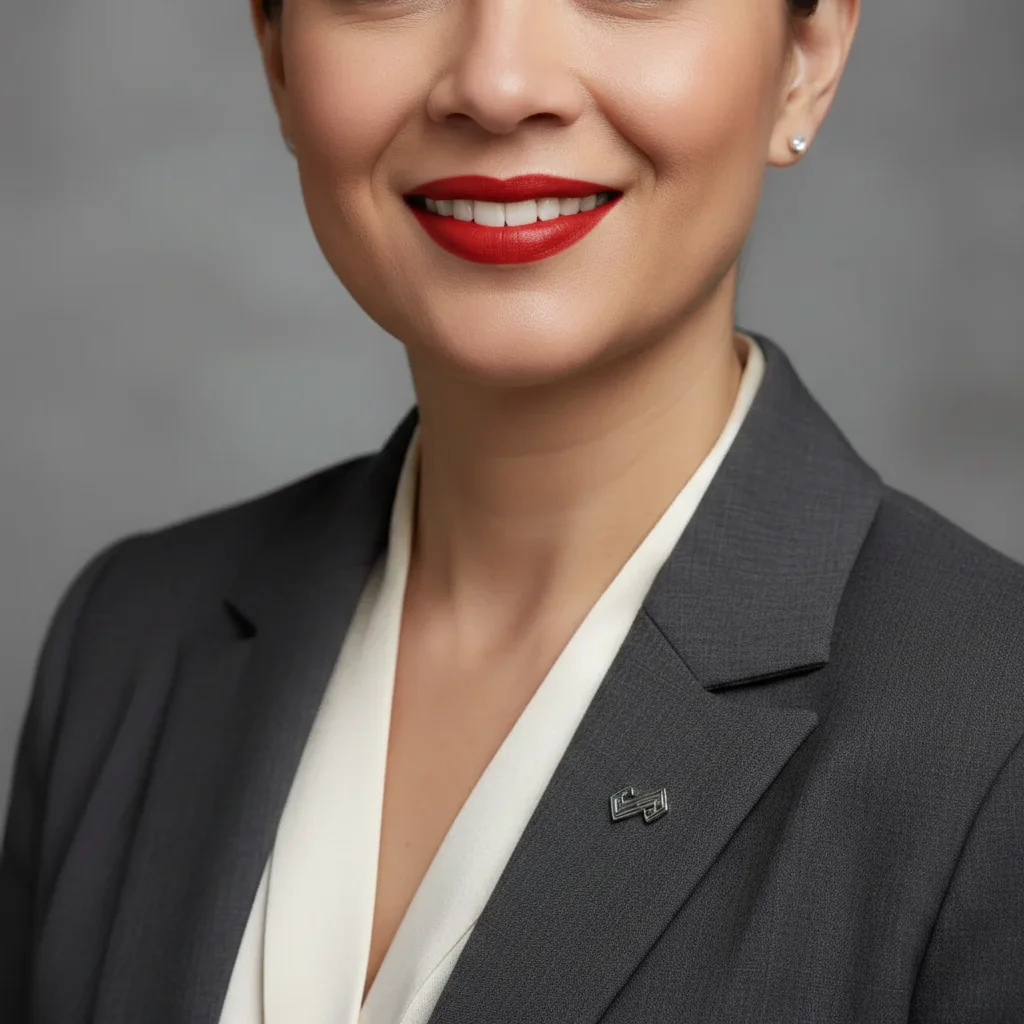
Professional portrait with natural bare nude lips
Before
Same portrait with classic red lipstick applied
After

Change Lip Color in Photos

Drop your photo here

or click to browse

Release to upload

Free • No signup

Advertisement
Popular use cases:
  • makeup testing
  • virtual try-on
  • dating profile photos
  • social media selfies
  • beauty portraits
  • professional headshots
  • event photography
  • makeup tutorials

Cost
Free No signup required
Time
Instant results in 15-30 seconds
Works on
Any device - browser, phone, tablet, desktop
Powered by
AI-powered photo editing
Scenario Prompt Time
Classic red change lip color to classic red lipstick with natural texture and defined edges 15s
Natural nude change lip color to natural nude pink that complements skin tone with subtle enhancement 15s
Deep berry change lip color to deep berry plum with matte finish and natural lip texture 20s
Glossy coral make lips glossy coral pink with natural shine and smooth finish 15s

How it works

  1. Upload your portrait photo

    Drop your image into EditThisPic. JPG, PNG, WebP up to 7MB. For best results, use photos where lips are clearly visible and in focus. Front-facing portraits or close-ups work best for lip color changes.

    Expect: Simple color change: 10-20 seconds. Complex changes like dark to light: may need 1-2 refinements to look natural.
  2. Describe the lip color you want

    Type your instruction: 'change lip color to deep red' or 'make lips rose pink with natural finish.' Be specific about the shade—use color names like burgundy, coral, nude pink. No marking needed—the AI understands what 'lips' means in portraits.

    Tip: Include finish type for realistic results: 'matte berry lips' or 'glossy red lips' tells the AI the texture you want

    Copy one of these to get started:

    Classic red lipstick change lip color to classic red lipstick with natural texture and defined edges
    Natural nude pink change lip color to natural nude pink that complements skin tone with subtle enhancement
    Deep berry or plum change lip color to deep berry plum with matte finish and natural lip texture
    Glossy coral pink make lips glossy coral pink with natural shine and smooth finish
    3 more prompts
    Dark burgundy or wine change lip color to dark burgundy wine shade with rich pigment and defined lip line
    Peachy natural tint apply peachy natural lip tint with sheer coverage and soft edges for subtle enhancement
    Bold fuchsia statement change lip color to bold fuchsia pink with vibrant pigment and smooth even application
  3. Generate and review at full zoom

    Click Generate and zoom in to check color accuracy, lip edge definition, and natural appearance. Verify the color looks realistic with proper lip texture and doesn't bleed beyond lip lines. Check that natural lip shape is preserved.

  4. Refine with markers if needed

    If color needs adjustment or the AI changed surrounding areas, tap markers on the lips specifically and regenerate. This is optional—most color changes work without markers.

    Tip: Markers are for precision refinement, not required. Try without them first. Use them to protect areas like teeth or skin from color spillover.
Try it free

Change Lip Color in Photos

Drop your photo here

or click to browse

Release to upload

Free • No signup

"Perfect for testing lip colors before buying. Changed my nude lips to berry and it looked so realistic I could see if the shade worked with my skin tone." @makeuptestdrive

See it in action

Professional portrait with natural bare nude lips
Before
->
Same portrait with classic red lipstick applied
After

Nude to red transformation for event photo

Professional photo where subtle nude lips were changed to classic red for a bolder look.
Prompt: change lip color to classic red lipstick with natural texture and defined edges
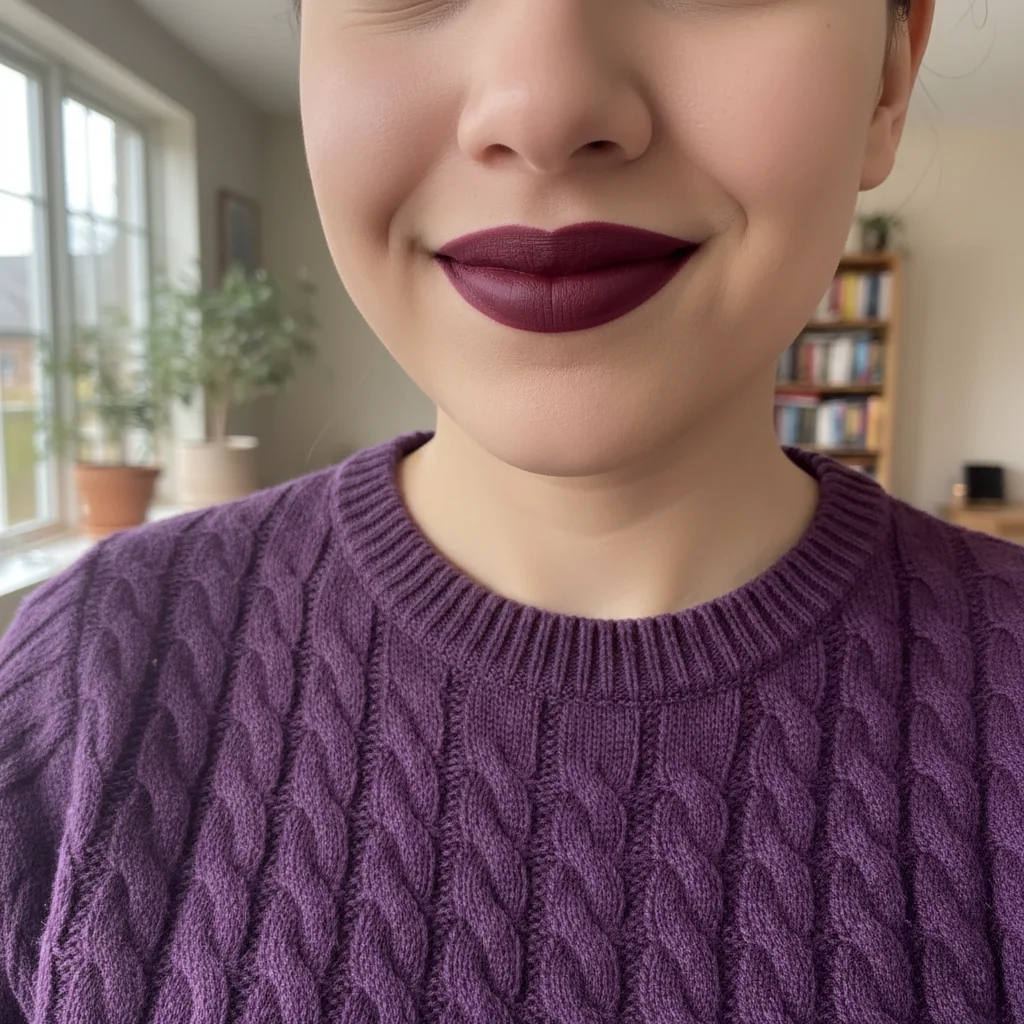
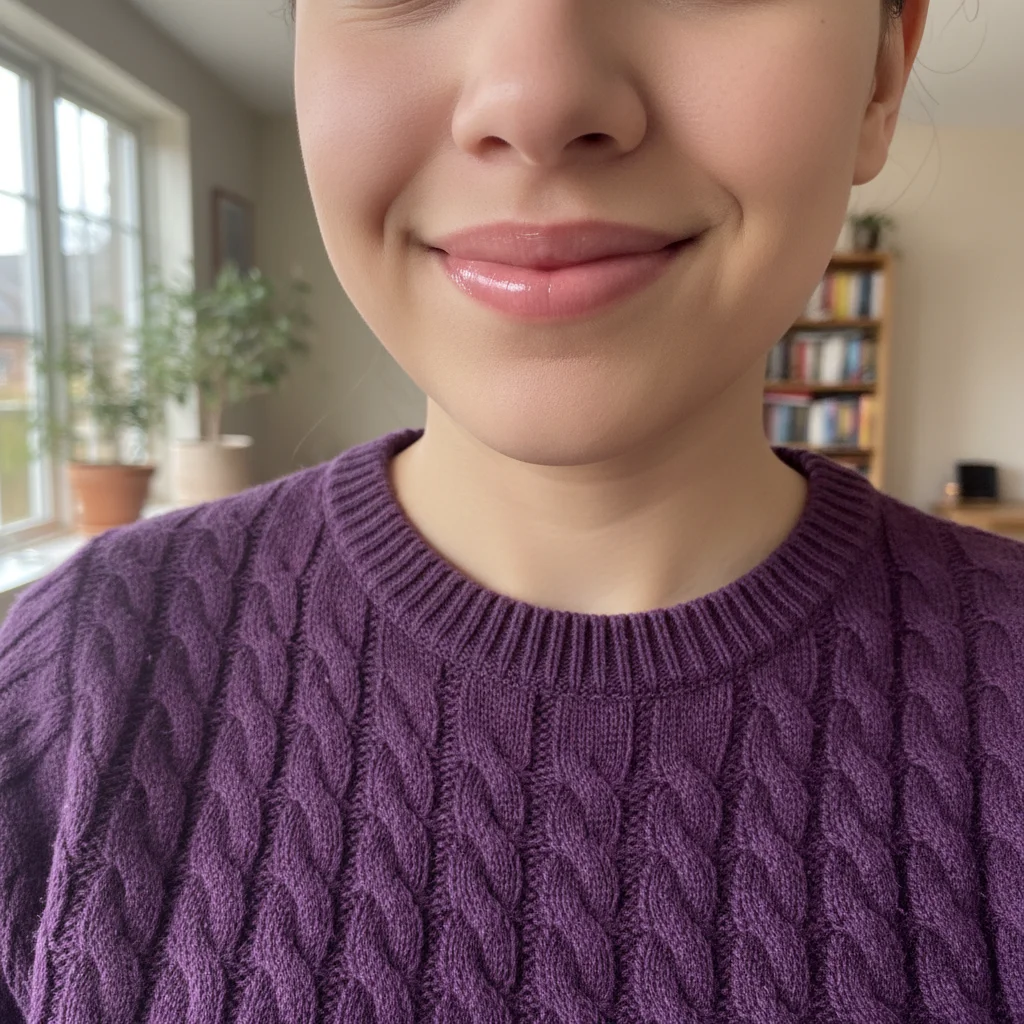
Selfie with light pink glossy lipstick
Before
->
Same selfie with deep berry matte lips matching outfit
After

Testing berry lip shade before purchasing

Selfie used to preview how a deep berry lip color would look with skin tone and outfit.

Prompt: change lip color to deep berry plum with matte finish and natural lip texture
Dating photo with very pale nude lips lacking definition
Before
->
Enhanced photo with vibrant coral glossy lips
After

Dating profile with glossy coral enhancement

Dating app photo where lip color was changed from nude to vibrant coral for a fresh, approachable look.

Prompt: make lips glossy coral pink with natural shine and smooth finish
Advertisement

If something looks off

AI changed the wrong area or colored outside lip lines

Why: The AI couldn't determine exactly which area you meant from description alone, or applied color too broadly beyond the natural lip boundary.

Try: Tap markers specifically on the lip area, staying within the natural lip line, then regenerate with the same prompt

Tip: Markers tell the AI 'I mean ONLY the lips.' Use them when color spills onto skin or teeth.

Color looks too bright, artificial, or cartoonish

Why: The AI over-saturated the color or didn't blend it naturally with lip texture and shadows.

Try: Add 'natural' to your prompt: 'change lip color to [color] with natural finish and realistic texture'

Tip: Real lipstick has subtle variations in intensity across the lips. Flat uniform color looks artificial.

Lip texture disappeared or looks plastic

Why: The AI applied color too uniformly and smoothed away natural lip lines, wrinkles, and texture that make lips look real.

Try: Specify 'maintain natural lip texture' in your prompt: 'change to [color] while preserving natural lip lines and texture'

Tip: Natural lips have fine lines and slight texture. Over-smooth lips look like plastic or animated.

Color doesn't match what I asked for

Why: Color names can be ambiguous (everyone's 'red' or 'pink' is different) or lighting in the photo affects how colors appear.

Try: Use more specific color descriptions: 'bright cherry red' not just 'red', or 'dusty rose pink' not just 'pink'

Tip: Be descriptive about the shade: 'coral orange' vs 'coral pink' vs 'peachy coral' are all different.

Dark lip color looks patchy or uneven

Why: Dark colors show application imperfections more than light colors, and the AI may have created uneven pigment distribution.

Try: Add 'smooth even application' to your prompt: 'change to dark [color] with smooth even pigment coverage'

Tip: Dark lip colors need careful application. If it looks patchy, regenerate emphasizing evenness.

Lip shape changed or looks different

Why: The AI adjusted lip shape while applying color, potentially making lips look fuller or thinner than the original.

Try: Specify 'maintain original lip shape' in your prompt: 'change color to [color] while keeping natural lip shape and size'

Tip: If you want to preserve exact lip shape, make that explicit in your instruction.

Quick answers

Do I need to mark the lips before describing the color I want?

No! For most photos, just describe what you want: 'change lip color to deep red' or 'make lips rose pink.' The AI understands what lips are in portraits. Only use markers when you need precision—like preventing color from spilling onto teeth or skin, or if the AI affects the wrong area on your first try.

How do I change lip color in a photo for free?

Upload your portrait to EditThisPic, type 'change lip color to [color name]' in the prompt box (like 'change lip color to classic red'), and generate. The AI automatically identifies lips and applies the new color naturally. Free to try with no signup required.

Is there a free lip color changer that doesn't require an account?

Yes. EditThisPic's AI lip color changer is completely free to try with no account creation needed. Upload your photo, describe the lip color you want, and download the result with no watermark.

Will the changed lip color look natural or obviously fake?

When you include 'natural texture' and specify a finish (matte, glossy, satin) in your prompt, the AI creates realistic lip color that looks like actual lipstick application. The key is being specific about the shade and finish you want to avoid overly bright or flat-looking results.

Can I try multiple lip colors on the same photo?

Yes. After your first color change, you can regenerate with different color prompts to test various shades. This is perfect for previewing which lip colors work with your skin tone before buying actual lipstick.

What lip color names work best in prompts?

Be specific with color descriptions: 'classic red', 'deep berry', 'nude pink', 'coral', 'burgundy', 'peachy nude'. Add descriptors like 'bright', 'deep', 'soft', 'dusty', or 'natural'. Also specify finish: 'matte', 'glossy', 'satin', 'sheer' for more realistic results.

Ready to change your lip color in photos?

Free to try. No signup required.

Try it free