AI Photo Editor for Corporate Team Photos
Make your entire team look like they were photographed in the same studio, even if they're on different continents.
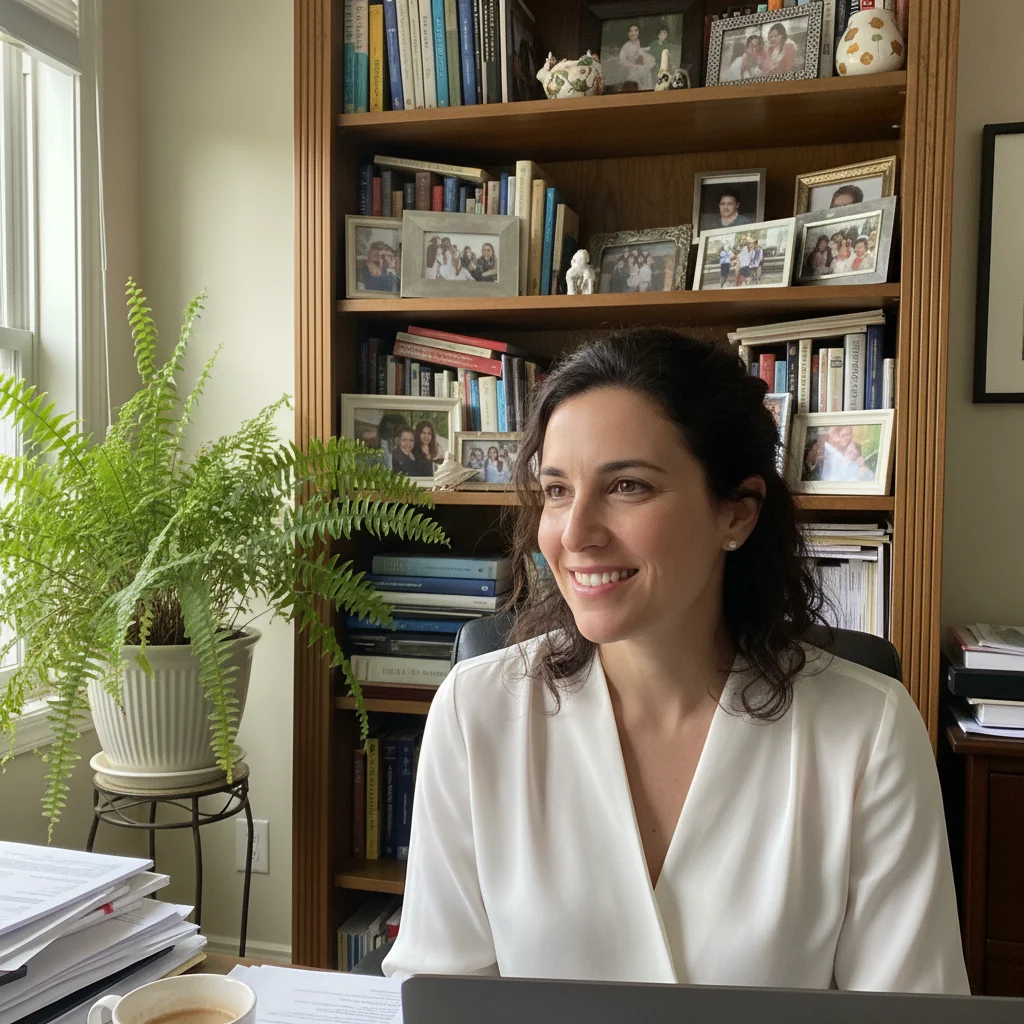
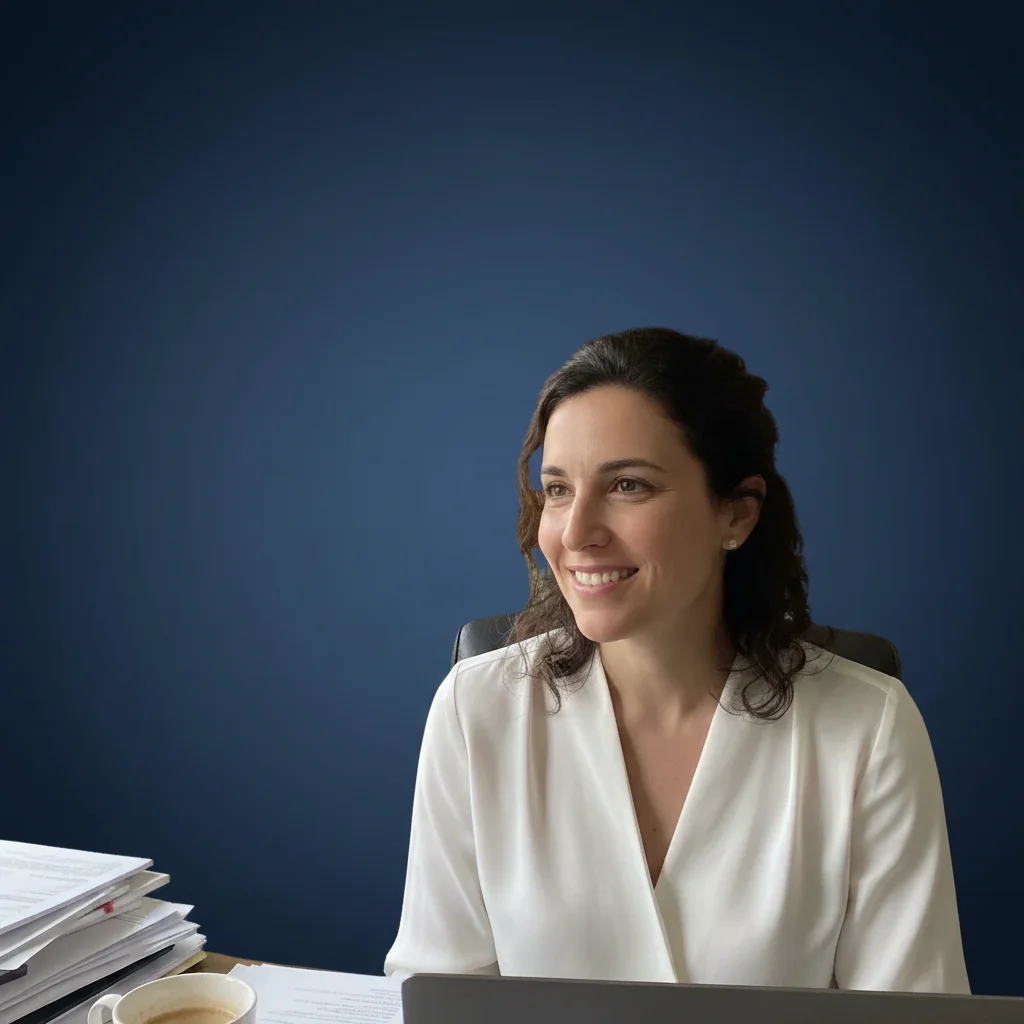
Drop your photo here
or click to browse
Release to upload
Free • No signup
"We have 47 employees across 12 countries. Getting consistent headshots was a nightmare. Now I just send everyone a guide and batch process them myself. Our About page finally looks professional." @HRManagerGlobal
Built for HR and Marketing Teams
A consistent team photo gallery signals professionalism and organization. When prospects visit your About page, they form impressions instantly. Mismatched headshots suggest chaos. EditThisPic lets you standardize any collection of photos to the same professional style, whether your team is 5 people in one office or 500 across the globe.
Tools for Team Photo Consistency
Replace Background
Swap all team photos to matching branded backgrounds
Blur Background
Unify messy backgrounds without full replacement
Enhance Lighting
Match lighting across different photo sources
Fix Color
Correct color casts from different environments
Remove Person
Clean up group photos when someone leaves the company
How to AI Photo Editor for Corporate Team Photos
-
Gather your team photos
Collect headshots from all team members. Accept whatever quality they send - phone selfies, webcam shots, cropped group photos. The AI handles the rest. Have them submit photos where their face is clearly visible and they're looking at the camera.
Single photo edit: 20-30 seconds. Batch processing a full team: plan 5-10 minutes for 20 people.Send a simple guide: 'Face visible, looking at camera, decent lighting.' That's all they need. -
Define your standard style
Decide on one consistent look: 'gray studio backdrop' or 'blurred office background' or 'white seamless.' Type your instruction: 'replace background with smooth gradient gray studio backdrop, professional lighting.' Use the exact same prompt for every photo.
Save your prompt in a text file. Copy-paste the identical instruction for each photo to ensure perfect consistency. -
Process each photo
Upload and process each team member's photo with your standard prompt. Review that backgrounds match and lighting looks consistent. For most photos, this takes one pass.
-
Fix outliers with markers
Some photos may need touch-ups - hair edges that didn't separate cleanly, color casts from unusual lighting. Tap markers on problem areas and regenerate. The goal is consistency across the full set.
If one photo looks different from the rest, regenerate it rather than adjusting all others to match.
Copy-Paste Prompts for Team Photo Consistency
replace background with smooth gradient gray studio backdrop, professional soft lighting, consistent across team
Gray gradients work for any industry and match well with most clothing colors
replace background with slightly blurred modern office environment, warm neutral tones, professional but approachable
Blurred office backgrounds suggest a real workplace without distracting details
replace background with pure white seamless backdrop, soft even lighting, professional headshot style
White backgrounds work great for About pages and resize well for different layouts
replace background with solid navy blue backdrop matching our brand color #1a365d, professional studio lighting
Include hex codes for exact brand color matching across all team photos
Show 4 more prompts
correct lighting to match professional studio, remove color cast, even soft illumination on face
Run this as a second pass after background replacement if team photos still look inconsistent
replace cluttered home office background with clean gray backdrop, enhance image quality, fix webcam distortion
Webcam photos often need quality enhancement alongside background replacement
isolate just this person from the group, replace background with neutral gray studio, match the professional headshot style
You can extract individuals from team events or group photos for consistent headshots
remove the person on the far right wearing the blue shirt, fill the space naturally, keep the rest of the group intact
When someone leaves, you can update group photos without reshooting everyone
| Edit Type | Prompt | Time | |
|---|---|---|---|
| Gray studio backdrop | replace with smooth gradient gray studio backdrop |
20s | Try This → |
| Blurred office | replace with blurred modern office environment |
25s | Try This → |
| Pure white | replace with pure white seamless backdrop |
20s | Try This → |
| Brand color | replace with solid [brand color] backdrop |
20s | Try This → |
Real Examples
Remote team standardization
Your remote team submitted photos from home offices, kitchens, and parks. One consistent command makes them all look like the same photo session.
replace background with smooth gradient gray to white studio backdrop, professional soft lighting
New hire matching existing style
New employee started remotely and can't fly to headquarters for the photo session. Their selfie now matches everyone else's headshots.
replace background with blurred modern office environment matching our team style, warm professional lighting
Group photo cleanup after departure
Someone left the company but you don't want to reshoot everyone. Remove them from the group photo cleanly.
remove the person on the far left in the yellow shirt, fill the space naturally with the office background
Executive team consistency
C-suite photos from different professional photographers over the years. Unify them for the investor deck.
replace background with consistent dark charcoal studio backdrop, professional executive portrait lighting, keep original face and expression exactly
When Things Go Wrong
Team photos still look inconsistent after processing
Why: Different source photo qualities, angles, or crop ratios make them look different even with matching backgrounds.
After background replacement, run a second pass: correct lighting to exactly match reference photo, neutral color temperature
Process one high-quality photo first as your 'reference,' then match all others to it.
Hair edges look choppy or have halos
Why: Fine hair strands against busy original backgrounds are hard for AI to separate cleanly.
Tap markers on the hair edges, then: blend hair naturally with new background, smooth transition
Photos where hair contrasts with the original background work best. Dark hair on light backgrounds separates cleanly.
One person's photo looks different from the rest
Why: Their original photo had very different lighting or color balance that carried through.
correct color temperature to neutral daylight, match lighting to the rest of the team photos
It's faster to regenerate the outlier than to adjust all other photos.
Webcam photos look lower quality than others
Why: Webcam resolution and compression create visible quality differences.
enhance image quality and sharpness, reduce compression artifacts, professional headshot finish
Have remote employees use their phone camera instead of webcam - much better quality.
AI changed the wrong area or something I didn't want changed
Why: The AI couldn't determine exactly which area you meant from description alone.
Tap a marker on the specific area you want to change, then regenerate with the same prompt
Markers tell the AI 'I mean THIS one specifically.' Use them when description alone is ambiguous.
Frequently Asked Questions
How do I make all team photos look consistent?
Use the exact same prompt for every photo: 'replace background with [your chosen style].' Save this prompt and copy-paste it identically. For best results, run a second lighting correction pass on photos that still look different. The key is using identical instructions for each team member's photo.
What photo quality do team members need to submit?
Face clearly visible, looking at camera, reasonable lighting (not silhouetted). Phone selfies work fine. Webcam photos work but may need quality enhancement. Avoid extreme angles, heavy shadows on face, or cropped-off heads. The AI handles background issues and can improve moderate quality problems.
Can I process a batch of photos at once?
EditThisPic processes one photo at a time, but each takes only 20-30 seconds. For a 20-person team, plan about 10-15 minutes. The consistency comes from using identical prompts, which is easy with copy-paste.
What background style works best for corporate teams?
Gradient gray (light to white) is the safest choice - works for any industry, matches all clothing, and looks professional. Tech companies often prefer slightly blurred office backgrounds. White seamless works for About pages and marketing materials. Avoid busy patterns or colors that might clash with someone's outfit.
How do I handle someone leaving the company?
For individual headshots, simply remove them from your website. For group photos, you can use 'remove the person [description and position]' to cleanly edit them out and fill the space naturally. This avoids needing to reshoot everyone.
Is there a free tool for making team photos consistent?
Yes, EditThisPic is free to try with no signup required. You can process team photos one at a time using the same background replacement prompt for consistency. No watermarks on your downloaded images. This works well for small teams or testing before committing to a paid solution.
Is EditThisPic's AI photo editor for corporate team photos really free?
Yes — you get 1 free edit per week, no account needed. For unlimited edits, plans start at $3.99/month.
Can I corporate team on my phone?
Yes. EditThisPic works in any mobile browser — iPhone, Android, tablet. No app download needed.
Ready to standardize your team photos?
Free to try. No signup required. No watermarks.
Start Editing