Pricing Enhance Astrophotography · Free

AI Astrophotography Enhancer

← Browse all enhance tools

Last updated

Describe how you want your night sky to look. Stars, Milky Way and glow, edited by typing.
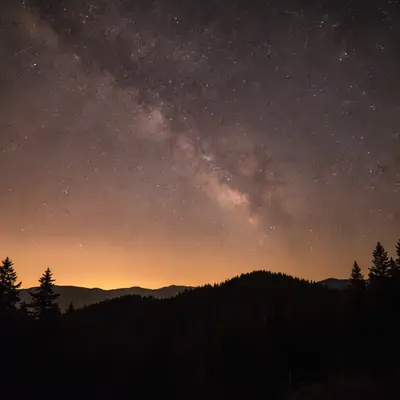
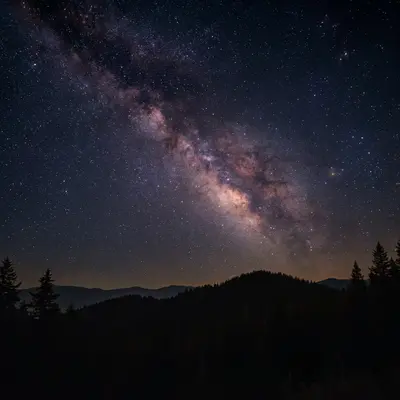
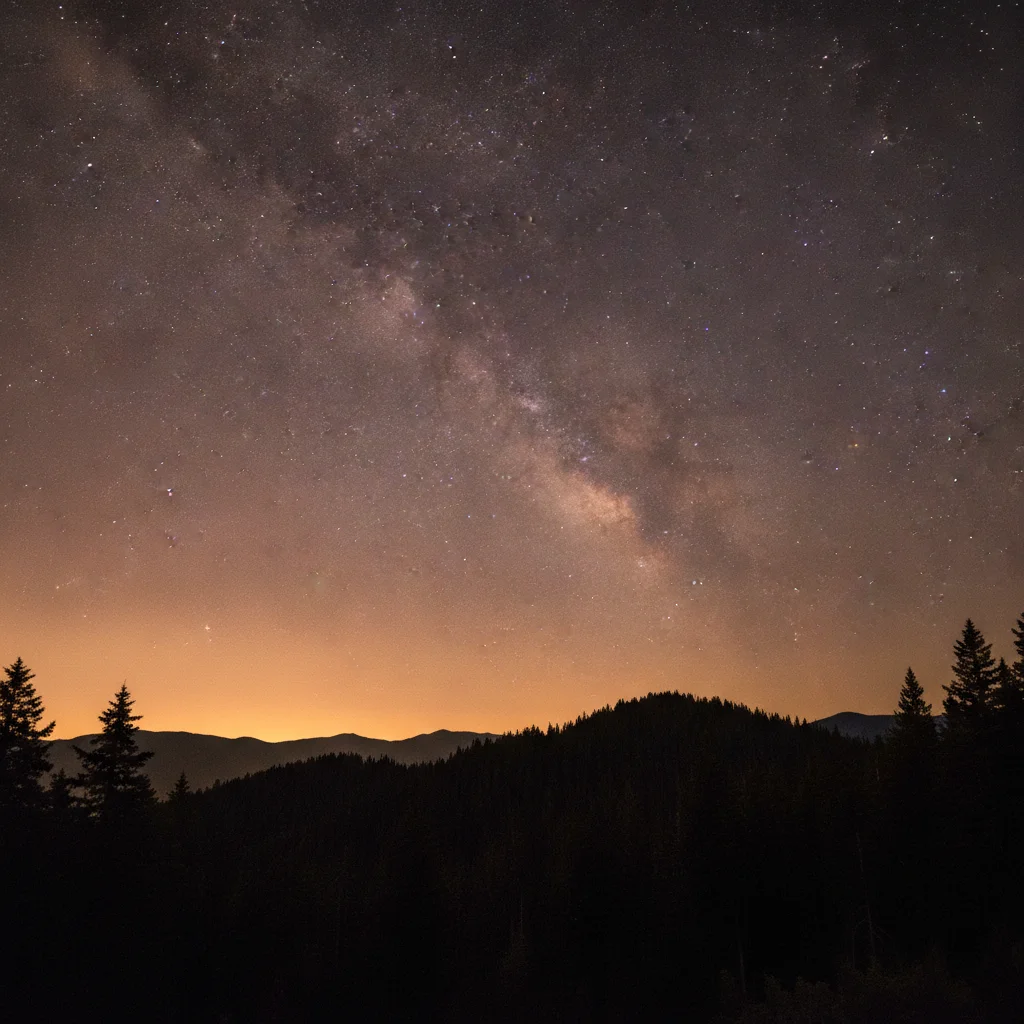
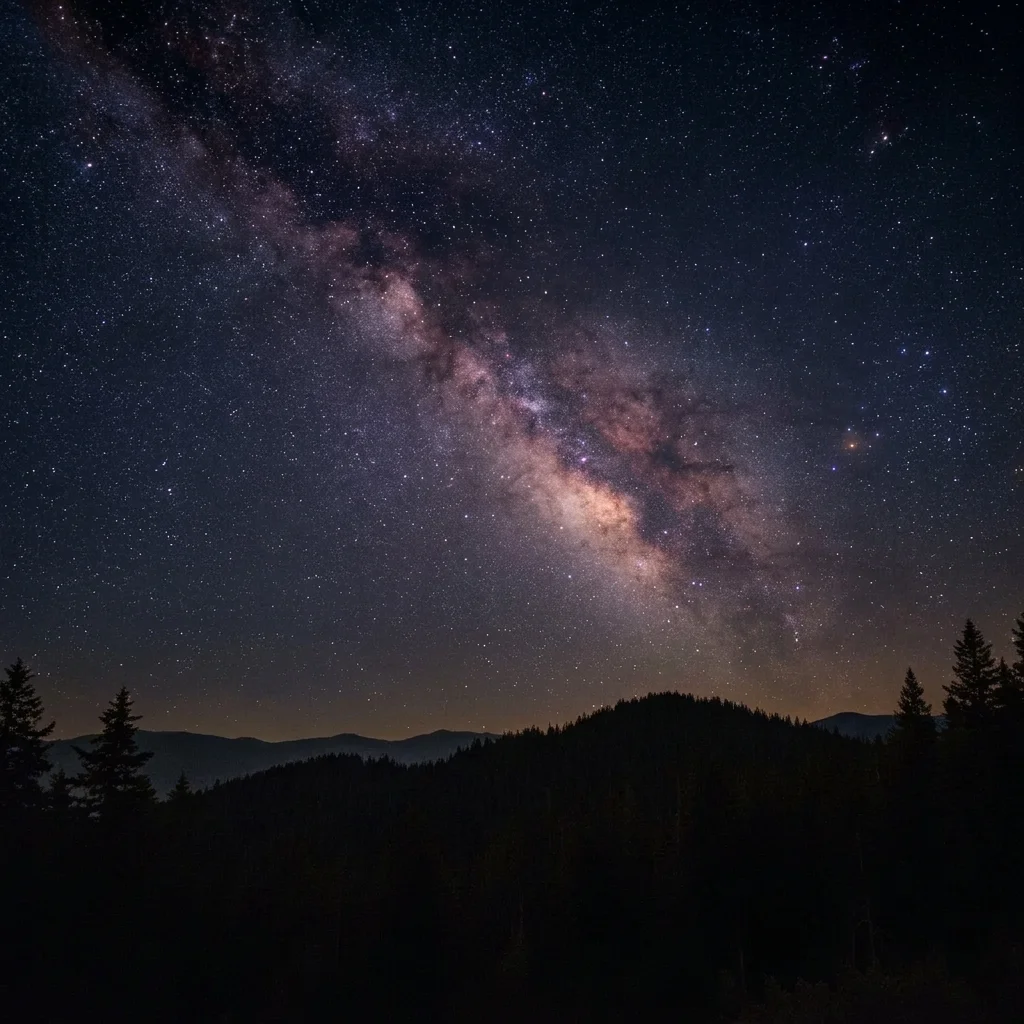
Night sky over pine ridge with an orange glow on the horizon and a faint Milky Way Same sky with a deeper blue, clearer Milky Way band and a much weaker horizon glow

Upload photo to enhance astrophotography

"reduce the orange light pollution glow near the horizon and make the lower sky a deeper dark blue, keep the stars and the Milky Way visible"

Free to try · no sign-up · never used for AI training

Release to upload

<30stypical edit
1 freeedit weekly
Photo on your phone? Scan to open this editor there — free edit works on your phone too.

1 free edit every week·paid packs after

How it works

  1. Upload your night sky photo

    Choose a night photo where the sky is at least faintly visible. A single frame from your camera or phone works. A photo with some foreground, like trees, a tent or a lake, helps the AI keep the landscape natural while it works on the sky.

    Expect: The AI can only bring out detail that is already recorded in your photo. Very dark or very blurry frames give more modest results.
    Tip: Shoot in the highest quality your camera allows. Faint stars survive better in a lightly compressed file.
  2. Describe what to bring out and what to calm down

    Type the change in plain words: 'make the Milky Way band stand out, add contrast between the stars and the sky, reduce the orange light pollution glow near the horizon, and soften the grain.' Name the problem you see (glow, noise, flat core) and ask to keep the foreground unchanged. No marking required.

    Tip: Ask for one or two things at a time. 'Bring out the stars' plus 'reduce glow' usually works better than a long list of ten tweaks.

    Copy one of these to get started:

    Bring out the Milky Way band bring out the Milky Way band, add contrast between the stars and the dark sky, make the stars crisp, keep the trees and ground in the foreground unchanged
    Reduce orange light pollution glow reduce the orange light pollution glow near the horizon and make the lower sky a deeper dark blue, keep the stars and the Milky Way visible
    Soften grain in a high ISO shot reduce the grain and colour noise in the dark sky while keeping the stars as sharp small points, do not blur the foreground hills
    Make stars pop over a lake make the stars brighter and more defined above the lake, deepen the sky to navy blue, keep the lake reflection and shoreline unchanged
    3 more prompts
    Cooler, cleaner night sky colour correct the sky colour cast so the night sky looks neutral dark blue instead of green and brown, keep the Milky Way warm and the foreground natural
    Milky Way core above a tent brighten and add detail to the Milky Way core above the tent, reduce the glow from the camp lantern in the sky, keep the tent and its warm light as they are
    Gentle, natural-looking result enhance the night sky with a subtle, natural look: slightly clearer Milky Way, slightly fewer glowing clouds from city light, no added stars
  3. Check the stars, the core and the horizon

    Look at the brightest stars first. They should stay as small points, not blobs. Then check the Milky Way band for a natural gradient rather than a painted look, and the horizon for halos where the glow was reduced.

  4. Use markers if the AI changed the wrong area

    If the AI darkened a tree line, brightened the wrong part of the sky or touched a lit tent, tap a marker on the area you want edited and run the prompt again. Markers are optional and only needed when the first result touches something you wanted left alone.

    Tip: Put the marker on the sky region with the glow, not on the whole frame.

See it in action

Night sky over pine ridge with an orange glow on the horizon and a faint Milky Way
Before
->
Same sky with a deeper blue, clearer Milky Way band and a much weaker horizon glow
After

Orange glow over a mountain campsite reduced, Milky Way strengthened

A night photo with a faint Milky Way and an orange town glow on the horizon behind a pine ridge. The prompt asks for a cleaner sky and a clearer Milky Way band while keeping the trees.

Prompt: reduce the orange light pollution glow near the horizon, bring out the Milky Way band and stars, keep the pine trees and ground unchanged
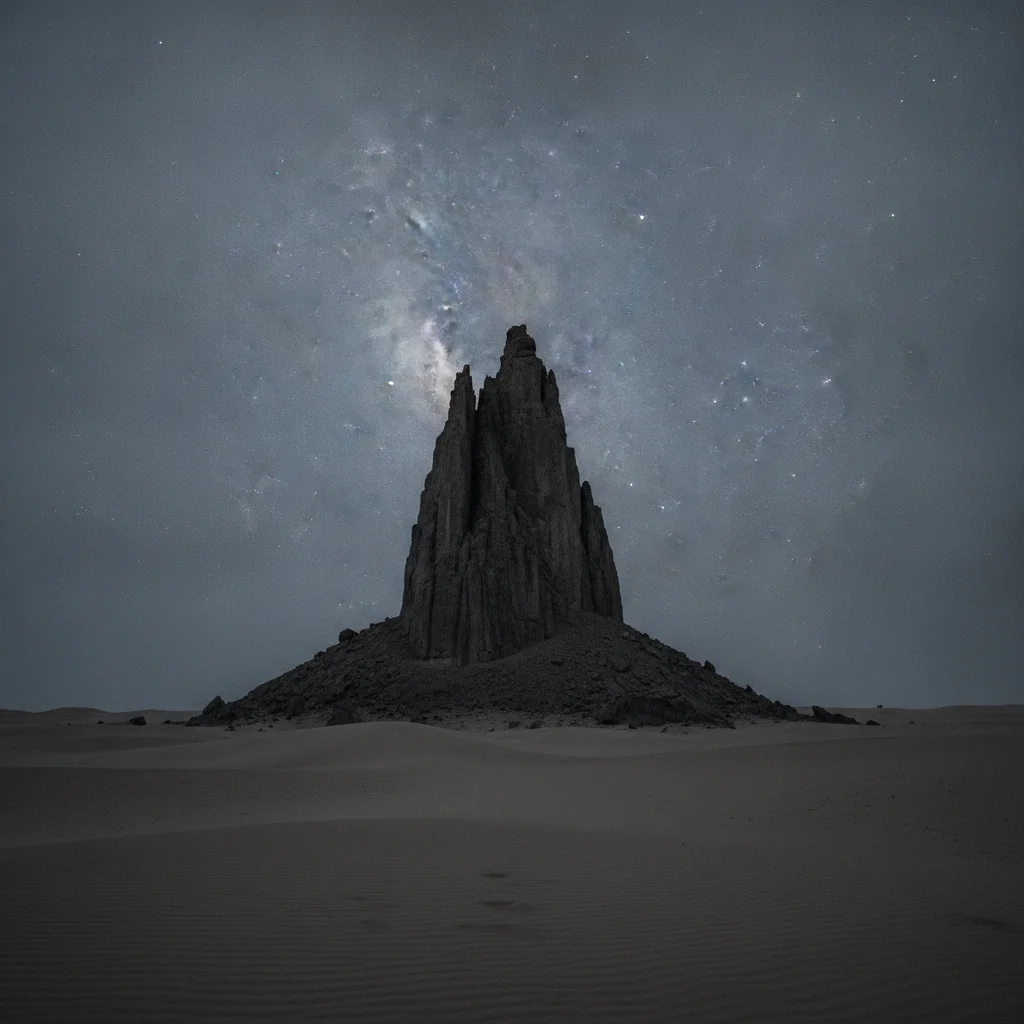
Desert night photo with a flat sky above a rock formation
Before
->
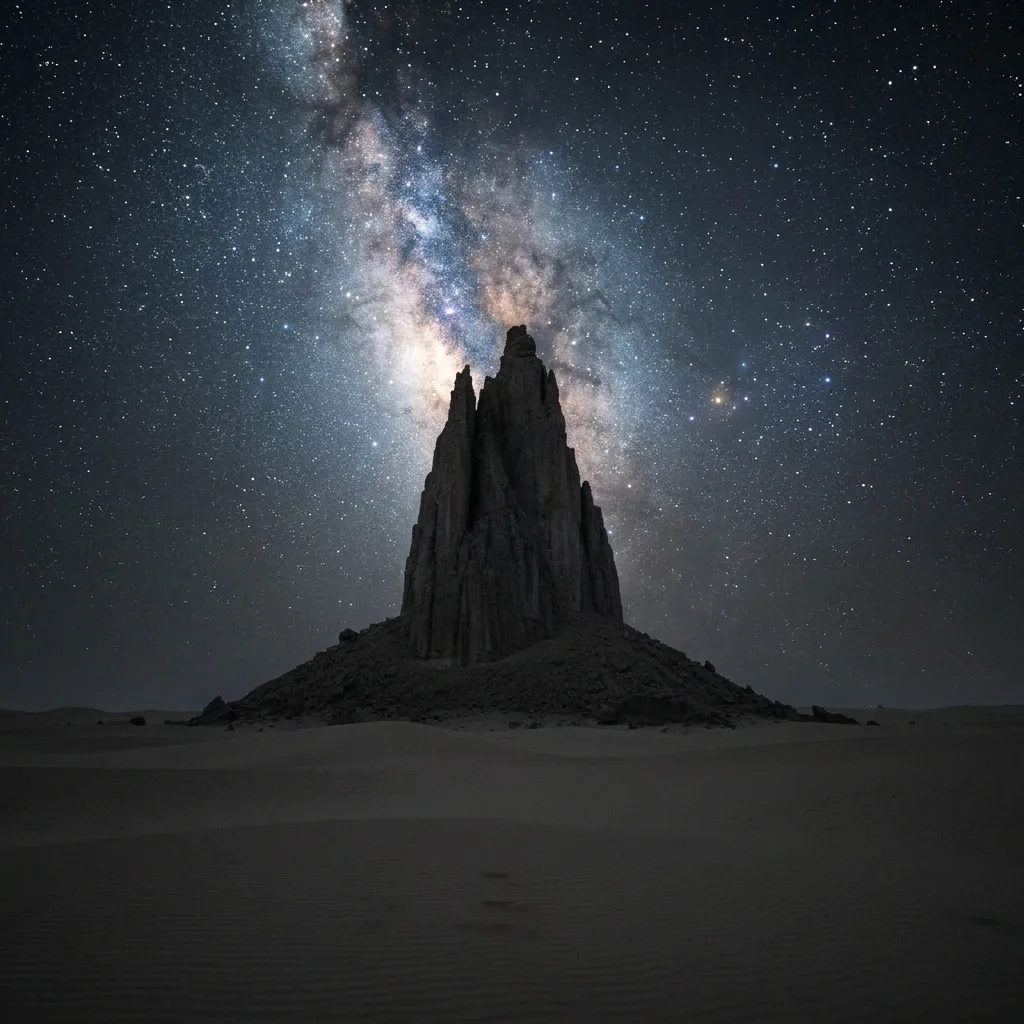
Same scene with a brighter Milky Way core, deeper sky and more defined stars
After

Desert Milky Way with a stronger core

A desert night photo with a flat grey-looking sky. The prompt adds contrast so the Milky Way core and stars read clearly above a rock formation.

Prompt: make the Milky Way core brighter and add contrast between the stars and the sky, keep the rock formation in the foreground unchanged

Quick answers

Do I need to mark the sky before enhancing it?

No. Describe what you want, such as 'bring out the Milky Way and reduce the orange glow.' The AI finds the sky from the photo. Markers are optional and only help if it changes the wrong area, like the tree line or a lit tent.

Is there a free AI astrophotography enhancer with no login?

Yes. Upload your night sky photo, describe the change and get a free preview edit with no signup and no watermark. Results are AI generated, so check the stars and sky before sharing.

Can this be used for scientific astrophotography?

No. It is a creative photo editor. It enhances what is in the picture and can change how stars, colour and noise look, so do not use it for measurements, research or anything that needs exact data.

Will it add stars or a Milky Way that was not there?

The prompts on this page enhance what your camera recorded. If the frame has almost no sky detail, the AI can only clean it up, and a vague prompt may invent details, so ask for 'no added stars'.

Which night photos work best?

Photos where the sky is already faintly visible do best, such as a Milky Way over a campsite or a lake. Heavily blurred, trailed or almost black frames give modest results, and very bright city skies can only be cleaned up.

How much does EditThisPic cost?

You get 1 free Standard edit per week — no account needed. After that, one-time credit packs start at $4.99 for 10 credits, valid 12 months, no subscription. A Standard edit uses 1 credit, Pro 2 and Ultra 3. Purchased downloads are clean with no watermark.

Ready to bring out your night sky?

Free to try. No signup required.

1 free edit included·paid credit packs after