Free β€’ No signup Preview Botox result Β· Free

AI Botox Preview

See how smoothed forehead lines and crow's feet would look before booking.

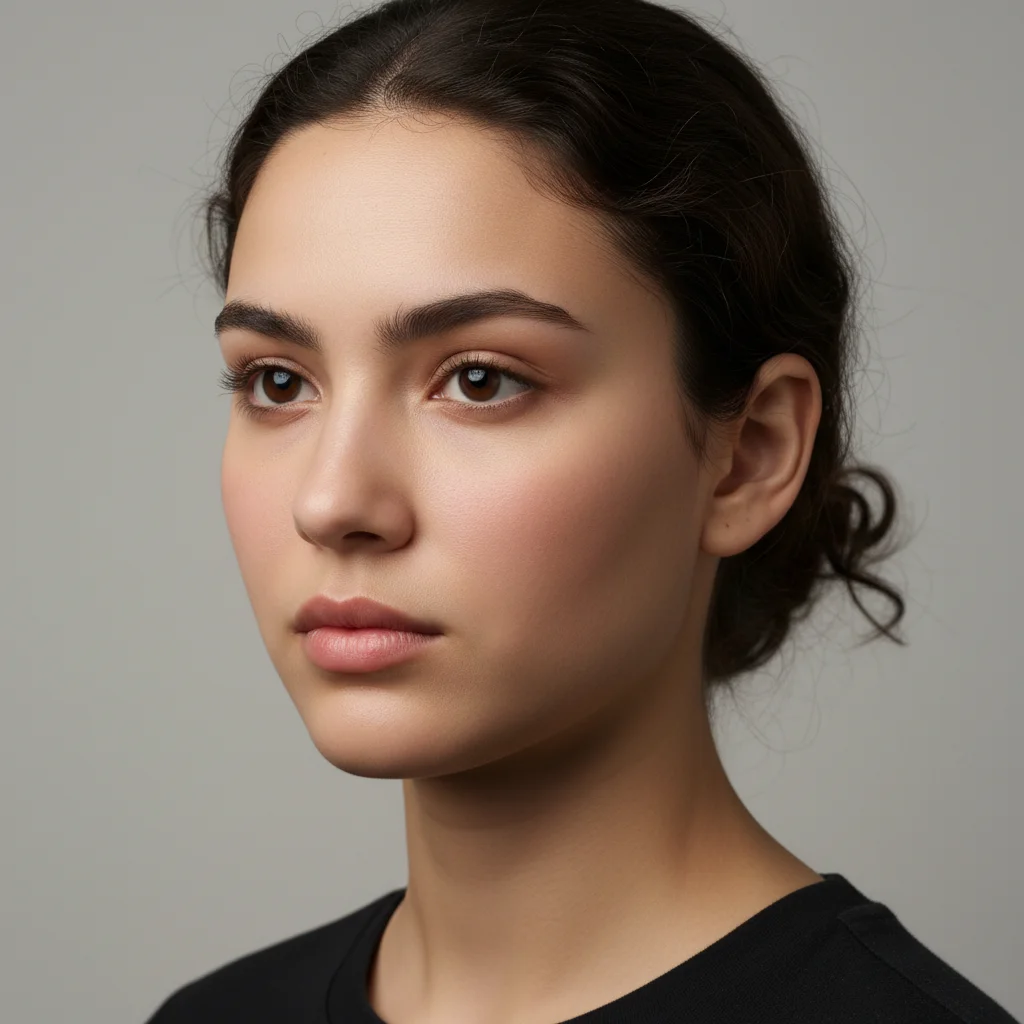
Original photo before AI Botox Preview
Before
β†’
Result after AI Botox Preview with EditThisPic
After

Free AI Botox Preview

Upload photo to preview botox result

Free β€’ Results in 30 seconds β€’ No signup

Release to upload

FreeNo signupNo watermark

Cost
Free No signup required
Time
Instant results in 15-30 seconds
Works on
Any device - browser, phone, tablet, desktop
Powered by
AI-powered photo editing

How it works

  1. Upload your photo

    Use a clear, well-lit photo showing the areas you want to preview. Natural facial expressions that show your lines work best - no need to force expressions. Make sure the lighting shows the wrinkles you're considering treating.

    Expect: Simple areas: 10-15 seconds. Multiple areas: 20-30 seconds and may need refinements to get the exact smoothness level you want.
  2. Describe the areas you want to smooth

    Just describe which lines or wrinkles you want to see smoothed - like 'smooth the lines on my forehead' or 'reduce the crow's feet.' The AI finds these areas automatically and applies realistic smoothing. No need to mark anything.

    Tip: Name specific areas like 'forehead lines,' 'crow's feet,' 'frown lines,' or '11 lines between eyebrows.' This helps the AI target exactly where botox is typically applied.

    Copy one of these to get started:

    preview Smooth the horizontal lines on my forehead
    preview Reduce the crow's feet wrinkles around my eyes
    preview Smooth the frown lines between my eyebrows (the 11 lines)
    preview Soften the bunny lines on the sides of my nose
    3 more prompts
    preview Smooth my forehead lines, crow's feet, and frown lines for a refreshed look
    preview Subtly smooth the lines around my eyes and forehead while keeping my natural expressions
    preview Reduce the vertical lines above my upper lip (smoker's lines)
  3. Review the result

    Check how natural the smoothing looks. Good botox results should look refreshed but not frozen. If it looks too smooth or unnatural, try requesting 'subtle smoothing' instead.

  4. Download Your Preview

    Save the high-resolution preview image with no watermark. Use it to decide if botox is right for you or show it during your consultation with a cosmetic professional.

Try it free ↓

Free AI Botox Preview

Upload photo to preview botox result

Free β€’ Results in 30 seconds β€’ No signup

Release to upload

Free β€’ No signup

"So much better than I expected from a free tool." via App Store

See it in action

Original photo before AI Botox Preview
Before
->
Result after AI Botox Preview with EditThisPic
After

Smoothing Forehead Lines

Smooth the horizontal lines on my forehead

Prompt: Smooth the horizontal lines on my forehead
Original photo before AI Botox Preview
Before
->
Result after AI Botox Preview with EditThisPic
After

Reducing Crow's Feet

Reduce the crow's feet wrinkles around my eyes

Prompt: Reduce the crow's feet wrinkles around my eyes

Detailed Guides by Scenario

πŸ“·

Design Visualization

Preview botox result changes on your actual photo before committing β€” make confident design decisions backed by visuals.

Common Scenarios

  • Simulating botox result on a room, outfit, or space to evaluate the look
  • Creating client-ready mockups that visualize botox result in their specific context
  • Comparing multiple botox result options side by side using the same source photo

Best Practices

  • Upload a clear, well-lit photo from the angle you'd naturally view the subject
  • Be specific about the botox result β€” color, material, size, and placement all matter
  • Generate 2-3 variations to have meaningful options to compare
πŸ“·

Professional Proposals

Win client approval with realistic botox result previews that show exactly what the finished result will look like.

Common Scenarios

  • Building a presentation deck with botox result visualizations for a client pitch
  • Showing stakeholders botox result options before ordering materials or starting work
  • Creating before-and-after comparisons of botox result for a project proposal

Best Practices

  • Use the client's own photos for the most persuasive previews
  • Label each option clearly (Option A, B, C) for easy discussion
  • Note that botox result previews are approximations β€” set expectations about final results
πŸ“·

Personal Decision-Making

Try before you buy β€” preview botox result on your own photos to make smarter purchasing and lifestyle decisions.

Common Scenarios

  • Previewing botox result before making an expensive purchase
  • Testing how botox result looks in your actual space or on your actual person
  • Sharing botox result previews with family or friends to get opinions before deciding

Best Practices

  • Upload a photo of the actual space/item/person β€” generic stock images won't help you decide
  • Try the most different options first (bold vs. subtle) to narrow down your botox result preference
  • Save each preview so you can flip between them when comparing

If something looks off

AI changed the wrong area or something I didn't want changed

Why: The AI couldn't determine exactly which area you meant from description alone.

Try: Tap a marker on the specific area you want to change, then regenerate with the same prompt

Tip: Markers tell the AI 'I mean THIS one specifically.' Use them when description alone is ambiguous.

The result looks too smooth or frozen
Try: Add words like 'subtle,' 'natural,' or 'slight' to your prompt. Try 'subtly smooth forehead lines while keeping natural movement' instead of just 'smooth forehead lines.'

Tip: Include 'keep natural texture and detail' in your prompt to avoid over-processing.

Some wrinkles are still visible in the result
Try: Botox smooths dynamic wrinkles (from muscle movement) more than deep static wrinkles. If you want more smoothing, try 'completely smooth' or target the specific remaining lines by name.

Tip: Mark any leftover traces and run a second edit for a completely clean result.

The AI smoothed areas I didn't want changed
Try: Be specific about which lines you want treated. Instead of 'smooth my face,' say exactly which areas: 'smooth only the crow's feet, leave forehead lines as is.'

Tip: Try adjusting the prompt if the first result isn't perfect β€” small wording changes make a big difference.

The preview doesn't match my expression in the photo
Try: Botox results vary by expression. Try uploading photos with different expressions - one relaxed and one showing the wrinkles (like raising eyebrows for forehead lines) to see both scenarios.

Tip: Try adjusting your prompt wording if the first result isn't perfect β€” small changes make a big difference.

Quick answers

Do I need to mark the wrinkle areas before describing what I want?

No! Just describe which areas you want smoothed. The AI identifies common botox treatment areas automatically. Only use markers if the AI picks the wrong spot.

How accurate is this compared to actual botox results?

This tool shows realistic smoothing based on AI, but actual botox results vary based on your muscle strength, injection technique, dosage, and individual response. Use these previews as a guide for consultations, not guaranteed outcomes. Results typically appear 3-7 days after actual treatment.

Can I preview different levels of botox treatment?

Yes! Use different descriptive words in your prompts. Try 'subtly smooth' for light treatment, 'smooth' for moderate, or 'completely smooth' for more dramatic results. Generate multiple versions to compare.

Should I upload a photo with a neutral expression or showing my wrinkles?

Both work for different purposes. Photos showing your lines (like raising eyebrows or smiling) show what botox would improve. Neutral expression photos show how you'd look at rest after treatment. Try both to see the full picture.

Can this preview other injectable treatments besides botox?

This tool focuses on smoothing dynamic wrinkles (what botox treats). For volume-related changes like cheek fillers or lip fillers, check out our AI Lip Filler Preview or AI Cheek Enhancer tools instead.

Is EditThisPic's AI botox result previewer really free?

Yes β€” you get 1 free edit per week, no account needed. For unlimited edits, plans start at $3.99/month.

Can I preview botox result on my phone?

Yes. EditThisPic works in any mobile browser β€” iPhone, Android, tablet. No app download needed.

What photo formats does the AI botox result previewer support?

JPG, PNG, WebP, and HEIC. Upload any common photo format and EditThisPic handles the rest.

Ready to preview your botox results?

Free to try. No signup required.