Free โ€ข No signup Blend Photos ยท Free

AI Photo Blender

Blend multiple photos together with AI - create seamless transitions, composites, and artistic merges
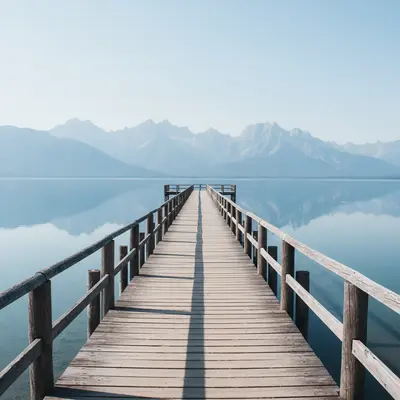
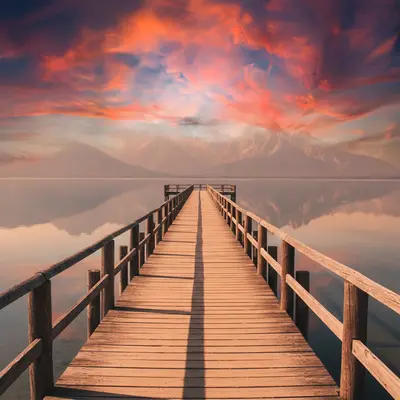
Lake pier with plain blue sky
Before
โ†’
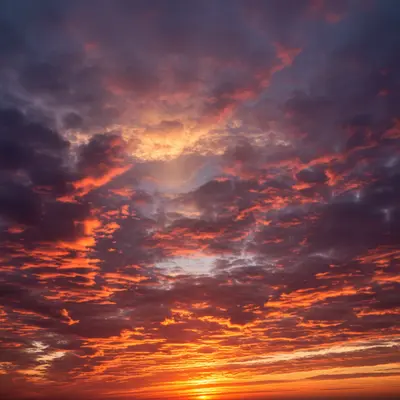
Same scene with dramatic orange sunset sky blended in with matching warm lighting
After

AI Photo Blender

Drop your photo here

or click to browse

Release to upload

Free โ€ข No signup

Advertisement
Popular use cases:
  • blend photos together
  • photo blending tool
  • merge multiple photos
  • seamless photo blend
  • composite photos AI
  • photo blend app free
  • combine two photos
  • photo merging software
  • blend images together online
  • photo composite creator

Cost
Free No signup required
Time
Instant results in 15-30 seconds
Works on
Any device - browser, phone, tablet, desktop
Powered by
AI-powered photo editing
Scenario Prompt Time
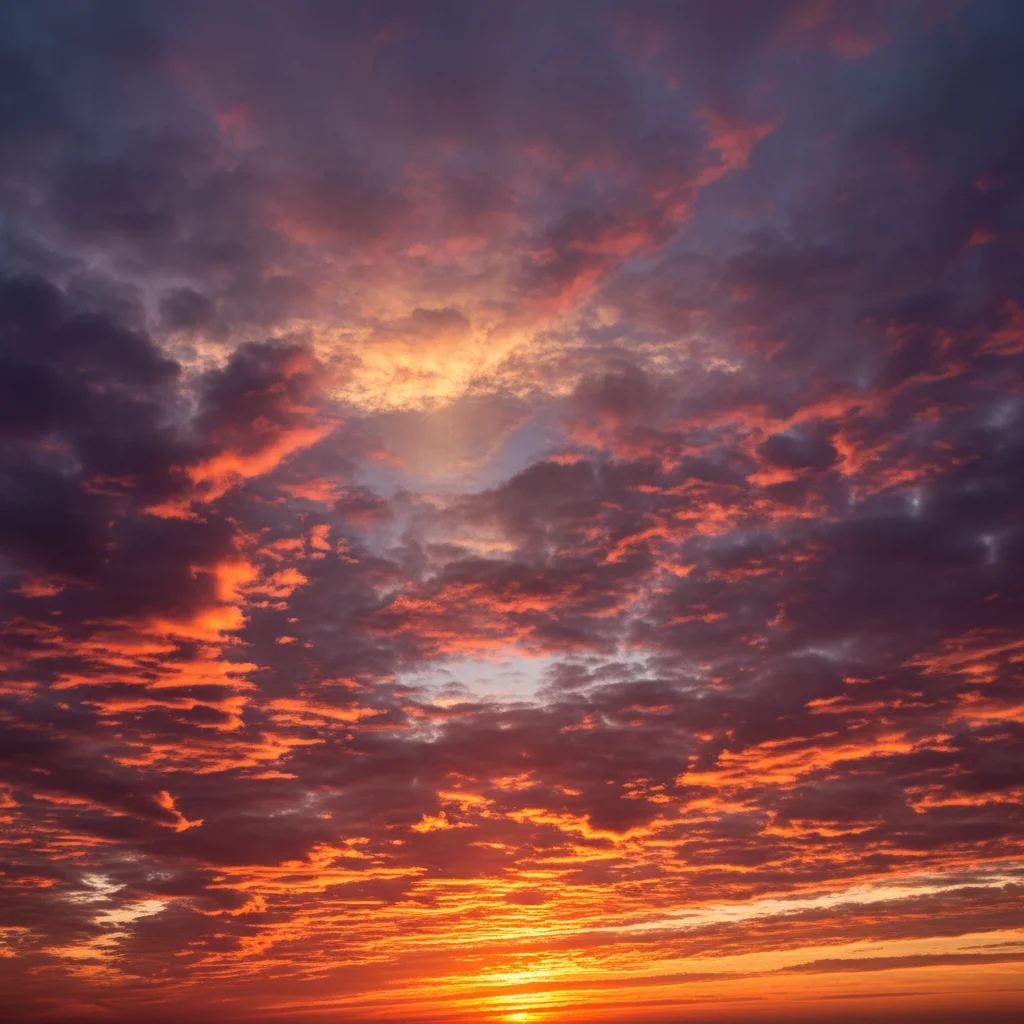
Sky replacement Blend dramatic sunset sky into photo replacing existing sky 25s
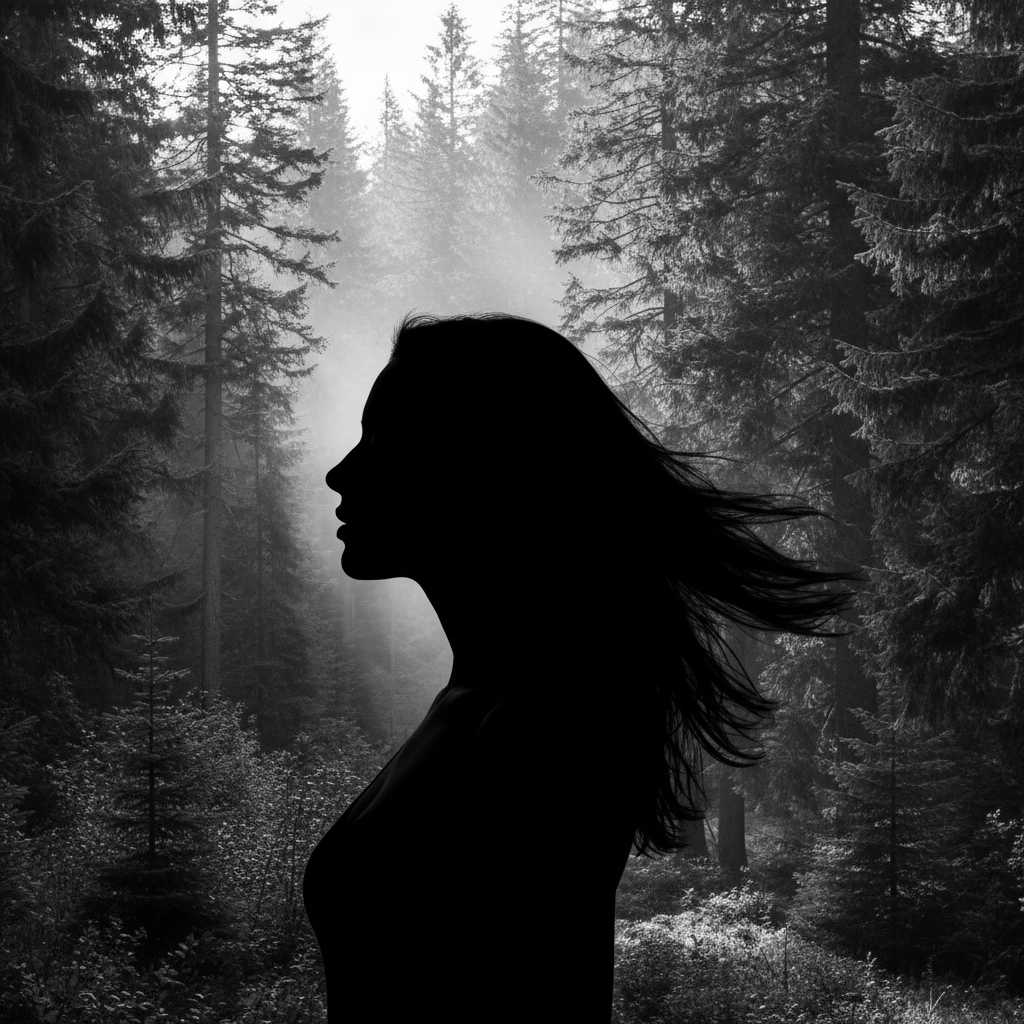
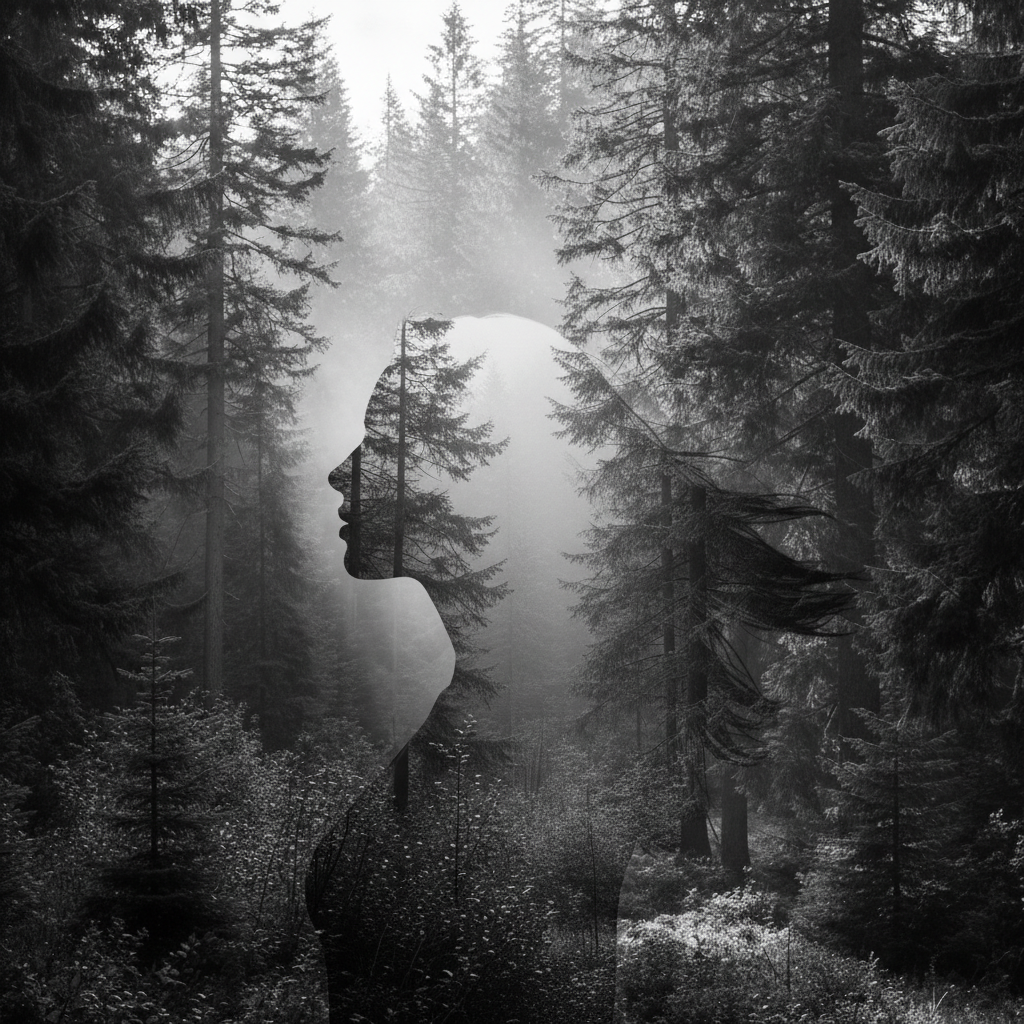
Portrait merge Blend two portraits at center with seamless transition 25s
Subject composite Blend person into background scene matching lighting 25s

How it works

  1. Upload your base photo

    Start with the primary image that will serve as your base. This is the main photo you want to blend other elements into or merge with another image.

    Expect: AI processes images up to 4096x4096px. The base photo's lighting and perspective will influence how other elements blend in.
  2. Describe the blend you want

    Explain what to blend and how. Examples: 'blend the sunset sky from [description] into this photo', 'merge this person into the background scene', 'combine the left half of this photo with [another scene description]'. Be specific about what elements come from where.

    Tip: Describe the source element clearly even if you can't upload it - AI can interpret descriptions like 'blend in a dramatic sunset sky' or 'merge mountains from a landscape photo'.

    Copy one of these to get started:

    Sky replacement blend Blend a dramatic sunset sky into this photo replacing the existing sky while matching the lighting and colors naturally throughout the scene
    Two portrait blend Blend these two portrait photos together merging them at the center with seamless transition and matching skin tones and lighting between both sides
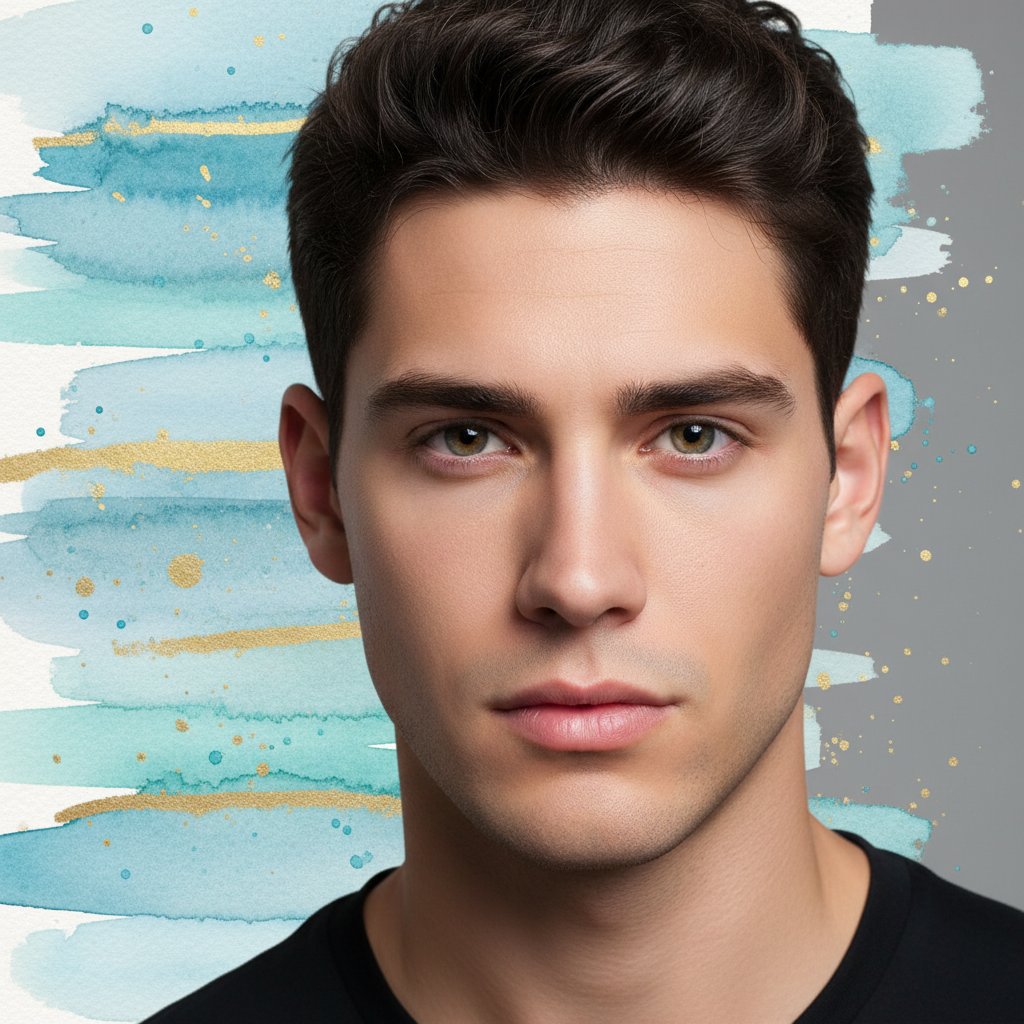
    Person into background blend Blend this person seamlessly into the background scene matching the lighting on them to the scene and creating natural shadows and reflections
    Texture overlay blend Blend a subtle texture overlay onto this photo with 30% opacity maintaining all original details visible underneath
    4 more prompts
    Foreground background blend Blend the foreground subject from this photo into a new background scene maintaining subject lighting but adjusting edges to match new environment naturally
    Gradient blend between two photos Create a smooth gradient blend from the left photo to the right photo transitioning seamlessly in the middle section with natural color and tone blending
    Element extraction and blend Blend specific elements from another photo (mountains, trees, water) into this scene placing them naturally and matching perspective, lighting, and atmospheric conditions
    Multiply blend for light effects Blend light effects like lens flares, light rays, or glowing elements into this photo using multiply blending mode so they interact naturally with existing lighting
  3. Generate and review

    AI blends the photos together, matching lighting between elements, adjusting colors for cohesion, blending edges seamlessly, and creating natural transitions. Preview the merged result in 25 seconds.

  4. Refine blend areas with markers

    Photo blending is complex - if blend edges are visible, colors don't match, or transitions need smoothing, use markers to guide where blending should be stronger or more subtle.

    Tip: Mark the seam area if visible, or mark where you want the transition to occur. This gives AI exact boundaries for blending work.

    Copy one of these to get started:

    Sky replacement blend Blend a dramatic sunset sky into this photo replacing the existing sky while matching the lighting and colors naturally throughout the scene
    Two portrait blend Blend these two portrait photos together merging them at the center with seamless transition and matching skin tones and lighting between both sides
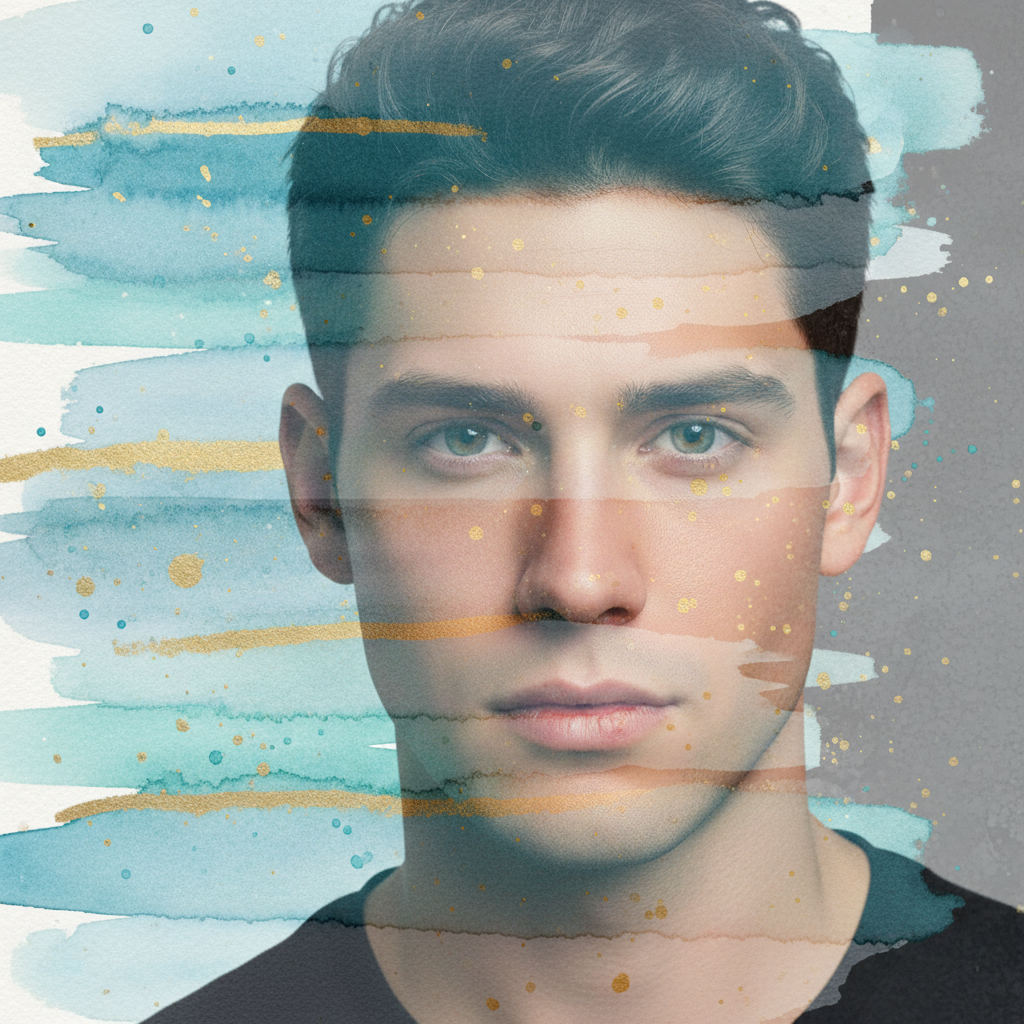
    Person into background blend Blend this person seamlessly into the background scene matching the lighting on them to the scene and creating natural shadows and reflections
    Texture overlay blend Blend a subtle texture overlay onto this photo with 30% opacity maintaining all original details visible underneath
    4 more prompts
    Foreground background blend Blend the foreground subject from this photo into a new background scene maintaining subject lighting but adjusting edges to match new environment naturally
    Gradient blend between two photos Create a smooth gradient blend from the left photo to the right photo transitioning seamlessly in the middle section with natural color and tone blending
    Element extraction and blend Blend specific elements from another photo (mountains, trees, water) into this scene placing them naturally and matching perspective, lighting, and atmospheric conditions
    Multiply blend for light effects Blend light effects like lens flares, light rays, or glowing elements into this photo using multiply blending mode so they interact naturally with existing lighting
Try it free โ†“

AI Photo Blender

Drop your photo here

or click to browse

Release to upload

Free โ€ข No signup

"I've been trying to blend two photos for a composite and this nailed it in one try. The lighting and color matching is perfect." @creativephotographer

See it in action

Lake pier with plain blue sky
Before
->
Same scene with dramatic orange sunset sky blended in with matching warm lighting
After

Dramatic sky blend

Boring daytime sky replaced with dramatic sunset while maintaining natural lighting on landscape

Prompt: Blend a dramatic sunset sky into this photo replacing the existing sky while matching the lighting and colors naturally throughout the scene
Two separate portrait photos side by side with visible seam
Before
->
Portraits seamlessly blended with smooth center transition and matched tones
After

Portrait split blend

Two different portrait photos seamlessly merged down the center with matched skin tones

Prompt: Blend these two portrait photos together merging them at the center with seamless transition and matching skin tones and lighting between both sides
Person on white studio background
Before
->
Same person seamlessly blended into sunny beach scene with natural outdoor lighting
After

Subject into new scene blend

Person photographed indoors blended into outdoor beach scene with matched lighting

Prompt: Blend this person seamlessly into the background beach scene matching the lighting on them to the outdoor scene and creating natural shadows on the sand
Desert and forest photos with visible hard seam down middle
Before
->
Same scenes with smooth gradient transition blending desert into forest naturally
After

Gradient landscape blend

Desert landscape transitioning to forest scene with smooth gradient blend in center

Prompt: Create a smooth gradient blend from the desert landscape on left to the forest scene on right transitioning seamlessly in the middle section with natural color and tone blending
Advertisement

If something looks off

The blend seam is visible or looks obvious

Why: AI didn't blend the transition area smoothly enough, often due to very different lighting or colors.

Try: Blend the photos with completely seamless transition at the edges using smooth gradual blending and no visible seam line

Tip: Mark the seam area specifically and regenerate focusing on that transition zone.

Colors don't match between blended elements

Why: The source photos had very different color temperatures or tones that weren't fully harmonized.

Try: Blend the photos while matching all colors and tones between elements so they look like they belong in the same photo with cohesive color palette
Lighting looks wrong on blended subject

Why: Subject and background have conflicting light directions or quality.

Try: Blend the subject into the scene while adjusting their lighting to match the direction, quality, and color temperature of the background lighting naturally
Blended element looks pasted on or fake

Why: Missing shadows, reflections, or atmospheric effects that would exist in reality.

Try: Blend the element naturally into the scene adding appropriate shadows underneath, reflections if on water/glass, and atmospheric haze to match depth
The blend changed parts I wanted to keep original

Why: AI applied blending effects too broadly across the image.

Try: Blend only the [specific area] while keeping all other parts of the original photo completely unchanged and intact

Tip: Use markers to protect areas you want preserved from blend effects.

Perspective or scale looks off after blending

Why: Blended elements don't match the perspective or scale of the base photo.

Try: Blend the element while adjusting its perspective and scale to match the base photo's viewpoint naturally so proportions look correct

Quick answers

Can I blend photos without uploading both of them?

Yes! You can describe what you want blended in. For example: 'blend a dramatic sunset sky into this photo' or 'blend mountains into the background'. The AI interprets your description and creates the blend. However, for very specific elements from a particular photo, uploading or describing that source photo in detail gives better results.

What's the difference between blending and just placing one photo over another?

Blending creates seamless integration with matched lighting, harmonized colors, smooth transitions, and natural edges. Just placing one photo over another creates hard edges, mismatched lighting, and obviously composited look. Blending makes it look like elements were photographed together originally.

How do I blend photos with very different lighting?

Be explicit in your prompt: 'blend this person into the scene while adjusting their lighting from indoor studio to outdoor sunlight'. The AI will relight the blended element to match. Use terms like 'match the warm sunset lighting' or 'adjust to soft overcast light' to guide the lighting transformation.

Can I control where the blend happens (edges vs center)?

Yes, specify in your prompt: 'blend at the edges', 'merge down the center', 'blend in the top third', or 'gradient blend from left to right'. You can also use markers to indicate exactly where the transition zone should be for precise control.

Why does blending take longer than other edits (25 seconds)?

Photo blending is computationally complex because AI must: (1) identify elements to blend, (2) match lighting between sources, (3) harmonize color palettes, (4) create smooth transition zones, (5) add appropriate shadows/reflections, (6) maintain perspective. It's essentially multiple advanced operations happening simultaneously.

What types of blends work best with AI?

Best results: sky replacements, subject compositing, texture overlays, portrait merges, gradient blends between similar scenes. More challenging: blending photos with very different perspectives, extreme lighting differences, or completely different weather/atmospheric conditions. The more similar the lighting and perspective, the more seamless the blend.

Ready to blend your photos?

Free to try. No signup required.

Try it free โ†’