Pricing Remove Objects from photo · Free

AI Photo Eraser

← Browse all remove tools

Last updated

Upload a photo and name what to erase — a person, a fence, a cable, a reflection, or any object cluttering your shot. The AI removes it and fills in the photo behind it using the surrounding scene. Ideal for portraits, group shots, outdoor photography, and interiors. Free, no login needed.


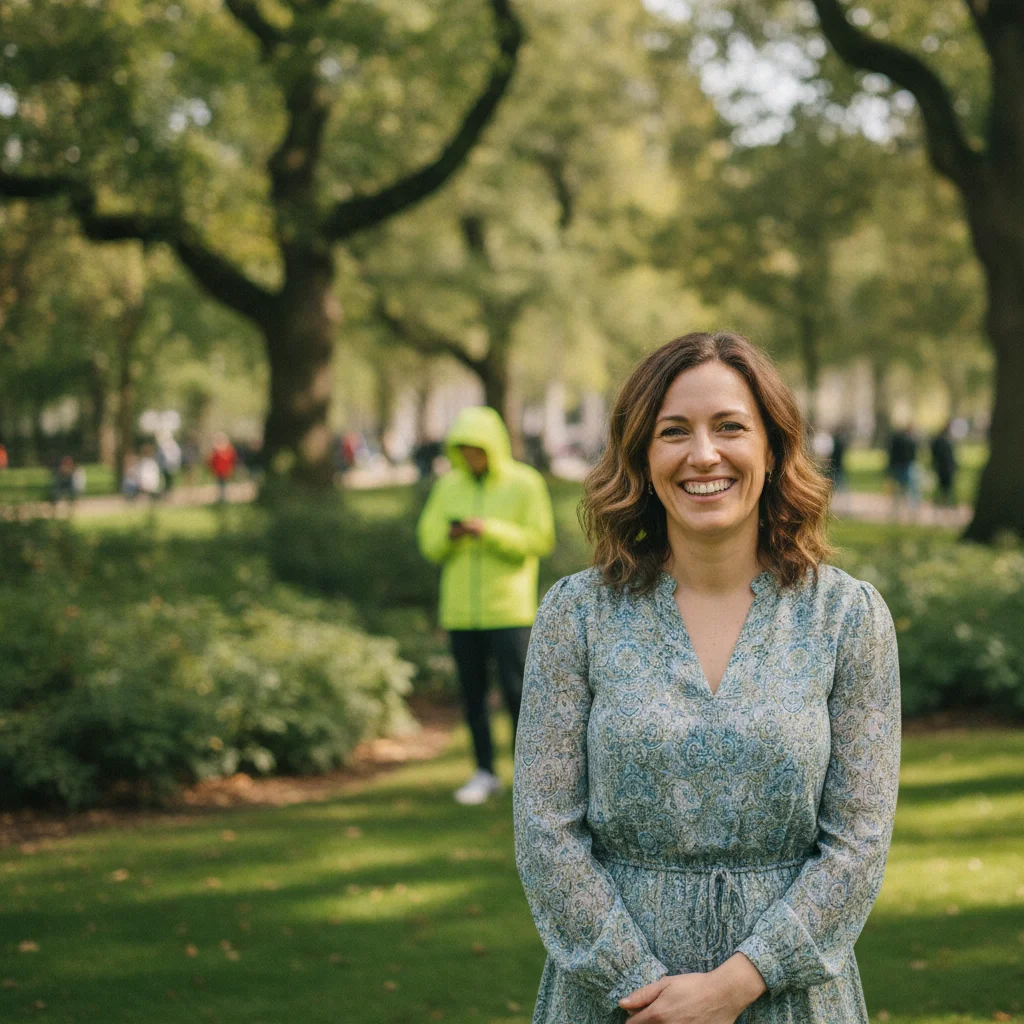
Woman's portrait in a park with a stranger in a yellow jacket visible in the background Same portrait with the background person removed and park greenery showing

Upload photo to remove objects

"erase the fence from the background of this photo, fill with the outdoor scene behind it"

Free to try · no sign-up · photos are never shared

Release to upload

<30stypical edit
1 freeedit weekly
Photo on your phone? Scan to open this editor there — free edit works on your phone too.

1 free edit every week·packs from $4.99

How it works

  1. Upload your photo

    Upload the photo where you want to erase something. JPG, PNG, and WebP up to 7MB. The photo eraser handles all shot types: portraits with distracting backgrounds, group photos with unwanted people, landscapes, interiors, and outdoor scenes.

    Expect: Simple background objects on plain surfaces: 25-35 seconds. Complex fills over detailed photo scenes: 40-60 seconds.
  2. Name the object to erase

    Type what you want gone: 'erase the fence in the background' or 'remove the person on the right side of the photo.' Be specific about what the object is — the AI uses the name to find it in the photo and fill the scene behind it. No marking, no brush tools.

    Tip: Describe relative position when there are multiple similar elements: 'the person on the left', 'the bench closest to the camera', 'the cable running horizontally.' This prevents the AI from guessing which one you mean.

    Copy one of these to get started:

    Erase someone from a group photo remove the person on the right side of the photo, fill with the background behind them
    Remove fence or railing from outdoor photo erase the fence from the background of this photo, fill with the outdoor scene behind it
    Remove photobomber from portrait remove the person in the background from this portrait photo, restore the background behind them
    Erase cable or wire from photo remove the cable running across the background of this photo, fill with the wall or ceiling behind it
    3 more prompts
    Remove a sticker from a photo erase the sticker from this photo and fill with the surface behind it
    Remove distracting furniture from portrait background erase the chair and lamp in the background of this portrait, replace with the plain wall behind them
    Remove a reflection from a photo remove the unwanted reflection from the [window/glass/surface] in this photo and fill with the scene
  3. Review the photo fill

    Check the erased area — look for natural blending with the surrounding photo. The AI fills using the neighboring pixels, so the fill should match the scene's colors, light, and texture. Zoom in on edges for any seaming.

  4. Download or run a second pass

    Download the result if the fill is clean. If there are visible artifacts or color mismatches, upload the result and describe the specific area to refine: 'blend the grass fill at the top edge more naturally.'

    Tip: For portraits, add 'do not alter the subject's face or body' to prevent the AI from touching the main subject while erasing background elements.

See it in action

Woman's portrait in a park with a stranger in a yellow jacket visible in the background
Before
->
Same portrait with the background person removed and park greenery showing
After

Photobomber erased from portrait

A portrait photo with a stranger visible in the background, removed to leave a clean outdoor scene.

Prompt: remove the person in the background from this portrait photo, restore the background behind them, do not alter the main subject
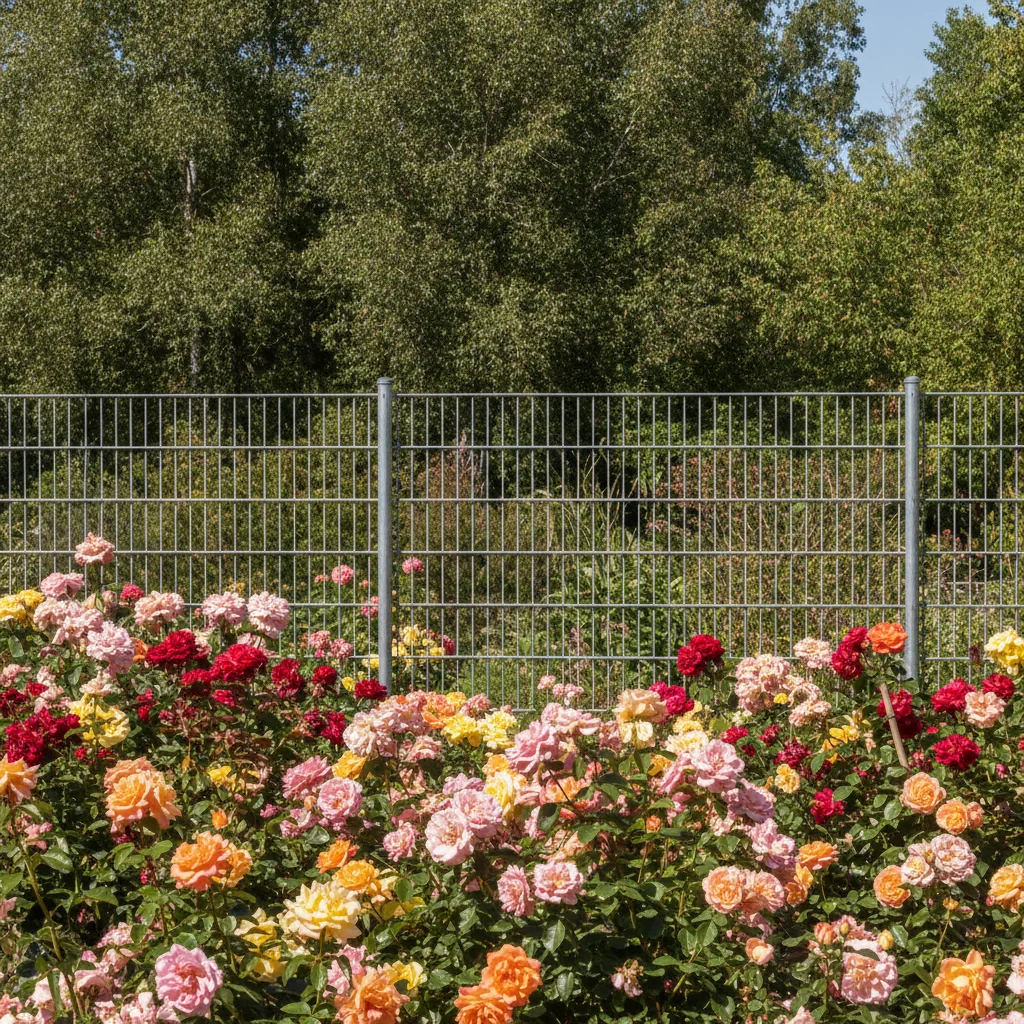
Garden photo with a metal chain-link fence across the background
Before
->
Same garden photo with the fence removed and greenery filling the background
After

Fence erased from outdoor photo

An outdoor garden photo with a chain-link fence in the background, erased to show the garden beyond.

Prompt: erase the fence from the background of this photo, fill with the outdoor scene behind it
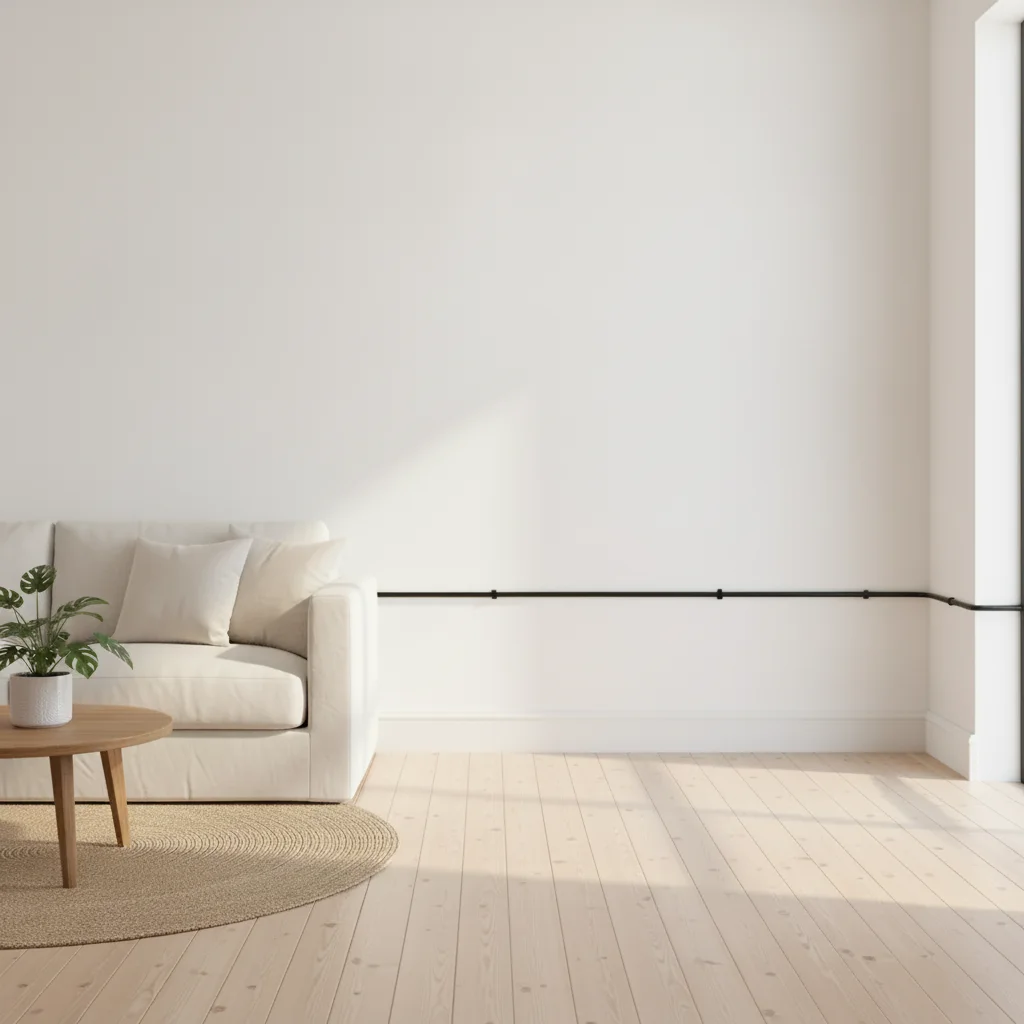
Interior room photo with a black cable running along the white wall
Before
->
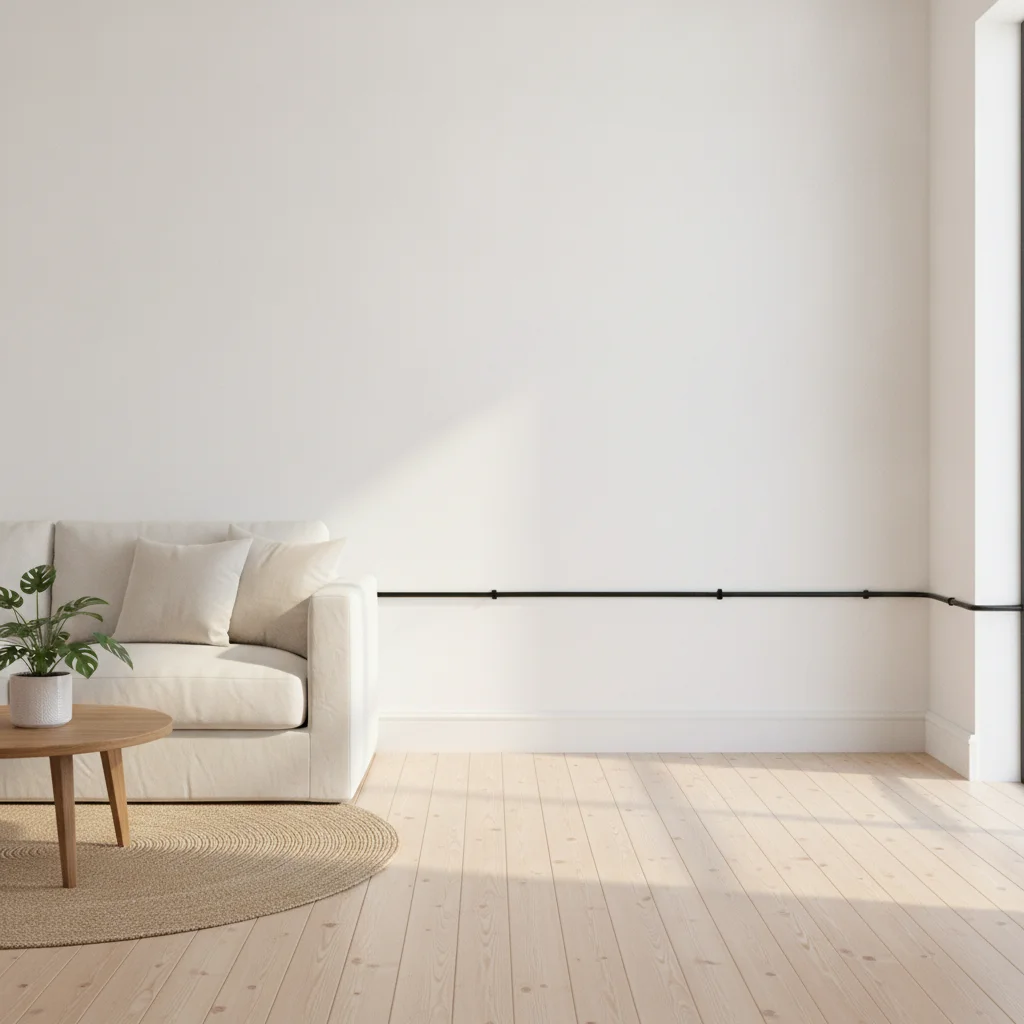
Same interior photo with the cable removed and clean white wall showing
After

Cable erased from interior photo

An interior room photo with a cable running visibly along the wall, erased for a clean architectural shot.

Prompt: remove the cable running along the wall in this photo, fill with the wall color and texture behind it

Quick answers

Do I need to mark or highlight the object before erasing it?

No. Upload your photo and type what you want removed: 'erase the fence in the background' or 'remove the person on the right.' EditThisPic's AI locates and erases the named object automatically. No selection tools, no brush strokes, no manual marking.

How do I erase an object from a photo for free with no login?

Upload your photo to EditThisPic and type 'erase the [object] from this photo, fill with the scene behind it.' The AI removes the object and reconstructs the background in about 30-45 seconds. Free to use, no login required, no watermark on the downloaded result.

Can I erase a person from a photo without affecting the rest of the image?

Yes. Add 'do not alter the main subject' or 'keep everything else unchanged' to your prompt. For example: 'remove the person in the background, restore the outdoor scene, do not alter the main subject.' The AI focuses only on the named element.

What is the difference between AI Eraser and AI Photo Eraser?

Both use the same AI technology to remove objects from photos. AI Photo Eraser focuses specifically on photographic context — portrait backgrounds, outdoor scenes, and real-world photos where lighting and scene continuity matter. The prompts and fill approach are optimized for photographs rather than graphics or flat images.

Does the AI photo eraser work for both portrait and landscape photos?

Yes. It works on any photo orientation and size up to 7MB. Portrait backgrounds, landscape scenes, interior rooms, and wide exterior shots all produce good results. Objects near the center of the frame fill better than large objects that span the full frame edge-to-edge.

How much does EditThisPic cost?

You get 1 free edit per week — no account needed. After that, one-time credit packs start at $4.99 for 10 edits, valid 12 months, no subscription. Power users who edit daily can pick Studio Membership, a monthly workspace at $49.99/mo for 300 edits. Purchased downloads are clean with no watermark.

Ready to erase objects from your photo?

Free to try. No login required.

1 free edit included·Credit packs from $4.99