Free • No signup Enhance Pinterest pin image · Free

AI Pinterest Pin Editor

← Browse all creative effects

Last updated

Make pins that stop the scroll — brighter colors, cleaner styling, better visual impact. Describe the fix, our AI handles it. Free, no account.
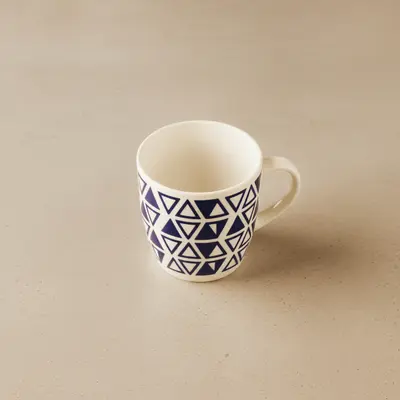
White ceramic mug on plain grey counter with flat, dull lighting Same mug with warm cream background, vivid colors, and soft highlight glow

Upload photo to enhance pinterest pin image

"make the food look more appetizing — richer warm tones, boost the saturation of the main dish, add soft natural side lighting, brighten the overall scene"

Release to upload

1 free edit·then from $4.99

Popular use cases:
  • pinterest pin images
  • enhance pin photos
  • pinterest product photography
  • warm pinterest aesthetic
  • pin image optimization

Cost
Free No signup required
Time
Instant results in 15-30 seconds
Works on
Any device - browser, phone, tablet, desktop
Powered by
AI-powered photo editing
Scenario Prompt Time
Warm product photo warm and vivid colors, soft cream background, slight highlight glow 20s
Correct flat-lay white balance brighten to natural light, correct yellow cast to true white balance 20s
Clean product background replace background with clean solid white, keep product unchanged 25s

How it works

  1. Upload your pin image

    Use your highest-resolution photo. JPG, PNG, or WebP up to 7MB. Pinterest's recommended pin size is 1000×1500px (2:3 ratio). Upload your original full-res photo and crop to 2:3 after editing for the best quality.

    Expect: Higher-resolution originals give the AI better data for accurate color and contrast enhancement. Work from your full-res file, not a pre-cropped or compressed version.
  2. Describe the visual enhancement

    This is the key step. Type a specific instruction — 'make the colors warmer and more vibrant, brighten the background, add a slight soft glow to the product.' Be specific. Pinterest's visual style trends toward high brightness and warm, saturated colors.

    Tip: Pinterest users respond to bright, warm, and high-contrast images. Prompts that include 'warm,' 'bright,' and 'vivid' produce photos that align with Pinterest's visual aesthetic.

    Copy one of these to get started:

    Product photo — warm and vivid for Pinterest make the product colors warmer and more vivid, brighten the background to a clean soft white or cream, add a slight soft glow to the product highlights
    Food photo — make it look delicious make the food look more appetizing — richer warm tones, boost the saturation of the main dish, add soft natural side lighting, brighten the overall scene
    Home decor — bright and inviting brighten the room to feel airy and inviting, warm up the color temperature, make the textures in the fabrics and wood surfaces more defined, clean background
    Flat-lay — clean and aesthetic brighten the flat-lay to a clean bright natural light aesthetic, balance the white background to true white without the yellow cast, make all items look sharp and well-defined
    4 more prompts
    Lifestyle photo — warm and editorial add a warm editorial tone — lift shadows with warm amber tones, add slight film grain, boost the saturation of warm colors (reds, oranges, yellows) while keeping the cooler tones neutral
    Replace cluttered background with clean white remove the busy background behind the main subject and replace with a clean solid white or very light cream background, keep the subject and all its details unchanged
    Seasonal color grading — autumn tones apply a warm autumn color grade — enhance the orange, red, and golden tones, add depth to the shadows with warm brown tones, keep the overall image bright and inviting
    DIY or craft photo — clean and bright make the DIY project look clean and professional — brighten to natural daylight quality, ensure the main crafted object stands out, clean background surface
  3. Review for pin-worthy visual impact

    Check that the image pops with clear visual hierarchy — the main subject should immediately draw the eye. Colors should be vivid but natural. Verify the background is clean and not distracting.

  4. Use a marker for background or specific element edits

    For targeted edits — replacing a specific background, removing a distracting element, or boosting one specific color — tap a marker on that area. Most pin enhancements work from description alone.

    Tip: Markers are optional. They're most useful when you want to change or remove a specific background element without affecting the main subject.

See it in action

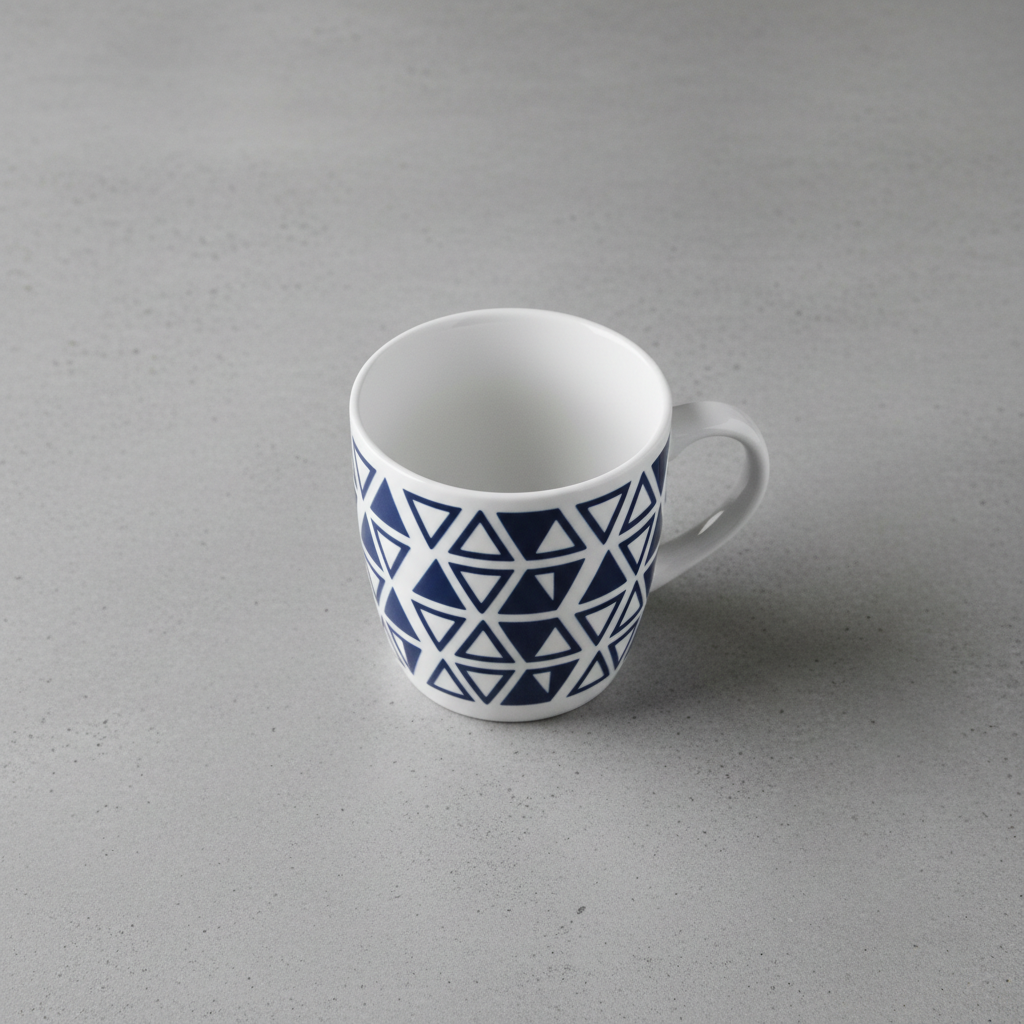
White ceramic mug on plain grey counter with flat, dull lighting
Before
->
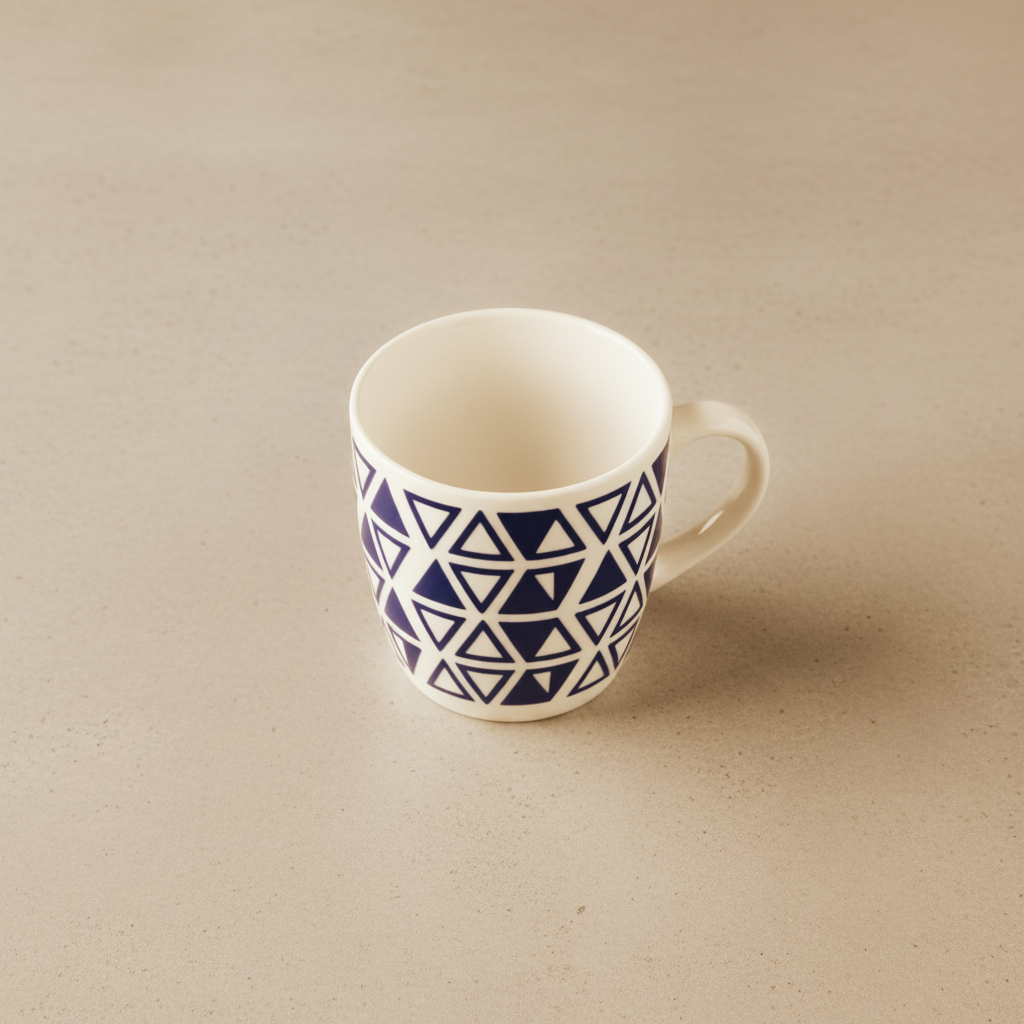
Same mug with warm cream background, vivid colors, and soft highlight glow
After

Product photo transformed for Pinterest aesthetic

A ceramic mug on a plain grey counter — flat colors, no warmth, uninteresting background. After: warm cream background, vivid mug colors, slight soft highlight glow. Pinterest-ready.

Prompt: make the product colors warmer and more vivid, brighten the background to a clean soft cream, add a slight soft glow to the product highlights
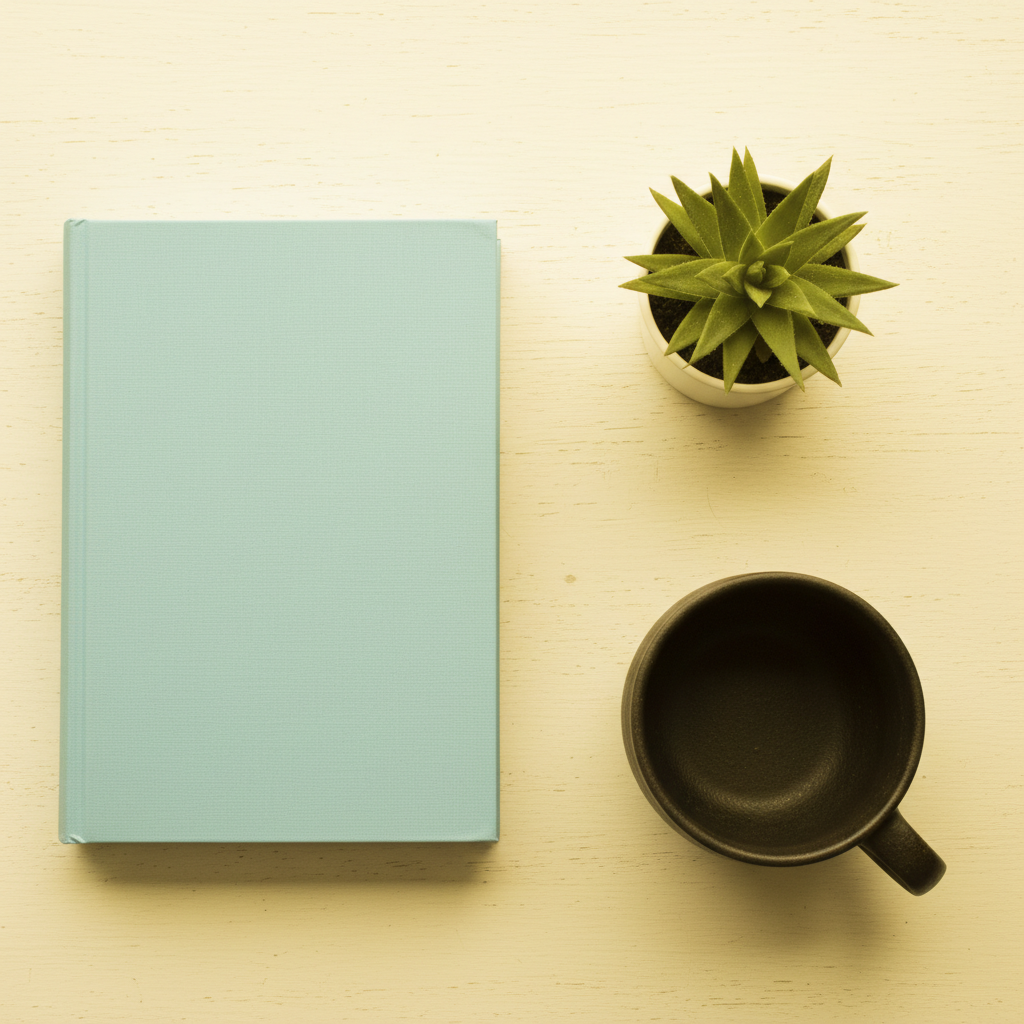
Indoor flat-lay with yellow incandescent cast on white background
Before
->
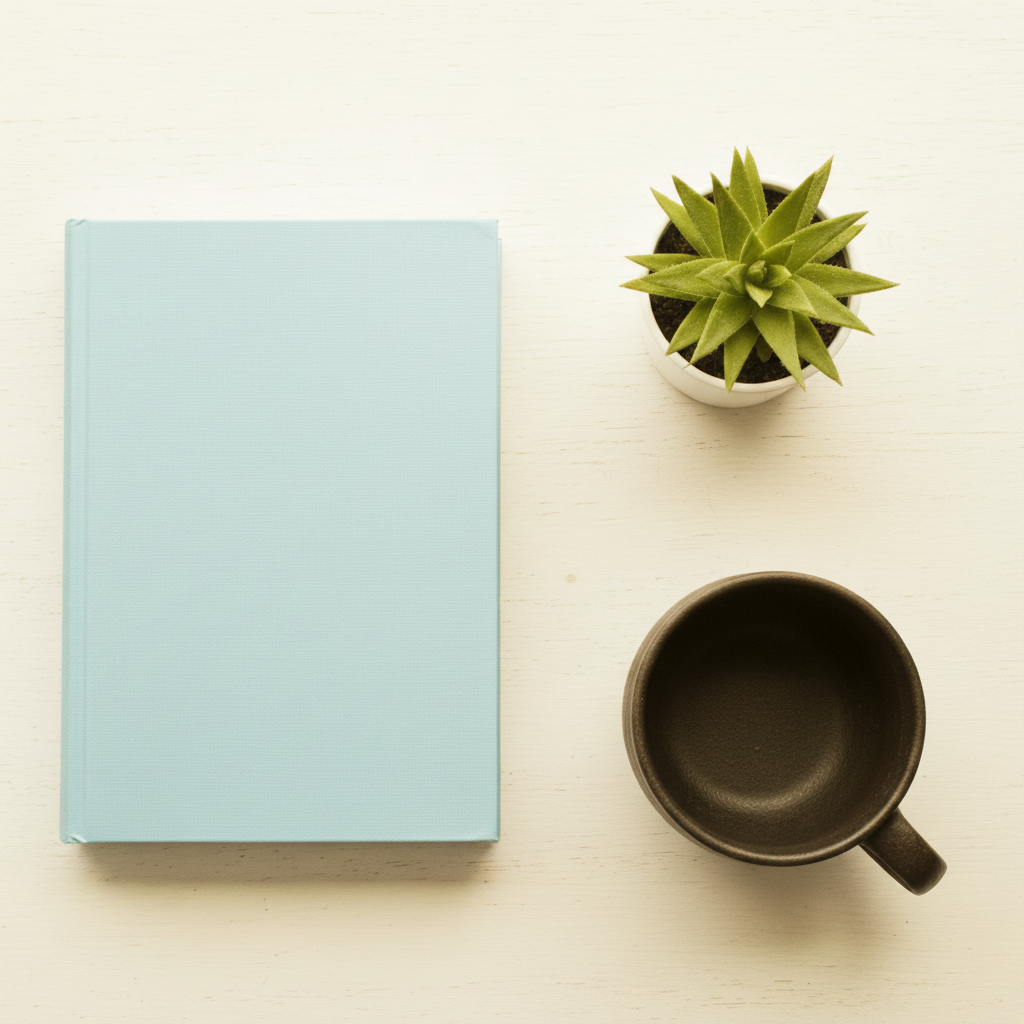
Same flat-lay with true white background, balanced natural colors, all elements sharp
After

Indoor flat-lay white balance corrected

A lifestyle flat-lay with a book, plant, and cup photographed under incandescent light — yellow cast throughout. After: true white background, balanced natural colors, all elements sharp.

Prompt: brighten the flat-lay to a clean bright natural light aesthetic, balance the white background to true white without the yellow cast, make all items look sharp

If something looks off

AI changed the wrong area or something I didn't want changed

Why: The enhancement applied to the whole image when you wanted it focused on a specific element.

Try: Tap a marker on the specific area you want enhanced, then regenerate with the same prompt

Tip: Markers constrain enhancements. Use them when you want to boost one specific element — a product, a color area — without affecting the rest.

Background replacement has visible edges or hard lines

Why: The edge between the subject and new background wasn't perfectly smooth — common with complex product edges or transparent items.

Try: smooth the edges where the background was replaced — feather the transition between the subject and the new white background so it looks seamless

Tip: Add 'feather the edges softly' to any background replacement prompt. This specifically targets edge smoothing in the AI's output.

Colors look over-saturated and artificial

Why: The saturation enhancement went too far without a 'natural' qualifier.

Try: make the colors vivid but natural — not oversaturated or artificially bright, just richly colored like professional product photography

Tip: 'Like professional product photography' is a useful reference point. It implies rich and controlled, not Instagram filter-saturated.

Food photo looks too warm or orange

Why: Warm tone enhancement affected skin-adjacent colors (browns, reds in food) too aggressively.

Try: add warmth to the background and ambient light only — do not shift the main food item colors, keep the food's natural colors accurate

Tip: Separating 'background warmth' from 'food colors' in the prompt gives the AI clear permission to warm one without over-tinting the other.

Quick answers

Will AI Pinterest Pin Editor sharpen detail without making faces look plastic?

Yes. The AI lifts detail in clothing, eyes, and texture while keeping skin tones natural — no over-smoothing by default. If you want extra control, add 'preserve skin texture, keep noise grain natural.' Most enhances finish in 20-45 seconds. Free first edit per week, no signup.

How do I enhance Pinterest pin images for free?

Upload your pin image to EditThisPic and describe the enhancement — warm the colors, brighten, clean up the background. The AI edits it in about 30 seconds. Free, no signup, no watermark.

What is the best image size for Pinterest pins?

Per Pinterest's published guidelines, 1000×1500px (2:3 vertical ratio) is the recommended standard pin size. Upload your full-resolution photo to EditThisPic first, then crop to 2:3 ratio after editing to preserve maximum quality.

Is there a free tool to add a clean white background to Pinterest product photos?

Yes. EditThisPic can remove or replace backgrounds. Type 'replace the background with a clean solid white background, keep the product unchanged' and the AI makes the swap. Free, no account needed.

What editing style performs best on Pinterest?

Bright, warm, and high-contrast images consistently perform well across Pinterest's top categories — home, food, fashion, and DIY. Natural-looking warmth, clean backgrounds, and vivid but not oversaturated colors are the most common characteristics of high-performing pins.

Can I use this for Idea Pins and video thumbnail frames?

Yes. The tool works on any still image, including individual frames from video that you want to use as a pin cover. Upload the frame, enhance it, and use the result as your Idea Pin cover image.

How much does EditThisPic cost?

You get 1 free edit per week — no account needed. After that, credit packs start at $1.99 for 3 edits. Monthly plans start at $4.99/mo for 15 edits with unused credits rolling over. All edits are full resolution with no watermark.

Ready to make your pins more scroll-stopping?

Free to try. No signup required.

1 free edit included·Credit packs from $4.99