Free • No signup Unblur Photo · Free

AI Unblurrer

Restore sharpness to blurry photos with AI. Just describe what you want fixed.

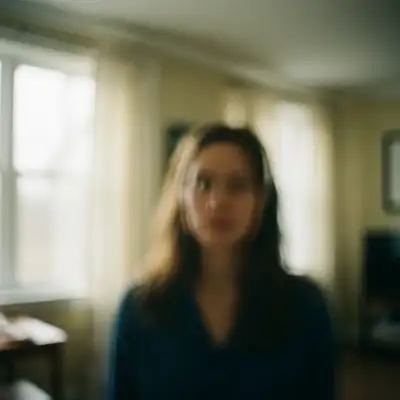
Portrait with visible motion blur and unclear facial features
Before
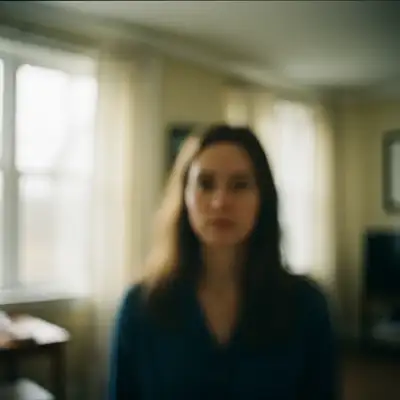
Same portrait with sharp facial details and clear features
After

AI Unblurrer

Drop your photo here

or click to browse

Release to upload

Free • No signup

Popular use cases:
  • wedding photos
  • family memories
  • vacation photos
  • phone camera shake
  • low light photos
  • old photos
  • scanned photos
  • product photography

Cost
Free No signup required
Time
Instant results in 15-30 seconds
Works on
Any device - browser, phone, tablet, desktop
Powered by
AI-powered photo editing
Scenario Prompt Time
Light blur sharpen and enhance clarity 15s
Motion blur remove motion blur and restore sharpness 20s
Out of focus fix out of focus blur, bring into sharp focus 25s
Low resolution enhance resolution and remove blur 30s

How it works

  1. Upload your blurry photo

    Drop your blurry image into EditThisPic. JPG, PNG, WebP up to 7MB. Works best with photos that have some detail remaining, not completely out of focus.

    Expect: Simple blur fixes: 15-30 seconds. Heavy blur or motion blur: may need 2-3 refinements.
  2. Describe what you want

    Type your instruction: 'sharpen and enhance clarity of this photo' or 'remove the blur and make the image crisp.' Be specific about what kind of blur you're fixing. No marking needed - the AI understands what 'blur' means and processes the entire image.

    Tip: Add context for better results: 'sharpen the face and restore fine details' or 'remove motion blur while keeping natural look'

    Copy one of these to get started:

    Unblurrer sharpen and enhance clarity of this photo — make it look natural and professional
    Motion blur from camera shake remove the motion blur and restore sharpness while keeping natural look
    Blurry portrait or face sharpen the face and restore fine facial details, enhance clarity of eyes and skin texture
    Out-of-focus photo fix the out of focus blur, bring the subject into sharp focus
    3 more prompts
    Low resolution or pixelated enhance resolution and remove blur, add realistic detail and sharpness
    Landscape with haze and blur sharpen the landscape and remove haze, enhance distant details and clarity
    Product photo that's slightly soft sharpen product details and enhance edge definition, make product look crisp
  3. Generate and review

    Check the result at full zoom. Look for restored edge sharpness, recovered details in faces or text, and natural-looking clarity without over-sharpening artifacts.

  4. Refine with markers if needed

    If only part of the image needs more work, tap markers on those specific areas and regenerate. This is optional - most unblur edits work without markers.

    Tip: Markers help when you want to sharpen just the face or a specific object while keeping background blur for artistic effect.
Try it free

AI Unblurrer

Drop your photo here

or click to browse

Release to upload

Free • No signup

"Rescued a blurry anniversary dinner photo I thought was gone forever. The AI brought back every detail." @ClearShotRyan

See it in action

Portrait with visible motion blur and unclear facial features
Before
->
Same portrait with sharp facial details and clear features
After

Blurry portrait made sharp

A portrait with obvious motion blur from camera shake. One prompt restored facial details and natural sharpness.

Prompt: sharpen and enhance clarity of this photo, restore facial details
Blurry landscape with soft mountains and lake
Before
->
Sharp landscape with clear mountain details and water texture
After

Out-of-focus landscape restored

A scenic mountain photo that was accidentally shot out of focus. AI sharpening brought back the detail.

Prompt: fix the out of focus blur, bring the landscape into sharp focus
Blurry restaurant scene with motion trails
Before
->
Clear restaurant scene with sharp food and people
After

Camera shake in low light fixed

A restaurant dinner photo ruined by camera shake in dim lighting. Sharpening recovered the moment.

Prompt: remove the motion blur and restore sharpness while keeping natural lighting

Detailed Guides by Scenario

📷

Photo Rescue & Restoration

Revive old, damaged, or poorly-shot photos with AI unblurring to bring new life to images you thought were unsalvageable.

Common Scenarios

  • Old family photos that have degraded over time
  • Once-in-a-lifetime shots (wedding, graduation) that suffered from camera shake
  • Scanned prints that need crisp digital versions

Best Practices

  • Scan old photos at the highest DPI your scanner supports before uploading
  • Describe the specific issue: 'this photo is too dark and blurry' gives better results than a generic prompt
  • For severely damaged photos, work in stages: fix the biggest issue first, then refine
📷

Professional & Business Use

Ensure photos for websites, presentations, and marketing meet professional standards.

Common Scenarios

  • Employee headshots for a company website that need to look polished
  • Event photos before sharing in a client presentation
  • Product images for an online store or catalog

Best Practices

  • Process all images with the same enhancement settings for visual consistency
  • For web use, balance enhancement quality with file size
  • Always compare before and after to make sure the result looks natural
📷

Social Media & Personal Sharing

Make your personal photos look their best before sharing with friends, family, or followers.

Common Scenarios

  • Vacation photos before posting on social media
  • A selfie that has great composition but camera shake
  • Phone gallery photos before creating an album to share

Best Practices

  • Start with the photo you most want to share and fix that first
  • For selfies, subtle enhancement beats heavy processing
  • If the photo was shot in low light, mention it in the prompt

If something looks off

Photo still looks blurry after sharpening

Why: The original blur was too severe, or the AI applied too subtle a correction.

Try: significantly sharpen and restore fine detail, remove all blur and make extremely crisp

Tip: Adding 'significantly' and 'extremely' tells the AI to apply stronger correction.

Image looks over-sharpened with harsh edges

Why: The AI applied too aggressive sharpening, creating unnatural halos around edges.

Try: sharpen naturally and restore clarity while keeping soft, realistic look

Tip: Adding 'naturally' and 'realistic' prevents over-processing.

Only part of the image got sharpened

Why: The AI focused on the most prominent subject. Some areas may need additional attention.

Try: Tap markers on the blurry areas, then: sharpen these marked areas to match the rest of the image

Tip: Markers tell the AI exactly where to apply the correction.

AI changed the wrong area or something I didn't want changed

Why: The AI couldn't determine exactly which area you meant from description alone. This happens with ambiguous requests.

Try: Tap a marker on the specific area you want to change, then regenerate with the same prompt

Tip: Markers tell the AI 'I mean THIS one specifically.' Use them when description alone is ambiguous.

Colors look different after sharpening

Why: Some sharpening algorithms can affect color saturation or contrast.

Try: sharpen and enhance clarity while preserving original colors exactly

Tip: Explicitly asking to preserve colors keeps the correction focused on blur only.

Quick answers

Do I need to mark the blurry areas before describing?

No! For most unblur edits, just describe what you want: 'sharpen and enhance clarity' or 'remove the blur.' The AI processes the entire image automatically. Only use markers when you want to sharpen just one specific area while leaving others unchanged.

What is the best AI unblurrer in 2026?

EditThisPic's AI Unblurrer is one of the best free options available. It uses AI to reconstruct missing detail rather than just enhancing edges like traditional tools. It handles motion blur, out-of-focus shots, and low-resolution images. Free to use, no signup, and no watermark on results.

Can AI really fix any blurry photo?

AI can significantly improve most blurry photos, but results depend on how much information remains. Slight blur from camera shake or soft focus recovers well. Severely blurred photos where subjects are unrecognizable may not fully restore. The AI reconstructs likely details based on patterns.

How do I unblur a photo with AI for free?

Upload your blurry photo to EditThisPic, type 'sharpen and enhance clarity of this photo,' and download the result. Free, no account required, no watermark. You get one free edit per week.

Is there a free AI unblurrer that doesn't require login?

Yes. EditThisPic's AI Unblurrer requires no login, no signup, and no app download. Just open it in your browser, upload a blurry photo, describe the fix, and download the sharpened result. Works on phone and desktop.

What types of blur can AI fix?

EditThisPic handles motion blur from camera shake, out-of-focus blur, slight defocus, and general softness. It also helps with low resolution images by adding realistic detail. Heavy bokeh and extreme motion trails are harder to fix completely.

Will sharpening make the photo look unnatural?

When using natural prompts like 'sharpen while keeping realistic look,' the AI avoids over-processing. If results look harsh, add 'naturally' or 'softly' to your prompt. You can always regenerate with adjusted wording.

Can I use the AI unblurrer on my phone?

Yes. EditThisPic works in any mobile browser. No app download needed. Upload your blurry photo, type your instruction, and download the sharpened result.

Ready to edit your photos?

Free to try. No signup required.

Try it free