Free • No signup Try-on Watch · Free

AI Watch Try-On - Virtually Try Watches in Photos

Try any watch on your wrist instantly—just describe the style, no marking needed

Professional businessman with bare wrist at desk
Before
Same photo with naturally added silver Rolex on wrist
After

AI Watch Try-On

Drop your photo here

or click to browse

Release to upload

Free • No signup

Advertisement
Popular use cases:
  • virtual watch try-on
  • luxury watch visualization
  • smartwatch preview
  • watch shopping tool
  • accessory try-on

Cost
Free No signup required
Time
Instant results in 15-30 seconds
Works on
Any device - browser, phone, tablet, desktop
Powered by
AI-powered photo editing
Scenario Prompt Time
Luxury watch Add a silver Rolex Submariner watch on the left wrist with a metal bracelet 7s
Smartwatch Put a black Apple Watch Series 9 on the left wrist with a sport band 6s
Leather watch Add a brown leather strap watch with a white dial on the left wrist 7s

How it works

  1. Upload your photo

    Choose any photo where your wrist is visible. Works best with portraits, selfies, or photos where your arm is extended or positioned naturally. The AI handles different wrist angles, skin tones, and lighting conditions automatically.

    Expect: Simple uploads: 2-3 seconds. Large files or slow connections: 5-8 seconds.
  2. Describe what you want

    Type the watch style you want in plain English—'add a silver Rolex Submariner on the left wrist,' 'put a black Apple Watch Series 9 on the wrist,' or 'add a gold luxury watch.' Be specific about brand, color, style, and which wrist. The AI automatically sizes the watch to your wrist and matches the lighting.

    Tip: Specify which wrist (left or right) and include watch details like color, brand, or style for accurate results.

    Copy one of these to get started:

    Luxury dress watch Add a silver Rolex Submariner watch on the left wrist with a metal bracelet, matching the lighting

    Smartwatch Put a black Apple Watch Series 9 on the left wrist with a sport band, screen facing up
    Classic leather watch Add a brown leather strap watch with a white dial on the left wrist, elegant and classic style
    Sport fitness watch Add a Garmin fitness watch in black with orange accents on the left wrist, athletic style
    3 more prompts
    Gold luxury watch Add a gold Cartier Santos watch on the right wrist with a gold bracelet, luxury formal style
    Dive watch for outdoor photos Add a blue-faced dive watch with a black rubber strap on the left wrist, water-resistant style
    Vintage chronograph Add a vintage Omega Speedmaster chronograph with a leather strap on the left wrist, aged patina look
  3. Review the result

    Check that the watch looks natural—proper size for your wrist, correct positioning, matching reflections, and appropriate strap fit. Make sure it doesn't look too big, too small, or floating above the skin. If the style or fit isn't right, adjust your prompt and regenerate.

  4. Refine with markers if needed

    If the AI placed the watch on the wrong wrist or you want to adjust the exact position on your wrist, tap a marker on the specific location. This tells the AI exactly where to place the watch when you regenerate.

    Tip: Markers help when both wrists are visible or when you want the watch positioned higher or lower on the wrist.
Try it free

AI Watch Try-On

Drop your photo here

or click to browse

Release to upload

Free • No signup

"Tried on a Rolex Submariner before buying and it looked so real I could see if it matched my style. Saved me from an expensive mistake." @WatchCollector_Mike

See it in action

Professional businessman with bare wrist at desk
Before
->
Same photo with naturally added silver Rolex on wrist
After

Luxury Watch Try-On

Professional photo with a naturally added luxury watch matching the formal setting.

Prompt: Add a silver Rolex Submariner watch on the left wrist with a metal bracelet, matching the lighting
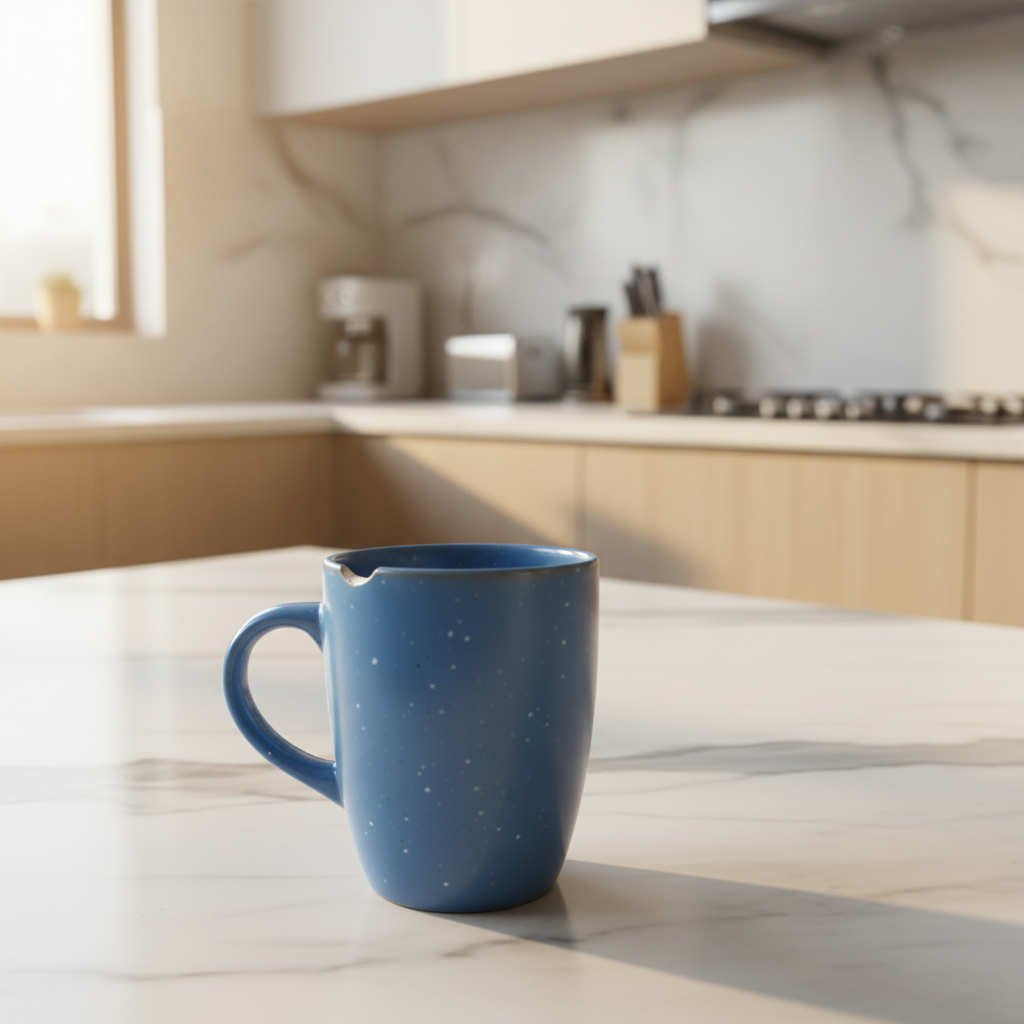
Casual cafe photo with bare wrist on table
Before
->
Same photo with naturally added black Apple Watch
After

Smartwatch Addition

Casual photo enhanced with an Apple Watch for a modern tech-savvy look.

Prompt: Put a black Apple Watch Series 9 on the left wrist with a sport band, screen facing up
Outdoor portrait in beige blazer with bare wrist
Before
->
Same portrait with elegantly added brown leather watch
After

Classic Leather Watch

Outdoor portrait with an elegant leather strap watch for a timeless look.

Prompt: Add a brown leather strap watch with a white dial on the left wrist, elegant and classic style
Advertisement

If something looks off

AI changed the wrong area or something I didn't want changed

Why: The AI couldn't determine which wrist you meant or detected the wrong arm.

Try: Tap a marker on the specific wrist where you want the watch, then regenerate

Tip: Always specify 'left wrist' or 'right wrist' in your prompt to avoid confusion.

The watch looks too big or too small for my wrist

Why: The AI estimated the wrong scale based on wrist visibility or photo angle.

Try: Add 'properly sized for the wrist' or 'proportional to the wrist size' to your prompt

Tip: Photos where the wrist is perpendicular to the camera work best for accurate sizing.

The watch style doesn't match what I requested

Why: The prompt may have been too generic or the brand/model wasn't specific enough.

Try: Be more specific—instead of 'watch,' say 'silver Rolex Submariner' or 'black Apple Watch Series 9'

Tip: Include brand, model, color, and strap type for the most accurate results.

The watch looks floating or not sitting on the wrist properly

Why: The AI had difficulty matching the wrist angle or skin contact in the photo.

Try: Add 'fitted snugly to the wrist' or 'sitting naturally on the skin' to your prompt

Tip: Photos with clearly visible wrists work better than obscured or angled shots.

The watch reflections or shine don't match the lighting

Why: Complex lighting conditions may require explicit guidance for realistic reflections.

Try: Add 'with realistic reflections matching the lighting' to your prompt

Tip: For metal watches, mention if the lighting is bright or muted to guide reflections.

The watch strap or band looks unrealistic

Why: The AI may need more detail about how the strap should wrap around the wrist.

Try: Specify the strap material and fit—'leather strap wrapped around the wrist' or 'metal bracelet fitted snugly'

Tip: Mention strap details like 'buckle visible' or 'clasp on the underside' for realism.

Quick answers

Do I need to mark where the watch should go?

No! Just describe the watch you want—'add a silver Rolex on the left wrist'—and the AI automatically detects your wrist and positions the watch correctly. Markers are only needed if both wrists are visible and you want to specify which one.

How do I try on watches in photos for free?

Upload your photo to EditThisPic, type a description like 'add a black Apple Watch on the left wrist,' and click generate. The AI processes it in 5-10 seconds. No signup, no watermark, completely free.

What watch brands and styles can the AI add?

The AI can add any watch style—luxury watches (Rolex, Omega, Cartier), smartwatches (Apple Watch, Garmin), sport watches, dive watches, vintage watches, and more. Just describe the specific brand, model, color, and strap type you want.

Will the watch match my wrist size and skin tone?

Yes. The AI automatically analyzes your wrist size and adjusts the watch proportions accordingly. It also matches the lighting and shadows to your skin tone for a natural look.

Can I try on multiple watches in the same photo?

Yes, but you'll need to regenerate for each watch. Try one watch first, then describe a different style and regenerate to see how various watches look on your wrist. You can't add watches to both wrists simultaneously.

Ready to Try Watches on Your Photos?

Free to try. No signup required. No watermark.

Try it free