AI Facebook Marketplace Multiple Item Photo Editor
Last updated
Selling bundles, lots, or multiple items? Make them look curated, not like a pile of stuff.
Drop your photo here
"replace the floor background with clean white, keep ALL items arranged exactly as shown, add subtle shadows so items look grounded"
Free to try · no sign-up · never used for AI training
Release to upload
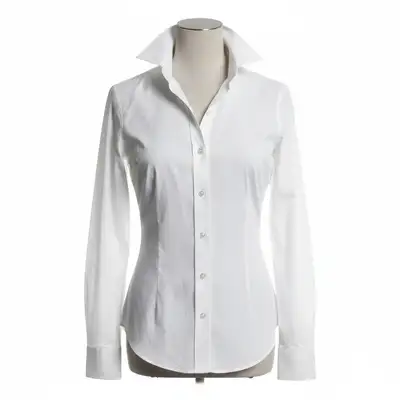
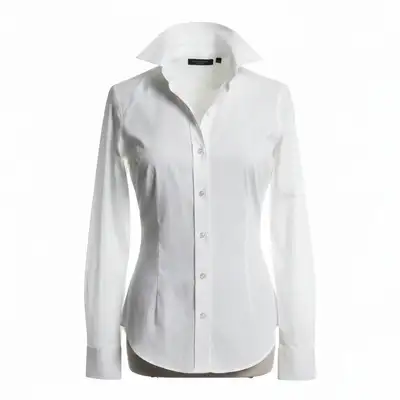
Built for Bundle and Lot Sellers
Bundle and lot listings live or die by one photo. Buyers need to see every item to assess the deal. A pile on a dirty floor looks like junk. The same items arranged neatly on a clean background look like a curated bundle worth the price. EditThisPic bridges that gap in 30 seconds.
Tools for Bundle Photos
Replace Background
White background makes bundles look curated
Blur Background
Blur floor or table to focus on items
Enhance Lighting
Fix lighting to show all items clearly
Remove Object
Remove items not part of the bundle
Fix Color
Fix color accuracy for all items in bundle
How to AI Facebook Marketplace Multiple Item Photo Editor
-
Arrange and photograph
Lay out all items so each is at least partially visible. Photograph from directly above for flat items, or at a 45-degree angle for 3D items. Use natural light from a window. Leave some space between items.
Background replacement: 25-30 seconds. Background blur: 15-20 seconds.Group similar items together and arrange by size (largest in back) for the most appealing layout. -
Describe the cleanup
Upload to EditThisPic and type: 'replace background with white, keep all items as arranged' or 'blur the floor, keep all items sharp.' Make sure the AI knows ALL items are part of the bundle.
Specify: 'keep ALL items visible - they are all part of this bundle' -
Download and list
Download your clean bundle photo. Count items in your listing description and note sizes, brands, and conditions. Include individual close-ups for higher-value items in the bundle.
List the item count in your title: '15-Piece Kitchen Set' or 'Boys Clothing Lot - 20 Items Size 4T'
Bundle Photo Prompts
replace the floor background with clean white, keep ALL items arranged exactly as shown, add subtle shadows so items look grounded
White backgrounds make bundles look curated and valuable - worth 30 seconds every time
blur the garage background, keep all items sharp and visible, brighten to show condition of each piece
Garage sale lots benefit from blur - it removes junk context while keeping items visible
clean up the background around all items, improve lighting, make it look organized and intentional
Moving sale photos should look organized, not desperate - clean backgrounds help
replace background with white, keep all clothing items visible with colors accurate, add subtle shadows
Clothing bundles on white look like boutique curated selections
Show 4 more prompts
replace background with white, keep all kitchen items arranged, make the set look complete and appealing
Kitchen sets look more valuable when photographed together on clean backgrounds
blur the floor and room behind the toys, keep all toys sharp and colorful, brighten the image
Colorful toys pop against blurred backgrounds - parents can assess the lot quickly
blur the shelf or surface behind, keep all items readable and visible, fix the lighting
For books and media, spine readability matters - keep text sharp
clean up the background, improve lighting on all items, make each item distinguishable and visible
Mixed lots need clear distinction between items so buyers can assess each one
| Edit Type | Prompt | Time | |
|---|---|---|---|
| White bundle background | white background, keep all items |
25s | Try This → |
| Blur floor/table | blur background, items sharp |
15s | Try This → |
| Fix bundle lighting | brighten, show all items clearly |
20s | Try This → |
| Remove non-bundle items | remove items not in the bundle |
20s | Try This → |
Real Examples


Moving sale lot on garage floor
Selling everything that won't fit in the moving truck - arranged on the garage floor with concrete and oil stains visible.
replace the garage floor with clean white, keep all items arranged as shown, add subtle shadows
Kids' clothing bundle on bed
Selling a big lot of kids' clothes but the bed sheets and room mess are visible everywhere.
replace the bed background with white, keep all clothing items visible, accurate colors
Tool collection on workbench
Selling a collection of hand tools but the workbench is covered in sawdust and the workshop is chaotic.
blur the workshop behind the tools, keep all tools sharp and detailed, brighten to show brands
When Things Go Wrong
Items overlap and some are hidden
Why: Too many items stacked too closely can hide items underneath.
This is a photography issue - rearrange items so each is at least partially visible before reshooting
Spread items out more and photograph from directly above for maximum visibility.
White background makes light items disappear
Why: White, cream, and pastel items blend into white backgrounds.
Light gray is better than white for bundles with light-colored items.
Colors of individual items shifted
Why: Color correction is applied uniformly and may affect different items differently.
If specific items are critical (brand colors, fabric colors), name them in your prompt.
Small items lost detail or sharpness
Why: Smaller items in group shots may lose some detail during processing.
Take a separate close-up of small high-value items in the bundle.
Frequently Asked Questions
How do I arrange bundles for the best photo?
Lay items flat, group by type or color, leave small gaps between items, and photograph from directly above. Largest items in the back, smallest in front. The AI handles the background - you just need a clear, organized arrangement.
How many items can be in one bundle photo?
Practically, 10-20 items per photo works well. More than that and individual items become too small to see. For large lots (50+ items), take 3-4 group photos of subsets.
Should I use white background or blur for bundles?
White background for organized flat-lay bundles (clothing, kitchen items, accessories). Blur for 3D items that look odd on white (furniture accessories, tools, electronics lots). Both work - white is slightly more professional.
How do I prevent items from being removed as background?
Keep items close together and well within the frame edges.
Is there a free bundle photo editor for Marketplace?
Yes, EditThisPic is free to try with no signup required. Upload your bundle photo, describe what you want fixed, and download the result. No watermarks.
Should I include individual item photos too?
For higher-value bundles, yes. Use the bundle photo as your main listing image, then include close-ups of the best items or any condition details. This builds confidence and reduces 'what brand is that?' messages.
Is EditThisPic's AI facebook marketplace multiple item photo editor really free?
Yes — you get 1 free edit per week, no account needed. Credit packs start at $4.99 for 10 edits.
Can I use this on my phone?
Yes. EditThisPic works in any mobile browser — iPhone, Android, tablet. No app download needed.
Popular use cases
Ready to make your bundles sell?
Free to try. No signup required. No watermarks.
Edit Your Bundle Photos