Free โ€ข No signup Edit Selfies ยท Free

Selfie Editor

Look your best in every selfie - no filters, real AI editing

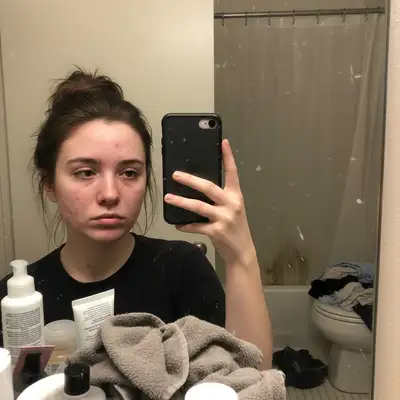
Selfie with visible acne and blemishes on face
Before
โ†’
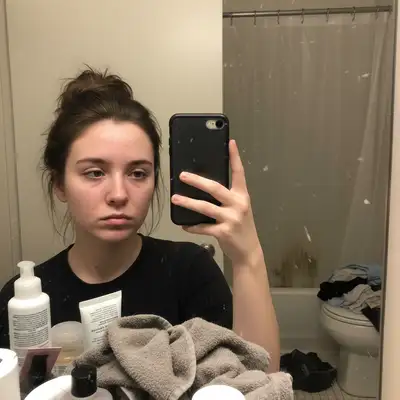
Same selfie with clear skin and natural texture
After

Selfie Editor

Drop your photo here

or click to browse

Release to upload

Free โ€ข No signup

Advertisement
Popular use cases:
  • selfie editing
  • selfie retouching
  • instagram selfies
  • dating profile photos
  • linkedin headshots
  • front camera photos
  • mirror selfies
  • group selfies

Cost
Free No signup required
Time
Instant results in 15-30 seconds
Works on
Any device - browser, phone, tablet, desktop
Powered by
AI-powered photo editing
Scenario Prompt Time
Remove blemishes remove blemishes, keep skin natural 15s
Fix lighting fix harsh lighting on my face 15s
Blur background blur the messy background 20s
Whiten teeth whiten teeth slightly 15s

How it works

  1. Upload your selfie

    Drop any selfie into EditThisPic. Front camera shots, mirror selfies, or group selfies all work. JPG, PNG, WebP up to 7MB.

    Expect: Simple fixes like blemish removal: 15-20 seconds. Background changes: 25-30 seconds.
  2. Describe your edit

    Type what you want improved: 'remove the acne on my chin' or 'fix the harsh lighting on my face.' Be specific about the problem. The AI understands selfie issues like blemishes, dark circles, red-eye, and bad angles.

    Tip: Combine multiple fixes: 'smooth my skin and brighten my eyes and whiten my teeth slightly'

    Copy one of these to get started:

    Remove blemishes and acne remove the blemishes and acne from my face, keep skin texture natural
    Fix harsh or uneven lighting fix the harsh lighting on my face, make it more even and flattering
    Remove messy background blur the messy background behind me
    Smooth skin naturally smooth my skin slightly while keeping it looking natural
    5 more prompts
    Fix red-eye from flash fix the red-eye in my photo
    Whiten teeth naturally whiten my teeth slightly, keep it natural looking
    Reduce dark circles under eyes reduce the dark circles under my eyes
    Fix double chin from bad angle slim my jawline slightly and reduce the double chin
    Replace ugly background completely replace background with outdoor cafe with blurred lights
  3. Download your improved selfie

    Review your edited selfie and download in high resolution. Perfect for Instagram, dating profiles, or LinkedIn. If you want additional adjustments, just describe them.

  4. Use markers for precise fixes

    If you need to target a specific spot like a single blemish or the area under one eye, tap markers on those spots and describe the fix. Most selfie edits work perfectly without markers.

    Tip: Markers help when you have multiple blemishes but only want to remove specific ones
Try it free โ†“

Selfie Editor

Drop your photo here

or click to browse

Release to upload

Free โ€ข No signup

"Finally a selfie editor that makes me look like myself, just better. Not like those weird filter apps!" @jessicawrites

See it in action

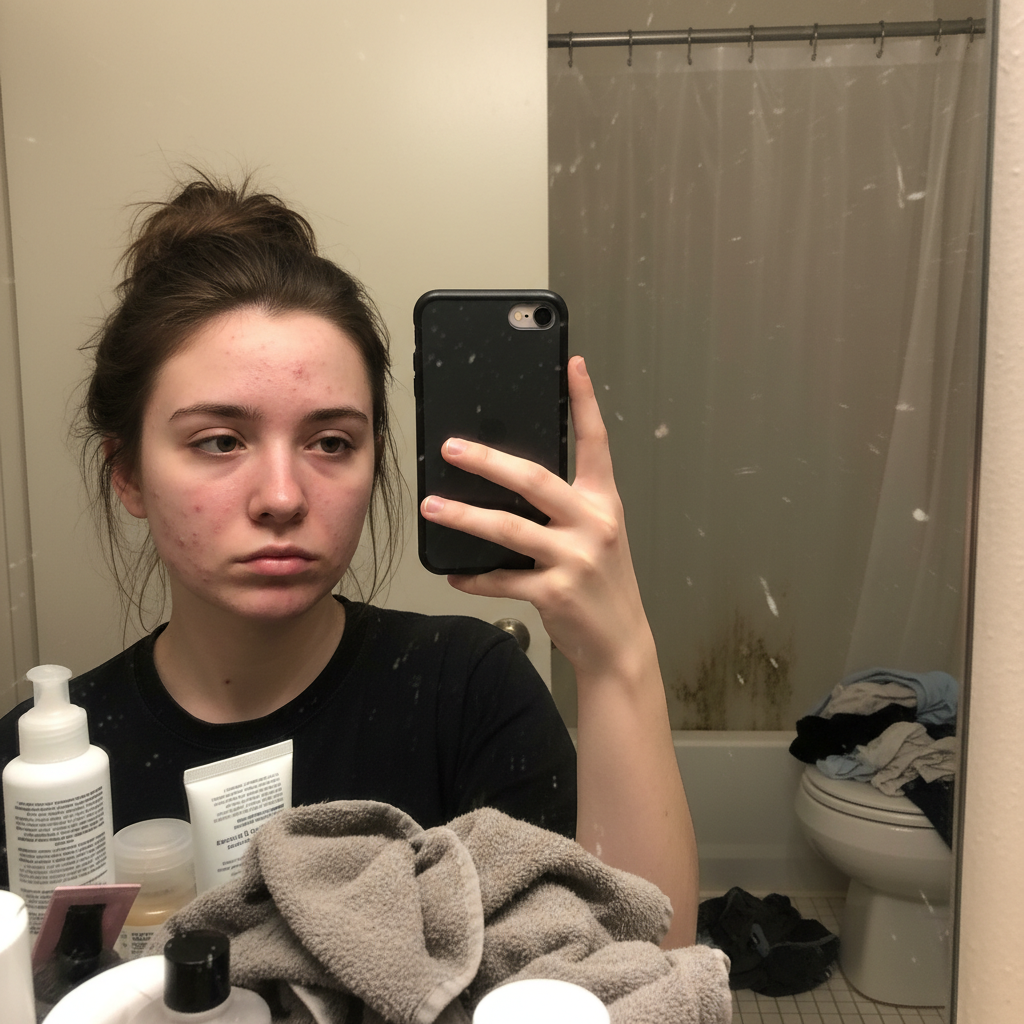
Selfie with visible acne and blemishes on face
Before
->
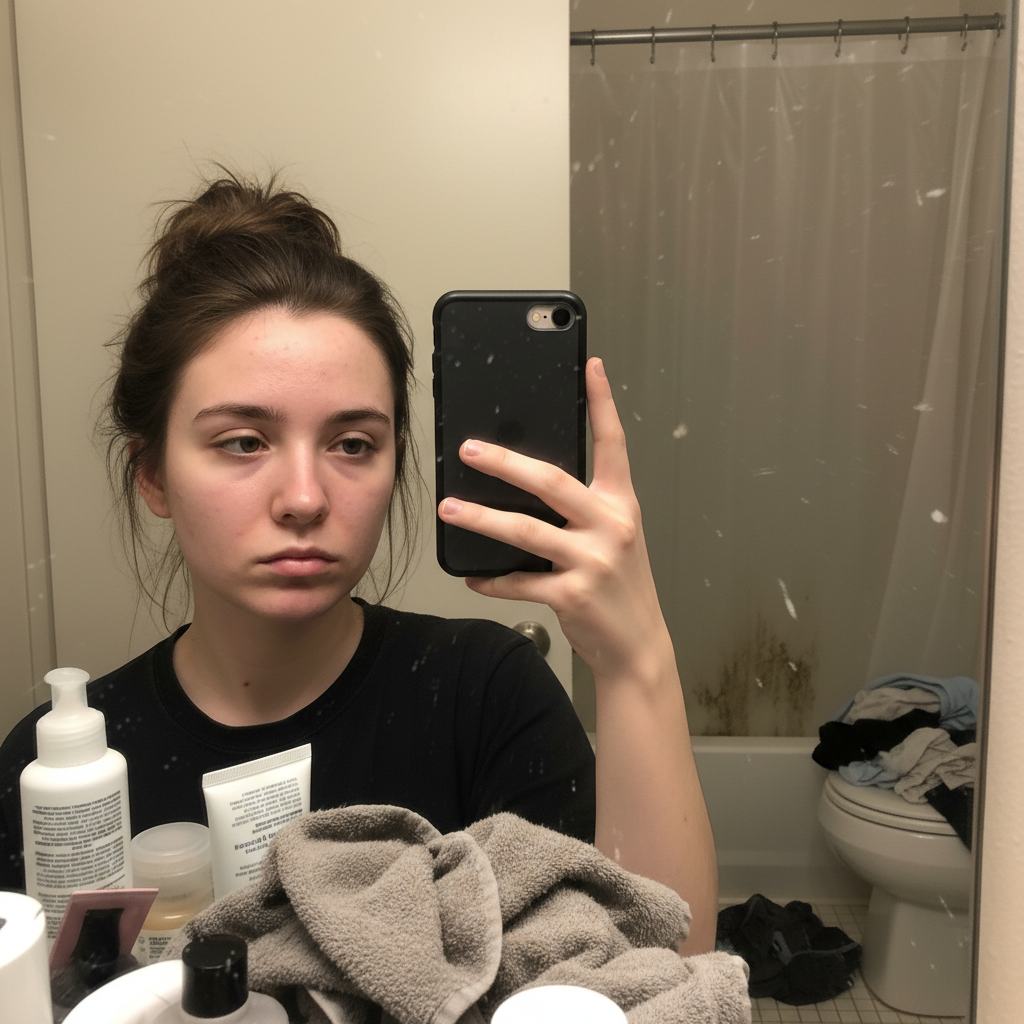
Same selfie with clear skin and natural texture
After

Removed Blemishes Naturally

Acne and spots removed while keeping natural skin texture.

Prompt: remove the blemishes and acne from my face, keep skin texture natural
Selfie with harsh overhead lighting and unflattering shadows
Before
->
Same selfie with balanced, flattering lighting
After

Fixed Harsh Selfie Lighting

Unflattering overhead lighting balanced for a more natural look.

Prompt: fix the harsh lighting on my face, make it more even and flattering
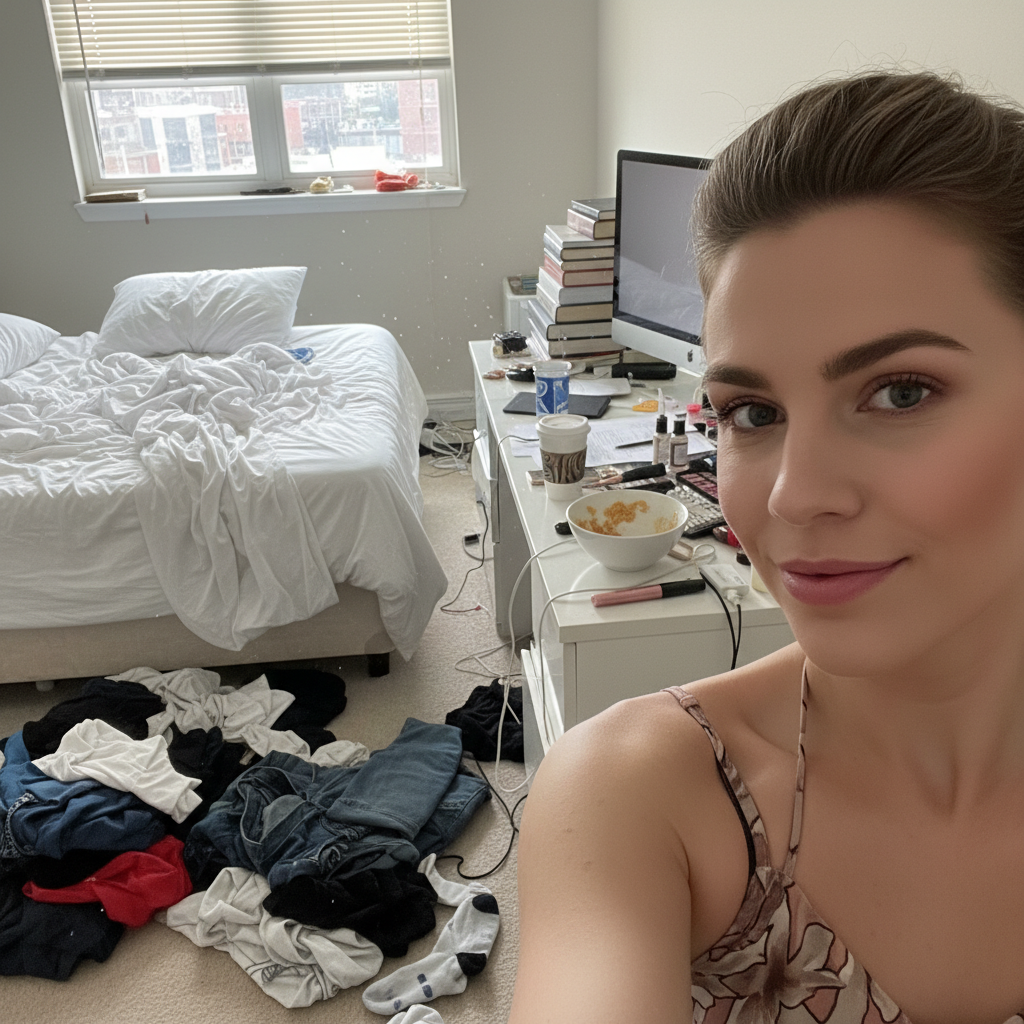
Selfie with messy cluttered bedroom background
Before
->
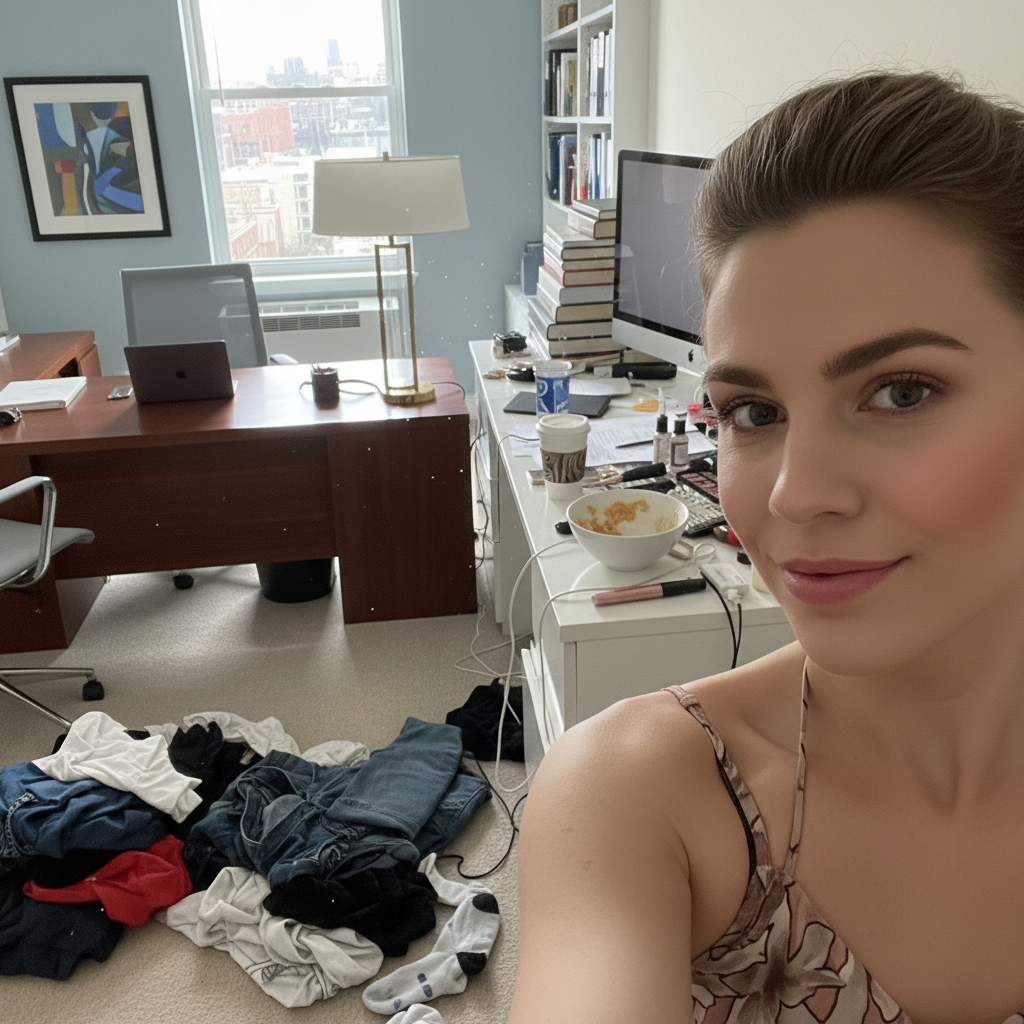
Same selfie with clean professional blurred office background
After

Replaced Messy Background

Cluttered room background replaced with clean, professional setting.

Prompt: replace background with professional blurred office
Advertisement

If something looks off

Skin looks too smooth and plastic

Why: The AI may have over-smoothed the skin texture

Try: Try 'smooth skin slightly while preserving natural texture and pores'

Tip: Always include 'natural' or 'slightly' to prevent the filter look

Teeth whitening looks fake

Why: Over-whitening is a common issue with teeth edits

Try: Try 'brighten teeth very slightly, keep natural shade'

Tip: Natural teeth have some color variation - pure white looks artificial

Background replacement has weird edges around hair

Why: Fine hair strands are tricky to separate from backgrounds

Try: Try 'blur the background' instead of replacing it entirely

Tip: Blurring keeps original edges intact and often looks more natural

Face slimming looks distorted

Why: Aggressive face reshaping can look unnatural

Try: Try 'very slightly slim my face, keep proportions natural'

Tip: Subtle adjustments always look better than dramatic changes

Quick answers

How do I edit selfies without looking fake or filtered?

Use specific prompts with words like 'slightly' and 'natural' - for example, 'smooth my skin slightly while keeping it natural' or 'whiten teeth just a little bit.' EditThisPic uses AI that understands context, not heavy-handed filters, so your edits look like a better version of you, not a different person.

Can I remove acne and blemishes from selfies?

Yes! Just describe what you want removed: 'remove the acne on my forehead' or 'clear up the blemishes on my chin.' The AI removes spots while keeping your natural skin texture. For specific blemishes, tap markers on them first.

How do I fix bad lighting in selfies?

Describe the lighting problem: 'fix the harsh shadows on my face' or 'brighten the dark areas under my eyes.' The AI balances lighting to make selfies look more flattering, like you took them in perfect natural light.

Is there a free selfie editor without watermarks?

Yes! EditThisPic is free to try with no signup required. You can remove blemishes, fix lighting, and smooth skin without any watermarks on your edited selfies.

Can I fix red-eye from camera flash in selfies?

Yes! Just type 'fix the red-eye' and the AI will correct it automatically. Works on both subtle pink-eye and obvious red-eye from direct flash.

How do I remove a messy background from my selfie?

You can either blur it ('blur the background behind me') or replace it entirely ('replace background with coffee shop' or 'replace background with clean white wall'). Blurring is faster and keeps natural edges around your hair.

Can I whiten my teeth in selfies naturally?

Yes! Use 'whiten my teeth slightly' or 'brighten my smile naturally.' Adding words like 'slightly' and 'naturally' prevents the obviously fake bright-white look. The AI adjusts teeth color while maintaining realistic variation.

Ready to perfect your selfies?

Free to try. No signup required. Natural results in 15-30 seconds.

Try it free โ†’