Free β€’ No signup Composite Photos Β· Free

Composite Two Photos

Upload two photos and describe the composite you want. No advanced editing skills needed.

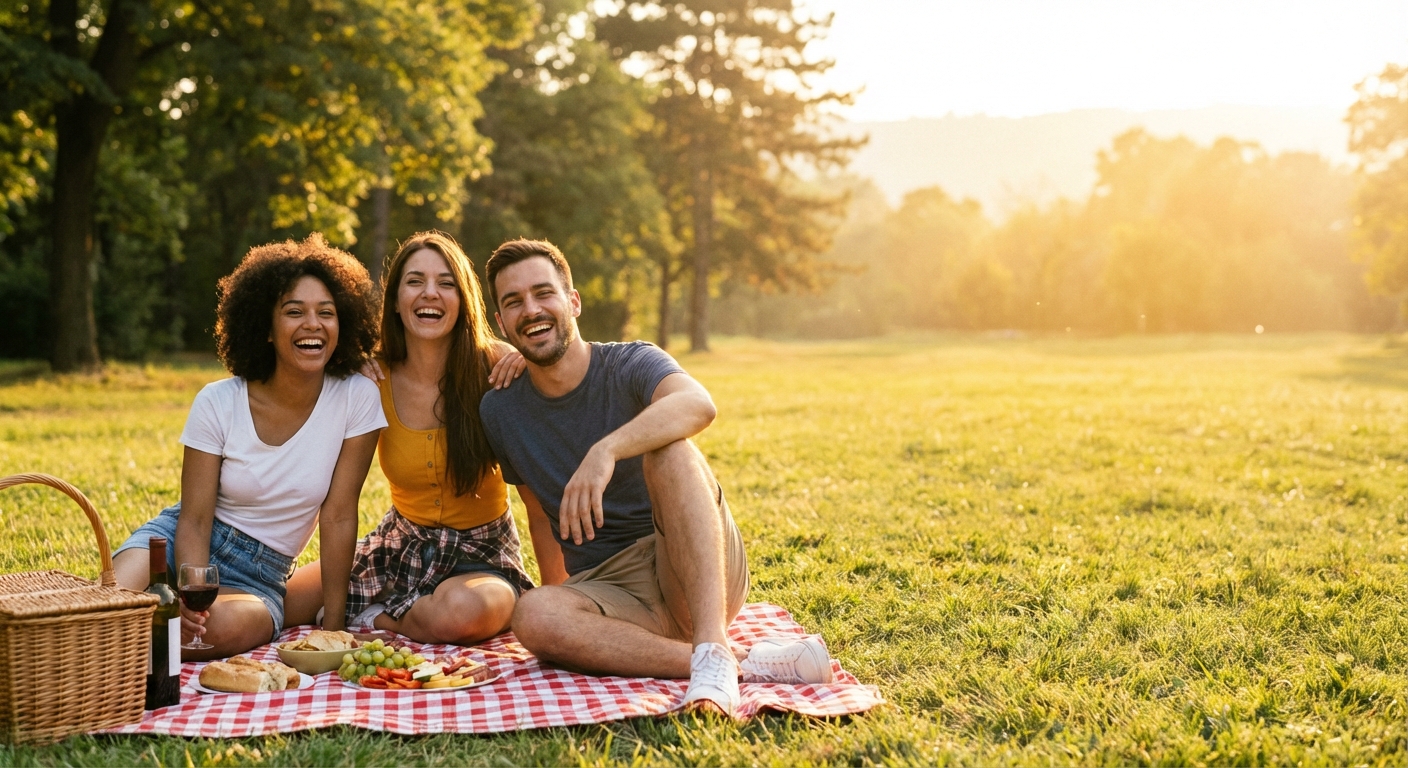
Group of friends at a picnic
Photo 1
+
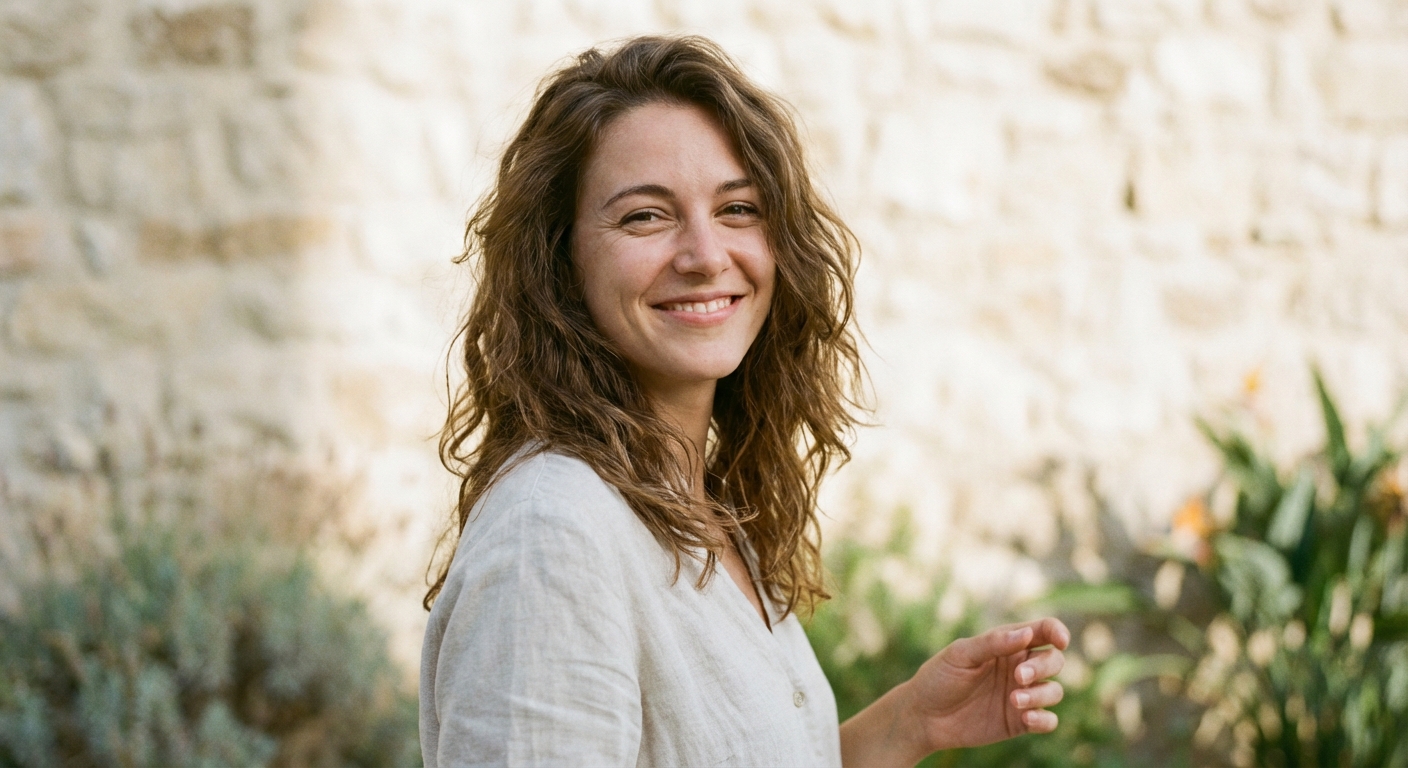
Woman to add to the group photo
Photo 2
β†’
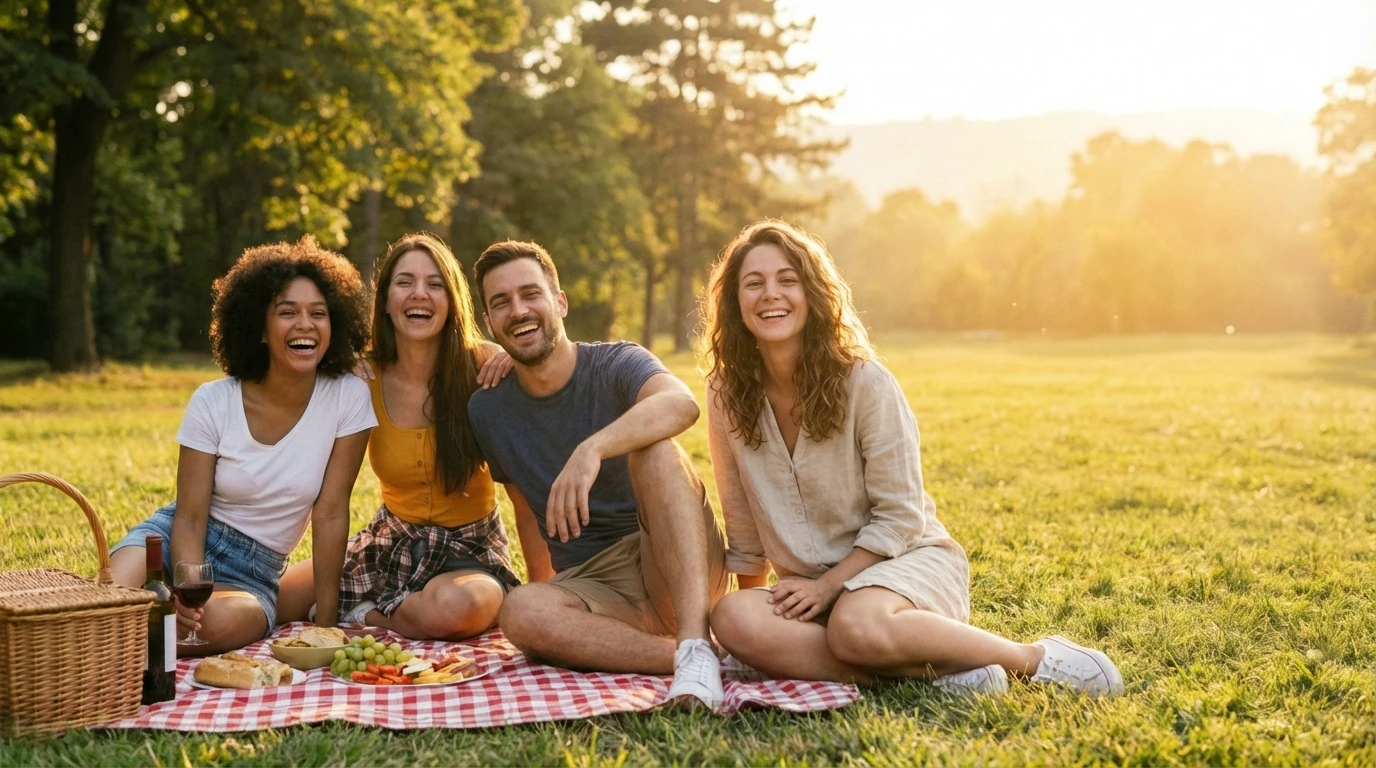
Combined photo with the woman added to the group
Result

Composite Two Photos

Upload photo to composite photos

Free β€’ Results in 30 seconds β€’ No signup

Release to upload

FreeNo signupNo watermark
Popular use cases:
  • Creative photo composites
  • Fantasy portrait composites
  • Product lifestyle composites
  • Movie poster designs
  • Artistic photo manipulation
  • Surreal photo art
  • Professional compositing

Cost
Free No signup required
Time
Instant results in 15-30 seconds
Works on
Any device - browser, phone, tablet, desktop
Powered by
AI-powered photo editing
Scenario Prompt Time
Person into scene composite person into background with natural lighting 30s
Product placement composite product into lifestyle scene with shadows 30s
Fantasy composite create fantasy composite with dramatic lighting 40s
Seamless merge composite scenes into one continuous image 35s

How it works

  1. Upload your primary photo

    Drop your main image into EditThisPic. This could be a portrait, product, or any subject that will be composited with elements from the reference image. JPG, PNG, and WebP up to 7MB all work.

    Expect: Standard composites: 25-35 seconds. Complex artistic composites: may need 2-3 refinements.
  2. Add your reference photo

    Click the reference image button and upload the second image. This provides elements, backgrounds, or subjects to composite with your main photo. Think of this as the source material for the composite elements.

    Tip: Similar lighting direction in both photos makes for more realistic composites. The AI can adjust but matching lighting helps.
  3. Describe the composite

    Type your instruction: 'composite the person from photo one into the background from photo two with natural lighting' or 'create an artistic composite blending elements from both images.' Be specific about which elements to use from each photo and how they should combine.

    Tip: Describe the final result you envision: 'the person should look like they're standing in the scene' helps the AI understand the goal.

    Copy one of these to get started:

    Person into background composite the person from photo one into the scenic background from photo two, matching the lighting and making them look naturally present in the scene
    Fantasy scene composite create a fantasy composite with the person interacting with the magical elements, blend the lighting to look dramatic and cinematic
    Product lifestyle composite composite the product into the lifestyle scene, placed on the surface naturally with correct shadows and reflections
    Surreal blend composite create a surreal composite blending elements from both photos, with dreamlike transitions between the different scenes
    3 more prompts
    Pet adventure composite composite the pet into the outdoor adventure scene, sized appropriately and looking like they belong in the environment
    Movie poster style create a movie poster style composite with dramatic lighting, the person prominent in front of the scenic background
    Seamless scene merge composite these two scenes into one continuous image, blending where they meet so seamlessly that it looks like a single photo
  4. Generate and refine

    Tap generate and evaluate the composite. Check for natural-looking edges, consistent lighting, and realistic perspective. If areas need work, describe the issue: 'blend the edges more smoothly' or 'match the lighting direction better.'

    Tip: Zoom in on transition areas to check for visible seams. If you spot issues, tap markers on those areas and regenerate.
Try it free ↓

Composite Two Photos

Upload photo to composite photos

Free β€’ Results in 30 seconds β€’ No signup

Release to upload

Free β€’ No signup

See it in action

Group of friends at a picnic
Main Photo
Woman to add to the group photo
Reference
Combined photo with the woman added to the group
Result

Portrait composited into mountain scene

Studio portrait placed into a dramatic mountain landscape. The AI matched the golden hour lighting from the landscape to the portrait for a natural look.

Prompt: composite the person from the portrait into the mountain landscape, matching the warm sunset lighting and making them appear naturally standing at the viewpoint
Product photo and desk scene as separate images
Before
->
Headphones composited naturally onto the desk
After

Product composited into lifestyle scene

Product photo composited into an attractive home setting. Shadows and reflections added automatically for realistic placement.

Prompt: composite the headphones from photo one onto the desk in the lifestyle scene, add natural shadows and make it look like they were photographed there
Child portrait and magical forest as separate images
Before
->
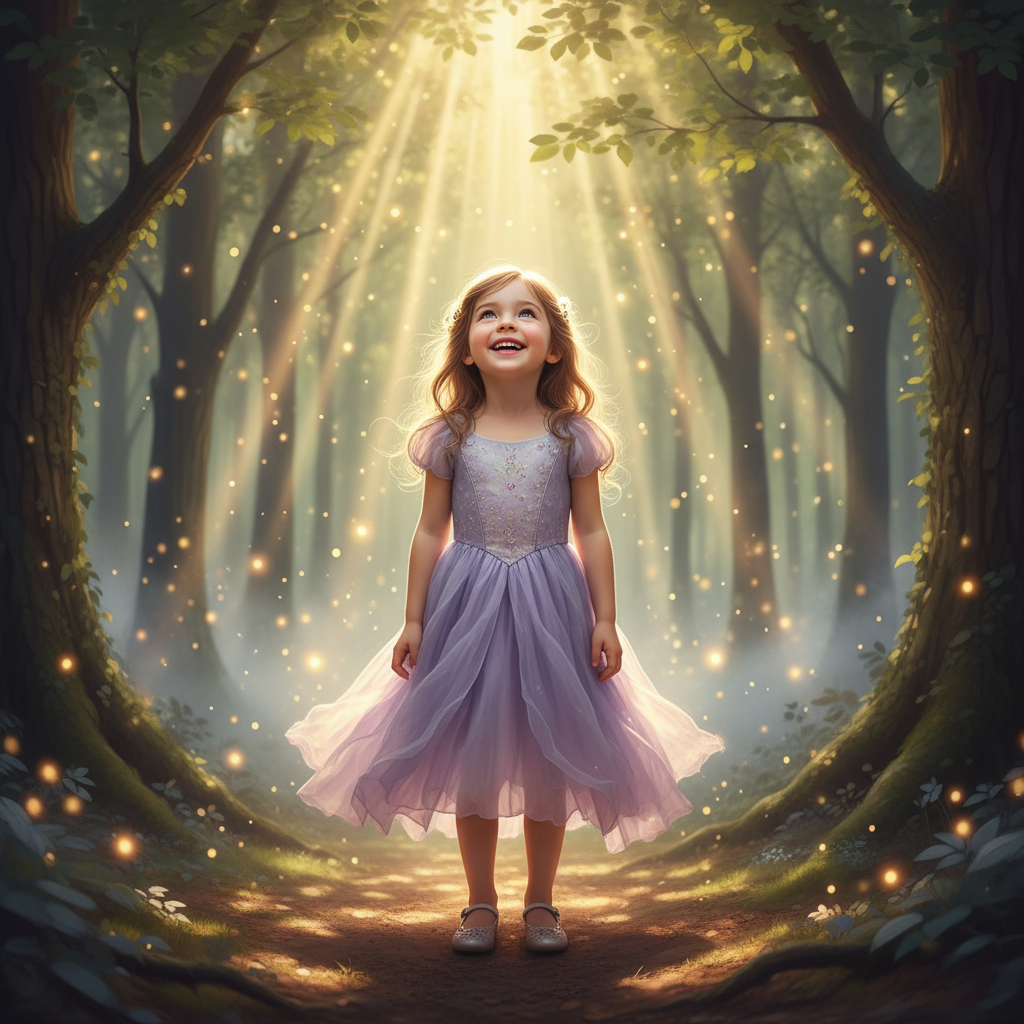
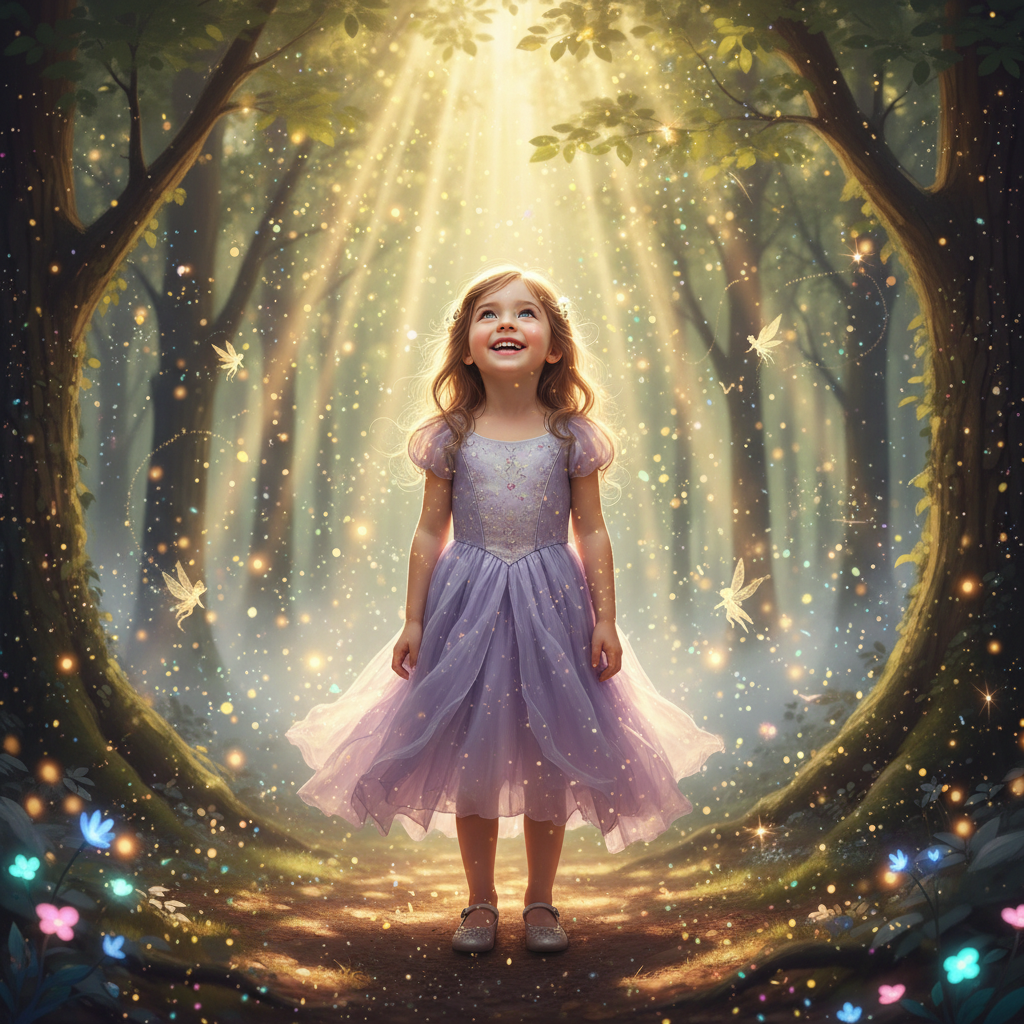
Child composited into magical forest with fairy tale lighting
After

Creative fantasy composite

Child portrait composited into a magical forest scene with fairy tale elements. The composite has a dreamy, storybook quality.

Prompt: create a fantasy composite with the child in the enchanted forest, add magical lighting and make it look like a storybook illustration come to life

Detailed Guides by Scenario

πŸ“·

Family & Group Photos

Composite a missing family member into a group photo they couldn't attend, or merge the best expressions from two shots into one perfect image.

Common Scenarios

  • Adding a family member who missed the group photo into the scene from a separate picture
  • Combining two group shots where different people look best in each one
  • Merging the best expressions from multiple takes of the same family photo

Best Practices

  • Use photos with similar lighting direction for the most natural composites
  • Describe where the person should appear: 'place them on the right side next to the group'
  • Ask for 'matching shadows and lighting' to keep the composite looking real
πŸ“·

Product & Lifestyle Shots

Place product photos into lifestyle scenes for e-commerce listings, marketing materials, and social media without expensive photo shoots.

Common Scenarios

  • Compositing a product from a white-background studio shot into a styled home scene
  • Creating lifestyle imagery for an e-commerce listing from a simple product photo
  • Placing merchandise into seasonal or themed backgrounds for marketing campaigns

Best Practices

  • Use a clean product photo on white background as the main image for cleanest extraction
  • Mention 'natural shadows and reflections' for realistic placement on surfaces
  • Specify the surface: 'on the wooden desk' or 'on the kitchen counter' for accurate scale
πŸ“·

Creative & Fantasy Art

Create surreal composites, fantasy scenes, and artistic photo manipulations by blending elements from multiple images.

Common Scenarios

  • Compositing a portrait into a fantasy landscape for dramatic creative artwork
  • Creating double-exposure style blends for artistic social media content
  • Building movie-poster-style composites with dramatic lighting and effects

Best Practices

  • Use 'dreamlike transitions' or 'cinematic lighting' for artistic blending effects
  • Reference specific styles like 'movie poster' or 'double exposure' for consistent results
  • For surreal composites, describe the mood: 'ethereal,' 'dramatic,' or 'whimsical'

If something looks off

AI changed the wrong area or something I didn't want changed

Why: The AI couldn't determine exactly which elements to composite from each photo. Complex composite instructions can be interpreted multiple ways.

Try: Tap a marker on the specific element you want composited or on where it should be placed, then regenerate

Tip: Markers tell the AI 'I mean THIS element' or 'place it HERE.' Use them when composite placement is ambiguous.

Edges look obvious or poorly blended

Why: The extraction edges are too sharp or the transition between composited elements and background is visible. This often happens with hair or fine details.

Try: composite with soft blended edges around the person, feather the transition to match the background naturally

Tip: Adding 'soft blended edges' or 'feather the extraction' helps hide composite seams.

Lighting doesn't match between elements

Why: The source photos had different lighting directions or color temperatures. The AI tried to composite but the mismatch shows.

Try: composite and adjust the lighting on the person to match the sun direction and warm color temperature from the background

Tip: Describe the background lighting: 'match the sunset light from the left' or 'adjust for overcast lighting.'

Subject scale is wrong for the scene

Why: The AI couldn't accurately judge the size relationship between the composited subject and the background scene elements.

Try: composite and scale the person to match the perspective - they should appear to be standing at the same distance as the trees visible

Tip: Reference visible objects for scale: 'should be waist-height to the fence' or 'same size as the chair.'

Composite looks fake or artificial

Why: Multiple factors - mismatched shadows, wrong perspective, color differences, or missing environmental interaction create an unrealistic result.

Try: composite more naturally with matching shadows on the ground, correct perspective for the viewpoint, and color grading that unifies both images

Tip: Ask for specifics: 'add ground shadow,' 'match the haze level,' 'unify the color grade.'

Quick answers

Do I need to manually extract or mask subjects before compositing?

No. Just describe which elements to composite from each photo: 'composite the person into the background scene.' The AI automatically extracts subjects, matches lighting, and blends edges. Markers are only needed if you want to specify exact positioning or which element to use.

How do I composite two photos together for free?

Upload your main photo to EditThisPic, click the reference image button to add the second photo, then describe the composite: 'composite the person into the landscape with natural lighting.' The AI creates a seamless composite in 25-45 seconds. No account, no login, no watermarks.

Is there a free photo compositing tool that doesn't require signup?

Yes. EditThisPic creates photo composites without requiring any account or login. Upload both source images, describe the composite you want in plain English, and download your result. No watermarks. The AI handles extraction, lighting matching, and blending automatically.

What's the best free AI tool for compositing two photos?

EditThisPic lets you composite two photos by describing the result you want in plain English. Unlike Photoshop layer masking, there is no manual extraction or blending. The AI handles subject isolation, color matching, and edge blending in 25-45 seconds. Free to try, no account needed.

Will the composite look realistic?

Yes, especially when source photos have similar lighting. The AI matches color temperature, adds appropriate shadows, and blends edges naturally. For best results, describe what should look natural: 'match the lighting direction' or 'add realistic shadows.'

Can I create artistic or fantasy composites?

Yes. Describe the creative effect you want: 'create a fantasy composite with magical lighting' or 'composite with a surreal dreamlike blend.' The AI can create artistic compositions, movie poster styles, and imaginative scenes - not just realistic placements.

Is EditThisPic's AI photo compositing tool really free?

Yes β€” you get 1 free edit per week, no account needed. For unlimited edits, plans start at $3.99/month.

Can I composite photos on my phone?

Yes. EditThisPic works in any mobile browser β€” iPhone, Android, tablet. No app download needed.

What photo formats does the AI photo compositing tool support?

JPG, PNG, WebP, and HEIC. Upload any common photo format and EditThisPic handles the rest.

Ready to create your photo composite?

Free to try. No signup required.