AI Photo Editor for Instagram Photos
Last updated
Create scroll-stopping Instagram content. Just describe what you want changed.
Drop your photo here
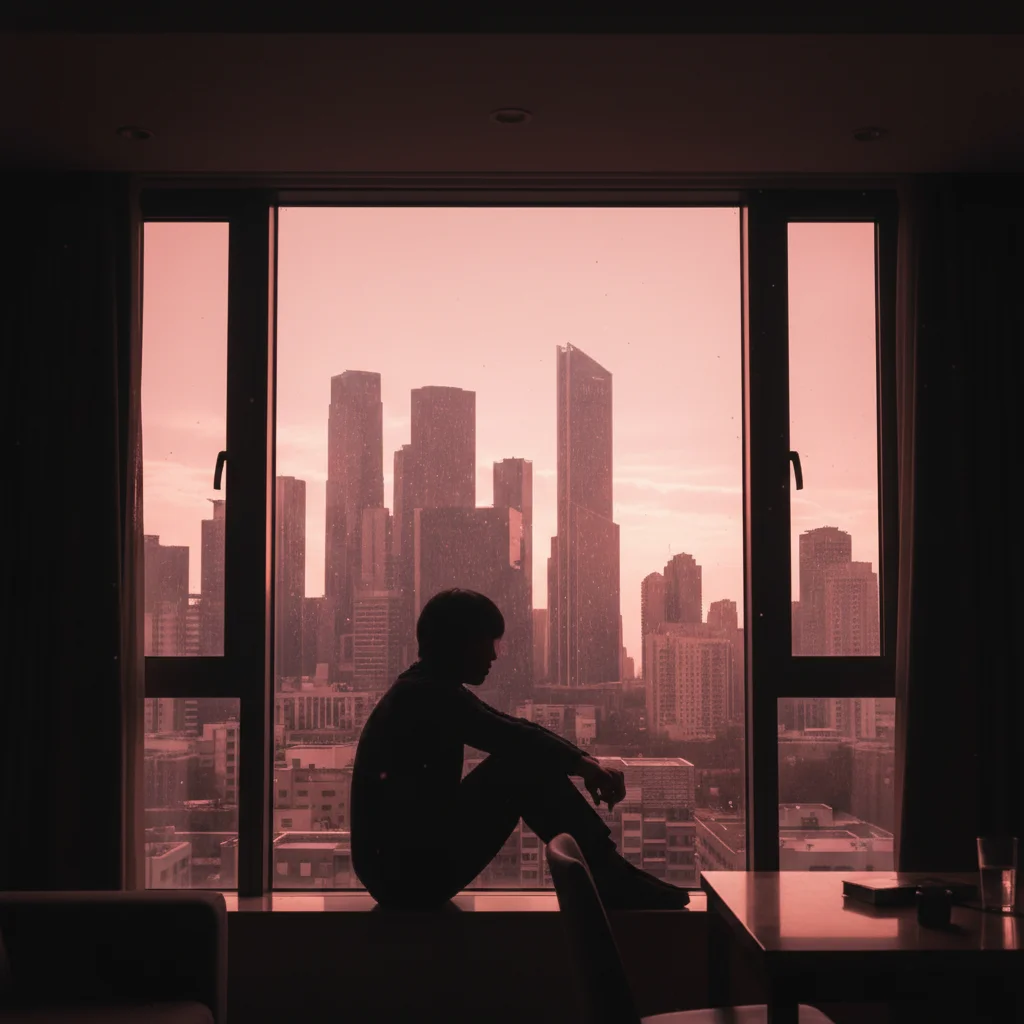
"enhance with warm golden tones, lifted shadows, soft highlights, and consistent color grading for a cohesive Instagram feed"
Release to upload
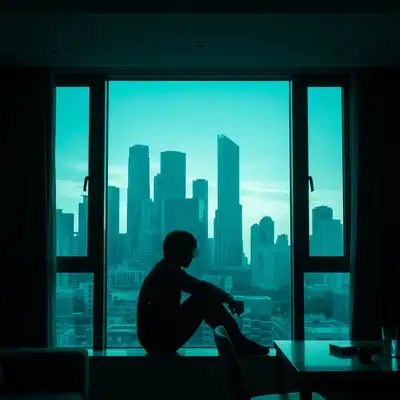
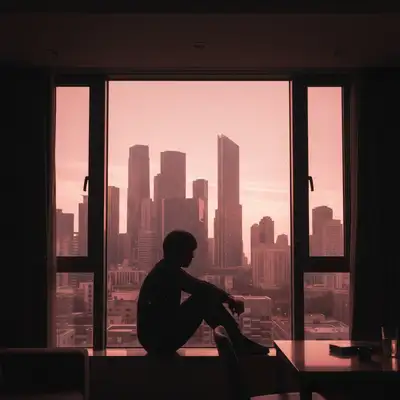
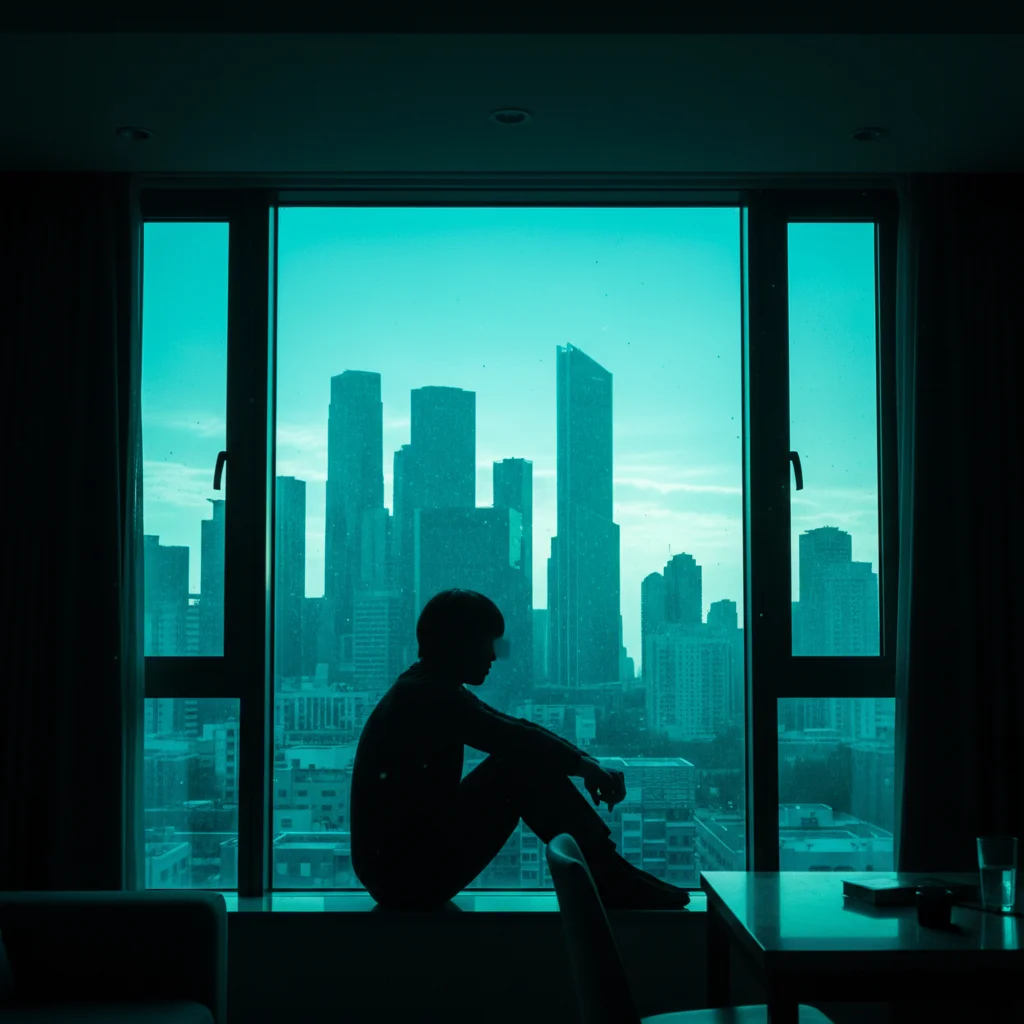
Built for Instagram Creators
Instagram is visual first. Your feed needs to look cohesive, and every photo needs to pop. But Instagram's built-in filters only apply effects to the whole image. EditThisPic lets you fix specific problems: remove that one photobomber, replace that gray sky, clean up that background. Just describe what's wrong and the AI fixes it.
Tools Instagram Creators Use Most
Remove Photobomber
Eliminate strangers who walked into your perfectly timed shot
Replace Sky
Transform overcast days into golden hour magic
Enhance Colors
Create consistent color grading across your entire feed
Blur Background
Add professional depth-of-field to make your subject pop
How to Edit Instagram Photos
-
Upload your photo
Drop your photo into EditThisPic. JPG, PNG, WebP up to 7MB. Works great with phone camera photos and high-res shots alike. Instagram's 1080px width is handled easily.
Simple edits like color enhancement: 15-20 seconds. Complex removals or background changes: 30-60 seconds. -
Describe what you want
Type your edit in plain English: 'remove the stranger in the red shirt' or 'replace the overcast sky with blue sky and white clouds' or 'make the colors more vibrant and warm.' No selection tools needed. The AI understands your intent.
For consistent feed aesthetics, save your favorite prompts. 'Warm golden tones with lifted shadows' gives that popular lifestyle look. -
Review your edit
Check the result at full zoom. Look at edges around removed objects, color consistency across the image, and any areas that might look unnatural. Instagram's compression can reveal subtle issues.
Preview at phone screen size too. Your followers will see it on mobile, so make sure it looks good at that scale. -
Refine with markers if needed
If the AI missed a spot or changed something you wanted to keep, tap markers on those specific areas and regenerate. Most Instagram edits work perfectly without this step.
Markers are optional. Try without them first. You'll be surprised how well description alone works.
Instagram-Ready Prompts
enhance with warm golden tones, lifted shadows, soft highlights, and consistent color grading for a cohesive Instagram feed
This creates that popular lifestyle influencer look. Use the same prompt across multiple photos for feed consistency.
remove the person in the background and fill with the natural surroundings
Specifying 'natural surroundings' tells the AI to reconstruct the scene, not just blur.
replace the gray overcast sky with vibrant blue sky and soft white clouds, keeping the lighting natural
'Keeping the lighting natural' ensures the new sky doesn't create obvious mismatched shadows.
remove the distracting elements in the background, clean up the scene while keeping focus on the subject
Works great for coffee shop shots, gym selfies, or any location with busy backgrounds.
Show 4 more prompts
enhance the lighting on my face, soften harsh shadows, brighten eyes, and add subtle warmth to skin tones
This fixes harsh midday sun or unflattering indoor lighting without looking over-edited.
add moody dark tones with deep shadows, desaturated highlights, and subtle teal and orange color grading
The teal-orange combo is popular for travel and urban photography feeds.
remove the trash can and litter from the scene, reconstruct with clean ground
Be specific about what to remove. The AI fills in naturally based on surrounding context.
enhance colors to make the food look more appetizing, increase saturation on reds and oranges, add soft warmth
Works perfectly for restaurant content and food blogger feeds.
| Edit Type | Prompt | Time | |
|---|---|---|---|
| Feed consistency | enhance with warm golden tones, lifted shadows, soft highlights |
15s | Try This → |
| Remove photobomber | remove the person in the background and fill with surroundings |
30s | Try This → |
| Sky replacement | replace gray sky with blue sky and white clouds |
25s | Try This → |
| Background cleanup | remove distracting elements in background, clean up scene |
30s | Try This → |
Real Instagram Editing Examples
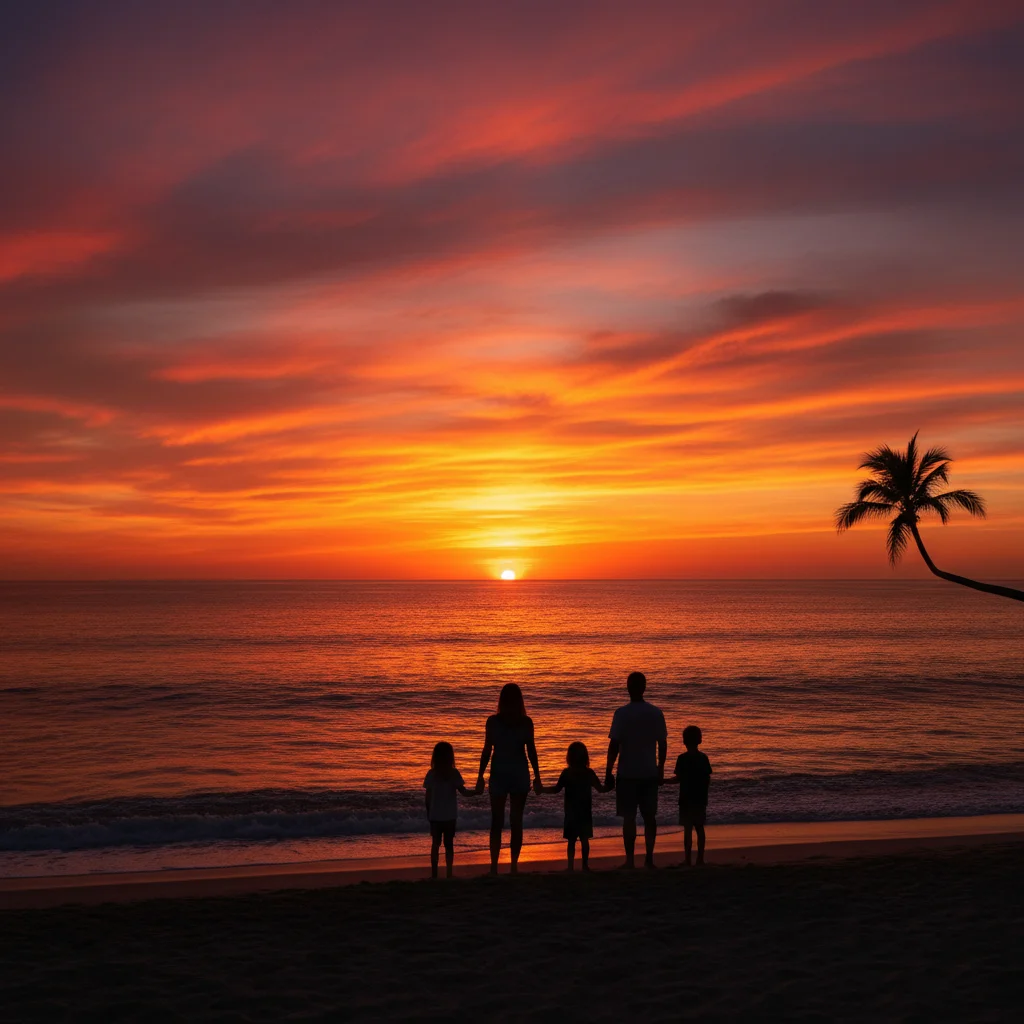
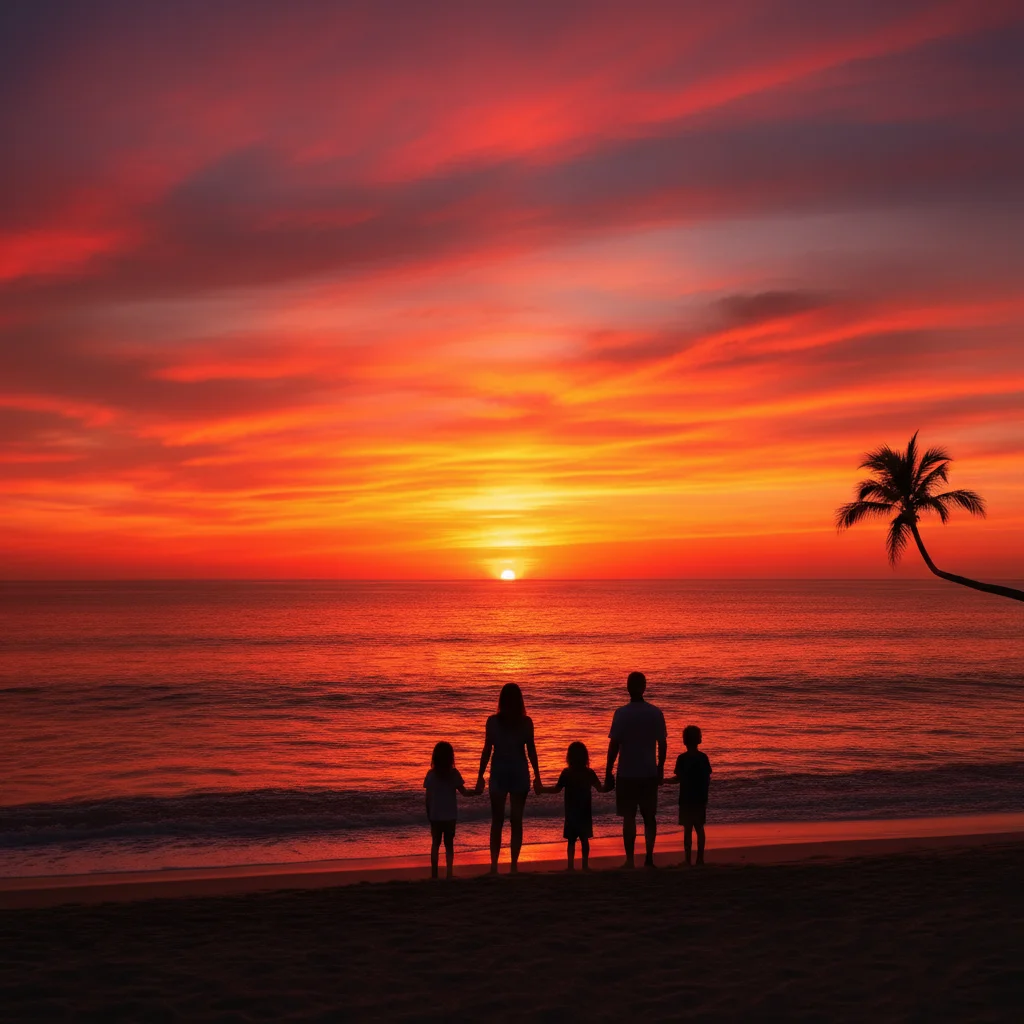
Photobomber removal from beach shot
A stunning beach sunset ruined by a stranger walking through the frame. One prompt removed them completely.
remove the person walking in the background and fill with the natural beach and ocean
Sky replacement for outdoor portrait
Overcast day made the photo look flat and dull. Replaced with a gorgeous sunset sky that transformed the mood.
replace the gray overcast sky with a warm golden sunset sky with soft orange and pink clouds, keeping lighting natural on the subject
Common Instagram Editing Issues
AI changed the wrong area or something I didn't want changed
Why: The AI couldn't determine exactly which element you meant from description alone. This happens with ambiguous requests like 'remove the person' when multiple people are present.
Tap a marker on the specific person or object you want to change, then regenerate with the same prompt
Markers tell the AI 'I mean THIS one specifically.' Use them when description alone is ambiguous.
Color grading looks different on each photo
Why: Each photo has different starting lighting conditions. The AI interprets 'warm tones' relative to the original.
enhance with specific values: warm golden tones at 30% intensity, shadows lifted to 20%, consistent across all photos
Save your exact prompt wording and use it identically across all photos for maximum consistency.
Removed person left a visible patch or blur
Why: The background behind the person was complex or the person was large in the frame. The AI needs more guidance about what to fill with.
remove the person and reconstruct the background naturally, matching the surrounding [describe what's there: beach, grass, building]
Being specific about what should fill the space helps the AI generate more natural results.
New sky doesn't match the lighting on the subject
Why: The replacement sky has different lighting direction than the original photo. A sunset sky won't look natural if your subject is lit from the front.
replace sky with [your choice] with lighting direction matching the subject, light source from [direction of original light]
Look at the shadows on your subject to determine where the original light came from, then choose a sky that matches.
Enhancement looks over-processed or fake
Why: The enhancement was too aggressive for the photo. Instagram audiences can spot over-edited photos quickly.
enhance subtly with gentle warmth and slightly lifted shadows, keeping the edit natural and believable
Less is more for Instagram. Subtle edits that enhance without being obvious perform better with audiences.
Frequently Asked Questions
Do I need to mark anything before describing?
No! Just type what you want: 'remove the person in the red shirt' or 'make the sky more blue.' The AI understands these descriptions without any marking. Markers are only for precision if something needs refinement after your first attempt, but most Instagram edits work perfectly on the first try.
Will my edited photos have watermarks?
No watermarks ever. Your edited photos download clean and ready to post directly to Instagram. EditThisPic is free to use without any branding added to your content.
How do I maintain a consistent feed aesthetic?
Use the same prompt for color grading across all your photos. Save a prompt like 'enhance with warm golden tones, lifted shadows, soft highlights' and apply it to every photo before posting. The AI will apply consistent adjustments that create a cohesive feed look.
What's the best image size for Instagram?
Instagram displays photos at 1080px wide. EditThisPic preserves your original resolution, so upload the highest quality version you have. The edited result will maintain that quality for crisp-looking posts even after Instagram's compression.
Can I remove multiple people or objects at once?
Yes! Describe them all in one prompt: 'remove the people in the background and the trash can on the right.' The AI processes multiple removals together. For complex scenes, you might get better results doing them one at a time.
Does this work for Instagram Stories and Reels?
Yes. EditThisPic edits any photo regardless of where you plan to post it. Edit your photos here, then use Instagram's native tools to format them for Stories (9:16) or feed posts (1:1, 4:5). The edited image quality carries over to any format.
Is EditThisPic's AI photo editor for instagram photos really free?
Yes — you get 1 free edit per week, no account needed. Plans start at $4.99/month for 15 edits.
Can I instagram photos on my phone?
Yes. EditThisPic works in any mobile browser — iPhone, Android, tablet. No app download needed.
Popular use cases
Ready to level up your Instagram content?
Free to use. No signup. No watermarks.
Start EditingTrusted by 15,000+ users