Free β€’ No signup Fix Vacation photos Β· Free

Vacation Photo Editor

Your travel memories deserve perfect photos - remove the crowds, keep the memories

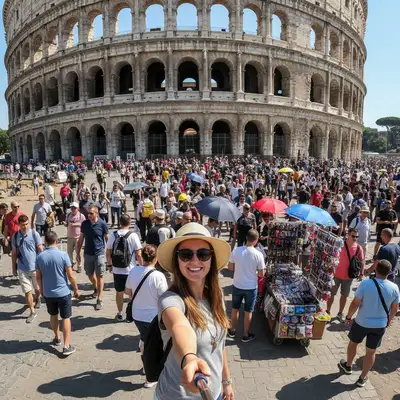
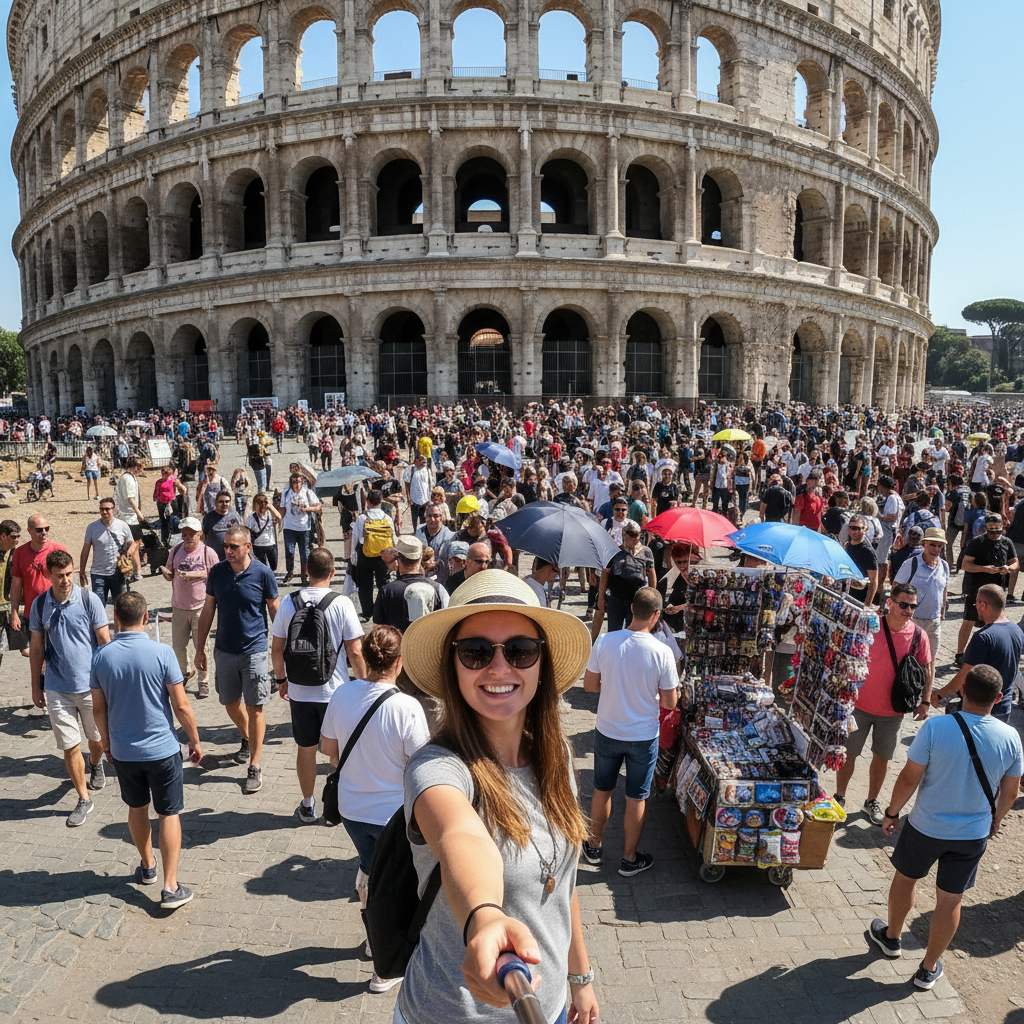
Landmark photo with tourists crowding the background
Before
β†’
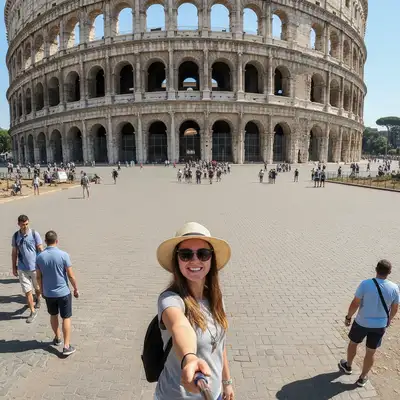
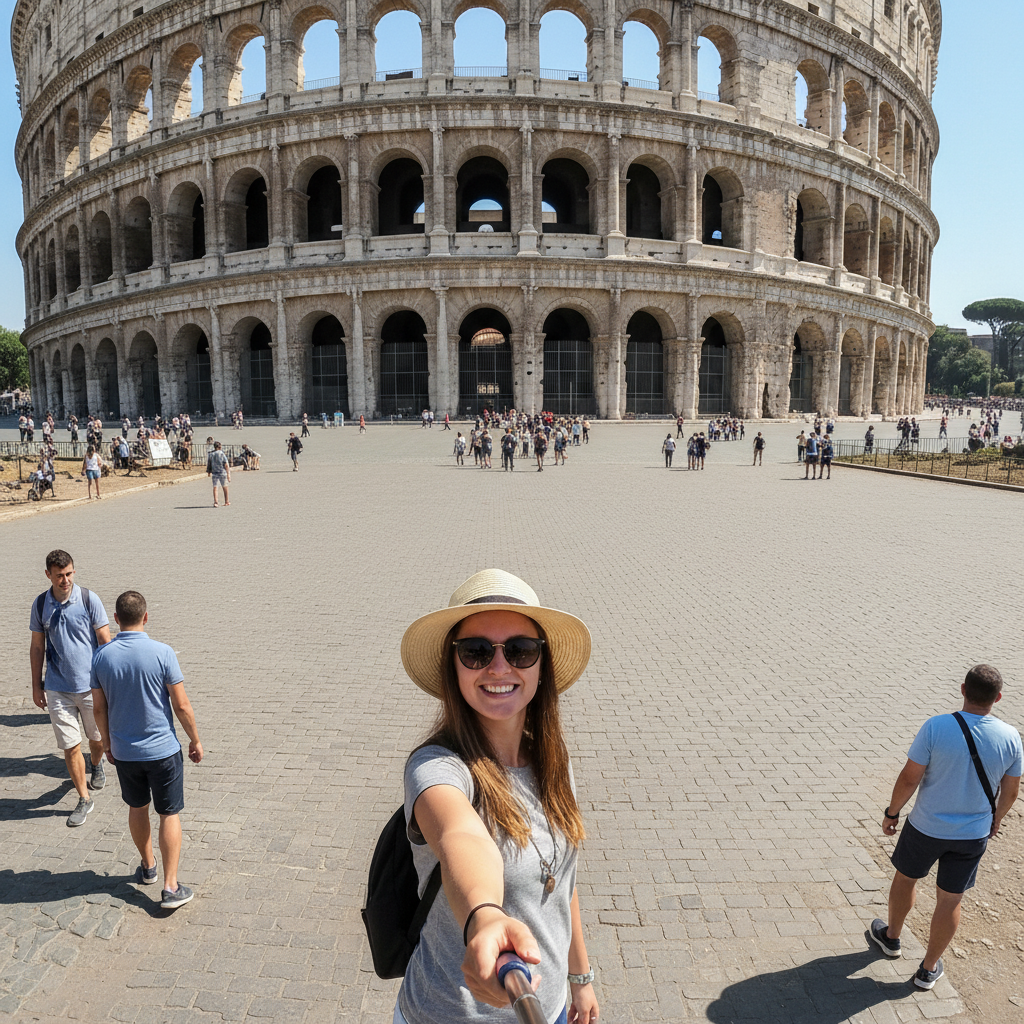
Same landmark photo with clean empty background
After

Vacation Photo Editor

Upload photo to fix vacation photos

Free β€’ Results in 30 seconds β€’ No signup

Release to upload

FreeNo signupNo watermark
Popular use cases:
  • vacation photo editing
  • travel photo editing
  • edit vacation photos
  • remove tourists from photos
  • landmark photo editing
  • beach photo fix
  • travel memories
  • trip photos

Cost
Free No signup required
Time
Instant results in 15-30 seconds
Works on
Any device - browser, phone, tablet, desktop
Powered by
AI-powered photo editing
Scenario Prompt Time
Remove tourists remove all tourists from background 25s
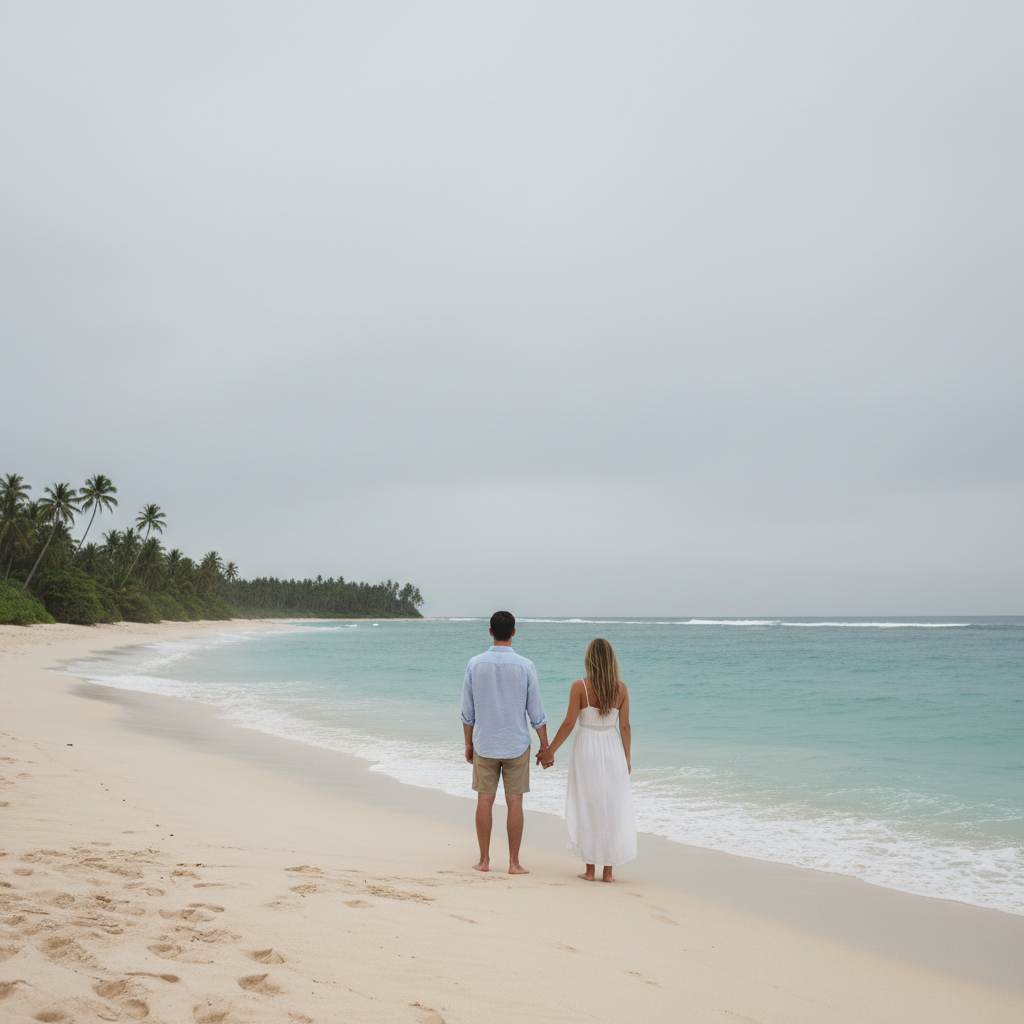
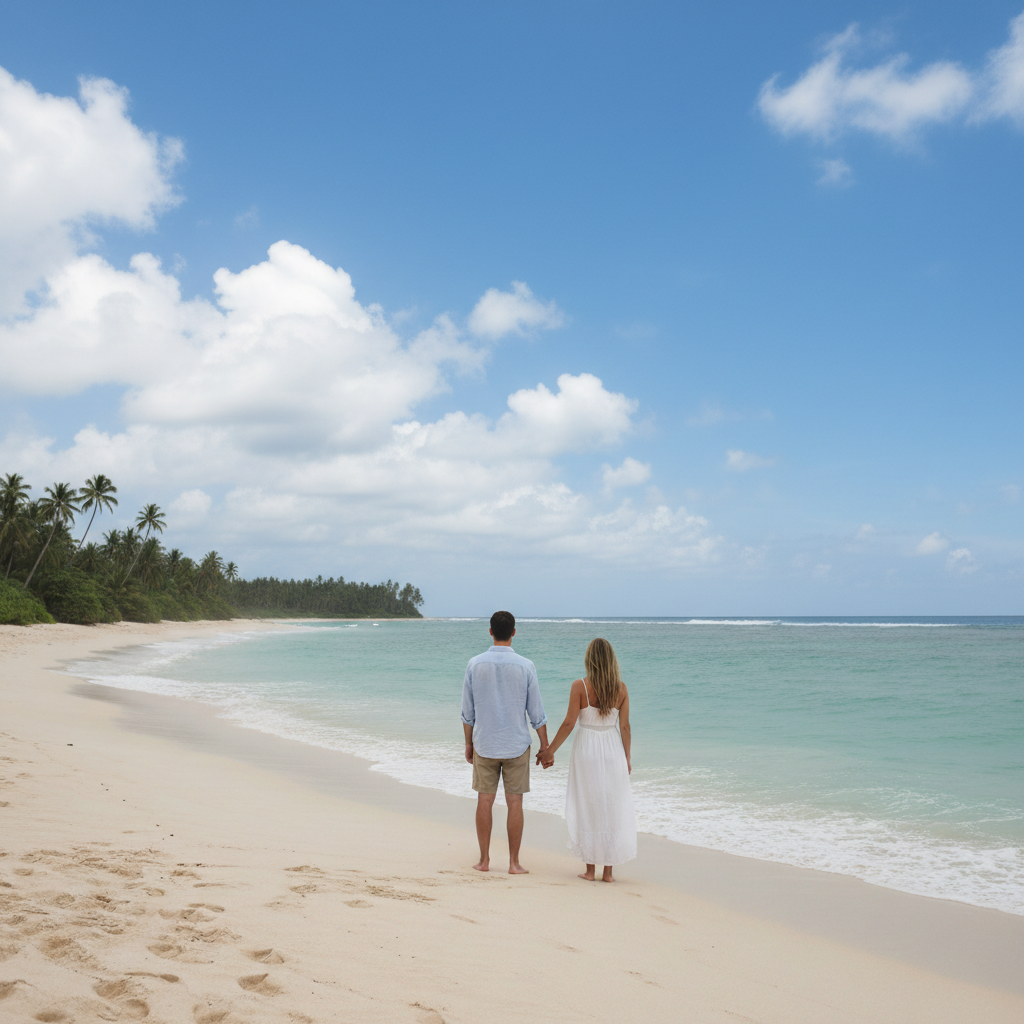
Fix gray sky replace gray sky with blue sky 20s
Remove photobomber remove photobomber on the left 20s

How it works

  1. Upload your vacation photo

    Drop any travel photo into EditThisPic. Landmark shots, beach photos, city scenes, or action shots all work. JPG, PNG, WebP up to 7MB.

    Expect: Simple fixes like lighting: 15-20 seconds. People removal or sky replacement: 25-30 seconds.
  2. Describe the fix you need

    Type what you want: 'remove the tourists from the background' or 'replace the overcast sky with blue sky.' Be specific about the problem. The AI understands travel photo issues like crowded landmarks, bad weather, and photobombers.

    Tip: For removing specific people, tap markers on them first for precise results

    Copy one of these to get started:

    Tourists crowding the landmark in background remove all the tourists and people from the background
    Overcast gray sky ruined the shot replace the gray overcast sky with a clear blue sky with some clouds
    Random stranger photobombed your shot remove the person photobombing on the left side
    Harsh midday sun creating bad shadows soften the harsh shadows on faces and reduce the squinting
    4 more prompts
    Trash, signs, or construction ruining the view remove the trash cans and construction barriers from the scene
    Sunset photo needs more vibrant colors enhance the sunset colors to be more vibrant and dramatic
    Action shot came out blurry sharpen the blurry parts and make the image clearer
    Need to remove ex from old travel photos remove this person completely and fill in the background naturally
  3. Download your perfect photo

    Review your corrected vacation photo and download in high resolution. Perfect for prints, social media, or travel albums. If you want additional adjustments, just describe them.

  4. Use markers for precise edits

    If you need to target a specific person or object, tap markers on those spots and describe the edit. Essential for crowded scenes where you want to remove certain people without affecting others.

    Tip: Markers are crucial when removing just a photobomber while keeping friends in the shot
Try it free ↓

Vacation Photo Editor

Upload photo to fix vacation photos

Free β€’ Results in 30 seconds β€’ No signup

Release to upload

Free β€’ No signup

"Finally got that perfect Eiffel Tower shot without the crowds. My Instagram followers think I had the place to myself!" @wanderlust_lisa

See it in action

Landmark photo with tourists crowding the background
Before
->
Same landmark photo with clean empty background
After

Removed Tourists from Landmark Photo

Famous landmark shot cleaned up by removing all the tourists in the background.

Prompt: remove all the tourists and people from the background
Beach photo with gray overcast sky
Before
->
Same beach photo with beautiful blue sky
After

Fixed Overcast Sky with Blue Sky

Gray weather-ruined beach photo transformed with beautiful blue sky.

Prompt: replace the gray overcast sky with clear blue sky and soft white clouds

Detailed Guides by Scenario

πŸ“·

Photo Rescue & Restoration

Revive old, damaged, or poorly-shot photos with AI vacation photos β€” bring new life to images you thought were unsalvageable.

Common Scenarios

  • Applying vacation photos to old family photos that have degraded over time
  • Fixing a once-in-a-lifetime shot (wedding, graduation) that suffers from poor quality
  • Using vacation photos on scanned prints to get crisp digital versions

Best Practices

  • Scan old photos at the highest DPI your scanner supports before uploading for best results
  • Describe the specific issue β€” 'this photo is too dark and blurry' gives better vacation photos than a generic prompt
  • For severely damaged photos, work in stages: fix the biggest issue first, then refine
πŸ“·

Professional & Business Use

Ensure photos for websites, presentations, and marketing meet professional standards with vacation photos.

Common Scenarios

  • Using vacation photos on employee photos for a company website that need to look polished
  • Applying vacation photos to event photos before sharing in a client presentation
  • Improving product images with vacation photos for an online store or catalog

Best Practices

  • Process all images in a batch with the same enhancement settings for visual consistency
  • For web use, balance enhancement quality with file size β€” overly large images slow page loads
  • Always compare before and after to make sure vacation photos looks natural, not over-processed
πŸ“·

Social Media & Personal Sharing

Make your personal photos look their best before sharing with friends, family, or followers using vacation photos.

Common Scenarios

  • Quickly applying vacation photos to vacation photos before posting on social media
  • Using vacation photos on a selfie that has great composition but poor lighting
  • Batch-fixing a phone gallery of photos with vacation photos before creating an album to share

Best Practices

  • Start with the photo you'd most like to share β€” fix that one first and use the same approach on the rest
  • For selfies, subtle enhancement always beats heavy processing β€” keep it natural
  • If the photo was shot in low light, mention it in the prompt so the AI tailors vacation photos accordingly

If something looks off

AI removed friends along with the tourists

Why: Without markers, the AI may not know which people to keep

Try: Tap markers on only the strangers you want removed, then 'remove these people only'

Tip: Always use markers when your friends are in the shot with strangers

Sky replacement looks fake around tree branches

Why: Complex edges like leaves and branches are hard to separate cleanly

Try: Try 'blend the sky more naturally around the edges'

Tip: Simpler compositions (buildings, horizon lines) work better for sky replacement

Removed person left a weird shadow or outline

Why: The person's shadow wasn't included in the removal area

Try: Add 'also remove the shadow' or tap markers on the shadow too

Tip: Always mention shadows when removing people on sunny days

Enhanced sunset looks oversaturated and unnatural

Why: The AI applied too much color enhancement

Try: Use 'subtly enhance sunset, keep colors natural'

Tip: Words like 'subtle' and 'natural' prevent the HDR-overdone look

Quick answers

Can I remove all tourists from my landmark photos?

Yes! This is one of our most popular uses. Type 'remove all the tourists and people from the background' and the AI will clean up crowded landmark shots. For very crowded photos, you may need to use markers to specify exactly which people to remove while keeping yourself or your group in the shot.

How do I fix photos ruined by bad weather?

Type 'replace the gray sky with blue sky' or 'replace overcast sky with sunset colors.' The AI will swap out the dreary backdrop while keeping your subject intact. Works great for beach photos, landmark shots, and scenic views where clouds ruined the mood.

Can I remove my ex from old travel photos?

Absolutely. Tap markers on the person you want removed, then type 'remove this person and fill in the background naturally.' The AI will seamlessly fill the space where they stood. Works on everything from couple selfies to group travel shots.

Is there a free vacation photo editor without watermarks?

Yes! EditThisPic is free to try with no signup required. You can remove tourists, fix skies, and enhance your travel photos without any watermarks on your edited photos. Perfect for testing on your best vacation shots.

Can I fix blurry action shots from my trip?

Yes, though results depend on how blurry the original is. Type 'sharpen the image and make it clearer' for mild blur. Slight motion blur from quick snaps can usually be improved. Severely blurry photos are harder to fix, but it's worth trying.

Is EditThisPic's AI vacation photos fixer really free?

Yes β€” you get 1 free edit per week, no account needed. For unlimited edits, plans start at $3.99/month.

Can I fix vacation photos on my phone?

Yes. EditThisPic works in any mobile browser β€” iPhone, Android, tablet. No app download needed.

What photo formats does the AI vacation photos fixer support?

JPG, PNG, WebP, and HEIC. Upload any common photo format and EditThisPic handles the rest.

Ready to perfect your vacation photos?

Your travel memories deserve perfect photos. Free to try, no signup required.