Free • No signup Add Clouds · Free

AI Cloud Generator

Transform empty skies with dramatic cloud formations using simple descriptions.
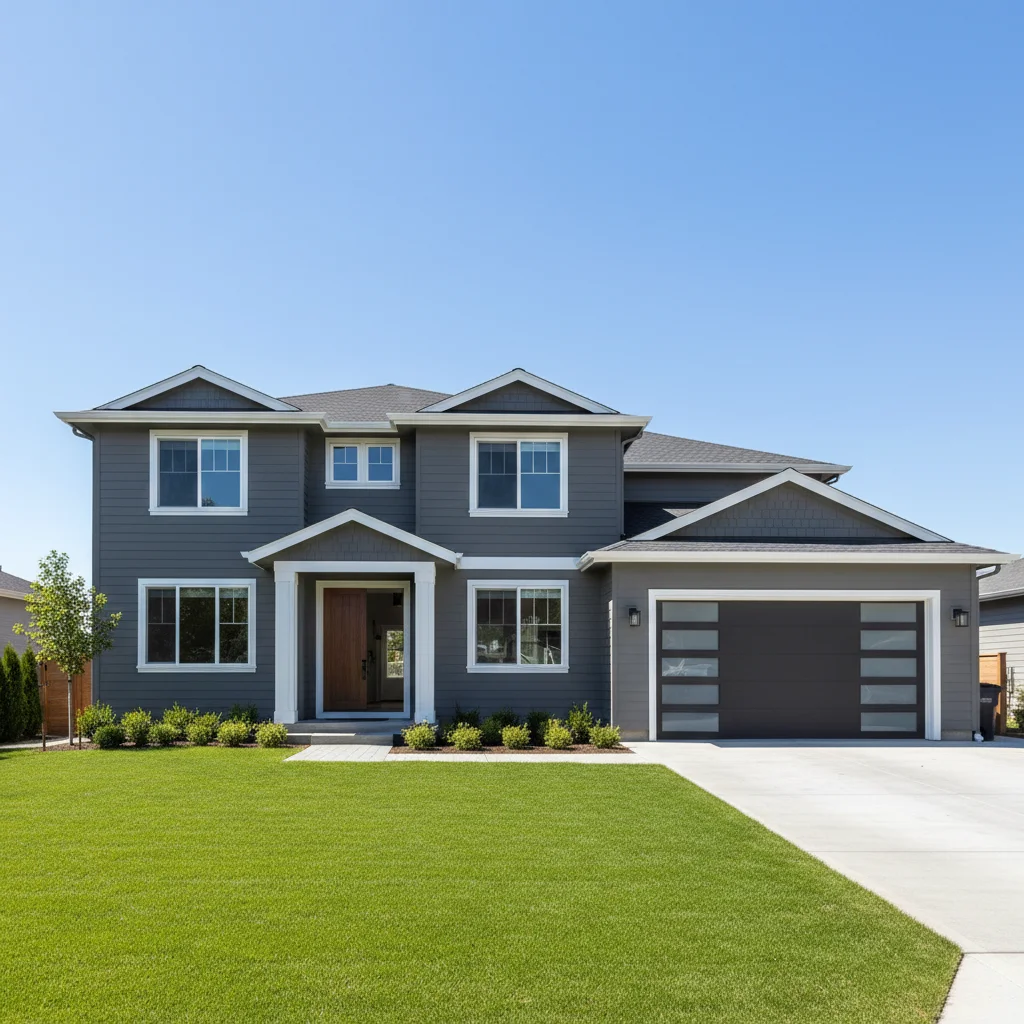
House with empty boring blue sky
Before
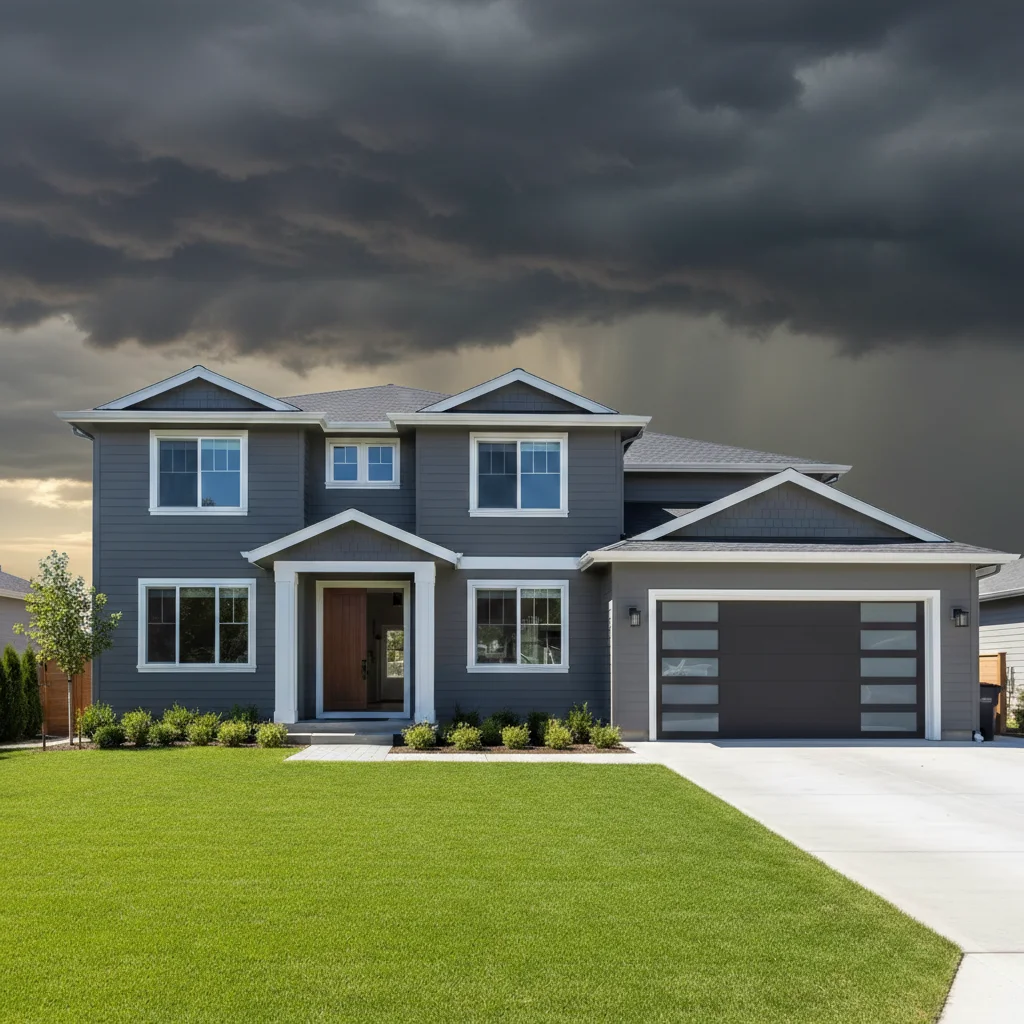
Same house with dramatic storm clouds added
After

Add Clouds to Sky

Drop your photo here

or click to browse

Release to upload

Free • No signup

Advertisement
Popular use cases:
  • real estate photography
  • landscape photos
  • architecture photography
  • outdoor portraits
  • travel photography
  • property listings
  • Instagram posts
  • scenic photography

Cost
Free No signup required
Time
Instant results in 15-30 seconds
Works on
Any device - browser, phone, tablet, desktop
Powered by
AI-powered photo editing
Scenario Prompt Time
Dramatic storm clouds add dramatic dark storm clouds with patches of light breaking through 20s
Fluffy cumulus add scattered fluffy white cumulus clouds across bright blue sky 15s
Sunset clouds add wispy clouds with orange, pink, and purple sunset colors 20s
Balanced coverage add a mix of white puffy clouds and clear blue patches 15s

How it works

  1. Upload your photo with visible sky

    Drop your photo into EditThisPic. JPG, PNG, WebP up to 7MB. Works best on photos with clear or partially cloudy skies where you want to add more drama. Architecture, landscape, and outdoor portrait photos are ideal candidates for cloud enhancements.

    Expect: Simple cloud additions to clear skies: 15-30 seconds. Complex storm formations or matching existing lighting conditions: may need 2-3 refinements.
  2. Describe the clouds you want

    Type your instruction: 'add dramatic storm clouds with dark grays and sun breaking through' or 'add fluffy white cumulus clouds scattered across blue sky.' Be specific about cloud type (cumulus, stratus, storm), density (scattered, dense, wispy), color (white, gray, orange sunset), and mood. No masking needed—the AI understands sky area and perspective. Include lighting context like 'golden hour' or 'overcast' for natural integration.

    Tip: Mention the time of day or weather mood ('sunrise', 'approaching storm', 'peaceful afternoon') to help AI match lighting and cloud color to your scene.

    Copy one of these to get started:

    Dramatic storm clouds add dramatic dark storm clouds across the sky with patches of light breaking through, creating moody atmospheric lighting
    Fluffy white cumulus clouds add scattered fluffy white cumulus clouds across bright blue sky, creating depth and dimension with natural spacing
    Sunset clouds with color add wispy clouds in the upper sky with orange, pink, and purple sunset colors, matching golden hour lighting
    Overcast cloud layer add a complete overcast cloud layer with light gray stratus clouds covering the entire sky, even diffused lighting
    3 more prompts
    Partly cloudy balanced sky add a mix of white puffy clouds and clear blue patches, balanced coverage with clouds in upper two-thirds of sky
    Dramatic sunrise clouds add low horizontal clouds near the horizon with vibrant orange and red colors from sunrise, creating layers of color and light
    Wispy high altitude clouds add thin wispy cirrus clouds high in the sky, barely visible streaks creating subtle texture without blocking light
  3. Generate and review results

    AI analyzes your existing sky, horizon line, and lighting conditions to add clouds with proper perspective and atmosphere. Check how clouds interact with your scene's lighting—shadows, color temperature, and depth should match naturally. Zoom in to verify cloud edges and formations look realistic.

  4. Refine placement with markers if needed

    If you want clouds concentrated in specific sky areas or need to adjust density in certain zones, tap markers there and regenerate. This is optional—most cloud additions work without markers. Use markers to keep clouds away from specific areas or concentrate them where you want maximum drama.

    Tip: Markers help when you want to preserve a clear sunset area or keep clouds concentrated on one side of the frame.
Try it free

Add Clouds to Sky

Drop your photo here

or click to browse

Release to upload

Free • No signup

"Turned my flat boring sky into a dramatic sunset with clouds. The lighting matched perfectly, looks completely real." @realestatepro

See it in action

House with empty boring blue sky
Before
->
Same house with dramatic storm clouds added
After

Real estate listing with dramatic sky

Transformed a boring clear blue sky into dramatic storm clouds with light breaking through, making the property photo much more compelling.

Prompt: add dramatic dark storm clouds across the sky with patches of light breaking through, creating moody atmospheric lighting
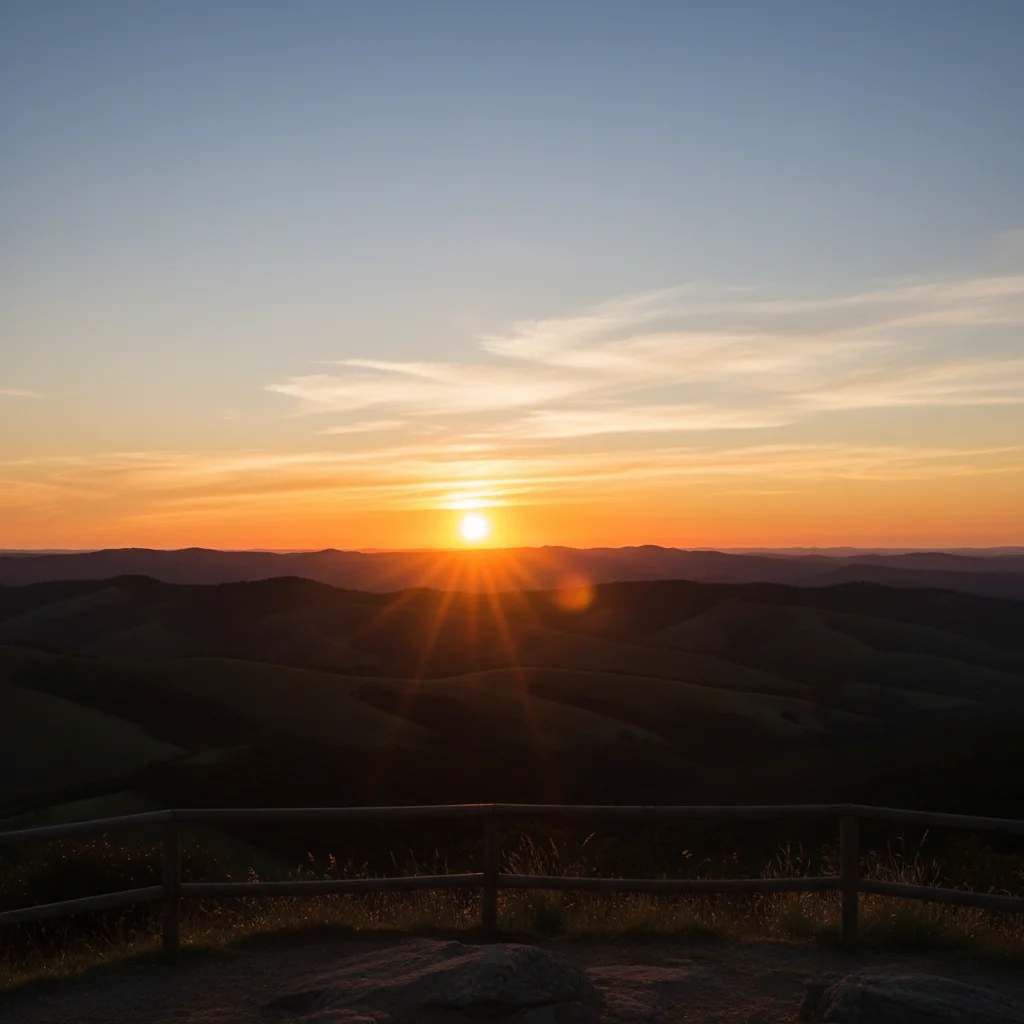
Sunset landscape with clear upper sky
Before
->
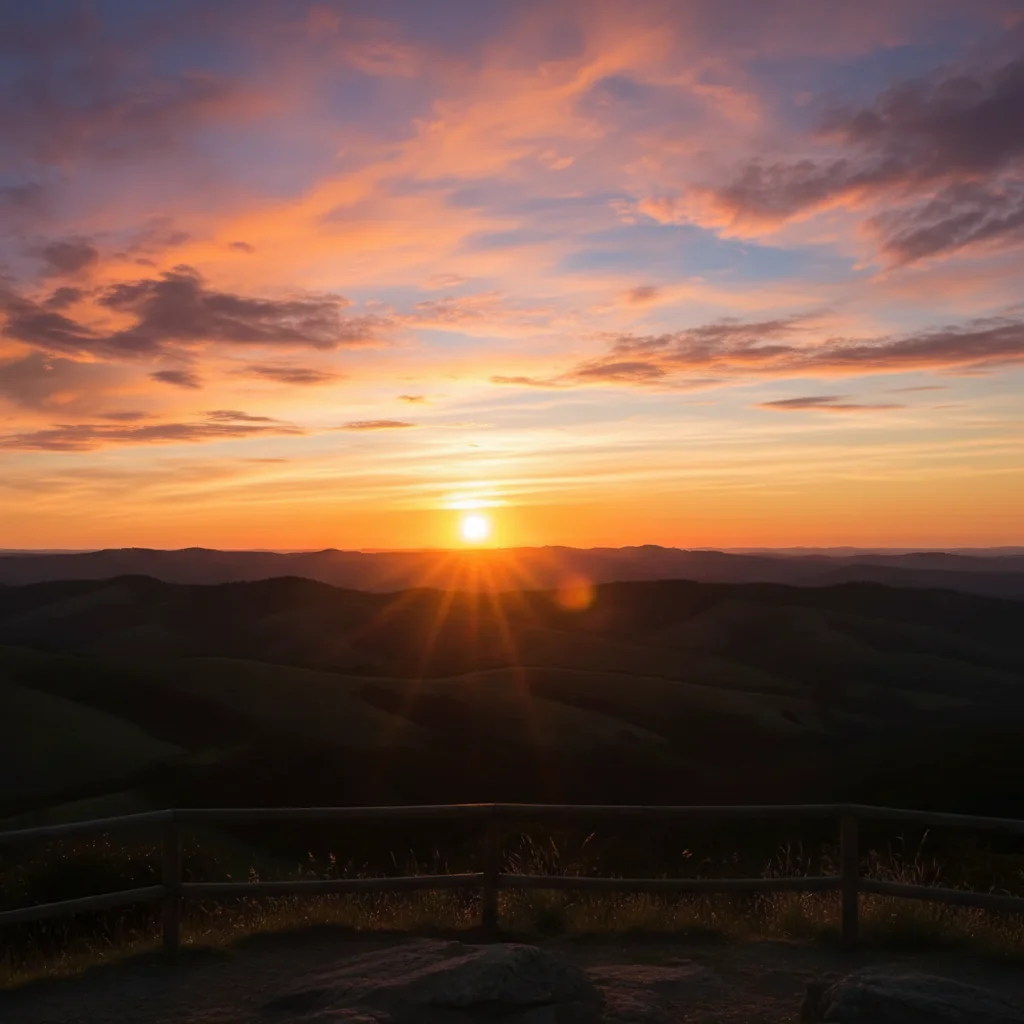
Same landscape with colorful sunset clouds
After

Landscape with sunset clouds

Added wispy golden hour clouds to enhance a sunset landscape. The clouds picked up the warm tones perfectly and added depth to the sky.

Prompt: add wispy clouds in the upper sky with orange, pink, and purple sunset colors, matching golden hour lighting
City skyline against empty blue sky
Before
->
Same skyline with balanced cloud coverage
After

City skyline with balanced clouds

Enhanced a flat city skyline photo by adding scattered cumulus clouds for depth and dimension without overwhelming the architecture.

Prompt: add a mix of white puffy clouds and clear blue patches, balanced coverage with clouds in upper two-thirds of sky
Advertisement

If something looks off

Clouds look flat or pasted on, not integrated

Why: The AI added clouds without matching your photo's perspective, lighting direction, or atmospheric haze. Natural clouds should follow sky curvature and match scene lighting.

Try: Include perspective and lighting in your prompt: 'add clouds with natural perspective receding toward horizon, matching the warm afternoon light from the right'

Tip: Mentioning lighting direction ('from the left', 'overhead sun') helps AI integrate clouds with your scene's shadows and highlights.

Cloud colors don't match my photo's time of day

Why: Generic cloud descriptions default to neutral white/gray. Your photo's lighting (golden hour, blue hour, overcast) should influence cloud color.

Try: Add color context: 'add clouds with warm orange and pink tones for sunset' or 'add cool gray-blue clouds for overcast afternoon'

Tip: Always mention time of day or lighting mood in your cloud prompt to coordinate colors.

Too many clouds, sky feels overwhelming

Why: Without density guidance, AI may fill the entire sky. Natural skies often have varied coverage with clear patches.

Try: Specify coverage: 'add scattered clouds with plenty of blue sky visible' or 'add clouds only in the upper third of sky, keeping lower sky clear'

Tip: Use words like 'scattered', 'sparse', or 'partial coverage' to prevent overwhelming the frame.

Clouds have wrong type or shape for my scene

Why: Different cloud types convey different moods. Storm clouds, fluffy cumulus, and wispy cirrus each create distinct atmospheres.

Try: Specify cloud type: 'add fluffy cumulus clouds' for peaceful, 'add dark cumulonimbus storm clouds' for drama, or 'add wispy cirrus streaks' for subtle texture

Tip: Research cloud types: cumulus (puffy), stratus (layered), cirrus (wispy), cumulonimbus (storm) to request the right mood.

Clouds appear in front of buildings or objects

Why: The AI may have misidentified sky boundaries, especially with complex skylines or objects protruding into the sky.

Try: Use markers to define the exact sky area where clouds should appear, avoiding buildings and foreground objects

Tip: Markers help when you have a busy skyline or objects like trees and poles that should stay in front of clouds.

Lighting on ground doesn't match new clouds

Why: Adding dark storm clouds should logically change ground lighting, but AI only modified the sky. This can create inconsistency.

Try: For dramatic cloud changes, also request lighting adjustment: 'add storm clouds and reduce ground brightness to match overcast lighting'

Tip: Major sky changes (clear to storm) may need a second edit to adjust ground lighting for full realism.

Quick answers

Do I need to select the sky before adding clouds?

No! Just describe the clouds you want: 'add dramatic storm clouds to the sky' or 'add scattered white cumulus clouds.' The AI identifies sky area automatically. Only use markers if you need to define specific zones where clouds should appear or avoid certain areas like around objects protruding into the sky.

How do I make clouds look realistic and not obviously added?

Include context in your description: mention time of day ('sunset clouds', 'afternoon cumulus'), lighting mood ('matching golden hour'), and perspective ('receding toward horizon'). Also specify cloud type (cumulus, stratus, cirrus) and density ('scattered', 'dense'). Natural clouds coordinate with your scene's existing lighting and follow perspective lines.

What is the best free AI tool to add clouds to photos?

EditThisPic's AI Cloud Generator adds realistic cloud formations by analyzing your sky area, perspective, and lighting. Just describe the cloud type and mood you want—no masking or sky selection needed. Creates natural-looking results in 15-30 seconds. Free to try with no signup or watermark.

Can I add different types of clouds like storm clouds or sunset clouds?

Yes! Specify the type and mood: 'dramatic dark storm clouds with light breaking through' for weather drama, 'fluffy white cumulus clouds' for peaceful skies, 'wispy orange and pink sunset clouds' for golden hour, or 'overcast gray stratus clouds' for even lighting. The AI adjusts cloud shape, color, and density to match.

Will adding clouds change the lighting in my photo?

The AI primarily modifies the sky area. Minor lighting adjustments may occur naturally at sky boundaries. For major changes (like adding dark storm clouds to a sunny scene), you may want to do a second edit to adjust ground lighting: 'reduce brightness and add soft shadows to match overcast sky.' This creates full realism when dramatically changing sky mood.

Why do my clouds look too white or too dark compared to the rest of the photo?

The default may not match your lighting. Add color guidance: 'with warm tones' for sunset, 'with cool gray-blue' for overcast, 'bright white against deep blue' for midday. Mentioning lighting context helps AI coordinate cloud tones with your scene. You can also specify 'matching existing lighting' in your prompt.

Ready to enhance your sky with clouds?

Free to try. No signup required.

Try it free