Free • No signup Enlarge Eyes · Free

AI Eye Enlarger

Describe the eye enhancement you want and AI enlarges them naturally.
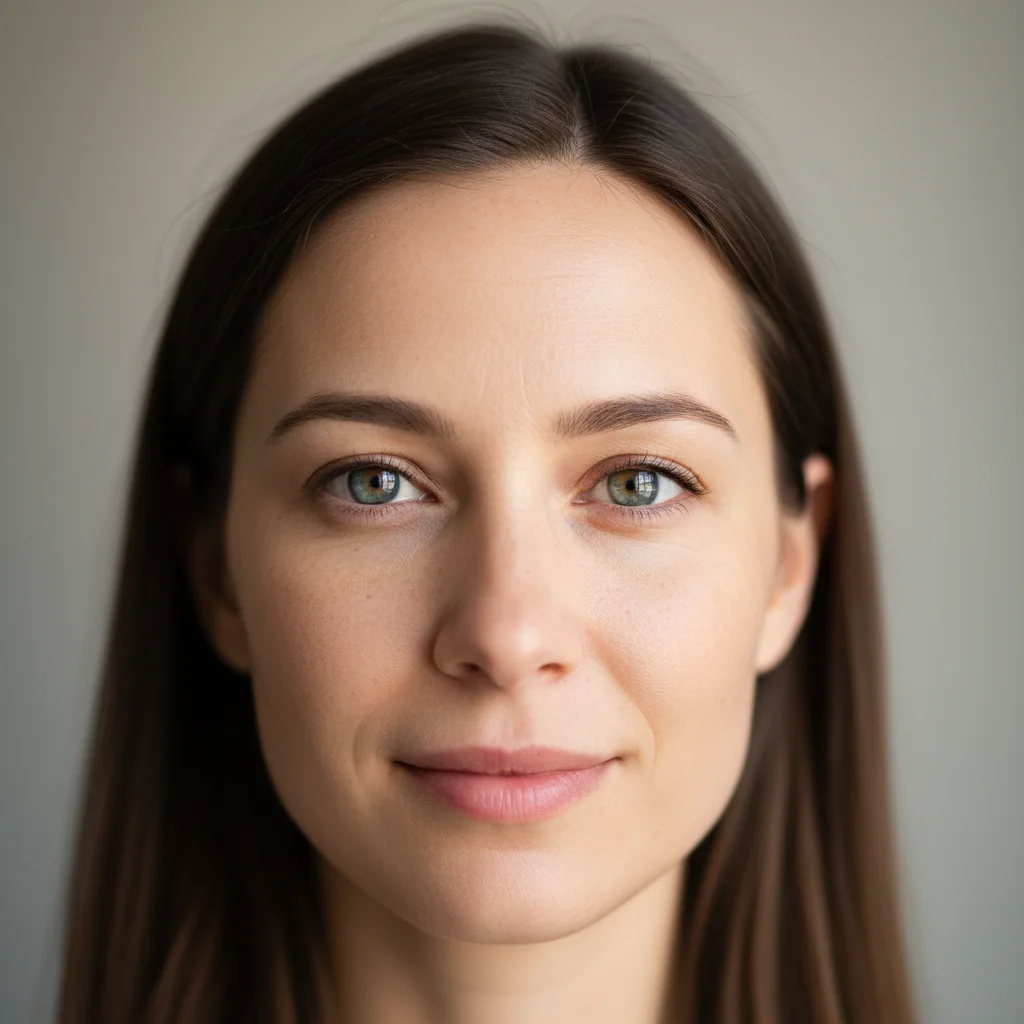
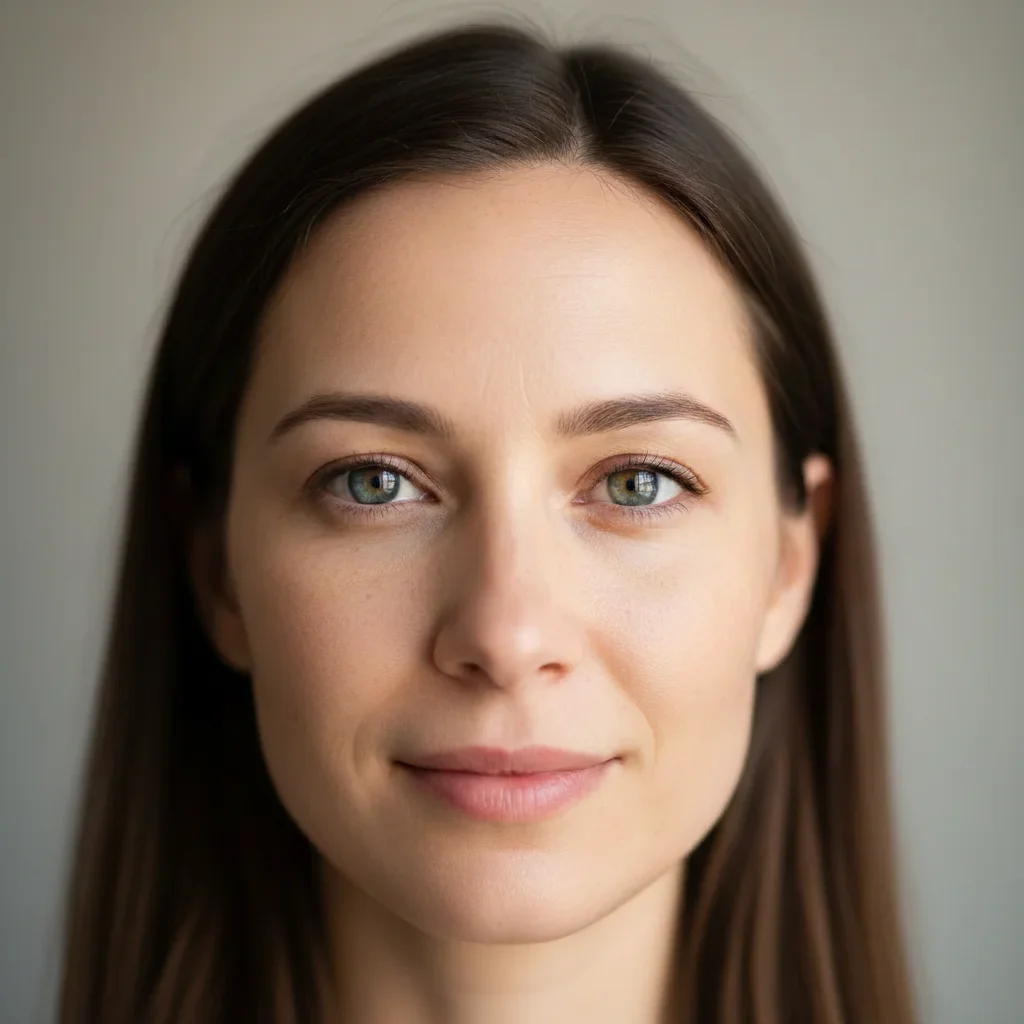
Portrait with smaller less prominent eyes
Before
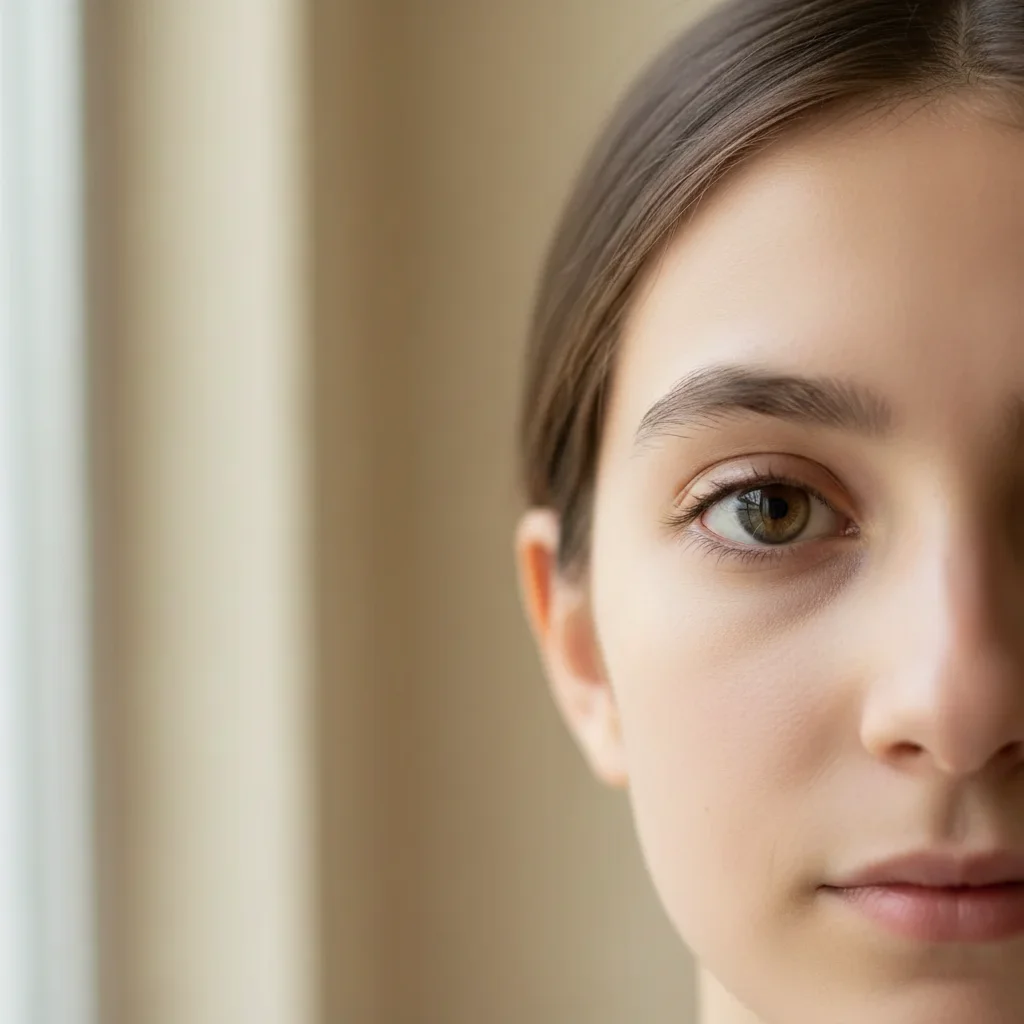
Portrait with subtly enlarged expressive eyes
After

Enlarge Eyes in Photo

Drop your photo here

or click to browse

Release to upload

Free • No signup

Advertisement
Popular use cases:
  • portrait photography
  • beauty photography
  • social media selfies
  • professional headshots
  • creative editing

Cost
Free No signup required
Time
Instant results in 15-30 seconds
Works on
Any device - browser, phone, tablet, desktop
Powered by
AI-powered photo editing
Scenario Prompt Time
Subtle enlargement enlarge eyes slightly for a more expressive look while keeping natural proportions 25s
Moderate bigger eyes make eyes moderately bigger and more prominent, maintaining facial balance 30s
Wide awake look enlarge and widen eyes for a more open, awake appearance 25s

How it works

  1. Upload your photo

    Drop your portrait into EditThisPic. Works best with clear, well-lit face photos where eyes are clearly visible. JPG, PNG, WebP up to 7MB.

    Expect: Subtle enlargement: 20-25 seconds. Moderate changes may need one refinement for perfect balance.
  2. Describe what you want

    Type your instruction: 'enlarge eyes slightly for a more expressive look' or 'make eyes bigger while keeping natural proportions.' Specify intensity. No marking needed—the AI understands eye anatomy and facial balance.

    Tip: Use 'slightly', 'moderately', or 'noticeably' to control enlargement amount

    Copy one of these to get started:

    Subtle eye enlargement enlarge eyes slightly for a more expressive look while keeping natural proportions
    Moderate eye enhancement make eyes moderately bigger and more prominent, maintaining facial balance
    Widen and enlarge eyes enlarge and widen eyes for a more open, awake appearance
    Anime-style big eyes noticeably enlarge eyes for an anime-inspired look
    3 more prompts
    Enlarge one eye for symmetry enlarge the left eye to match the size of the right eye for symmetry
    Brighten and enlarge enlarge eyes slightly and brighten the iris for more expressive eyes
    Subtle doe-eye effect enlarge eyes and round them slightly for a soft doe-eye effect
  3. Generate and review

    Click Generate and watch AI enlarge eyes while preserving iris detail, eyelashes, and natural eye shape. Check that enlargement looks proportional to the face at full zoom.

  4. Refine with markers if needed

    If enlargement needs adjustment or you want to target only one eye, tap markers on those areas and regenerate. This is optional—most edits work without markers.

    Tip: Markers are for precision refinement, not required. Try without them first.
Try it free

Enlarge Eyes in Photo

Drop your photo here

or click to browse

Release to upload

Free • No signup

"Made my eyes pop in portraits without looking cartoon-like. Perfect subtle enhancement." @maya_l

See it in action

Portrait with smaller less prominent eyes
Before
->
Portrait with subtly enlarged expressive eyes
After

Subtle expressive eyes

Slightly enlarged eyes for a more expressive, engaging portrait while maintaining natural proportions.

Prompt: enlarge eyes slightly for a more expressive look while keeping natural proportions
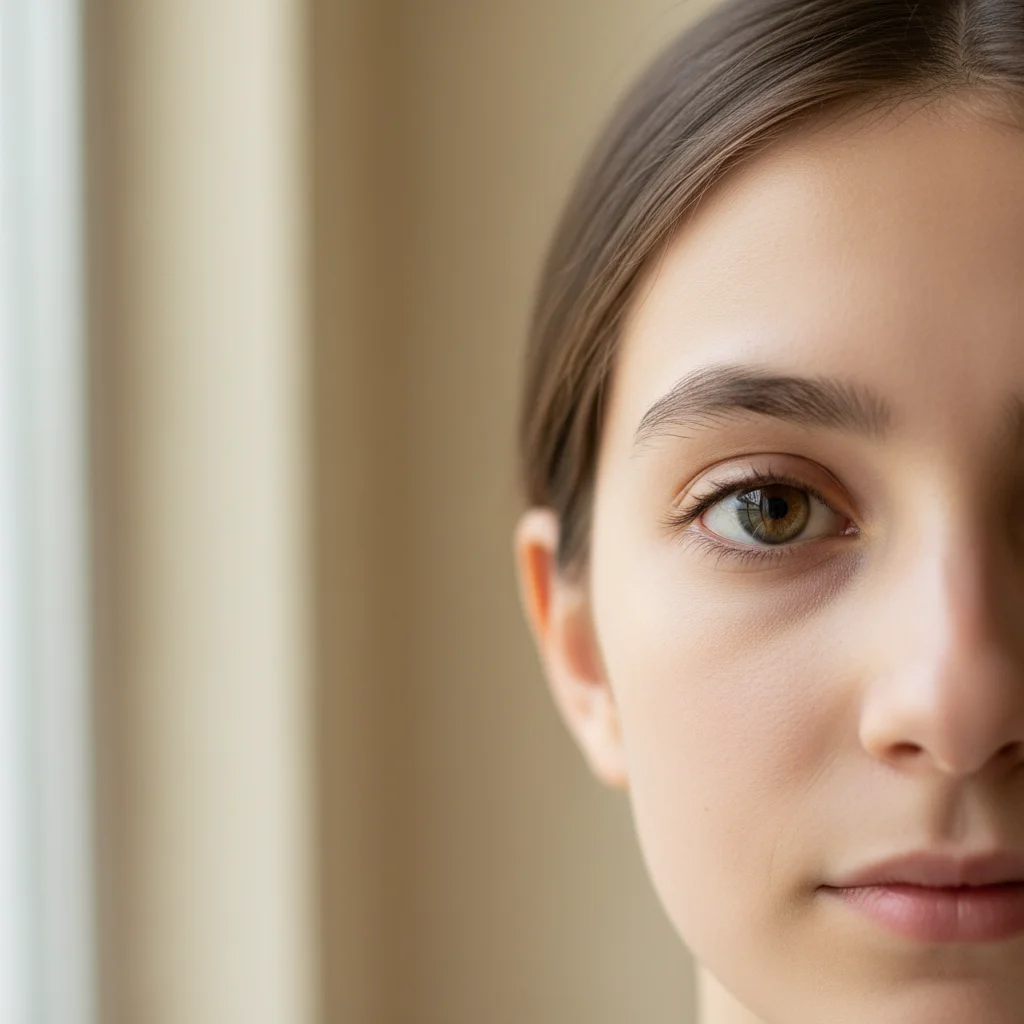
Portrait with normal-sized eyes
Before
->
Portrait with moderately enlarged eyes
After

Moderately bigger eyes

Noticeably enlarged eyes while maintaining facial balance and natural appearance.

Prompt: make eyes moderately bigger and more prominent, maintaining facial balance
Portrait with tired narrowed eyes
Before
->
Portrait with enlarged wide awake eyes
After

Wide awake eyes

Enlarged and widened eyes for a more open, alert appearance.

Prompt: enlarge and widen eyes for a more open, awake appearance
Advertisement

If something looks off

AI changed the wrong area or modified more than just the eyes

Why: The AI couldn't determine exactly which areas you meant from description alone. This happens with ambiguous requests.

Try: Tap markers on both eyes to specify exactly which features to enlarge, then regenerate

Tip: Markers tell the AI 'I mean THESE specifically.' Use them when description alone is ambiguous.

Eyes look cartoonish or unrealistic

Why: Enlargement was too extreme or didn't maintain natural eye anatomy.

Try: Use 'slightly' or 'subtly': 'enlarge eyes slightly while keeping natural proportions'

Tip: Start with subtle changes and regenerate for more if needed

Iris or pupil looks distorted

Why: AI stretched eye detail during enlargement.

Try: Add 'preserving iris detail and natural eye structure' to your prompt
Eyes look asymmetric after enlargement

Why: Enlargement affected one eye more than the other.

Try: Add 'enlarge both eyes symmetrically' or use markers on both eyes

Tip: Slight natural asymmetry is normal and often looks more realistic

Face proportions look unbalanced

Why: Eye enlargement made eyes too large relative to other features.

Try: Reduce intensity: 'very slightly enlarge eyes' or 'subtly make eyes bigger'
Eyelashes or eye makeup disappeared

Why: AI didn't preserve surrounding eye details during enlargement.

Try: Add 'keeping eyelashes and eye makeup intact' to your prompt

Quick answers

Do I need to mark the eyes before describing what I want enlarged?

No! Just describe what you want: 'enlarge eyes slightly' or 'make eyes bigger.' The AI understands eye anatomy and facial proportions. Only use markers when you need precision—like enlarging only one eye for symmetry, or refining after your first attempt.

How do I enlarge eyes in a photo for free?

Upload your photo to EditThisPic and type 'enlarge eyes slightly for a more expressive look while keeping natural proportions.' The AI increases eye size while preserving detail in 20-30 seconds. Completely free, no signup required.

Will enlarged eyes look natural or fake?

When you use 'slightly' or 'moderately' and include 'keeping natural proportions,' the AI creates realistic enlargement. Subtle enhancements are virtually undetectable. Very dramatic changes may look stylized or artistic.

Can I control how much bigger the eyes get?

Yes. Use intensity descriptors: 'slightly' for subtle enhancement, 'moderately' for noticeable change, 'noticeably' for dramatic enlargement. Start subtle and regenerate for more if needed.

What's the best eye enlargement for portraits?

For professional or natural-looking portraits, use 'enlarge eyes slightly while keeping natural proportions.' For creative or beauty photography, you can go with 'moderately' or 'noticeably.'

Ready to enlarge your eyes?

Free to try. No signup required.

Try it free