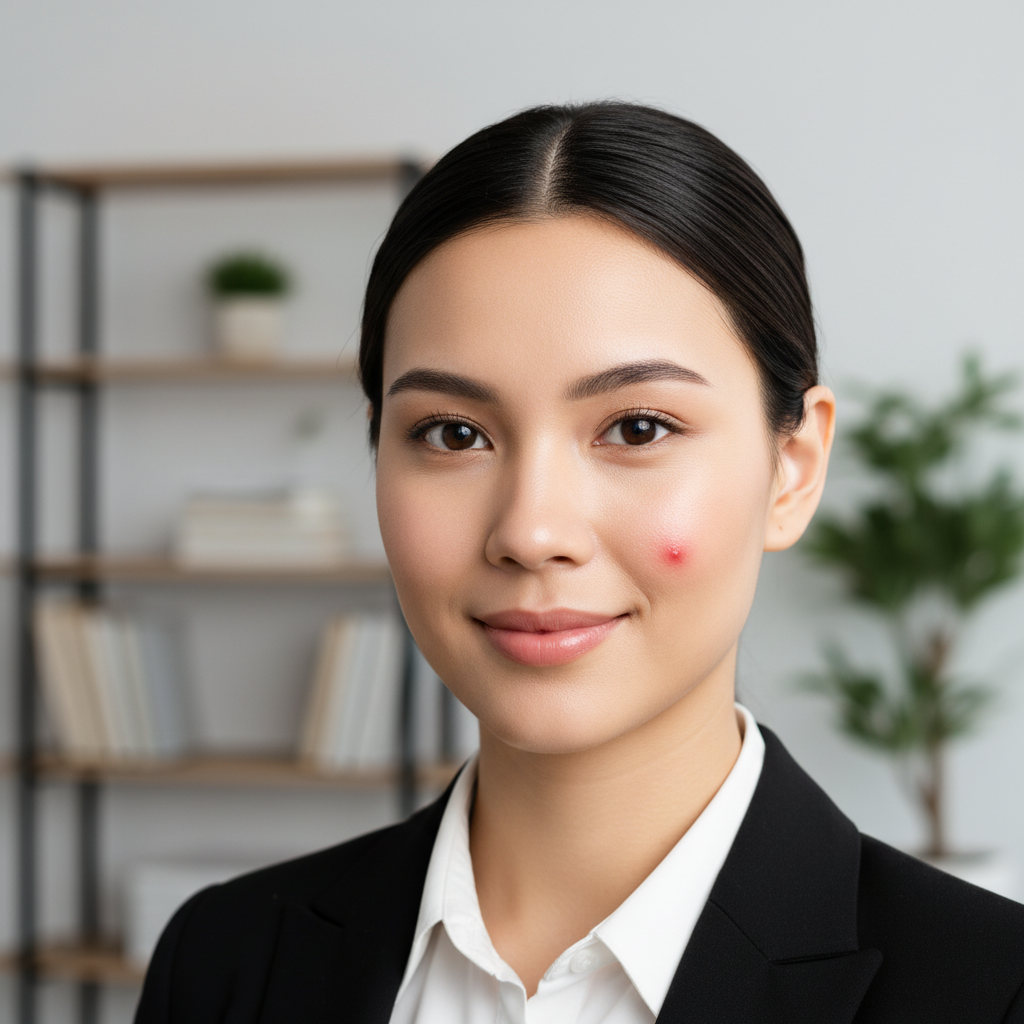
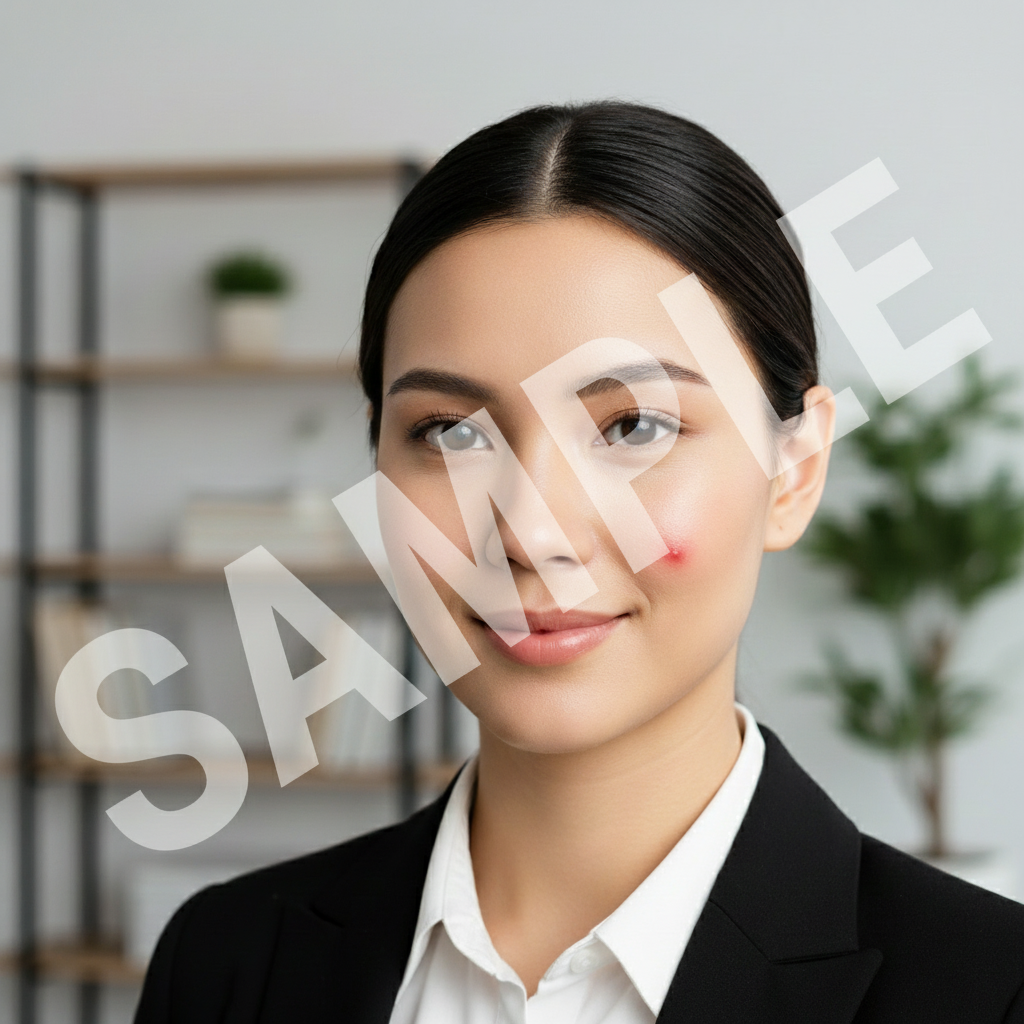
Free • No signup Remove Pimple · Free

AI Pimple Remover

Just describe where the pimples are and AI removes them naturally.
Selfie with visible red pimple on forehead
Before
Clean selfie with pimple removed and natural skin texture
After

AI Pimple Remover

Drop your photo here

or click to browse

Release to upload

Free • No signup

Advertisement
Popular use cases:
  • selfies
  • portrait photography
  • LinkedIn headshots
  • dating profile photos
  • social media
  • school photos

Cost
Free No signup required
Time
Instant results in 15-30 seconds
Works on
Any device - browser, phone, tablet, desktop
Powered by
AI-powered photo editing
Scenario Prompt Time
Single pimple remove the pimple on my forehead 10s
Multiple pimples remove all pimples from my face 15s
Specific area remove pimples from my cheeks only 15s

How it works

  1. Upload your photo

    Drop your selfie or portrait into EditThisPic. JPG, PNG, WebP up to 7MB. Works best with well-lit photos where pimples are clearly visible.

    Expect: Single pimple removal: 10-15 seconds. Multiple pimples: 20-25 seconds.
  2. Describe what you want

    Type your instruction: 'remove the pimple on my forehead' or 'remove all pimples from my face.' Be specific about location if you only want certain ones removed. No marking needed—the AI identifies and removes pimples while preserving natural skin texture.

    Tip: For best results, mention the location: 'remove the pimple on my nose' is clearer than just 'remove pimple.'

    Copy one of these to get started:

    Single pimple on face remove the pimple on my forehead
    Multiple pimples remove all pimples from my face
    Specific area remove pimples from my cheeks only
    Nose pimple remove the pimple on my nose
    2 more prompts
    Chin breakout remove the pimples on my chin and jawline
    Pimple with redness remove the red pimple on my cheek and even out skin tone
  3. Generate and download

    Click Generate and the AI removes pimples while matching your natural skin tone and texture. Download your clear photo with no watermark.

  4. Refine with markers if needed

    If a pimple remains or you want to target a specific spot, tap a marker on that exact location and regenerate. This is optional—most pimples are removed on the first try.

    Tip: Markers help when you have very small pimples that the AI might miss. Use them for precision on specific spots.
Try it free

AI Pimple Remover

Drop your photo here

or click to browse

Release to upload

Free • No signup

"Removed a huge pimple from my LinkedIn photo. Just typed what I wanted and it looked completely natural." @professionalpic

See it in action

Selfie with visible red pimple on forehead
Before
->
Clean selfie with pimple removed and natural skin texture
After

Forehead Pimple Removed

Single prominent pimple on forehead removed while preserving natural skin texture and lighting.
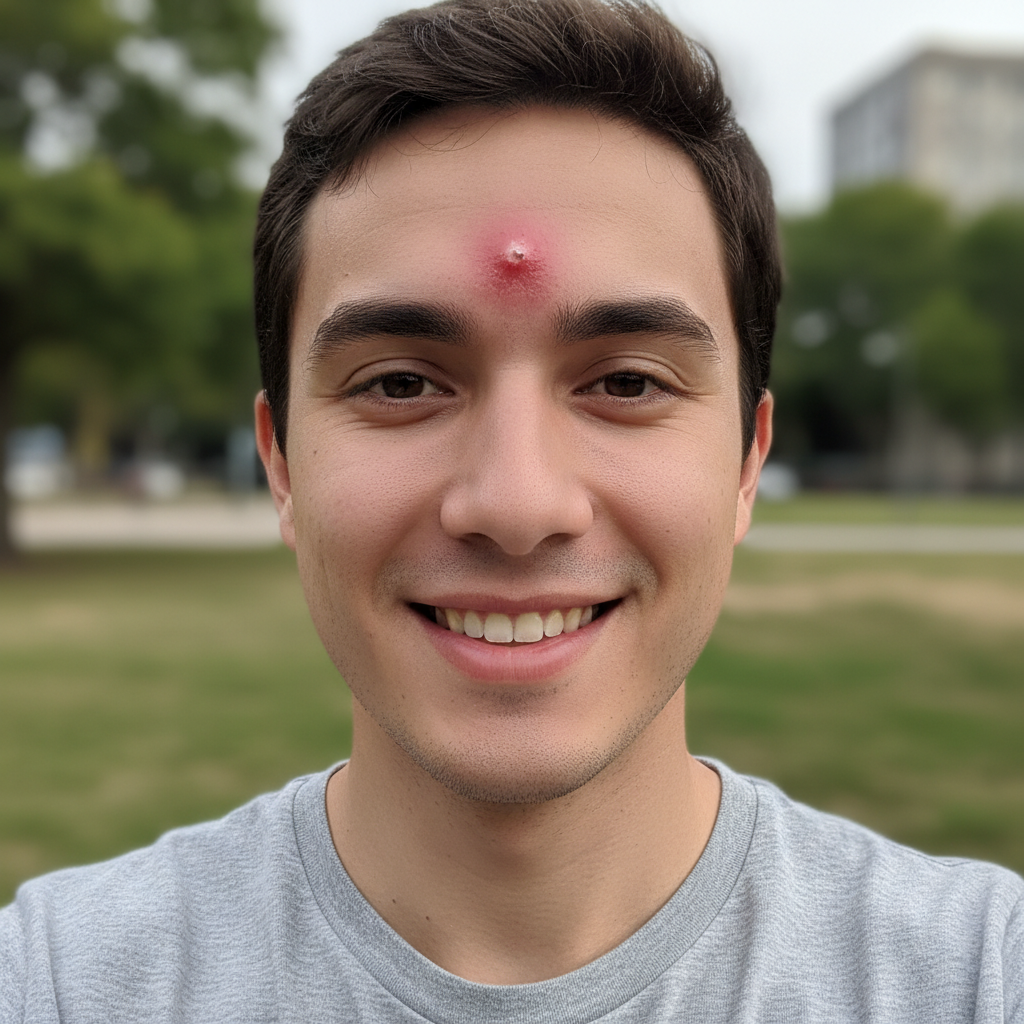
Prompt: remove the pimple on my forehead
Portrait with multiple visible pimples on cheeks
Before
->
Clean portrait with all pimples removed naturally
After

Multiple Cheek Pimples Cleared

Several pimples removed from both cheeks in one edit with natural skin tone matching.

Prompt: remove all pimples from my face
Advertisement

If something looks off

AI changed the wrong area or removed a mole/freckle I wanted to keep

Why: The AI interpreted your instruction broadly and removed anything it identified as a blemish. This happens when the instruction is too general like 'remove all pimples.'

Try: Be more specific: 'remove only the pimple on my forehead' or use a marker to tap exactly which spot to remove

Tip: If you have freckles or moles you want to keep, be very specific about which blemishes to remove, or use markers for precision.

Skin looks too smooth or plastic-like

Why: The AI over-smoothed the skin while removing the pimple, eliminating natural texture and pores.

Try: Regenerate with 'remove the pimple while preserving natural skin texture and pores'

Tip: Adding 'preserve natural skin texture' to your prompt prevents the AI from over-smoothing.

Pimple is still visible or only partially removed

Why: The pimple was very small, in shadow, or the AI didn't identify it as a clear blemish.

Try: Tap a marker directly on the pimple and use a simple prompt: 'remove this pimple'

Tip: Very small pimples sometimes need a marker to ensure the AI targets the exact spot.

Skin tone doesn't match around the removed pimple

Why: The photo has uneven lighting or color casts that make it hard for the AI to match the surrounding skin tone perfectly.

Try: Try 'remove the pimple and blend with surrounding skin tone' or adjust your photo's lighting before editing

Tip: Photos with even, natural lighting produce the most consistent skin tone matching.

Quick answers

Do I need to mark the pimple before describing?

No! Just describe where it is: 'remove the pimple on my forehead' or 'remove all pimples from my face.' The AI finds and removes them automatically. Only use markers when you have a very small pimple that the AI might miss, or when you want to target one specific spot among multiple blemishes.

How do I remove pimples from a photo for free?

Upload your photo to EditThisPic, type 'remove the pimple on my [location]' or 'remove all pimples from my face' and the AI removes them in 10-15 seconds. Free to use with no signup or watermark. Works on selfies, portraits, and headshots.

Will it remove acne scars or just active pimples?

This tool works best on active pimples and fresh blemishes. For acne scars (textured, indented marks), try our AI Scar Remover which is specifically designed for permanent scarring.

Can I remove some pimples but keep freckles?

Yes, be specific: 'remove only the pimple on my forehead' instead of 'remove all blemishes.' Or use markers to tap exactly which spots to remove. This gives you precise control over what stays and what goes.

Ready to remove pimples from your photos?

Free to try. No signup required.

Try it free