Free • No signup Convert Pixel art · Free

AI Pixel Art Maker

Describe the pixel art style and AI transforms your photo into retro game art.

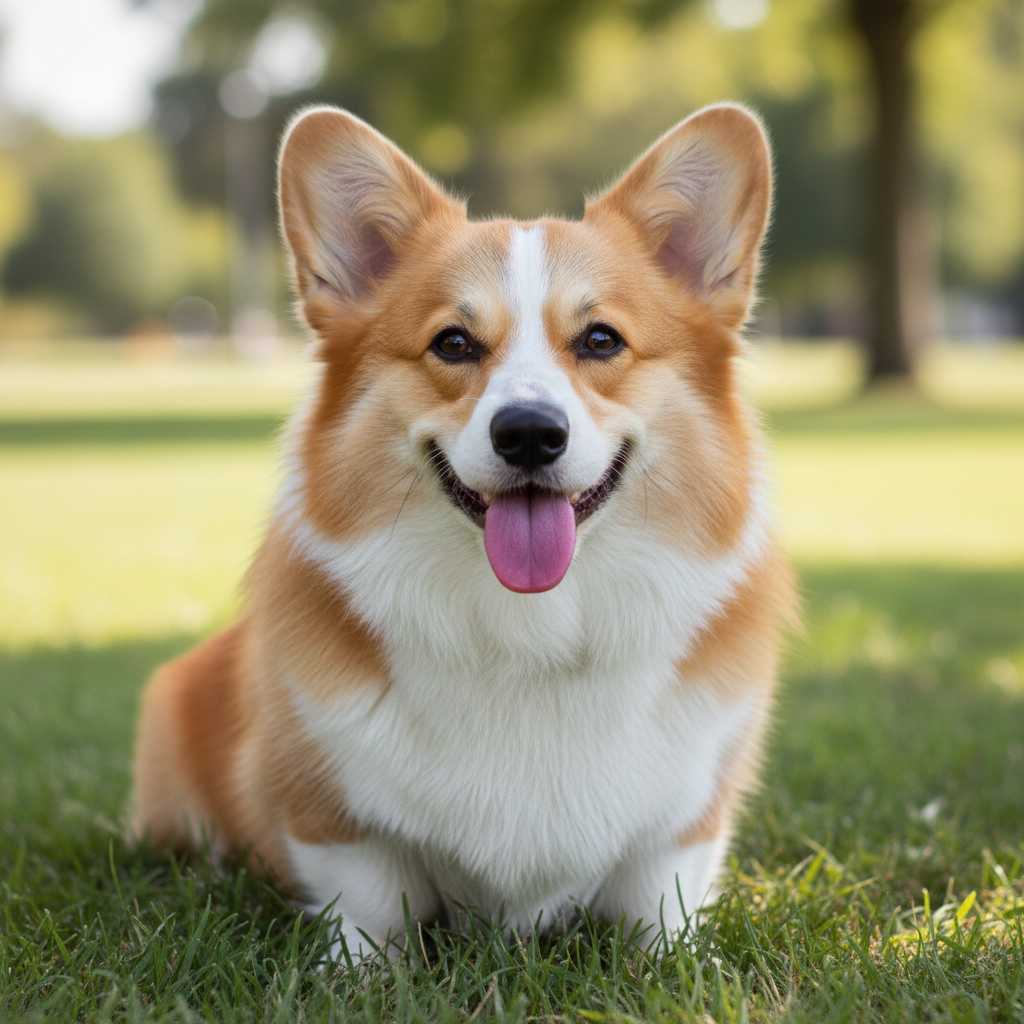
Modern portrait photo
Before
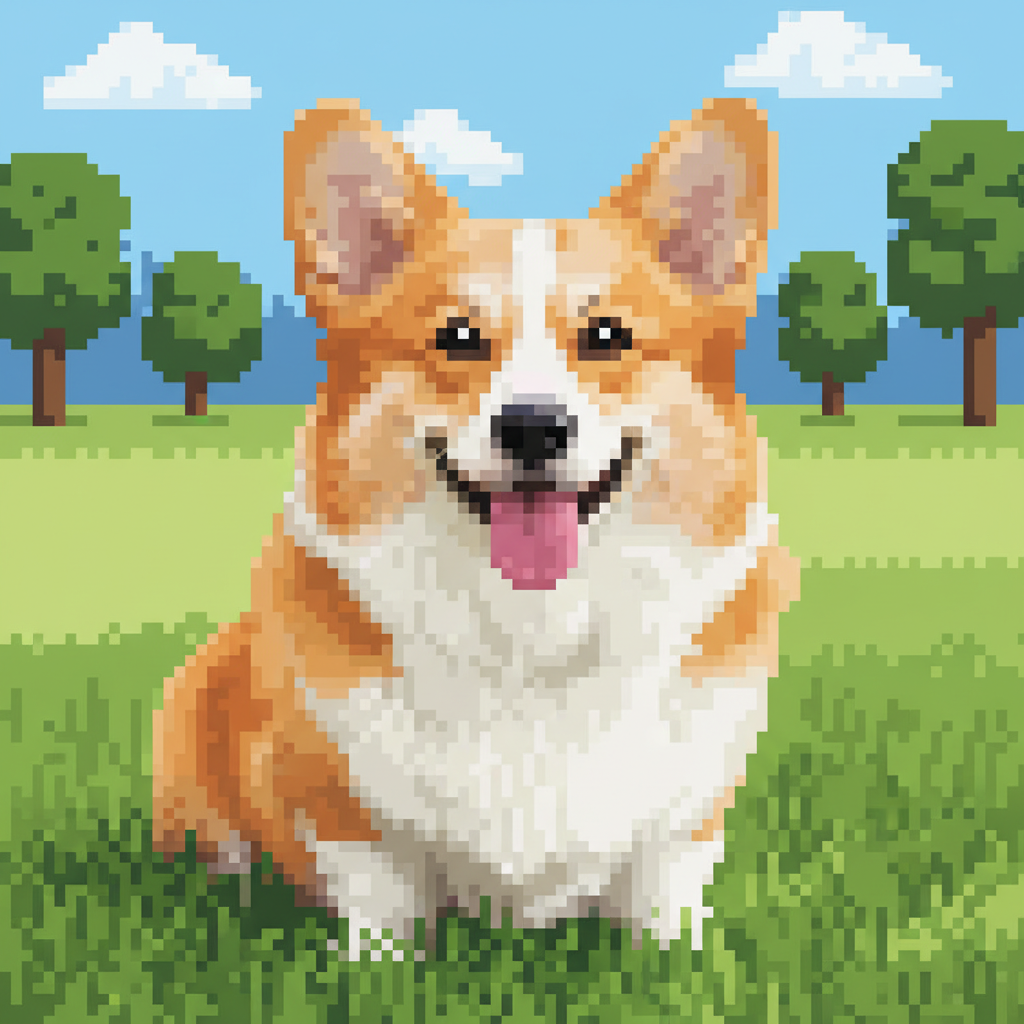
16-bit SNES-style pixel art character portrait
After

Convert to Pixel Art

Drop your photo here

or click to browse

Release to upload

Free • No signup

Advertisement
Popular use cases:
  • game development
  • retro gaming art
  • profile pictures
  • NFT art
  • Discord avatars
  • indie game graphics
  • retro social media

Cost
Free No signup required
Time
Instant results in 15-30 seconds
Works on
Any device - browser, phone, tablet, desktop
Powered by
AI-powered photo editing
Scenario Prompt Time
16-bit SNES style convert to 16-bit pixel art style like Super Nintendo games with vibrant colors and medium detail 25s
8-bit NES retro convert to 8-bit NES pixel art with limited color palette and chunky pixels 25s
Game Boy monochrome convert to Game Boy pixel art with green monochrome palette and low resolution 20s
RPG character portrait convert to 16-bit RPG character portrait pixel art with detailed face and SNES-style colors 30s
Dithered pixel art convert to 16-bit pixel art with dithering like Sega Genesis games 35s

How it works

  1. Upload your photo

    Drop your image into EditThisPic. JPG, PNG, WebP up to 7MB all work. Photos with clear subjects and distinct colors convert best to pixel art. Portraits, characters, and simple scenes work great.

    Expect: Simple 8-bit conversions: 20-30 seconds. Complex 16-bit with dithering and specific palettes: may need 2-3 refinements to nail the authentic retro look.
  2. Describe the pixel art style you want

    Type your instruction: 'convert to 16-bit pixel art like SNES games' or 'make it 8-bit NES style with limited color palette.' Be specific about the era (8-bit, 16-bit, 32-bit), resolution (low-res, medium detail), color palette (limited colors, Game Boy green, full palette), and techniques like dithering. The AI understands retro gaming aesthetics.

    Tip: Reference specific consoles for authentic styles: 'NES 8-bit,' 'SNES 16-bit,' 'Game Boy monochrome,' or 'Sega Genesis palette'

    Copy one of these to get started:

    Classic 16-bit game art convert to 16-bit pixel art style like Super Nintendo games with vibrant colors and medium detail
    Retro 8-bit NES style convert to 8-bit NES pixel art with limited color palette and chunky pixels
    Game Boy monochrome convert to Game Boy pixel art with green monochrome palette and low resolution like original Game Boy
    RPG character portrait convert to 16-bit RPG character portrait pixel art with detailed face and vibrant SNES-style colors
    3 more prompts
    Low-res retro sprite convert to low-resolution pixel art sprite with 8-bit style and minimal detail like classic arcade games
    Dithered pixel art convert to 16-bit pixel art with dithering to create gradients and texture like Sega Genesis games
    High-detail 32-bit style convert to 32-bit pixel art with high color depth and detailed pixels like PlayStation era games
  3. Generate and review

    Click Generate and watch the pixelation. Check pixel size, color accuracy, and overall retro aesthetic at full resolution. The AI reduces resolution, limits colors, and applies classic techniques like dithering to create authentic game-style art.

  4. Refine with markers if needed

    If certain areas need more detail preservation (like faces) or different pixelation (like simplifying backgrounds), tap markers on those regions and adjust. This is optional—most pixel art conversions work great as full-image transforms.

    Tip: Markers let you control detail in specific areas: 'preserve more detail in the face' or 'simplify background.' Try without them first.
Try it free

Convert to Pixel Art

Drop your photo here

or click to browse

Release to upload

Free • No signup

"Turned my selfie into legit 16-bit RPG character art. The color palette and dithering are perfect." @retrogamer

See it in action

Modern portrait photo
Before
->
16-bit SNES-style pixel art character portrait
After

Portrait to 16-bit character

Modern selfie transformed into SNES-style RPG character portrait with vibrant pixel art and preserved facial features.

Prompt: convert to 16-bit RPG character portrait pixel art with detailed face and vibrant SNES-style colors
Modern outdoor photo
Before
->
8-bit NES-style pixel art with limited colors
After

Scene to 8-bit NES art

Outdoor scene converted to chunky 8-bit NES pixel art with limited color palette and authentic retro gaming look.

Prompt: convert to 8-bit NES pixel art with limited color palette and chunky pixels
Original color photo
Before
->
Green Game Boy monochrome pixel art
After

Photo to Game Boy style

Color photo transformed into iconic green Game Boy monochrome pixel art with authentic handheld aesthetic.

Prompt: convert to Game Boy pixel art with green monochrome palette and low resolution like original Game Boy
Advertisement

If something looks off

Too pixelated or lost important details

Why: Lower-res styles (8-bit, Game Boy) have large pixels that sacrifice detail. Complex photos with fine features can become unrecognizable at very low resolutions.

Try: convert to 16-bit pixel art with medium detail preserving facial features or convert to 32-bit pixel art with higher resolution and detail

Tip: 16-bit or 32-bit styles retain more detail. Use 8-bit only for simple subjects or when extreme pixelation is the goal.

Colors look wrong or muddy

Why: Pixel art uses limited color palettes. The AI's palette choice might not match your image's original colors, or colors blend poorly when reduced.

Try: convert to pixel art with vibrant saturated colors like SNES games or convert to pixel art with specific palette: blues, reds, yellows

Tip: Specify color characteristics: 'vibrant,' 'saturated,' 'limited to 16 colors,' or name specific colors

Doesn't look retro enough or too modern

Why: Without era-specific instructions, the AI may create smooth pixels without classic techniques like dithering, color banding, or palette limits.

Try: convert to authentic 8-bit NES pixel art with limited 16-color palette, dithering, and chunky pixels

Tip: Mention specific consoles (NES, SNES, Genesis), techniques (dithering, color limits), and reference 'authentic retro' or 'classic game style'

AI changed the wrong area or pixelated unevenly

Why: The pixelation applies uniformly. If you want certain areas more detailed (face) and others simpler (background), the AI needs selective guidance.

Try: Tap markers on the area needing different treatment, then describe: 'preserve more detail here' or 'simplify this area more'

Tip: Markers let you control pixelation intensity in different regions. Most conversions work well without them.

Background is too busy or distracting

Why: Complex backgrounds with many colors and details can create noisy pixel art that detracts from the main subject.

Try: convert to pixel art and simplify the background with fewer colors or tap markers on background and simplify this area with solid colors

Tip: Pixel art works best with simple backgrounds. Request background simplification or use markers to reduce background detail.

Quick answers

Do I need to mark areas before converting to pixel art?

No! Just describe the pixel art style you want: 'convert to 16-bit SNES pixel art' or 'make it 8-bit NES style with chunky pixels.' The conversion applies to the whole image. Only use markers if you want different detail levels in different areas (like more detail in the face, simplified background).

What's the difference between 8-bit, 16-bit, and 32-bit pixel art?

8-bit (NES, Game Boy) has chunky pixels and very limited colors (typically 4-16), creating the most retro look. 16-bit (SNES, Genesis) has smaller pixels and richer colors (hundreds available), allowing more detail. 32-bit (PlayStation, Saturn) has even finer pixels and thousands of colors, bridging pixel art and modern graphics. Choose based on how retro and simplified you want the result.

Is there a free pixel art converter that doesn't require signup?

Yes. EditThisPic converts photos to retro pixel art with AI for free, no account needed. Just upload, describe the style (8-bit NES, 16-bit SNES, Game Boy), and download. No watermarks.

What's the best free AI tool for making pixel art from photos?

EditThisPic's AI understands classic gaming aesthetics. Instead of generic pixelation, you describe era-specific styles: NES 8-bit with limited colors, SNES 16-bit with dithering, or Game Boy monochrome. The AI applies authentic techniques like palette reduction, dithering, and proper pixel sizing to create genuine retro game art.

Can I create specific console styles like NES, SNES, or Game Boy?

Yes. Name the console in your prompt: 'convert to NES 8-bit pixel art,' 'SNES 16-bit style,' or 'Game Boy green monochrome.' The AI recognizes these platforms and applies their characteristic color palettes, resolution limits, and visual styles. You can also reference specific games or genres like 'Final Fantasy portrait style' or 'Mega Man sprite style.'

How do I prevent losing too much detail in the conversion?

Use higher-bit styles (16-bit or 32-bit instead of 8-bit), specify 'preserve detail in faces' or 'medium resolution,' and start with photos that have clear subjects and simple backgrounds. If specific areas lose too much detail, use markers to tell the AI to preserve more information in those regions while simplifying elsewhere.

Ready to convert your photos to pixel art?

Free to try. No signup required.

Try it free