Free β€’ No signup Convert Sticker Β· Free

Convert Photo to Sticker

Just describe the sticker style you want. No complex tools - type it and get adorable results.

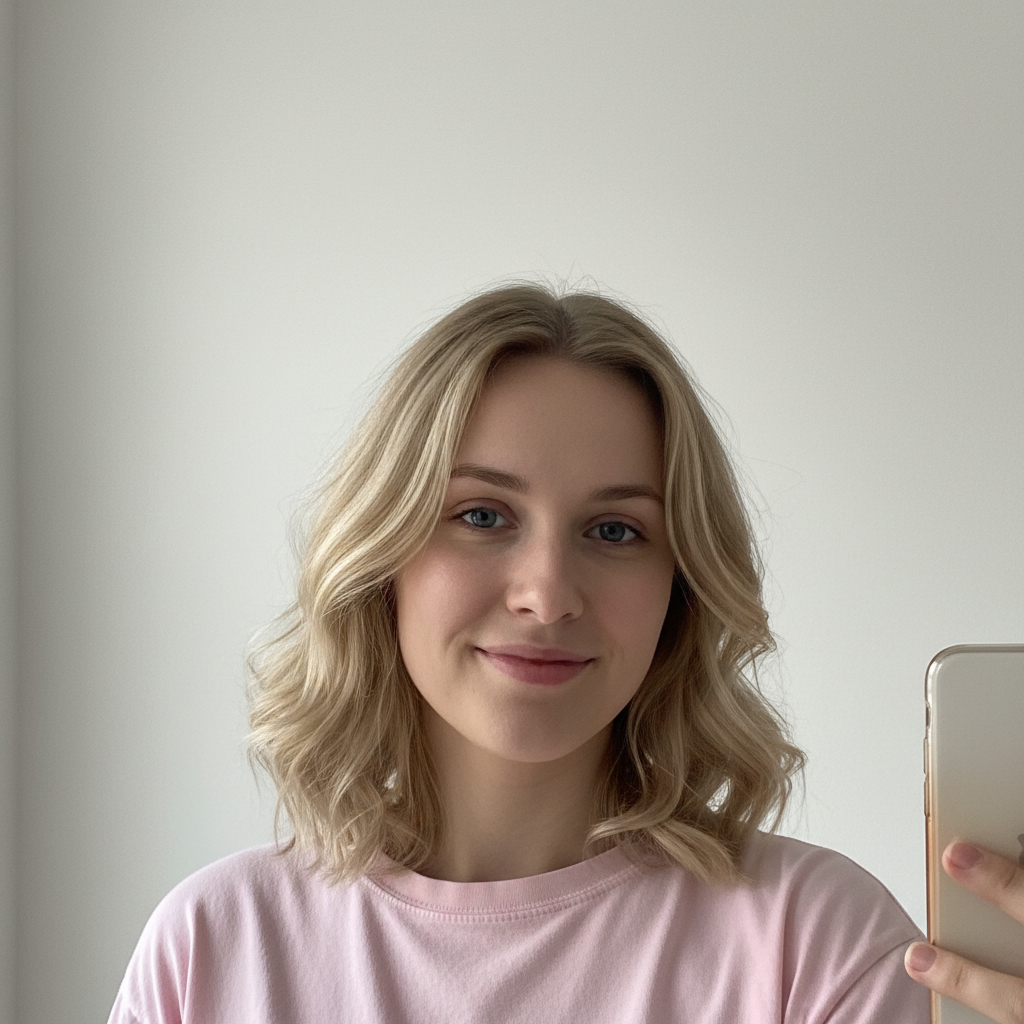
Friendly selfie of young woman with blonde hair
Before
β†’
Same woman as adorable kawaii sticker with big eyes and white border
After

Convert Photo to Sticker

Upload photo to convert sticker

Free β€’ Results in 30 seconds β€’ No signup

Release to upload

FreeNo signupNo watermark
Popular use cases:
  • Custom stickers
  • Laptop stickers
  • Planner stickers
  • Pet stickers
  • Print-on-demand designs
  • Social media stickers

Cost
Free No signup required
Time
Instant results in 15-30 seconds
Works on
Any device - browser, phone, tablet, desktop
Powered by
AI-powered photo editing
Scenario Prompt Time
Die-cut sticker convert this photo to die-cut sticker with white border 15s
Kawaii cute transform into kawaii sticker with big cute eyes 15s
Vinyl laptop sticker make this a vinyl sticker with bold outlines 15s
Chibi character turn into chibi sticker with oversized head 20s

How it works

  1. Upload your photo

    Upload any photo you want to transform. Clear subjects with good contrast convert best for sticker style effects. JPG, PNG, WebP up to 7MB.

    Expect: Simple portraits: 15-30 seconds. Complex scenes: may need refinement for clean edges.
  2. Describe the sticker style you want

    Type your instruction: 'convert this photo to a sticker' or be specific with 'transform this into a cute kawaii sticker with thick white border and simplified features.' Mention style, border thickness, or cuteness level. No selection or marking needed.

    Tip: Adding 'die-cut style' and 'thick white border' creates that authentic printed sticker look.

    Copy one of these to get started:

    Classic die-cut sticker convert this photo to a die-cut sticker style with thick white border, clean edges, and slightly simplified features
    Kawaii cute sticker transform this image into a kawaii sticker with cute big eyes, soft colors, and adorable proportions
    Vinyl sticker style make this photo look like a vinyl laptop sticker with bold outlines, vibrant colors, and glossy finish look
    Chibi character sticker turn this into a chibi sticker with oversized head, tiny body, and super cute expression
    2 more prompts
    Planner sticker style convert this photo to a flat illustration sticker suitable for planners with clean lines and pastel colors
    Pet sticker transform this pet photo into an adorable sticker with expressive eyes, cute pose, and fluffy appearance enhanced
  3. Generate and review

    Tap generate and check the sticker style, border quality, and overall cuteness. Look for clean edges, appropriate stylization, and that satisfying sticker aesthetic. The design should feel ready to peel and stick.

  4. Refine with markers if needed

    If specific features need different treatment or the border needs adjustment, tap markers on those spots and regenerate with adjusted instructions. Most sticker conversions work perfectly on the first try.

    Tip: Markers help when you want specific elements emphasized, like 'make the eyes bigger and cuter.'
Try it free ↓

Convert Photo to Sticker

Upload photo to convert sticker

Free β€’ Results in 30 seconds β€’ No signup

Release to upload

Free β€’ No signup

"Made stickers of my cat for my laptop and water bottle. The white border and cute style came out perfect. Friends want their own now." @StickerQueen_Emma

See it in action

Friendly selfie of young woman with blonde hair
Before
->
Same woman as adorable kawaii sticker with big eyes and white border
After

Portrait to kawaii sticker

Regular selfie transformed into an adorable kawaii sticker. The big eyes, soft colors, and clean white border create that perfect sticker-ready look.

Prompt: transform this image into a kawaii sticker with cute big eyes, soft colors, thick white border, and adorable style
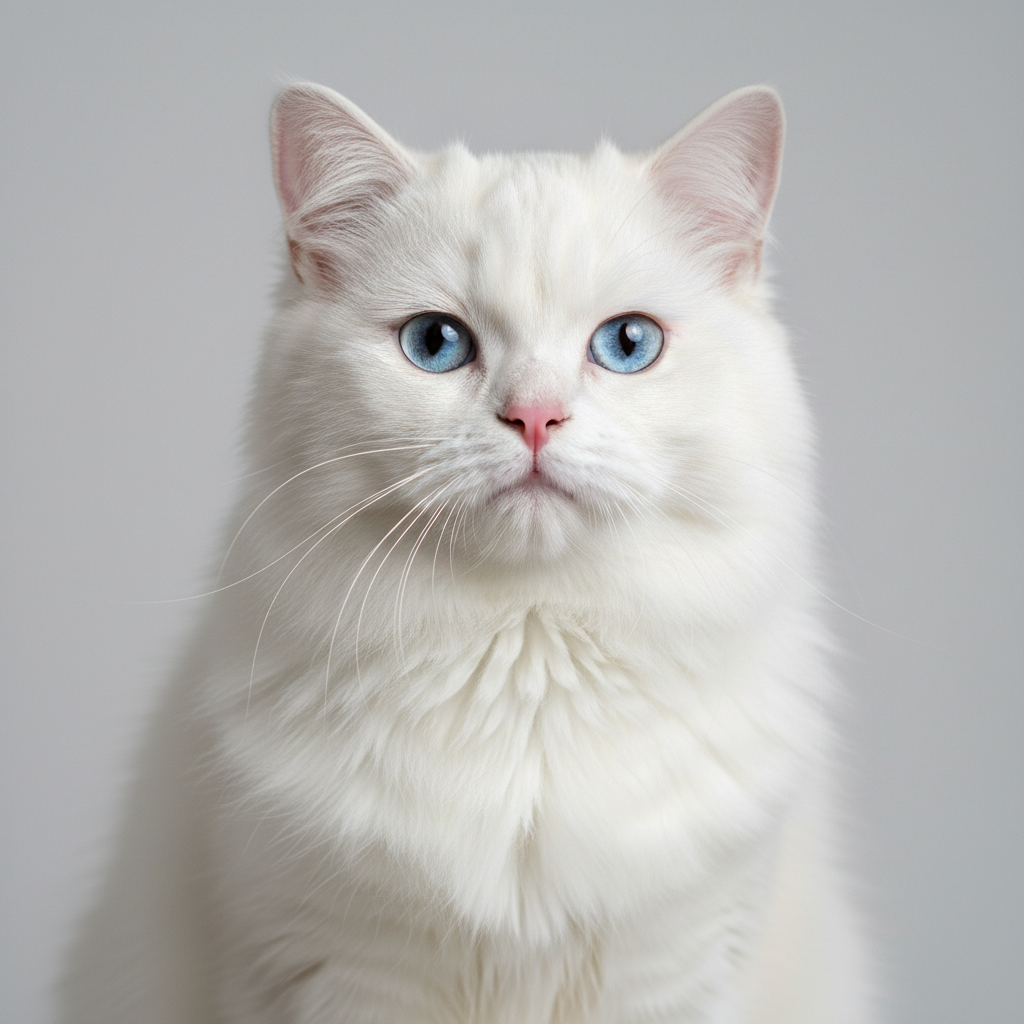
Fluffy white cat with blue eyes sitting
Before
->
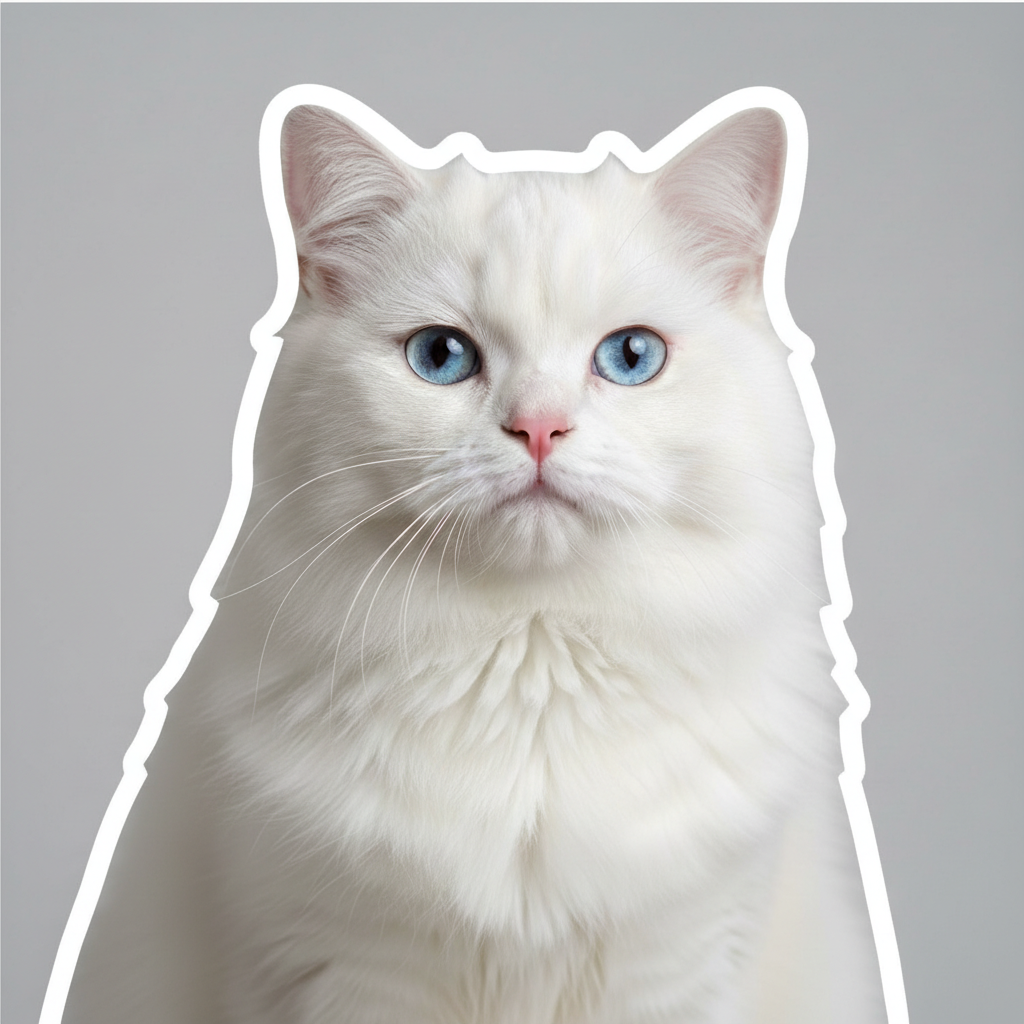
Same cat as cute die-cut sticker with white border
After

Pet to cute sticker

Cat photo converted to die-cut sticker style. The simplified features and thick border make it ready for printing or digital use.

Prompt: convert this photo to a die-cut sticker style with thick white border, clean edges, and slightly simplified cute features

Detailed Guides by Scenario

πŸ“·

Art & Decoration

Transform your photos into sticker artwork for wall prints, framed art, and home decoration.

Common Scenarios

  • Converting a favorite photo into a sticker print for your living room wall
  • Creating a series of sticker portraits of family members as matching wall art
  • Turning landscape or travel photos into sticker art for office decoration

Best Practices

  • Start with a high-resolution photo β€” printed art needs sharp detail even after the style transform
  • Request a specific aspect ratio if the print will go in a particular frame
  • Try 'bold sticker' vs. 'subtle sticker' to control how dramatic the transformation looks
πŸ“·

Social Media & Content

Create scroll-stopping social media content by converting photos to sticker β€” perfect for profiles, stories, and viral posts.

Common Scenarios

  • Making a unique sticker profile picture that stands out in feeds
  • Creating a sticker version of a trending meme or photo challenge
  • Building a themed Instagram series where every post uses sticker transformation

Best Practices

  • Pair the transformation with a catchy caption that references the art style
  • For Instagram stories, add text overlays after the sticker conversion for maximum engagement
  • Process several photos in the same session to maintain a consistent style across posts
πŸ“·

Gifts & Personal Keepsakes

Turn meaningful photos into sticker keepsakes β€” custom gifts, cards, and personalized items that people actually treasure.

Common Scenarios

  • Creating a sticker portrait as a birthday or anniversary gift
  • Designing sticker wedding invitations or save-the-dates from engagement photos
  • Making a sticker memorial portrait for a loved one

Best Practices

  • Choose photos with clear faces and good lighting β€” the transformation preserves detail best from quality originals
  • For gifts, print on canvas or premium paper to complement the sticker aesthetic
  • Request 'warm tones' or 'cool tones' to match the recipient's home decor

If something looks off

AI changed the wrong area or something I didn't want changed

Why: The AI interpreted the transformation scope differently than you expected. It might have stylized areas you wanted realistic or changed expressions unexpectedly.

Try: Tap a marker on the specific area you want to keep unchanged, then regenerate with the same prompt

Tip: Markers tell the AI 'I mean THIS area specifically.' Use them when you want to protect certain elements from transformation.

Border is too thin or missing

Why: The AI didn't add the characteristic sticker border or made it too subtle.

Try: convert this photo to sticker style with THICK white border around the entire subject, clearly visible die-cut edge

Tip: Adding 'THICK' and 'clearly visible' ensures the border is prominent.

Not cute enough, too realistic

Why: The AI preserved too much photorealism instead of stylizing toward a cute aesthetic.

Try: transform this into a VERY cute kawaii sticker with big sparkly eyes, simplified features, and adorable proportions

Tip: 'VERY cute,' 'kawaii,' and 'adorable' push toward more extreme stylization.

Background showing through

Why: The sticker effect didn't fully isolate the subject from the background.

Try: convert this photo to a sticker with subject completely isolated, no background, white border around cutout

Tip: 'Completely isolated' and 'no background' ensures clean subject separation.

Quick answers

Do I need to select anything before converting to a sticker?

No. Just describe the sticker style you want: 'convert this photo to a sticker' or 'make this a kawaii sticker.' The AI automatically transforms your photo with appropriate borders and stylization. Markers are only needed if you want specific features treated differently.

How do I turn my photo into a sticker for free?

Upload your photo to EditThisPic and type 'convert this photo to a sticker.' The AI transforms your image in 15-30 seconds. No account, no login, no watermarks. You can specify 'kawaii,' 'die-cut,' or 'chibi' for different sticker styles.

Is there a free sticker maker that doesn't need an account?

Yes. EditThisPic converts photos to sticker style without requiring signup or login. Just upload, type what style you want, and download. No watermarks on results. Works directly in your browser.

Can I use these stickers for printing?

Yes. The sticker designs include white borders suitable for die-cut printing. Download your result and send to any sticker printing service. The AI creates clean edges and proper isolation for physical sticker production.

Is EditThisPic's AI sticker converter really free?

Yes β€” you get 1 free edit per week, no account needed. For unlimited edits, plans start at $3.99/month.

Can I convert sticker on my phone?

Yes. EditThisPic works in any mobile browser β€” iPhone, Android, tablet. No app download needed.

What photo formats does the AI sticker converter support?

JPG, PNG, WebP, and HEIC. Upload any common photo format and EditThisPic handles the rest.

How long does it take to convert sticker?

Usually 15-30 seconds. Upload your photo, describe what you want, and the AI delivers the result.

Ready to create your sticker?

Free to try. No signup required.