Free • No signup Fix Engagement announcement photo · Free

Engagement photo not perfect? Fix it now

Ring not visible? Lighting off? Perfect your once-in-a-lifetime engagement photo in seconds.

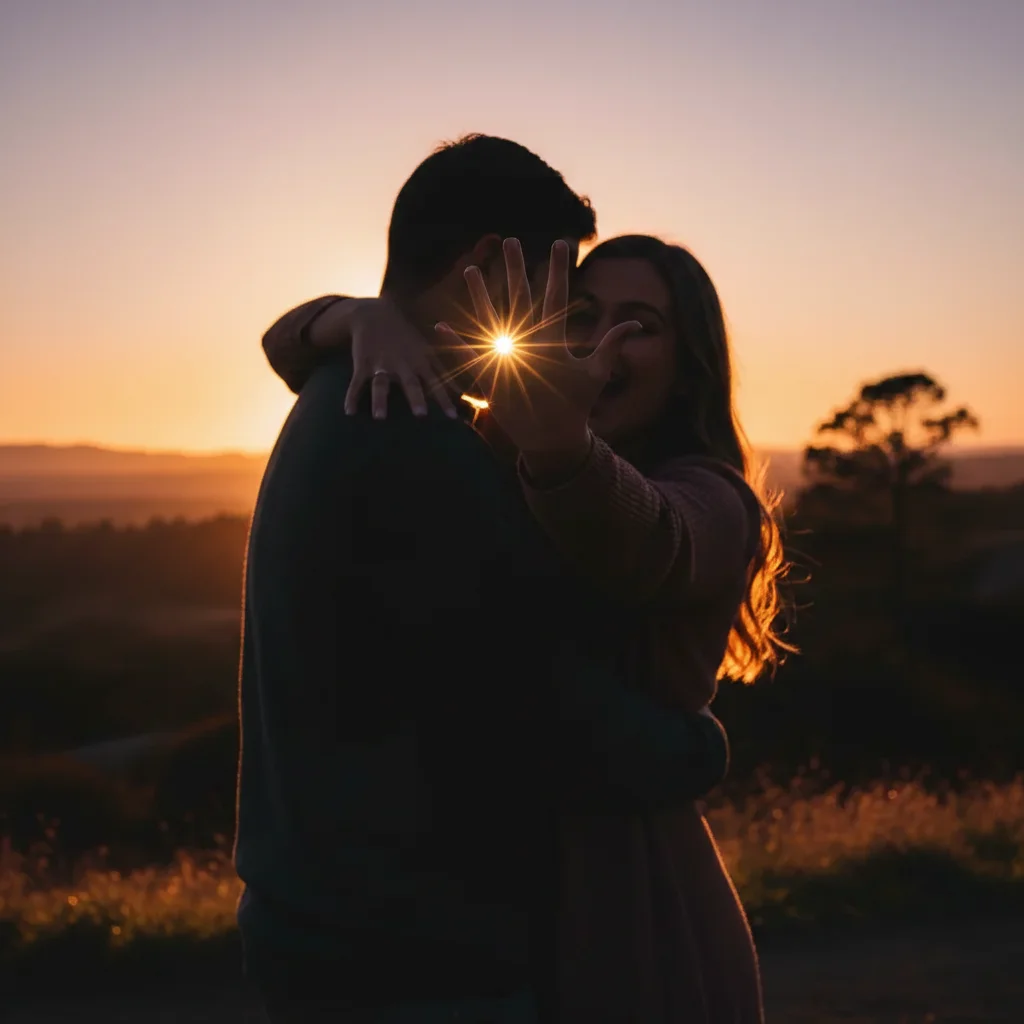
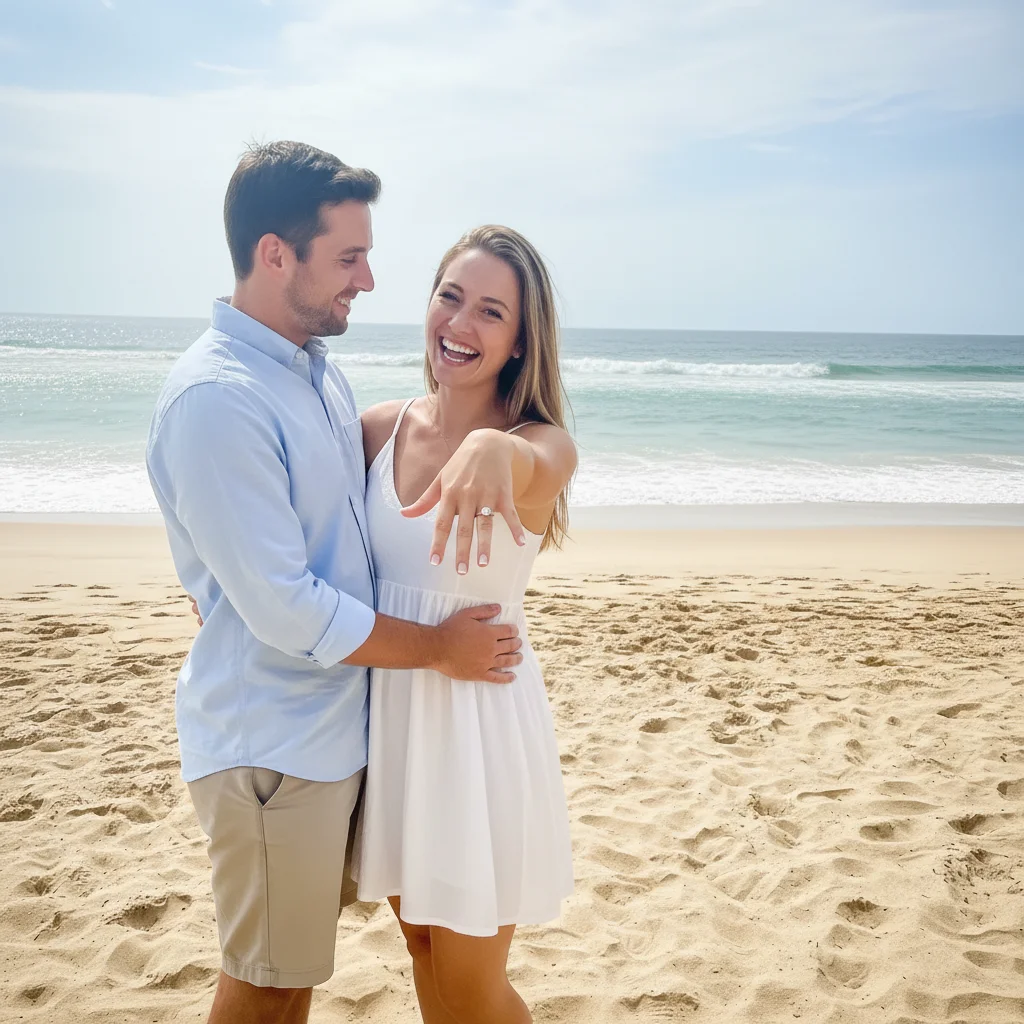
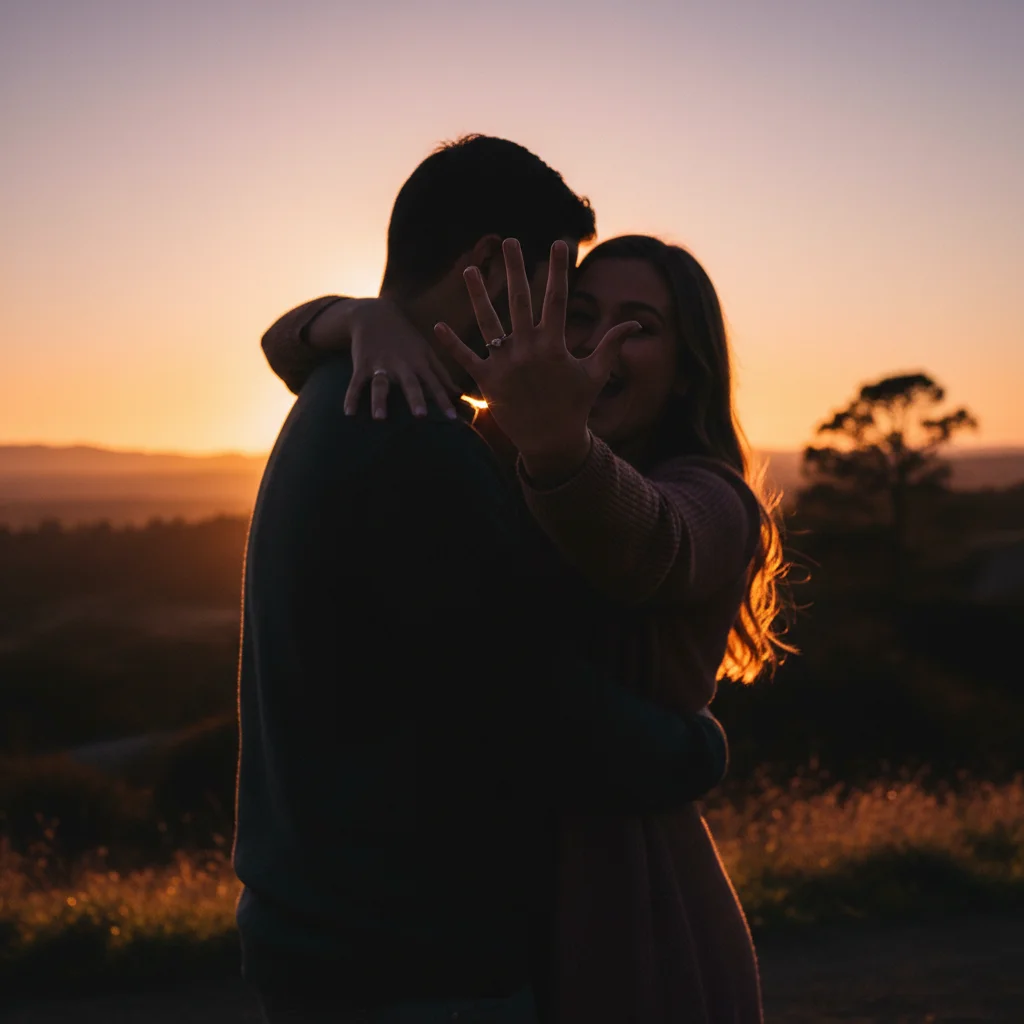
Engagement photo with ring barely visible in shadow
Before
Enhanced photo with sparkling ring clearly visible, perfect lighting
After

Engagement Photo Ring Not Visible? Fix It Instantly

Drop your photo here

or click to browse

Release to upload

Free • No signup

Advertisement
Popular use cases:
  • Engagement announcement photos
  • Proposal photo editing
  • Ring not visible fix
  • Engagement photo enhancement
  • Wedding announcement
  • Make ring sparkle
  • Fix proposal photo

Cost
Free No signup required
Time
Instant results in 15-30 seconds
Works on
Any device - browser, phone, tablet, desktop
Powered by
AI-powered photo editing
Scenario Prompt Time
Ring not visible make the engagement ring more visible and sparkling 20s
Too dark overall brighten this engagement photo and fix shadows naturally 25s
Messy background blur the background and keep focus on us and the ring 30s
Photobomber in frame remove the person in background and enhance the photo 35s

How it works

  1. Upload your engagement photo

    Drop your engagement photo into EditThisPic. The proposal moment, ring reveal, celebratory shot—whatever needs fixing. JPG, PNG, WebP up to 7MB. This is your once-in-a-lifetime moment, make it perfect.

    Expect: Simple fixes (ring enhancement, lighting): 20-30 seconds. Complex fixes (multiple issues, background distractions): 40-60 seconds.
  2. Describe what needs fixing

    Type exactly what's wrong: 'make the ring more visible and sparkling,' 'brighten the photo and fix shadows,' or 'remove the stranger in the background.' Be specific about what bothers you. The AI understands engagement photo problems—dim lighting, ring not showing, awkward backgrounds, photobombers.

    Tip: Combine fixes in one prompt: 'brighten the photo, make the ring sparkle, and blur the background' works great.

    Copy one of these to get started:

    Ring barely visible in the photo make the engagement ring more visible and sparkling, enhance the diamond brilliance
    Photo too dark or shadowy brighten this engagement photo and fix the shadows, make the lighting natural and warm
    Messy background distracting from the moment blur the background and keep the focus on us and the ring, make it look professional
    Stranger or photobomber in frame remove the person in the background and fill naturally, keep focus on our engagement
    4 more prompts
    Ring hand not flattering angle make the hand pose more flattering and show the ring at its best angle
    Colors look washed out or dull enhance the colors and make this photo vibrant, especially the ring and our faces
    Need to crop out clutter but keep ring visible reframe this photo to focus on the ring and our faces, remove distracting edges
    Multiple issues need fixing brighten the photo, make the ring sparkle, blur the background, and remove any distractions
  3. Review your perfect moment

    Check that the ring sparkles, lighting looks natural, and the photo captures the joy. Zoom in on the ring to verify it's clearly visible. This photo will be shared with everyone you know—make sure it's perfect.

  4. Refine if needed (optional)

    If the ring needs more sparkle or lighting needs adjustment, tap a marker on the specific area and describe: 'make this ring more brilliant' or 'brighten just the faces.' Most engagement photos work perfectly on first try.

    Tip: For ring close-ups, try 'enhance the diamond sparkle with realistic light reflections' for stunning results.
Advertisement
Try it free

Engagement Photo Ring Not Visible? Fix It Instantly

Drop your photo here

or click to browse

Release to upload

Free • No signup

"The proposal photo was too dark to see my ring. This made it shine perfectly for our announcement. Saved our special moment." @NewlyEngaged

See it in action

Engagement photo with ring barely visible in shadow
Before
->
Enhanced photo with sparkling ring clearly visible, perfect lighting
After

Ring not visible in proposal photo

Surprise proposal at sunset but the ring barely shows in the photo due to shadows and hand position. One prompt made the diamond sparkle and enhanced the lighting to showcase the moment perfectly.

Prompt: make the engagement ring more visible and sparkling, enhance the diamond brilliance and fix the shadows
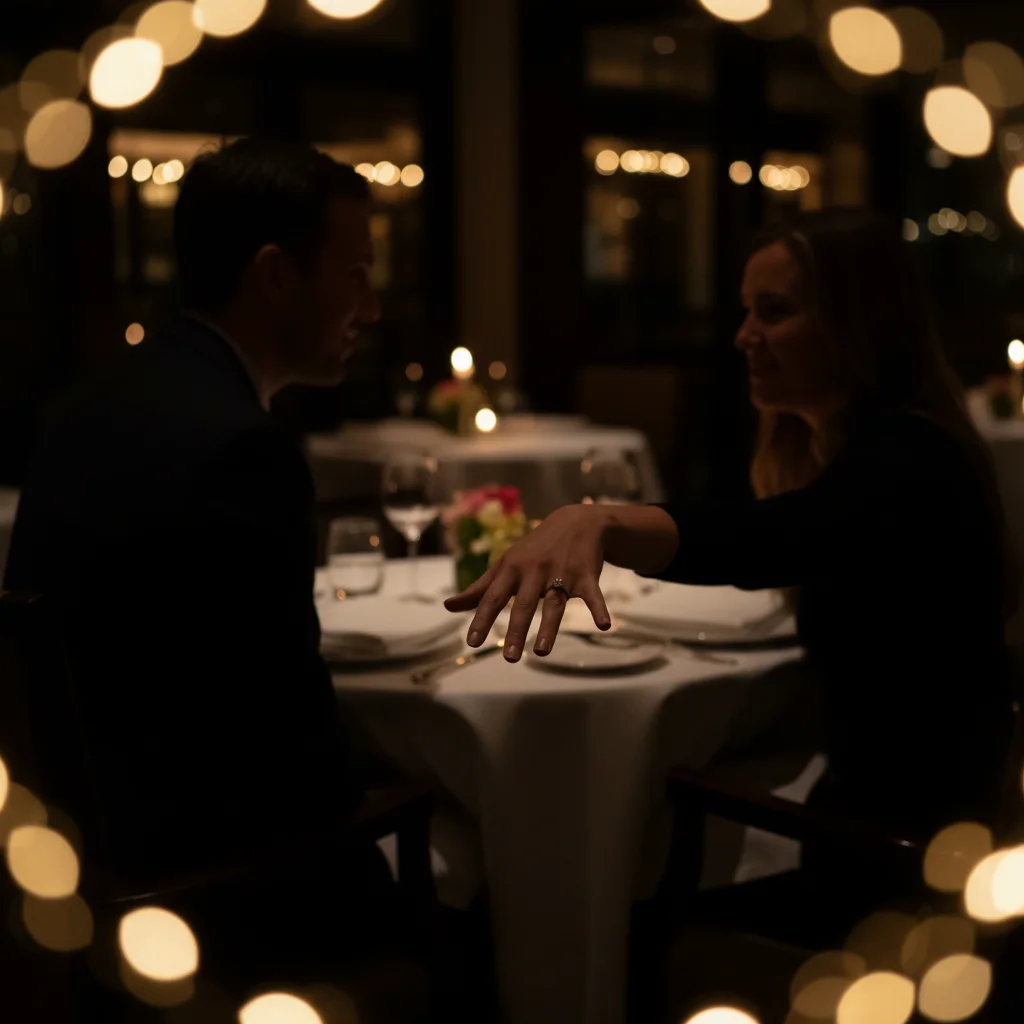
Dark restaurant engagement photo, ring not visible
Before
->
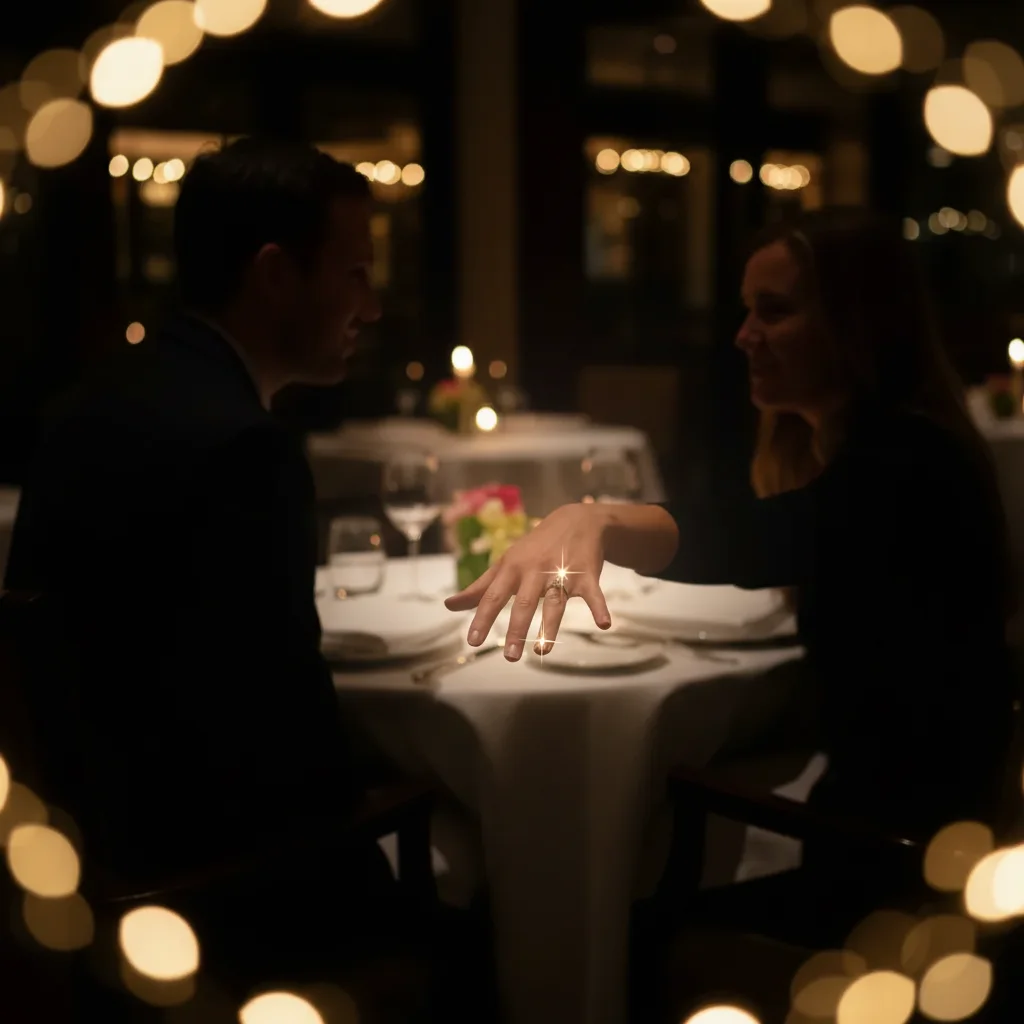
Brightened photo with visible ring, romantic lighting preserved
After

Dark restaurant proposal with bad lighting

He proposed at our favorite restaurant but the indoor lighting made the photo too dark to share. AI brightened the whole scene, made the ring visible, and kept the romantic atmosphere intact.

Prompt: brighten this engagement photo and make the ring sparkle, fix the dim restaurant lighting while keeping it romantic
Beach engagement photo with strangers in background
Before
->
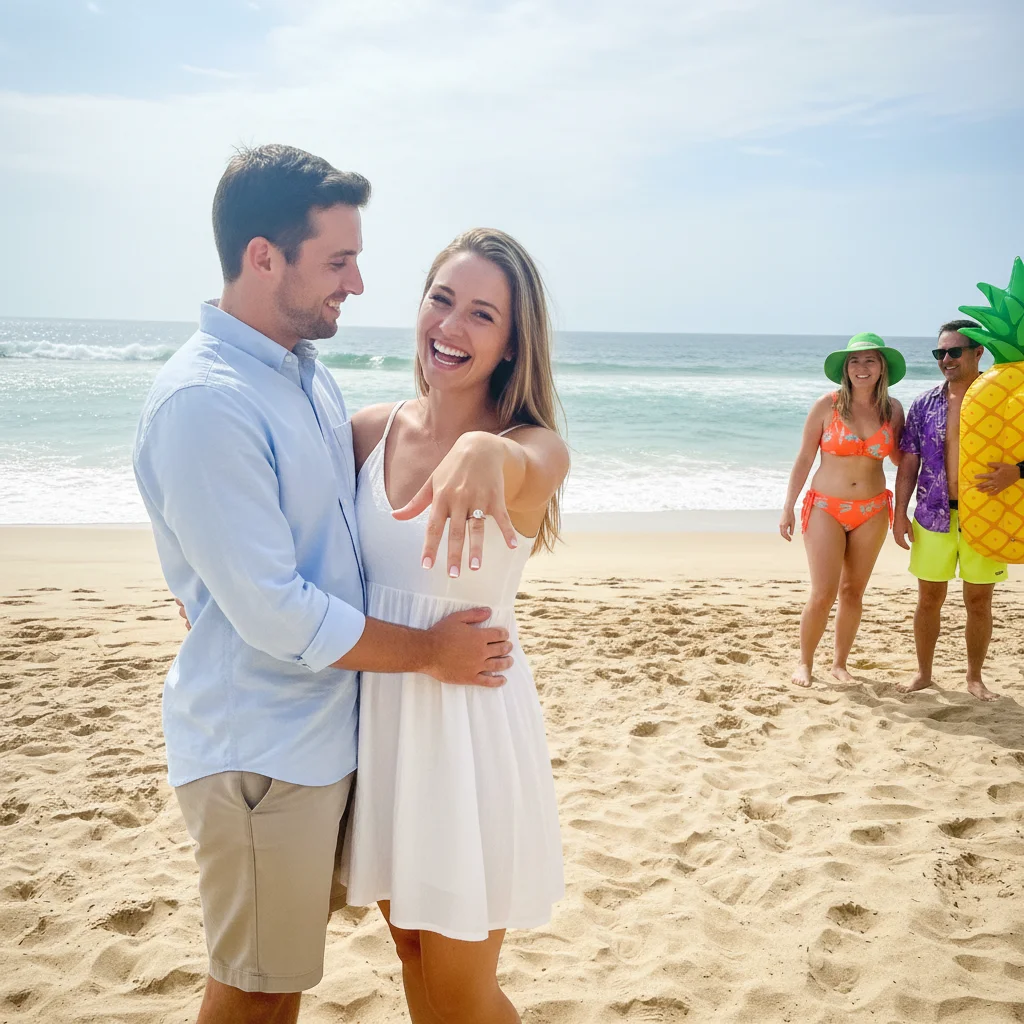
Clean beach photo with strangers removed, professional quality
After

Beach proposal with strangers in background

Perfect beach proposal ruined by tourists walking through the frame. Removed the photobombers and enhanced the lighting to make it look like a professional engagement shoot.

Prompt: remove the people in the background and enhance the whole photo, make it look professional and romantic

Detailed Guides by Scenario

📷

Photo Rescue & Restoration

Revive old, damaged, or poorly-shot photos with AI engagement announcement photo — bring new life to images you thought were unsalvageable.

Common Scenarios

  • Applying engagement announcement photo to old family photos that have degraded over time
  • Fixing a once-in-a-lifetime shot (wedding, graduation) that suffers from poor quality
  • Using engagement announcement photo on scanned prints to get crisp digital versions

Best Practices

  • Scan old photos at the highest DPI your scanner supports before uploading for best results
  • Describe the specific issue — 'this photo is too dark and blurry' gives better engagement announcement photo than a generic prompt
  • For severely damaged photos, work in stages: fix the biggest issue first, then refine
📷

Professional & Business Use

Ensure photos for websites, presentations, and marketing meet professional standards with engagement announcement photo.

Common Scenarios

  • Using engagement announcement photo on employee photos for a company website that need to look polished
  • Applying engagement announcement photo to event photos before sharing in a client presentation
  • Improving product images with engagement announcement photo for an online store or catalog

Best Practices

  • Process all images in a batch with the same enhancement settings for visual consistency
  • For web use, balance enhancement quality with file size — overly large images slow page loads
  • Always compare before and after to make sure engagement announcement photo looks natural, not over-processed
📷

Social Media & Personal Sharing

Make your personal photos look their best before sharing with friends, family, or followers using engagement announcement photo.

Common Scenarios

  • Quickly applying engagement announcement photo to vacation photos before posting on social media
  • Using engagement announcement photo on a selfie that has great composition but poor lighting
  • Batch-fixing a phone gallery of photos with engagement announcement photo before creating an album to share

Best Practices

  • Start with the photo you'd most like to share — fix that one first and use the same approach on the rest
  • For selfies, subtle enhancement always beats heavy processing — keep it natural
  • If the photo was shot in low light, mention it in the prompt so the AI tailors engagement announcement photo accordingly

If something looks off

Ring looks fake or overly sparkly

Why: The AI may have over-enhanced the ring, making it look unrealistic or like a filter instead of natural sparkle.

Try: make the ring sparkle naturally with realistic diamond reflections, not too bright

Tip: Add 'realistic' or 'natural' to your prompt to avoid over-processing. Smart mode handles this better.

Faces look too bright or washed out

Why: When brightening the whole photo, faces can become overexposed, losing natural skin tones and detail.

Try: brighten the photo but keep skin tones natural, enhance the ring without overexposing faces

Tip: Use 'selective brightening' or tap markers on dark areas only, avoiding faces.

Background blur looks unnatural

Why: Aggressive background blur can create weird edges around hair or make the depth effect obvious and fake-looking.

Try: add subtle background blur that looks natural, like a professional camera would create

Tip: Ask for 'subtle' or 'gentle' blur instead of maximum bokeh for more realistic results.

Ring enhancement changed the ring design

Why: Over-enhancement can alter the ring's actual appearance, changing the stone shape or metal details.

Try: enhance ring sparkle while keeping the original ring design exactly the same

Tip: Be specific about preserving the ring's look. Tap a marker on the ring for targeted enhancement only.

Colors changed too much from original

Why: Enhancement can shift color temperature or saturation, making the photo look different from what you remember.

Try: enhance this photo but keep the original colors and mood, just make it brighter and clearer

Tip: Add 'preserve original colors' or 'keep natural tones' to maintain authenticity.

Quick answers

Do I need to mark the ring before enhancing it?

No. Just type 'make the ring more visible and sparkling' and the AI finds and enhances it automatically. The AI understands what an engagement ring is and where to look for it in proposal photos. Markers are only needed if you want to be extremely precise about the enhancement area or if the ring is very small in the frame.

Can I fix multiple problems in one engagement photo?

Yes. Combine fixes in one prompt: 'brighten the photo, make the ring sparkle, blur the background, and remove the person on the left.' The AI handles multiple enhancements at once. For complex fixes, Smart mode (4 credits) gives better results by applying changes in logical sequence.

Will this make my engagement photo look fake or over-edited?

No, if you ask for natural results. Add words like 'natural,' 'realistic,' or 'subtle' to your prompts. The AI can create anything from barely-noticeable fixes to dramatic enhancements—you control the intensity by how you describe it. Most people want 'enhanced but still looks like my real moment,' which works great.

What if the proposal photo is really dark or blurry?

Dark photos can be brightened significantly, but extremely blurry photos are harder to fix. Try 'brighten this photo and reduce blur, make it sharp enough to share' or use Smart mode for better blur reduction. If the photo is too blurry, consider using it with a 'vintage' or 'artistic' edit instead of trying to make it crystal clear.

Can I remove the person who took the photo from a mirror/window reflection?

Yes. Try 'remove the reflection of the person in the mirror/window' or tap a marker on the reflection and say 'remove this reflection naturally.' Works for mirrors, windows, car reflections, and shiny surfaces where the photographer accidentally appears.

Should I edit the photo before posting on social media?

That's entirely your choice. Many people enhance engagement photos to make them announcement-ready—better lighting, visible ring, cleaner background. It's your moment and your photo. If fixing it makes you happier about sharing your joy, there's nothing wrong with that. The goal is celebrating your engagement, not posting a 'raw' photo if it doesn't look how you remember the moment.

Is EditThisPic's AI engagement announcement photo fixer really free?

Yes — you get 1 free edit per week, no account needed. For unlimited edits, plans start at $3.99/month.

Can I fix engagement announcement photo on my phone?

Yes. EditThisPic works in any mobile browser — iPhone, Android, tablet. No app download needed.
Ready to perfect your engagement photo?

Free to try. No signup required.

Try it free