Free • No signup Morph Faces · Free

Face Morph - Blend Two Faces Together

Create a new blended face from two people. Just upload both photos and describe the mix ratio.

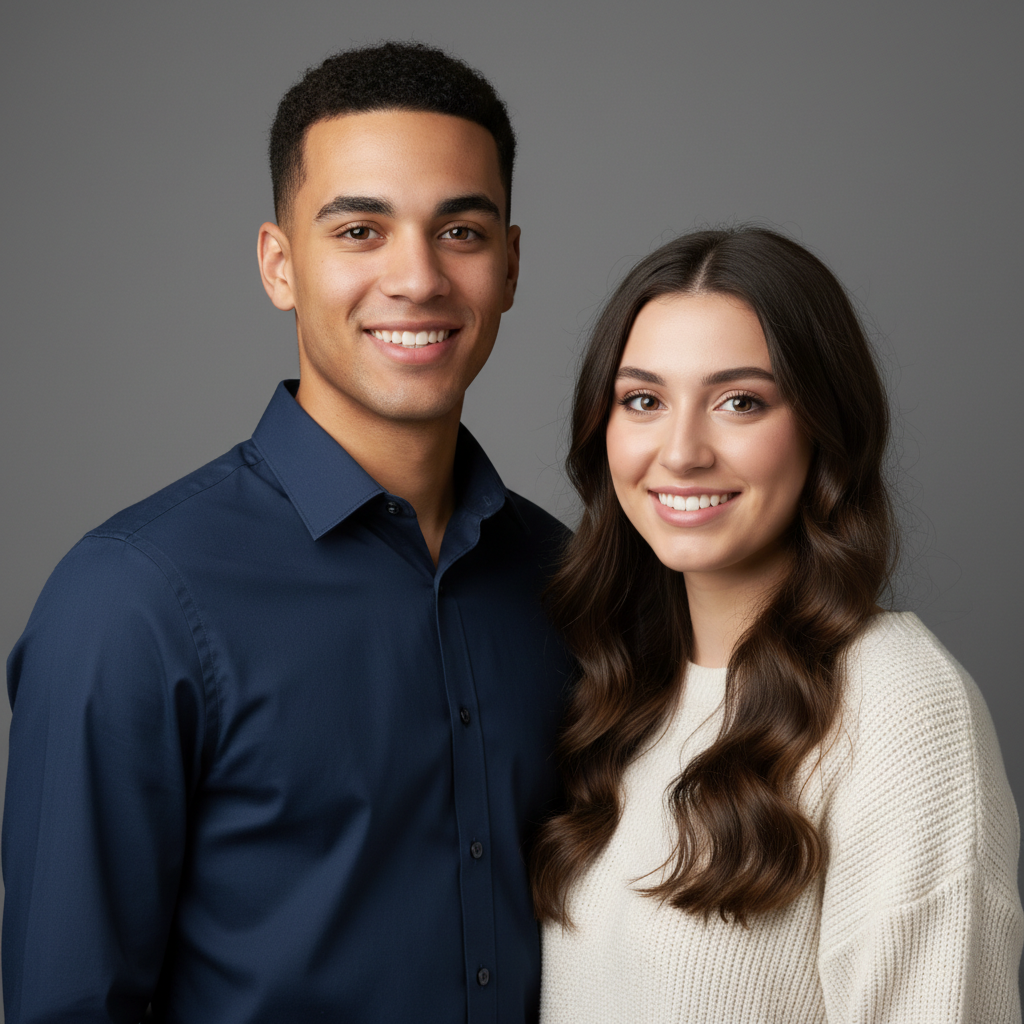
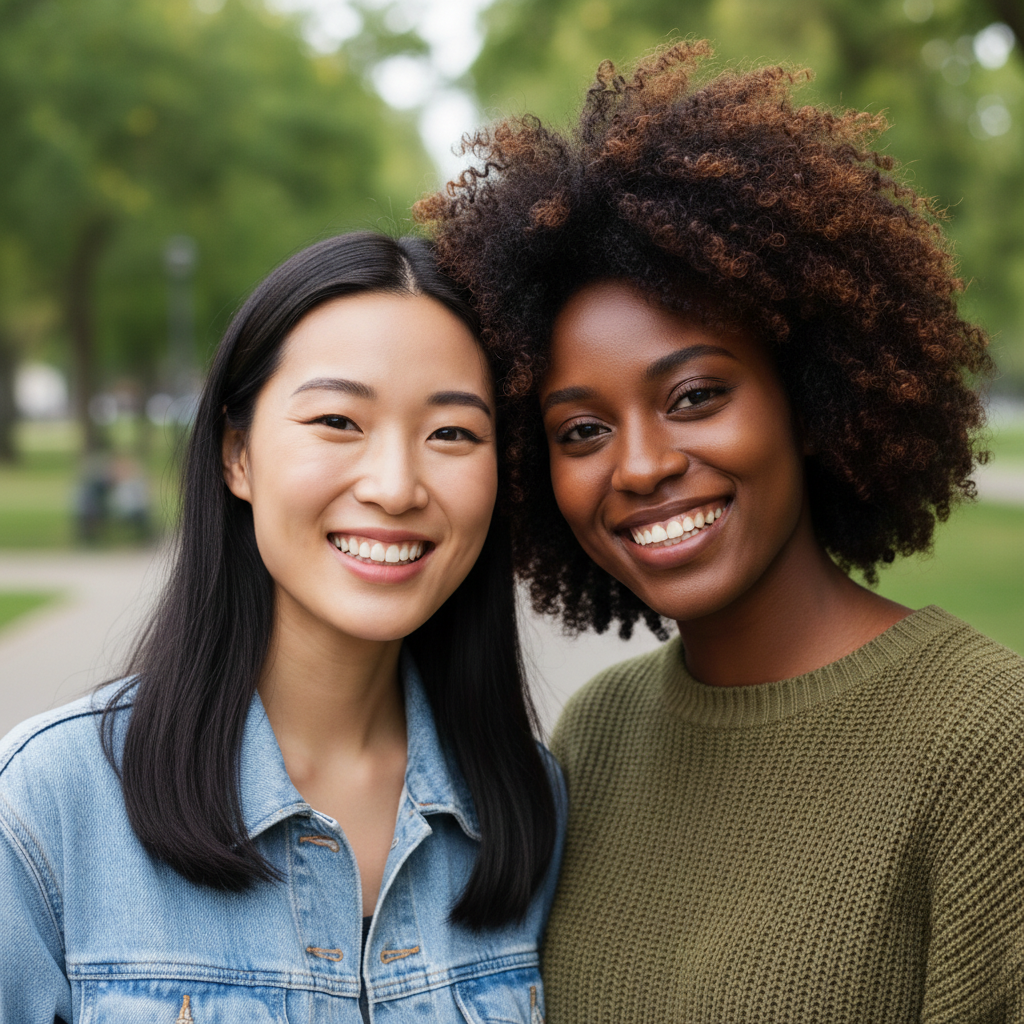
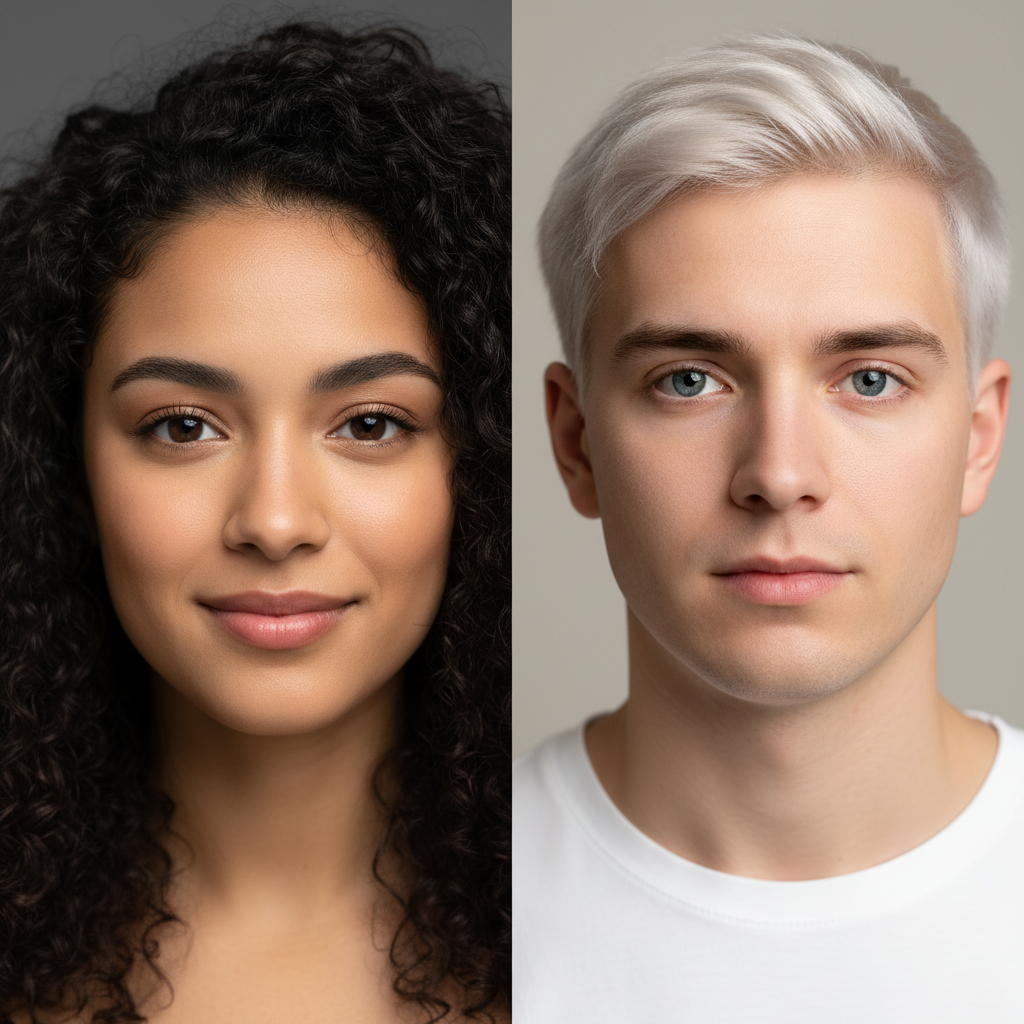
Two separate portrait photos of a couple with different features
Before
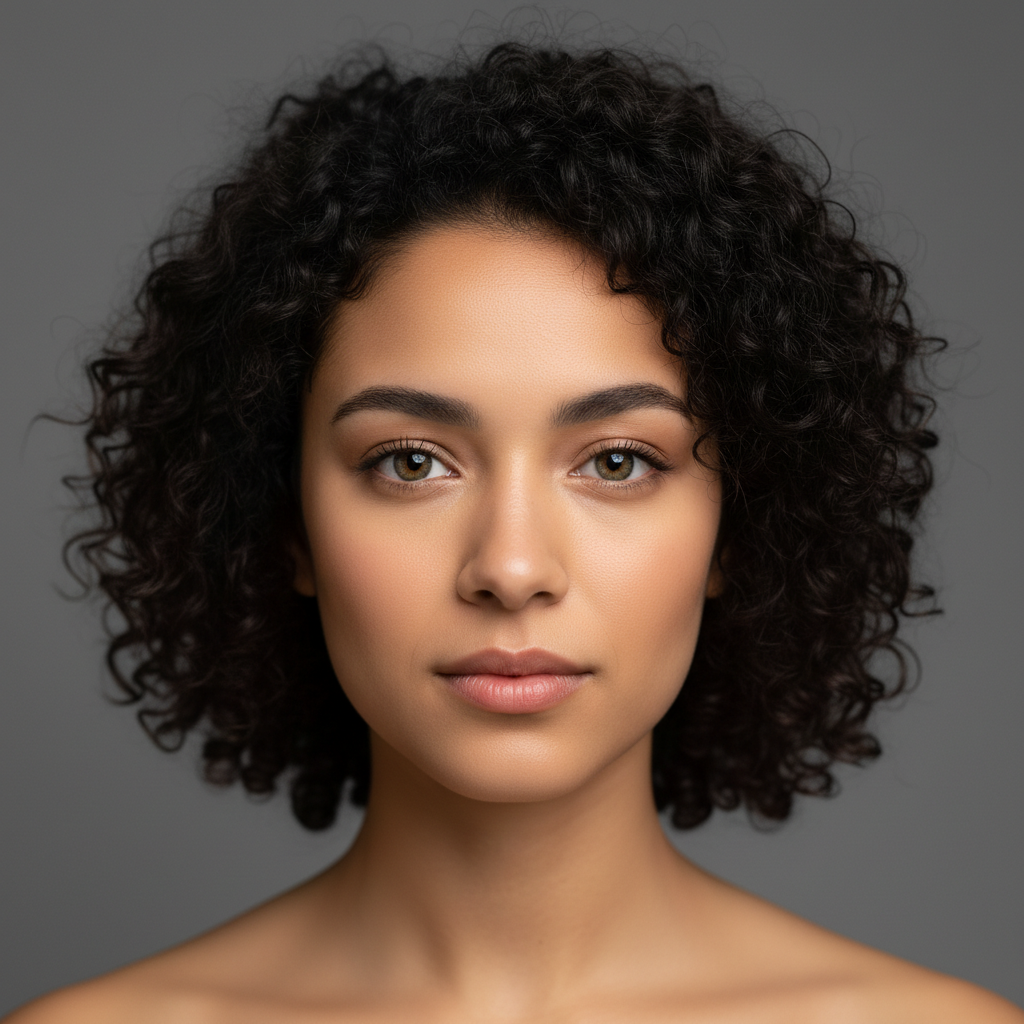
A new morphed face blending features from both people equally
After

Face Morph AI Free

Drop your photo here

or click to browse

Release to upload

Free • No signup

Advertisement
Popular use cases:
  • Couples curious about baby faces
  • Celebrity mashups
  • Creative art projects
  • Character design
  • Social media content
  • Fun experiments

Cost
Free No signup required
Time
Instant results in 15-30 seconds
Works on
Any device - browser, phone, tablet, desktop
Powered by
AI-powered photo editing
Scenario Prompt Time
Even 50/50 blend blend both faces together into one 50/50 morph 30s
Weighted blend morph with 70% photo 1 and 30% photo 2 35s
Feature-specific take eyes from photo 1, jawline from photo 2 40s
Baby prediction morph as if creating their child, 50/50 blend 35s

How it works

  1. Upload your first photo

    Drop your first image into EditThisPic. This will be one of the two faces to blend. JPG, PNG, WebP up to 7MB. Front-facing portraits with clear, well-lit faces work best for morphing.

    Expect: Simple 50/50 blend: 30-40 seconds. Custom ratios or multiple refinements: 45-60 seconds.
  2. Add the second face as reference

    Click '+ Add reference image' to upload the second person's photo. This gives the AI both faces to blend together. Choose photos with similar lighting and angles for the most natural-looking morph.

    Tip: Both photos should be roughly the same angle—front-facing works best. Side profiles mixed with front views create unnatural results.
  3. Describe the blend you want

    Type your instruction: 'blend these two faces together into one combined face' for an even mix. You can specify ratios like '70% photo 1, 30% photo 2' or which features to take from each person. The AI creates a NEW face, not a swap.

    Tip: Be specific about what you want: '50/50 blend' creates an even mix, while 'take the eyes from photo 1 and jawline from photo 2' gives you control over individual features.

    Copy one of these to get started:

    Even 50/50 blend of two faces blend these two faces together into one combined face, create a 50/50 morph that equally mixes features from both people
    What would our baby look like morph the two people in this photo - create a face that's a 50/50 blend as if this were their child, natural and realistic
    Weighted blend favoring one face blend these two faces with 70% features from photo 1 and 30% from the reference image, create a new combined face
    Mix specific features from each face create a morphed face using the eyes and nose from photo 1 combined with the jawline and mouth from photo 2
    3 more prompts
    Celebrity mashup morph blend these two faces into one seamless morph, combine their features into a new unique face that looks like a mix of both
    Subtle blend with one dominant face morph these faces with photo 1 as the base, subtly blend in features from photo 2 to create a hint of both people
    Blend couple's faces evenly create a perfectly blended face combining both people equally, merge all facial features into one cohesive new face
  4. Review and refine the morph

    Check that the blended face looks natural and incorporates features from both sources. If the mix isn't what you wanted, adjust your ratio or specify which features should come from which face.

    Tip: If one face is dominating, try 'blend more equally' or increase the percentage of the underrepresented face.
Advertisement
Try it free

Face Morph AI Free

Drop your photo here

or click to browse

Release to upload

Free • No signup

"My wife and I wanted to see what a blend of our faces would look like. The AI created this crazy accurate morph that genuinely looked like a mix of us both. We spent an hour trying different ratios!" @CuriousCouple_Dan

See it in action

Two separate portrait photos of a couple with different features
Before
->
A new morphed face blending features from both people equally
After

50/50 couple face morph

A couple wanted to see what a blend of their faces would look like. The AI created a new face with features from both people evenly mixed.

Prompt: blend these two faces together into one combined face, create a 50/50 morph that equally mixes features from both people
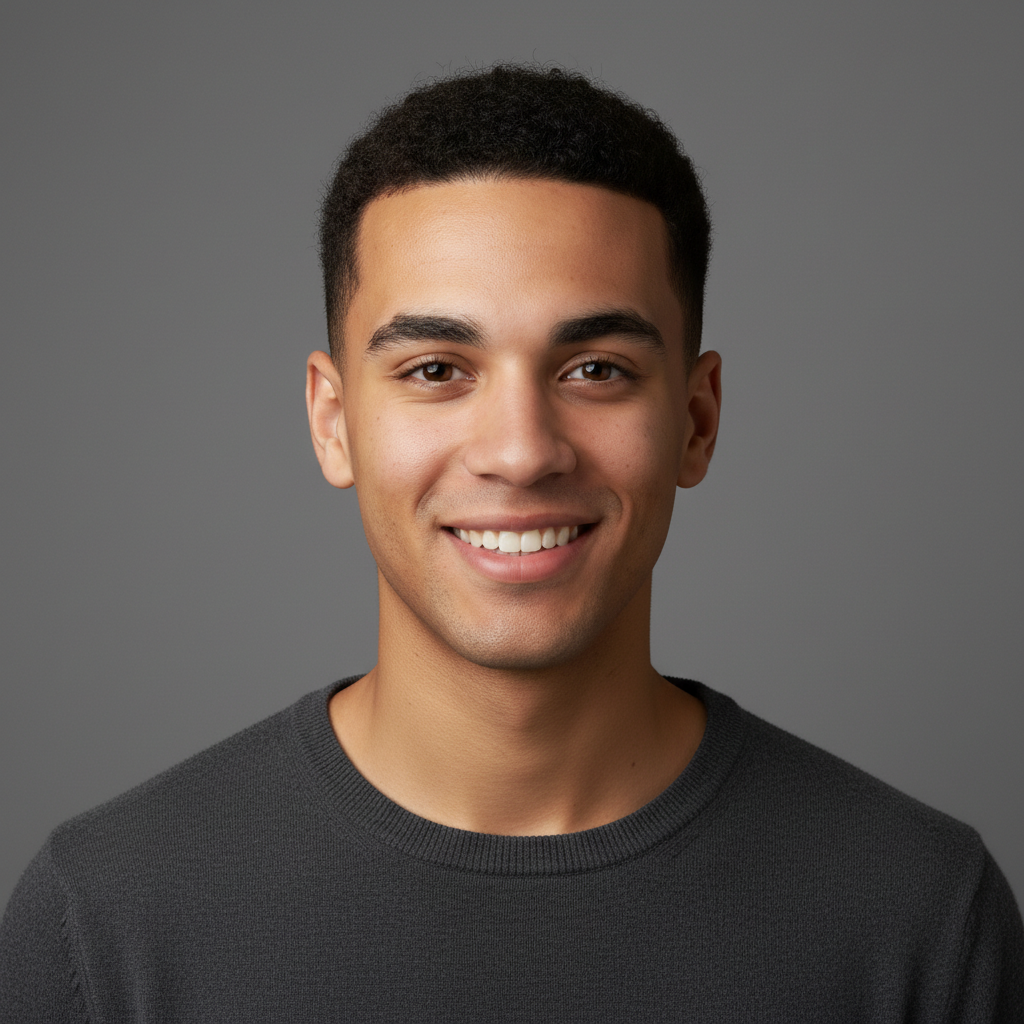
Brother and sister portrait showing family resemblance
Before
->
A morphed face blending the siblings' features together
After

Siblings blend their features

Brother and sister wanted to see what a blend of their features would look like. The AI created a new face favoring the brother's features with hints of the sister.

Prompt: blend the faces of these two siblings together, create a morphed face that's 60% the brother and 40% the sister
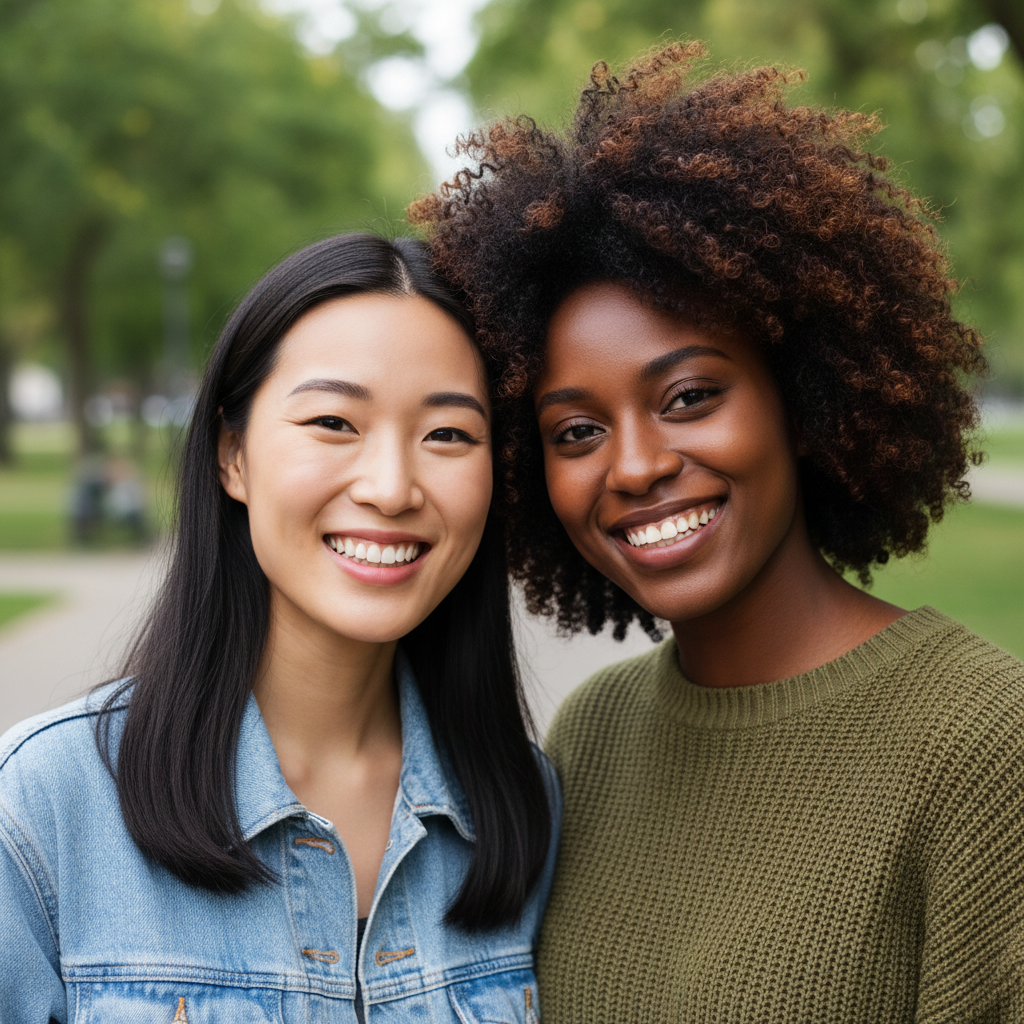
Two best friends with distinctly different features
Before
->
A new morphed face combining features from both friends
After

Best friends face blend

Two friends wanted to create a fun morph of their combined features. The AI blended their distinct features into one unique face.

Prompt: morph these two friends' faces into one combined face, blend their features equally into a new person

Detailed Guides by Scenario

📷

Professional Use

Apply 'Face Morph - Blend Two Faces Together' to images for professional projects — websites, marketing materials, client deliverables, and presentations.

Common Scenarios

  • Using 'Face Morph - Blend Two Faces Together' for client work or commercial photography
  • Applying 'Face Morph - Blend Two Faces Together' to product or marketing images for a business
  • Batch-processing multiple images with 'Face Morph - Blend Two Faces Together' for a project deadline

Best Practices

  • Use the highest resolution source image available for professional-quality results
  • Be specific in your prompt about the exact 'Face Morph - Blend Two Faces Together' effect you need
  • For consistency across multiple images, reuse the same prompt template
📷

Creative & Social Media

Use 'Face Morph - Blend Two Faces Together' creatively for social media content, personal projects, and artistic expression.

Common Scenarios

  • Applying 'Face Morph - Blend Two Faces Together' to a photo for a unique social media post
  • Using 'Face Morph - Blend Two Faces Together' to create artistic variations of a favorite image
  • Experimenting with 'Face Morph - Blend Two Faces Together' for a creative project or portfolio piece

Best Practices

  • Experiment freely — AI editing lets you try bold ideas with no risk to the original
  • For social content, pair the visual effect with a caption that references the transformation
  • Try the effect on different types of photos to find what looks most striking
📷

Personal Photos & Memories

Apply 'Face Morph - Blend Two Faces Together' to personal photos to fix issues, enhance quality, or create something special from everyday images.

Common Scenarios

  • Using 'Face Morph - Blend Two Faces Together' on family photos to improve or personalize them
  • Applying 'Face Morph - Blend Two Faces Together' to vacation or event photos before printing or sharing
  • Trying 'Face Morph - Blend Two Faces Together' on a selfie or portrait for profile or personal use

Best Practices

  • Always work on a copy — keep the original safe in case you want to try a different approach
  • Natural-looking results are almost always better than dramatic over-processing
  • If it doesn't look right the first time, rephrase your prompt with more specific details

If something looks off

Morph looks like a face swap instead of a blend

Why: The AI may have interpreted your request as replacing one face with another rather than creating a new combined face.

Try: create a NEW morphed face that blends features from BOTH photos together, not a face swap - I want a 50/50 combination of both people's features

Tip: Emphasize 'new face,' 'blend,' and 'combination' to distinguish from face swap.

One face dominates the morph completely

Why: The AI weighted one face too heavily, possibly due to lighting differences or angle mismatches between photos.

Try: blend more equally - take 50% of features from photo 1 and 50% from photo 2, balance both faces in the morph

Tip: Explicit percentages (50/50) give the AI clear guidance on how to weight each face.

Morphed face looks unnatural or distorted

Why: The source photos may have very different angles, lighting, or one face may be partially obscured.

Try: create a natural-looking morphed face, smooth transitions between features, realistic skin texture and proportions

Tip: Use front-facing photos with similar lighting for both sources to get the most natural results.

AI changed the wrong area or something I didn't want changed

Why: The AI couldn't determine exactly which area you meant from description alone.

Try: Tap a marker on the specific area you want to change, then regenerate with the same prompt

Tip: Markers tell the AI 'I mean THIS area specifically.' Use them when description alone is ambiguous.

Features don't blend smoothly - visible seams or mismatches

Why: The AI had trouble transitioning between features from different sources, often due to skin tone or lighting differences.

Try: blend the faces seamlessly with smooth transitions, match skin tones, create a cohesive natural-looking combined face

Tip: Adding 'seamlessly' and 'match skin tones' helps the AI create smoother feature transitions.

Morph doesn't include the features I specified

Why: When requesting specific features from each face, the AI may not clearly identify which features you mean.

Try: take ONLY the eyes and nose from photo 1, take ONLY the mouth and jaw from photo 2, combine into one face

Tip: Use 'ONLY' to emphasize which specific features should come from each source.

Quick answers

How do I blend two faces together into one?

Upload your first photo, click '+ Add reference image' to add the second face, then type 'blend these two faces together into one combined face.' The AI creates a NEW morphed face that mixes features from both people. Specify '50/50 blend' for an even mix or percentages like '70/30' to weight one face more heavily. Results in 30-45 seconds, free with no signup.

Is there a free face morph tool that doesn't require login?

Yes. EditThisPic lets you morph faces for free without creating an account. Upload both photos, describe the blend you want, and download the morphed face. No watermarks on results. For more edits, credit packs start at $4.99.

What's the difference between face morph and face swap?

Face swap replaces one person's face with another person's face - the result looks like person B on person A's body. Face morph creates an entirely NEW face by blending features from both people together - the result is a unique face that's a combination of both, like a genetic mix. Use morph for 'what would our baby look like' or creative blends.

Can I control how much of each face goes into the morph?

Yes. Specify ratios in your prompt: '70% photo 1, 30% photo 2' creates a morph weighted toward the first face. You can also pick specific features: 'take the eyes from photo 1 and the jawline from photo 2.' The AI follows your instructions for custom blends.

What's the best way to predict what a baby would look like?

Upload front-facing photos of both parents with similar lighting. Type 'morph these two faces as if creating their child, 50/50 blend of both parents' features.' For most realistic results, use photos where both people are roughly the same age and have neutral expressions. The AI blends genetic features like eye shape, nose, and jawline.

Is EditThisPic's AI faces morpher really free?

Yes — you get 1 free edit per week, no account needed. For unlimited edits, plans start at $3.99/month.

Can I morph faces on my phone?

Yes. EditThisPic works in any mobile browser — iPhone, Android, tablet. No app download needed.

What photo formats does the AI faces morpher support?

JPG, PNG, WebP, and HEIC. Upload any common photo format and EditThisPic handles the rest.
Ready to morph two faces together?

Free to try. No signup required.

Try it free