Free • No signup Fix Retirement party photo · Free

Retirement party photos not perfect?

Fix dim lighting, enhance faces, remove distractions—honor decades of work with perfect photos.
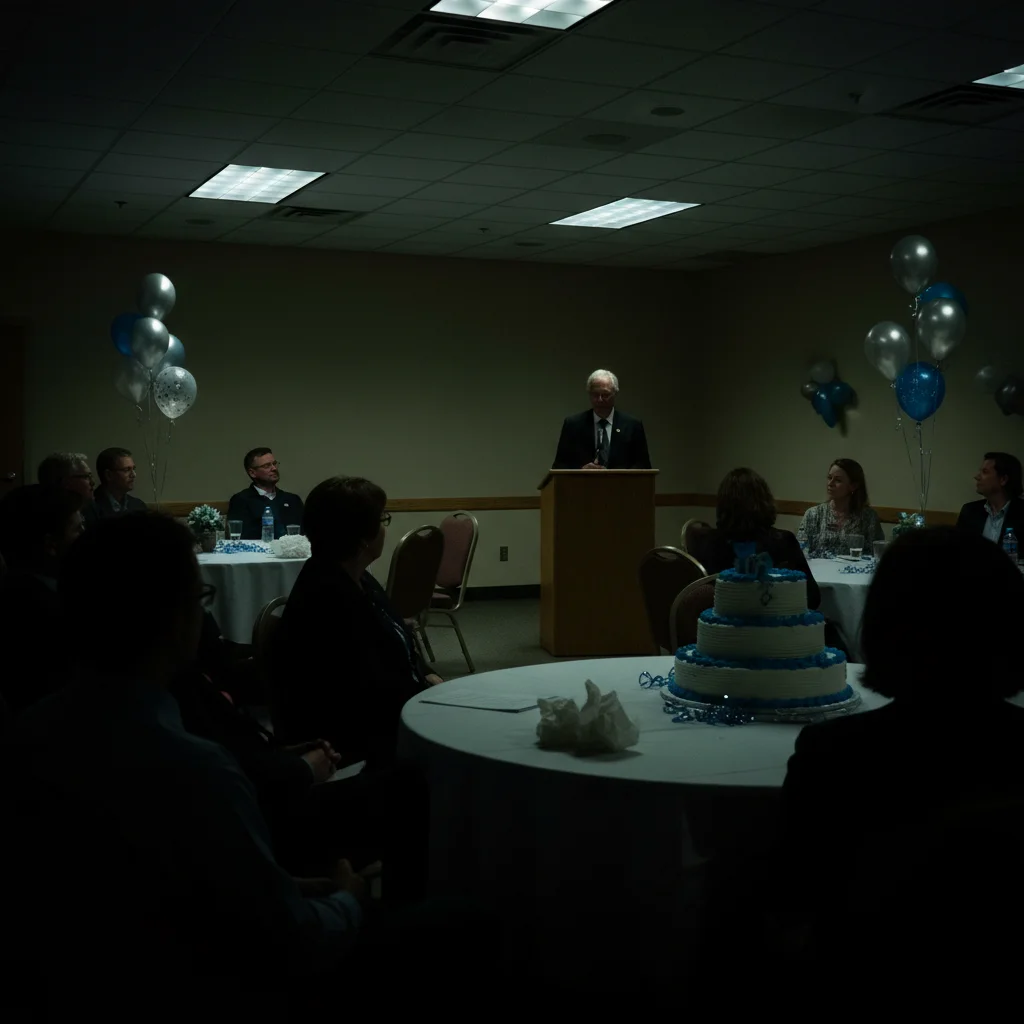
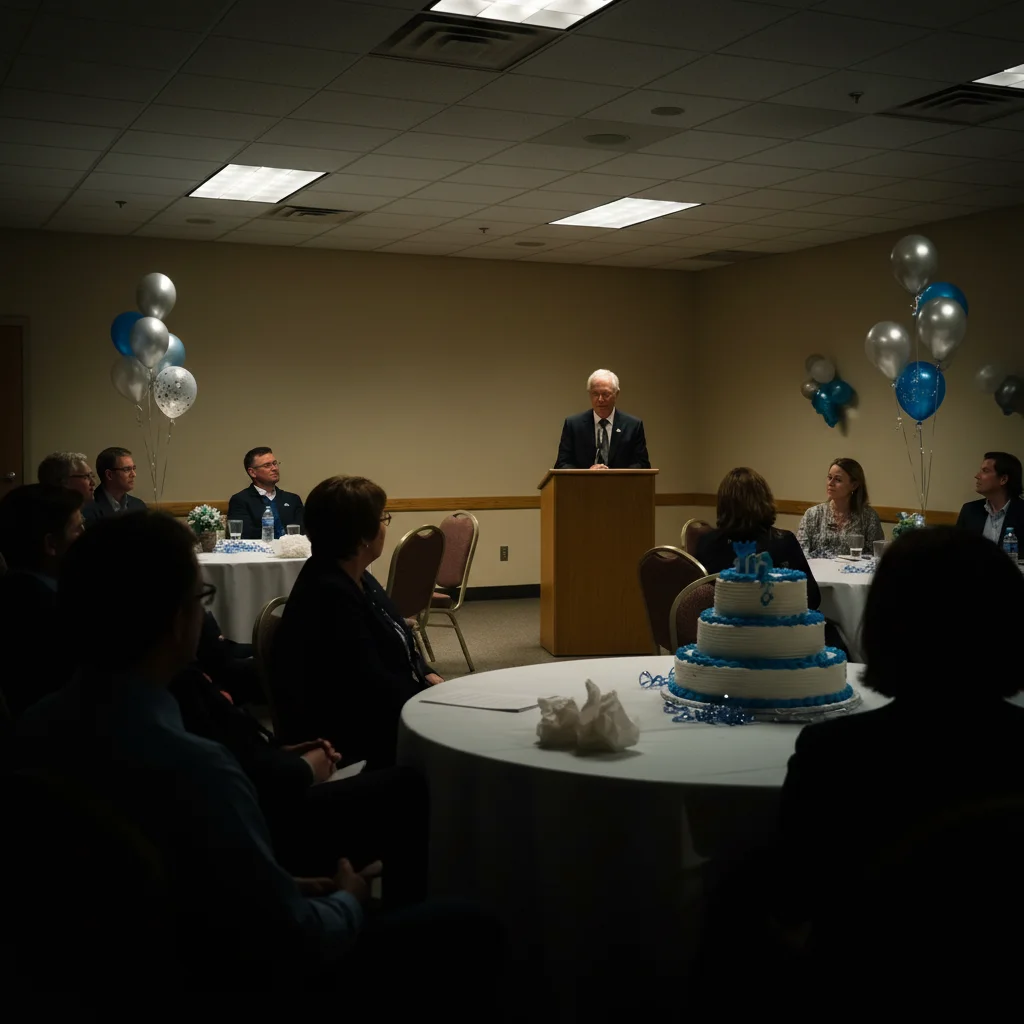
Dark retirement speech photo with dim conference room lighting
Before
Brightened photo with faces visible, warm celebration atmosphere
After

Retirement Party Photo Lighting Bad? Fix Indoor Event Photos

Drop your photo here

or click to browse

Release to upload

Free • No signup

Advertisement
Popular use cases:
  • Retirement party photos
  • Fix event lighting
  • Career milestone photos
  • Farewell party pictures
  • Office celebration photos
  • Retirement tribute photos
  • Group retirement photo

Cost
Free No signup required
Time
Instant results in 15-30 seconds
Works on
Any device - browser, phone, tablet, desktop
Powered by
AI-powered photo editing
Scenario Prompt Time
Dim venue or conference room brighten this photo and fix dim indoor lighting, make faces clear 25s
Harsh overhead lights soften harsh overhead lighting and make faces flattering 25s
Group photo, uneven faces brighten all faces evenly, make everyone clearly visible 35s
Complete enhancement brighten photo, soften lighting, enhance faces, warm colors 40s

How it works

  1. Upload your retirement party photo

    Drop your retirement celebration photo into EditThisPic. The cake presentation, farewell speech, group photo with colleagues—whatever moment from this career milestone needs enhancement. JPG, PNG, WebP up to 7MB. This celebrates decades of work.

    Expect: Simple fixes (brighten lighting, basic enhancement): 25-35 seconds. Complex fixes (multiple issues, group photo problems): 40-60 seconds.
  2. Describe what needs fixing

    Type what's wrong: 'brighten this photo and fix the dim indoor lighting,' 'enhance everyone's faces and make the lighting flattering,' or 'remove the distracting background clutter.' Be specific about typical event problems—dark rooms, harsh lights, awkward backgrounds, people blinking.

    Tip: Combine fixes: 'brighten faces, warm up the colors, and remove distractions in background' works great for typical party photos.

    Copy one of these to get started:

    Dim conference room or party venue brighten this retirement party photo and fix the dim indoor lighting, make faces clearly visible
    Harsh overhead fluorescent lighting soften the harsh overhead lighting and make everyone's faces flattering and warm
    Group photo with some faces too dark brighten all faces evenly and make sure everyone is clearly visible in this group photo
    Cake or retirement gift presentation photo brighten this photo, enhance the cake and retiree, make the moment feel special and warm
    4 more prompts
    Someone blinking or bad expression fix the person blinking on the right, open their eyes naturally
    Messy office or event space background blur the messy background and keep focus on the people celebrating
    Colors look washed out or dull enhance the colors and make this celebration photo vibrant and joyful, warm tones
    Need professional quality for slideshow or memory book enhance this photo to look professionally photographed, warm flattering lighting, ceremony-quality
  3. Review your celebration photo

    Check that faces are clearly visible, lighting feels warm and celebratory, and the focus is on honoring the retiree. This photo represents their career legacy—make it worthy of the moment.

  4. Refine if needed (optional)

    If lighting needs more work or faces need individual enhancement, tap markers on specific areas and describe: 'brighten just these faces' or 'soften this harsh overhead light.' Most party photos work well on first try with Smart mode.

    Tip: For formal presentation photos, try 'make this look professionally lit, warm and dignified' for ceremony-quality results.
Advertisement
Try it free

Retirement Party Photo Lighting Bad? Fix Indoor Event Photos

Drop your photo here

or click to browse

Release to upload

Free • No signup

"The retirement party room was so dark. This brightened everyone's faces beautifully while keeping the authentic celebration feel. Perfect for his memory book." @CareerCelebration

See it in action

Dark retirement speech photo with dim conference room lighting
Before
->
Brightened photo with faces visible, warm celebration atmosphere
After

Dark conference room farewell speech

Retirement speech in a dim conference room with awful lighting. Faces barely visible, moment not captured properly. One prompt brightened everyone and made the celebration clear and warm.

Prompt: brighten this retirement party photo and fix the dim indoor lighting, make faces clearly visible and warm

Group retirement photo with harsh unflattering fluorescent lighting
Before
->
Same photo with softened warm lighting, everyone looking dignified
After

Group photo with harsh overhead lights

Entire office gathered for farewell group photo but harsh fluorescent lights made everyone look exhausted and unflattering. AI softened the lighting and enhanced faces for a dignified tribute photo.

Prompt: soften the harsh overhead lighting and make everyone's faces flattering and warm, enhance this group retirement photo

If something looks off

Faces look too bright or washed out after enhancement

Why: Over-brightening dark photos can blow out highlights on faces, losing natural skin tones and facial detail.

Try: brighten the photo naturally but preserve skin tones and facial detail, don't overexpose

Tip: Ask for 'selective brightening' or 'enhance shadows only, protect highlights' for better face detail.

Some people look good, others still too dark in group

Why: Group photos with mixed lighting can have some faces properly lit and others in shadow—global brightening doesn't fix unevenly.

Try: brighten the faces that are too dark while keeping the well-lit people natural

Tip: Use Smart mode for group photos—it can selectively brighten individual faces. Or tap markers on dark faces specifically.

Colors shifted too much, doesn't look like the real event

Why: Aggressive color enhancement can shift the mood too far from the actual celebration atmosphere and venue.

Try: enhance this photo but keep the original colors and atmosphere, just make it brighter and clearer

Tip: Add 'preserve original mood' or 'keep authentic atmosphere' when you want enhancement without transformation.

Background blur made faces soft too

Why: Background blur can accidentally affect people near the edges if the AI doesn't distinguish foreground from background perfectly.

Try: blur only the background clutter, keep all faces and people perfectly sharp and clear

Tip: Specify 'keep people sharp' explicitly when blurring backgrounds in group photos.

Retirement cake or plaque text became blurry

Why: Enhancement or lighting fixes can accidentally soften important text details on cakes, plaques, or signs.

Try: enhance the photo but keep text on cake and plaque sharp and readable

Tip: Mention preserving text/details if your photo includes written messages, names, or years of service.

Quick answers

Do I need to mark faces before brightening them?

No. Just type 'brighten this photo and make faces clearly visible' and the AI identifies faces and enhances them automatically. It understands that retirement party photos focus on people. Markers are only needed if you want to brighten specific faces differently than others in a group shot.

Can I fix multiple problems in one retirement party photo?

Yes. Combine fixes: 'brighten the photo, soften harsh lighting, enhance faces, warm up colors, and blur the messy background.' The AI handles multiple changes together. Smart mode (4 credits) works much better for comprehensive fixes with 3+ enhancements because it applies them in optimal sequence.

Will this make the photo look fake or over-edited?

Not if you ask for natural results. Retirement photos should feel authentic and dignified, not filtered. Use words like 'natural,' 'realistic,' 'flattering but authentic,' or 'professionally lit' in your prompts. The goal is making the photo match how the moment felt, not creating something unrecognizable.

What if someone is blinking or making a bad expression in the only group photo?

Try 'fix the person blinking on the right, open their eyes naturally' or 'improve the expression on the left person's face.' The AI can fix blinks and awkward expressions. For important tribute photos where you only got one shot, this can save an otherwise unusable group photo.

Can I remove someone who wasn't supposed to be in the photo?

Yes. Use 'remove the person in the background on the left' or describe by clothing. Common for removing random office passersby or people who weren't part of the farewell group. The AI fills in the space naturally.

Should I edit retirement photos or keep them as they were?

Your choice. These photos commemorate a career and will be kept forever—in memory books, tribute videos, farewell presentations. If poor lighting or venue limitations make the photos not worthy of the milestone, fixing them honors the retiree better. You're not changing what happened, just making the documentation worthy of decades of service.

Is EditThisPic's AI retirement party photo fixer really free?

Yes — you get 1 free edit per week, no account needed. For unlimited edits, plans start at $3.99/month.

What photo formats does the AI retirement party photo fixer support?

JPG, PNG, WebP, and HEIC. Upload any common photo format and EditThisPic handles the rest.

Ready to perfect your retirement celebration photos?

Free to try. No signup required.

Try it free