AI Photo Editor for Hinge Profile Photos
Look like the best version of yourself without looking filtered or fake.
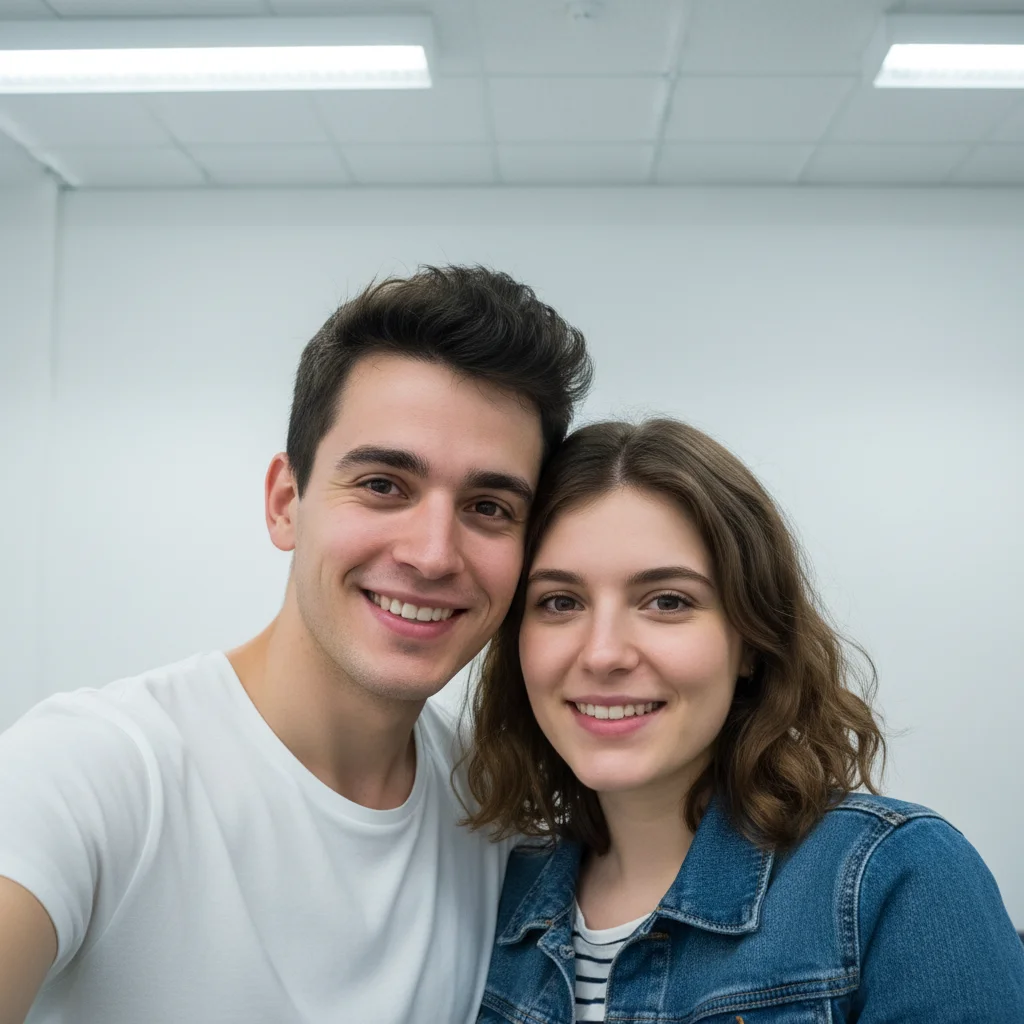
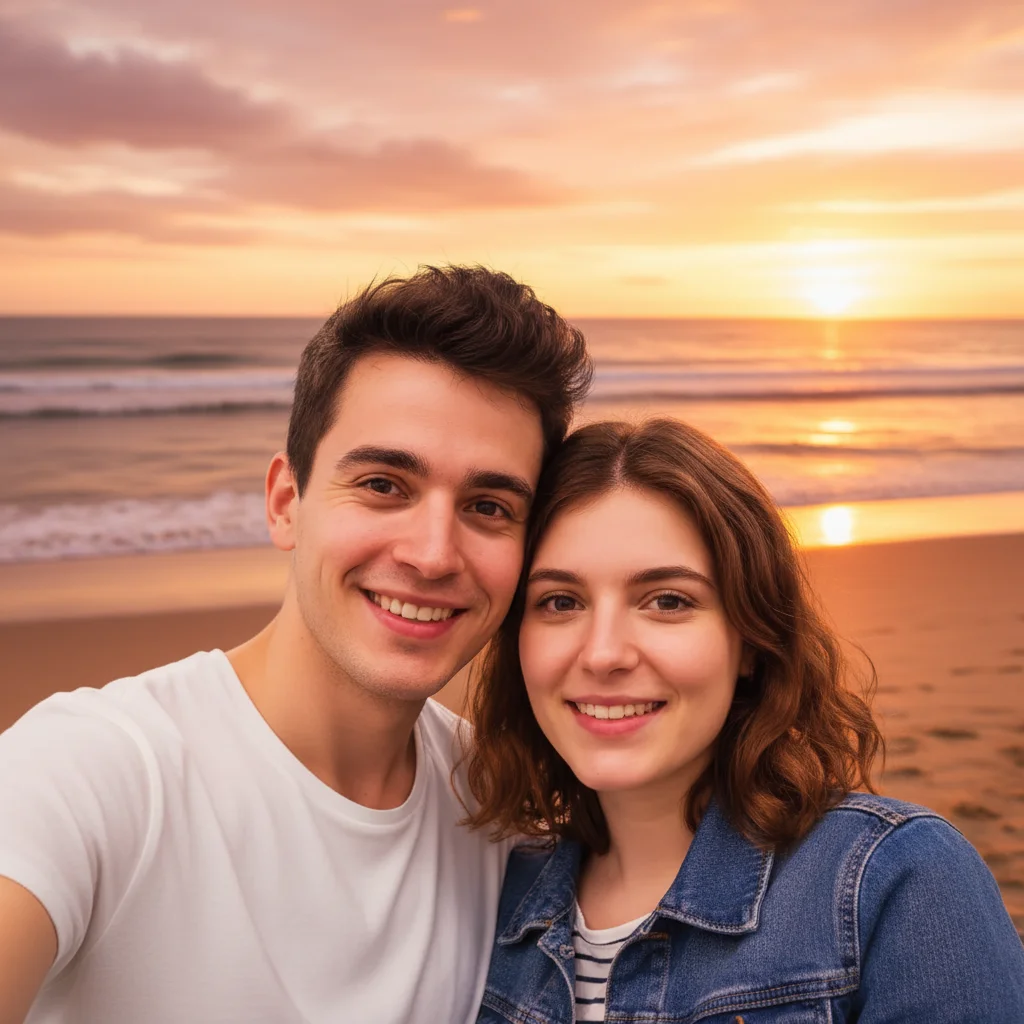
Drop your photo here
or click to browse
Release to upload
Free • No signup
"Had this amazing hiking shot but the lighting was terrible. Fixed the shadows on my face, made the background pop. Three matches commented on that photo specifically. Worth every second." @HikingHinge
Built for Hinge Users Who Want Real Connections
Hinge is designed to be deleted. You want photos that show the real you, not a filtered version that sets up disappointing first dates. EditThisPic enhances your existing photos naturally - better lighting, cleaner backgrounds, sharper details - without making you look like someone else. Start conversations based on authenticity.
Tools for Hinge Profile Photos
Enhance Lighting
Fix harsh shadows and bring out your natural features
Blur Background
Make yourself the focus without distracting clutter
Enhance Photo
Overall quality boost for sharper, more vibrant photos
Fix Color
Correct indoor lighting color casts
Enhance Face
Subtle improvements that still look like you
How to AI Photo Editor for Hinge Profile Photos
-
Choose a photo that shows the real you
Pick photos from activities you actually enjoy - hiking, cooking, with friends, at events. Authentic moments work better than posed shots. The photo should capture your personality, even if the lighting or background needs work.
Natural enhancement: 15-20 seconds. Background cleanup: 25-35 seconds.Photos where you're genuinely smiling or engaged in something perform best on Hinge. -
Describe the enhancement you want
Drop your photo into EditThisPic and describe what to fix: 'enhance the lighting to be warm and natural' or 'blur the messy apartment background, keep me in sharp focus.' Be specific about keeping things natural.
Always include 'natural' or 'genuine' in your prompt to prevent over-processing that looks fake. -
Check that you still look like you
Review the edit at full size. You should look like yourself on a really good day, not like a different person. Your match will meet you in real life - your photos should be recognizable. If anything looks artificial, redo with gentler instructions.
-
Save and upload to Hinge
Download your enhanced photo. Consider creating 2-3 variations for your profile - Hinge's 6-photo format benefits from variety. Mix up settings: outdoor activity, social moment, closer portrait.
Hinge displays photos in a square crop preview - check that your face is well-positioned for the crop.
Copy-Paste Prompts for Hinge Photos
enhance lighting to be warm and natural, reduce harsh shadows on face, keep my genuine expression exactly as is
'Warm and natural' creates approachable, inviting photos without looking filtered
blur the background softly, keep me in sharp focus, maintain the natural moment
Soft blur keeps context visible while removing distracting details
fix the yellow indoor lighting to natural tones, brighten slightly, keep skin looking realistic
Indoor lighting often adds unflattering yellow - this neutralizes it naturally
sharpen the photo naturally, enhance clarity on my face, keep the action feeling authentic
Works best on slightly soft photos - can't fully fix motion blur
Show 4 more prompts
remove the partial arm/shoulder at the edge, extend the background naturally
Cropping from group photos often leaves awkward edges - this cleans them up
remove the person in the background, fill with natural surroundings
Works best when the stranger isn't overlapping with you
enhance face subtly, improve lighting, reduce under-eye shadows, keep everything completely natural looking
'Completely natural' prevents the over-smoothed look that screams 'filtered'
brighten the photo naturally, reduce noise and grain, enhance face visibility while keeping the ambient mood
'Keeping the ambient mood' preserves the atmosphere while making you visible
| Edit Type | Prompt | Time | |
|---|---|---|---|
| Lighting fix | enhance lighting naturally, keep genuine expression |
20s | Try This → |
| Background blur | blur background softly, keep me sharp |
15s | Try This → |
| Color correction | fix yellow lighting to natural tones |
15s | Try This → |
| Full polish | enhance lighting, blur background, keep natural |
30s | Try This → |
Real Examples
Hiking photo with harsh midday shadows
Great action shot on the trail, but the overhead sun created unflattering shadows across the face. Fixed the lighting while keeping the authentic adventure vibe.
enhance lighting to be warm and even, remove the harsh shadows on my face, keep my genuine smile and the outdoor setting natural
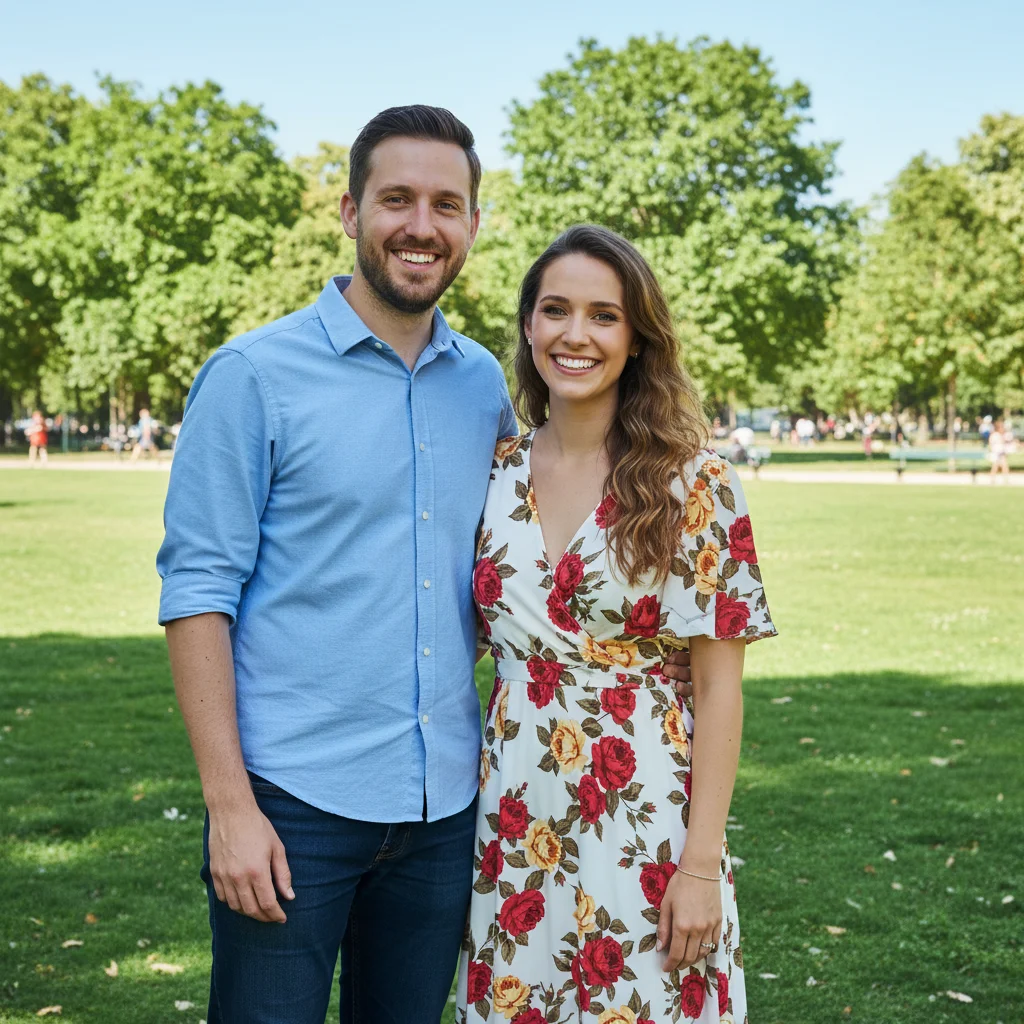
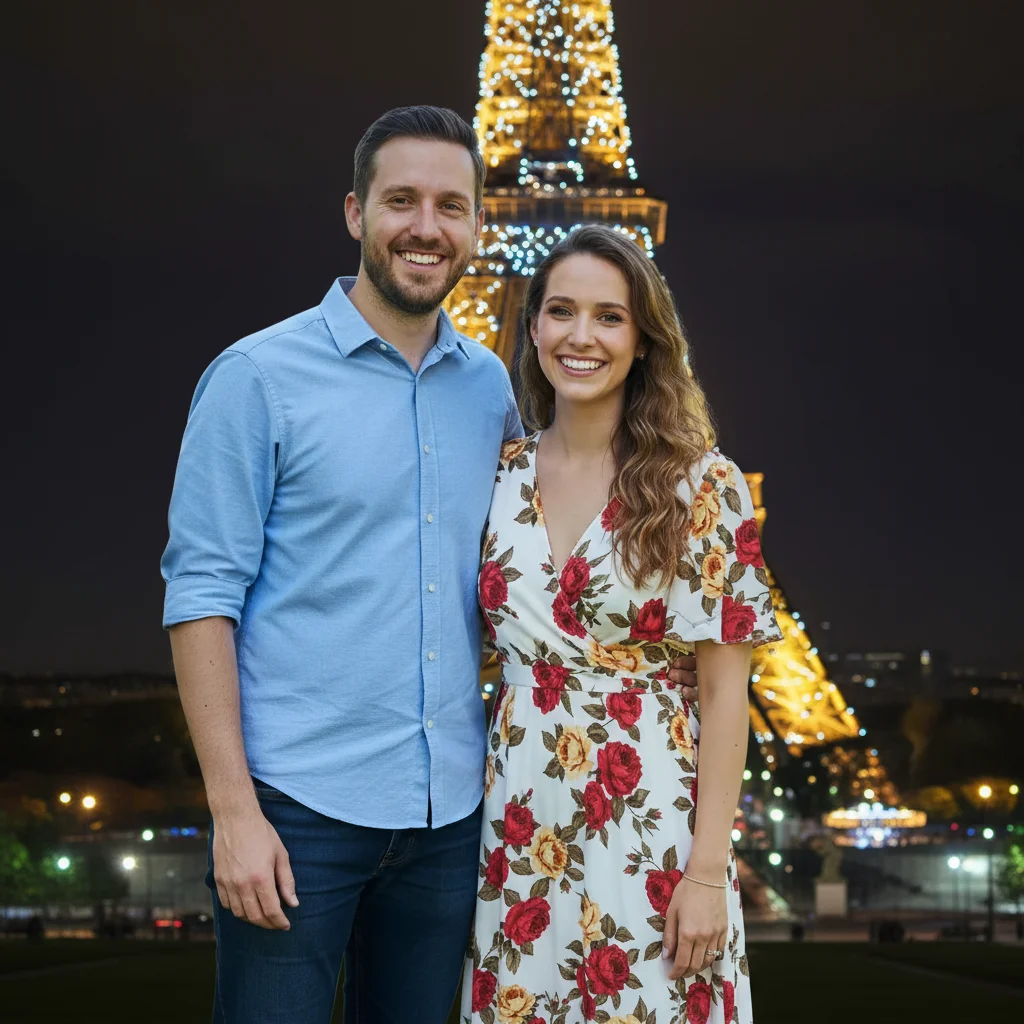
Coffee shop photo with yellow lighting
Cozy coffee date vibe captured perfectly, except the warm indoor lighting made everything look jaundiced. Color correction brought back natural skin tones.
fix the yellow indoor lighting to natural skin tones, keep the cozy ambient feeling, brighten my face slightly


Beach day with cluttered background
Genuine happy moment at the beach, but the background showed towels, coolers, and other beachgoers. Soft blur kept the beach context while removing distractions.
blur the background softly, keep me in sharp focus, preserve the beach setting but remove the clutter


Concert photo rescue
Amazing night out, but the low light left the photo dark and grainy. Enhanced visibility while preserving the fun atmosphere.
brighten the photo naturally, reduce the noise and grain, make my face clearly visible while keeping the concert atmosphere
When Things Go Wrong
I look too filtered or fake
Why: The AI applied too much enhancement, making you look artificially smoothed or processed.
Start fresh with: enhance lighting subtly, keep all natural skin texture and features exactly as they are
Always include 'keep natural' or 'subtle' to prevent over-processing. Less is more for dating photos.
Colors look unnatural or oversaturated
Why: Color enhancement was too aggressive, making the photo look heavily edited.
If you want warmer tones, say 'slightly warmer' rather than just 'warm' to keep it subtle.
Background blur has weird edges around my hair
Why: Fine hair strands are difficult for AI to separate cleanly from the background.
Tap markers on the hair edges, then: blend hair edges naturally with blurred background
Try a lighter blur amount if edge issues persist. 'Softly blur' works better than 'heavily blur' for tricky hair.
My expression looks different or unnatural
Why: Face enhancement accidentally modified your expression or features.
Start fresh focusing only on background or lighting: blur background only, do not change my face at all
Process background and face separately. Fix the background first, then decide if you need face adjustments.
AI changed something I didn't want changed
Why: The AI couldn't determine exactly which area you meant from description alone.
Tap a marker on the specific area you want to change, then regenerate with the same prompt
Markers tell the AI 'I mean THIS one specifically.' Use them when description alone is ambiguous.
Frequently Asked Questions
Do I need to mark anything before describing the edit?
No! For most edits, just describe what you want: 'enhance lighting naturally' or 'blur the background.' The AI understands these concepts. Only use markers when you need precision - like specifying which person to remove in a group, or refining edges after your first attempt.
Will my photos look obviously edited?
Not if you keep edits subtle. Background blur and lighting enhancement are almost undetectable when done naturally. The goal is to look like yourself on a really good day, not like a different person. Always include 'natural' or 'subtle' in your prompts to prevent over-processing.
How do I edit Hinge photos without looking fake?
Focus on fixing problems (bad lighting, messy backgrounds) rather than changing yourself. Enhance lighting, blur distracting backgrounds, fix color casts. Avoid heavy skin smoothing or feature changes. Your match will meet you in person - your photos should be recognizable.
Is there a free photo editor for dating profiles that doesn't require login?
Yes. EditThisPic is free to try with no account required. Just upload your photo, describe what you want fixed, and download the result. No watermarks on your photos.
What makes a good Hinge profile photo?
Authentic moments where you're genuinely engaged - hiking, cooking, with friends, at events. Clear face visibility, natural lighting, and minimal distractions. Photos should show your personality and what spending time with you looks like. EditThisPic can fix the technical issues (lighting, backgrounds) but start with genuine moments.
Should I edit all 6 of my Hinge photos?
Only edit photos that have fixable problems - bad lighting, messy backgrounds, color issues. Don't over-edit every photo the same way or your profile will look artificial. Variety is good. Some polished shots, some raw authentic moments. EditThisPic works best for technical fixes, not transforming every image.
Is EditThisPic's AI photo editor for hinge profile photos really free?
Yes — you get 1 free edit per week, no account needed. For unlimited edits, plans start at $3.99/month.
Can I hinge profile on my phone?
Yes. EditThisPic works in any mobile browser — iPhone, Android, tablet. No app download needed.
Ready to get more matches on Hinge?
Free to try. No signup required. No watermarks.
Edit Your Photo