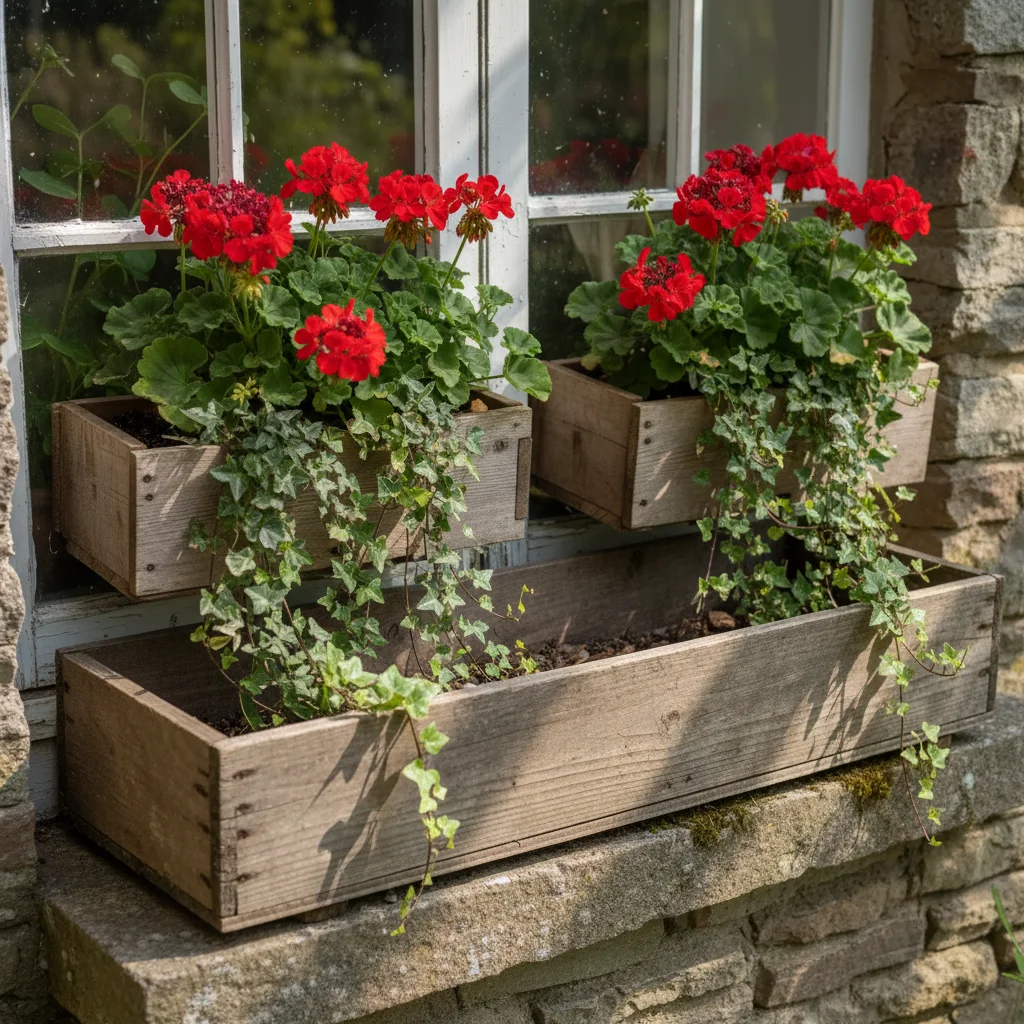
Do I need to mark where the flowers should go?
Not always. For obvious placements like 'add flowers along the walkway' or 'place a vase on the table,' the AI understands from your description.
How do I add flowers to a photo for free?
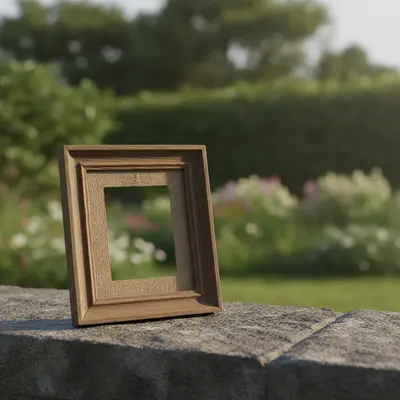
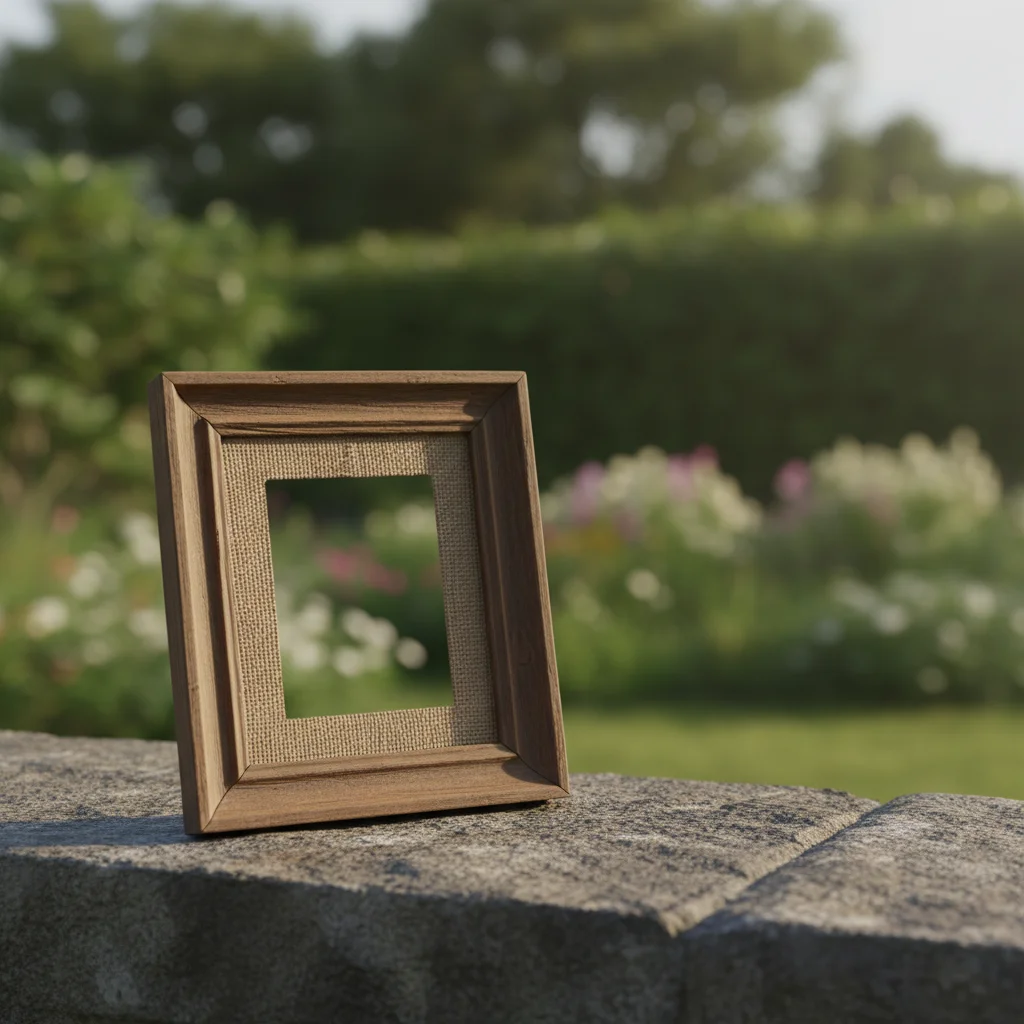
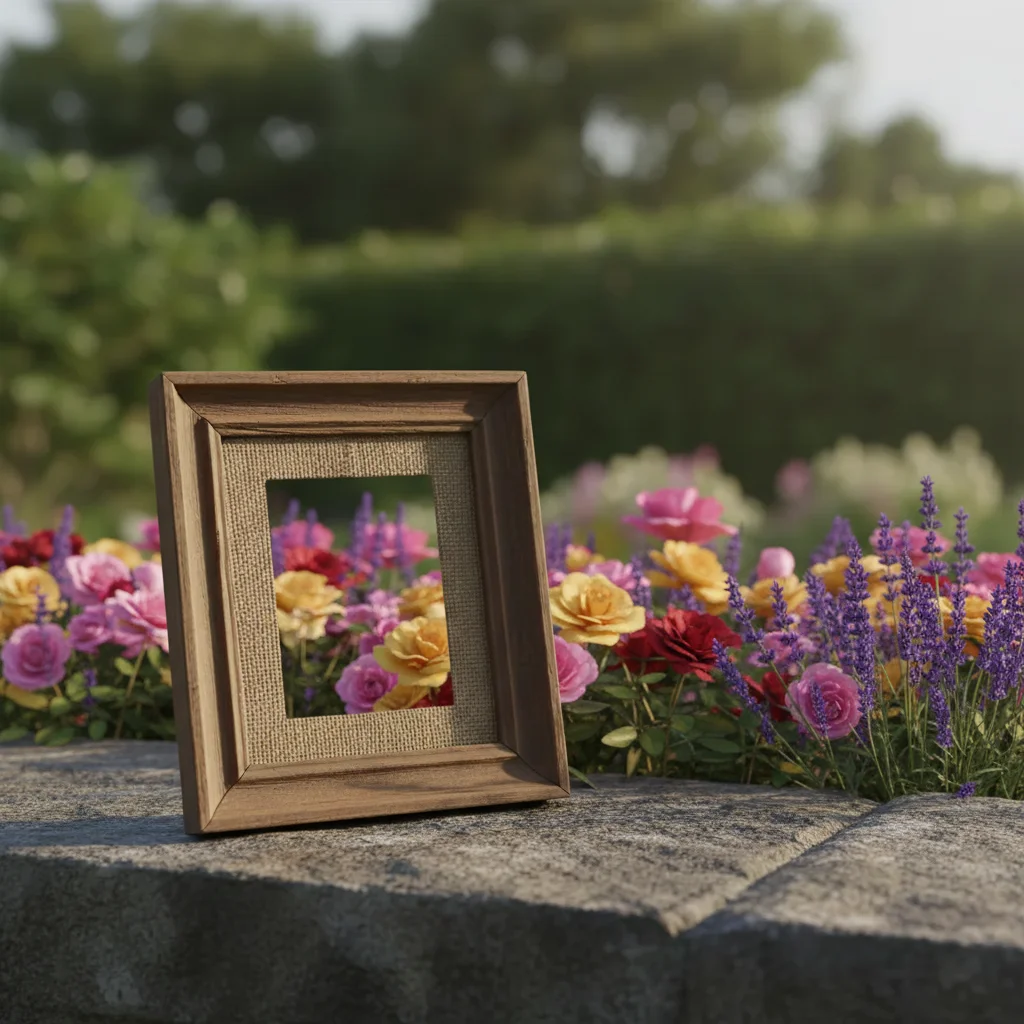
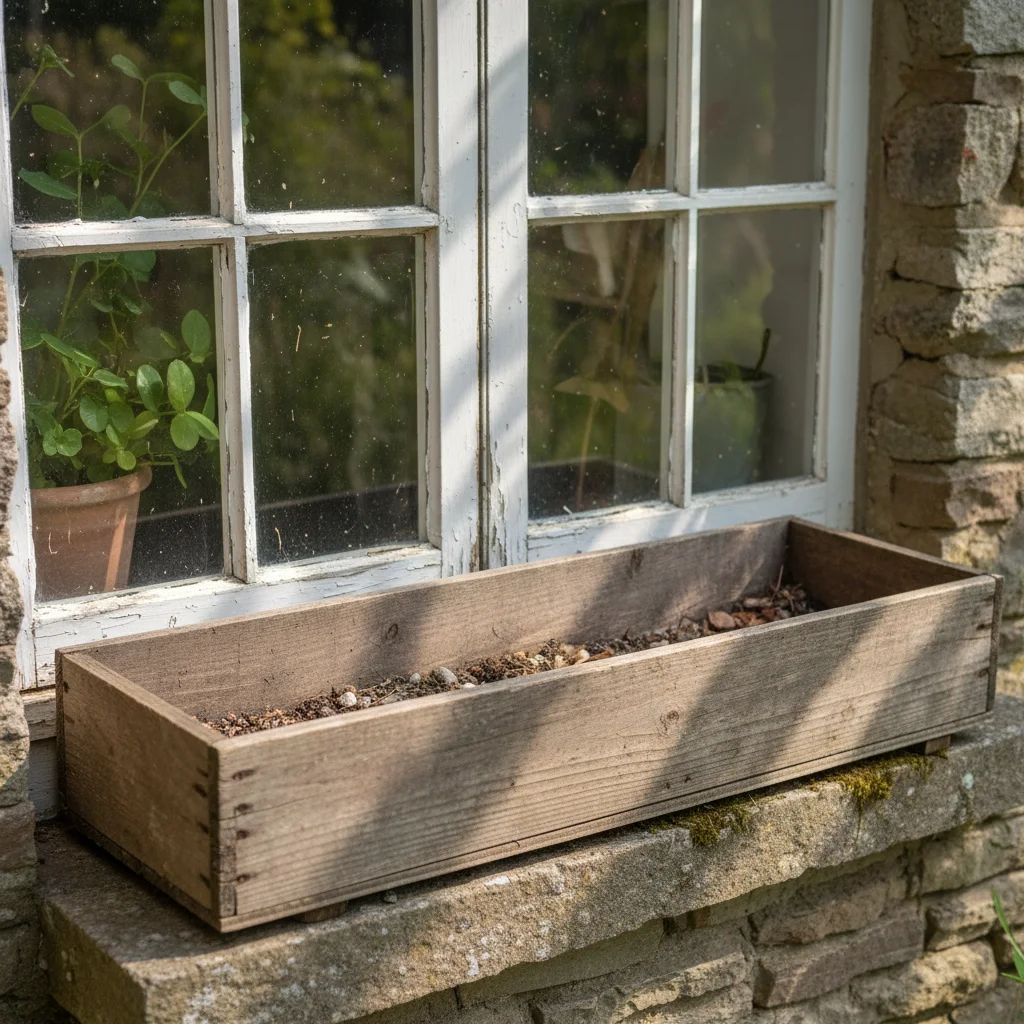
Upload your photo to EditThisPic and describe what you want: 'add a colorful flower bed along the front walkway.' The AI places realistic flowers with natural shadows in 20-30 seconds. Free to use, no account required, no watermarks.
Is there a free AI tool to add flowers to photos without signup?
Yes. EditThisPic adds flowers to any photo for free with no account needed. Upload your image, describe the flowers you want, and download the result. No watermarks, no login, works in your browser.
What is the best AI tool for adding flowers to photos?
EditThisPic's AI generates realistic flowers with correct petal detail, natural color variation, and shadows that match your scene's lighting. Name specific varieties like roses, lavender, or sunflowers for the most natural results. Free to try, no signup.
Can I choose specific flower types?
Yes. Name roses, tulips, sunflowers, lavender, peonies, or any variety in your prompt. The AI generates the appropriate flowers with accurate petal shapes and colors.
Can I add flowers to indoor photos?
Yes. Try 'add a vase of fresh sunflowers on the table' or 'place a bouquet of white roses on the counter.' The AI matches indoor lighting and places the arrangement naturally.
Will the flowers match the lighting in my photo?
Yes. The AI analyzes your photo's lighting direction and color temperature, then generates flowers with matching shadows and highlights. For best results, mention the lighting: 'add flowers with soft morning light' or 'matching the warm afternoon sun.'
How much does EditThisPic cost?
You get 1 free edit per week — no account needed. After that, one-time credit packs start at $4.99 for 10 edits, valid 12 months, no subscription. Power users who edit daily can pick Studio Membership, a monthly workspace at $49.99/mo for 300 edits. Purchased downloads are clean with no watermark.