Free • No signup Fix Image · Free

AI Image Fixer

← Browse all creative effects

Last updated

Describe what's wrong — 'too dark', 'blurry face', 'washed-out colors' — and the AI fixes it in 15 seconds.

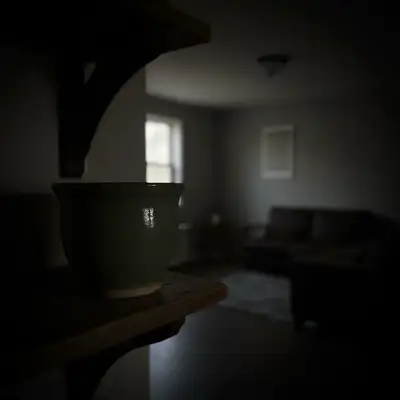
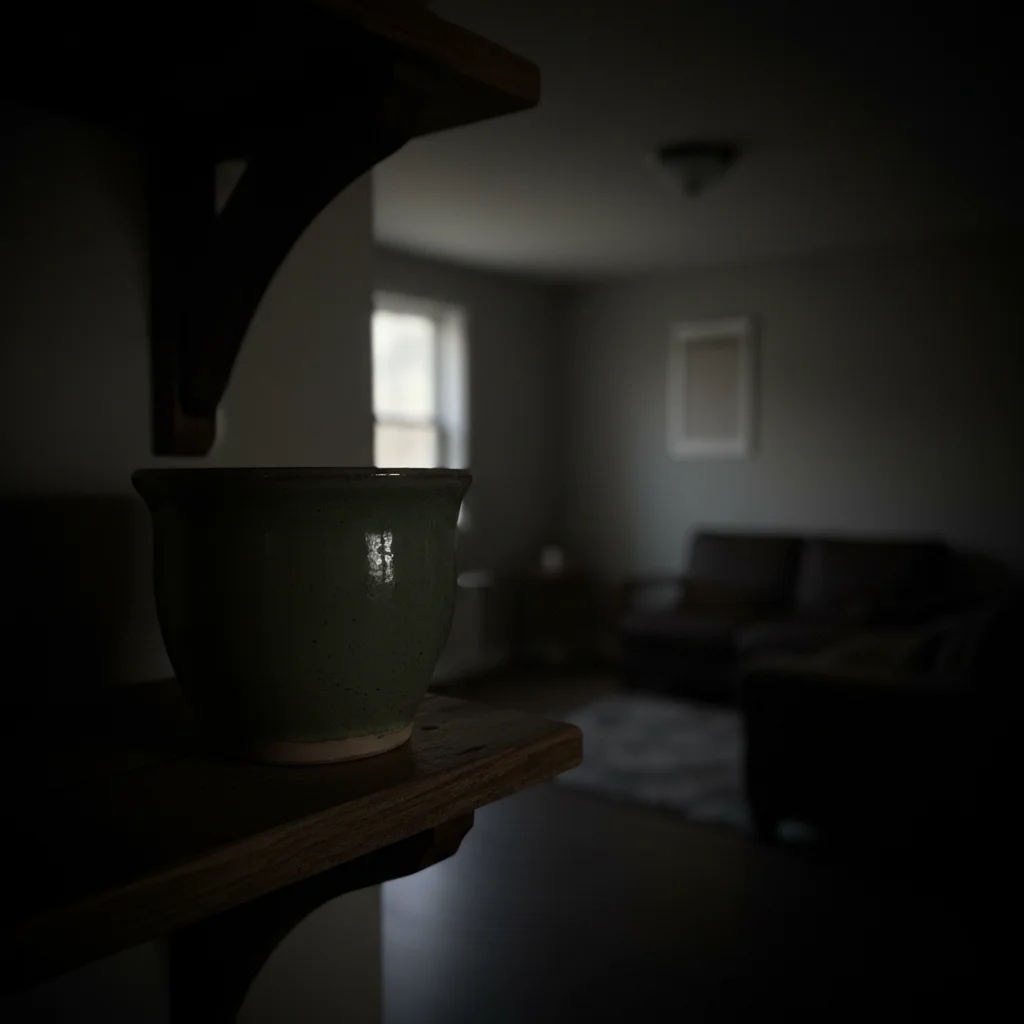
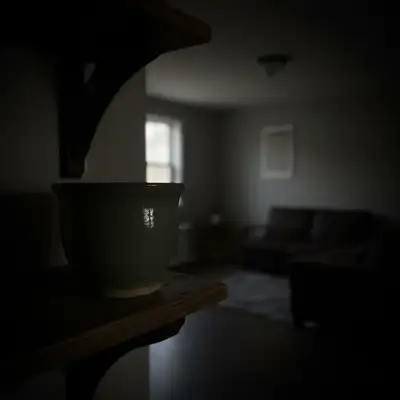
Dark underexposed phone photo of ceramic plant pot with details lost in shadow
Before
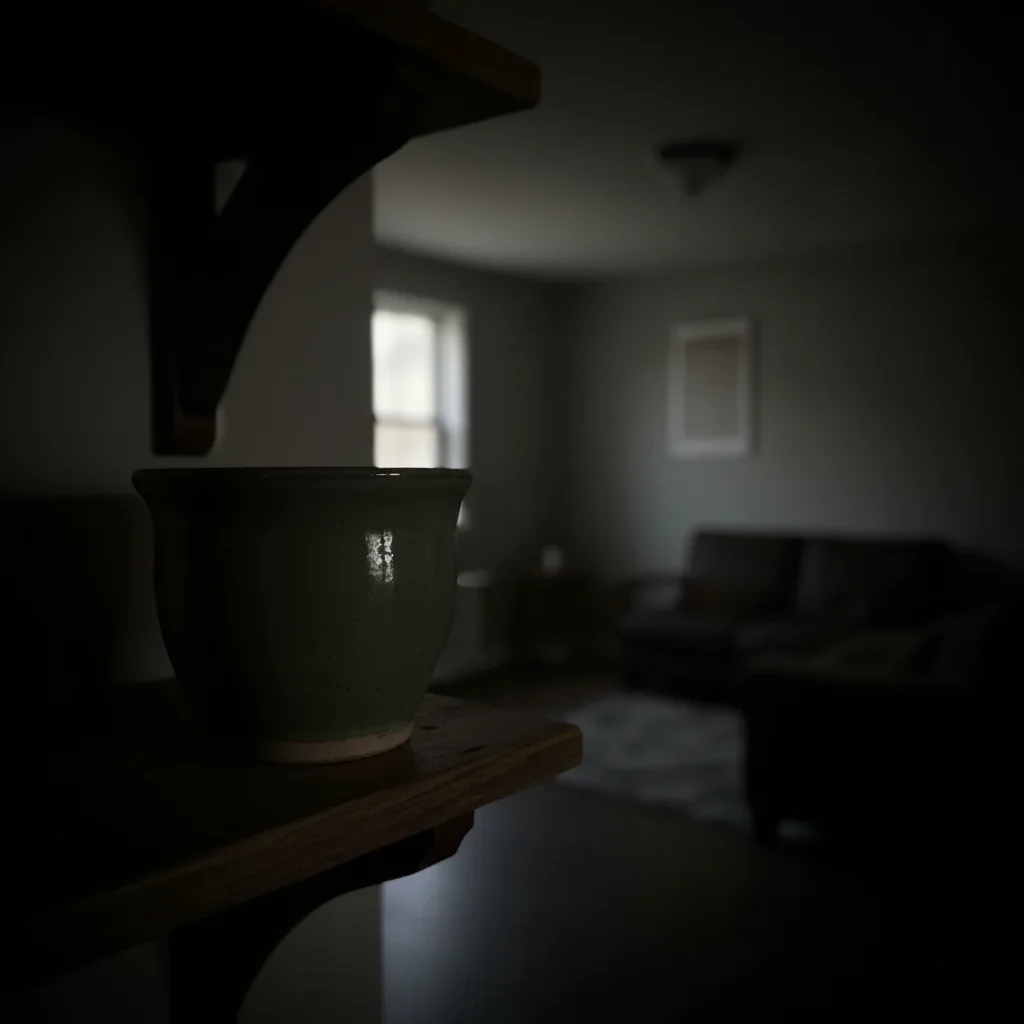
Same photo with exposure fixed — bright, natural colors, ceramic detail clearly visible
After

Upload photo to fix image

"sharpen this blurry photo and restore fine detail — improve edge clarity on faces and remove motion blur while keeping the result natural"

Release to upload

FreeNo signupNo watermark

1 free edit·then from $1.99

Popular use cases:
  • Vinted listing photos
  • marketplace seller photos
  • phone photos gone wrong
  • dark indoor photos
  • blurry portrait fixes
  • noisy low-light shots

Cost
Free No signup required
Time
Instant results in 15-30 seconds
Works on
Any device - browser, phone, tablet, desktop
Powered by
AI-powered photo editing
Scenario Prompt Time
Dark photo fix the underexposed dark photo — brighten shadows, restore natural colors and contrast 15s
Blurry photo sharpen this blurry photo and restore fine detail — remove motion blur, keep result natural 20s
Noisy photo remove ISO noise and grain, restore clean skin tones — keep facial detail sharp 20s
Color cast fix the orange indoor color cast — restore natural white balance and skin tones 15s

How it works

  1. Upload the photo that needs fixing

    Drop your image into EditThisPic — JPG, PNG, or WebP up to 7MB. Works on any kind of photo problem: low light, blur, exposure issues, color casts, noise, or old damaged photos. The AI fixes the specific problem you describe.

    Expect: Single issue fixes (dark, blurry, noisy): 15–20 seconds. Multiple overlapping problems or old damaged photos: 25–40 seconds.
  2. Describe what's wrong with the photo

    Type the specific problem: 'fix the dark underexposed photo and bring out the details', 'sharpen the blurry faces', 'remove the grainy noise and restore natural colors', or 'fix the washed-out exposure — restore contrast and color.' The more specific you are, the better the result. No marking required.

    Tip: Name the specific problem type: 'underexposed', 'motion blur', 'ISO noise', 'color cast', or 'faded.' This helps the AI apply the right correction technique rather than a generic enhancement.

    Copy one of these to get started:

    Dark, underexposed photo fix the underexposed dark photo — brighten shadows, recover detail in dark areas, restore natural colors and contrast without blowing out highlights
    Blurry or out-of-focus photo sharpen this blurry photo and restore fine detail — improve edge clarity on faces and remove motion blur while keeping the result natural
    Grainy or noisy photo (low light) remove the ISO noise and grain from this photo, smooth the background, restore clean skin tones — keep facial detail sharp
    Washed-out or overexposed photo fix the overexposed washed-out photo — recover blown highlights, restore color saturation, bring back natural contrast and depth
    3 more prompts
    Wrong color cast (orange, blue, green tint) fix the color cast in this photo — remove the orange/yellow indoor light tint and restore natural white balance and skin tones
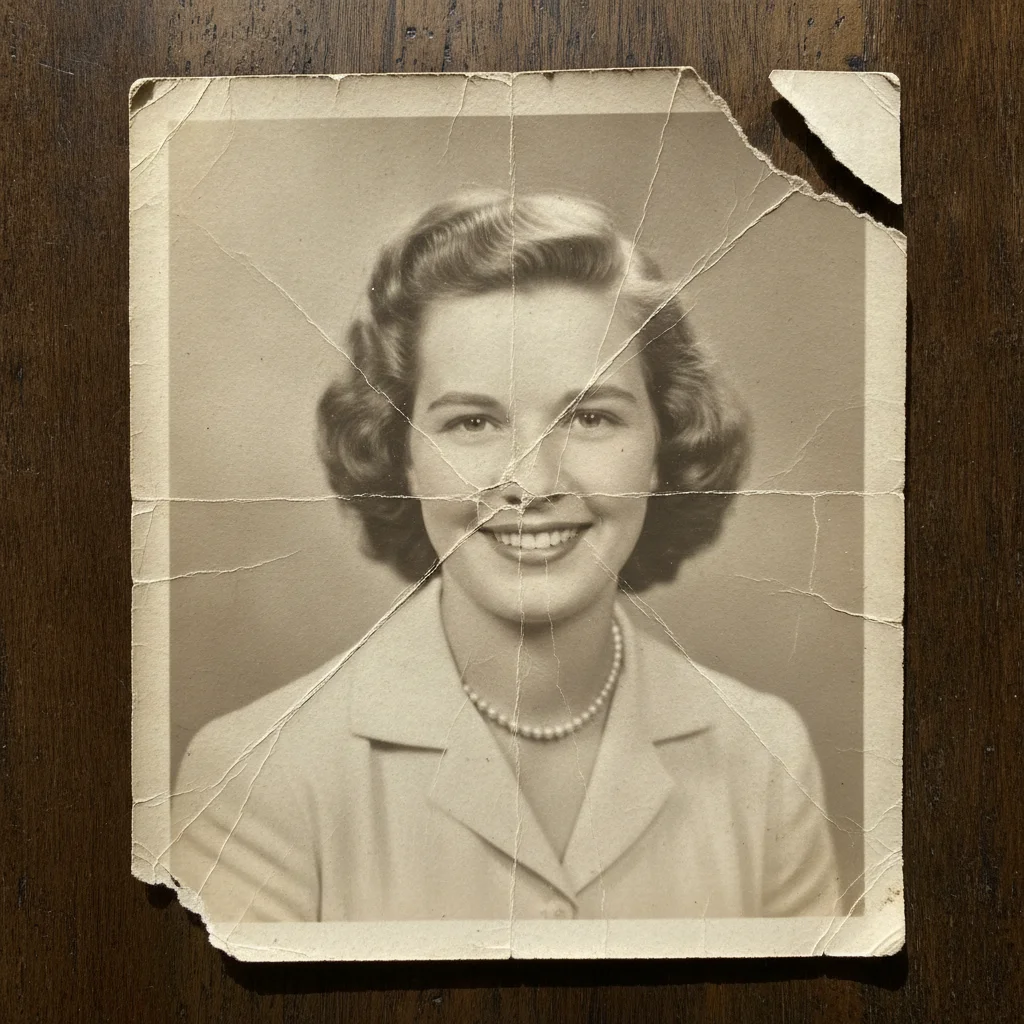
    Old faded or damaged photo restore this old faded photo — improve contrast, fix faded colors, sharpen soft details, and reduce film grain while preserving the original image content
    Phone photo that looks bad (Vinted listing, marketplace) fix this phone photo for a listing — correct the dark exposure, fix the color balance, sharpen the subject and make it look like a professional product shot
  3. Check the result at full zoom

    Zoom to 100% on the area that had the problem. Check that faces are sharp, shadows have detail, colors are natural, and noise is gone. Compare the before and after using the slider.

  4. Refine specific problem areas with markers

    If one area still has an issue — like a face that's still dark while the rest is fine — tap a marker on that spot and regenerate: 'fix the dark shadows on the face only, don't change the already-correct background.' Most fixes work without markers.

    Tip: Markers are for precision refinement when you want to fix one area without touching areas that already look correct.
Try it free

Upload photo to fix image

"remove the ISO noise and grain from this photo, smooth the background, restore clean skin tones — keep facial detail sharp"

Release to upload

Free • No signup

See it in action

Dark underexposed phone photo of ceramic plant pot with details lost in shadow
Before
->
Same photo with exposure fixed — bright, natural colors, ceramic detail clearly visible
After

Dark indoor photo fixed for a product listing

A seller's phone photo came out too dark to use for their listing. One prompt brought out the detail and corrected the exposure.

Prompt: fix the underexposed dark photo — brighten shadows, recover detail in dark areas, restore natural colors and contrast without blowing out highlights
Low-light restaurant photo with heavy ISO noise and grain visible on faces
Before
->
Same photo with noise removed — clean skin tones and sharp facial detail
After

Noisy low-light photo cleaned up

A photo taken at a restaurant in low light had heavy ISO noise. The AI removed the grain while keeping the subject sharp.

Prompt: remove the ISO noise and grain from this photo, smooth the background, restore clean skin tones — keep facial detail sharp
Outdoor portrait with obvious motion blur making face and edges soft
Before
->
Same portrait with sharpness restored — clear face detail and natural edges
After

Blurry portrait sharpened

A motion-blurred portrait was too soft for printing. The AI restored sharpness while keeping the result natural.

Prompt: sharpen this blurry photo and restore fine detail — improve edge clarity on faces and remove motion blur while keeping the result natural

If something looks off

AI changed the wrong area or something I didn't want changed

Why: The AI couldn't determine exactly which area you meant from description alone. This happens when the photo has both a correctly-exposed area and a problem area.

Try: Tap a marker on the specific area with the problem, then regenerate: 'fix the dark exposure on this area only — don't change the surrounding areas that are already correct'

Tip: Markers tell the AI 'fix THIS area specifically.' Essential when only part of the photo has an issue.

Fix looks over-processed or artificial

Why: The AI applied an aggressive correction. Strong fixes can look unnatural if not constrained.

Try: fix the [issue] but keep the result natural and realistic — subtle correction, don't over-process

Tip: Add 'subtle correction' or 'keep it natural' to any fix prompt to prevent over-processing.

Faces lost detail after noise reduction

Why: The AI smoothed out noise but also smoothed facial texture, making skin look plastic.

Try: remove grain from the background only and keep facial detail and skin texture sharp — preserve the natural face texture

Tip: Separate background noise reduction from face treatment: 'smooth background, sharp face' gives the AI clear priorities.

Colors look unnatural after brightness fix

Why: Boosting brightness can desaturate or shift colors if not constrained.

Try: re-fix the photo: correct the brightness but also restore natural color saturation — the colors look washed out from the last correction

Tip: When fixing dark photos, always mention 'restore natural color saturation' alongside the exposure correction.

Old photo has missing areas or tears that weren't fixed

Why: Damage restoration is complex — the AI may have corrected color/contrast without addressing physical damage.

Try: repair the torn/damaged areas and fill them with content that matches the surrounding photo — restore the missing sections

Tip: For old photos, describe each type of damage separately: 'fix the exposure AND repair the torn corner AND fill the water-stained area.'

Quick answers

Do I need to mark or select the problem area before describing what to fix?

No. Just describe what's wrong: 'fix the dark shadows', 'sharpen the blurry face', 'remove the noise.' The AI identifies and corrects the issue from your description. Only use markers if one specific area has a problem and the rest of the photo is already fine.

Is there a free AI image fixer with no login?

Yes. EditThisPic fixes photos for free with no account and no watermark on output. Upload your photo, describe the problem, and download the corrected result in 15–30 seconds. Works in any browser on desktop or mobile.

How do I fix a dark or blurry photo for free?

Go to EditThisPic, upload your photo, and type the problem: 'fix the underexposed dark photo — brighten shadows and restore natural colors' or 'sharpen the blurry faces and remove motion blur.' The AI corrects it in 15–30 seconds. No account or signup required.

Can it fix photos for Vinted or marketplace listings?

Yes. Type: 'fix this phone photo for a listing — correct the dark exposure, fix the color balance, and make it look like a professional product shot.' Works well for Vinted, Facebook Marketplace, Etsy, and eBay listing photos.

What kinds of photo problems can it fix?

Dark or underexposed photos, overexposed or washed-out photos, blurry or out-of-focus images, grainy high-ISO noise, color casts (orange indoor light, blue shade), faded old photos, and photos with missing or damaged areas. Describe the specific problem type for best results.

What is the best free AI photo fixer online?

EditThisPic is a free AI photo fixer that works by description — no marking, no design skills, no account needed. Describe the problem and the AI corrects it. Works on exposure, sharpness, noise, color, and damage restoration.

How much does EditThisPic cost?

You get 1 free edit per week — no account needed. After that, credit packs start at $1.99 for 3 edits. Monthly plans start at $4.99/mo for 15 edits with unused credits rolling over. All edits are full resolution with no watermark.
Ready to fix your photo?

Free to try. No signup required.

1 free edit included·Credit packs from $1.99