Free • No signup Transform Selfie into portrait · Free

AI Portrait from Selfie

← Browse all creative effects

Last updated

Turn a casual selfie into a professional headshot or formal portrait — just describe the look you want.
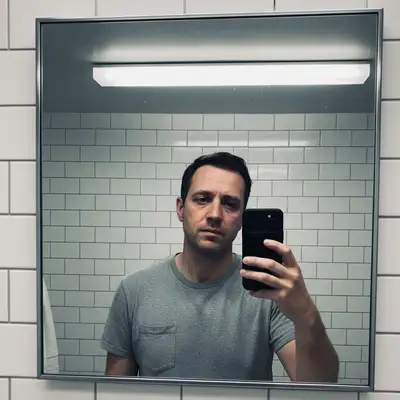
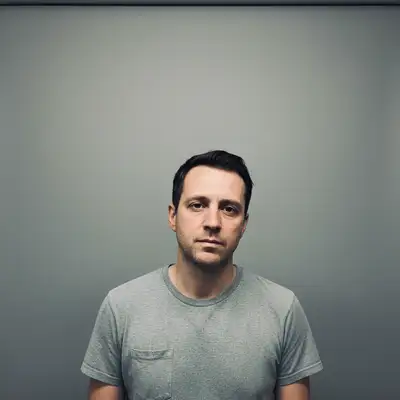
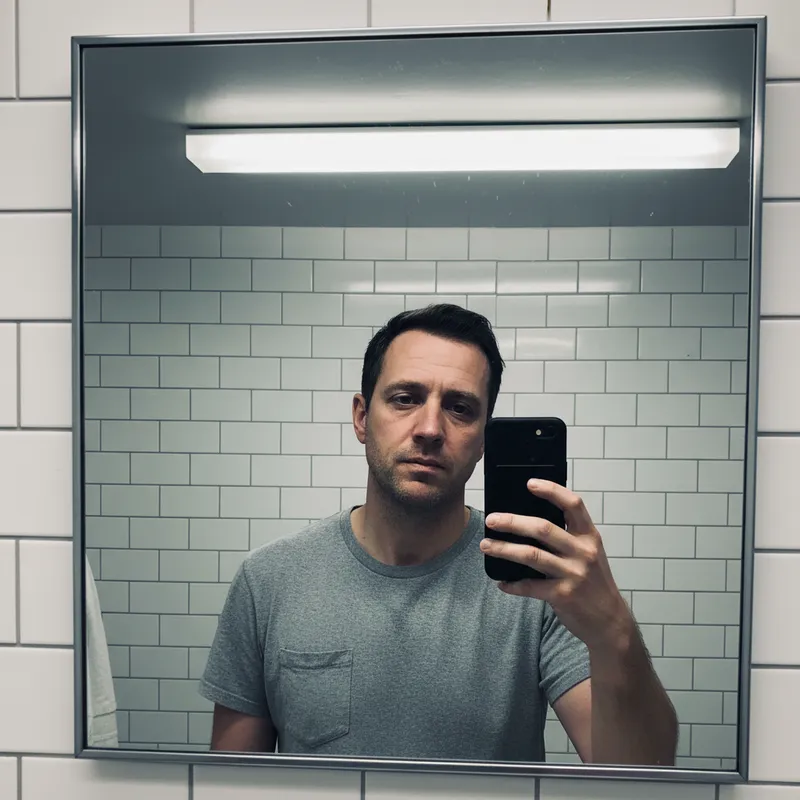
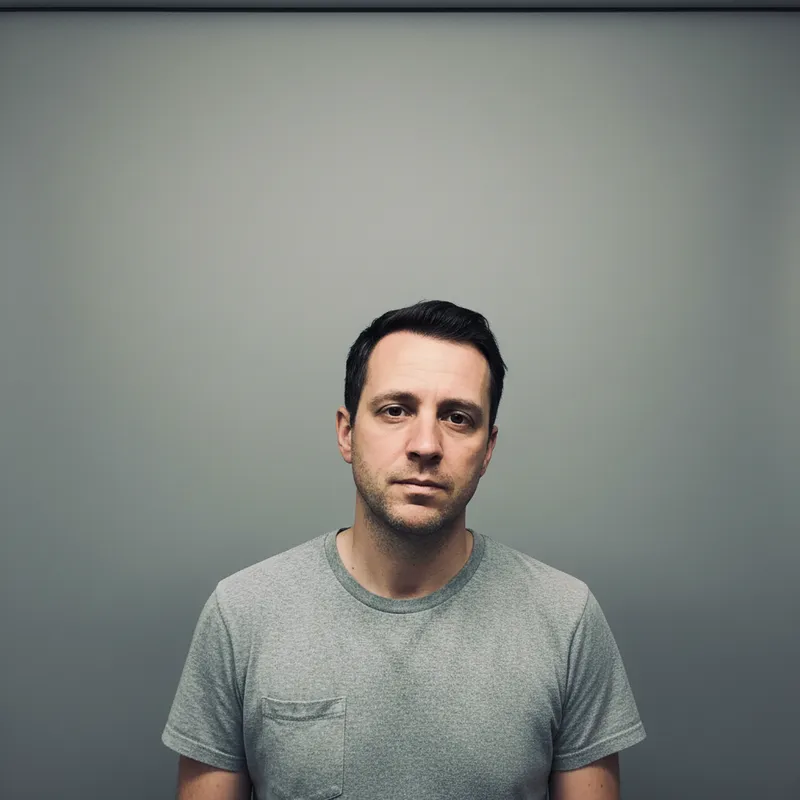
Casual selfie in kitchen with casual t-shirt and kitchen background
Before
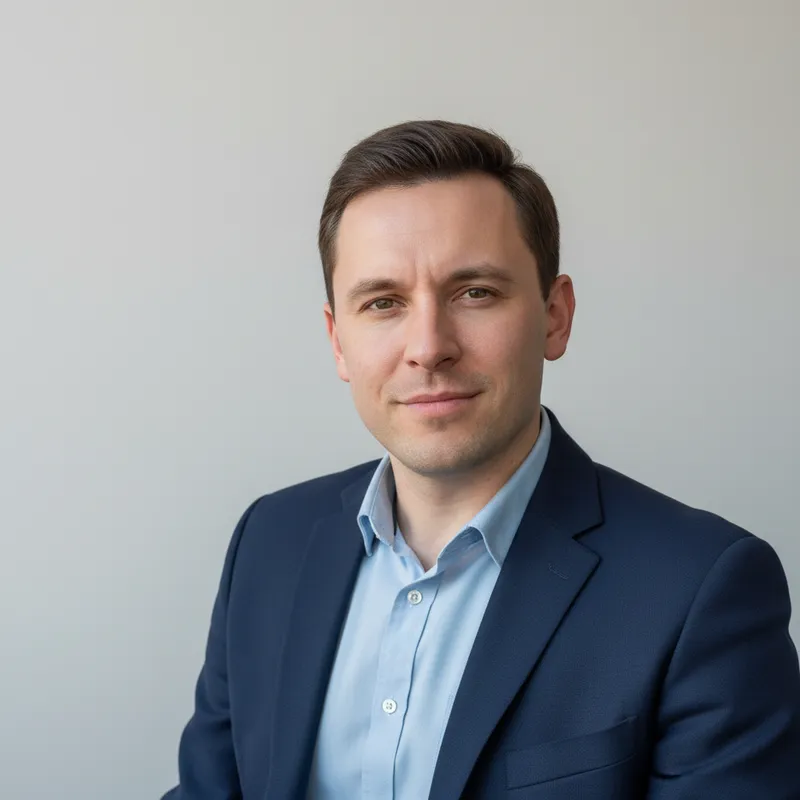
Professional LinkedIn headshot with studio lighting, grey background, and navy attire
After

Upload photo to transform selfie into portrait

"transform into a formal corporate portrait: sharp studio lighting with subtle shadow, clean white background, professional suit with tie, confident professional expression"

Release to upload

FreeNo signupNo watermark

1 free edit·then from $1.99

Popular use cases:
  • selfie to headshot
  • professional portrait from selfie
  • LinkedIn headshot from selfie
  • business portrait creator
  • improve selfie quality

Cost
Free No signup required
Time
Instant results in 15-30 seconds
Works on
Any device - browser, phone, tablet, desktop
Powered by
AI-powered photo editing
Scenario Prompt Time
LinkedIn headshot studio lighting, neutral grey background, business attire, polished expression 30s
Formal corporate sharp studio lighting, white background, dark suit with tie, confident expression 30s
Casual upgrade better soft lighting, blur background, keep casual clothing, polished but natural 25s

How it works

  1. Upload a clear selfie with a well-lit face

    Front-facing selfies with your face centered and clearly visible work best. Even lighting from a window gives better results than harsh overhead lighting or a dark background. Avoid extreme angles — a straight-on or slight three-quarter angle gives the AI the best facial reference. JPG, PNG, or WebP up to 7MB.

    Expect: Well-lit front-facing selfie: 25–35 seconds. Side-angle or dimly lit photos may produce less precise results.
  2. Describe the portrait style you want

    Be specific about lighting, background, attire, and portrait type. 'Professional headshot with soft studio lighting, grey neutral background, navy business attire' gives the AI all it needs. 'Formal portrait with warm window light, cream background, smart casual clothing' gives a different but equally specific result. Include: background color, lighting type, clothing style, and portrait formality level.

    Tip: The most important element in a portrait transformation is the background. Specify it first: 'neutral grey background' vs. 'soft blurred office setting' vs. 'clean white studio background' produce very different results even with similar lighting.

    Copy one of these to get started:

    LinkedIn / professional headshot transform this selfie into a professional LinkedIn headshot: soft studio lighting from the front, neutral grey background, navy or dark blue business attire, polished and approachable expression
    Corporate formal portrait transform into a formal corporate portrait: sharp studio lighting with subtle shadow, clean white background, professional suit with tie, confident professional expression
    Artistic formal portrait transform this selfie into a formal painted-style portrait: warm Rembrandt lighting from the upper left, rich dark background, smart formal attire, slightly dramatic and refined feel
    Author or speaker photo transform into a polished author or speaker headshot: warm natural window light from one side, blurred warm-toned background, smart casual attire, approachable and thoughtful expression
    3 more prompts
    Dating profile photo upgrade improve this selfie into a polished casual portrait: soft natural outdoor light, clean blurred background, smart casual clothing, natural friendly expression
    Academic or medical professional transform into a professional portrait for an academic or medical context: clean soft front lighting, plain neutral or white background, formal professional attire (suit or white coat as appropriate), direct and confident expression
    Keep casual but upgrade quality improve this selfie quality without making it too formal: better lighting, cleaner background removed or blurred, keep casual clothing, fresher overall look while staying natural
  3. Check lighting, background, and facial accuracy

    Check that the lighting looks professional — shadows should fall naturally from one direction, not flat or harsh. Verify the background is clean and the clothing transformation (if requested) looks natural at the collar and shoulders. Confirm your face features are clearly preserved.

  4. Refine clothing or background with markers

    If the background looks right but the clothing was changed too dramatically, tap a marker on the clothing: 'adjust the attire to a more conservative navy business suit — preserve the existing lighting and background.' Targeted clothing or background fixes are faster than regenerating the full portrait.

    Tip: Portrait transformations often need one refinement — usually the collar/neckline area or the background transition. Markers on the specific problem area resolve this in a second pass.
Try it free

Upload photo to transform selfie into portrait

"transform this selfie into a formal painted-style portrait: warm Rembrandt lighting from the upper left, rich dark background, smart formal attire, slightly dramatic and refined feel"

Release to upload

Free • No signup

See it in action

Casual selfie in kitchen with casual t-shirt and kitchen background
Before
->
Professional LinkedIn headshot with studio lighting, grey background, and navy attire
After

Kitchen selfie to LinkedIn headshot

A casual kitchen selfie transformed into a professional LinkedIn headshot with studio lighting.

Prompt: transform this selfie into a professional LinkedIn headshot: soft studio lighting, neutral grey background, navy business attire, polished and approachable expression
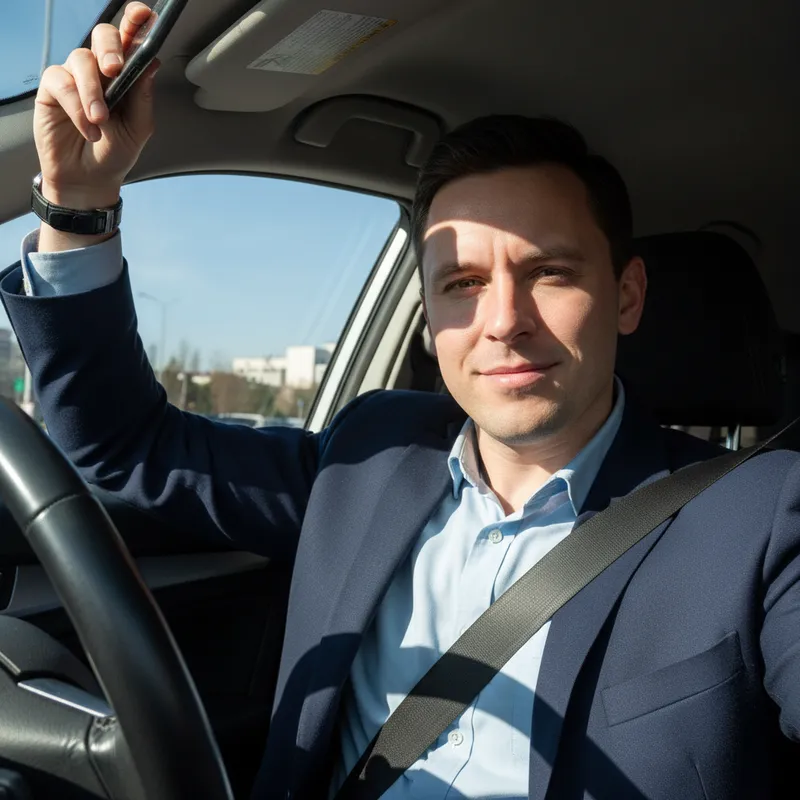
Outdoor selfie with trees and sky background, casual shirt
Before
->
Corporate portrait with white background, formal suit, and professional lighting
After

Outdoor selfie to corporate portrait

An outdoor selfie transformed into a clean corporate portrait with formal attire.

Prompt: transform into a formal corporate portrait: sharp studio lighting, clean white background, dark business suit with tie, confident expression
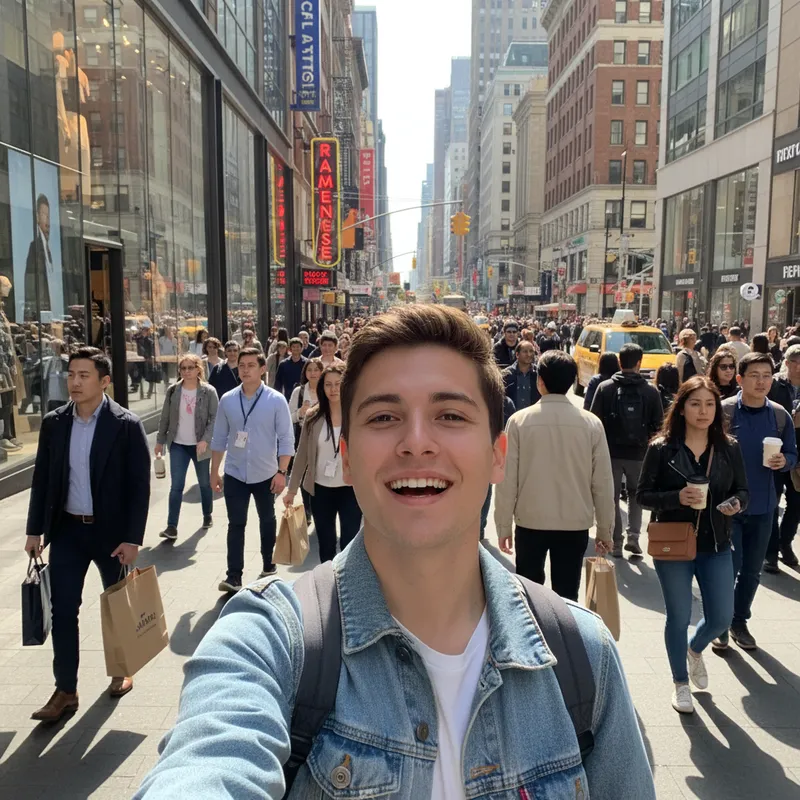
Home selfie with cluttered bookshelf background and overhead lighting
Before
->
Polished casual portrait with blurred clean background and better lighting
After

Simple upgrade — casual to polished

A home selfie upgraded to a polished casual portrait without formal transformation.

Prompt: improve this selfie: better soft natural lighting, blur and clean the background, keep casual smart clothing, natural relaxed expression, overall polished but not formal look

If something looks off

AI changed the wrong area — altered my face instead of just the background or clothing

Why: Without a clear scope constraint, portrait transformations can affect the face when adjusting lighting globally.

Try: tap a marker on the background and type: 'replace background with neutral grey studio backdrop — do not alter the face, eyes, or facial features at all'

Tip: Background changes work best when requested separately from facial lighting. Do background first, then use a marker to adjust lighting on the face if needed.

Clothing transformation looks unnatural at the collar or shoulders

Why: The collar and shoulder transition from clothing to face/neck is the hardest area for clothing replacement. The AI sometimes produces blurring or mismatched edges there.

Try: fix the collar area — the shirt collar should sit naturally against the neck with clean edges and matching lighting

Tip: Collar issues are the most common single-area problem in portrait transformations. Always zoom in on the collar area first when reviewing.

The background was replaced but lighting direction doesn't match the new background

Why: Studio lighting often implies specific light directions. If the replaced background has different light characteristics than the face lighting, the result looks composite.

Try: adjust the face lighting to match the studio background — soft front light from the upper left, matching the implied studio setting

Tip: Specify the lighting direction explicitly to match your background choice: 'soft window light from the left' for an outdoor background, 'even front studio lighting' for a neutral backdrop.

Professional portrait looks too artificial or over-retouched

Why: The AI may have applied heavy skin smoothing as part of the 'professional' interpretation.

Try: adjust the result to look more natural — preserve some natural skin texture and normal facial lines, avoid the over-retouched look

Tip: Include 'natural skin texture preserved' in portrait prompts to prevent over-smoothing. Professional portraits look better with natural texture than with plastic-smooth skin.

Face likeness is reduced — I don't look like myself in the result

Why: Heavy style transformations (e.g., painted portrait, dramatic lighting) can reduce individual likeness.

Try: regenerate with: 'preserve my exact facial features and likeness — the transformation should change the background, lighting, and clothing only, not my face structure or features'

Tip: For transformations where likeness is critical, explicitly state: 'do not alter facial features, bone structure, eye shape, or any identifying facial characteristics.'

Quick answers

Do I need to mark anything in my selfie before transforming it?

No — just describe the portrait style you want: 'professional headshot, studio lighting, grey background, navy suit.' The AI handles the transformation. Use markers only if you want to refine a specific area (like the background or collar) after the initial result.

Is there a free AI selfie to portrait converter with no signup?

Yes. EditThisPic transforms selfies into portraits for free with no account required. Upload your selfie, describe the portrait style, and download with no watermark.

Can I create a LinkedIn headshot from a selfie for free?

Yes. Upload your front-facing selfie and describe: 'professional LinkedIn headshot with soft studio lighting, neutral grey background, and business attire.' The AI generates a headshot-quality result in about 30 seconds. Free, no account needed.

Will my face look like me in the portrait?

The AI preserves your facial features throughout the transformation. The background, lighting, and clothing change — your face stays yours. If likeness seems reduced, add 'preserve my exact facial features' to your prompt.

Can I change the clothing style in my portrait?

Yes. Include the clothing style in your prompt: 'navy business suit with tie' or 'smart casual blazer over white shirt.' The AI swaps the clothing as part of the portrait transformation. The collar and shoulder areas sometimes need a refinement pass for clean results.

What selfie works best for portrait transformation?

Front-facing selfies with your face clearly lit and centered work best. Even light from a nearby window is ideal — avoid harsh overhead lighting or very dark backgrounds. A higher-resolution photo (anything from a modern smartphone works) gives cleaner portrait results.

How much does EditThisPic cost?

You get 1 free edit per week — no account needed. After that, credit packs start at $1.99 for 3 edits. Monthly plans start at $4.99/mo for 15 edits with unused credits rolling over. All edits are full resolution with no watermark.

Ready to upgrade your selfie to a portrait?

Free to try. No signup required.

1 free edit included·Credit packs from $1.99