Free • No signup Track Weight loss progress · Free

AI Weight Loss Progress Photo

Upload progress photos and let AI normalize lighting and angles for accurate comparison.

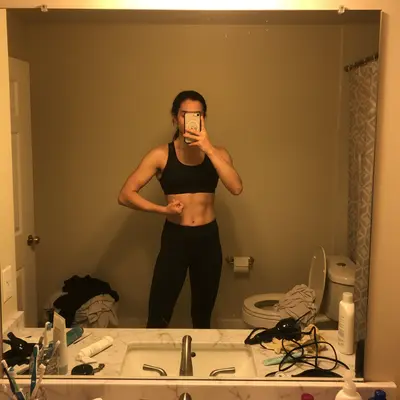
Before: Bathroom lighting normalized
Before
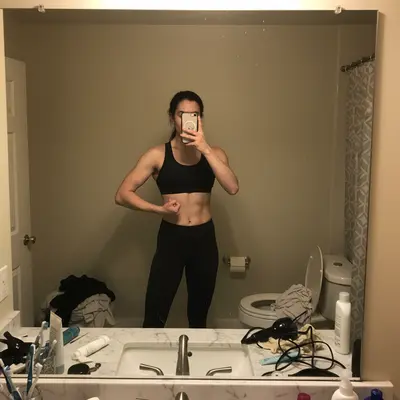
After: Bathroom lighting normalized
After

AI Weight Loss Progress Photo

Drop your photo here

or click to browse

Release to upload

Free • No signup

Popular use cases:
  • weight loss progress photo
  • transformation tracker
  • progress photo normalizer
  • before after comparison
  • fitness progress photo
  • body transformation tracker

Cost
Free No signup required
Time
Instant results in 15-30 seconds
Works on
Any device - browser, phone, tablet, desktop
Powered by
AI-powered photo editing
Scenario Prompt Time
Lighting fix normalize lighting to bright even daylight 20s
Background cleanup replace background with clean white wall 25s
Full normalization normalize lighting, fix white balance, clean background 30s

How it works

  1. Upload your progress photo

    Drop your latest progress photo into EditThisPic. For best comparison results, try to photograph from a similar distance and angle each time. JPG, PNG, WebP up to 7MB.

    Expect: Standard photo normalization: 20-30 seconds. Multiple adjustments: may need 1-2 refinements.
  2. Describe the adjustment you want

    Type your instruction: 'normalize the lighting to be bright and even' or 'adjust the white balance to match daylight.' Specify what needs fixing — lighting, color temperature, background, or framing. No marking needed.

    Tip: Consistent lighting is the key to accurate progress photos. 'Bright even overhead lighting' as your baseline makes every comparison fair.

    Copy one of these to get started:

    Normalize bathroom lighting normalize the lighting in this progress photo to bright, even overhead lighting with neutral white balance
    Match a reference photo adjust the lighting and color temperature of this photo to match daylight conditions, bright and clear
    Clean up mirror selfie remove the phone from the mirror reflection and clean up the background to show just me against a plain wall
    Side-by-side comparison setup crop and frame this full-body photo to show from head to knees, centered, with even margins on both sides
    3 more prompts
    Remove background distractions replace the cluttered bathroom background with a clean plain white wall, keep my body exactly as is
    Fix harsh shadows soften the harsh shadows on my body from direct flash, make the lighting look like soft natural daylight
    Brighten dark gym photo brighten this gym progress photo to match natural daylight brightness while keeping skin tones accurate
  3. Review the result

    Check that skin tones look natural, shadows are consistent, and the overall brightness matches your reference photos. Use the before/after slider to verify the adjustment improved consistency.

  4. Refine with markers if needed

    If the AI adjusted the wrong area — like changing your skin tone instead of just the background lighting — tap markers on the area that needs work and regenerate.

    Tip: Markers help when you want to fix lighting on just the background while keeping your body's natural shadows intact.
Try it free

AI Weight Loss Progress Photo

Drop your photo here

or click to browse

Release to upload

Free • No signup

"I've been tracking my weight loss for 6 months. AI-normalized photos made the difference so much clearer than my messy bathroom mirror shots." @FitnessJourney_2026

See it in action

Before: Bathroom lighting normalized
Before
->
After: Bathroom lighting normalized
After

Bathroom lighting normalized

A progress photo taken in warm yellow bathroom lighting, adjusted to neutral daylight for accurate comparison.

Prompt: normalize the lighting to bright even daylight with neutral white balance
Before: Gym photo brightened
Before
->
After: Gym photo brightened
After

Gym photo brightened

A dim gym progress photo brightened to match the user's well-lit home photos for consistent tracking.

Prompt: brighten this photo to match natural daylight brightness, keep skin tones accurate
Before: Background cleaned up
Before
->
After: Background cleaned up
After

Background cleaned up

A cluttered mirror selfie cleaned up with a plain background for a professional-looking progress comparison.

Prompt: replace the cluttered background with a clean plain white wall, keep my body exactly as is

Detailed Guides by Scenario

📷

Personal Transformation Tracking

Normalize your progress photos for accurate self-tracking over weeks and months.

Common Scenarios

  • Normalizing bathroom mirror selfies to consistent lighting
  • Cleaning up gym backgrounds for cleaner comparison
  • Creating weekly progress series with matching brightness

Best Practices

  • Take photos at the same time of day for similar natural lighting
  • Use the same prompt for every photo to ensure consistency
  • Save each normalized photo to a dedicated progress folder
📷

Fitness Coaching Documentation

Help fitness clients track their transformation with professional-looking progress documentation.

Common Scenarios

  • Normalizing client check-in photos from different gyms and lighting
  • Creating before-after comparison pairs for client motivation
  • Building transformation galleries for coaching marketing

Best Practices

  • Ask clients to wear the same clothes for each check-in photo
  • Normalize to the same lighting standard across all client photos
  • Date each photo clearly in your records
📷

Medical Weight Management

Standardize progress photos for medical weight management programs with consistent documentation.

Common Scenarios

  • Normalizing clinic photos taken in different exam rooms
  • Creating standardized progress documentation for patient records
  • Building consistent visual timelines for treatment plans

Best Practices

  • Use a neutral background and consistent framing for all patient photos
  • Normalize all photos to the same bright, even lighting standard
  • Maintain patient privacy when sharing examples

If something looks off

AI changed my body shape instead of just the lighting

Why: The AI misinterpreted 'normalize' as making physical changes rather than lighting adjustments.

Try: Be explicit: 'normalize only the LIGHTING — do not change my body, face, or any physical features'

Tip: Always specify 'keep my body exactly as is' when making lighting or background changes to progress photos.

AI changed the wrong area or something I didn't want changed

Why: The AI couldn't determine exactly which area you meant from description alone. This happens with ambiguous requests.

Try: Tap a marker on the specific area you want to change, then regenerate with the same prompt

Tip: Markers tell the AI 'I mean THIS one specifically.' Use them when description alone is ambiguous.

Skin tone looks unnatural after lighting adjustment

Why: The AI over-corrected the color balance, making skin look too warm or too cool.

Try: Specify skin tone preservation: 'normalize lighting to daylight but keep natural skin tones unchanged'

Tip: Adding 'maintain natural skin tones' prevents the AI from color-shifting your actual appearance.

Photo looks over-processed or filtered

Why: The AI applied too much enhancement, losing the authentic documentary feel.

Try: Add 'keep the photo looking natural and unfiltered, just fix the lighting consistency'

Tip: Progress photos should look authentic — specify 'no filters, no smoothing, just lighting normalization.'

Background change affected shadows on my body

Why: Replacing the background removed the natural shadows that show body contours.

Try: Add 'keep all natural shadows on my body, only change the wall/background behind me'

Tip: Natural body shadows are important for showing muscle definition and contours — preserve them explicitly.

Quick answers

Do I need to mark my body before adjusting the photo?

No! Just describe what you want changed: 'normalize the lighting to daylight.' The AI adjusts the entire photo's lighting without you marking anything. Only use markers if you need to fix lighting in a specific area while leaving the rest unchanged.

Will the AI change my body shape when normalizing photos?

No, as long as you specify it. Type 'normalize only the lighting, keep my body exactly as is.' The AI adjusts brightness, color balance, and shadows without modifying your physical appearance.

Is there a free progress photo tool without signup?

Yes. EditThisPic is free to try with no account needed. Upload your progress photo, describe the lighting fix, and get a normalized result in 30 seconds. One free edit per week, credit packs from $1.99.

How do I make progress photos look consistent?

Upload each progress photo to EditThisPic and type 'normalize lighting to bright even daylight with neutral white balance.' Applying the same instruction to every photo creates visual consistency regardless of when or where you shot them.

Can I use this for before-and-after comparisons?

Yes. Normalize both your 'before' and current photos to the same lighting standard. This makes the comparison fair and highlights actual physical changes rather than differences in lighting or angles.

What's the best way to track progress over months?

Take photos in the same pose and location, then normalize each one with the same EditThisPic prompt. Consistent lighting + consistent pose = the clearest transformation documentation.

Does it work on mirror selfies?

Yes. Mirror selfies are the most common progress photo type. The AI can normalize the lighting, clean up the background, and even remove the phone from the reflection.

Can I track progress on my phone?

Yes. EditThisPic works in any mobile browser. Take your progress photo and normalize it right from your phone. No app download needed.

Ready to track your transformation?

Free to try. No signup required.

Try it free