AI Photo Editor for Dating Profile Photos
Last updated
Get more matches with photos that actually look like you, just on a really good day.
Drop your photo here
"remove the person on my left, extend the background naturally to fill the space"
Release to upload
Built for Dating App Success
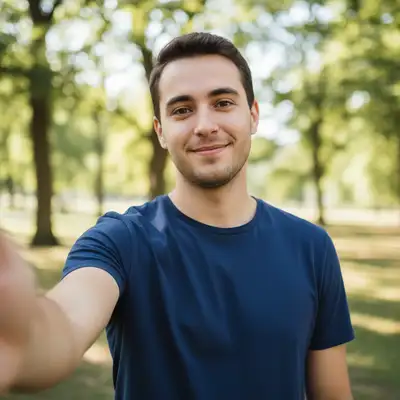
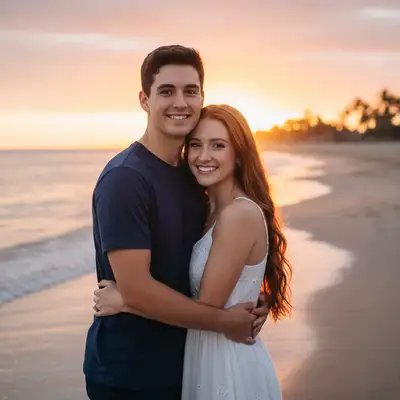
Your dating profile is your first impression. But your best photos often have problems: an ex who needs to disappear, friends who don't want to be on dating apps, or backgrounds that don't match the vibe you're going for. EditThisPic fixes these issues without making you look like a different person.
Tools for Dating Profile Photos
Remove Person
Remove your ex or unwanted people from photos
Remove Ex
Specifically designed for removing ex-partners from photos
Blur Background
Create professional portrait blur, hide messy rooms
Enhance Lighting
Fix dark bar photos or harsh flash lighting
Enhance Face
Subtle improvements without looking fake
How to AI Photo Editor for Dating Profile Photos
-
Upload your photo
Upload a high-quality source image. Screenshots, camera photos, or existing graphics all work for creation. JPG, PNG, WebP up to 7MB.
Simple edits like background blur: 15-20 seconds. Removing people: 25-40 seconds. -
Describe what you want to change
Type your edit in plain English: 'remove the person on my right' or 'blur the background and enhance the lighting.' Be specific about what to change. For removing people, mention their position (left, right, behind me).
When removing someone, add 'extend the background naturally' for seamless results. -
Review the result
Check that the edit looks natural. For person removal, verify the filled area matches surrounding textures. For lighting, ensure you still look like yourself. The goal is improvement, not transformation.
-
Refine if needed and download
If edges look unnatural or areas need adjustment, tap markers on specific spots and regenerate. Once satisfied, download your improved dating profile photo.
Keep it subtle. Photos that look heavily edited get fewer matches than natural-looking improvements.
Copy-Paste Prompts for Dating Photos
remove the person on my left, extend the background naturally to fill the space
Specify 'left' or 'right' from YOUR perspective in the photo to avoid confusion
blur the background with soft bokeh effect, keep me in sharp focus
Bokeh blur looks natural and draws attention to you without hiding the context
brighten my face naturally, warm up the lighting, keep the ambient atmosphere
Keeping 'ambient atmosphere' preserves the setting while improving visibility
blur the face of the other person in the photo, keep me clear and sharp
This respects friends' privacy while keeping you visible
Show 4 more prompts
remove the tourists in the background, fill with the natural scenery
For busy tourist spots, 'fill with natural scenery' works better than nothing
enhance face lighting naturally, reduce shadows under eyes, keep my natural appearance
'Keep natural appearance' prevents the AI from over-smoothing or altering features
remove the arm around my shoulder, restore my shoulder and shirt naturally
Sometimes just removing the arm is easier than removing the whole person
keep only me in the photo, remove everyone else, extend the background naturally
Works best when you have enough space around you in the original
| Edit Type | Prompt | Time | |
|---|---|---|---|
| Remove ex | remove person on my left, extend background naturally |
30s | Try This → |
| Blur background | blur background softly, keep me sharp |
15s | Try This → |
| Fix lighting | brighten face naturally, warm lighting |
20s | Try This → |
| Blur friend's face | blur other person's face, keep me clear |
20s | Try This → |
Real Examples
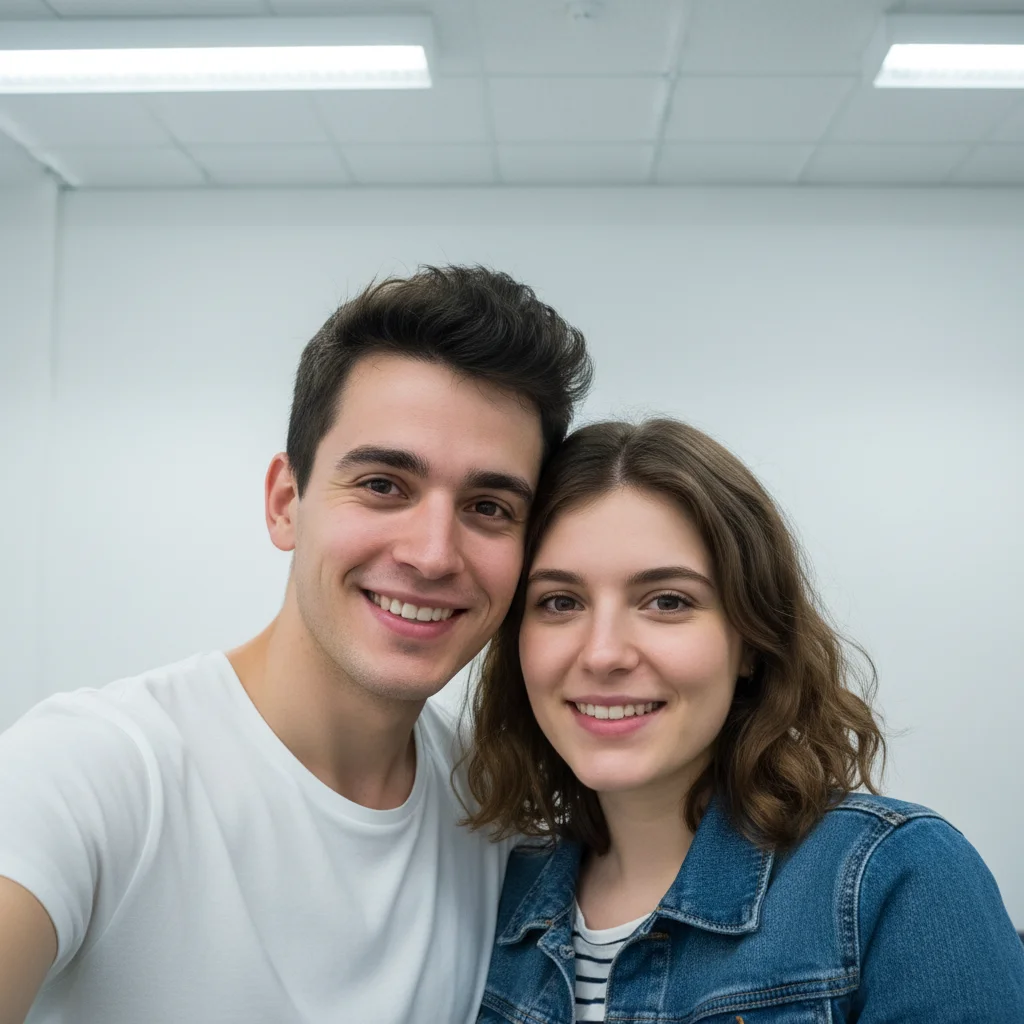
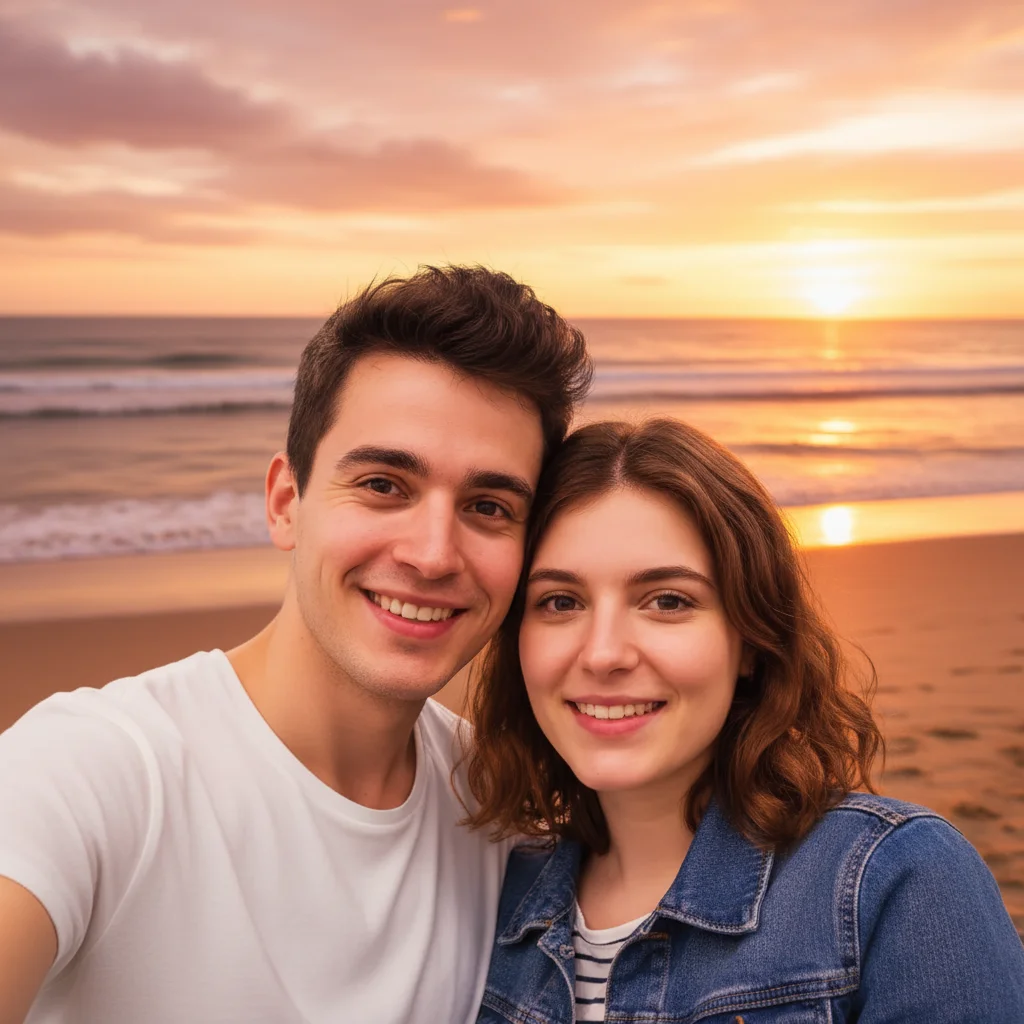
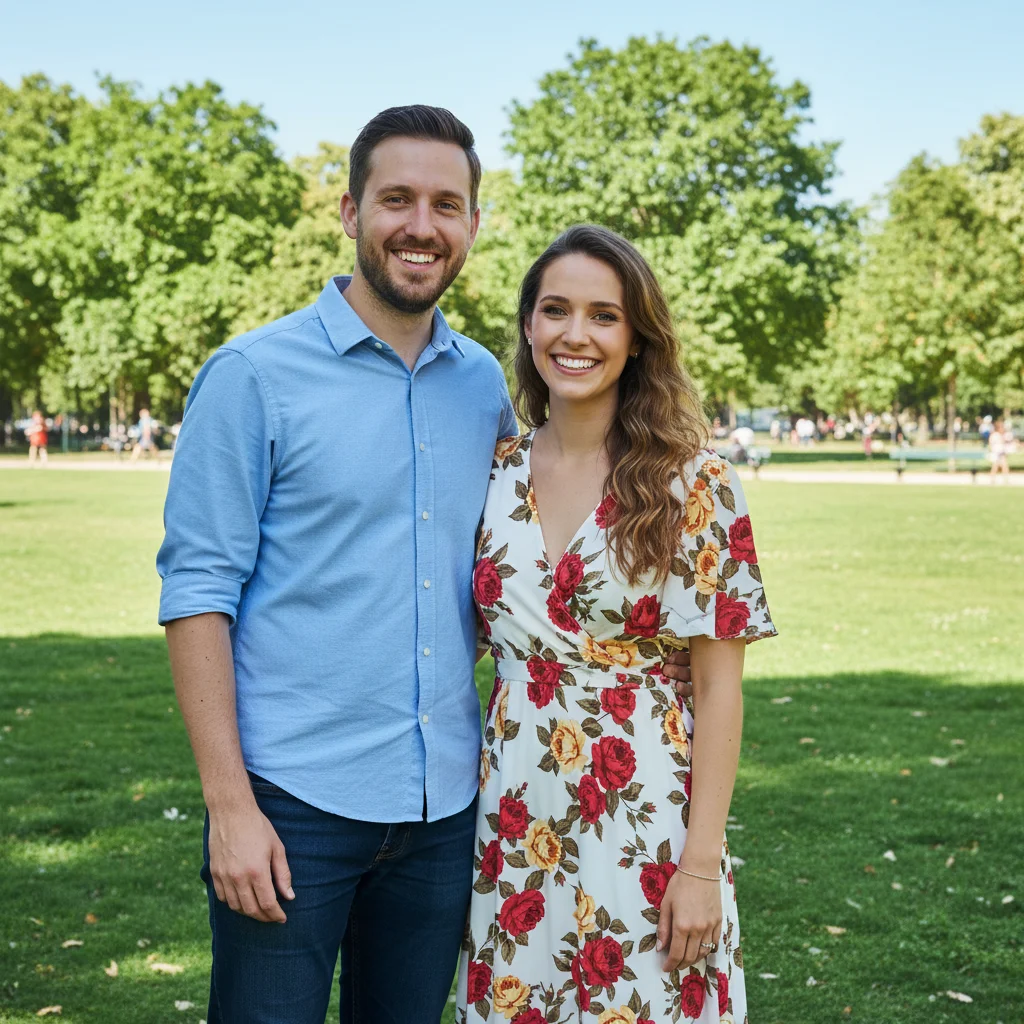
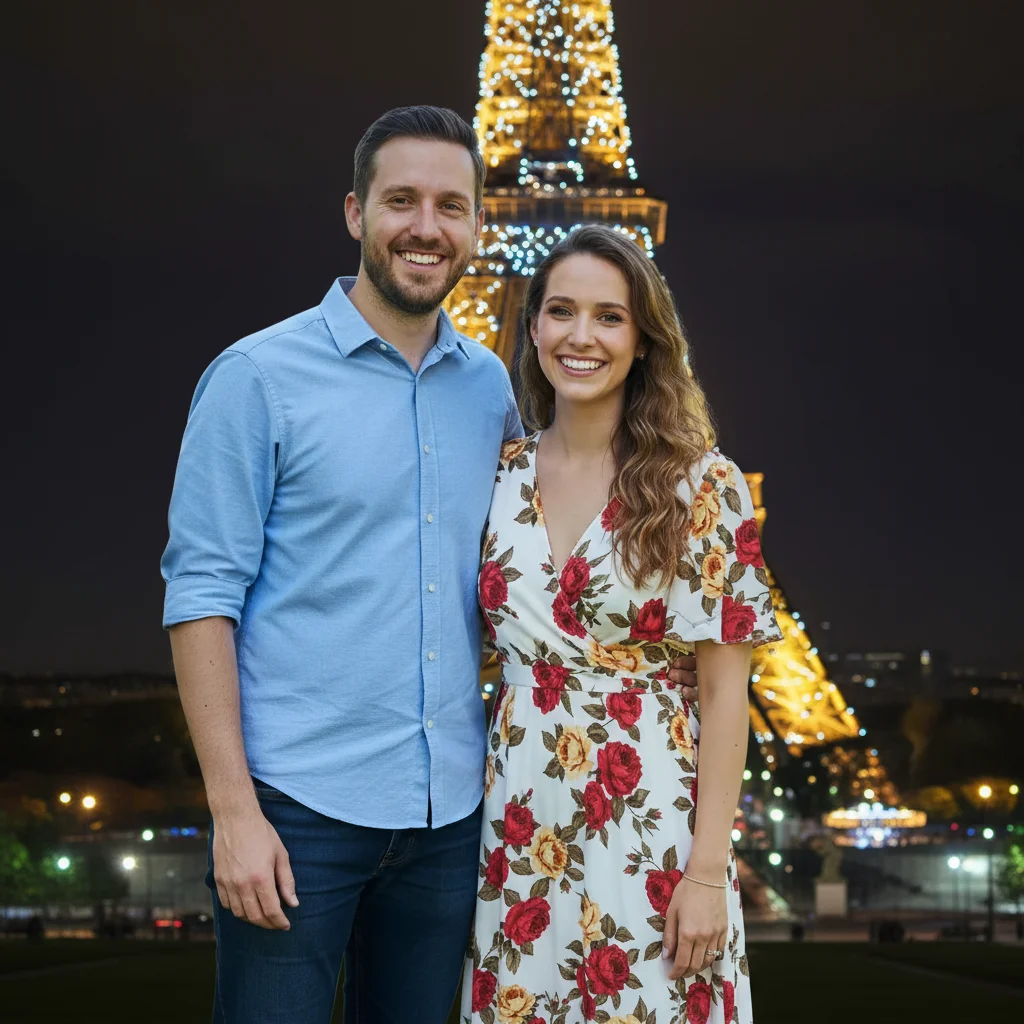
Ex removed from couple photo
A romantic dinner photo with ex removed, background naturally extended to create a solo shot.
remove the person across from me at the table, extend the restaurant background naturally
Messy room background blurred
Mirror selfie with cluttered bedroom now has professional portrait blur keeping focus on you.
When Things Go Wrong
AI removed the wrong person
Why: When multiple people are in the photo, the AI may not identify the correct one from description alone.
Tap a marker on the specific person you want removed, then regenerate with: remove this person
Markers are essential for multi-person photos. They tell the AI exactly who to remove.
Filled area looks obviously edited
Why: Large removed areas need significant AI generation, which can look unnatural with complex backgrounds.
remove the person, fill with matching [wood/brick/foliage] texture from surrounding area
Specifying the background material helps the AI generate more convincing fill.
Face enhancement looks fake or plastic
Why: The AI over-processed facial features, creating an unnatural appearance.
'Lighting only' prevents skin smoothing. You want to look better, not different.
Part of me was accidentally removed
Why: When someone is close or overlapping you, the AI may remove too much.
Tap markers on the parts of you that were removed, regenerate with: keep this person visible
For overlapping figures, try removing just the other person's arm or face instead.
Frequently Asked Questions
Are my photos private?
Yes. EditThisPic processes photos in real-time and does not store your images after editing. Photos are not used for training or shared. What happens in your dating profile stays in your dating profile.
Will I still look like myself?
That's the goal. EditThisPic makes targeted edits you request - removing people, fixing lighting, blurring backgrounds. We don't auto-apply face tuning or filters. Keep edits subtle: profiles with natural-looking photos get more matches than obviously edited ones.
How do I remove an ex without making it look edited?
Position matters. Photos where your ex isn't overlapping you work best. Use 'extend the background naturally' in your prompt. After editing, check edges at full zoom. If any areas look off, tap markers there and regenerate for refinement.
Can I blur friends' faces for their privacy?
Yes. Use 'blur the other person's face, keep me clear and sharp.' This respects your friends' privacy while showing you in social contexts - which performs well on dating apps. You can also selectively blur by tapping markers on specific faces.
What about group photos where I look good?
You have options: remove everyone else ('keep only me, remove all others'), blur their faces ('blur all faces except mine'), or crop creatively. Removing multiple people works but may need 2-3 refinement passes for natural results.
Should I enhance my face?
Less is more. Stick to lighting improvements and shadow reduction. Avoid skin smoothing that makes you look airbrushed. Your matches will meet you in person - you want photos that look like you on a good day, not a different person.
Is EditThisPic's AI photo editor for dating profile photos really free?
Yes — you get 1 free edit per week, no account needed. Plans start at $4.99/month for 15 edits.
Can I dating profile on my phone?
Yes. EditThisPic works in any mobile browser — iPhone, Android, tablet. No app download needed.
Popular use cases
Ready to improve your dating profile?
Free to try. No signup required. Photos stay private.
Upload Your PhotoTrusted by 15,000+ users