Edit Wedding Photos Online — Fix, Retouch, and Perfect Any Wedding Shot
Last updated
Fix lighting, remove distractions, retouch portraits — all from your phone or browser. No Photoshop, no photography skills.
Drop your photo here
"Replace the harsh flash lighting with soft, warm, natural-looking light. Keep skin tones warm and realistic. Soften the harsh shadows under the eyes and chin."
Release to upload


Built for Anyone With a Wedding Photo to Fix
Wedding photographers deliver edited photos weeks after the wedding. But you have hundreds of guest photos and phone shots with real moments that deserve to look as good as the professional ones. EditThisPic lets you fix individual problems — bad lighting, distracting objects, cluttered backgrounds — in seconds, using plain English descriptions. No Photoshop. No retouching skills.
Wedding Photo Editing Tools
Fix Wedding Photo
AI-guided fixes for common wedding photo problems
Remove Person from Photo
Remove photobombers or unwanted guests from wedding shots
Fix Lighting
Correct harsh flash, dim ceremony lighting, or orange venue tones
Wedding Photo Enhancer
Overall enhancement for wedding portraits and ceremony shots
Replace Background
Replace cluttered reception venues with clean romantic backgrounds
How to Edit a Wedding Photo Online
-
Identify what needs fixing
Look at the photo and note the specific problems: is it the lighting, a distracting object, skin texture, background clutter, or wrong colors? Being specific in your description gets better results than asking for a general 'enhance'.
Simple edits (lighting, color): 20-25 seconds. Object removal or background changes: 30-45 seconds.The best results come from fixing one thing at a time. Start with the biggest problem — usually lighting or a distracting background element. -
Upload and describe the fix
Drop your photo into EditThisPic and describe what you want changed. Be specific: 'remove the orange extension cord on the floor', not 'clean up the photo'. For skin retouching, say 'subtle natural blemish removal — keep looking like real skin'.
Use markers (tap to place) to point at specific objects you want removed. This significantly improves accuracy for object removal. -
Review and refine
Check that the fix looks natural. For object removals, verify the fill blends with the surrounding area. For lighting, make sure skin tones look warm and natural, not washed out.
-
Download and share
Download your edited photo. For sharing on Instagram or sending to family, the JPEG download is ready to use. For printing, download the highest quality option available.
Run a few different fixes as separate edits and keep all the versions. Sometimes the first attempt is perfect; sometimes combining two separate edits works better.
Copy-Paste Prompts for Wedding Photo Editing
Replace the harsh flash lighting with soft, warm, natural-looking light. Keep skin tones warm and realistic. Soften the harsh shadows under the eyes and chin.
Always add 'keep skin tones warm and realistic' — it prevents the AI from going too cool or too processed
Remove the [exit sign / trash can / cone barrier / orange electrical cord] in the background and fill with the surrounding environment naturally
Name the specific object. Placing a tap-marker on it before prompting improves accuracy dramatically
Subtle bridal photo enhancement: soft flattering light, very gentle skin smoothing keeping natural texture, slightly brighten eyes, keep completely natural-looking
'Keep completely natural-looking' prevents over-processing — wedding portraits should look like you on a great day, not like a magazine cover
Brighten this dark ceremony photo while maintaining warm golden candlelight atmosphere. Bring out the subjects' faces without making it look artificially lit.
Specifying you want to maintain the atmosphere (candlelight, dim romantic) prevents the AI from flattening the mood
Show 4 more prompts
Remove the person in the background [on the left / on the right / center] and replace naturally with the venue background
Place a tap-marker on the person before prompting for best results
Correct the strong orange/yellow color cast from the reception venue lighting. Bring skin tones to natural, keep the warm romantic atmosphere but reduce the orange-yellow tint
'Keep warm romantic atmosphere but reduce orange-yellow' balances color correction without killing the mood
Add professional portrait blur (bokeh) to the background, keeping the couple sharp in focus. The background has clutter from the reception venue.
Background blur can hide a multitude of sins — messy tables, random guests, venue equipment
Enhance this outdoor ceremony photo with warm golden hour light quality, subtle subject brightness, and soft background blur. Keep the natural outdoor feel.
'Golden hour light quality' is a reliable prompt phrase — it means warm, directional, flattering
| Edit Type | Prompt | Time | |
|---|---|---|---|
| Fix harsh flash | replace harsh flash with soft warm natural light |
20s | Try This → |
| Remove object | remove [exit sign / cord / cone] fill naturally |
35s | Try This → |
| Dark ceremony | brighten faces keep candlelight atmosphere |
25s | Try This → |
| Skin retouch | subtle blemish removal keep natural skin texture |
25s | Try This → |
Real Examples
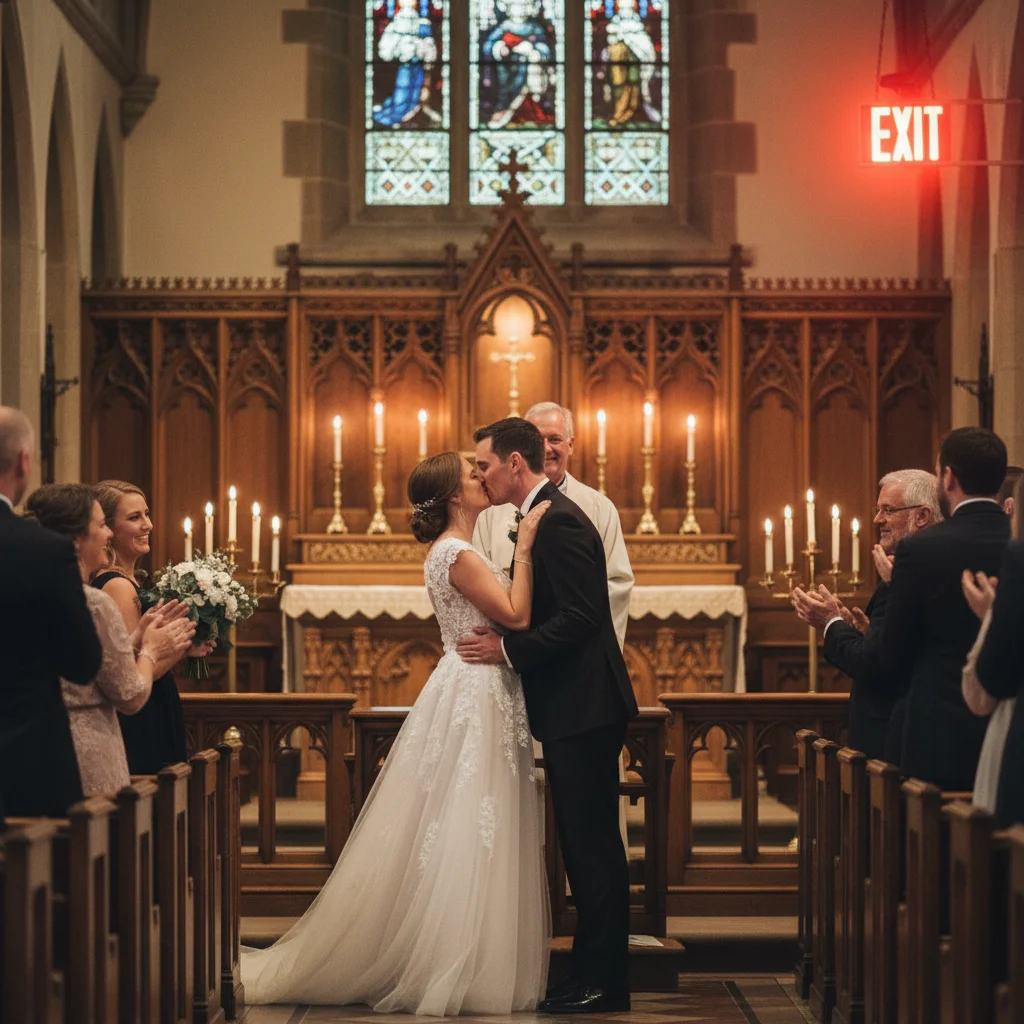
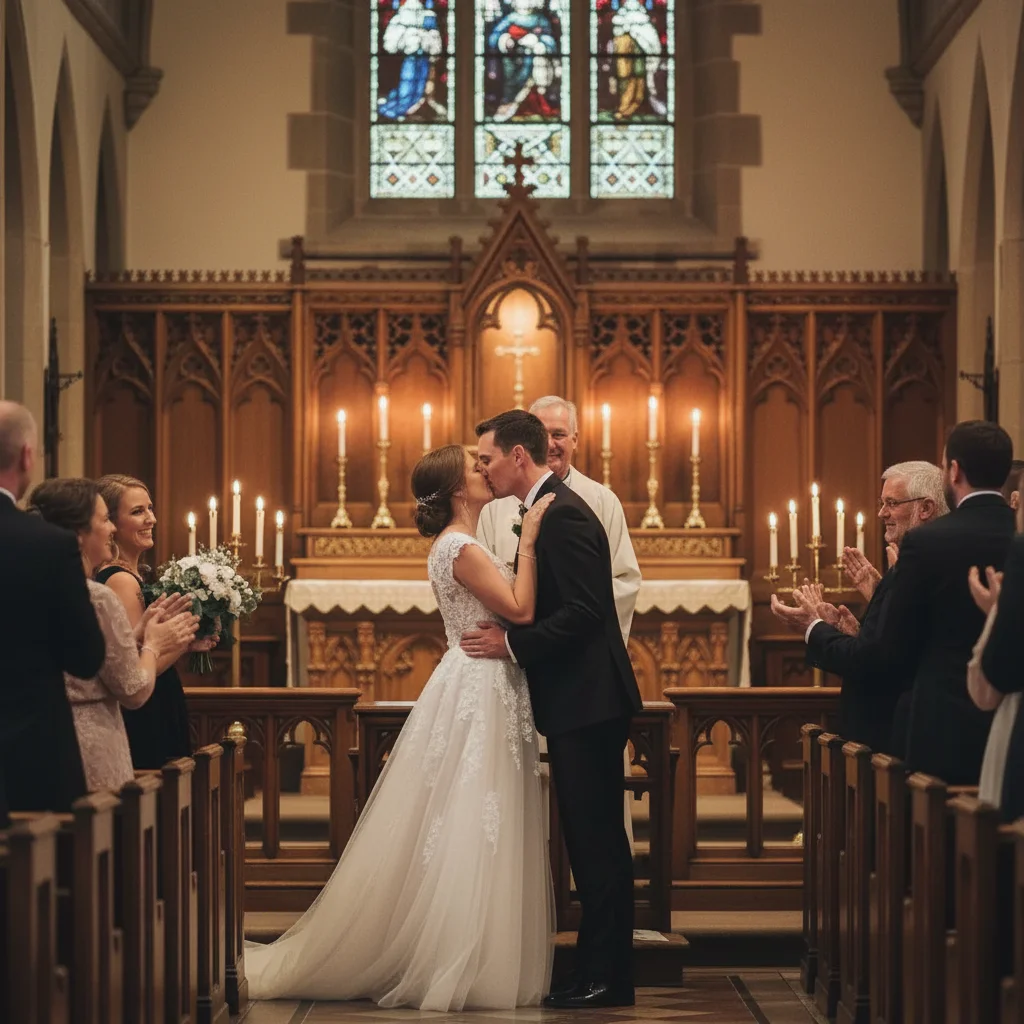
Exit sign ruining the ceremony moment
A heartfelt first kiss photo is spoiled by a bright red EXIT sign glowing above the officiant. Two seconds of marking, one prompt, completely removed.
remove the red EXIT sign above the officiant's head and fill naturally with the venue ceiling and ambient light
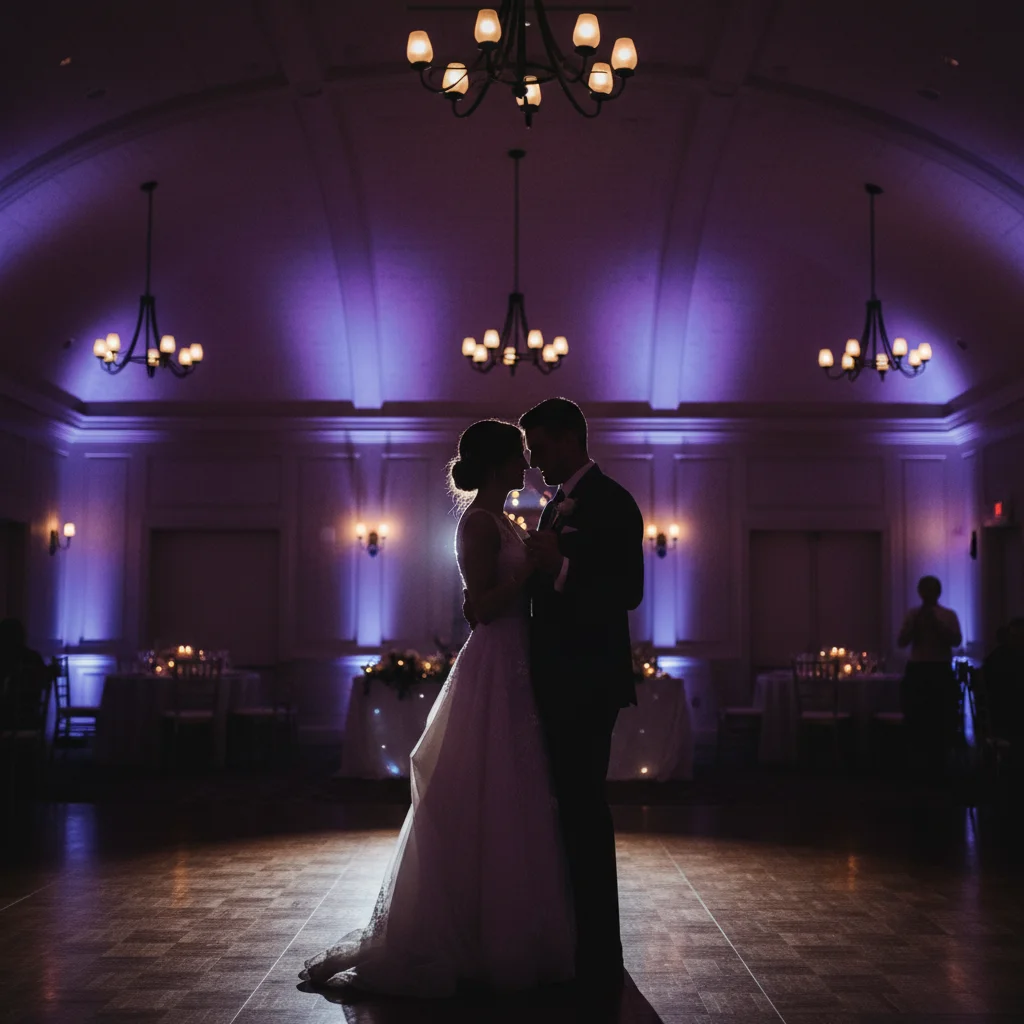
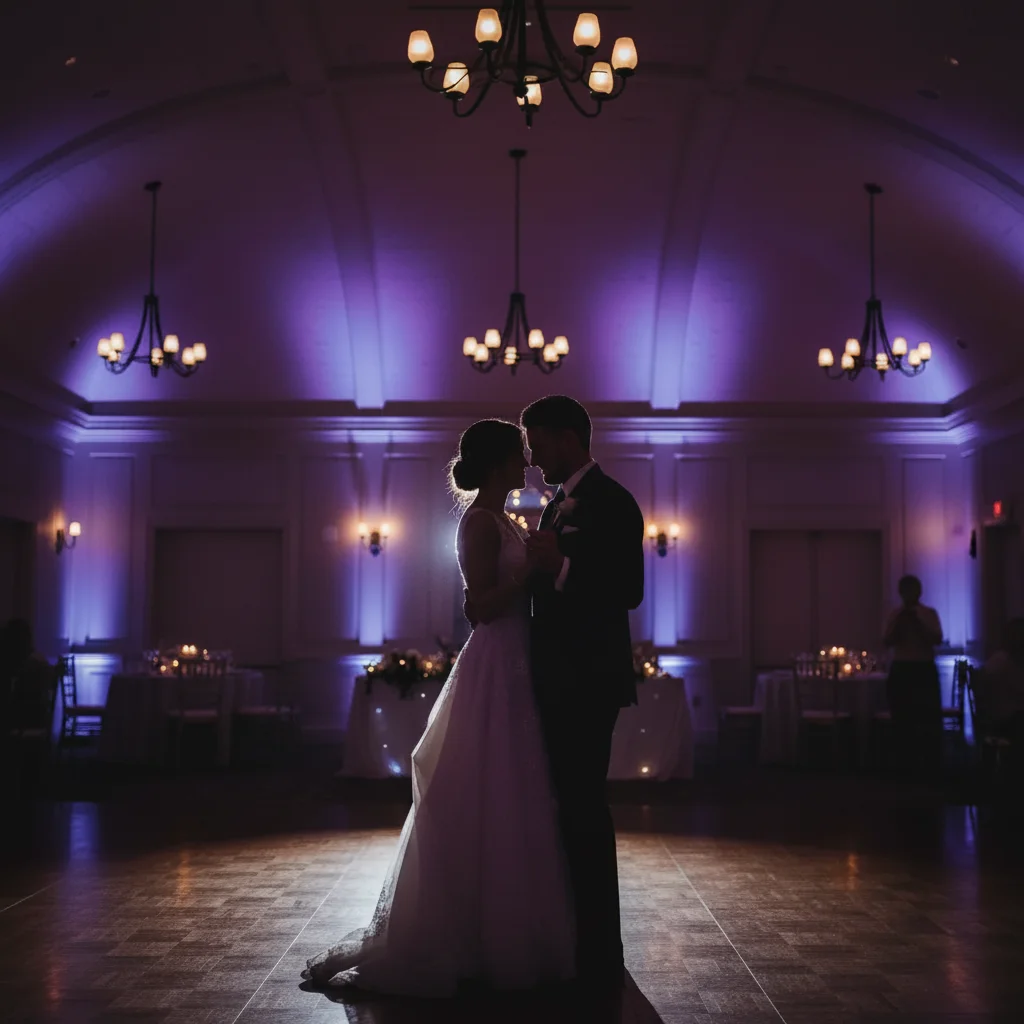
Dark reception photo, faces barely visible
A reception dance floor photo where the couple's faces are nearly invisible against the dramatic uplighting. Balanced to show faces without killing the atmosphere.
brighten the couple's faces while maintaining the dramatic colored uplighting atmosphere of the reception — faces should be visible but keep the moody dance floor feeling
Common Problems
Object removal leaves a smeared or blurry patch
Why: Complex textured backgrounds (stone, fabric patterns) are harder to fill than simple ones (sky, grass, painted walls).
Tap markers directly on the object, then: remove [object] and fill seamlessly matching the surrounding [stone wall / wood paneling / floral wallpaper] texture
Describe what the fill should match. 'Fill with wood paneling' beats 'fill naturally' for patterned backgrounds.
Skin retouching looks fake or plastic
Why: Over-smoothing removes skin texture, which makes faces look artificially perfect.
very subtle skin retouching — remove only obvious blemishes, keep natural skin texture and pores visible, no smoothing filter look
For wedding portraits, less is always more. Guests should recognize the person, not think 'that doesn't look like them.'
Lighting fix washed out the romantic atmosphere
Why: Standard brightening ignores the intentional mood of the shot.
selectively brighten the faces only while keeping the romantic dim atmosphere of the background — I want faces visible, not the whole image brightened
Selective brightening is more effective than global brightening for moody venue shots.
Background blur has a halo around hair or veil
Why: Fine edges like lace veils or flyaway hair are challenging to separate from the background.
Place markers on the halo areas, then: blend the edge of the veil/hair naturally into the blurred background, remove the white halo outline
Backlit veils with light edges against dark backgrounds are the hardest case. Try a less aggressive blur first.
Frequently Asked Questions
Can I edit my own wedding photos without Photoshop?
Yes. EditThisPic lets you fix wedding photos in plain English — just describe what needs changing. Remove a distracting exit sign, fix the harsh flash lighting, retouch skin subtly — all without any photo editing experience or Photoshop.
How do I remove a person or object from a wedding photo?
Upload the photo to EditThisPic, tap on the person or object to place a marker, then describe what you want: 'remove the person in the background on the left and fill naturally with the venue'. The AI removes it and fills the gap with the surrounding background texture.
How do I fix dark wedding ceremony photos taken in low light?
Upload the photo and type: 'brighten this dark ceremony photo while maintaining the warm candlelight atmosphere — bring out the faces without making it look artificially lit.' This selectively brightens subjects while preserving the romantic mood.
Can I retouch skin in wedding photos for free?
Yes. EditThisPic is free for 1 edit per week. Type 'subtle bridal skin retouching: remove obvious blemishes, keep natural skin texture, completely natural-looking result'. Paid plans start at $4.99/month for 15 edits.
Can AI fix blurry or out-of-focus wedding photos?
AI can sharpen mildly soft photos. Severely blurry images (motion blur or very far out of focus) are harder to recover. Try: 'sharpen and enhance detail in this slightly soft photo, improve face clarity'. For very blurry images, the result may still be imperfect.
Do I have to wait for my photographer to edit my wedding photos?
For professional-quality edits of every photo, yes. But for fixing specific issues on individual shots — removing a photobomber, fixing the lighting on a great guest phone photo — you can do it yourself with EditThisPic while you wait for the professional delivery.
How do I fix the orange color cast from reception venue lighting?
Upload the photo and type: 'correct the strong orange/yellow color cast from the indoor venue lighting — bring skin tones to natural while keeping the warm romantic atmosphere'. This corrects the tint without making the venue look flat.
Will editing make the photo look fake or over-processed?
Only if you ask for heavy effects. Phrases like 'keep natural-looking', 'subtle retouching', and 'do not over-process' in your prompts prevent artificial results. Wedding photos generally benefit from light editing — fixing specific problems rather than applying heavy filters.
Can I edit wedding photos on my phone?
Yes. EditThisPic works in any mobile browser — iPhone, Android, or tablet. Upload your phone photos directly, edit them, and download the result without ever moving files to a computer.
Is this different from my photographer's editing?
Yes. Professional wedding photographers do global color grading across their entire catalog for consistency. EditThisPic handles individual fixes on specific photos — especially useful for guest photos, phone shots, or fixing one distracting element in an otherwise perfect shot.
Popular use cases
Ready to fix your wedding photos?
Free to try. No signup. No Photoshop skills needed.
Edit a Wedding PhotoTrusted by 15,000+ users