Upgrade Vinted Phone Photos to Professional
Last updated
Your phone camera is fine. The lighting and background are the problem.
Drop your photo here
or click to browse
Free • No signup
Release to upload
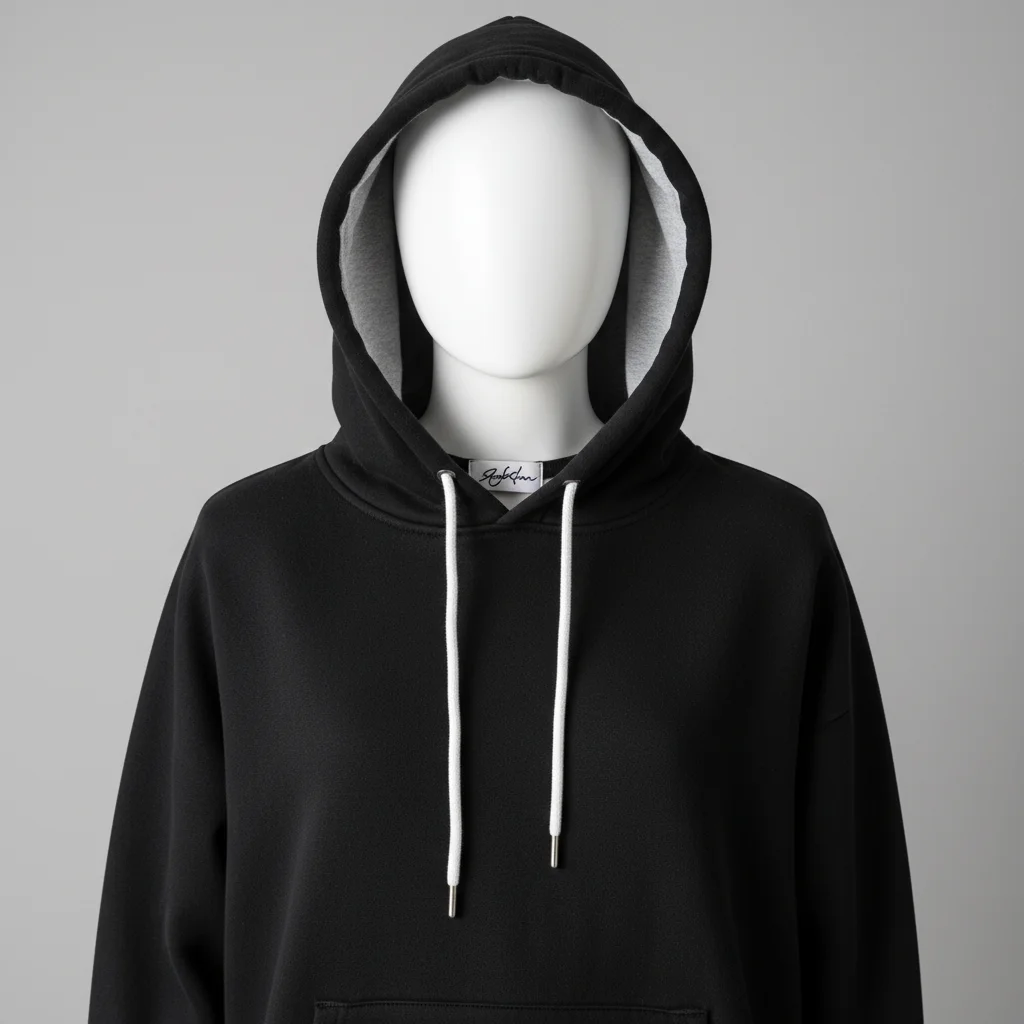
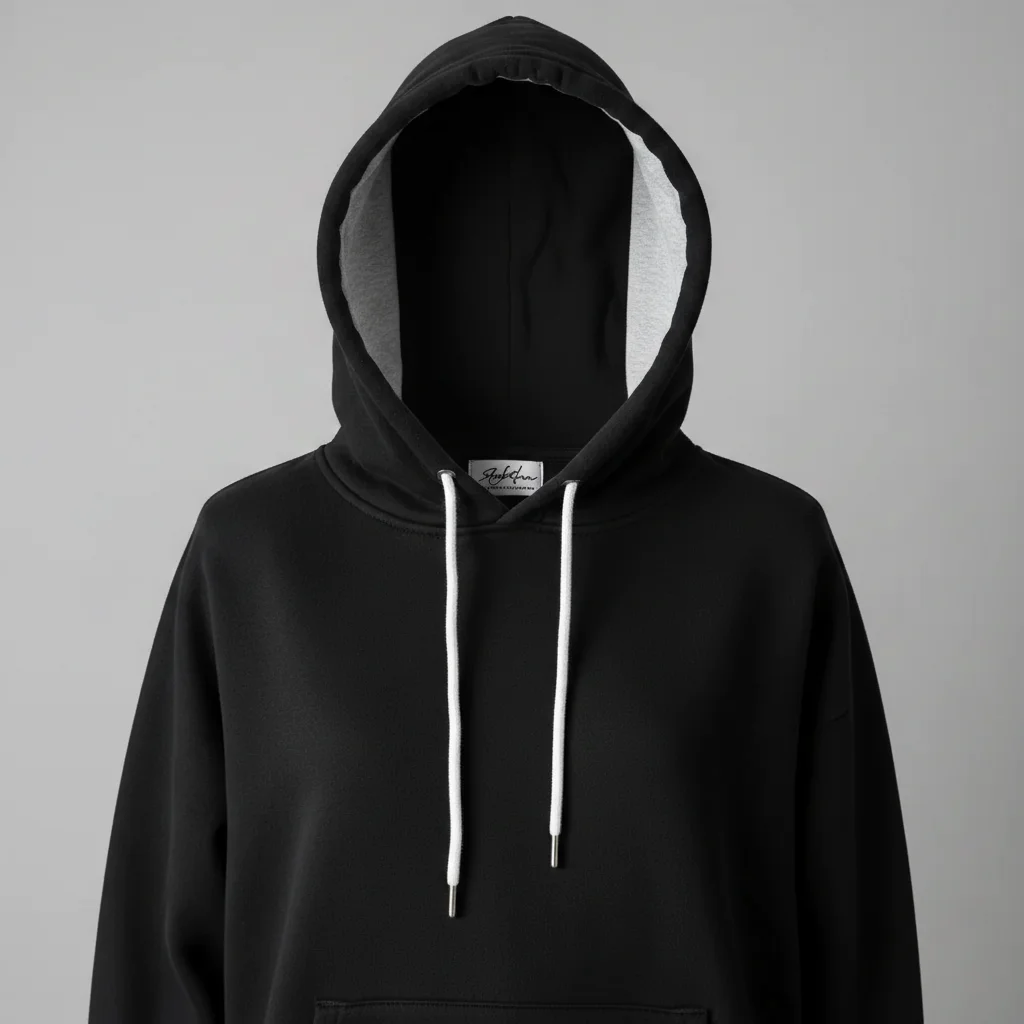
Built for Phone Camera Sellers
Modern phone cameras are actually excellent - the problem isn't your camera, it's your lighting, background, and environment. EditThisPic fixes everything around your item: replacing cluttered backgrounds, correcting indoor lighting, and enhancing overall quality. Professional results from any phone, in any room, in seconds.
Tools to Upgrade Phone Photos
Enhance Photo
Overall quality upgrade for any phone photo
Enhance Lighting
Fix dim, uneven phone camera lighting
Replace Background
Swap room backgrounds for clean professional white
Fix Color
Correct the auto white balance issues phones create indoors
Sharpen Image
Sharpen slightly soft phone camera details
How to Upgrade Vinted Phone Photos to Professional
-
Take your phone photo
Use any phone camera. Try to get good natural light - near a window works best. Show the full item clearly. Hold steady to avoid blur. Don't use flash if possible. Even a basic phone photo can be dramatically improved.
Enhancement: 15-20 seconds. With background swap: 25-30 seconds.Window light from the side gives the most flattering, professional-looking lighting on any phone. -
Upload and describe the upgrade
Drop your phone photo into EditThisPic and describe: 'enhance to professional quality with clean white background' or 'upgrade the lighting and sharpness.' Combine multiple improvements in one prompt for the best results.
The magic combo: 'white background + fix lighting + sharpen details' transforms any phone photo -
Compare with your original
Look at before and after side by side. The upgraded version should look dramatically more professional. Check that item details, colors, and condition are accurately represented. The photo should look better, not different.
-
Download for your listing
Save and upload to Vinted. Your phone photo now looks like it was taken with professional equipment. Apply the same upgrade to all your listing photos for a consistently professional shop.
Save your best prompt and reuse it for every listing - consistent quality across your shop.
Copy-Paste Prompts to Upgrade Phone Photos
enhance this phone photo to professional product quality: clean white background, better lighting, sharp details
This all-in-one prompt handles background, lighting, and sharpness in one edit
brighten this dim phone photo significantly, show all item details clearly with natural-looking lighting
Phone cameras in dim rooms produce dark, grainy photos - brightening reveals the true item
sharpen the photo to show fabric texture, stitching, and brand details clearly and crisply
Slight phone camera softness is normal - sharpening makes details professional-quality
correct the color temperature, my phone made the colors too warm/yellow, show true natural colors
Phone cameras often get white balance wrong indoors - correction shows true item colors
Show 4 more prompts
remove the harsh flash lighting, replace with soft, even, natural-looking illumination
Flash creates hotspots and harsh shadows - even lighting looks infinitely more professional
blur the background slightly for a professional depth-of-field effect, keep the item perfectly sharp
Depth-of-field blur is a professional photography technique that phones can't easily do
reduce the grain and noise from low-light phone photo, enhance clarity while keeping natural look
Grain from low-light conditions makes items look cheap - noise reduction cleans it up
make this look like it was shot in a photography studio: perfect lighting, clean white backdrop, sharp focus
Studio-quality results from your phone photo - the ultimate upgrade
| Edit Type | Prompt | Time | |
|---|---|---|---|
| Complete upgrade | professional quality: white background, better lighting, sharp |
25s | Try This → |
| Fix dim photo | brighten significantly to show all details clearly |
15s | Try This → |
| Sharpen details | sharpen to show texture and details crisply |
15s | Try This → |
| Fix flash photo | replace flash with even natural lighting |
20s | Try This → |
Real Examples
Dark bedroom phone photo
Jacket photographed with phone in dim bedroom. Dramatic improvement with lighting enhancement and background swap.
enhance to professional quality: brighten significantly, replace dark bedroom with clean white, sharpen details
Flash-ruined product shot
Dress photographed with phone flash creating hotspot in center and dark edges. Even lighting replacement transforms it.
remove the harsh flash, replace with even natural lighting, clean white background
Grainy phone photo of shoes
Sneakers photographed in low light with visible grain and noise. Enhancement reduces noise and reveals true detail.
When Things Go Wrong
Enhancement made the photo look artificial or over-processed
Why: Too many simultaneous improvements can create an HDR-like artificial appearance.
enhance naturally - improve lighting and clarity without making it look over-processed
If it looks over-processed, use fewer improvements. Background swap alone is often enough.
Sharpening created visible artifacts or halos
Why: Over-sharpening amplifies noise and creates unnatural edge halos.
A little sharpening goes a long way. Subtle improvement beats aggressive processing.
Colors look different after enhancement
Why: Lighting and color corrections shifted the item's actual colors beyond accurate.
fix lighting but keep item colors exactly as they are, do not shift or saturate colors
Specify 'keep colors accurate' to prevent the AI from over-correcting color balance.
Grain reduction made details too smooth
Why: Noise reduction can over-smooth, removing fine detail along with the grain.
'Preserve fabric texture' tells the AI to keep important detail while removing unwanted noise.
Photo still looks like a phone photo after editing
Why: Some improvements need the source photo to have minimum quality - severely blurry or dark photos have limits.
The best source photo is one taken in good natural light. EditThisPic enhances what's there - better input gives better output.
Frequently Asked Questions
Do I need a professional camera for Vinted listings?
No. Modern phone cameras are technically capable of excellent product photos. The difference between amateur and professional-looking listings is almost entirely about lighting, backgrounds, and post-processing - not the camera hardware. EditThisPic handles all three.
What's the biggest improvement I can make with my phone photos?
Clean background and good lighting. Replace your room background with white and brighten the photo. These two changes have more impact than any camera upgrade. EditThisPic does both in one prompt, taking about 25 seconds.
Should I use phone flash for Vinted photos?
Avoid flash when possible - it creates harsh hotspots and unflattering shadows. Natural daylight near a window is much better. If you already took flash photos, EditThisPic can replace the harsh flash with even, natural-looking lighting.
What phone settings work best for product photos?
Use the main camera (not ultrawide), tap the item to focus, and increase brightness slightly if your phone allows. Shoot in good natural light. HDR mode can help in tricky lighting. But don't worry too much - EditThisPic fixes most phone camera issues.
Can EditThisPic fix a completely blurry photo?
EditThisPic can sharpen slightly soft photos, but cannot recover detail from severe motion blur. If the photo is too blurry to see details, retake it with a steady hand in better light. Light softness from phone cameras, however, is easily fixed.
Is there a free phone photo upgrader for Vinted?
Yes, EditThisPic is free to try with no account required. Upload your phone photo, describe the improvement, download the result. No watermarks. Professional-quality results from any phone camera.
Is EditThisPic's AI upgrade vinted phone photos to professional really free?
Yes — you get 1 free edit per week, no account needed. Plans start at $4.99/month for 15 edits.
How long does it take to vinted phone?
Usually 15-30 seconds. Upload your photo, describe what you want, and the AI delivers the result.
How EditThisPic compares
| Tool | Free tier | Per-edit cost | AI-powered | Signup required |
|---|---|---|---|---|
| EditThisPic | 1 free edit/week | From 27¢ | Yes (Gemini) | No |
| Adobe Photoshop | 7-day trial | ~$22.99/mo subscription | Yes (Firefly) | Yes |
| Remove.bg | Low-res preview only | ~20¢/HD edit | Background only | Yes (for HD) |
| Canva | Basic tools only | $15/mo Pro for AI | Partial (Pro tier) | Yes |
Popular use cases
Ready to upgrade your phone photos?
Free to try. No signup required. No watermarks.
Upload Your First PhotoTrusted by 15,000+ users