Free โ€ข No signup Add Hair highlights ยท Free

AI Hair Highlight Adder
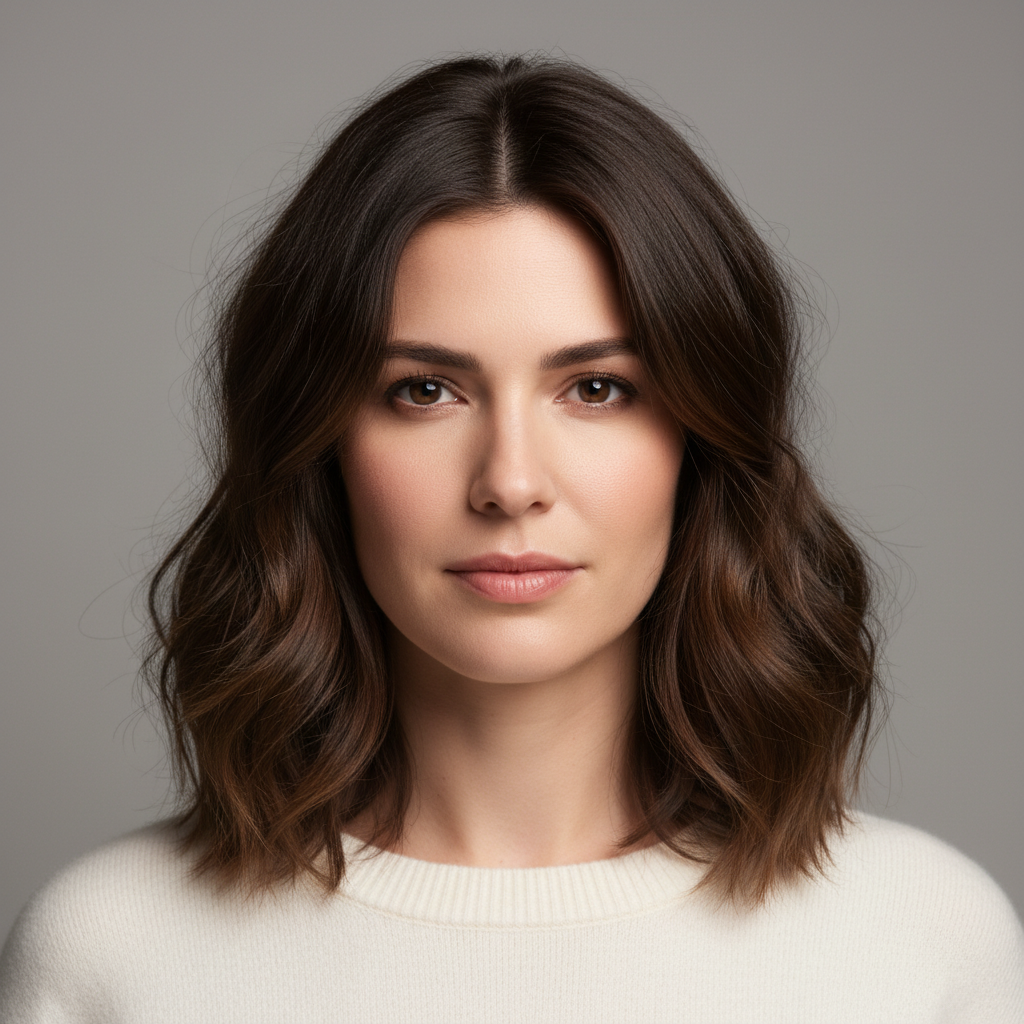
Before
Before
โ†’
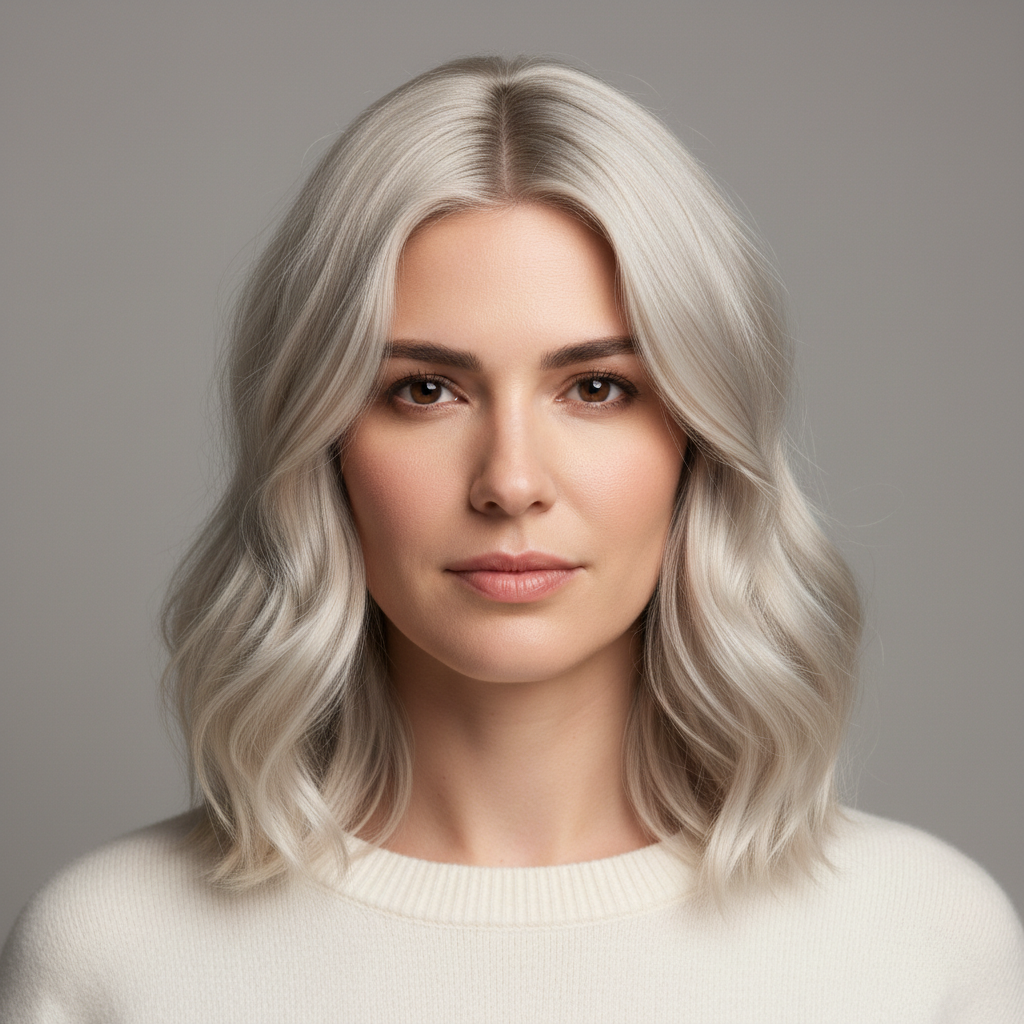
After
After

Free AI Hair Highlight Adder

Drop your photo here

or click to browse

Release to upload

Free โ€ข No signup

Advertisement
Popular use cases:
  • try hair highlights virtually
  • test highlight colors
  • blonde highlights preview
  • caramel highlights simulator
  • babylights try on
  • balayage preview
  • face-framing highlights
  • hair color before and after

Cost
Free No signup required
Time
Instant results in 15-30 seconds
Works on
Any device - browser, phone, tablet, desktop
Powered by
AI-powered photo editing
Scenario Prompt Time
15-30s
15-30s
15-30s
15-30s

How it works

  1. Upload your photo

    Choose a photo showing your hair clearly. The AI works with any hair length, texture, or base color. Make sure your hair is visible so the AI can add highlights in the right places.

    Expect: Simple highlight application: 30-40 seconds. Complex multi-tone or precisely placed highlights: 40-50 seconds and may need refinement.
  2. Describe the highlights you want

    Type the highlight color and placement you want. Specify the shade (blonde, caramel, honey, red, copper), intensity (subtle, natural, bold), and placement (face-framing, all-over, chunky pieces, babylights). The AI adds highlights that look naturally blended into your hair.

    Tip: Be specific about both color AND placement for best results. 'Face-framing blonde highlights' or 'caramel babylights throughout' gives clearer direction than just 'add highlights'.

    Copy one of these to get started:

    add Add subtle honey blonde highlights throughout my hair, natural and sun-kissed
    add Give me face-framing caramel highlights around the front sections
    add Add babylights throughout - fine, subtle blonde highlights mixed naturally through all my hair
    add Give me chunky platinum blonde highlights in thick sections
    4 more prompts
    add Add copper red highlights through my hair for warmth and dimension
    add Give me balayage-style highlights - lighter at ends fading to my natural color at roots
    add Add peekaboo highlights - bold color underneath visible when hair moves
    add Give me multi-tonal highlights with blonde and caramel shades mixed throughout for dimension
  3. Review the result

    Check the highlight color, placement, and how natural it looks with your base hair color. Make sure the blending looks realistic. If adjustments needed, describe changes like 'make highlights lighter' or 'add more around face'.

  4. Download Your Highlighted Hair

    Save your photo with highlights in high resolution. No watermark, perfect for showing your stylist exactly what you want or testing before committing to color.

Try it free โ†“

Free AI Hair Highlight Adder

Drop your photo here

or click to browse

Release to upload

Free โ€ข No signup

See it in action

Before
Before
->
After
After

Natural Honey Highlights

Add subtle honey blonde highlights throughout hair, natural and blended like sun-kissed color

Prompt:
Before
Before
->
After
After

Face-Framing Caramel

Give me face-framing caramel highlights concentrated around the front sections and layers

Prompt:
Before
Before
->
After
After

Bold Platinum Chunks

Add chunky platinum blonde highlights in thick sections throughout for bold contrast

Prompt:
Advertisement

If something looks off

AI changed the wrong area or something I didn't want changed

Why: The AI couldn't determine exactly which area you meant from description alone.

Try: Tap a marker on the specific area you want to change, then regenerate with the same prompt

Tip: Markers tell the AI 'I mean THIS one specifically.' Use them when description alone is ambiguous.

Highlights look too bright or unnatural

Why: Without intensity descriptors, highlights may appear at full saturation.

Try: Add softening words: 'subtle', 'natural', 'blended', or 'tone down the highlights to look more natural'

Tip: Use 'sun-kissed' or 'natural' for subtle looks. Use 'bold' or 'bright' only for dramatic contrast. Always mention blending.

Highlights don't match my hair base color

Why: Some highlight colors work better with certain base colors for natural results.

Try: Choose complementary shades: warm highlights (caramel, honey, copper) for dark hair; ash or platinum for cooler tones

Tip: Dark hair: caramel, honey, copper. Medium brown: blonde, light brown. Light hair: platinum, ash, white blonde.

Highlights only appeared in one section or area

Why: Placement description may have been too specific or hair obscured in photo.

Try: Use 'throughout my hair' or 'all-over highlights' for complete coverage, or specify multiple areas

Tip: For even coverage, use 'throughout', 'all-over', or 'from roots to ends'. For specific placement, name exact sections.

Highlights look flat or lack dimension

Why: Single-tone highlights can look flat without variation in shade.

Try: Try 'multi-tonal highlights with [color 1] and [color 2] for dimension' or 'varying shades of [color]'

Tip: Real highlights have tonal variation. Mention 'dimensional', 'multiple tones', or list 2-3 complementary shades.

Can't see highlights clearly in the result

Why: Highlights may be too subtle or similar to base color, especially in certain lighting.

Try: Use 'bolder highlights with more contrast' or choose a lighter shade further from your base color

Tip: For visibility, ensure 2-3 shade levels difference from base. Very dark hair needs lighter highlights to show up.

Quick answers

Do I need to mark sections of my hair before adding highlights?

No! Just describe the highlight color and placement you want. The AI automatically applies highlights to your hair. Only use markers if you want highlights in very specific unusual sections or if the AI needs clarification.

Can I try multiple highlight colors on the same photo?

Yes! After seeing one result, describe different highlights and the AI will replace them. Try blonde, then caramel, then red - compare as many colors as you want. Each new generation replaces the previous highlights so you can see different options.

What highlight colors and placements can I try?

Any color: blonde (honey, platinum, ash, golden), caramel, copper, red, burgundy, even unconventional colors. Any placement: all-over, face-framing, chunky sections, babylights (fine strands), balayage (gradient), peekaboo (underneath), money-piece (front sections). Just describe what you want.

Will highlights look natural with my base hair color?

The AI applies highlights that blend with your existing hair color. For most natural results, choose highlights 2-3 shades lighter than your base. Dark hair: caramel, honey, copper. Medium brown: blonde, light brown. Already blonde: platinum, ash. You can also try bold contrast for fashion looks.

What's the difference between babylights, highlights, and balayage?

Babylights: very fine, delicate strands throughout for subtle dimension. Highlights: thicker sections for more noticeable color. Balayage: hand-painted look with gradient from darker roots to lighter ends. Chunky: thick bold sections. Just mention the technique you want in your prompt.

Can I test highlights before going to the salon?

Yes! That's one of the most popular uses. Try different shades and placements to see what you like, then download and show your stylist. You can experiment freely without commitment or cost. Test subtle vs bold, different colors, and various placement options.

How do I get face-framing highlights vs all-over color?

Be explicit about placement. Face-framing: 'highlights around face and front sections only'. All-over: 'highlights throughout all my hair'. Money piece: 'bright highlights in the two front sections framing my face'. Top layer: 'highlights on the top visible layer'. Always specify the area.

Ready to try hair highlights?

Free to try. No signup required.

Try it free โ†’