Free • No signup Apply De-aging filter · Free

AI De-Aging Filter - Turn Back Time

Upload a photo and describe how much younger you want to look - instant results

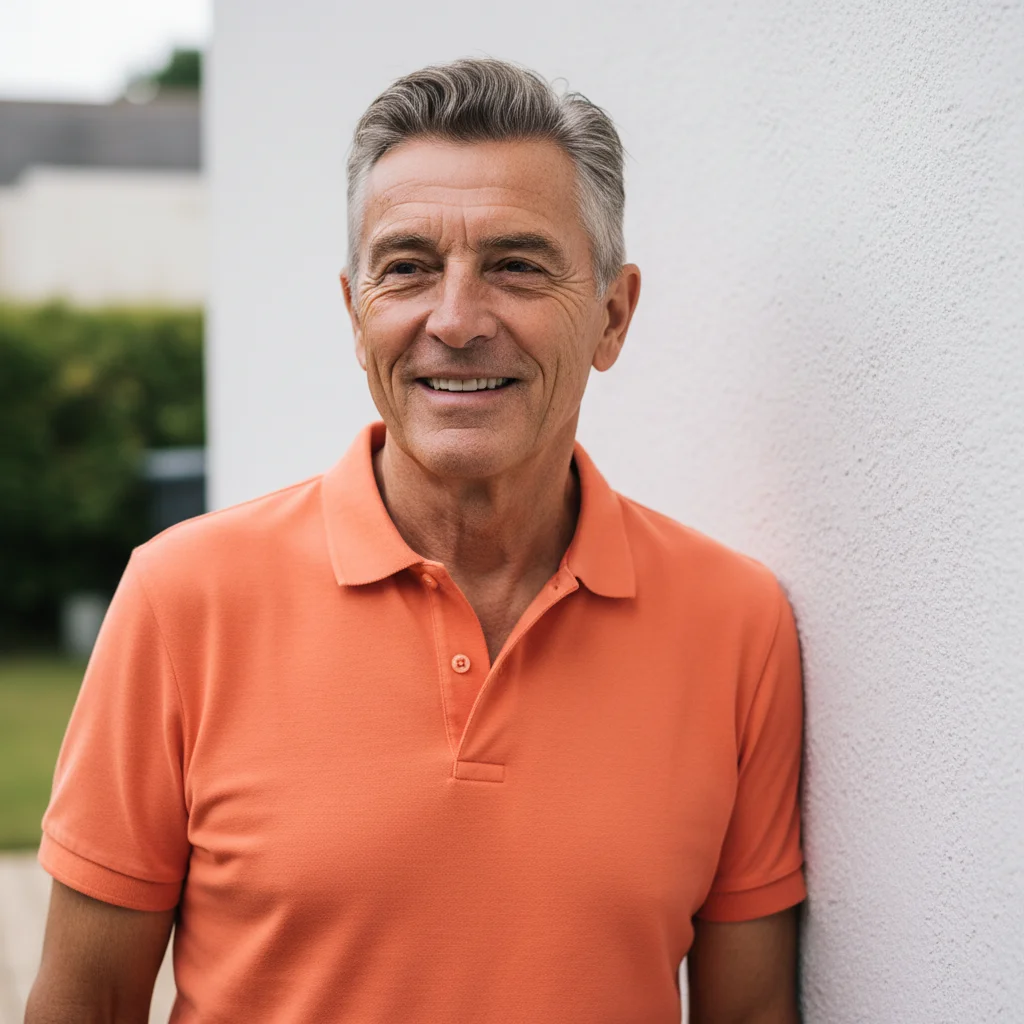
Original photo before AI De-Aging Filter - Turn Back Time
Before
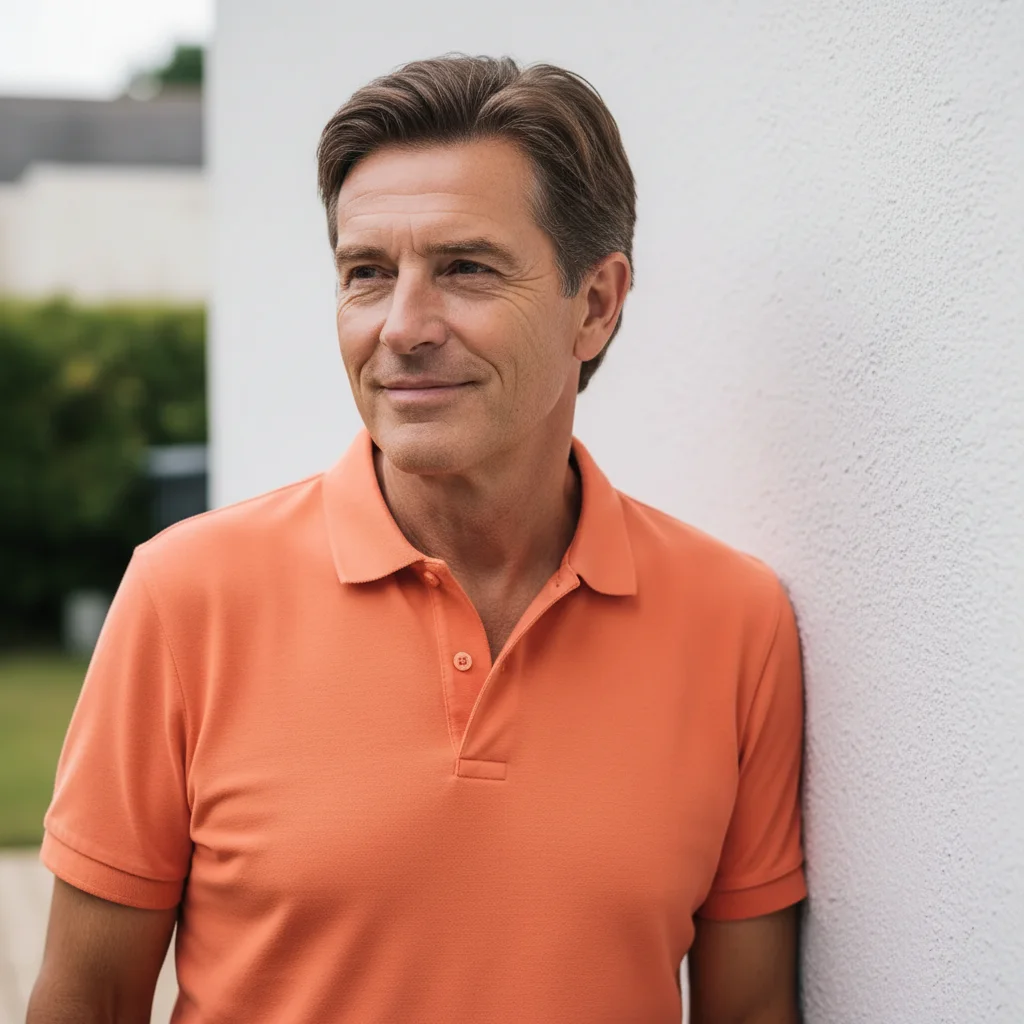
Photo after AI De-Aging Filter - Turn Back Time with EditThisPic
After

AI De-Aging Filter

Drop your photo here

or click to browse

Release to upload

Free • No signup

Popular use cases:
  • see younger self
  • reverse aging effects
  • remove wrinkles from photo
  • de-aging filter
  • rejuvenate old photos
  • look younger in pictures
  • anti-aging photo filter
  • wrinkle removal
  • youth restoration

Cost
Free No signup required
Time
Instant results in 15-30 seconds
Works on
Any device - browser, phone, tablet, desktop
Powered by
AI-powered photo editing
Scenario Prompt Time
15-30s
15-30s
15-30s

How it works

  1. Upload your photo

    Select a photo where your face is clearly visible. The AI works best with good lighting and front-facing angles. De-aging works on any photo, but clearer faces produce more dramatic and realistic rejuvenation results.

    Expect: Simple case: 12-18 seconds for basic de-aging. Complex case: 25-35 seconds for extensive wrinkle removal and hair restoration.
  2. Describe what you want

    This is the key step. Simply describe how much younger you want to look. For example: 'Make me look 20 years younger' or 'Remove wrinkles and restore my hair color to brown.' The AI automatically smooths skin, reduces wrinkles, and can restore youthful hair color based on your description alone.

    Tip: Specify the number of years or target age for best results. Mention specific features like 'smooth forehead' or 'remove crow's feet' for targeted de-aging.

    Copy one of these to get started:

    General de-aging Make me look 20 years younger with smooth skin and no wrinkles
    Complete rejuvenation Remove all wrinkles and restore my natural hair color
    Targeted wrinkle removal Make me look 15 years younger by smoothing crow's feet and forehead lines
    Specific age target De-age me to my thirties with smooth skin and darker hair
    3 more prompts
    Advanced de-aging Remove age spots and wrinkles to look 25 years younger
    Maximum rejuvenation Make me look like I did in my twenties with fresh skin and no lines
    Subtle de-aging Reduce wrinkles by 10 years and brighten my complexion
  3. Review the result

    Check the de-aged photo for natural-looking results. The AI should have smoothed wrinkles, brightened skin tone, and restored youthful features while maintaining your recognizable appearance. Look for balanced rejuvenation that doesn't look artificially filtered.

  4. Refine with markers if needed

    This step is optional. If the AI de-aged areas you wanted to keep or missed specific wrinkles, tap markers on those areas. Then regenerate with the same prompt to target specific facial zones for more precise de-aging control.

    Tip: Markers are for precision refinement, not required. Use them only when you need to preserve certain facial features or emphasize de-aging in specific areas.
Try it free

AI De-Aging Filter

Drop your photo here

or click to browse

Release to upload

Free • No signup

"Showed me what I looked like before all the stress lines appeared. Took me right back to my thirties!" @TimeTraveler

See it in action

Original photo before AI De-Aging Filter - Turn Back Time
Before
->
Photo after AI De-Aging Filter - Turn Back Time with EditThisPic
After

20-Year De-Aging

Same man de-aged to his forties with darker hair and smooth skin

Prompt: Make me look 20 years younger with brown hair and smooth skin
Original photo before AI De-Aging Filter - Turn Back Time
Before
->
Photo after AI De-Aging Filter - Turn Back Time with EditThisPic
After

Complete Wrinkle Removal

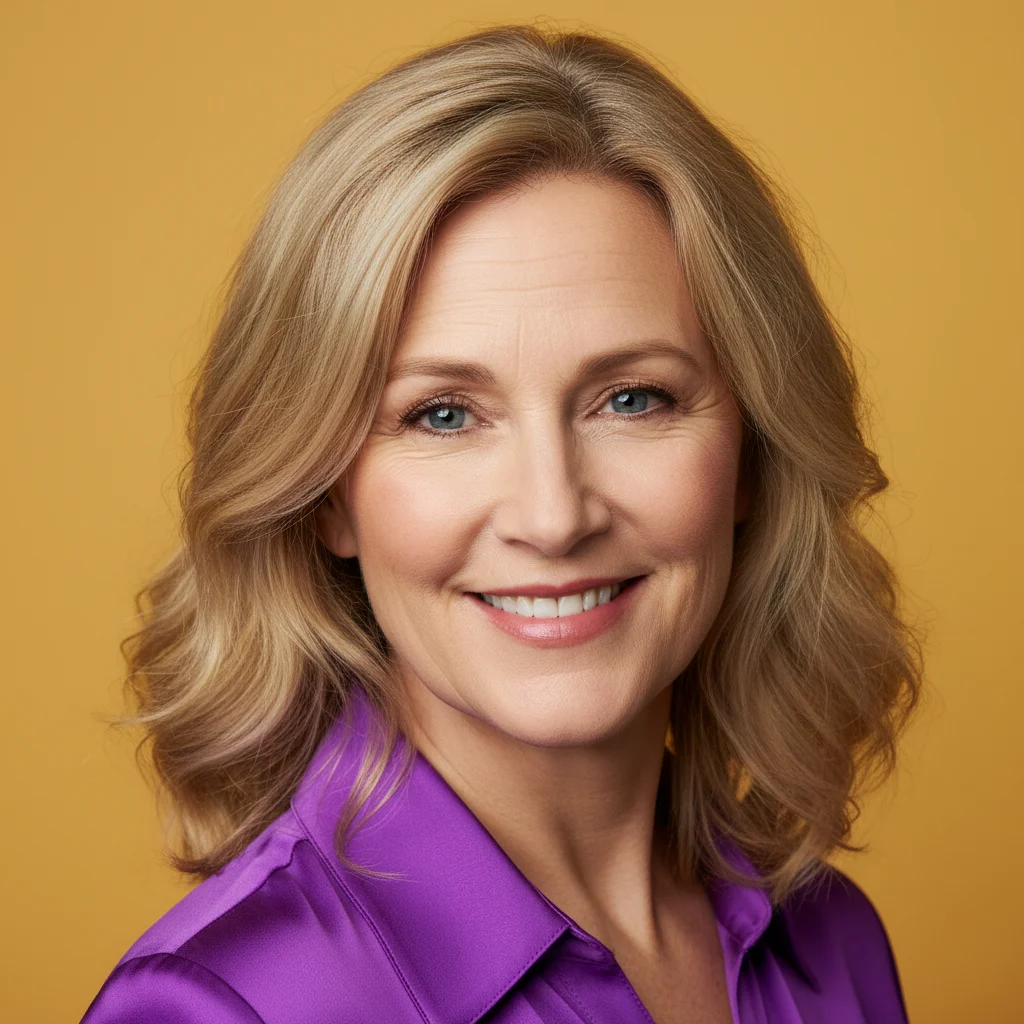
Woman with completely smooth face and youthful appearance

Prompt: Remove all wrinkles and age lines to make me look 25 years younger
Original photo before AI De-Aging Filter - Turn Back Time
Before
->
Photo after AI De-Aging Filter - Turn Back Time with EditThisPic
After

Subtle Rejuvenation

Person looking like early thirties with refreshed appearance

Prompt: Make me look 10 years younger with smoother skin

Detailed Guides by Scenario

📷

Design Visualization

Preview de-aging filter changes on your actual photo before committing — make confident design decisions backed by visuals.

Common Scenarios

  • Simulating de-aging filter on a room, outfit, or space to evaluate the look
  • Creating client-ready mockups that visualize de-aging filter in their specific context
  • Comparing multiple de-aging filter options side by side using the same source photo

Best Practices

  • Upload a clear, well-lit photo from the angle you'd naturally view the subject
  • Be specific about the de-aging filter — color, material, size, and placement all matter
  • Generate 2-3 variations to have meaningful options to compare
📷

Professional Proposals

Win client approval with realistic de-aging filter previews that show exactly what the finished result will look like.

Common Scenarios

  • Building a presentation deck with de-aging filter visualizations for a client pitch
  • Showing stakeholders de-aging filter options before ordering materials or starting work
  • Creating before-and-after comparisons of de-aging filter for a project proposal

Best Practices

  • Use the client's own photos for the most persuasive previews
  • Label each option clearly (Option A, B, C) for easy discussion
  • Note that de-aging filter previews are approximations — set expectations about final results
📷

Personal Decision-Making

Try before you buy — preview de-aging filter on your own photos to make smarter purchasing and lifestyle decisions.

Common Scenarios

  • Previewing de-aging filter before making an expensive purchase
  • Testing how de-aging filter looks in your actual space or on your actual person
  • Sharing de-aging filter previews with family or friends to get opinions before deciding

Best Practices

  • Upload a photo of the actual space/item/person — generic stock images won't help you decide
  • Try the most different options first (bold vs. subtle) to narrow down your de-aging filter preference
  • Save each preview so you can flip between them when comparing

If something looks off

AI changed the wrong area or something I didn't want changed

Why: The AI couldn't determine exactly which area you meant from description alone.

Try: Tap a marker on the specific area you want to change, then regenerate with the same prompt

Tip: Markers tell the AI 'I mean THIS one specifically.' Use them when description alone is ambiguous.

The result looks too artificial or over-smoothed

Why: The de-aging amount was too aggressive or the AI over-applied smoothing effects.

Try: Reduce the number of years or use terms like 'subtle' or 'natural de-aging' in your prompt

Tip: Start with smaller age reductions like 10-15 years for more believable results.

Hair color didn't change or restore properly

Why: The prompt didn't specifically mention hair color restoration.

Try: Add explicit hair color like 'restore hair to dark brown' or 'change gray hair to black' in your description

Tip: Always specify the exact hair color you want for consistent results.

Some wrinkles remained that I wanted removed

Why: The AI prioritized natural-looking de-aging over complete wrinkle removal.

Try: Add 'remove ALL wrinkles' or specify exact wrinkle locations like 'remove forehead lines completely'

Tip: Be explicit about complete removal if you want all wrinkles gone.

The de-aged face doesn't look like me anymore

Why: Too much de-aging altered core facial features beyond recognition.

Try: Use a smaller year reduction or add 'while keeping my facial features' to your prompt

Tip: De-aging more than 30 years can significantly alter facial recognition. Stick to 15-25 years for best results.

Skin texture looks plastic or fake

Why: Excessive smoothing removed natural skin texture.

Try: Add 'with natural skin texture' or 'realistic de-aging' to your prompt

Tip: Request natural or realistic results to preserve some skin texture for believability.

Quick answers

Do I need to mark wrinkles before the AI can remove them?

No, marking is not required. Simply describe how many years younger you want to look and the AI automatically identifies and smooths wrinkles, age spots, and other aging signs. Markers are only needed if you want to refine specific areas after seeing the initial result.

How realistic does AI de-aging look?

AI de-aging produces realistic results for moderate age reductions of 15-25 years. The AI smooths wrinkles, restores skin tone, and can adjust hair color based on natural aging patterns. For best results, avoid extreme de-aging requests over 30 years, which can look less natural. The technology works best when mimicking how you actually looked at that younger age.

Can I control which features get de-aged?

Yes, describe specific features in your prompt. For example, 'remove crow's feet but keep smile lines' or 'smooth forehead only' gives you selective control over which aging signs get reduced.

Will my photo have a watermark?

No, EditThisPic never adds watermarks. Download your de-aged photos in full quality without any branding or logos.

Can I de-age old photos of myself?

Yes, the AI works on any photo regardless of when it was taken. You can de-age current photos to see your younger self, or even de-age old photos to see what you looked like even earlier. The AI just needs a clear view of the face.

Ready to turn back time?

Free to try. No signup required.

Try it free