Pricing Prepare Obituary photo · Free

AI Obituary Photo Editor

← Browse all creative effects

Last updated

Crop from a group shot, plain background, fix the light. Free, no account.
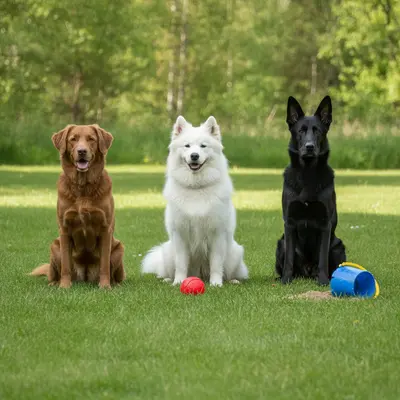
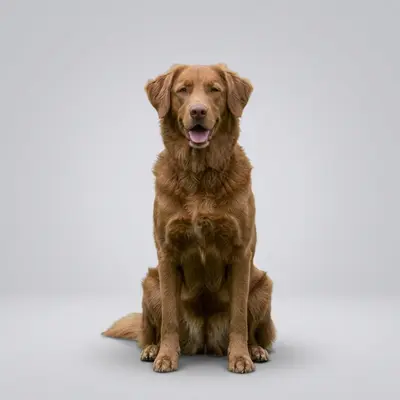
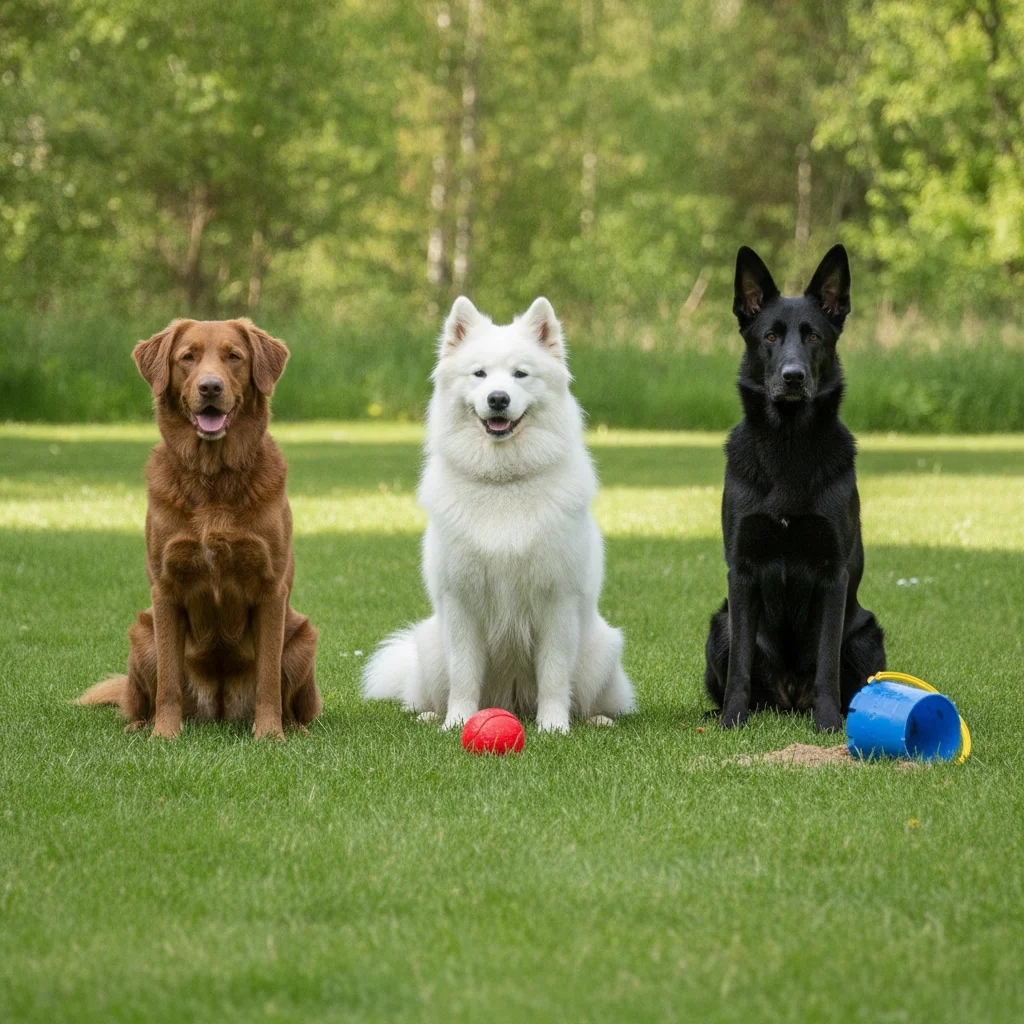
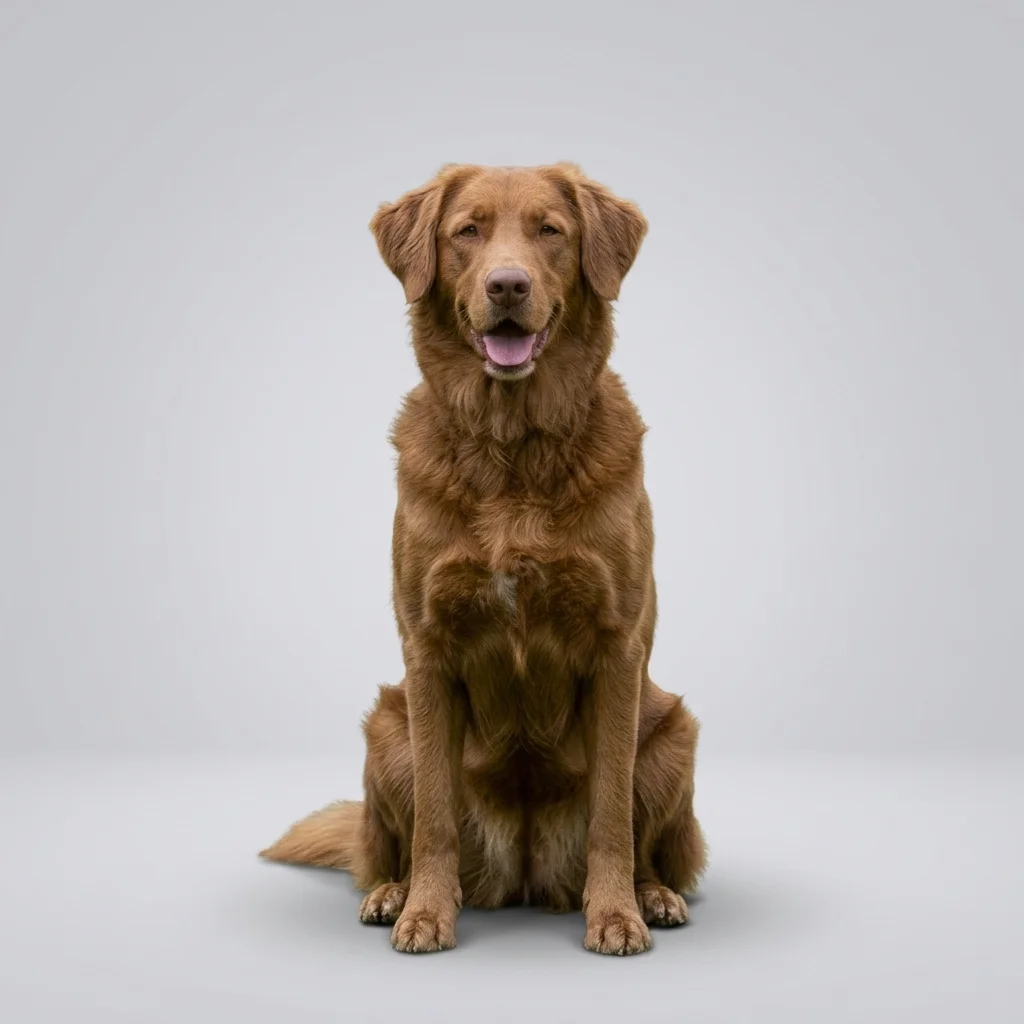
Three dogs in a row on a lawn, brown dog on the far left Brown dog alone against a plain light grey background

Upload photo to prepare obituary photo

"replace the cluttered background with a plain soft white background and keep the subject exactly as it is"

Free to try · no sign-up · never used for AI training

Release to upload

<30stypical edit
1 freeedit weekly
Photo on your phone? Scan to open this editor there — free edit works on your phone too.

1 free edit every week·paid packs after

How it works

  1. Upload the photo you plan to use

    Choose the clearest photo available. Group photos are fine if the person or pet you want is easy to see. Very small or blurry images limit the result, so use the largest original you can find.

    Expect: Most edits finish in roughly half a minute. Busy or low-resolution photos can take a little longer and may need one retry.
  2. Describe what you want

    Describe the preparation: the crop, the background and the light. For example: 'crop to the grey dog in the middle, replace the background with a plain soft grey, and brighten the lighting evenly.' Keep it to those three things. No marking is required.

    Tip: Say who or what to keep, by position, such as 'the one on the far left', so the crop lands on the right subject.

    Copy one of these to get started:

    Crop one subject from a group crop to the brown dog on the far left of the photo, remove the other dogs and replace the lawn with a plain light grey background
    Plain background replace the cluttered background with a plain soft white background and keep the subject exactly as it is
    Brighten a dim photo brighten this dim photo and balance the shadows evenly, keep colours natural and do not change anything else
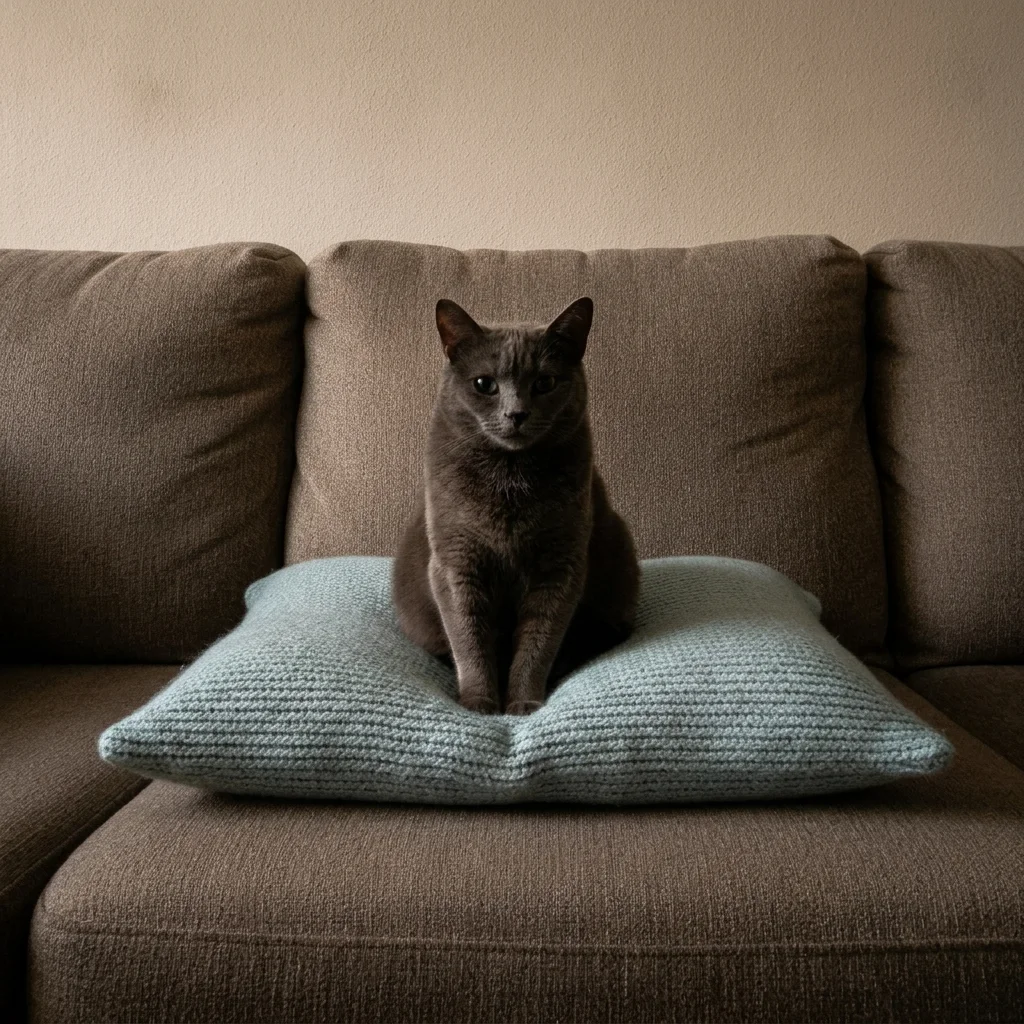
    Crop to a portrait shape crop to a vertical portrait of the cat with a little space above and below, keep the lighting and plain background
    3 more prompts
    Photograph of a framed print remove the glare and reflections from the glass over this framed photograph and even out the brightness, keep the picture itself unchanged
    Remove distracting items remove the garden chair and the hose from behind the dog and fill in with matching grass, keep the dog unchanged
    Sharpen a soft image sharpen this slightly soft photo so the outline and details look crisp, keep the colours natural
  3. Review the result

    Check the crop leaves a little space around the subject and nothing from the neighbouring subjects is left at the edges. Check the brightness looks natural. Zoom in on the outline against the new background.

  4. Refine with markers if needed

    If the crop kept the wrong subject or a piece of the old background remains, tap a marker on the subject to keep and regenerate. Markers are useful in busy group shots.

    Tip: Markers are for precision, not a required step. Most edits work from the description alone.

See it in action

Three dogs in a row on a lawn, brown dog on the far left
Before
->
Brown dog alone against a plain light grey background
After

One dog cropped from a group shot

A family needed a single-subject photo for a pet memorial notice.

Prompt: crop to the brown dog on the left, remove the other dogs and replace the lawn with a plain light grey background
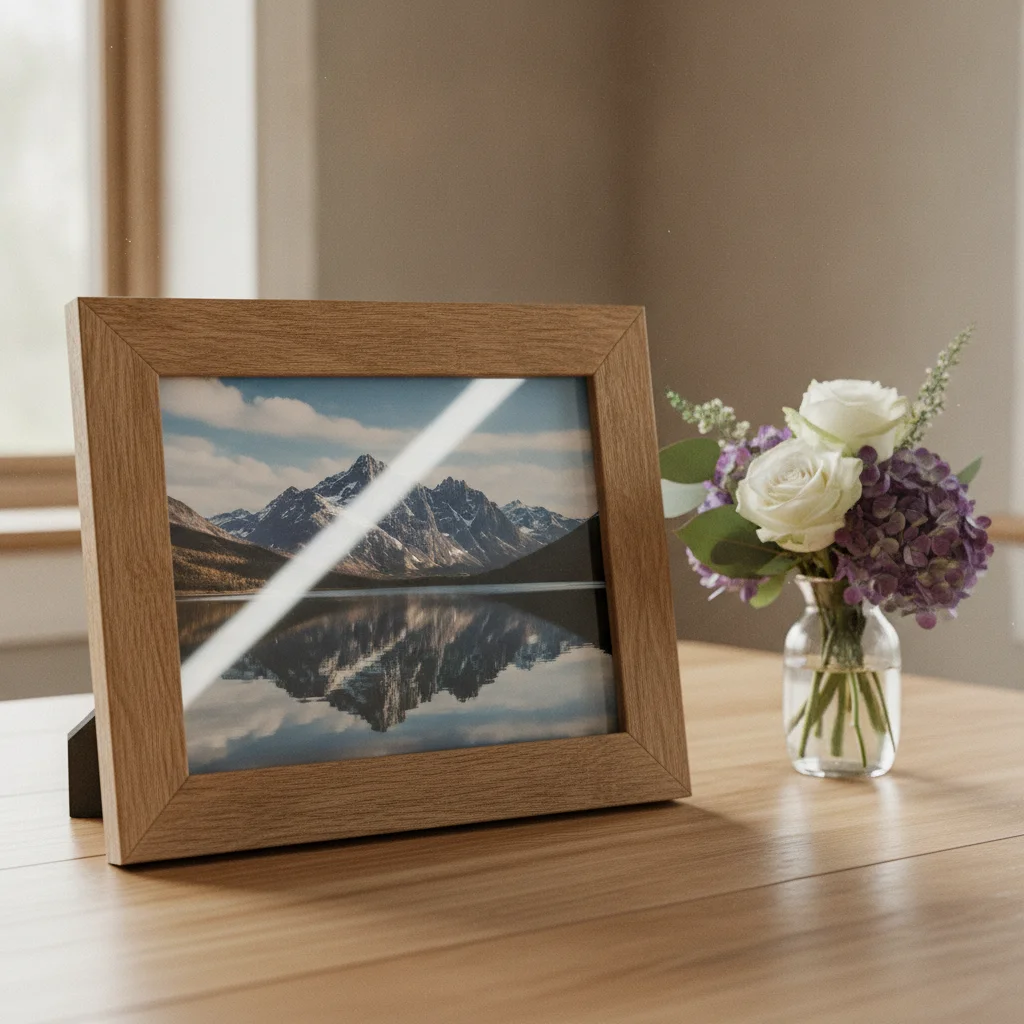
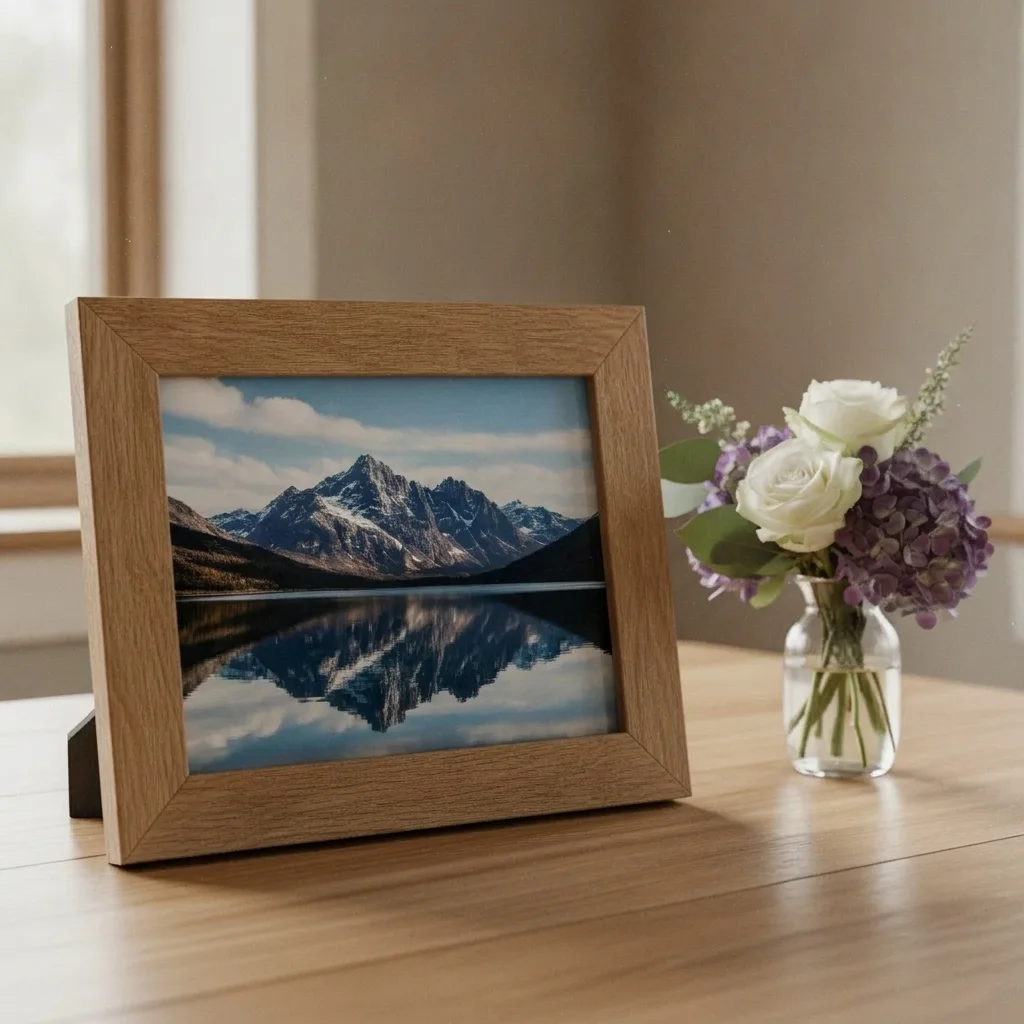
Framed lake photo on a table with a white glare streak
Before
->
Same framed photo with glare reduced and even brightness
After

Framed photo with glare cleaned up

The only copy was a framed picture photographed on a table.

Prompt: remove the glare from the glass over this framed photograph and even out the brightness
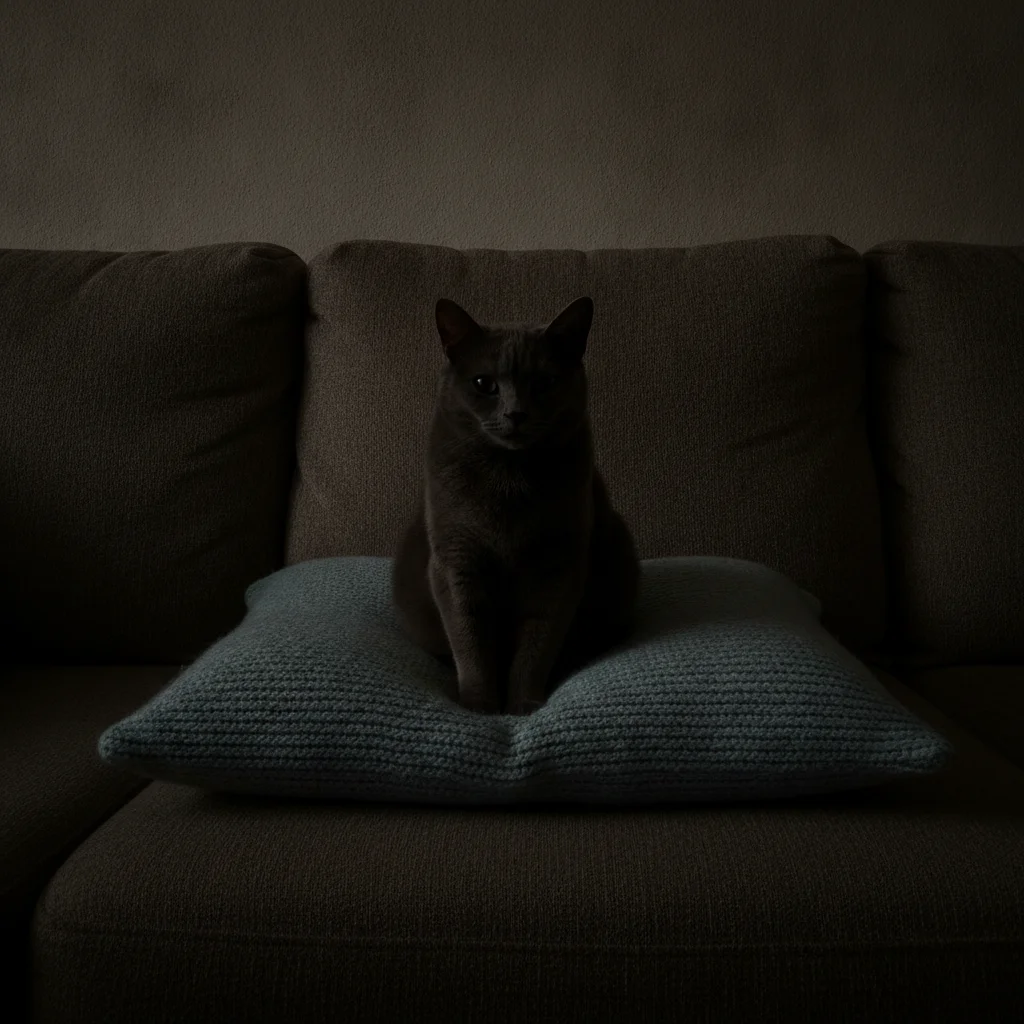
Dark photo of a grey cat on a pale blue cushion
Before
->
Same cat photo evenly brightened with natural contrast
After

Dark pet photo brightened

An indoor photo was too dim for a printed programme.

Prompt: brighten this dark photo and balance the shadows evenly, keep everything else unchanged

Quick answers

Do I need to mark the person or pet I want to keep?

No. Describe who to keep by position, for example 'the dog on the far left.' Use markers only if the AI keeps the wrong subject or leaves part of the background.

How do I prepare a photo for an obituary for free?

Upload the photo to EditThisPic, describe the crop, background and lighting, and run the edit. The free edit is a preview with no signup and no watermark.

What size or format does the newspaper or funeral home need?

Requirements vary. Ask the publisher or funeral director what they need and follow it.

Can it work for a pet memorial notice?

Yes. The same steps apply to a pet photo: crop, plain background and brighter light.

Does it change anyone's appearance?

This page is for preparing the photo: crop, background, brightness and sharpening. It does not retouch features. For damaged prints, try the photo restorer.

How much does EditThisPic cost?

You get 1 free Standard edit per week — no account needed. After that, one-time credit packs start at $4.99 for 10 credits, valid 12 months, no subscription. A Standard edit uses 1 credit, Pro 2 and Ultra 3. Purchased downloads are clean with no watermark.

Ready to prepare your photo?

Free to try. No signup required.

1 free edit included·paid credit packs after